How to Share Your Mobile Screen in a Zoom Meeting: 4 Easy Methods
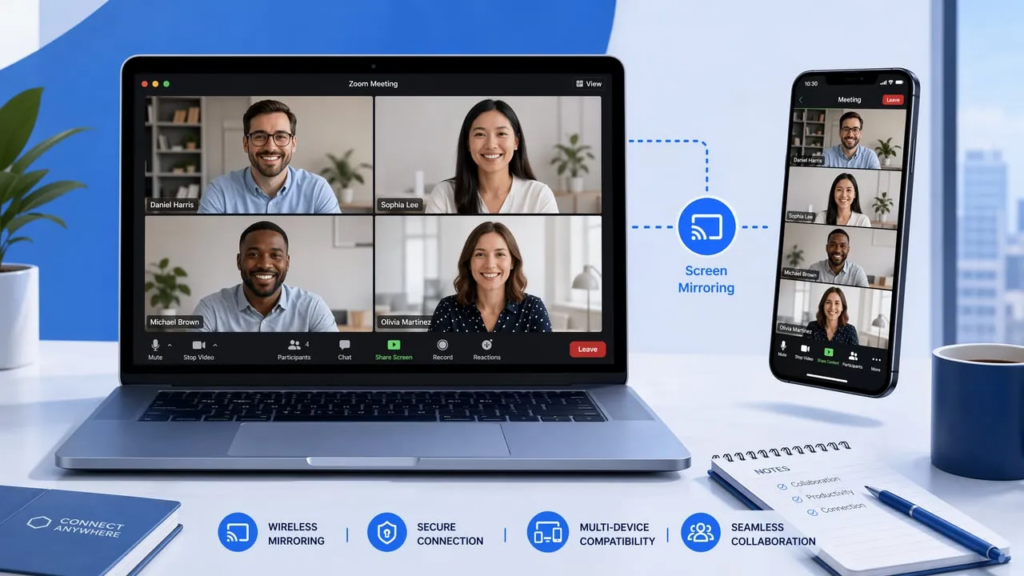
You’re in a Zoom meeting on your laptop, and suddenly you need to demonstrate something on your mobile phone. Whether it’s showing a mobile app, displaying social media content, or presenting mobile-specific features, knowing how to share your phone screen during an ongoing meeting is a valuable skill for modern professionals.
This guide covers four practical methods to share your mobile screen in Zoom meeting while you’re already connected on your laptop, each suited for different scenarios and technical requirements.
Why Share Your Mobile Screen in Zoom?
Before diving into the methods, let’s understand why mobile screen sharing matters. Mobile devices have become central to how we work, communicate, and create content. You might need to:
ㆍ Demonstrate a mobile app’s functionality to stakeholders or clients
ㆍ Show mobile-responsive website designs in real-time
ㆍ Present social media content that looks different on mobile
ㆍ Walk team members through mobile-specific workflows
ㆍ Showcase mobile gaming or entertainment apps
ㆍ Display mobile banking, e-commerce, or other mobile-first platforms
The challenge is that traditional screen sharing in Zoom is designed primarily for desktop computers, and only allows sharing 1 device screen per person. Fortunately, several reliable methods exist to bridge this gap.
Method 1: Join from Mobile and Share Screen Directly
If you need to share your mobile screen and don’t mind temporarily switching your primary connection, you can join the same Zoom meeting from your mobile device and share your screen directly.
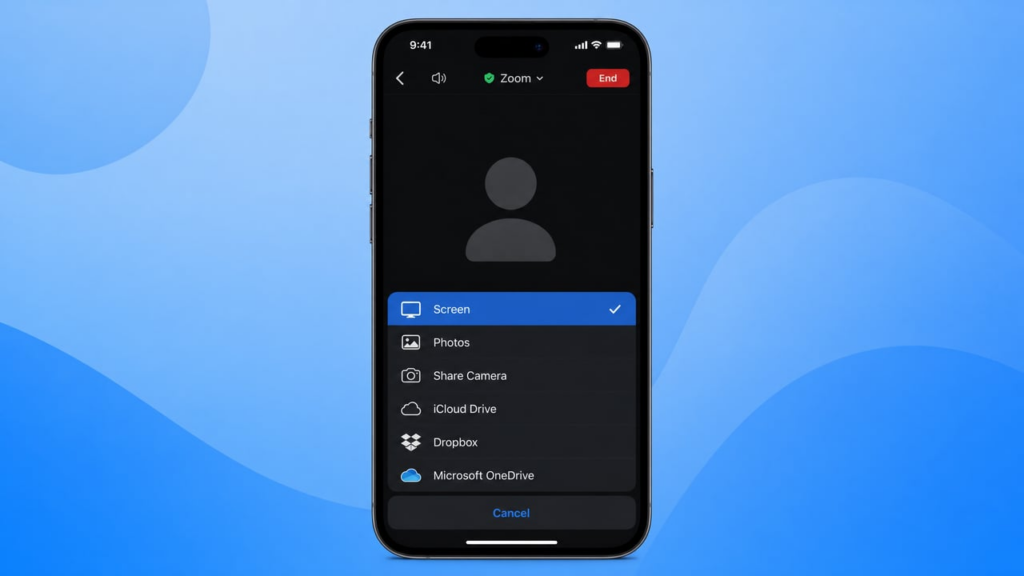
Open the Zoom app on your phone or tablet and join the same meeting using the meeting ID.
Tap “Share Content” at the bottom, then select “Screen.”
When prompted, tap “Start Broadcast” and your entire mobile screen becomes visible to all participants.
To stop sharing, tap the red status bar at the top and select “Stop Broadcast.”
Important Note: With this method, you’ll be in the meeting from both your laptop and mobile device simultaneously. You may want to mute your laptop’s audio to avoid echo. This approach requires no additional software but means you can only share one device at a time. For a more seamless experience where you stay connected only from your laptop, consider the methods below.
Method 2: USB Cable Connection (Stay on Laptop)
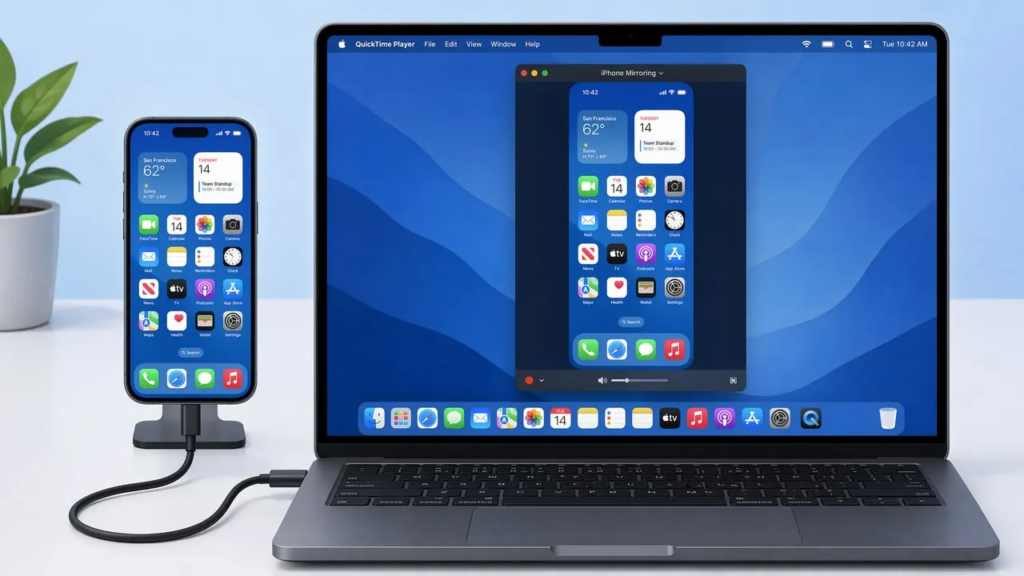
This method lets you stay in the meeting on your laptop while mirroring your mobile screen via USB cable. You’ll share the mirrored phone display as a window in your ongoing Zoom meeting.
For iPhone Users:
Connect your iPhone to your Mac using a Lightning or USB-C cable.
Option A: QuickTime Player (All macOS versions)
Open QuickTime Player, select “File” > “New Movie Recording,” click the arrow next to the record button, and select your iPhone. Your iPhone screen now appears in a QuickTime window.
In your ongoing Zoom meeting on your laptop, click “Share Screen” and select the QuickTime window showing your iPhone display.
Option B: iPhone Mirroring (macOS Sequoia 15+ and iOS 18+)
For newer systems, Apple’s iPhone Mirroring feature offers a more streamlined approach.
Open the iPhone Mirroring app from your Mac’s Dock. Once your iPhone screen appears, you’re connected and can interact with your device directly from your Mac.
In your ongoing Zoom meeting, click “Share Screen” and select the iPhone Mirroring window to display your mobile screen to participants.
For Android Users:
Use applications like Vysor or scrcpy to mirror your Android screen to your computer via USB.
Once your phone screen appears in a window on your laptop, click “Share Screen” in your Zoom meeting and select that window.
This method provides stable, lag-free mirroring without relying on Wi-Fi, ideal for unreliable wireless environments. You remain connected to Zoom on your laptop throughout. However, you’ll need the appropriate cable and software, and you’re physically tethered to your computer.
Method 3: Screen Mirroring with 1001 TVs (Stay on Laptop)
For users who need wireless flexibility while staying connected to Zoom on their laptop, 1001 TVs offers a powerful screen mirroring solution.
1001 TVs wirelessly mirrors your mobile screen to your computer.
Install the app on both your phone and laptop, ensure they’re on the same Wi-Fi network, then connect your phone to your computer through the app.

Your phone screen appears in a window on your laptop.
In your ongoing Zoom meeting, click “Share Screen” and select either full screen or the 1001 TVs window to show your mobile screen to all participants — while you remain connected on your laptop.
The Multi-Device Advantage:
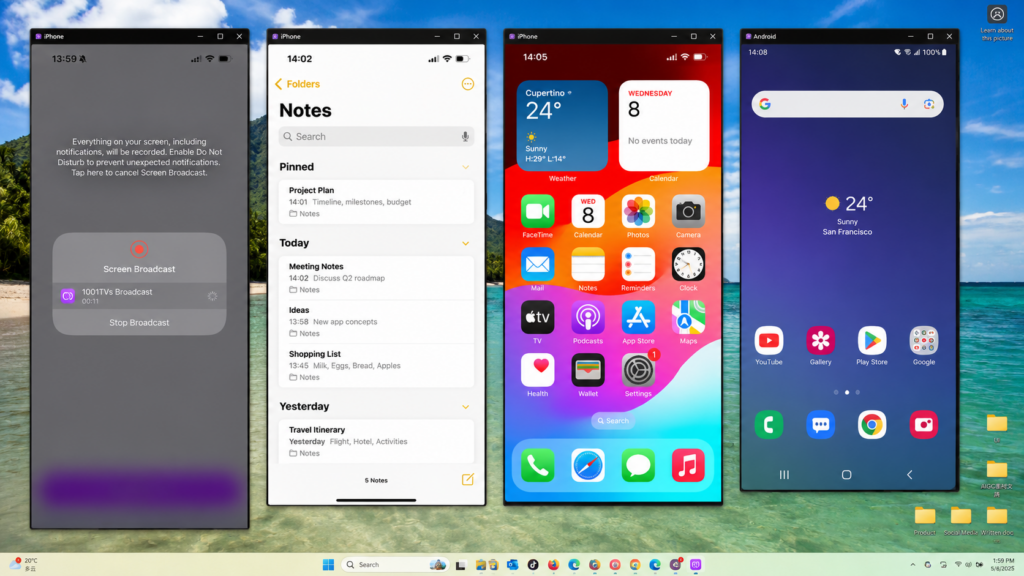
Here’s where 1001 TVs truly shines: you can mirror multiple phone screens to one laptop simultaneously. This unique capability is invaluable for scenarios like:
ㆍ Cross-platform testing: Display an iOS and Android device side-by-side to compare app behavior
ㆍ Multi-user demonstrations: Show how multiple users interact with your app in real-time
ㆍ Device comparison: Demonstrate how content appears across different screen sizes and resolutions
ㆍ Team collaboration: Allow multiple team members to share their mobile screens during the same meeting
Simply connect multiple mobile devices to your computer using 1001 TVs, and you can display them simultaneously by aligning your mirroring windows.
This method is ideal for product managers, app developers, QA testers, and educators who regularly demonstrate mobile content across multiple devices.
Method 4: Built-in Operating System Screen Mirroring (Stay on Laptop)
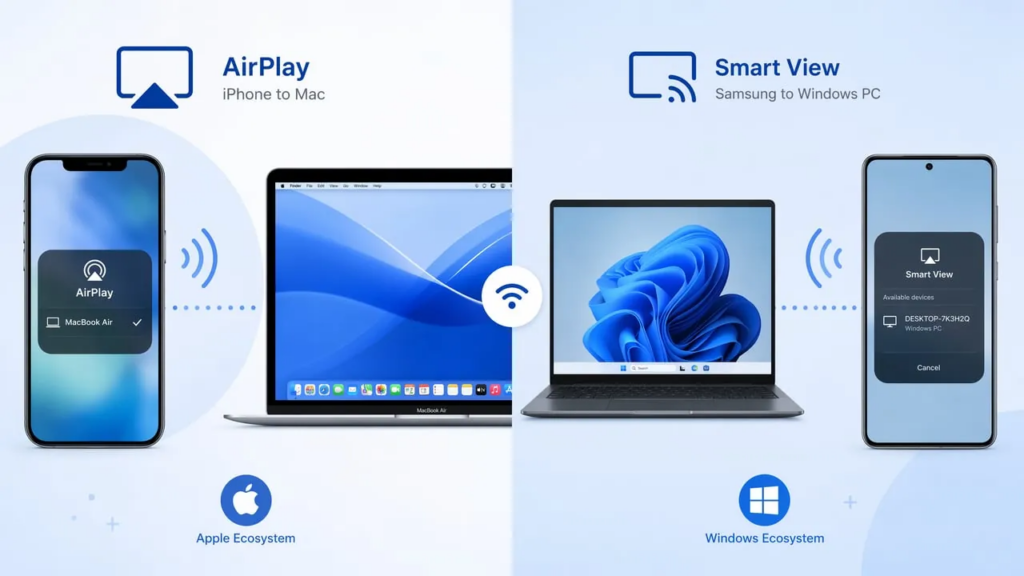
Both iOS and Android offer native screen mirroring capabilities that work with your ongoing Zoom meeting on your laptop.
AirPlay for Apple Devices:
If you have a Mac, use AirPlay to mirror your iPhone or iPad screen to your laptop.
Swipe down from the top-right corner of your iOS device to access Control Center, tap “Screen Mirroring”, and select your Mac. Your phone screen now appears on your Mac.
In your ongoing Zoom meeting, click “Share Screen” and select the window or your entire Mac screen to show your mobile device to participants.
Smart View for Samsung Devices:
Samsung devices offer Smart View for mirroring to compatible Windows PCs with the Smart View app installed.
Enable Smart View on your phone, connect to your laptop, then share that display in your ongoing Zoom meeting.
These methods work well if you already have compatible hardware in your ecosystem. They’re reliable and don’t require third-party software, though they’re limited to specific device combinations.
Troubleshooting Common Issues
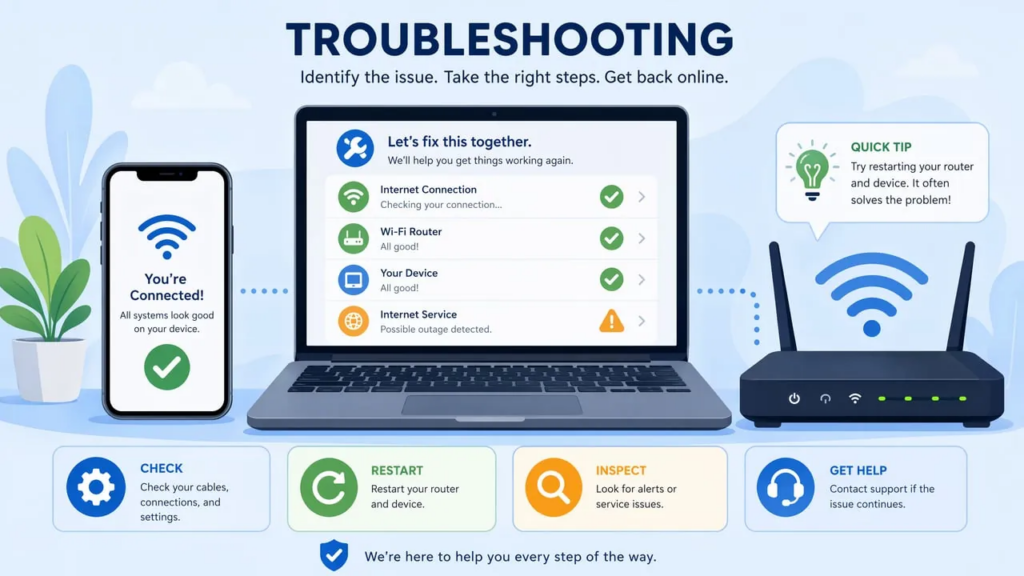
Even with the best methods, you might encounter occasional challenges when trying to share screen in Zoom meeting from your mobile device.
Poor Video Quality or Lag:
If your shared mobile screen appears choppy or low-quality, check your internet connection first. Both your mobile device and computer need stable, high-speed connections. Close unnecessary applications on both devices to free up processing power and bandwidth.
For wireless mirroring methods, ensure your devices are on the same Wi-Fi network and relatively close to your router. Consider using the 5GHz band if your router supports it, as it typically offers better performance for screen mirroring.
Audio Not Sharing:
By default, most screen mirroring methods only share video, not audio from your mobile device. If you need to share mobile audio during your Zoom meeting, check your screen sharing settings. In Zoom, when you start sharing, make sure to check the “Share computer sound” option if available.
Some methods, like 1001 TVs, offer audio sharing features that you’ll need to enable in the screen mirroring settings.
Connection Drops or Instability:
If your screen mirroring connection keeps dropping, verify that both devices remain on the same network throughout your meeting. Disable battery-saving modes on your mobile device, as these can interfere with screen mirroring connections.
For USB-connected methods, try a different cable or USB port if you experience disconnections.
Permission and Security Issues:
Modern mobile operating systems require explicit permissions for screen recording and mirroring. If screen sharing isn’t working, check your device settings to ensure Zoom and any screen mirroring apps have the necessary permissions enabled.
On iOS, go to Settings > Privacy > Screen Recording and ensure the relevant apps are authorized.
On Android, check Settings > Apps > Special app access > Display over other apps.
Conclusion: Choose the Right Method for Your Needs
Successfully sharing your mobile screen in a Zoom meeting depends on selecting the method that best fits your specific situation. For quick, one-off demonstrations, the native Zoom mobile app screen sharing feature offers the fastest solution. When you need rock-solid stability, a USB cable connection provides reliable performance without depending on wireless networks.
For professionals who regularly demonstrate mobile content—especially across multiple devices — 1001 TVs offers unmatched flexibility. Its ability to mirror multiple phone screens to a single laptop makes it an invaluable tool for app developers, product teams, and educators who need to showcase cross-platform functionality or compare device behaviors side-by-side.
Whichever method you choose, mastering mobile screen sharing will enhance your Zoom presentations and make your remote collaboration more effective and professional.
👉 Ready to experience seamless multi-device screen mirroring? Download 1001 TVs today and transform how you share mobile content in your Zoom meetings.

Read More
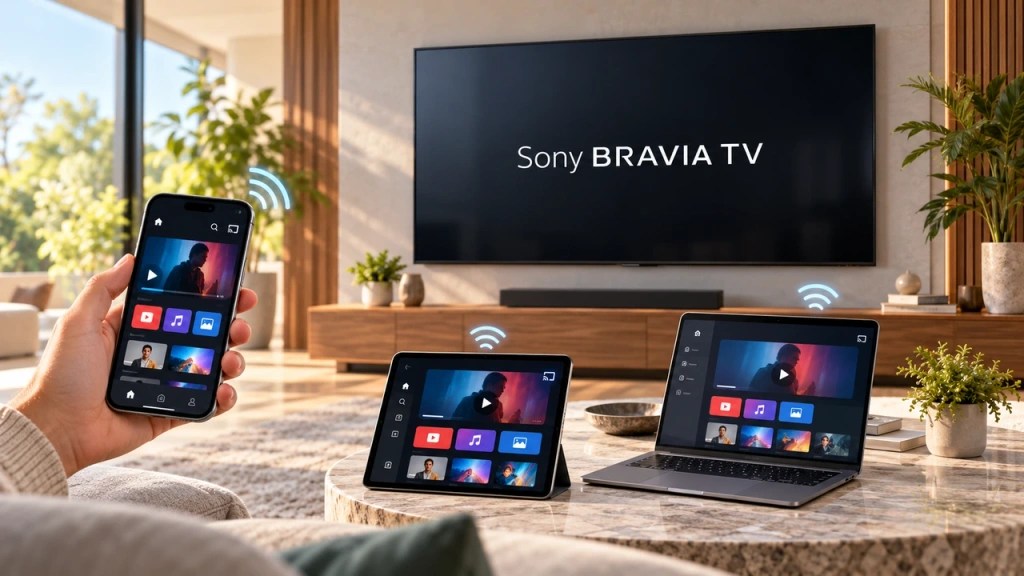 How to Screen Mirror to Sony Bravia TV (Google TV)
A Sony Bravia Google TV does not use one universal “Screen Mirroring” method for every phone and computer. The right choice depends on both…
How to Screen Mirror to Sony Bravia TV (Google TV)
A Sony Bravia Google TV does not use one universal “Screen Mirroring” method for every phone and computer. The right choice depends on both…
 How to Cast to LG webOS TV
You can cast—or, in some cases, mirror—an iPhone, iPad, Android phone, Windows PC, or Mac to an LG webOS TV. The right method depends…
How to Cast to LG webOS TV
You can cast—or, in some cases, mirror—an iPhone, iPad, Android phone, Windows PC, or Mac to an LG webOS TV. The right method depends…

