
[2026] Screen Mirroring Not Working? Common Causes and Practical Solutions
Screen mirroring is designed to make sharing content between devices simple. In practice, many users encounter problems: devices cannot find each other, connections fail unexpectedly, or screen mirroring works on one setup but not another.
These issues are especially common when mixing platforms, such as using an iPhone with an Android TV. However, the same underlying causes apply to many device combinations.
This article explains why screen mirroring often fails, what you can do to fix it, and when different solutions are required.
💡 Quick Explanation: Why Screen Mirroring Fails
Most screen mirroring problems fall into one of three categories:
1. Network issues
2. Device or app-related problems
3. Protocol limitations between platforms
Understanding which category applies can save time and reduce frustration.
Common Reasons Screen Mirroring Is Not Working
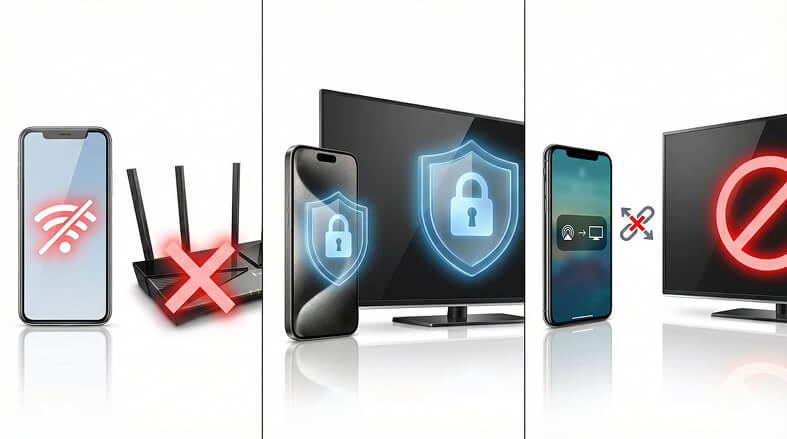
1. Network Issues (Most Common)
Screen mirroring relies on local network communication. Problems often occur when:
• Devices are not connected to the same Wi-Fi network
• The network connection is unstable or frequently disconnects
• Required local network permissions are disabled
• Device discovery traffic is blocked by the router (firewalls, AP isolation, etc.)
Even when both devices have internet access, screen mirroring may fail if local communication is restricted.
2. Device or App Issues
Temporary software issues can also prevent screen mirroring from working, including:
• Minor system or app bugs
• Outdated operating systems or TV firmware
• Background restrictions or aggressive power-saving modes
• Screen mirroring permissions disabled at the system level
These issues can appear suddenly, even if screen mirroring worked previously.
3. Cross-Platform Protocol Limitations
Built-in screen mirroring tools are often designed for same-ecosystem use.
• On iPhone, built-in screen mirroring relies on AirPlay
• Android TVs do not natively support AirPlay (Some Samsung, LG, Sony TVs could have AirPlay support)
• As a result, iPhone-to-Android TV screen mirroring frequently fails using built-in options
This is not a connection error — it is a protocol mismatch. When devices do not share a native mirroring standard, they may not detect each other at all.
⭐ Common Solutions to Try First
Before changing tools or settings, try the following steps:
• Restart both devices
• Restart the Wi-Fi router
• Confirm both devices are on the same network
• Check that screen mirroring and local network permissions are enabled on both devices
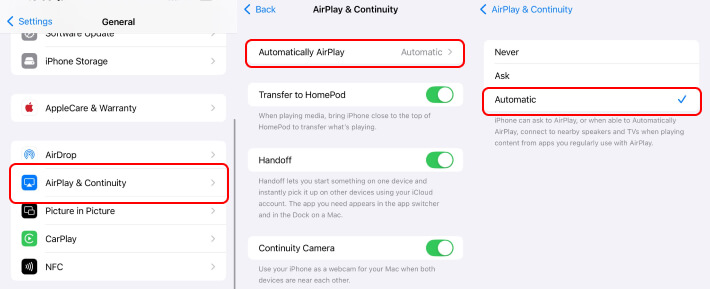
Example 1: Turn on AirPlay on iPhone
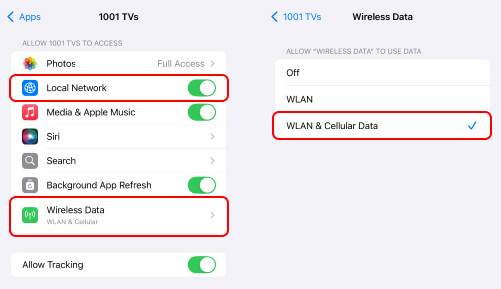
Example 2: Turn on Local Network permission for a screen mirroring app on iPhone
• Disable VPNs or firewall apps temporarily
• Verify whether the devices support the same mirroring protocol (For AirPlay, check the list of TVs with AirpPlay support)
• If the issue is protocol incompatibility, use a third-party screen mirroring app designed for cross-platform devices (see next section)
These steps resolve many basic screen mirroring issues.
Using a Cross-Platform Screen Mirroring App
When built-in screen mirroring fails due to platform differences – especially when screen mirroring from an iPhone to an Android TV, cross-platform screen mirroring apps provide a practical solution.
1001 TVs is designed for mixed-device environments, allowing screen mirroring between iPhones, Android TVs, and PCs without relying on AirPlay.
Why This Works
• It does not depend on Apple’s AirPlay protocol
• It is designed specifically for cross-platform screen mirroring
• It is available on various devices: phones, tablets, computers, and TVs
Basic Setup
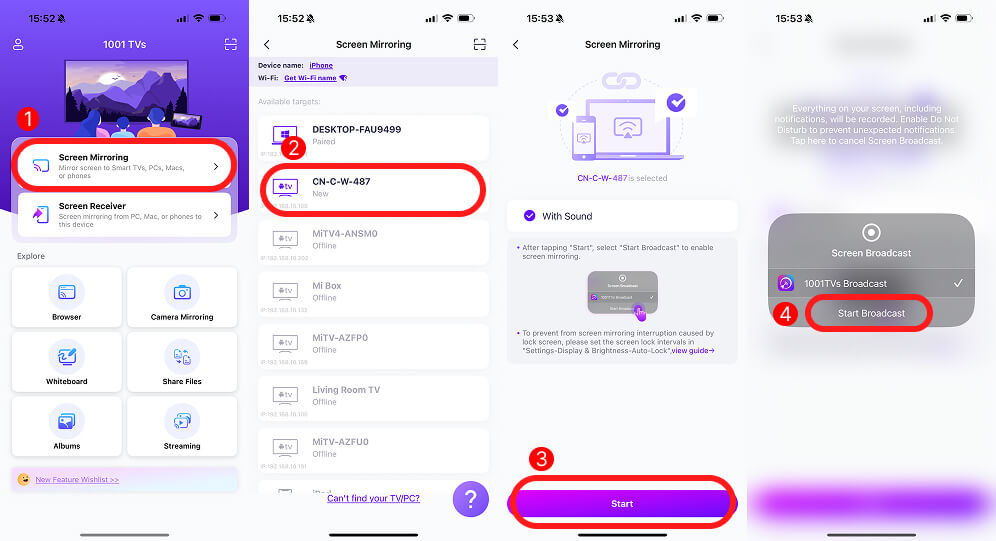
Example: Screen mirroring iPhone to Amazon Fire TV
1. Install and open the app on both the sending and receiving devices
2. Connect both devices to the same Wi-Fi
3. On the sener device, go to Screen Mirroring
4. Select the target device and start screen mirroring
Start screen mirroring with 1001 TVs
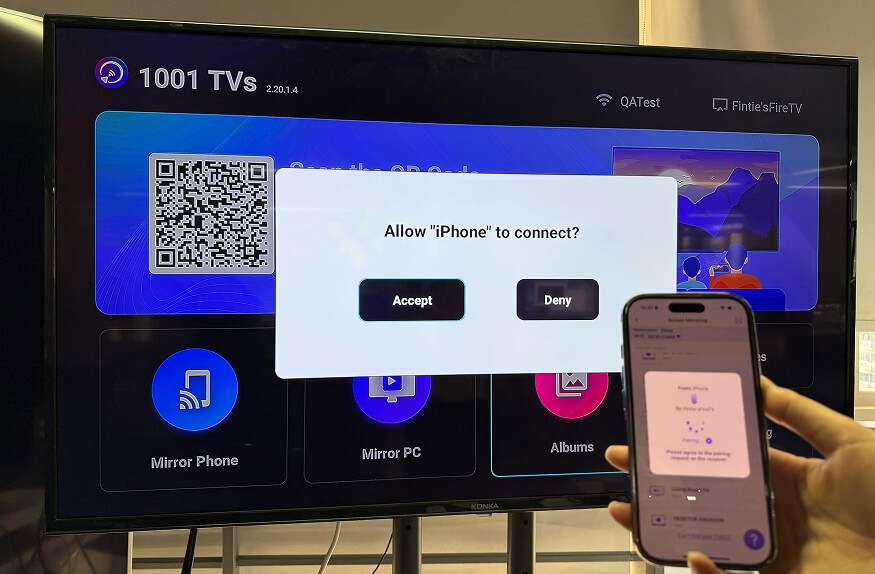
Allow connection on Fire TV
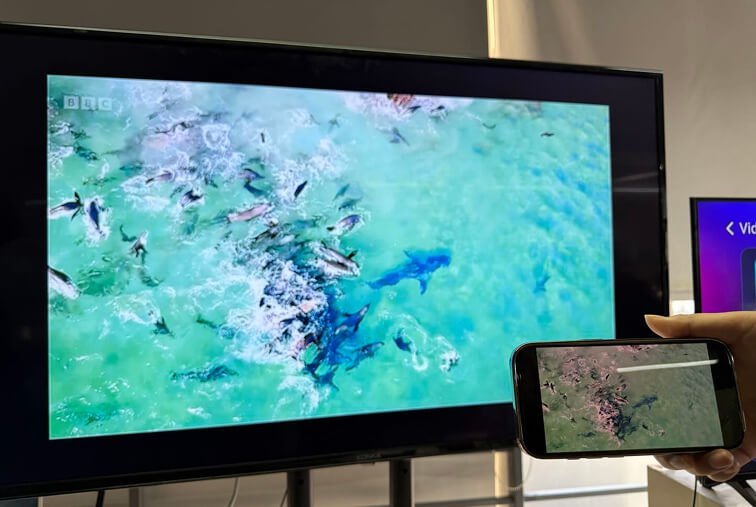
Screen mirrored successfully
This approach adds a setup step but significantly expands device compatibility.
When Screen Mirroring Still Doesn’t Work
In some environments, screen mirroring issues are caused by external constraints rather than device settings.
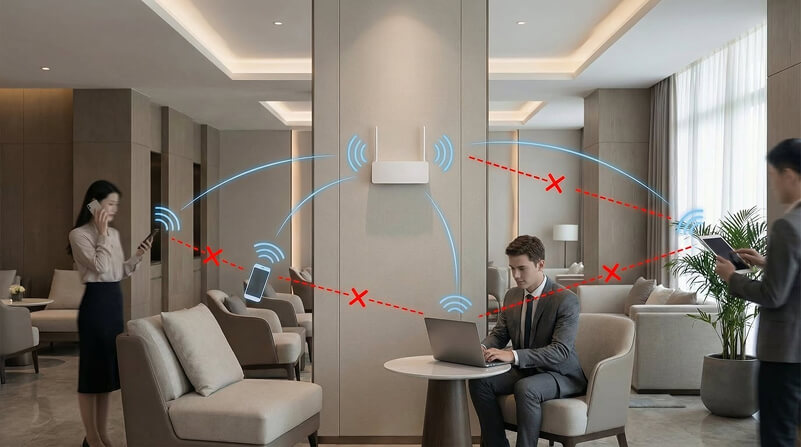
Network Isolation on Public or Shared Wi-Fi
Hotels, offices, and campus networks often enable AP isolation (or client isolation), which prevents devices on the same Wi-Fi network from communicating directly. When this happens, screen mirroring discovery fails by design.
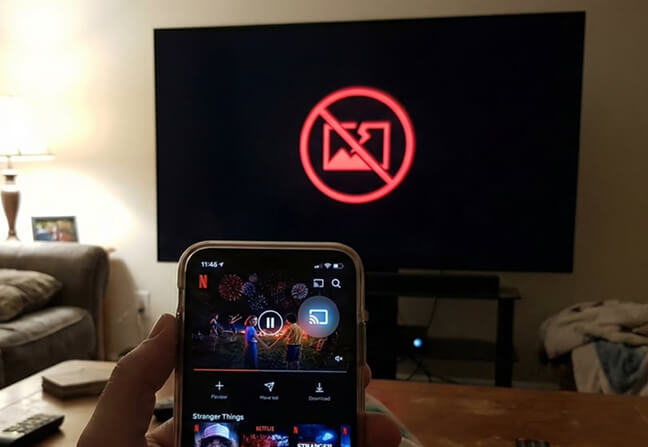
Content and App Restrictions
Some apps, like Netflix, restrict third-party screen capture or mirroring, particularly for copyrighted or protected content. In these cases, users may see a black screen or audio without video.
Summary
Screen mirroring issues are usually caused by network restrictions, device or app limitations, or protocol differences. When screen mirroring is not working, the problem is somtimes not the device itself, but how devices discover and communicate with each other on a local network.
When screen mirroring between an iPhone and an Android TV fails, it is usually due to network restrictions, blocked device discovery, or incompatible mirroring protocols. In these situations, cross-platform screen mirroring apps offer a more flexible approach by handling device discovery and transmission independently of AirPlay.
Understanding these limitations helps explain why screen mirroring works in some environments but not others, and why different solutions are needed depending on the devices and networks involved.