
How to Send Files to Android/iOS Phone
1001 TVs lets you transfer files seamlessly between devices — from PC/Mac to phone, or from phone to phone — all over Wi-Fi with no cables needed. Whether you’re sharing documents, music, photos, or videos, the process is fast, simple, and wireless.
Here’s how to send files across your devices.
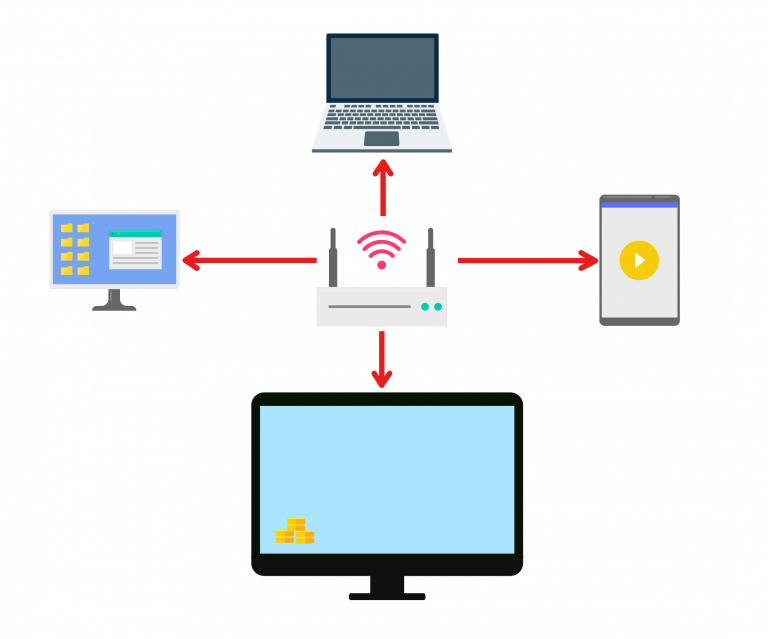
1. Connect to the Same Wi-Fi:
Make sure both your devices are connected to the same Wi-Fi network.
(A 5G band Wi-Fi connection is recommended for the best performance.)
2. Install 1001 TVs on Phone and Mac/PC
📥 Mac App: Download from App Store
📥 PC App: Download from Microsoft Store
For detailed steps, refer to the PC Installation Guide
📱 iOS App: Download from App Store
📱 Android App: Download from Google Play
3. Start transferring
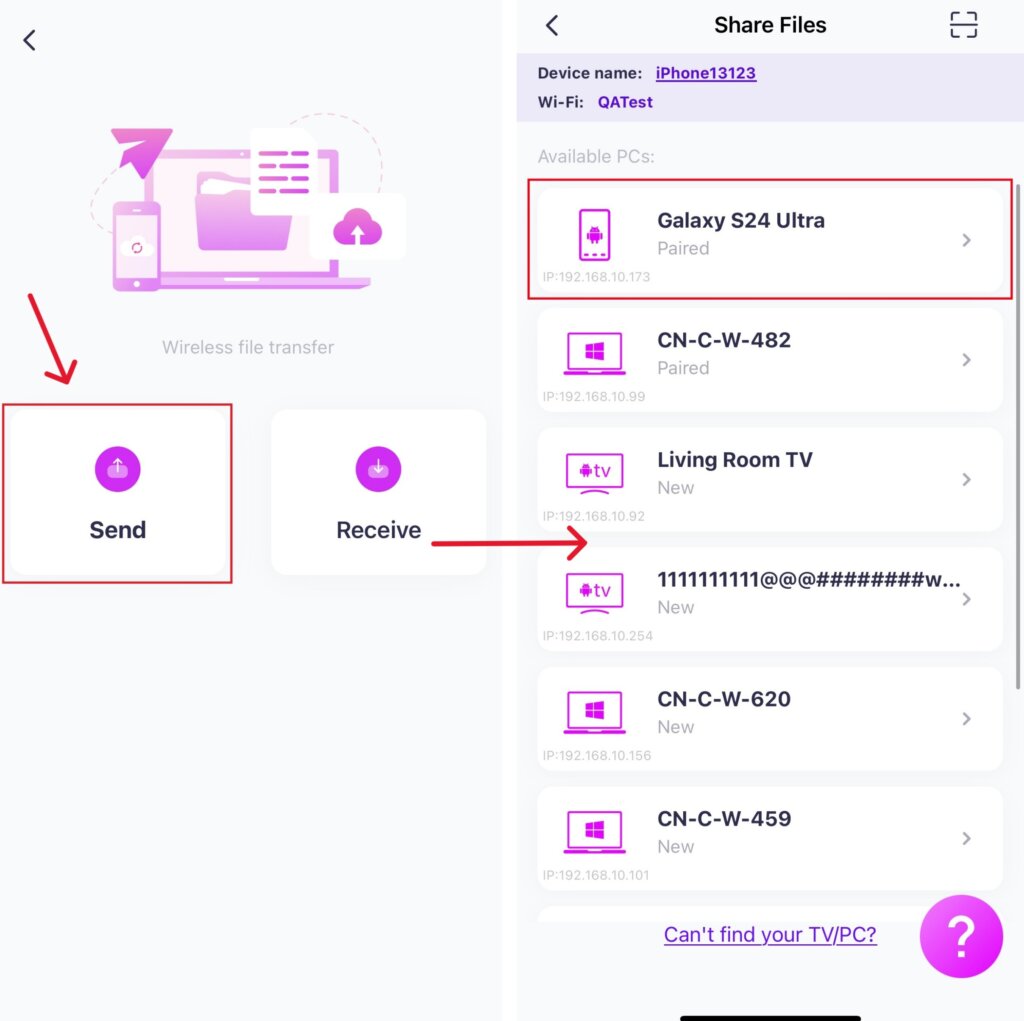
Launch 1001 TVs on your receiving phone and tap Share Files –>Receive.

1) From PC/Mac to Phone
On your PC/Mac, click Send and select your target phone from the device list.
Note: If the target device is offline, you can still view the files you’ve received.
To connect the device, check your network connection, or click the “+” icon and enter your phone’s IP address.
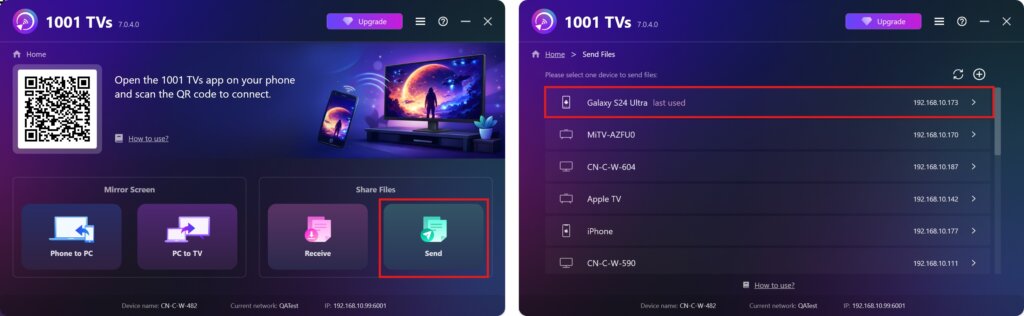
Tap Accept on your phone to confirm pairing.
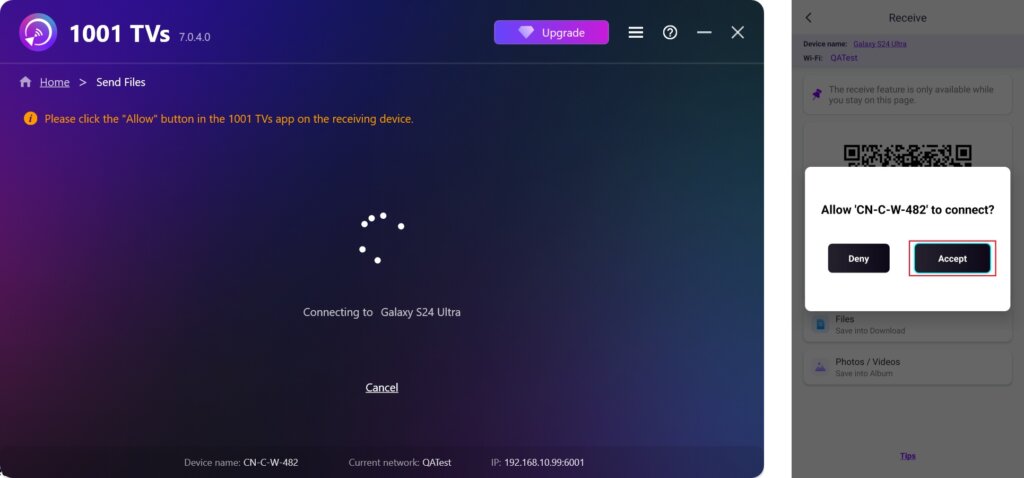
Once successfully paired, you can easily transfer files to your phone.
Received files are saved to the Download folder, and photos/videos to the Album.
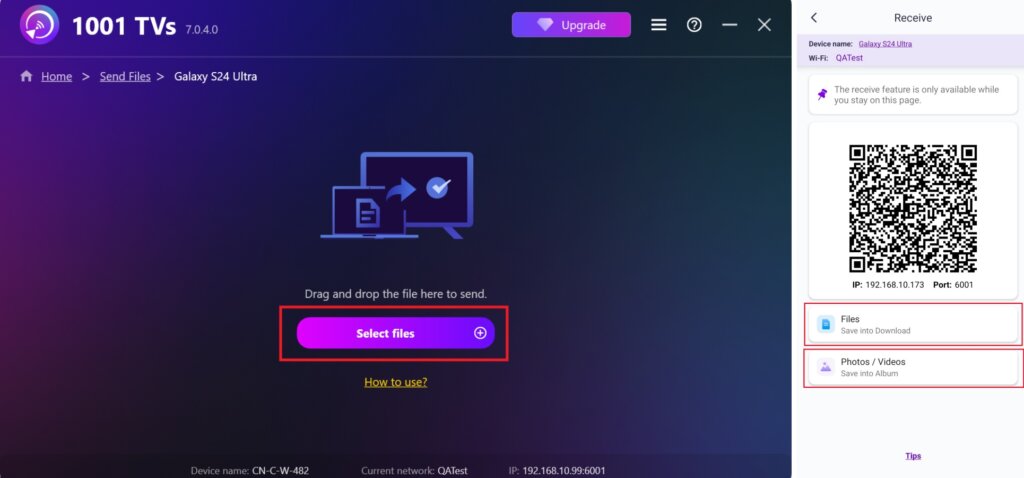
2) Send Files from Phone to Phone
On the sending device, open 1001 TVs, go to Share Files –> Send, and select your target device from the list.
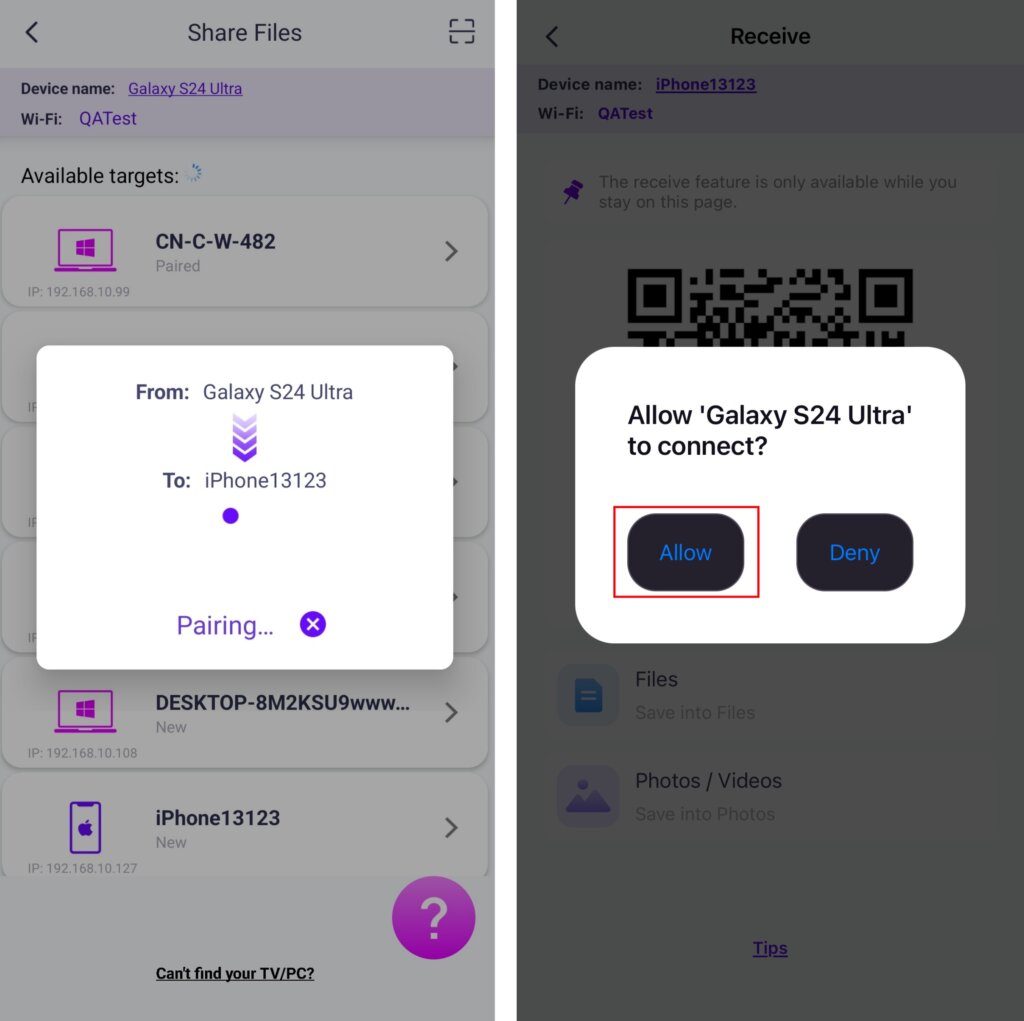
Tap Accept on your receiving phone to confirm pairing.
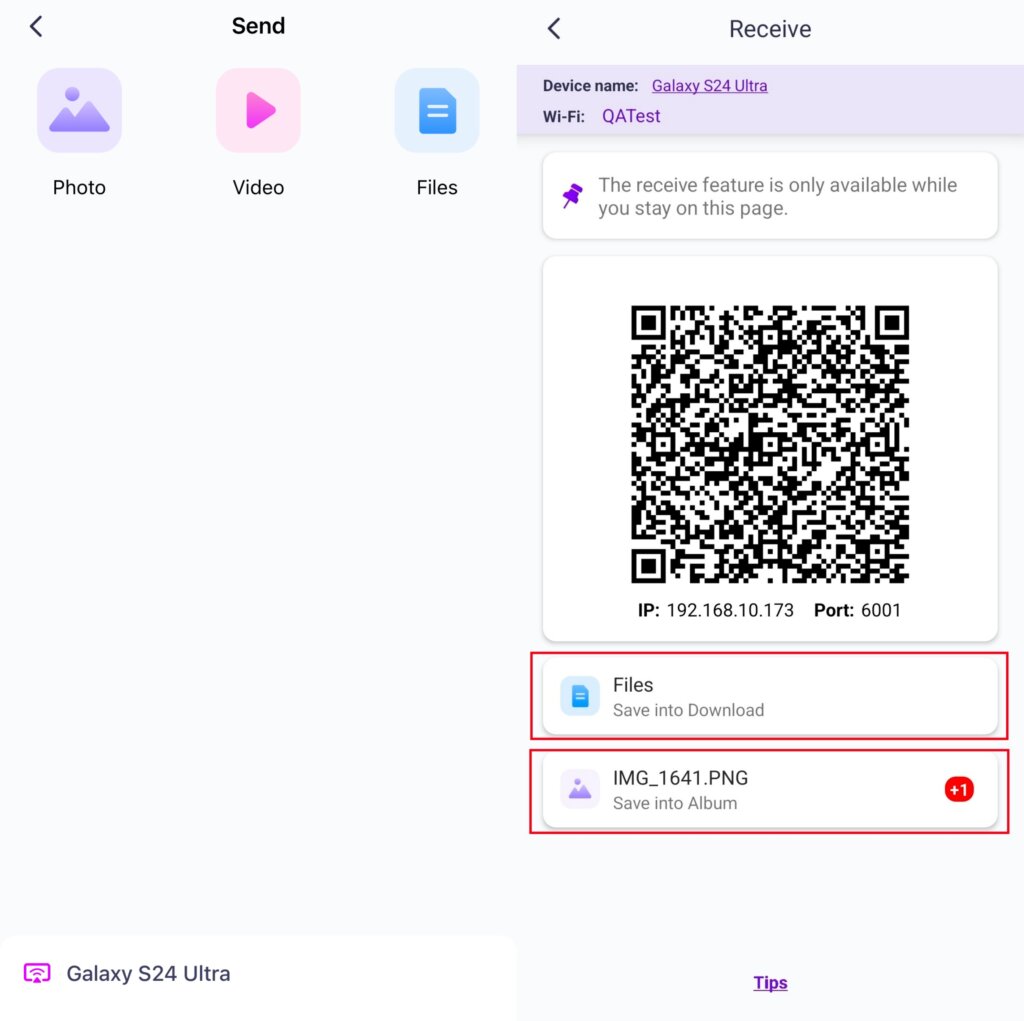
Once successfully paired, you can easily transfer files to your phone.
Received files are saved to the Download folder, and photos/videos to the Album.
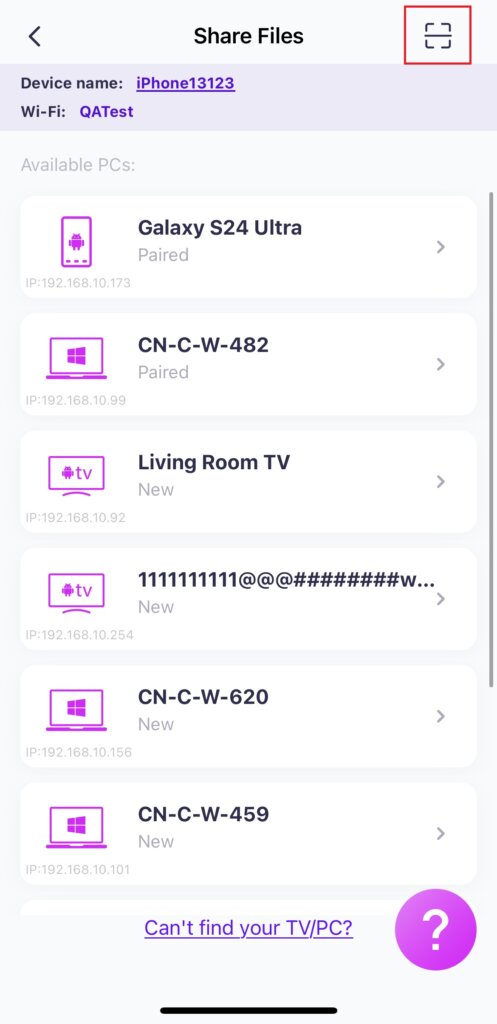
Can’t find the target device? Try to pair by scanning the code
If your device doesn’t appear in the list, you can scan the QR code displayed on the receiving phone screen for quick pairing.
With 1001 TVs, you can enjoy wireless, high-speed file transfers between your devices anytime, anywhere! 🚀
Get 1001 TVs Now
📥 Mac App: Download from App Store
📥 PC App: Download from Microsoft Store
For detailed steps, refer to the PC Installation Guide
📱 iOS App: Download from App Store
📱 Android App: Download from Google Play