
Come estendere lo schermo del Mac utilizzando le impostazioni di macOS con 1001 TVs
macOS consente di estendere il desktop a un display esterno utilizzando le impostazioni di visualizzazione del sistema.
Con l'aiuto di 1001 TVs, Questa funzionalità può essere ulteriormente ampliata, consentendo di estendere lo schermo del Mac fino a un display fisico e più display virtuali per una configurazione multischermo più flessibile.
Tutti i display collegati mostrano la dicitura stesso desktop esteso e sono completamente controllabili con il mouse, per cui è come se si aggiungesse un altro schermo utilizzabile mantenendo il display principale privato.
1. Collegare un display fisico utilizzando macOS
Sul Mac, andare su Impostazioni > Visualizzazioni, fare clic sul pulsante + icona, e aggiungere il display fisico.
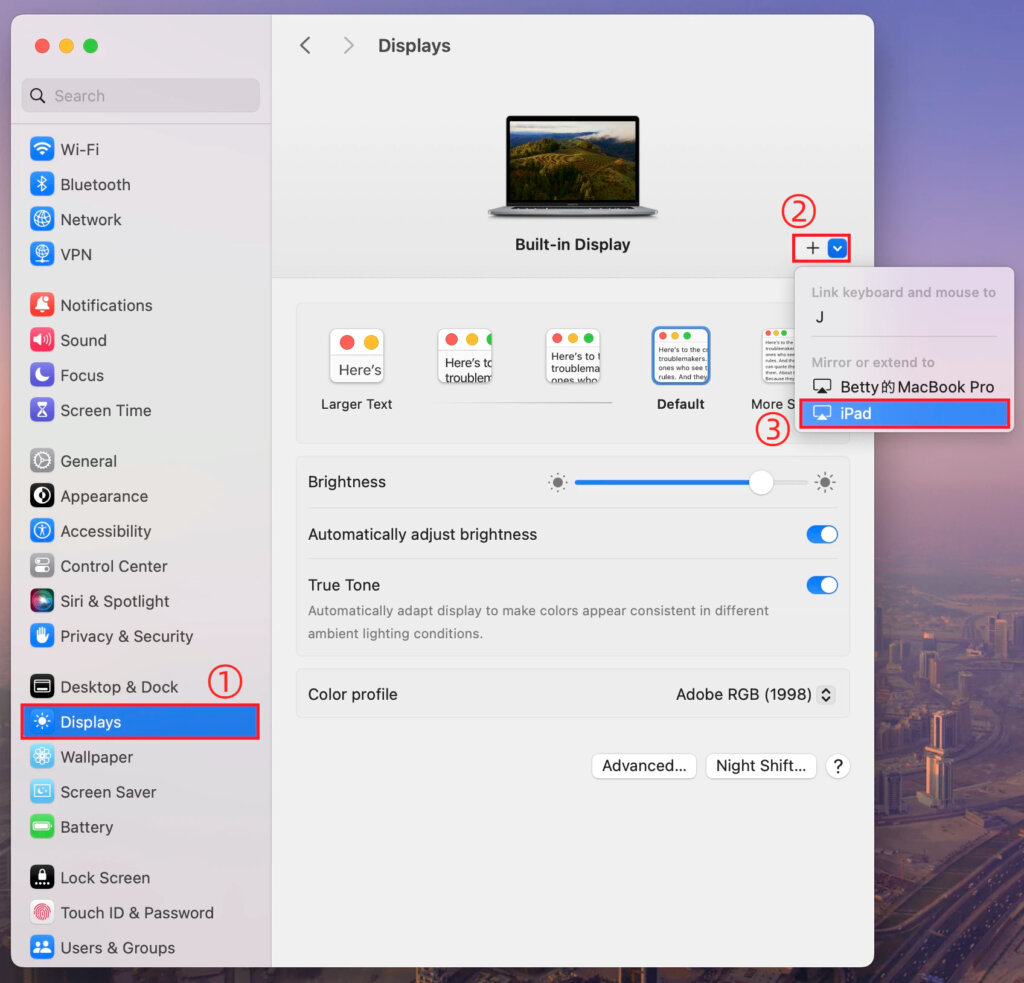
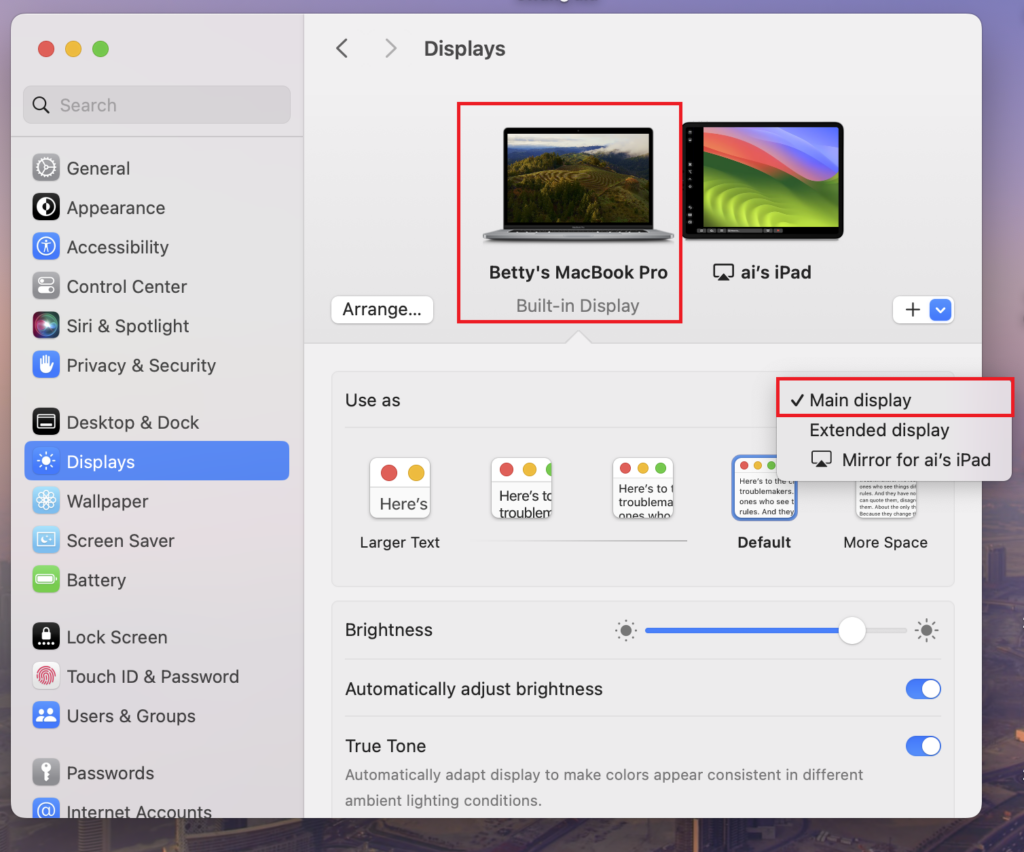
È possibile impostare uno dei due schermi come display principale e l'altro diventerà automaticamente il display esteso.
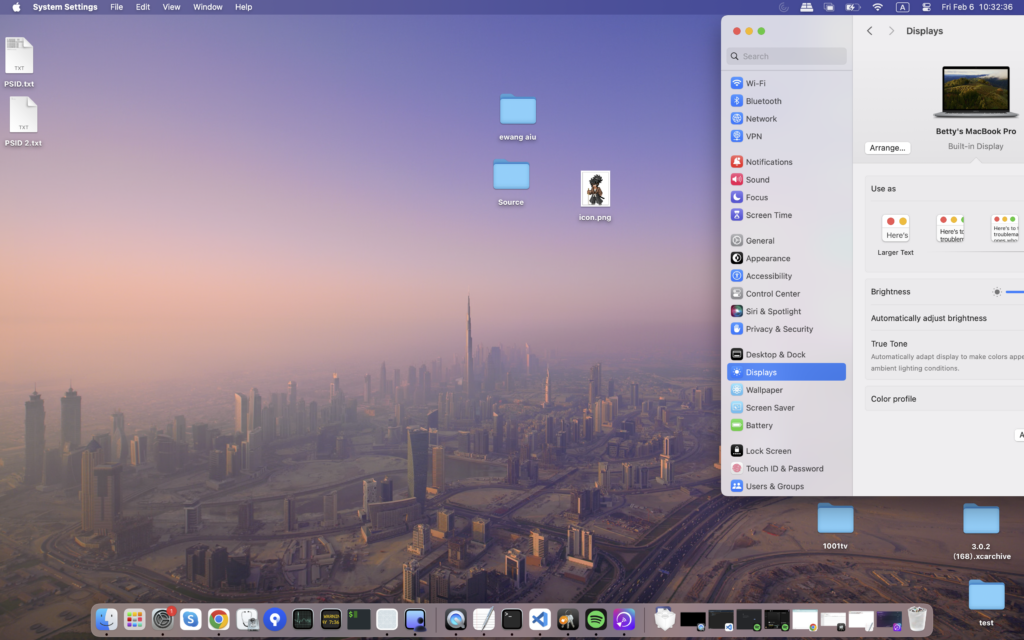
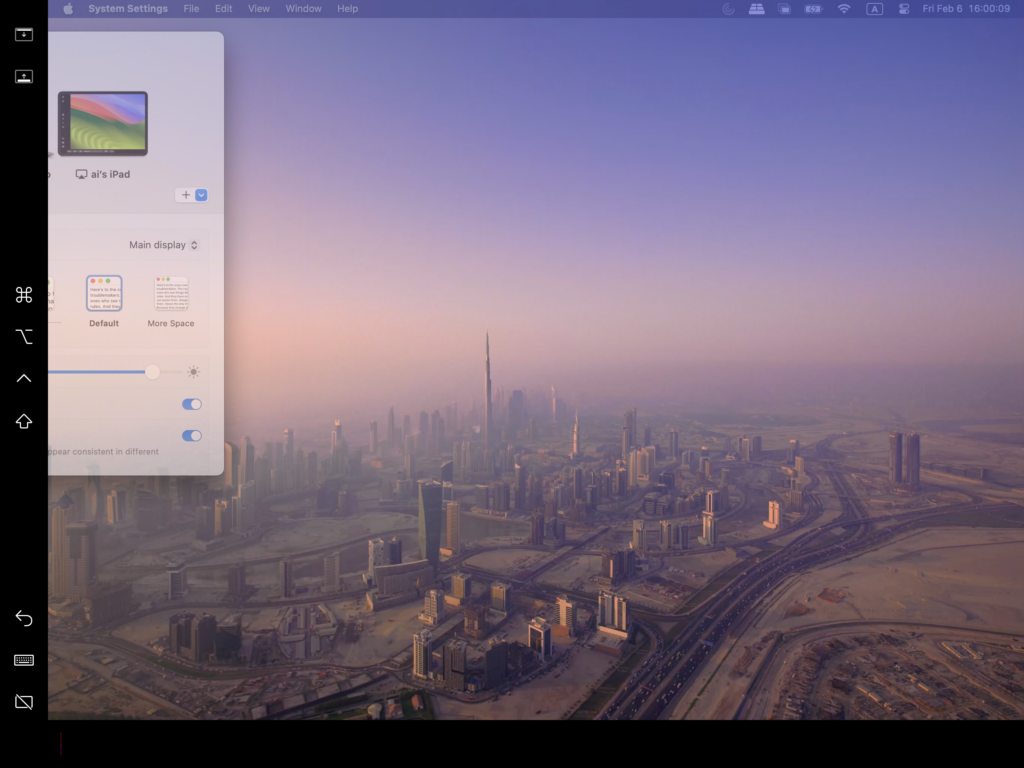
Una volta completato, il desktop del Mac verrà esteso con successo a un secondo schermo.
2. Aggiungere più display virtuali con 1001 TVs
Dopo aver esteso il Mac a un display fisico, è possibile utilizzare 1001 TVs per estendere il stesso desktop a dispositivi aggiuntivi come display virtuali.
1) Collegarsi alla stessa rete Wi-Fi
Assicuratevi che il Mac e tutti i dispositivi di destinazione siano collegati alla stessa rete Wi-Fi.
Per ottenere le migliori prestazioni, un Rete Wi-Fi a 5 GHz è consigliato.
2) Installare e aprire 1001 TVs
Installare e lanciare 1001 TVs sul Mac e su tutti i dispositivi che si desidera utilizzare come display virtuali.
📥 App per Mac: Scarica da App Store
📥 App per PC: Scarica da Microsoft Store
Per i passaggi dettagliati, consultare la sezione Guida all'installazione del PC.
📥 App TV: Come installare l'1001 TVs sul televisore
3) Avviare la modalità di estensione del display
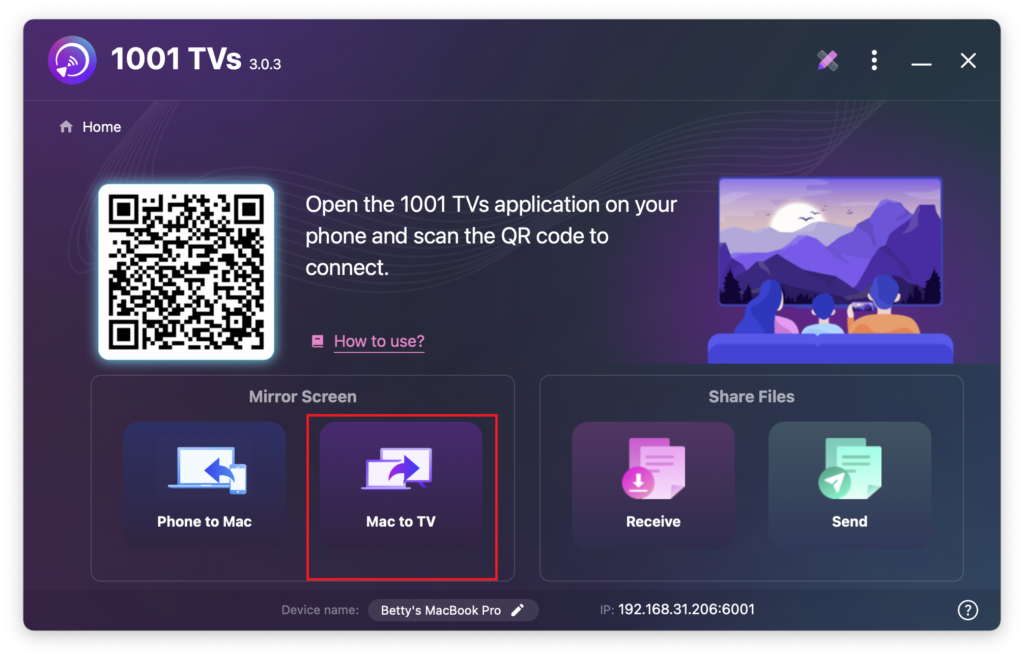
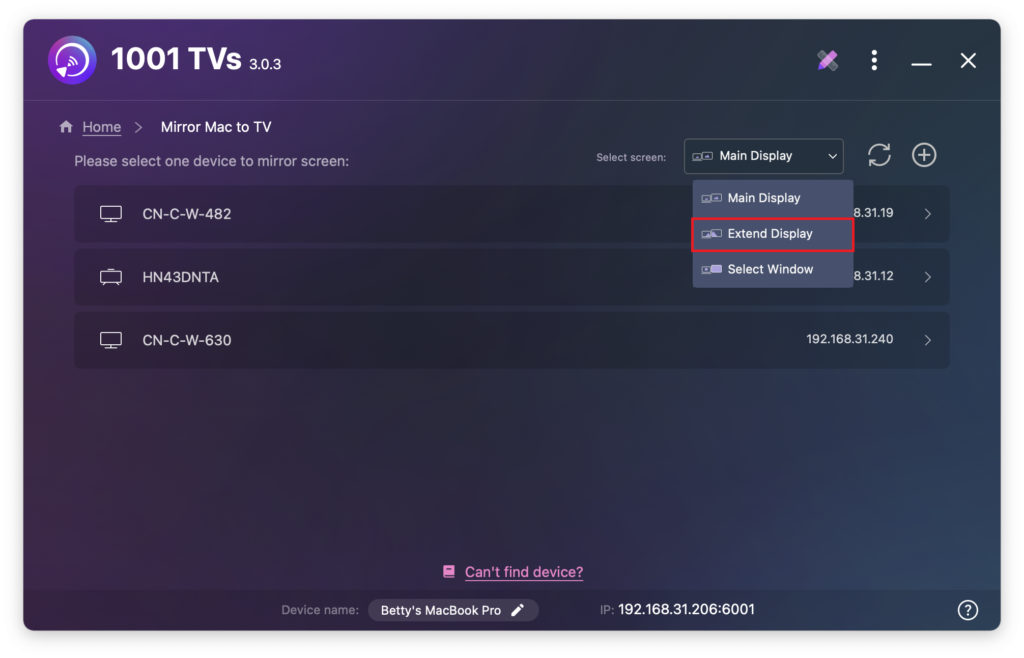
In 1001 TVs sul Mac, selezionare Da Mac a TV, scegliere Estendi display, quindi selezionare i dispositivi di destinazione (ad esempio PC, Mac, telefono o TV).
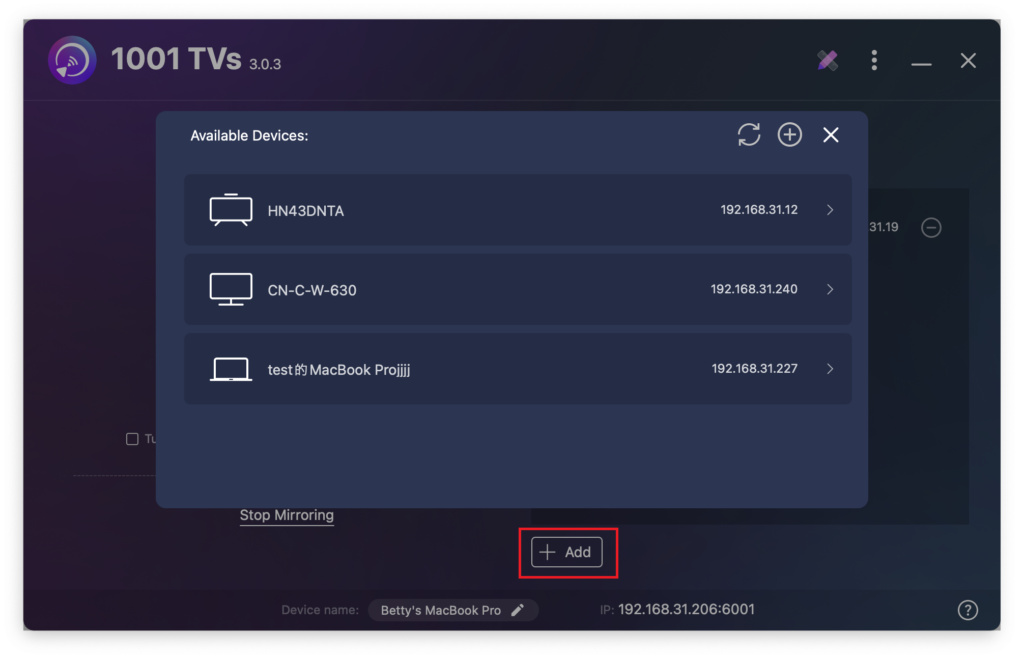
È possibile fare clic sul pulsante + Aggiungi per collegare altri dispositivi, se necessario.
Solo la schermata Mac e la schermata estesa primaria sono interattive.
Tutti gli altri dispositivi collegati rispecchiano lo schermo esteso e visualizzano lo stesso contenuto.
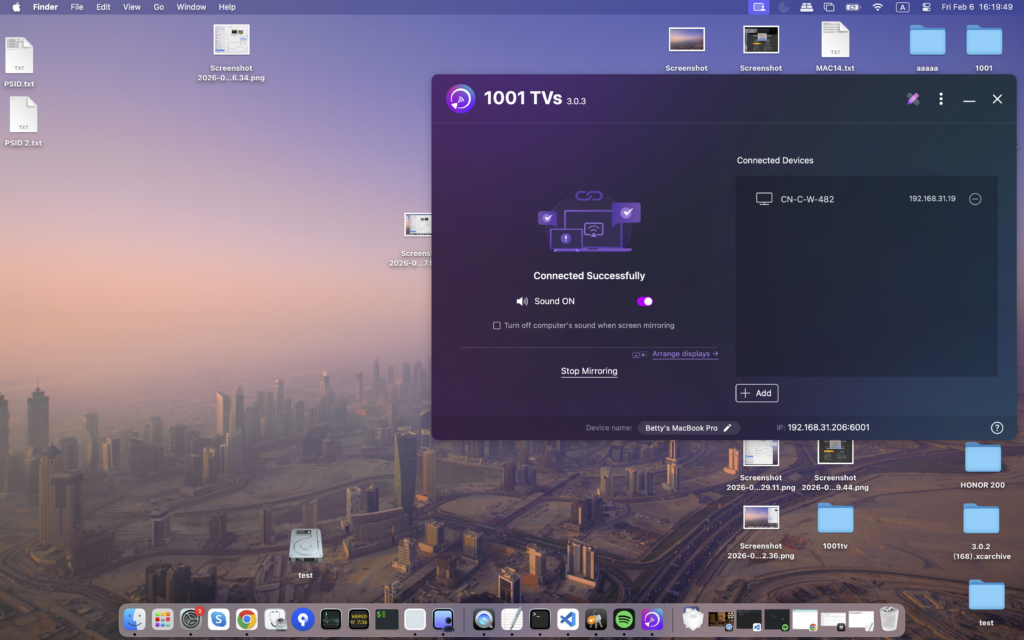
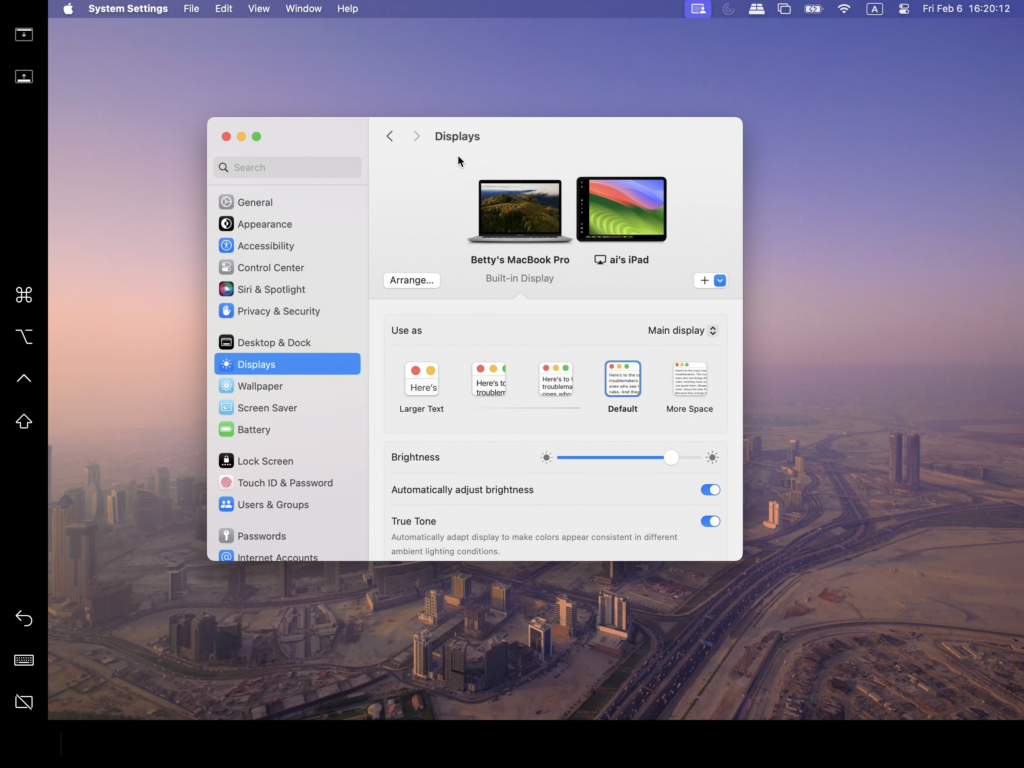
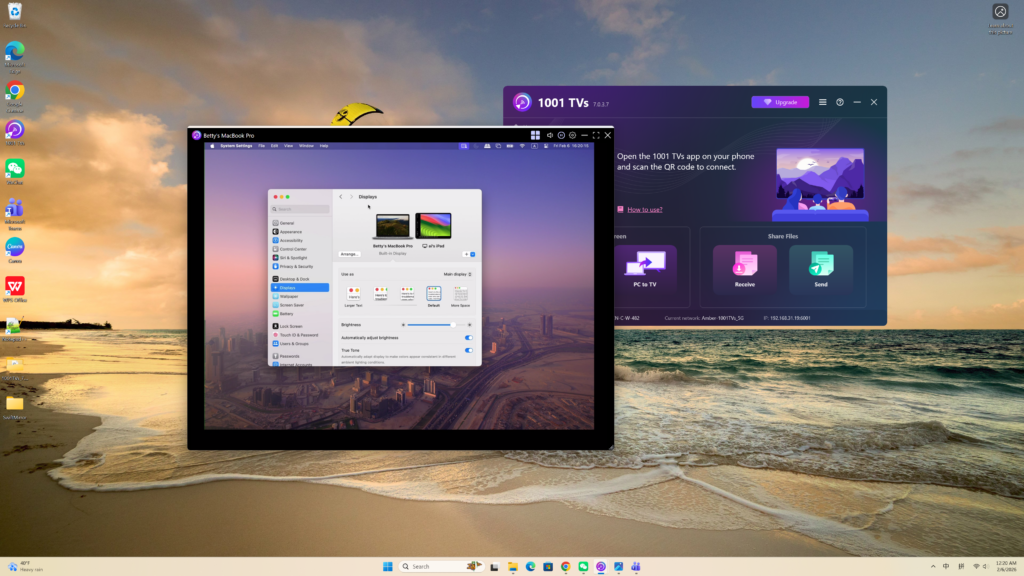
Questa configurazione offre un'esperienza di desktop esteso che consente di spostare le finestre tra il Mac e lo schermo esteso primario, mantenendo il contenuto dello schermo principale privato.