
Hogyan küldhet fájlokat a PC/Mac-ről a TV/PC/Mac-re?
Az 1001 TVs segítségével ugyanazon a helyi hálózaton keresztül küldhet fájlokat a PC-ről/Mac-ről a TV/PC/Mac készülékre.
És igen - az azonos LAN-on lévő PC-k és Mac-ek közvetlenül egymásnak is továbbíthatnak fájlokat, további beállítások nélkül.
Nincs felhőfeltöltés. Nincsenek kábelek. Nincs regisztráció - csak gyors, biztonságos helyi átvitel.
Mielőtt elkezdené
- Győződjön meg róla, hogy az eszközök ugyanahhoz a Wi-Fi hálózathoz csatlakoznak.
- Telepítse és nyissa meg 1001 TVs mindkét eszközön, tartsa az alkalmazást futtatva a fogadó eszközön.
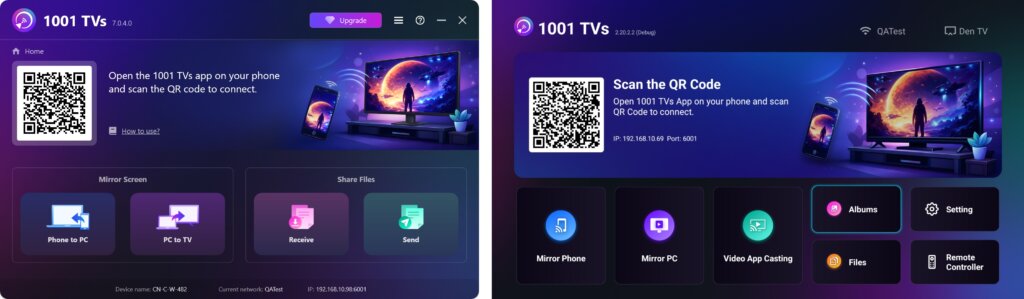
Küldés megkezdése
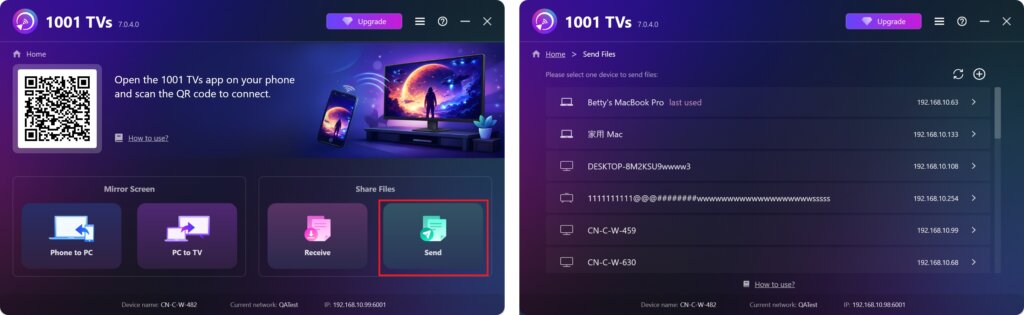
A küldő eszközön kattintson a Küldje el a és az alkalmazás automatikusan keresni fogja az ugyanazon a hálózaton lévő elérhető eszközöket.
Válassza ki a célkészüléket a listából. (pl. TV/PC/Mac)
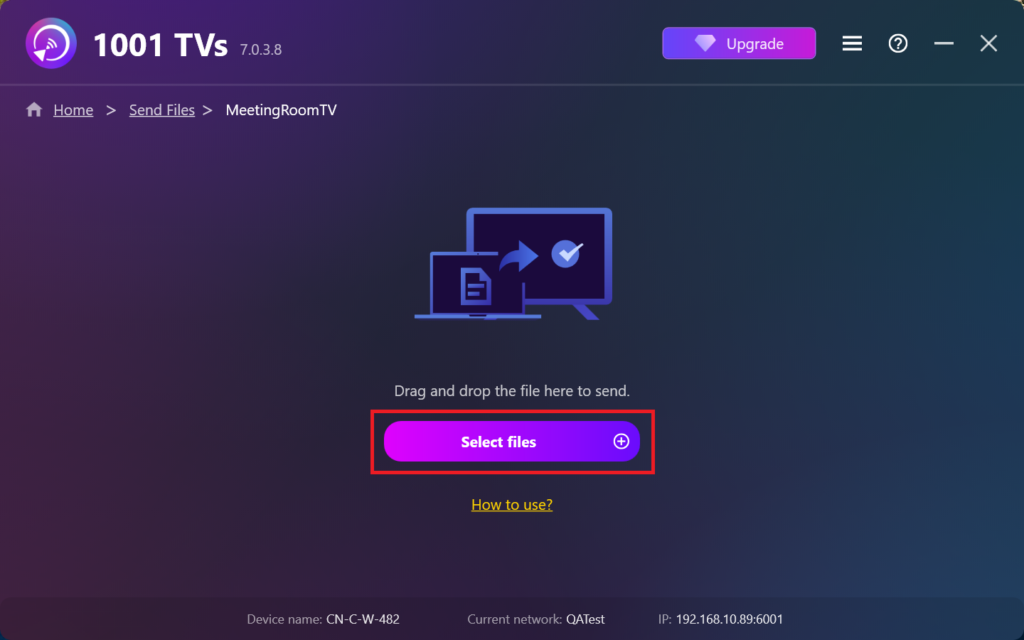
Válassza ki a fájlokat a számítógépén (videók, fényképek, zenék, dokumentumok stb.), és az átvitel automatikusan elindul a célkészülékre.
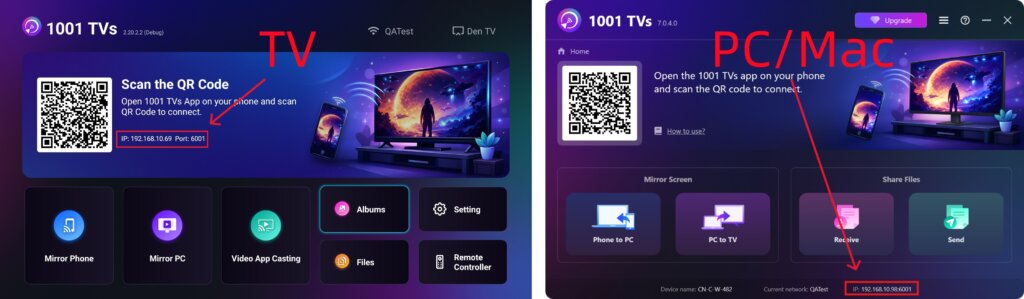
Nem találja a célkészüléket?
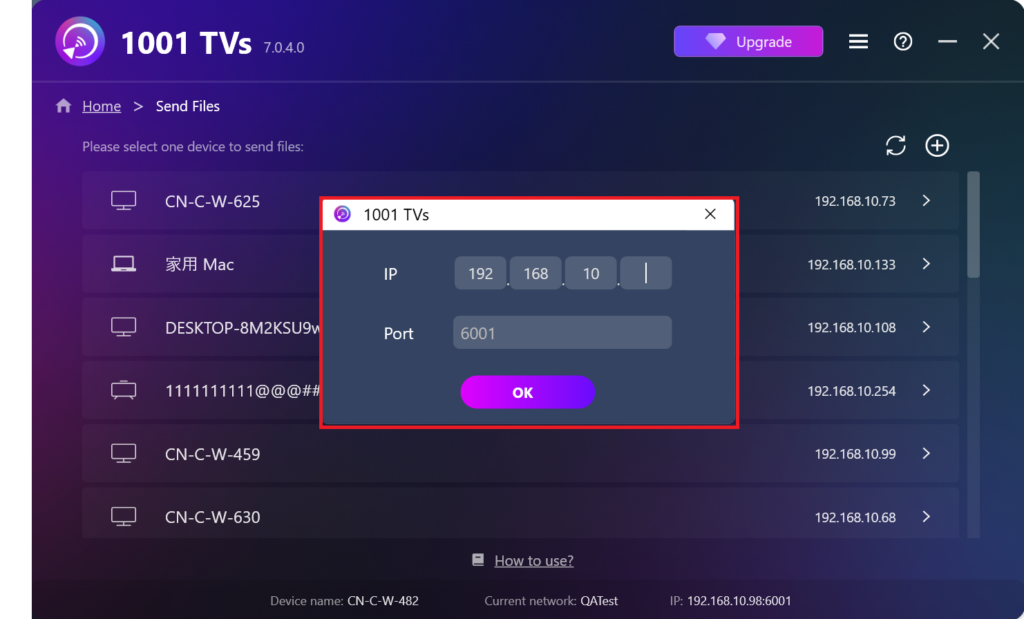
Ha a céleszköz nem jelenik meg az eszközlistában, kattintson a + ikon a jobb felső sarokban, és használja a IP-cím párosítás a gyors és biztonságos csatlakozáshoz.
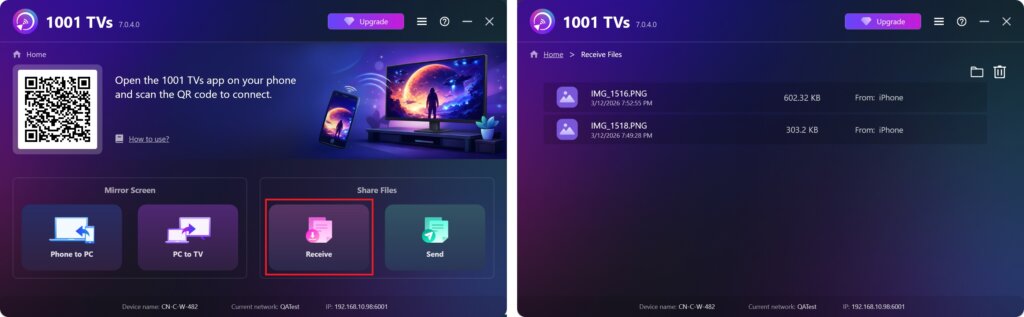
Fogadott fájlok megtekintése PC/Mac számítógépen
Kattintson a címre. Fogadja a címet. a PC/Mac számítógépen, hogy az összes bejövő fájlt láthassa.
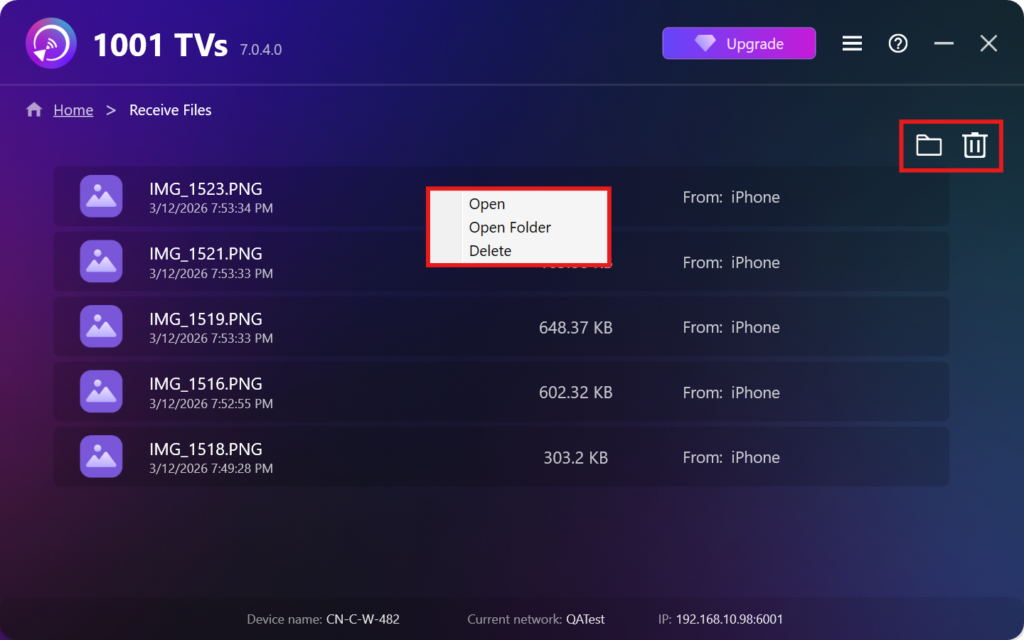
- Megnyitás A kapott fájlok megtekintése – Kattintson a címre. vagy jobb gombbal kattintva és válassza a “Mappa megnyitása” az adott eszköz összes fájljának megtekintéséhez (pl. iPhone 12123).
- Keresse meg őket a Finderben (Mac) vagy a Fájlkeresőben (Windows). - Kattintson a mappa ikon a jobb felső sarokban az összes eszközmappa eléréséhez.
- Lehetőségek törlése – Kattintson a jobb gombbal a címre. fájlt és válassza a “Törölje a címet.” gombra, hogy egyenként eltávolítsa, vagy kattintson a szemetes ikon a jobb felső sarokban, hogy egyszerre törölje az összes beérkezett fájlt.
Fogadott fájlok megtekintése a TV-n
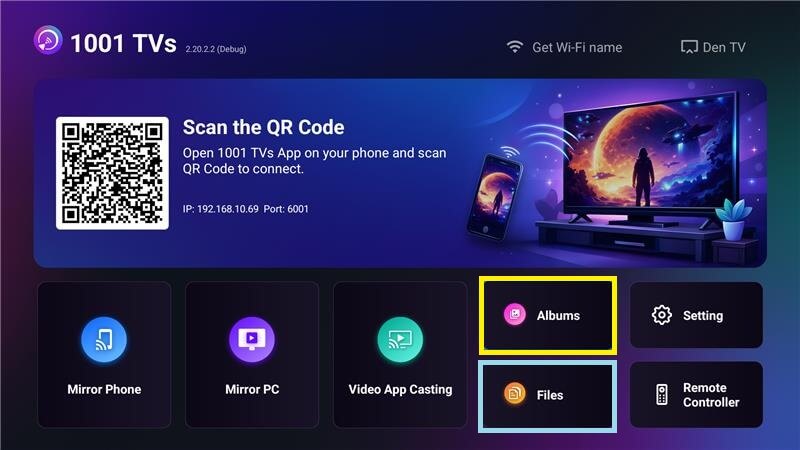
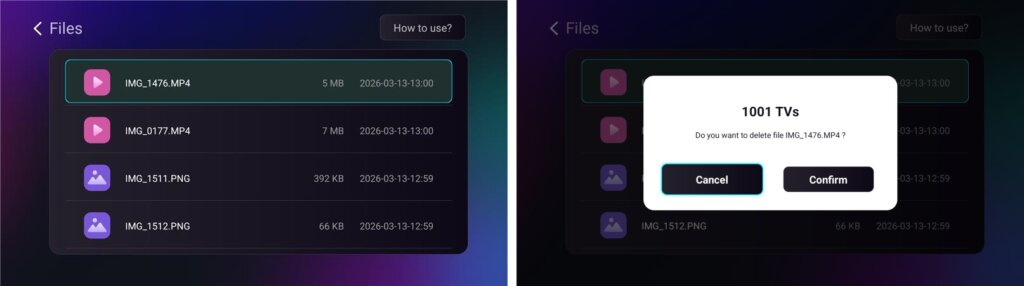
- Navigáljon a Fájlok a fogadott fájlok megtekintéséhez. Kiválaszthat egy fájlt, és hosszan megnyomhatja a OK a törléshez.
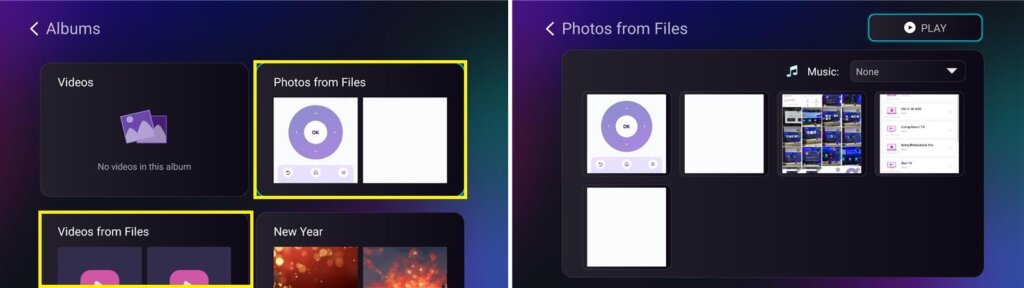
- Navigáljon a Albumok > Fényképek/videók fájlokból a beérkezett fényképek és videók megtekintéséhez. Kiválaszthat egy fájlt, és hosszan megnyomhatja OK törölni, vagy diavetítésként lejátszani őket.
Miért használja az 1001 TVs-t?
- Gyors, privát és könnyen használható
- Helyi átvitel - nincs szükség felhőre
- Nincs szükség bejelentkezésre vagy fiókra
- Támogatja a nagyméretű fájlátvitelt
Segítségre van szüksége?
Ha bármilyen probléma merülne fel, forduljon bátran ügyfélszolgálatunkhoz:
📧 Email: 1001tvs@nero.com
🌐 Weboldal: www.1001tvs.com
📖 További útmutatók: Vezérlés