How to Watch the 2026 World Cup at Work (Without Missing the Big Moments)
Watching the 2026 World Cup at work means streaming knockout matches during office hours. You can use wireless screen mirroring, dual monitors, or picture-in-picture windows. Millions of workers are trying to catch the action without missing deadlines.
The 2026 FIFA World Cup is already breaking records. FIFA projects about 6 billion global engagements across 104 matches. That’s a 20% jump over Qatar 2022, where 1.42 billion people watched the final alone. In the U. S., the USMNT’s Round of 32 match against Bosnia and Herzegovina drew 24.4 million viewers. It became the most-watched soccer telecast in English-language U. S. history. The tournament runs through July 19, with knockout matches airing during business hours across multiple continents.
And people are watching at work, whether their employers know it or not. A UKG survey of 8,000 employees across eight countries found that 37% of workers plan to adjust their schedules. 14% admitted they would secretly stream games during working hours. 19% said they would consider quitting if their work schedule ruined their World Cup experience. The global productivity hit? An estimated $17 billion, with $11.7 billion in the U. S. alone.
On Reddit, the conversation is blunt. In r/askTO, one user described their setup: “I used to set up the conference room for watching games. Same rule as posted… as long as the work gets done.” Another wrote: “I am the boss so I closed our offices early on Friday for the Canada game.” A third shared: “For the Friday game our CEO closed the office at 1 pm and we went to the pub to watch the game together.”
You shouldn’t have to choose between your job and your team’s penalty shootout. Here are five practical methods for catching every knockout match at work.
Not sure where the match is streaming? Check our complete guide: Where to Watch FIFA World Cup 2026 Live. It’s a full directory of broadcasters and streaming platforms by country.
Method 1: How to Cast the World Cup to an Office Conference Room TV
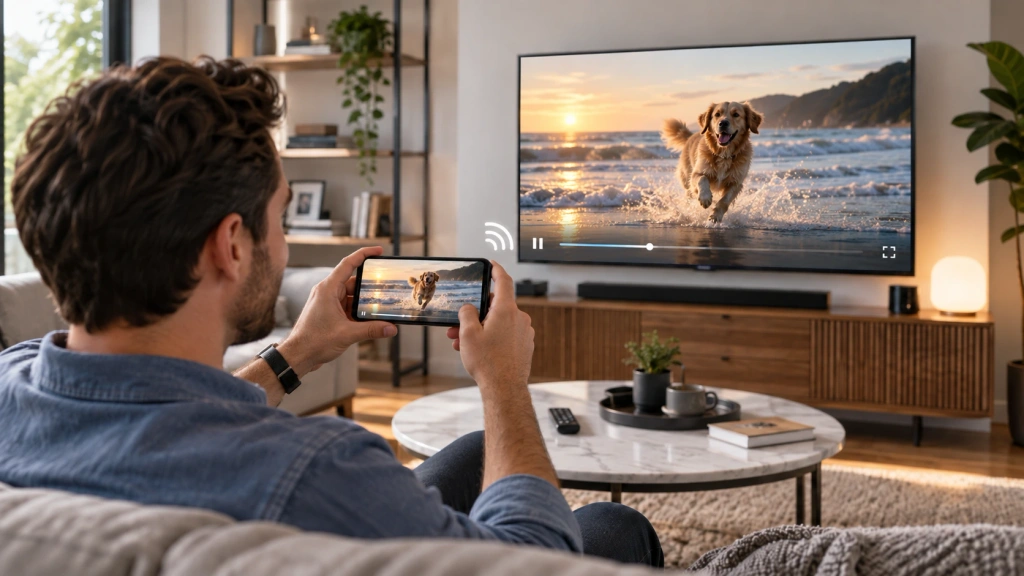
The easiest way to watch the World Cup at work is to wirelessly cast your phone or laptop to the office conference room TV. Use a screen mirroring app like 1001 TVs. No cables, no HDMI adapters. It works with any TV model. Just connect both devices to the same Wi-Fi and tap to mirror.
If your office has a conference room with a TV or projector, you have the best group-viewing setup available. The r/askTO thread is full of employees who’ve already done this. One user noted that their company “set up a TV in the breakroom area, and the matches are broadcasted, and we’re encouraged to come work there.” Another reported that their office “aired game 1 on 3 huge projection screens.”
The advantage of a wireless app like 1001 TVs is simple. It bypasses the usual friction: no hunting for an HDMI cable, no adapters that don’t fit, no arguing over whose laptop has the right port. It works with any TV that has a browser or can run the 1001 TVs receiver app. That covers most modern conference room displays.
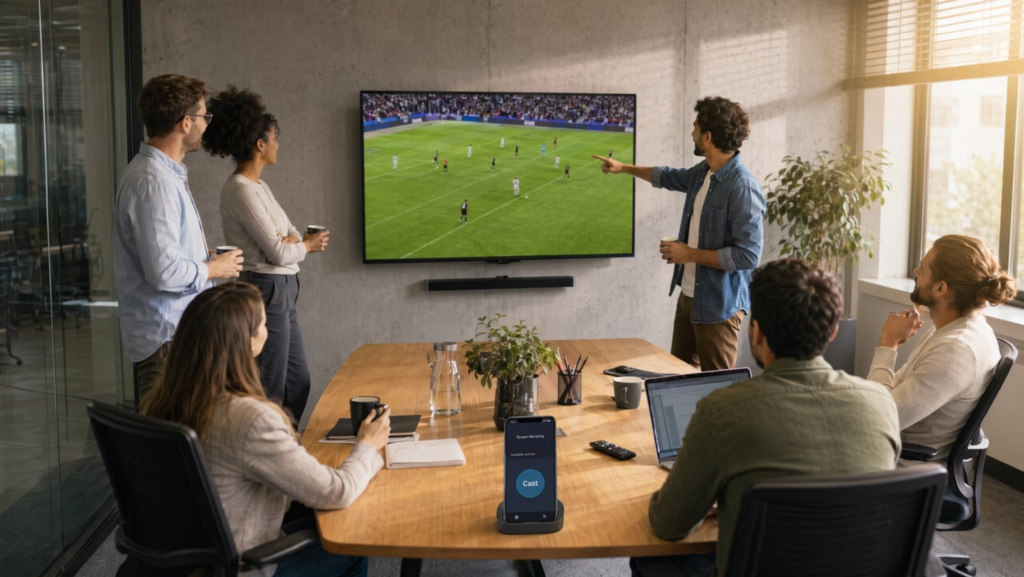
Step-by-Step Setup
- Install 1001 TVs on your phone or laptop. Also install it on the receiving TV, or open the TV’s built-in browser to the 1001 TVs web receiver.
- Connect both devices to the same office Wi-Fi. This is critical for mirroring to work.
- Open your streaming app (Fox, Telemundo, BBC iPlayer, or your regional broadcaster).
- Tap the 1001 TVs cast button and select the conference room TV.
- Hit play. The match mirrors in real time with full audio.
Pros and Cons
| Pros | Cons |
| Big-screen group viewing | Visible to colleagues |
| No cables or HDMI adapters | Requires office Wi-Fi access |
| Works with any TV model | Need to book the room |
Best for: Team watch parties, lunch-break viewing, after-hours semifinals.
For a deeper dive, see our tutorial: How to Watch FIFA World Cup 2026 on TV Using Screen Mirroring.
Method 2: Dual Monitor Setup: Keep Working While Watching
A dual-monitor setup lets you stream the World Cup on your secondary screen. Your work apps stay on the main display. Open the match in a browser on monitor two. Keep it muted with subtitles on. Use Alt+Tab or a window-management tool to minimize instantly.
This is the multitasker’s method. If you already have a dual-monitor workstation, you can run a match quietly in the corner. Your spreadsheets, Slack, and email stay front and center. The key is subtlety. Mute the audio. Enable closed captions. Keep the window small enough that it doesn’t dominate your screen, but large enough to see when something happens.
When your manager walks by, a quick Windows + D (or Cmd + H on macOS) hides everything. On Windows, Windows + Arrow keys snap windows to halves or quarters of the screen. You can tuck the match into a corner and bring it back with one keystroke.
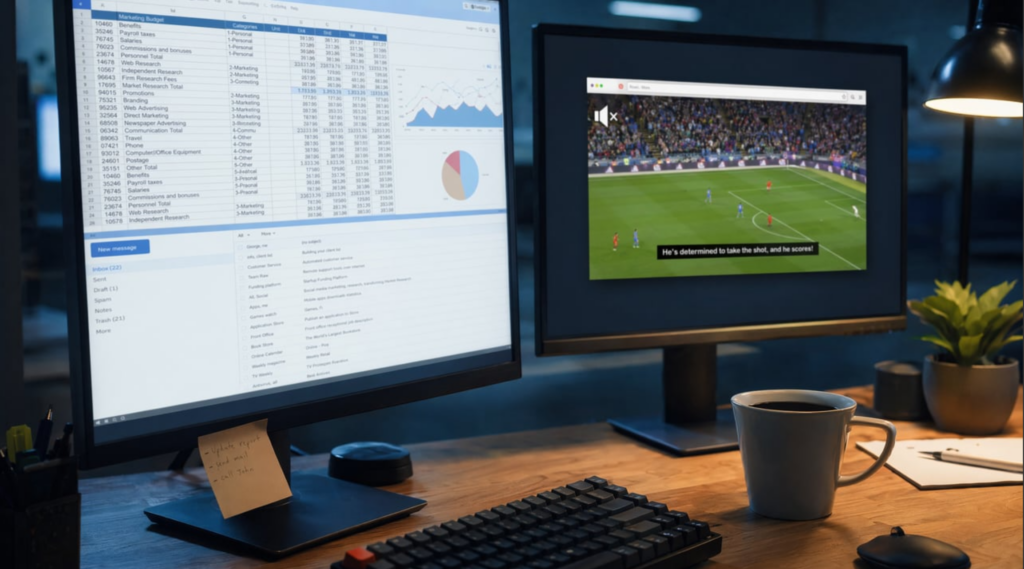
Step-by-Step Setup
- Connect a second monitor to your work laptop or desktop (HDMI, DisplayPort, or USB-C).
- Open your streaming service in a browser on the secondary monitor.
- Mute the stream and turn on closed captions or subtitles.
- Resize the window or use your browser’s picture-in-picture mode to float a mini player.
- Learn the shortcuts.
Windows + Arrowon Windows orMission Controlon macOS to snap and hide windows fast.
Pros and Cons
| Pros | Cons |
| Discreet and multitasking-friendly | Requires a second monitor |
| Instant minimize with shortcuts | Some corporate IT blocks streaming |
| No extra hardware needed | Easy to forget during screen shares |
Best for: Desk workers with dual displays, IT-permissive environments, multitaskers.
Screen share warning: If you’re on Zoom, Teams, or Google Meet and sharing your screen, close the match window first. Nothing kills credibility faster than your boss seeing a live penalty shootout on your shared screen.
Method 3: The Discreet Desk Method: Phone + Picture-in-Picture
To watch the World Cup discreetly at your desk, stream the match on your phone. Use picture-in-picture (PiP) mode to float a small video window over your work screen. Keep the phone below desk level. Use one earbud for audio. Tap the PiP window to expand during key moments.
This is the method for open-plan offices and strict managers. It’s for situations where any visible screen activity would raise eyebrows. The UKG survey found that 14% of employees plan to secretly stream games during working hours. If you’re in that group, this is how you do it without getting caught.
The setup is minimal. Your phone, one wireless earbud, and a mobile data connection. Use mobile data so you’re not routing traffic through the company network where IT could flag it. Picture-in-picture mode is available on both iOS and Android. It shrinks the video to a small floating window in the corner of your screen. When a goal looks imminent, one tap expands it. When someone approaches, another tap shrinks it back.
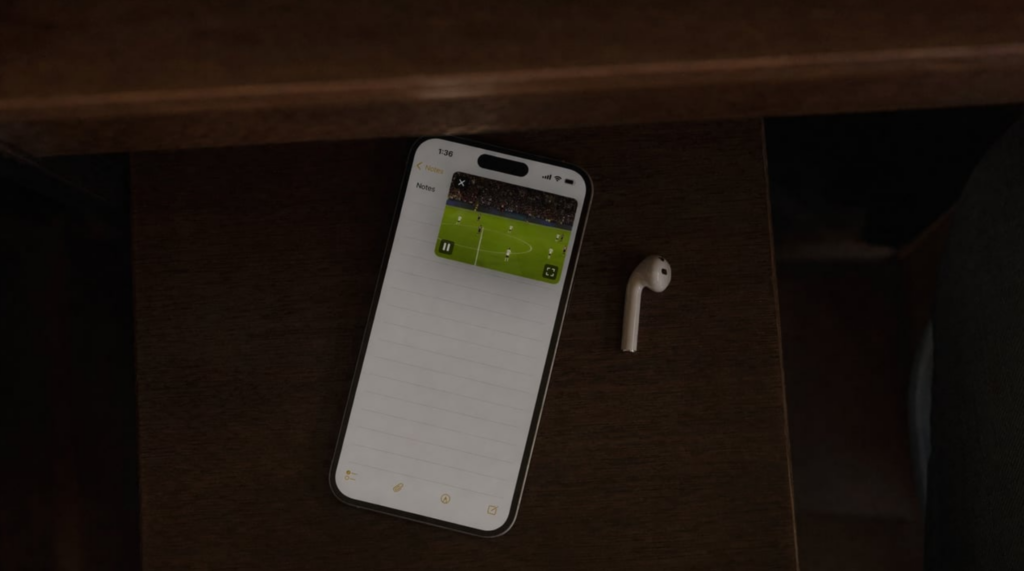
Step-by-Step Setup
- Open your streaming app on your phone (Fox Sports, BBC iPlayer, Telemundo, or your regional broadcaster).
- Start the match and switch to picture-in-picture mode. On iOS, tap the PiP icon or swipe to Home. On Android, tap Home while the video is playing.
- Position the PiP window in the corner of your screen, below desk level.
- Keep one wireless earbud in for commentary. Leave the other ear open.
Pros and Cons
| Pros | Cons |
| Maximum discretion, nearly undetectable | Small screen |
| Minimal setup, works anywhere | Phone battery drains faster |
| Uses mobile data, not company Wi-Fi | Needs a decent data plan |
Best for: Open-plan offices, strict managers, quick match check-ins.
Pro tip: Turn off notifications on your phone. Goal celebrations and score alerts will buzz audibly at your desk or pop up on your lock screen. A notification that says “GOAL! Brazil 2-1” visible to a passing colleague is a dead giveaway. Also disable lock-screen previews for your streaming app.
Method 4: Extended Lunch Break: Watch at a Nearby Restaurant or Cafe
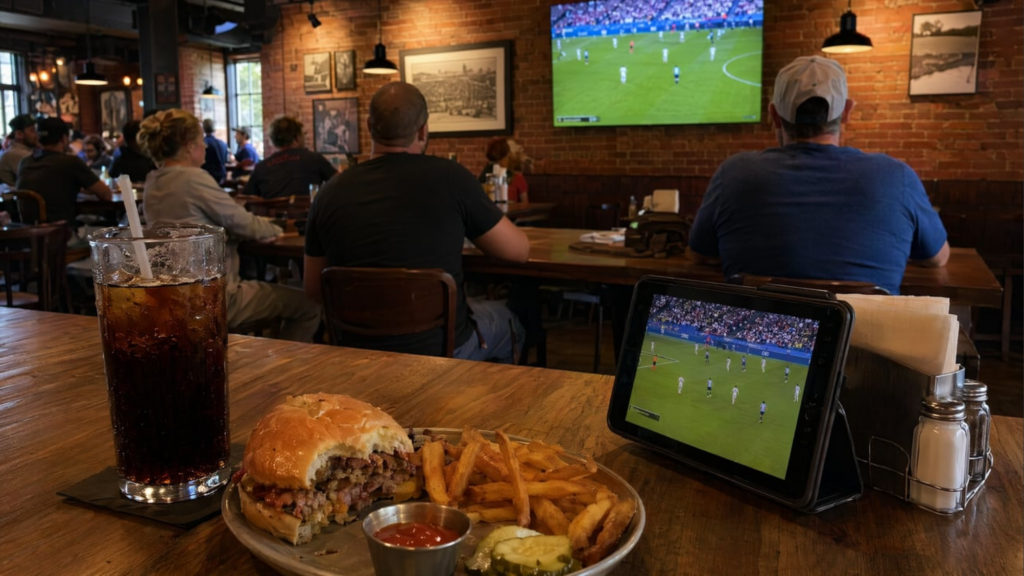
Taking an extended lunch break to watch the World Cup at a nearby restaurant or cafe is the most socially acceptable option. Cast the match from your phone to a tablet using 1001 TVs. Or just find a venue with TVs already showing the game. Many sports bars run World Cup lunch specials during knockout matches.
This method carries zero workplace risk. You’re not on company equipment, using company Wi-Fi or technically watching during work hours. You’re on an extended lunch.
The trade-off is time. Unless your lunch break covers the whole match, you’ll catch the first half and maybe part of the second. That’s still better than missing it entirely.
The simplest version needs no tech at all. Just find a nearby sports bar, pub, or cafe showing the match. During the 2026 World Cup, many venues have been running lunch specials tied to match schedules. If you want more flexibility, bring a tablet and cast from your phone via 1001 TVs using the venue’s Wi-Fi.
Quick Guide
- Check the kick-off time against your lunch window. You need at least 45 minutes for a half.
- Find nearby venues showing the match. Sports bars, pubs, and some cafes routinely broadcast World Cup games.
- Alternatively: Bring a tablet, cast from your phone via 1001 TVs, and use the venue’s Wi-Fi.
- Set a phone alarm for when you need to head back. It’s easy to lose track of time during extra time.
Pros and Cons
| Pros | Cons |
| No workplace risk | Time-limited, may miss second half |
| Good food, social atmosphere | Venue Wi-Fi can be unreliable |
| No equipment needed if venue has TVs | May cost money for food and drinks |
Best for: Lunchtime kick-offs, flexible schedules, social viewers.
Method 5: Work From Home: Multi-Screen Living Room Setup
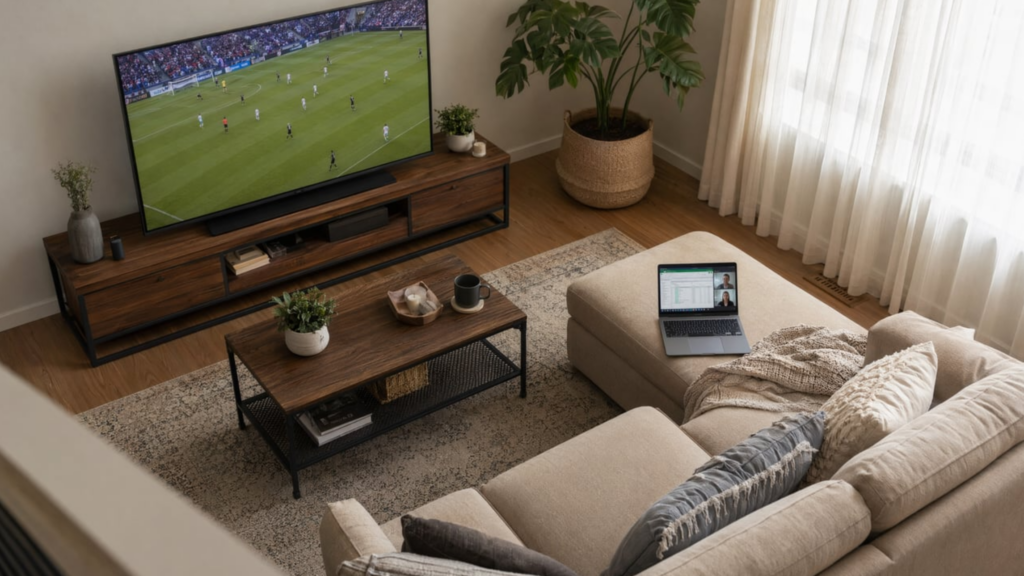
Working from home during the World Cup? Cast the match from your laptop to your living room TV using 1001 TVs. Keep your work notebook on your lap. Switch between the two screens as needed. You get the big-screen experience without leaving your couch.
For anyone on a hybrid or fully remote schedule, the World Cup at home is ideal. There’s no manager to hide from. No corporate IT policy to work around. No colleague judging your commitment. You have a TV, Wi-Fi, and a laptop. The only question is how to arrange them so you can watch without abandoning work entirely.
The answer is a multi-screen setup. Cast the match to your living room TV via 1001 TVs. Keep your work laptop on your lap or coffee table. Use your phone as a remote to pause or resume during meetings. Enable subtitles on the TV so you can follow the action with sound muted during calls. Unmute during natural breaks.
Step-by-Step Setup
- Install 1001 TVs on your laptop. Make sure your smart TV is on the same home network.
- Open the streaming app in your browser and find the match.
- Cast to the living room TV. The match plays on the big screen. Your work stays on the laptop.
- Use your phone as a remote to pause or resume during meetings or focused work.
- Enable subtitles on the TV. Mute the audio during work calls. Unmute during breaks.
Pros and Cons
| Pros | Cons |
| Big screen plus comfort | Only works on WFH days |
| No workplace concerns | Temptation to stop working entirely |
| Full audio, no earbuds needed | Blurs the line between work and leisure |
Best for: Remote workers, hybrid schedules, afternoon matches, anyone who wants the full experience from their couch.
Which Method Should You Use?
| Method | Discretion | Setup Time | Screen Size | Group Viewing? | What You Need |
| 1. Conference room TV | Low (visible) | 2 min | Large (TV) | Yes | Office Wi-Fi + TV |
| 2. Dual monitor | Medium | 5 min | Medium | No | Second monitor |
| 3. Phone + PiP | High (discreet) | 1 min | Small | No | Phone + earbuds |
| 4. Extended lunch | N/A (off-site) | 0 min | Varies | Yes | Nearby venue |
| 5. WFH multi-screen | N/A (at home) | 3 min | Large (TV) | Optional | Home Wi-Fi + TV |
For group viewing at the office, go with Method 1. For discreet solo watching, Method 3 is your best bet. Remote workers should use Method 5. Method 2 works well for multitaskers who want to follow the match while staying productive.
Workplace Etiquette: When and How to Watch Without Getting in Trouble
Watching the World Cup at work is generally fine during breaks, lunch hours, or after core hours. But policies vary by employer. Use headphones. Don’t stream during meetings. Check your company’s internet usage policy. Many managers are understanding during major sporting events.
The data backs this up. A UKG survey of 8,000 employees found that 37% plan to adjust their hours because of the tournament. 42% of managers themselves are likely to take a day off to watch. In the Middle East, 84% of professionals plan to watch matches. Nearly three-quarters of managers there plan flexible arrangements. Even SHRM recommends that employers offer remote work, adjusted shifts, and compressed workweeks during the tournament.
In Australia, broadcaster SBS went further. They launched a tongue-in-cheek “World Cup Watchers’ Rights Association” to push for employees’ right to watch matches at work. The campaign went viral. Workers across Australia shared stories of bosses who either embraced the World Cup or cracked down on it.
Most employers are pragmatic. As one Reddit user in r/AskUK put it: “We’d have stuff like that on a projector or TV and people would grab a beer from the fridge. We’d still be ‘working’ at our desks but in reality we’d be watching the match and chatting.” The unspoken rule across dozens of Reddit threads is simple. As long as the work gets done, nobody cares.
Do’s and Don’ts
| Do | Don’t |
| Watch during lunch or breaks | Stream during important meetings |
| Use headphones or subtitles | Play audio out loud at your desk |
| Ask your manager about flexible hours | Hide it sneakily if caught |
| Use mobile data if Wi-Fi is monitored | Hog the conference room TV all day |
| Invite colleagues for group viewing | Neglect deadlines because of the match |
| Check your employee handbook | Assume your company blocks all streaming |
The biggest mistake people make is choosing a method that doesn’t fit their office culture. If you work in a relaxed startup where the CEO closes the office for match days, Method 1 is perfect. If you work in a conservative corporate environment with strict monitoring, Method 3 or 4 is safer. Read the room before deciding how to watch.
Frequently Asked Questions
What’s the best app to cast the World Cup to an office TV?
1001 TVs works best for this. It casts wirelessly to any TV model. No cables or HDMI adapters needed. It supports both phone-to-TV and laptop-to-TV mirroring. Install it on both devices, connect to the same Wi-Fi, and tap to cast.
Will streaming the World Cup slow down my office internet?
A single HD match stream uses about 3 to 5 GB per hour and needs 5+ Mbps of bandwidth. On shared office internet, this can impact colleagues, especially during video calls. Use mobile data on your phone or a personal hotspot to avoid the issue entirely.
How can I watch the World Cup on my work computer?
Open a streaming service (Fox Sports, BBC iPlayer, Telemundo) in your browser. Use picture-in-picture mode to float the video window. Keep it on a secondary monitor if you have one. If your company blocks streaming sites, use your phone with mobile data and cast to a nearby screen with 1001 TVs.
Is it legal to watch the World Cup at work?
It’s not illegal. But it may violate your company’s internet usage or productivity policies. Most employers are lenient during major sporting events if work is getting done. 42% of managers themselves plan to take time off to watch, according to UKG. Check your employee handbook or ask HR about your company’s policy.
Can I use 1001 TVs to mirror the World Cup to multiple screens at once?
Yes. 1001 TVs supports multi-screen mirroring. You can cast the same match to multiple TVs or displays at the same time. This is ideal for office watch parties where different teams watch from different rooms.
How do I fix screen mirroring lag during a live match?
First, make sure both devices are on a 5GHz Wi-Fi network, not 2.4GHz. Second, close background apps on both devices. Third, move closer to the router. Fourth, lower the stream quality from 4K to 1080p if your network can’t keep up. For more troubleshooting, see: Fix Common Screen Mirroring Issues Before World Cup 26 Group Stage Starts.
Don’t Miss the Moment
The 2026 World Cup knockout stage comes once every four years. Whether you’re in a conference room with twenty colleagues, sneaking glances at your phone under your desk, or casting to your living room TV from the couch, 1001 TVs gets any match onto any screen in seconds. No cables. No adapters. No hassle.
The final is July 19. The semifinals are next week. Don’t watch them on a 6-inch screen.

Read More
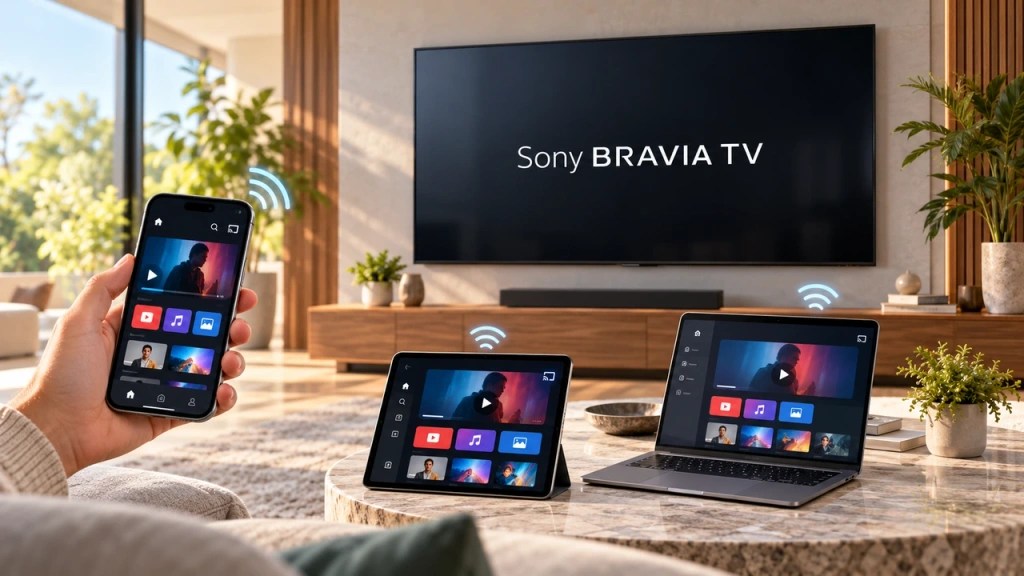 How to Screen Mirror to Sony Bravia TV (Google TV)
A Sony Bravia Google TV does not use one universal “Screen Mirroring” method for every phone and computer. The right choice depends on both…
How to Screen Mirror to Sony Bravia TV (Google TV)
A Sony Bravia Google TV does not use one universal “Screen Mirroring” method for every phone and computer. The right choice depends on both…
 How to Cast to LG webOS TV
You can cast—or, in some cases, mirror—an iPhone, iPad, Android phone, Windows PC, or Mac to an LG webOS TV. The right method depends…
How to Cast to LG webOS TV
You can cast—or, in some cases, mirror—an iPhone, iPad, Android phone, Windows PC, or Mac to an LG webOS TV. The right method depends…

