
How to Send Files from Your Phone to Android/Apple TV?
With 1001 TVs, you can send files from your phone to your TV over the local network.
No cloud uploads. No sign-ups. Fast and secure.
Before You Start
- Make sure your phone and TV are connected to the same Wi-Fi network
- Install 1001 TVs on both your phone and your TV
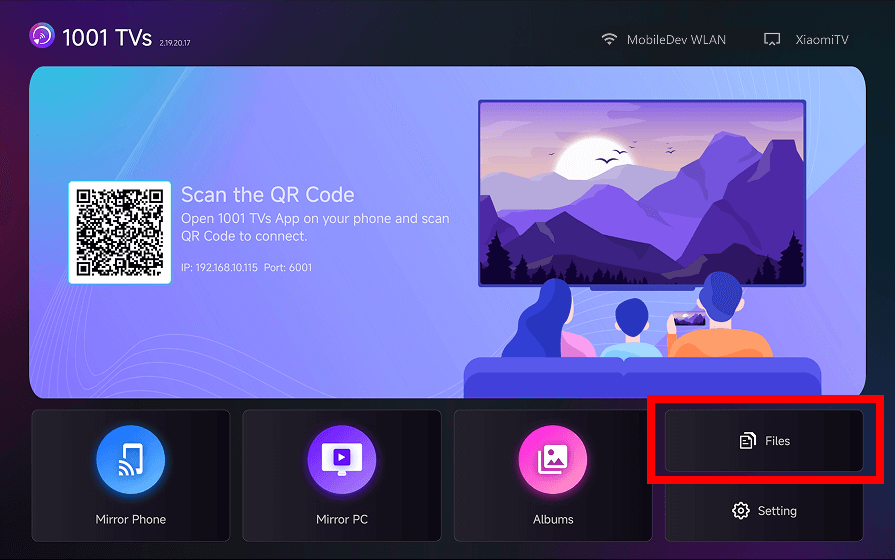
Step 1: Open 1001 TVs on Your TV
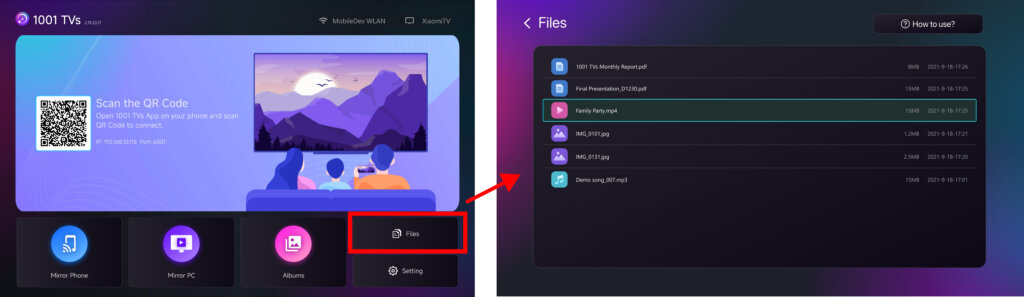
Launch 1001 TVs on your Smart TV and open the Files page.
Keep the TV app running.
Step 2: Open 1001 TVs on Your Phone
Open 1001 TVs on your phone and tap “Share Files”.
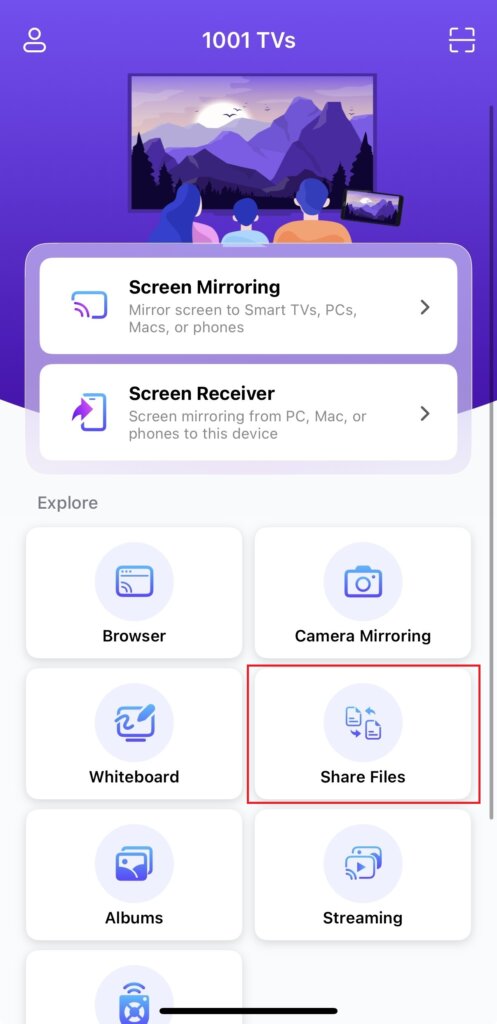
The app will automatically search for available TVs on the same network.
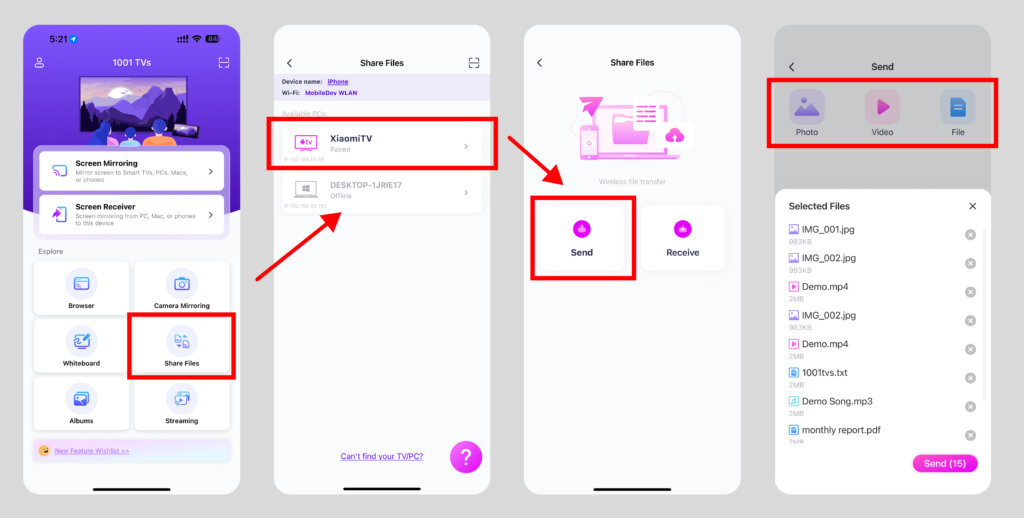
Step 3: Select Your TV and Send Files
- Choose your TV from the device list.
- Select files on your phone (photos, videos, music, or documents).
- Tap to send — files are transferred directly to your TV.
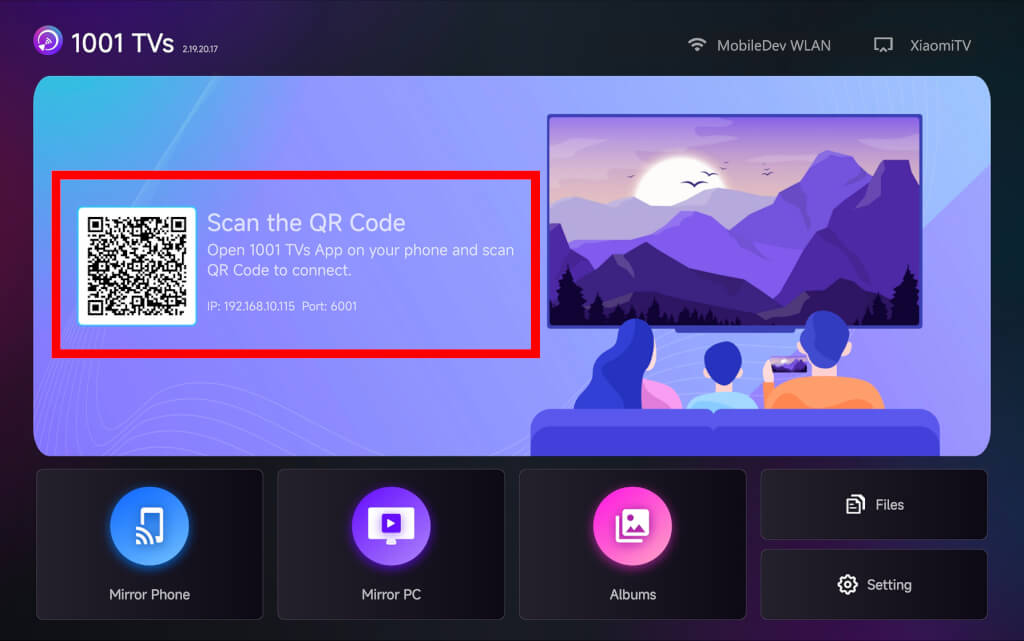
Can’t Find Your TV?
If your TV doesn’t appear, use QR code pairing to connect quickly.
View Files on TV
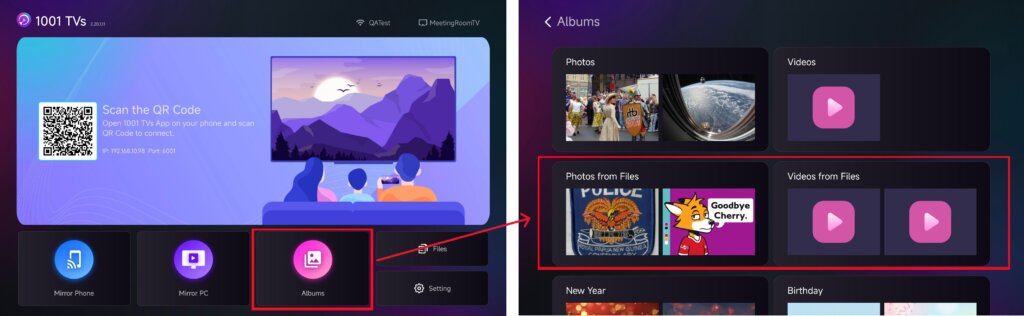
Once transferred, your files will appear instantly on the TV screen and can be opened or played right away.
You can view them in the “Files” section or enjoy your photos and videos as a slideshow in “Albums“.
How to Delete Files on Your TV?
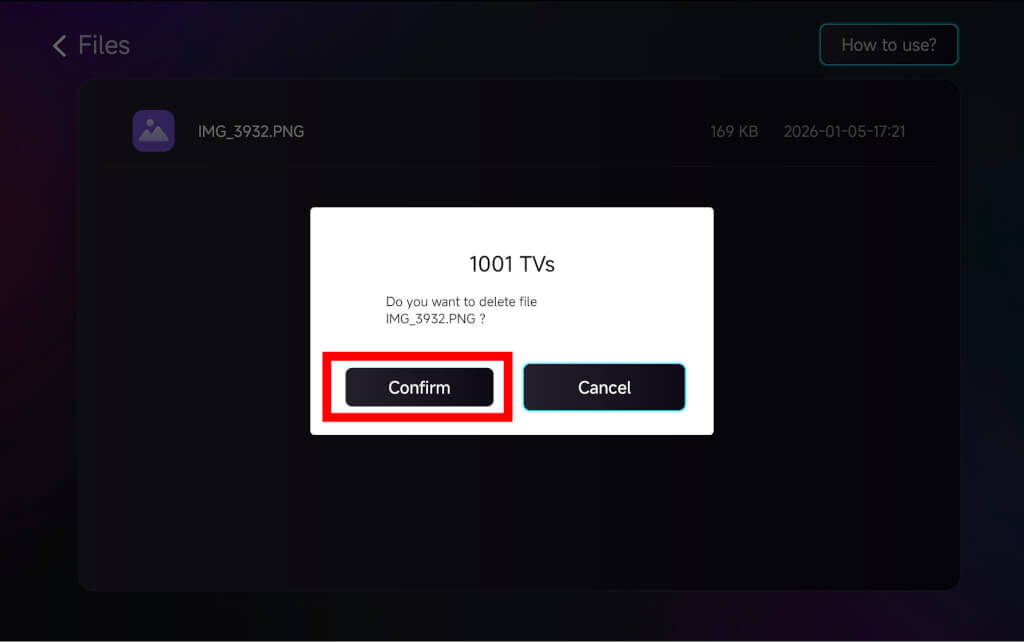
On the Files page in 1001 TVs, use your TV remote control to long-press the OK button to select the file you want to delete, then click “confirm” to delete it.
Why Use 1001 TVs?
Fast, private, and easy to use
Local transfer, no cloud needed
No login or account required
Need Help?
If you encounter any issues, feel free to contact our support team:
- More Guides: Guidance
- Email: 1001tvs@nero.com
- Website: www.1001tvs.com