How to Screen Mirror to Amazon Fire TV from Any Device
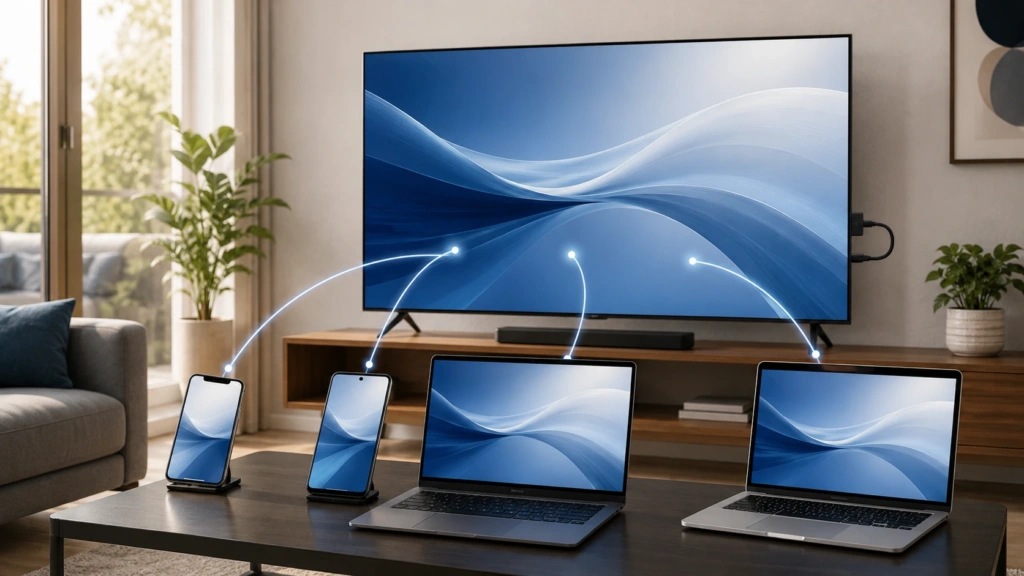
You can screen mirror an iPhone, iPad, Android phone, Windows PC, or Mac to Amazon Fire TV. The setup changes from one device to another because Fire TV does not use a single native mirroring standard across every model.
Compatible Android phones and Windows PCs may connect through Miracast. Selected Fire TV Smart TVs support AirPlay for Apple devices, but a typical Fire TV Stick should not be assumed to have it. If you want one connection process across iOS, Android, Windows, and macOS, install 1001 TVs on both the Fire TV and the sending device.
The table below shows where the native options work and where an app-based setup is more practical.
| Your device | Native option | Native limitation |
| iPhone or iPad | AirPlay | Available only on selected Fire TV Smart TVs |
| Android phone or tablet | Miracast, Smart View, Cast, or Wireless Display | Support depends on the phone and Fire TV model |
| Windows PC | Miracast through Wireless Display | Both the PC and Fire TV must support it |
| Mac | AirPlay | Requires a compatible Fire TV Smart TV |
| Other computers | Varies by system | Fire TV has no universal native option for every platform |
Native methods have one obvious advantage: if the two devices already support the same protocol, you may not need to install another app. Their weakness is compatibility. Changing the phone, computer, or Fire TV model can also change the available setup.
1001 TVs provides a shared sender-and-receiver method for its supported platforms. That makes it useful in homes, classrooms, or meeting spaces where more than one type of device needs to connect to the same Fire TV.
Before you connect
Both devices should be connected to the same Wi-Fi network. Amazon requires this for its Fire TV mirroring process, and 1001 TVs also uses the local network to discover and connect devices.
Run through these checks before starting:
- Update the Fire TV and the phone or computer.
- Turn off a VPN that may block local device discovery.
- Avoid guest Wi-Fi, which often prevents connected devices from communicating.
- Allow local network, screen recording, or screen broadcast permissions when requested.
- Keep the Fire TV and sending device within a reliable range of the router.
- Confirm that the television is on the correct Fire TV input.
Amazon recommends keeping the devices within 30 feet, or about 10 meters, for native Fire TV screen mirroring. The company also notes that the Enable Display Mirroring setting does not appear on incompatible models. See Amazon’s Fire TV screen-mirroring guidance for its current compatibility requirements.
How to screen mirror to Fire TV with 1001 TVs
Different operating systems look for different receivers. Apple devices use AirPlay, many Android phones use Miracast or a manufacturer-specific feature, and Windows Wireless Display depends on compatible Miracast hardware.
1001 TVs gives supported devices a common route to Fire TV. Instead of checking which native protocol a particular combination shares, you install the app on the sender and receiver, then connect them over the same network.
Step 1: Install 1001 TVs on Fire TV
Open the Amazon Appstore on the Fire TV and search for “1001 TVs.” Install the TV app, launch it, and leave it open so the Fire TV is ready to receive a connection.
The 1001 TVs download center also provides access to the Amazon version. App availability can vary by device or Amazon account region, so check that page if the app does not appear in an Appstore search.
Step 2: Install the sender app
Download 1001 TVs on the device whose screen you want to share. Versions are available for iPhone and iPad, Android, Windows, and Mac.
Open the app after installation and grant the permissions needed for local network discovery and screen sharing. The exact prompts depend on the operating system.
Step 3: Put both devices on the same network
Connect the Fire TV and the sender to the same Wi-Fi. A phone using mobile data while the television uses home Wi-Fi will not be on the same local network, even if both devices have internet access.
Guest networks can cause a similar problem because many routers isolate each guest device. Switch both devices to the main Wi-Fi network if they cannot find one another.
Step 4: Find the Fire TV
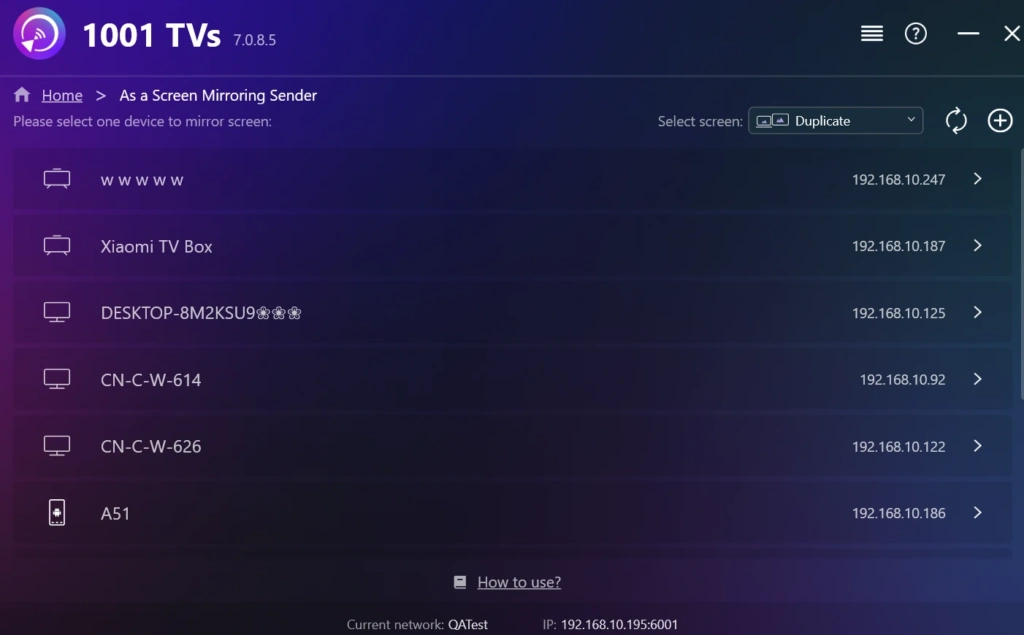
Open 1001 TVs on both devices. On the sender, choose the Fire TV from the available device list. You may also be able to scan the QR code displayed by the TV app, depending on the version and platform.
Check the device name on the television before accepting the connection. This is especially useful when several TVs or receivers are active on the same network.
Step 5: Start screen mirroring
Accept the request on the Fire TV if a confirmation message appears, then select the screen-mirroring option on the sender. Your phone or computer display should appear on the TV.
Anything visible on the sender may also be visible to people watching the television, including notifications. Turn on Do Not Disturb before sharing a presentation, personal photos, or another screen that may display private messages.
How to screen mirror different devices to Fire TV
Native mirroring can be quick when your devices already support the same standard. It also avoids installing another app for a one-time connection.
The limitation is that Fire TV support varies by model, and the sending device may use a different protocol. The following methods are worth checking, but none provides one native process across iPhone, Android, Windows, and Mac. When a native option is unavailable, 1001 TVs gives the supported platforms a consistent alternative.
How to screen mirror iPhone or iPad to Fire TV
AirPlay is built into iPhone and iPad, so it is convenient when the receiving television supports it. Selected Fire TV Smart TVs include AirPlay, but Amazon does not treat iOS as compatible with its standard Miracast-based Fire TV screen mirroring.
Use native AirPlay
Step 1: Open the Fire TV settings and look for Apple AirPlay and HomeKit. Turn AirPlay on if the setting is available.
Step 2: Connect the iPhone or iPad and Fire TV Smart TV to the same Wi-Fi network.
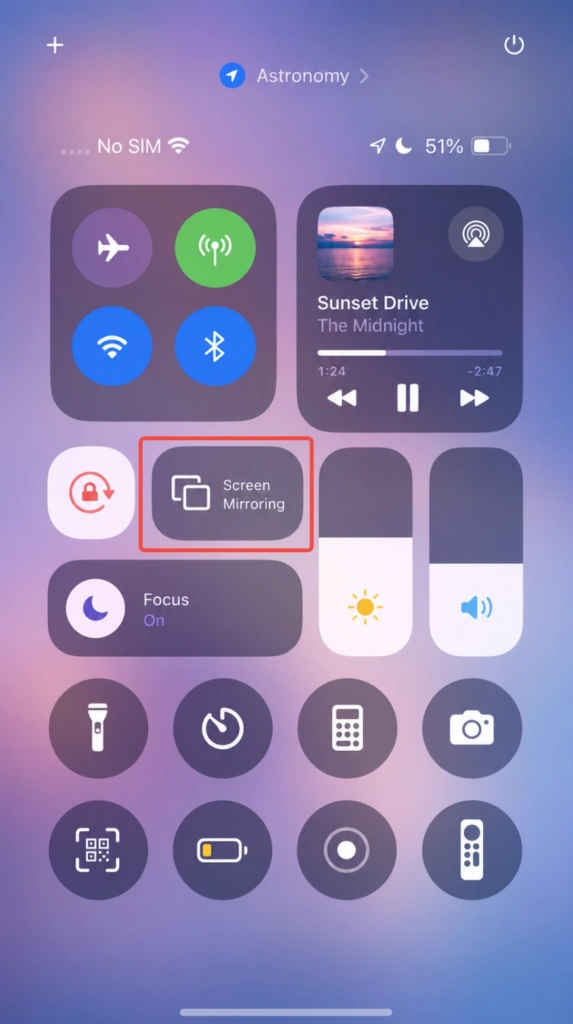
Step 3: Open Control Center on the Apple device, tap Screen Mirroring, and select the Fire TV. Enter the code shown on the television if prompted.
AirPlay is a clean native option for a compatible Fire TV Smart TV. However, the Apple AirPlay and HomeKit menu is not present on every Fire TV device, and Fire TV Sticks should not be assumed to support it.
Amazon’s help documentation explicitly lists iOS among the platforms that do not support standard Fire TV screen mirroring. It directs owners of compatible Fire TV Smart TVs to AirPlay instead.
If no AirPlay setting appears, install 1001 TVs on the Fire TV and iPhone or iPad. The two apps create their own connection, so the Fire TV does not need to act as a native AirPlay receiver.
How to screen mirror Android to Fire TV
Miracast can mirror an Android device without installing a separate sender app when both sides support it. Phone manufacturers use different names for the feature: Samsung calls it Smart View, while other devices may show Cast, Screen Cast, Screen Share, or Wireless Display.
Use native Miracast
Step 1: On Fire TV, go to Settings > Display & Audio > Enable Display Mirroring.
Step 2: Open Quick Settings on the Android phone and select Smart View, Cast, Screen Cast, or the equivalent mirroring control.
Step 3: Choose the Fire TV from the available devices and accept the connection if the television asks for confirmation.
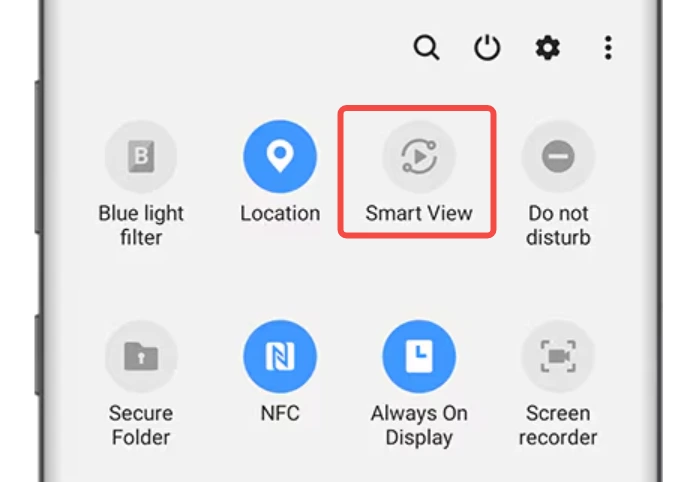
This method is useful when the phone and Fire TV share Miracast support. Compatibility is the catch. Some Android phones do not include traditional Miracast, while several devices use other casting technologies instead.
Fire TV support also changes across generations. Amazon’s Fire TV device comparison table lists Miracast support for individual models, with both supported and unsupported devices in the lineup.
When the phone cannot detect the Fire TV, first confirm that Enable Display Mirroring appears in the television settings. If it does not, or the phone lacks a compatible mirroring control, connect through 1001 TVs instead. The app-based method avoids searching for a manufacturer-specific Miracast menu.
How to screen mirror Windows PC to Fire TV
Windows 10 and Windows 11 include Wireless Display on PCs with compatible Miracast hardware. The feature is built into Windows and can be opened without digging through several settings pages.
Use Windows Wireless Display
Step 1: On Fire TV, open Settings > Display & Audio > Enable Display Mirroring.
Step 2: Press Win + K on the Windows PC to open the Cast or Wireless Display panel.
Step 3: Select the Fire TV when it appears, then approve the connection on the television if required.
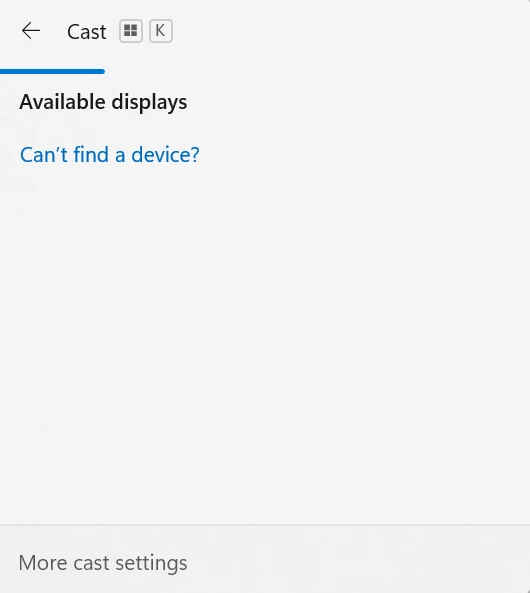
The native Windows method works well for a compatible laptop and Fire TV. Still, the presence of Win + K does not guarantee that the connection will succeed. The PC’s wireless hardware and drivers must support Miracast, and the Fire TV must provide Display Mirroring.
Company and school networks may also restrict communication between local devices. In that situation, neither native discovery nor an app-based connection will work until the network allows the two devices to communicate.
If the hardware supports Wi-Fi communication but Miracast is missing or unreliable, install 1001 TVs on Windows and Fire TV. Open both apps, select the Fire TV from Windows, and start mirroring through the shared application connection.
How to screen mirror Mac to Fire TV
AirPlay is built into macOS and is the simplest native option for a compatible Fire TV Smart TV. Like the iPhone method, it depends on the television providing AirPlay.
Use native AirPlay
Step 1: Open the Fire TV settings, find Apple AirPlay and HomeKit, and enable AirPlay.
Step 2: Connect the Mac and Fire TV Smart TV to the same Wi-Fi network.
Step 3: Open Control Center on the Mac, choose Screen Mirroring, and select the Fire TV. Enter the displayed code if macOS requests one.
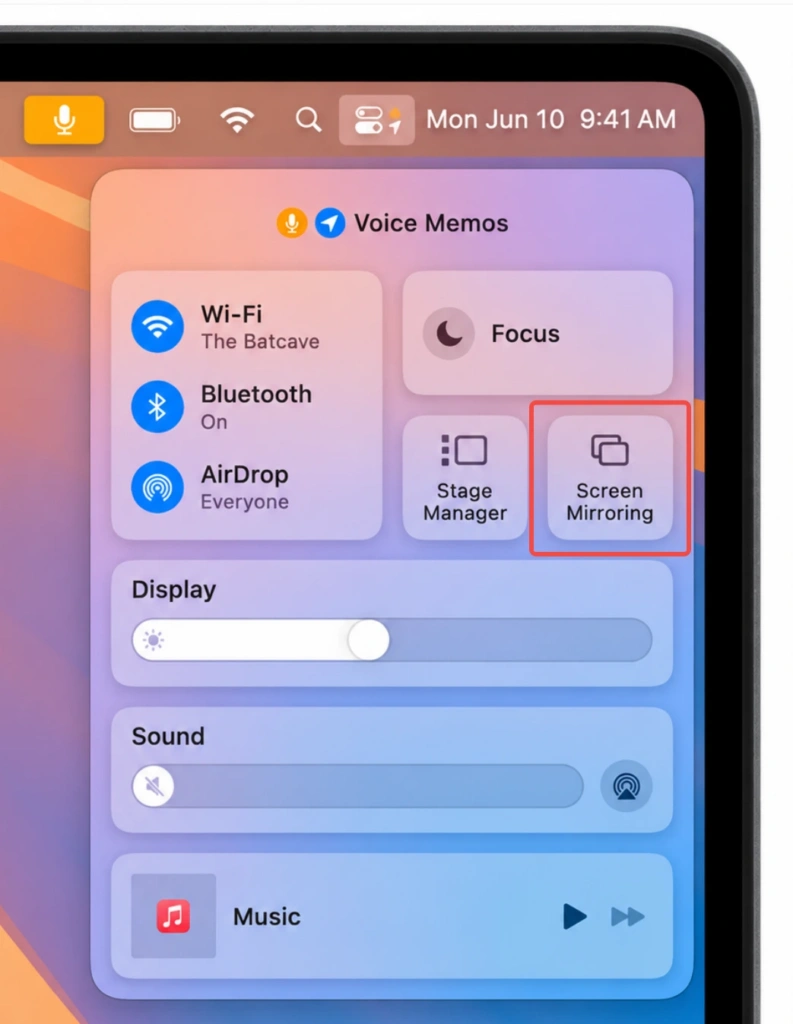
This method does not apply to every Fire TV or Fire TV Stick. Sharing the same Wi-Fi network cannot add AirPlay support to a receiver that does not include it.
When the Fire TV lacks Apple AirPlay and HomeKit, use 1001 TVs on the Mac and Fire TV. The app-based route replaces the missing native receiver and keeps the process similar to the iPhone, Android, and Windows setup.
Which Fire TV devices support screen mirroring?
Amazon uses the Fire TV name for several product categories:
- Fire TV Stick streaming devices
- Fire TV Cube
- Amazon Fire TV smart televisions
- TVs from manufacturers such as Toshiba, Insignia, Hisense, and Panasonic that run Fire TV software
Their screen-mirroring features are not identical. Some support Miracast, selected Fire TV Smart TVs provide AirPlay, and other combinations require an app-based receiver.
You can check the relevant settings instead of guessing from the product name:
- For Android or Windows, look for Enable Display Mirroring.
- For iPhone, iPad, or Mac, look for Apple AirPlay and HomeKit.
- If the matching setting is absent, install 1001 TVs on the Fire TV and sender.
Checking the menu is more dependable than relying on a generic list of Fire TV products. Amazon updates the lineup regularly, and even devices released around the same time may have different protocol support.
Fire TV screen mirroring not working
Most failures come from protocol compatibility, network discovery, or missing permissions. The symptom often points to the cause.
| What happens | Likely cause | What to try |
| Fire TV does not appear | Different Wi-Fi networks or incompatible native protocols | Check the network, then connect through 1001 TVs |
| Enable Display Mirroring is missing | The Fire TV does not support native Miracast mirroring | Install 1001 TVs as the receiver |
| iPhone or Mac cannot find Fire TV | AirPlay is unavailable on the Fire TV | Use 1001 TVs on both devices |
| 1001 TVs cannot detect the TV | VPN, guest Wi-Fi, or local network permission is blocking discovery | Check network settings and app permissions |
| Mirroring disconnects | Weak or congested Wi-Fi | Move closer to the router and reduce network traffic |
| The picture lags behind the sender | Network or device performance is limiting real-time transmission | Use a stronger Wi-Fi signal and close unnecessary apps |
| A protected video shows a black screen | The streaming service may block screen capture through DRM | Use the service’s official Fire TV app |
Restart the sender, Fire TV, and router if a device that worked before suddenly disappears. Persistent problems limited to one phone or computer are more likely to involve that device’s permissions, network settings, or native protocol support.
Frequently asked questions
Does Fire TV support screen mirroring?
Many Fire TV devices support screen mirroring, but they do not all use the same method. Compatible Android and Windows devices may use Miracast. Selected Fire TV Smart TVs support AirPlay, while 1001 TVs provides an app-based option across its supported platforms.
Does Fire TV support AirPlay?
Selected Fire TV Smart TVs include Apple AirPlay. The feature is not available on every Fire TV Stick or Fire TV model. Check the settings for Apple AirPlay and HomeKit. If the menu is missing, use 1001 TVs to connect an iPhone, iPad, or Mac.
Can I mirror an iPhone to a Firestick without Apple TV?
Yes. You do not need Apple TV hardware. Install 1001 TVs on the Firestick and iPhone, connect both devices to the same Wi-Fi, and start mirroring through the apps. Native AirPlay is only an option when the specific Fire TV device supports it.
Can I screen mirror a Samsung phone to Fire TV?
A Samsung phone may connect through Smart View when the Fire TV supports Miracast. Enable Display Mirroring on Fire TV, open Smart View, and select the television. If the Fire TV does not appear, use 1001 TVs as the common sender-and-receiver method.
Why does my Fire TV not have a mirroring option?
The Enable Display Mirroring setting only appears on compatible Fire TV models. If it is missing, that device cannot use Amazon’s native Miracast method. An app such as 1001 TVs may still allow wireless mirroring from a supported sender.
Can I screen mirror to Fire TV without Wi-Fi?
Wireless mirroring normally requires a Wi-Fi connection. Internet access may not be necessary for local screen sharing, but the sender and Fire TV still need a network through which they can communicate. With 1001 TVs, connect both devices to the same local Wi-Fi.
Why can I hear a video but only see a black screen?
The app or streaming service may protect its content with digital rights management. DRM can prevent screen-capture and mirroring tools from displaying the video. Use the streaming service’s official Fire TV app when protected content produces a black screen.
Can Fire TV work as a second monitor?
Fire TV can display a mirrored computer screen. A true extended desktop depends on the operating system, receiver app, and connection method, so it should not be assumed for every setup. HDMI may be more suitable for work that requires low latency or an extended display.
Use one setup across your devices
A native connection is convenient when the sender and Fire TV already support the same protocol. The problem appears when the devices change. Miracast does not cover every Android phone or Windows PC, and AirPlay is unavailable on many Fire TV devices.
1001 TVs gives supported iOS, Android, Windows, and Mac devices a common way to connect to Fire TV. Install the app on the sender and receiver, place both on the same Wi-Fi network, and choose the Fire TV from inside 1001 TVs.
Visit the 1001 TVs download center to install the correct version for your Fire TV, phone, or computer.
Want unlimited screen mirroring from your computer?

Read More
 How to Screen Mirror to Sony Bravia TV (Google TV)
A Sony Bravia Google TV does not use one universal “Screen Mirroring” method for every phone and computer. The right choice depends on both…
How to Screen Mirror to Sony Bravia TV (Google TV)
A Sony Bravia Google TV does not use one universal “Screen Mirroring” method for every phone and computer. The right choice depends on both…
 How to Cast to LG webOS TV
You can cast—or, in some cases, mirror—an iPhone, iPad, Android phone, Windows PC, or Mac to an LG webOS TV. The right method depends…
How to Cast to LG webOS TV
You can cast—or, in some cases, mirror—an iPhone, iPad, Android phone, Windows PC, or Mac to an LG webOS TV. The right method depends…

