1001 TVs: Mirror Your PC/Mac Screen to Multiple Devices at the Same Time (TV, Tablet, Phone, PC)
Introduction
In the latest Windows version of 1001 TVs (v7.0.0.7), we’ve added a powerful new feature — your computer can now mirror to multiple receivers simultaneously (TVs, tablets, phones, or even another PC). And Mac also has this feature.
Here’s what it looks like in action — almost like your PC is “broadcasting to the whole world.” 😄
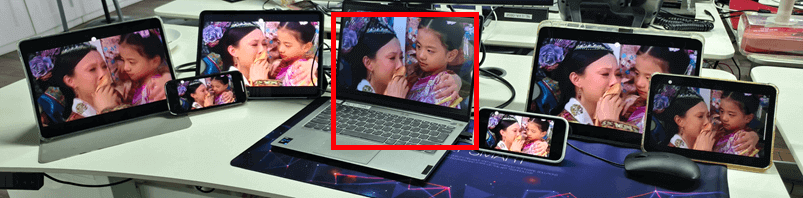
The PC in the center (highlighted in red) is mirroring its screen to six different devices at once.
Of course, this feature is especially useful in meetingrooms where a single computer needs to display content across multiple TVs.
First-device mirroring tutorial
For Windows:
[Windows] How to mirror screen from PC to TV?
[Windows] How to Mirror Windows PC Screen to Mac/Windows PC
[Windows] How to Mirror Your PC Screen to an Android Phone or iPhone
For Mac:
[Mac] How to Mirror Mac Screen to TV
[Mac] How to Mirror Mac Screen to PC/Mac
[Mac] How to Mirror Your Screen to an Android Phone or iPhone
How to Add Devices
1. Mirror your PC/Mac to the first device.
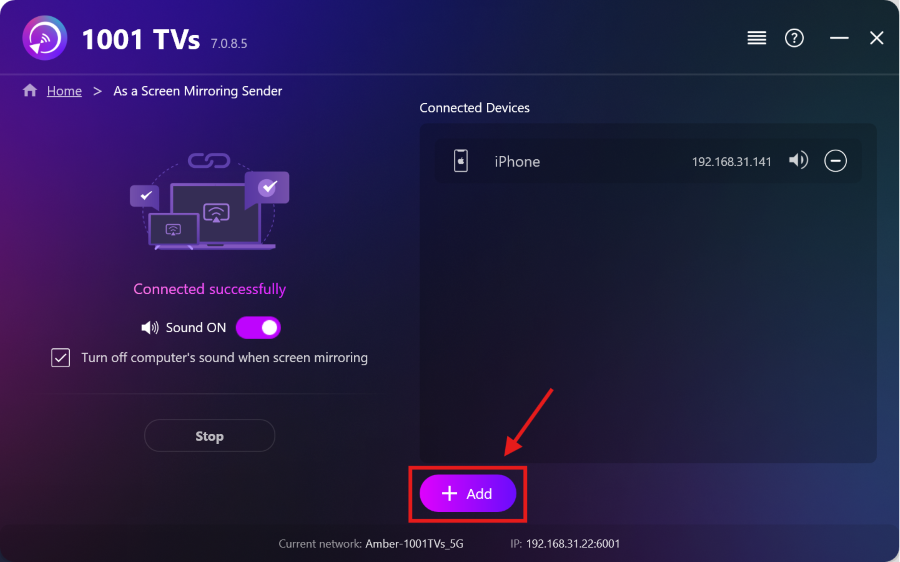
2. After the first device connects successfully, click “Add” in the mirroring interface to add more devices.
Note: Multi-device mirroring feature requires a paid plan.
Explore More from 1001 TVs

Read More
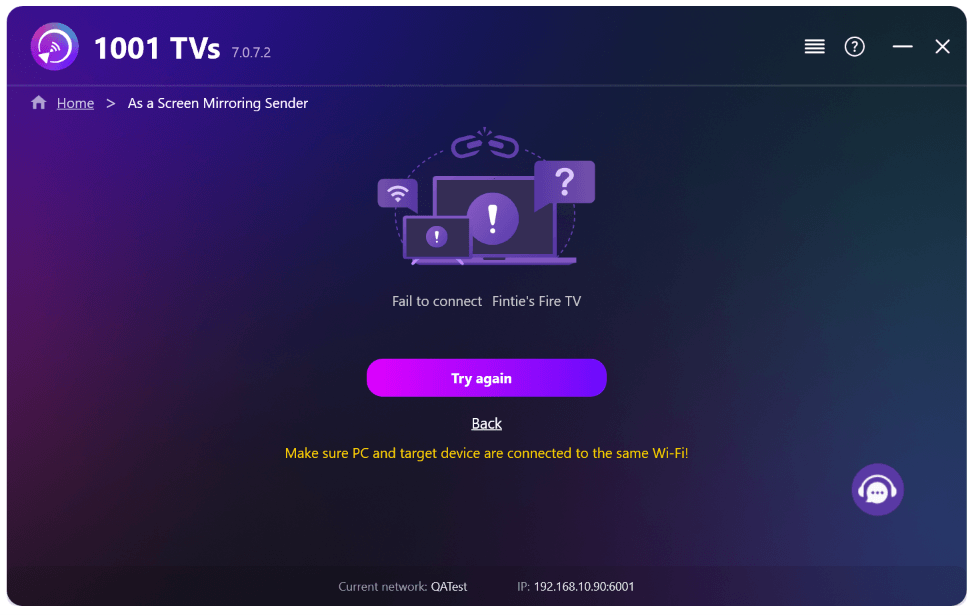 New Setting: No More Pop-ups When Mirroring Ends
When you're mirroring your PC screen to a TV and stop the session using the TV remote, the 1001 TVs window pops back up…
New Setting: No More Pop-ups When Mirroring Ends
When you're mirroring your PC screen to a TV and stop the session using the TV remote, the 1001 TVs window pops back up…
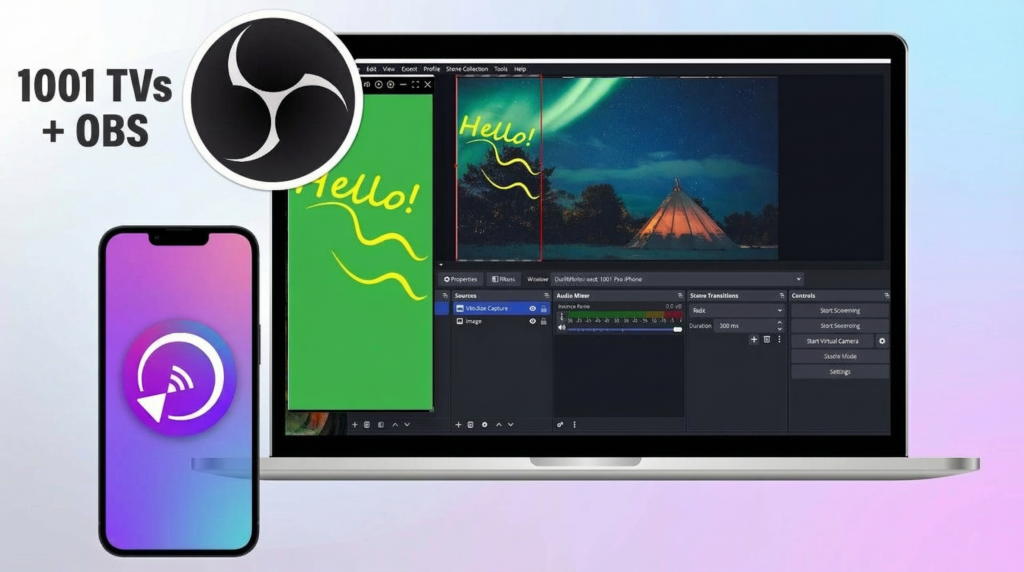 How to Capture Screen Mirroring in OBS (Android & iPhone)
Want to capture screen mirroring in OBS for mobile gameplay, tutorials, or live content? With 1001 TVs, you can easily mirror your phone screen…
How to Capture Screen Mirroring in OBS (Android & iPhone)
Want to capture screen mirroring in OBS for mobile gameplay, tutorials, or live content? With 1001 TVs, you can easily mirror your phone screen…

