
Comment envoyer des fichiers de votre PC/Mac vers votre TV/PC/Mac
Avec 1001 TVs, vous pouvez envoyer des fichiers de votre PC/Mac à votre TV/PC/Mac sur le même réseau local.
Et oui, les PC et les Mac sur le même réseau local peuvent transférer des fichiers directement l'un vers l'autre, sans installation supplémentaire.
Pas de téléchargement dans le nuage. Pas de câbles. Pas d'inscription - seulement des transferts locaux rapides et sécurisés.
Avant de commencer
- Assurez-vous que votre les appareils sont connectés au même réseau Wi-Fi.
- Installer et ouvrir 1001 TVs sur vos deux appareils, laissez l'application en cours d'exécution sur l'appareil récepteur.
Commencer l'envoi
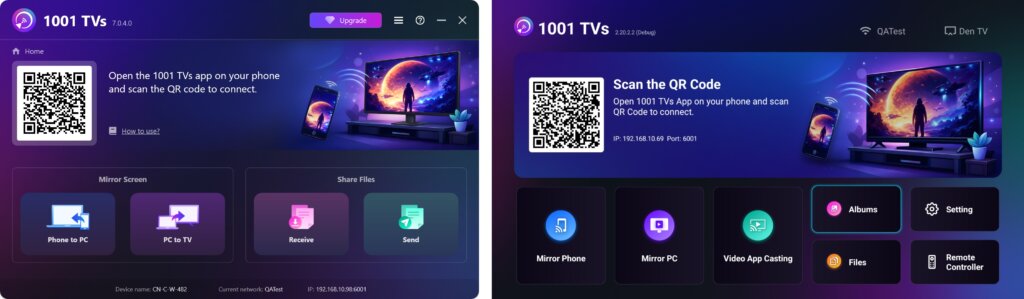
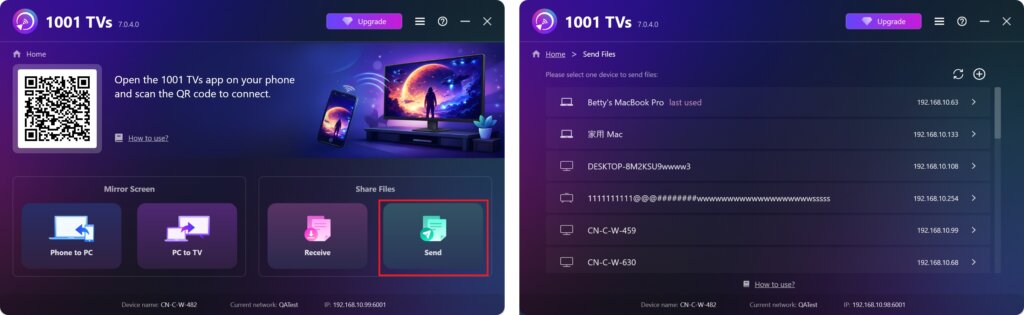
Sur votre dispositif d'envoi, cliquez sur Envoyer et l'application recherchera automatiquement les appareils disponibles sur le même réseau.
Choisissez votre appareil cible dans la liste. (par exemple, votre TV/PC/Mac)
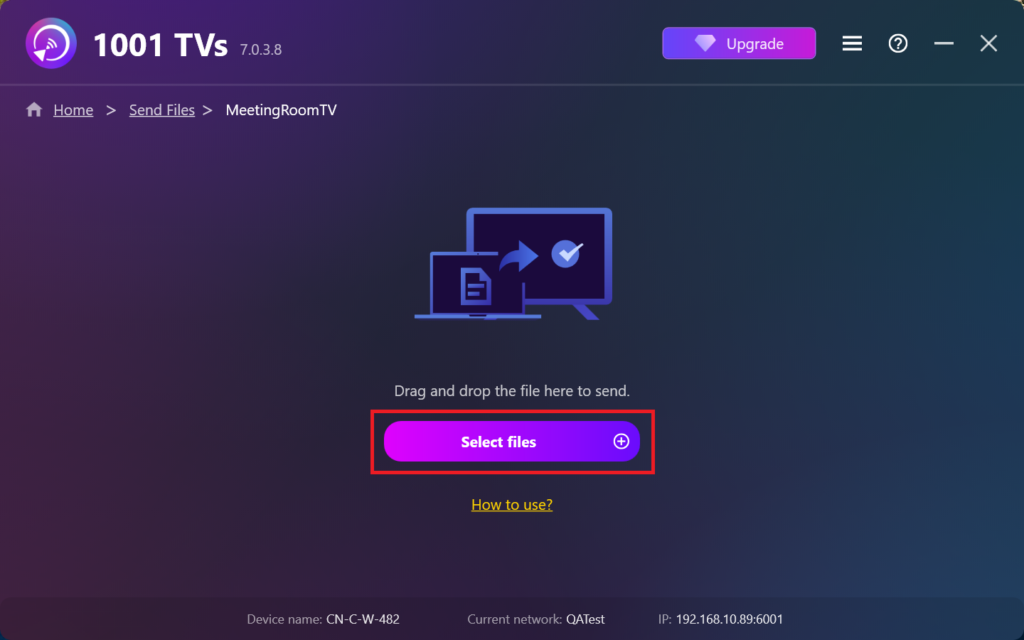
Sélectionnez des fichiers sur votre PC (vidéos, photos, musique, documents, etc.) et le transfert démarrera automatiquement vers l'appareil cible.
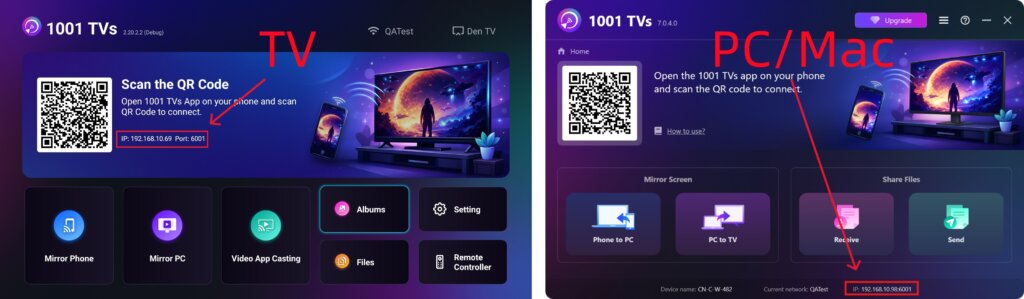
Vous ne trouvez pas votre appareil cible ?
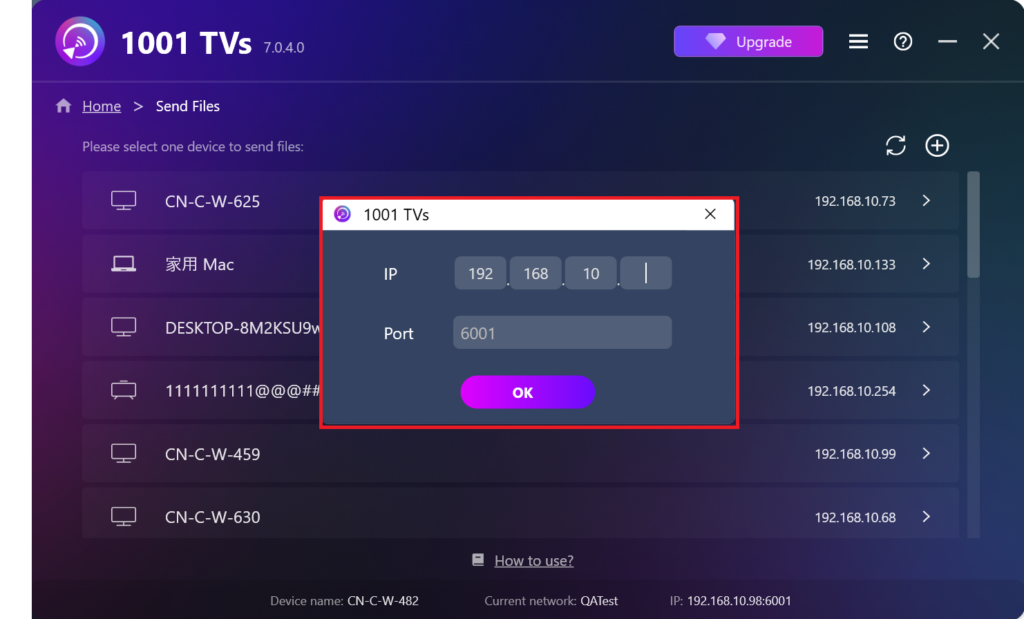
Si l'appareil cible n'apparaît pas dans la liste des appareils, cliquez sur le bouton + icône dans le coin supérieur droit et utiliser Appairage d'adresses IP pour se connecter rapidement et en toute sécurité.
Visualiser les fichiers reçus sur PC/Mac
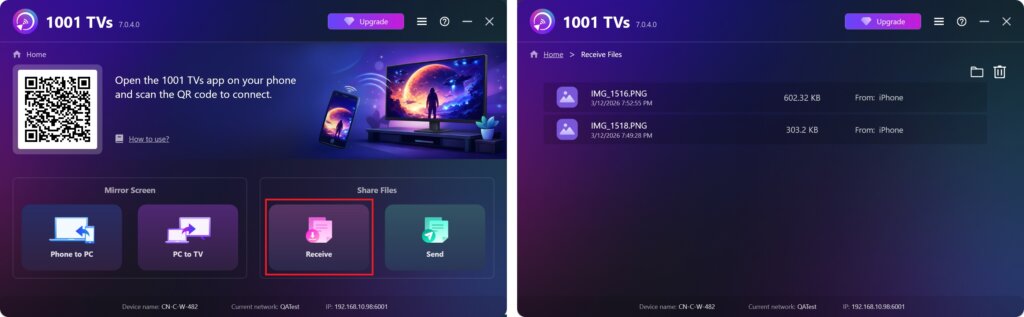
Cliquez sur Recevoir sur votre PC/Mac pour voir tous les fichiers entrants.
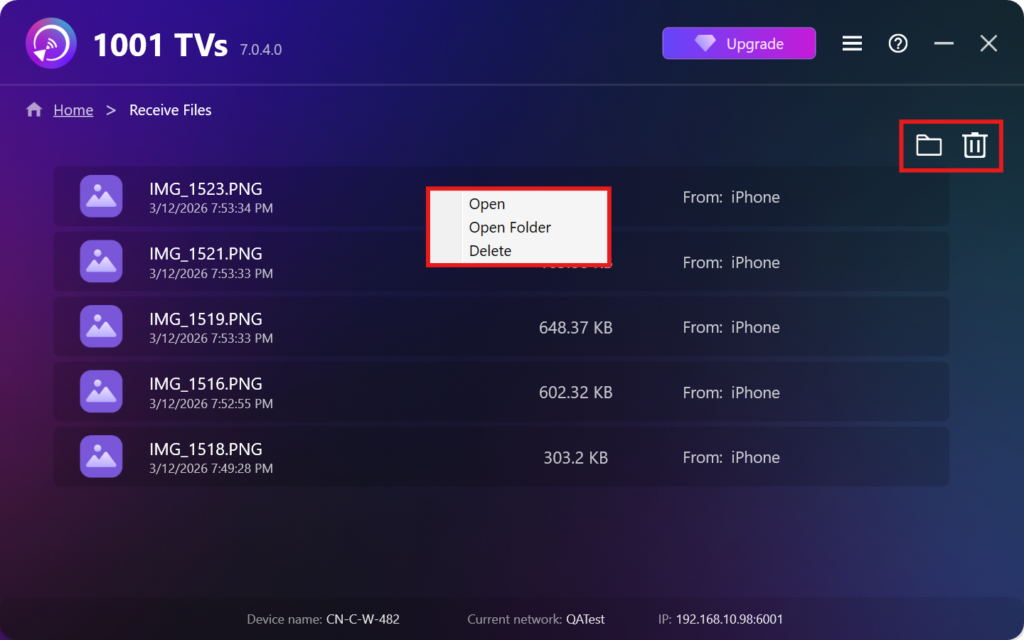
- Ouvrir Visualiser les fichiers reçus – Cliquez sur ou cliquer avec le bouton droit de la souris et sélectionnez “Ouvrir un dossier”pour afficher tous les fichiers de cet appareil spécifique (par exemple, iPhone 12123).
- Localisez-les dans le Finder (Mac) ou l'Explorateur de fichiers (Windows). - Cliquez sur le bouton icône du dossier en haut à droite pour accéder à tous les dossiers de l'appareil.
- Supprimer les options – Cliquer avec le bouton droit de la souris un fichier et sélectionnez “Supprimer”pour le supprimer individuellement, ou cliquez sur le bouton icône de la corbeille en haut à droite pour supprimer tous les fichiers reçus en une seule fois.
Visualiser les fichiers reçus sur la télévision
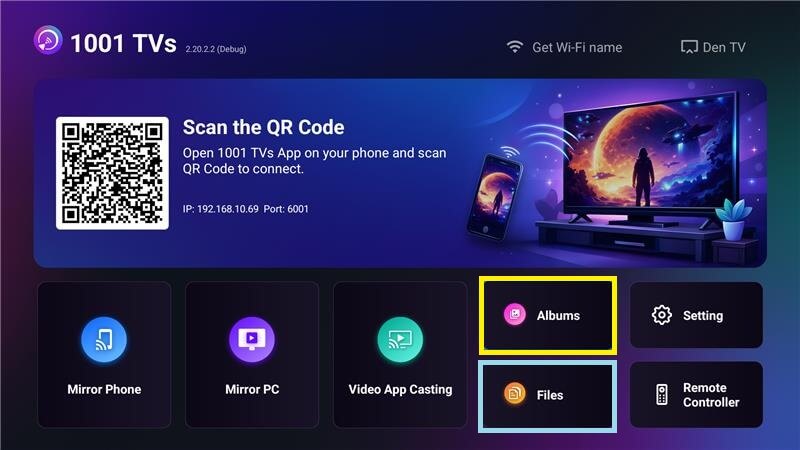
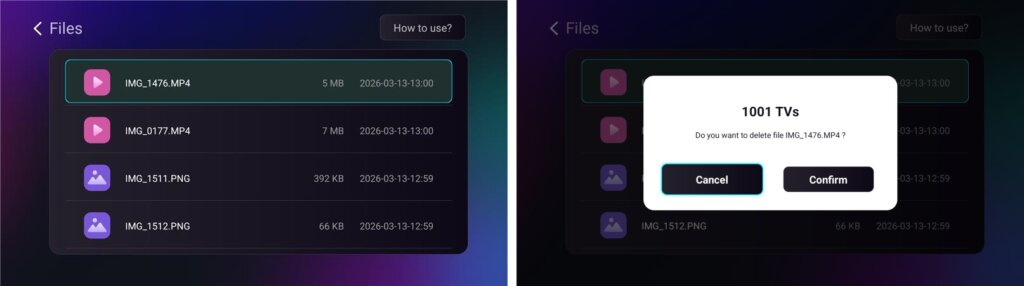
- Naviguez jusqu'à Dossiers pour afficher les fichiers reçus. Vous pouvez sélectionner un fichier et appuyer longuement sur OK pour la supprimer.
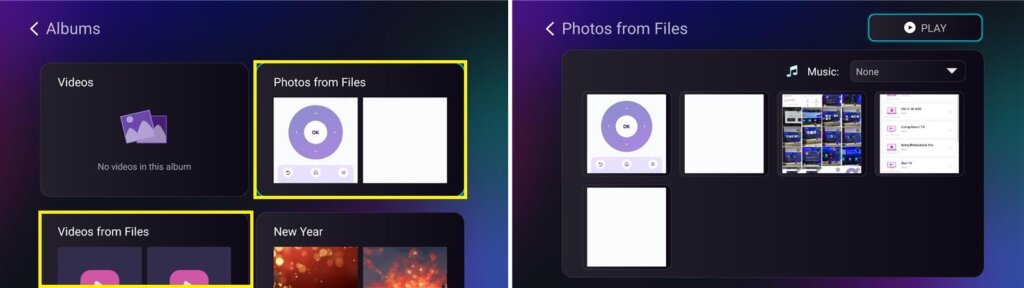
- Naviguez jusqu'à Albums > Photos/Vidéos des fichiers pour visualiser les photos et vidéos reçues. Vous pouvez sélectionner un fichier et appuyer longuement sur OK pour l'effacer ou les lire sous forme de diaporama.
Pourquoi utiliser 1001 TVs ?
- Rapide, privé et facile à utiliser
- Transfert local - aucun nuage n'est nécessaire
- Pas de login ou de compte nécessaire
- Prise en charge des transferts de fichiers volumineux
Besoin d'aide ?
Si vous rencontrez des problèmes, n'hésitez pas à contacter notre équipe d'assistance :
📧 Courriel : 1001tvs@nero.com
🌐 Site web : www.1001tvs.com
📖 Plus de guides : Conseils