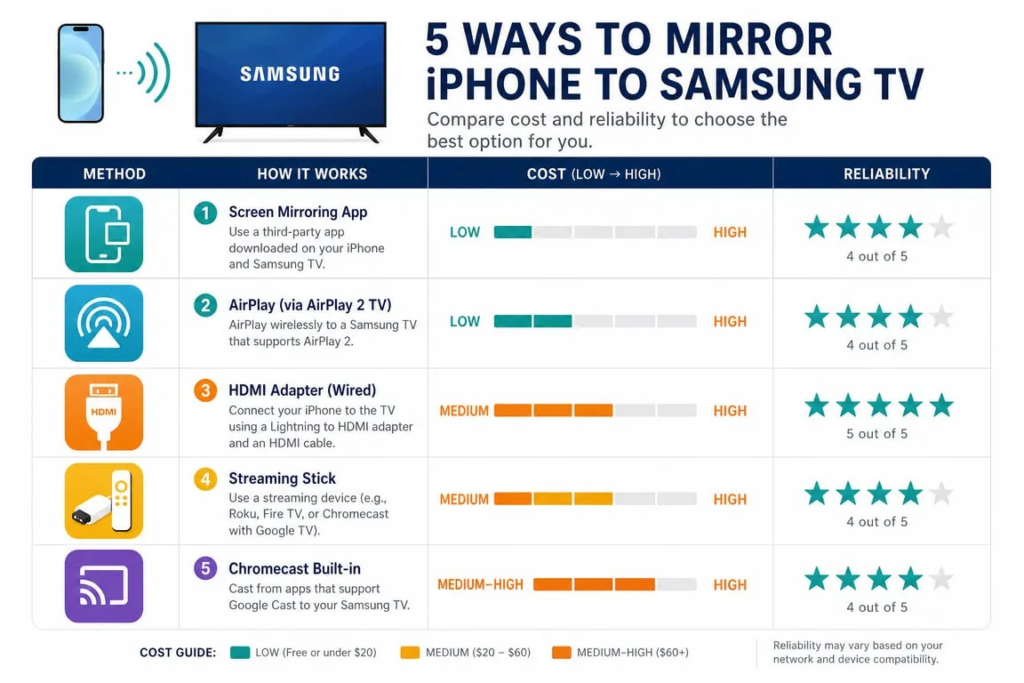
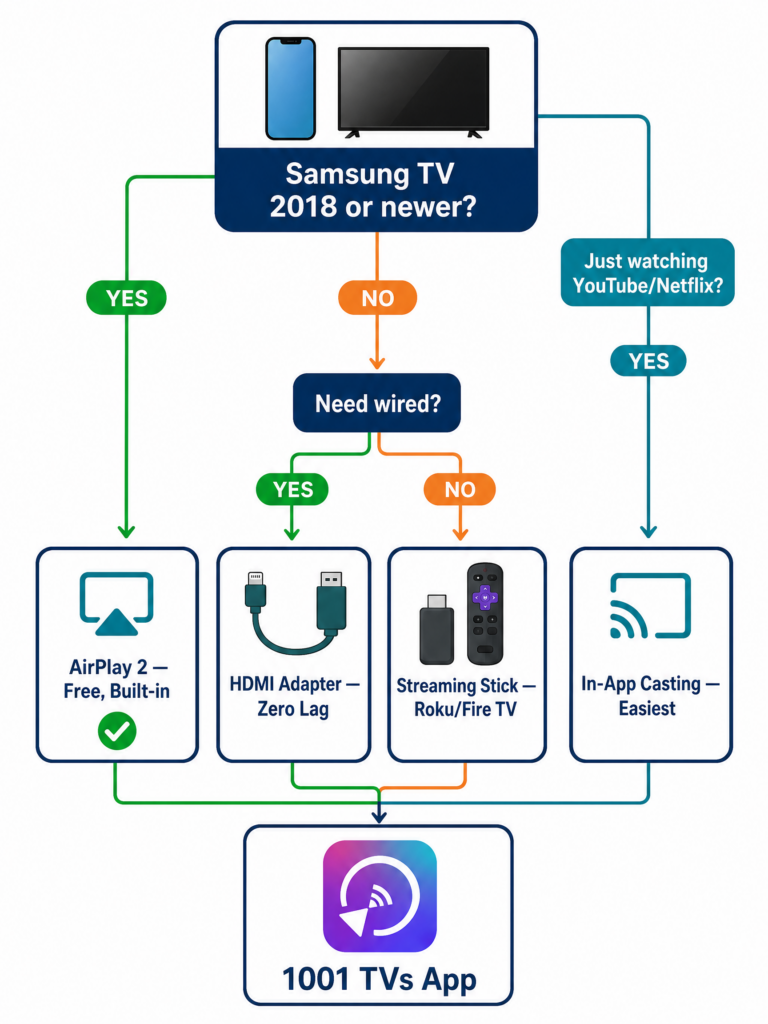
You have an iPhone, a Samsung TV, and no desire to spend $129 on an Apple TV. The good news: Samsung has supported AirPlay 2 directly on its smart TVs since 2018, and for older models there are apps, adapters, and streaming sticks that cost a lot less. The catch is that not every method works on every TV, and some have frustrating limitations that only show up when you try to watch Netflix.
This guide covers five methods that actually work, with real setup steps, screenshots, and user feedback from the App Store and Reddit. Our top recommendation is 1001 TVs, a cross-platform mirroring app that works across iOS, Android, Windows, and Mac.
快速比較
方法
最適合
Key Pros
Key Cons
成本
1001 TVs 应用程序 (推薦)
Wireless mirroring across devices
Cross-platform, extra features like file transfer and whiteboard
App needed on both phone and TV; cannot mirror DRM content; minor wireless latency
Free trial, then ~$20/year
AirPlay 2 (built-in)
Samsung TVs from 2018+
Free, seamless, no extra hardware
Requires compatible TV; mobile hotspots won’t work
免費
HDMI adapter (wired)
Any Samsung TV with HDMI
Zero lag, no Wi-Fi needed
iPhone 16e/17e have no video output; DRM black screen on Netflix
~$40 to $49
Streaming stick (Roku/Fire TV)
Older Samsung TVs without AirPlay 2
Cheap upgrade; Roku has official AirPlay support
Requires purchasing a separate device
$25 to $40
In-app casting
Watching specific apps (YouTube, Netflix)
Saves battery; TV streams directly
Only works per-app, not full-screen mirror
免費
Method 1: 1001 TVs App (Recommended)
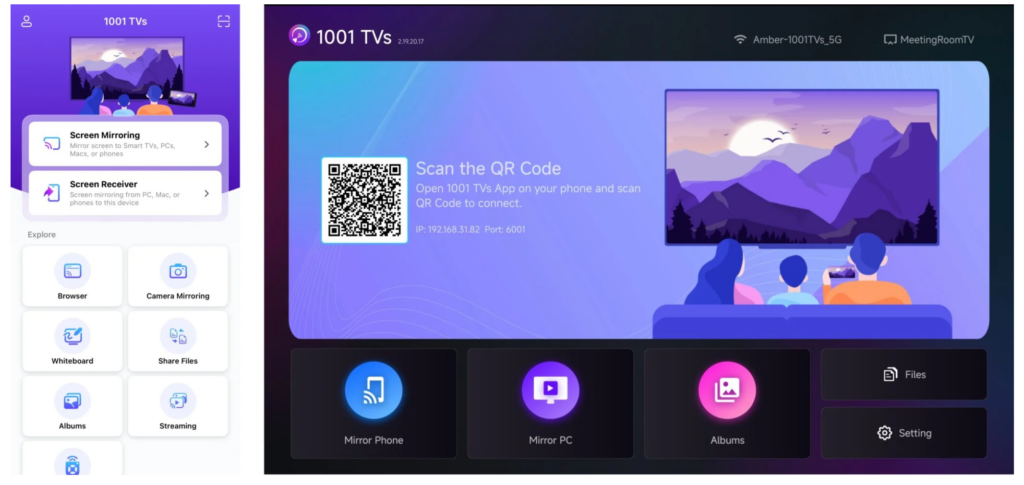
If you want a wireless mirroring solution that goes beyond what AirPlay offers, 1001 TVs is worth trying. Made by Nero AG, it lets you mirror your iPhone screen to TVs, PCs, tablets, and projectors, with extras like file transfer, photo album casting, web streaming, a live whiteboard for presentations, and camera mirroring.
The mirroring app market is full of apps that charge overpriced weekly subscriptions and deliver buggy results. As one Reddit user put it:
“Searching on Google for this it’s just a million apps that charge overpriced weekly subscriptions, but if I just want to simply mirror my screen to a TV, what options are there?”
What 1001 TVs offers
Cross-platform. Mirror from iPhone, iPad, Android, Windows, or Mac. The app is available on iOS, Android, Windows, and Mac.
Works with multiple TV platforms, including Android TV, Apple TV, Amazon Fire TV, Roku, and smart TVs from brands like TCL, Sony, Hisense, and Philips.
Browser-based receiver. If your TV can’t install the app directly, you can open the 1001 TVs web receiver in the TV’s browser.
Privacy-first. All casting data stays on your local network. There is no account system, so no personal information is stored.
Extra features: file transfer between devices, photo album casting to TV, web streaming, a live whiteboard, and camera mirroring for big-screen selfies.
Trusted by 3M+ users with a legitimacy score of 92.8/100 on JustUseApp, based on 558 user reviews.
设置
For step-by-step setup instructions, follow the official 1001 TVs iOS guide. In short: install the app on both your iPhone and your TV, connect both to the same Wi-Fi network, then scan the QR code or select your TV from the device list to start mirroring.
定價
1001 TVs offers a limited-time free trial with full, unlimited access to premium features like screen mirroring, file transfer, and album. To continue enjoying the service, simply upgrade to a subscription once the trial ends.
What users say
“Best App ever, Only one that works on any TV. So I was looking for 1 app that would link to my Apple TV, Samsung smart TV and the Hisense smart TV…… All 3 product suppliers told me it is not possible.”
“I used this app to mirror my iPhone to my TiVo device. There is a subscription requirement for $20 for the year isn’t too bad for an app that actually works well, I’ve paid more and gotten less in the past from other apps.”
“Thank you so very much! I finally have a screen mirroring program that works on my MacMini, iPhone, iPad and Toshiba 58″ TV. I am absolutely thrilled… PS I have tried over 20 screen mirroring programs that did not work well.”
“Very user friendly app, with clear instructions and high quality screening functions. Strongly recommend to everyone!”
Both devices on the same Wi-Fi network (mobile hotspots do not work)
Samsung’s AirPlay 2-compatible TVs include the 2018 to 2024 QLED, Neo QLED, OLED, The Frame, and Crystal UHD series. To check your TV, go to Settings > General > Apple AirPlay Settings on the TV. If that menu exists, it supports AirPlay 2.
设置
Connect both your iPhone and Samsung TV to the same Wi-Fi network.
On the TV, go to Settings > General (或 連結 on 2022 to 2025 models) > Apple AirPlay Settings and confirm AirPlay is on.
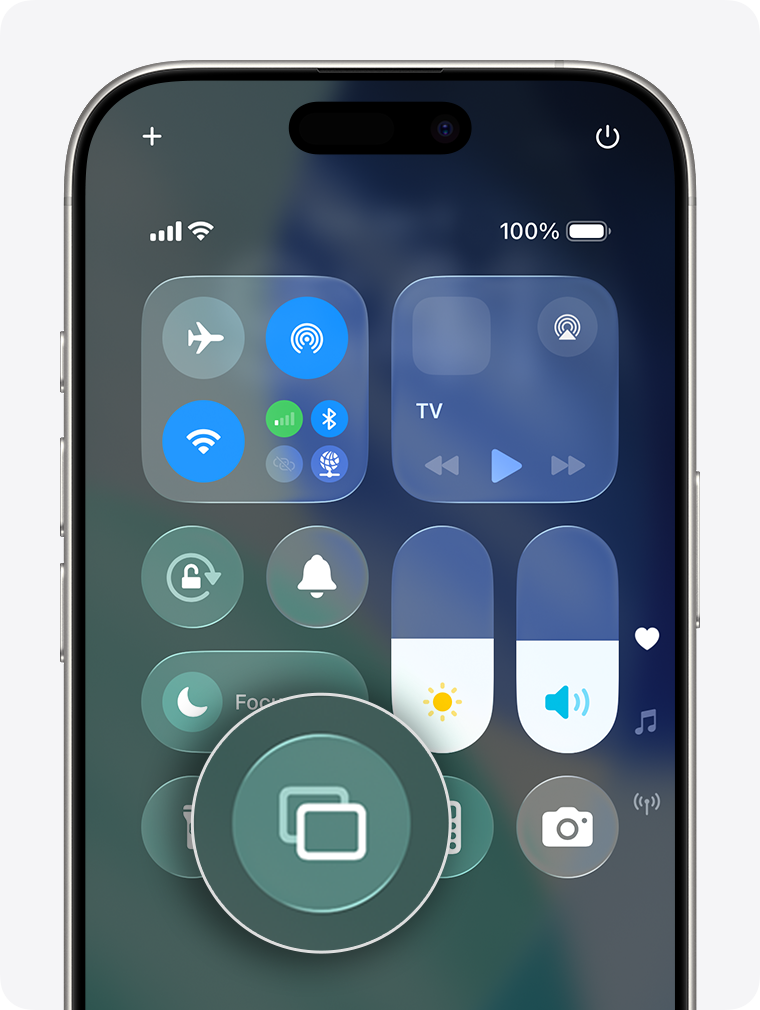
On your iPhone, swipe down from the top-right corner to open Control Center (on models with a Home button, swipe up from the bottom).
点击 螢幕鏡像 button (two overlapping rectangles).
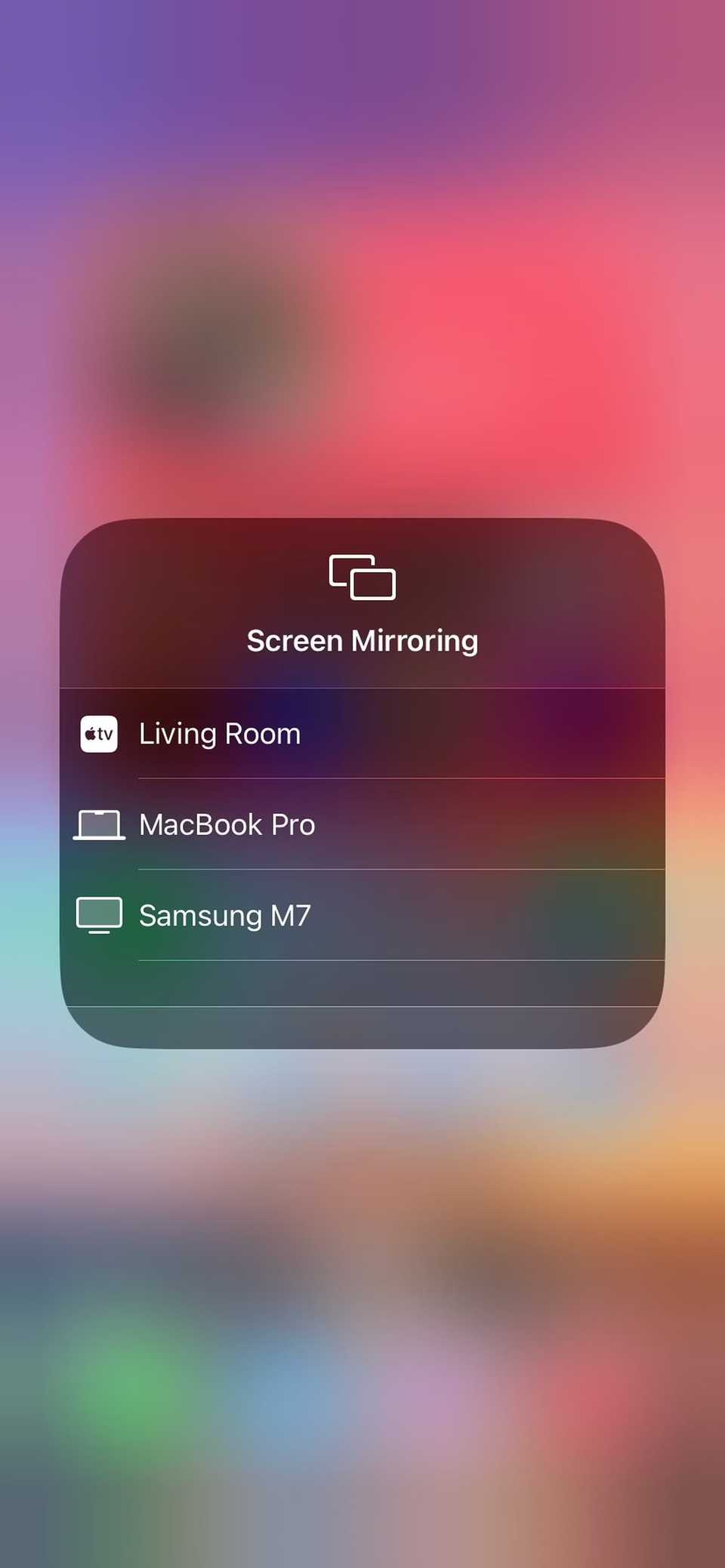
Select your Samsung TV from the list.
If a passcode appears on the TV, enter it on your iPhone.
To stop, open Control Center again, tap Screen Mirroring, and select Stop Mirroring.
What can go wrong
DRM-protected apps like Netflix may show a black screen when you mirror your full screen. The fix: tap the AirPlay icon inside the app’s video player instead of using Control Center. This casts the video stream directly and usually bypasses the restriction. See Method 3 for a full explanation of why this happens.
If AirPlay fails to connect at all, check that both devices are on the same Wi-Fi band (2.4 GHz vs. 5 GHz), restart both, and verify AirPlay is enabled in the TV’s settings. Samsung confirms that mobile hotspots will not work even if both devices appear connected.
“Trying to connect to the TV using AirPlay, I select the TV and after a while it tells me that it can’t connect.” – r/applehelp
Method 3: HDMI Adapter (Wired, Most Reliable)
For gaming, presentations, or anywhere Wi-Fi is unreliable, a wired HDMI connection is the most stable option. It works on any Samsung TV with an HDMI port.
For iPhone 15, 16, and 17 Series (USB-C)
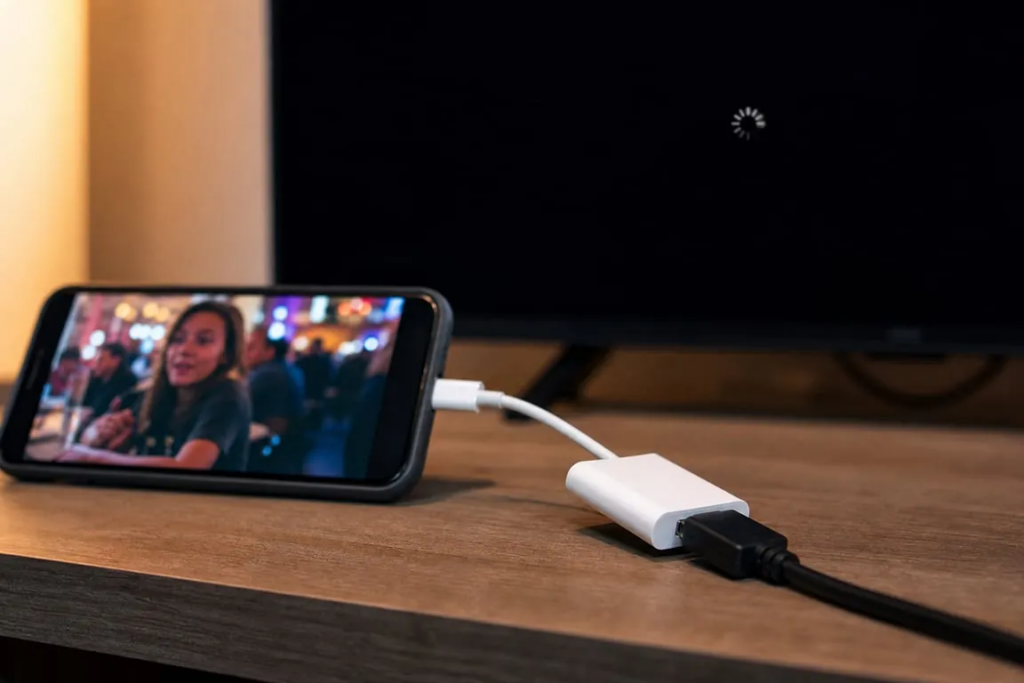
Most models from the iPhone 15 onward support DisplayPort Alternate Mode, which allows direct video output over USB-C. You need a USB-C to HDMI cable or the Apple USB-C Digital AV Multiport Adapter. Plug one end into the iPhone, the other into the TV’s HDMI port, and switch the TV to that input.
Compatible models: iPhone 15/15 Plus/15 Pro/15 Pro Max, iPhone 16/16 Plus/16 Pro/16 Pro Max, and iPhone 17 series (except the 17e).
Critical warning: iPhone 16e and 17e cannot output video via HDMI.
Despite having a USB-C port, the iPhone 16e does not support DisplayPort Alt Mode. Apple’s tech specs list only “USB 2.0” for the 16e’s connector, with no DisplayPort. No USB-C to HDMI adapter or cable will produce a video signal from a 16e, regardless of brand or price. Hundreds of users in the Apple Support Community have confirmed this, including teachers who found out only after buying the device for classroom use. The iPhone 17e shares this limitation.
For iPhone 14 and Older (Lightning)
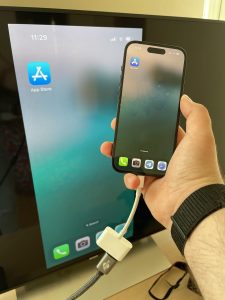
You need Apple’s Lightning Digital AV Adapter (about $49) plus a standard HDMI cable. The adapter has a second Lightning port so you can charge while connected.
设置
Plug the adapter into your iPhone’s charging port.
Connect the HDMI cable from the adapter to an HDMI port on your Samsung TV.
Switch the TV to that HDMI input.
Your iPhone screen appears on the TV immediately.
The DRM black screen problem
The wired method gives you a pixel-for-pixel duplicate of your screen with zero lag. But streaming apps have a catch that adapter marketing never mentions.
“Movies, TV shows, and certain streaming video apps require High-Bandwidth Digital Content Protection (HDCP). If you try to play these movies, shows, and streaming videos using a non-HDCP digital connection, an alert will ask for an HDCP-compatible device.”
In practice, Netflix, Amazon Prime Video, Disney+, and Apple TV+ will show a black screen (audio only) over a Lightning to HDMI adapter, even the official Apple one. Dozens of Apple Support Community threads confirm this. Cheap third-party adapters ($10 to $20 online) are worse: they frequently lack HDCP support entirely.
Several iOS updates (notably iOS 16.x and iOS 18.x) have also introduced bugs that temporarily broke HDMI output, requiring a later update to fix.
Bottom line: Wired works reliably for photos, slideshows, websites, and non-DRM video. For Netflix and other protected content over a cable, results are inconsistent.
Method 4: Streaming Stick (Add AirPlay to an Older TV)
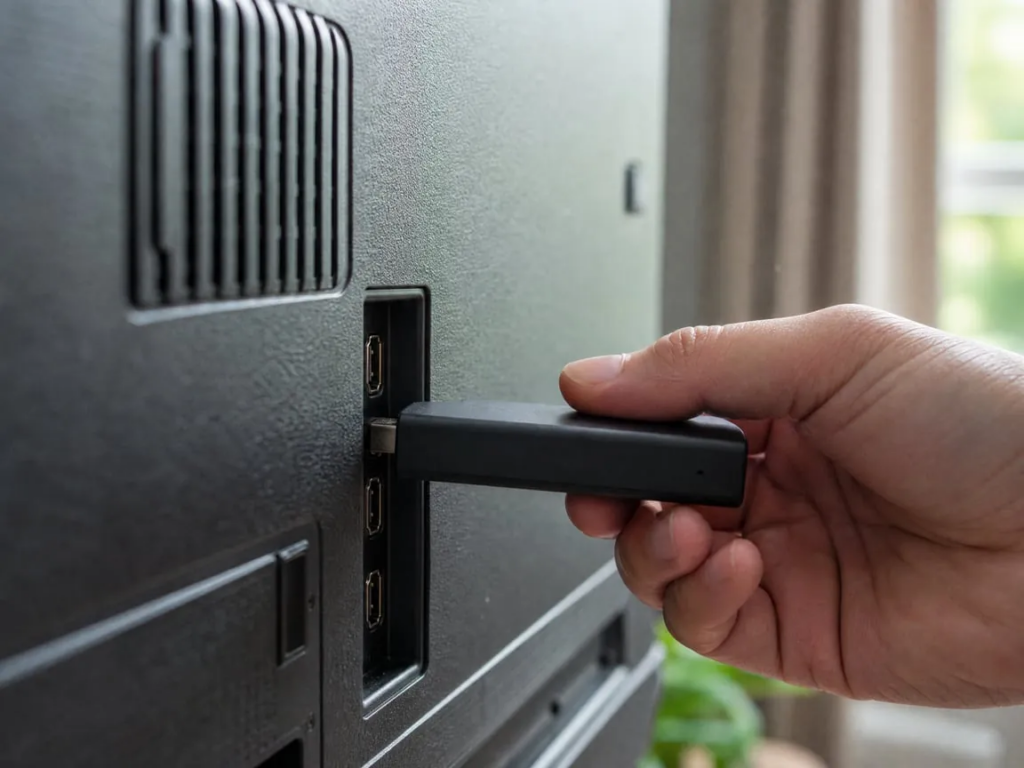
If your Samsung TV is too old for AirPlay 2, a streaming stick plugged into one of its HDMI ports adds that capability for a fraction of an Apple TV’s price.
Roku is one of Apple’s officially listed AirPlay partners. Most Roku devices running Roku OS 9.4 or higher (Streaming Stick 4K, Express 4K+, Ultra) natively support AirPlay 2. Plug it in, connect it to Wi-Fi, then go to Settings > Apple AirPlay and HomeKit on the Roku and turn AirPlay on. Your iPhone will detect the Roku as an AirPlay destination.
亚马逊 Fire 电视棒 doesn’t support AirPlay natively. You can install a receiver app like AirScreen from the Amazon Appstore. Once running, the Fire TV Stick advertises itself as an AirPlay target and your iPhone will detect it.
Google Chromecast uses Google Cast, not AirPlay, so the iPhone’s Screen Mirroring menu won’t find it. But apps like YouTube and Netflix have a built-in Cast button that sends video directly to the Chromecast. This is app-level casting, not full-screen mirroring.
If you just want to watch YouTube or Netflix on the big screen, don’t mirror your screen at all. Most major streaming apps can cast directly to the corresponding app on your Samsung Smart TV.
Make sure your iPhone and Samsung TV are on the same Wi-Fi network.
Open the app on your iPhone and start playing a video.
点击 演員圖示 (a rectangle with Wi-Fi waves) in the video player.
Select your Samsung TV. The video plays on the TV while your phone acts as a remote.
This is more battery-efficient than mirroring because the TV streams the content directly instead of receiving a compressed copy of your screen.
疑難排解
TV doesn’t appear in the device list. Confirm both devices are on the same Wi-Fi network (same SSID, same band). Turn off any VPN. Restart both devices. For 1001 TVs, make sure the app is running on the TV. For AirPlay, try Settings > Connections > External Device Manager > Device Connect Manager on the Samsung TV to adjust access settings.
Screen looks blurry. In 1001 TVs, go to Mine > Settings and turn off Adaptive image quality (Send) to prioritize resolution over smoothness. You can also manually adjust mirroring quality.
Noticeable lag. Wireless mirroring always has some latency. For video streaming it’s rarely noticeable. For gaming, switch to a wired USB connection in 1001 TVs, or use the HDMI adapter method. A 5 GHz Wi-Fi network helps significantly over 2.4 GHz.
Netflix shows a black screen. This is HDCP/DRM protection. See the explanation in Method 3. The fix: tap the AirPlay or Cast icon inside the app’s video player instead of using screen mirroring.
No audio through the TV. Make sure the TV isn’t muted. For AirPlay, audio routes automatically. For 1001 TVs, update to the latest version; older builds had audio sync issues that are now fixed.
常見問題
Can I mirror my iPhone to a Samsung TV without any extra hardware?
Yes, if your Samsung TV was made in 2018 or later and supports AirPlay 2. Open Control Center, tap Screen Mirroring, and select your TV. Both devices must be on the same Wi-Fi network. If your TV is older, you’ll need an HDMI adapter, a third-party app like 1001 TVs, or a streaming stick like Roku.
Which Samsung TVs support AirPlay 2?
Samsung TVs from 2018 onward, including the QLED, Neo QLED, OLED, The Frame, and Crystal UHD series (2018 to 2024). To verify, go to Settings > General > Apple AirPlay Settings on your TV. If that menu exists, your TV supports it.
Does the iPhone 16e support HDMI output?
No. The iPhone 16e lacks DisplayPort Alternate Mode. Apple’s tech specs list only “USB 2.0” for the 16e’s connector. No USB-C to HDMI adapter will produce a video signal from it, regardless of brand or price. The iPhone 17e shares this limitation. Use AirPlay 2 or 1001 TVs instead.
1001 TVs 是免費的嗎?
1001 TVs offers a limited-time free trial with full, unlimited access to premium features like screen mirroring, file transfer, and album. To continue enjoying the service, simply upgrade to a subscription once the trial ends.
You don’t need an Apple TV to get your iPhone screen onto your Samsung TV. You might not even need an app. But when the built-in options fall short, 1001 TVs is the tool worth reaching for.