How to Play Mobile Games on TV with Low Latency (2026 Guide)
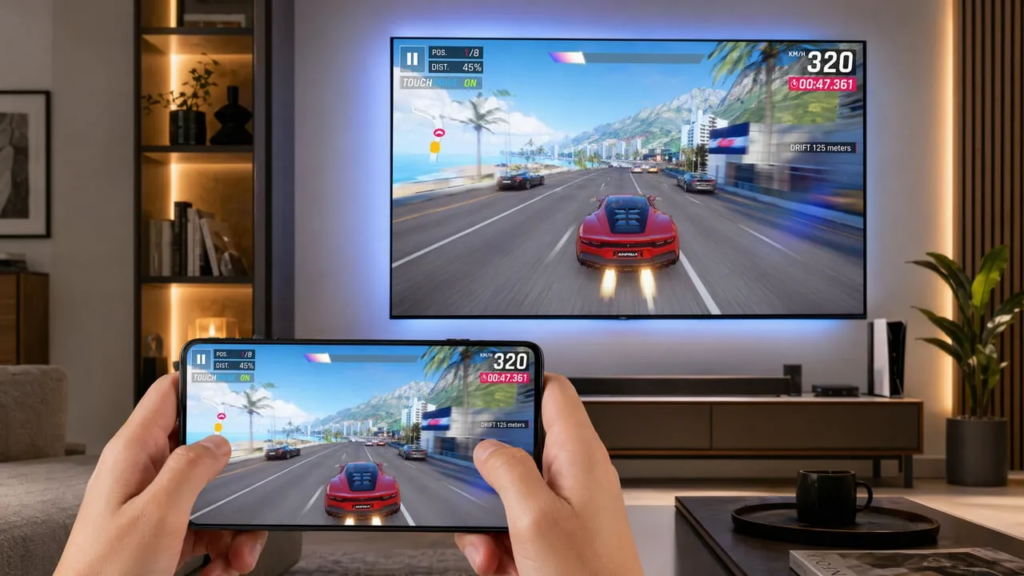
Playing Call of Duty Mobile on a 6-inch screen gets old fast. Squinting at Genshin Impact’s tiny text when there’s a 55-inch TV right there? Worse. The big screen changes everything about mobile gaming. More immersive. More comfortable. Better for local multiplayer.
Then you try to mirror your screen and hit the wall: lag. Press jump. Your character jumps a second later. Turn the wheel. The car drifts off the road before the image catches up. Most people give up and go back to the phone.
Playing mobile games on TV means mirroring or casting your phone’s screen to a television. Game video and audio appear on the larger display. You keep controlling the game from your phone. The main challenge is latency: the delay between your touch input and the on-screen response. Get it wrong, and fast-paced games become unplayable.
Wireless screen mirroring typically adds 20 to 600 ms of latency, depending on the protocol. Reddit users on r/Chromecast report 1 to 3 seconds of delay when using default Chromecast casting for gaming. That’s far above the 50 ms threshold for responsive gameplay. The good news: switching to 5GHz Wi-Fi can significantly reduce mirroring latency compared to 2.4GHz. A $15 USB-C to HDMI adapter can eliminate lag entirely.
This guide compares six methods, from zero-latency wired connections to wireless protocols. You’ll get real latency benchmarks, step-by-step setup for Android and iPhone, and game-type recommendations so you can pick the right approach for the games you actually play.
Method Comparison at a Glance
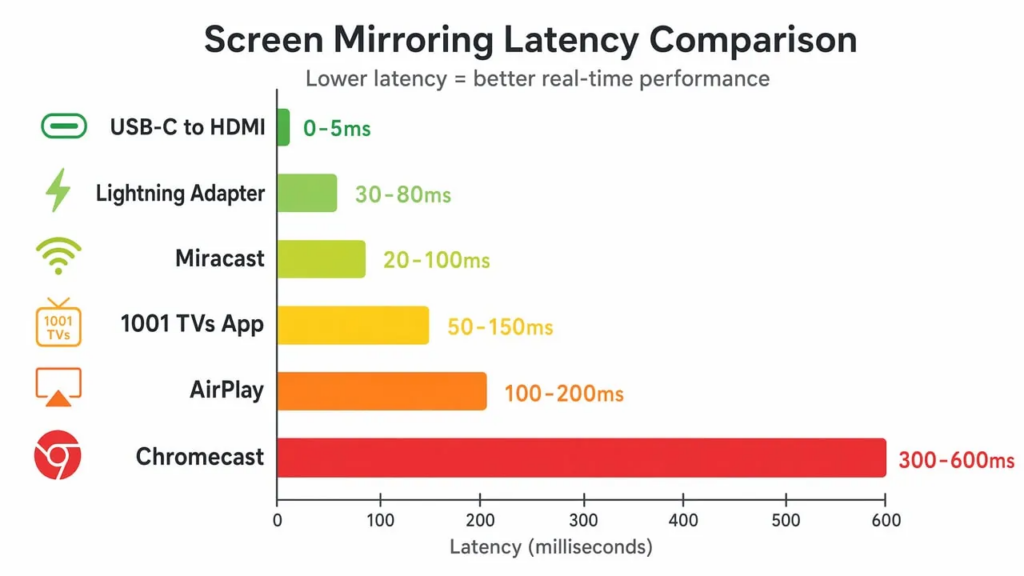
Before diving into setup steps, here’s how the six methods stack up. Latency ranges come from protocol architecture and user-reported measurements across r/Chromecast, r/EmulationOnAndroid, and manufacturer documentation.
| Method | Latency Range | Best For | Phone Compatibility | Setup Difficulty | Cost |
| USB-C to HDMI (Wired) | ~0-5 ms | Competitive gaming, FPS, rhythm games | Android phones with DP Alt Mode (Samsung Galaxy S8+, Note 8+, LG G5+); iPhone 15+ | Easy (plug-and-play) | $10-$25 adapter |
| Lightning Digital AV Adapter (Wired) | ~30-80 ms | Competitive gaming on pre-USB-C iPhones | iPhone 5-14 (Lightning port) | Easy (plug-and-play) | $49 (Apple) or $15-$25 (third-party) |
| Miracast / Wi-Fi Direct | 20-100 ms | Mid-paced games, platformers, RPGs | Most Android phones (Samsung Smart View, LG Screen Share) | Easy (built-in) | Free (if TV supports it) |
| Dedicated Mirroring App (1001 TVs) | 50-150 ms | Casual to mid-paced games, universal TV compat | iPhone + Android, works with all smart TV brands | Easy (1-tap connect) | Free / Premium |
| AirPlay to Apple TV | 100-200 ms | Casual gaming, turn-based, card games | iPhone, iPad, Mac (requires Apple TV or AirPlay 2 TV) | Easy | Apple TV $199+ (or AirPlay 2 TV) |
| Chromecast Screen Mirror | 300-600 ms | Turn-based strategy, puzzles, slow-paced games | Android (native), iPhone (via Google Home app) | Easy | $30-$50 dongle |
Screen mirroring latency for gaming is the total delay between a touch input on your phone and the visual update on your TV. Under 50 ms feels ideal. Anything from 50 to 150 ms is playable for most casual titles. Above 200 ms, fast-paced games become unresponsive. USB-C to HDMI wired connections hit near-zero latency because they transmit uncompressed video signals directly. No Wi-Fi encoding, no transmission delay, no decoding overhead. The Lightning Digital AV Adapter is a partial exception: it uses H.264 encoding internally, adding 30 to 80 ms, but is still faster and more stable than wireless AirPlay.
Why Mobile Games Lag When Mirrored to TV
Three things cause screen mirroring lag in gaming. First, network latency: the time data takes to travel over Wi-Fi between phone and TV. This ranges from 20 ms on optimized 5GHz connections to 600+ ms on congested 2.4GHz networks. Second, encoding and decoding delay: the time both devices spend compressing and decompressing the video stream, adding 30 to 100 ms depending on codec and resolution. Third, display processing: the TV’s own image processing pipeline (motion smoothing, noise reduction, upscaling), which can add 50 to 200 ms unless Game Mode is on.
Understanding these three layers tells you which knob to turn when things feel sluggish.
Network Latency: The Wi-Fi Bottleneck
Your phone and TV fight for the same airwaves. On 2.4GHz Wi-Fi (the default for many older devices and smart TVs), everything from your neighbor’s router to your microwave creates interference. Each lost or delayed packet has to be retransmitted. The milliseconds pile up.
5GHz Wi-Fi solves most of this. Faster speeds, lower latency, less interference, better streaming stability. The 5GHz band has more channels and fewer competing devices. If your router and TV both support it, switching bands is the highest-impact change you can make.
Wi-Fi Direct, used by Miracast, goes a step further. It creates a dedicated peer-to-peer link between phone and TV, bypassing the router entirely. No congestion, no competing traffic, no access-point hops. That’s why Miracast consistently beats Chromecast despite both being wireless.
Got a TV or streaming stick that supports Ethernet? Use it. Wiring the receiving end eliminates half the wireless equation. Your phone still transmits over Wi-Fi, but the TV receives over a stable wired link.
Encoding and Decoding Overhead
Every wireless method has to compress your phone’s screen into a video stream, send it, and decompress it on the other end. That pipeline takes time.
Chromecast does this the hard way. It compresses the entire screen, transmits it over Wi-Fi, decompresses it on the dongle, and renders it. The full pipeline adds 300 to 600 ms. The protocol was built for casting video apps like YouTube and Netflix, where a half-second buffer is invisible. For gaming, it’s brutal.
AirPlay benefits from Apple’s end-to-end optimization. The iPhone, Apple TV, and AirPlay protocol were all built by the same company. Device discovery, handshakes, and hardware-accelerated encoding are tightly integrated. That brings latency down to 100 to 200 ms.
Miracast uses H.264 hardware encoding with lower overhead than Chromecast’s software pipeline, landing at 20 to 100 ms. The peer-to-peer Wi-Fi Direct connection means there’s no router in the middle adding queuing delay.
USB-C to HDMI wired connections skip encoding entirely. The phone outputs raw, uncompressed video through its USB-C port. The TV receives it instantaneously. Latency drops to 0 to 5 ms, imperceptible to anyone. The Lightning Digital AV Adapter is different: it uses H.264 encoding internally (the same compression as AirPlay), so it adds 30 to 80 ms. Still faster than wireless, but not zero-latency like USB-C.
TV Display Processing: The Hidden Lag
Here’s the part most guides skip. Even if your wireless connection is perfect, your TV might be adding 50 to 200 ms of delay before the image hits the screen.
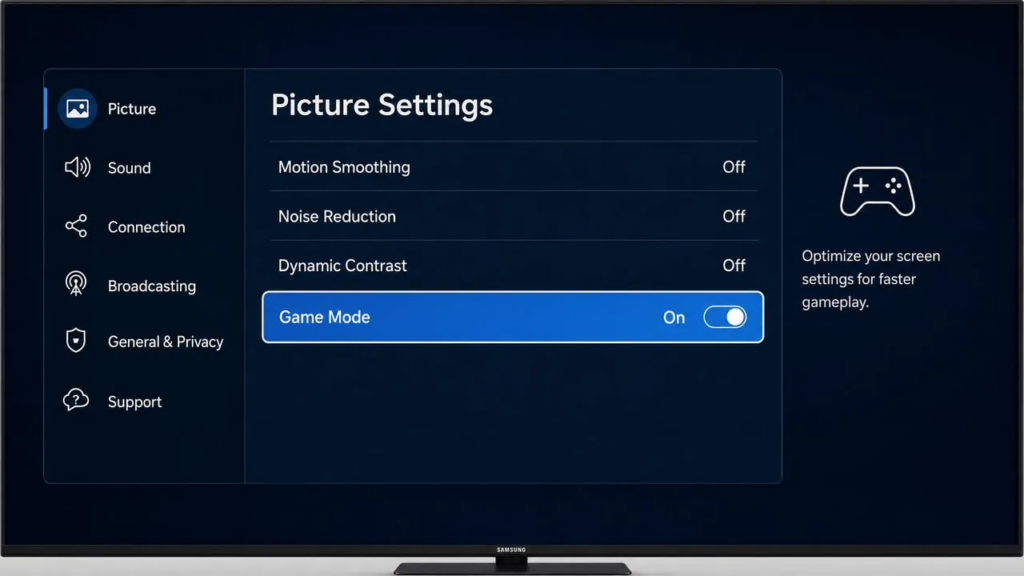
Modern TVs run aggressive image processing. Motion interpolation (the “soap opera effect”), noise reduction, dynamic contrast, edge sharpening. Each filter adds a frame or two of delay as the TV’s processor analyzes incoming video and applies corrections. For watching movies, this is fine. You don’t notice 100 ms of delay on a passive experience. For gaming, it’s the difference between a headshot and a miss.
Every major TV manufacturer includes a Game Mode that disables these filters. Samsung, LG, Sony, TCL, Hisense. They all have it. Find it in your TV’s picture settings and turn it on before gaming. This single setting can cut total perceived latency by 100 ms or more, and it costs nothing. Samsung has a detailed Game Mode guide on their support site.
6 Methods to Play Mobile Games on TV: Detailed Setup
Method 1: USB-C to HDMI Adapter (Wired, Near-Zero Latency)
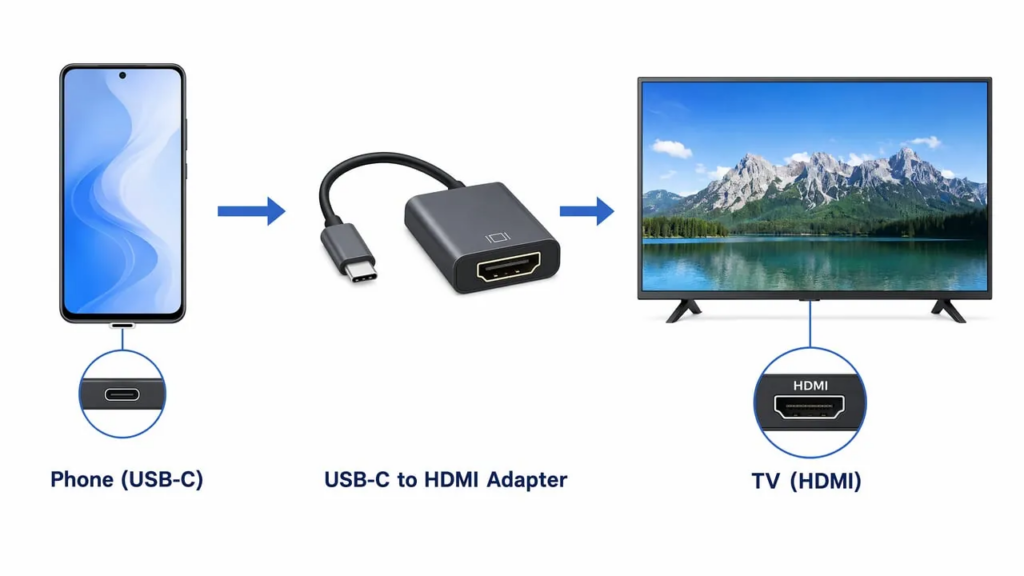
A USB-C to HDMI adapter uses DisplayPort Alternate Mode (DP Alt Mode) to transmit uncompressed video and audio from your phone’s USB-C port directly to your TV’s HDMI input. Latency drops to near zero (0 to 5 ms). This is the gold standard for mobile gaming on TV because it bypasses all wireless encoding, transmission, and decoding overhead. For more on Android gaming via screen mirroring, see our Android screen mirroring for gaming guide.
Latency: ~0-5 ms
Compatible phones: Samsung Galaxy S8 and newer, Galaxy Note 8+, LG G5/V20 and newer, Google Pixel 8+ (check your spec sheet for “DP Alt Mode” or “DisplayPort Alternate Mode”), iPhone 15 and 16 (USB-C models). Not all USB-C phones support video output. The Google Pixel 6 and 7, for example, don’t support DP Alt Mode.
Pros:
- Zero perceptible lag. Ideal for FPS, rhythm games, fighting games
- No Wi-Fi dependency. Works anywhere
- Simultaneous charging with passthrough adapters
- Adapter costs $10 to $25
Cons:
- Cable limits mobility (you’re tethered to the TV)
- Not all USB-C phones support DP Alt Mode. Verify before buying
- iPhone Lightning models (pre-iPhone 15) need a different adapter
Step-by-step setup:
- Verify your phone supports DP Alt Mode (check manufacturer specs or search “[your phone model] DisplayPort Alternate Mode”)
- Plug the USB-C end of the adapter into your phone
- Connect an HDMI cable from the adapter to your TV’s HDMI port
- Switch your TV to the corresponding HDMI input
- Enable Game Mode on your TV (Settings > Picture > Game Mode)
- Launch your game. Your phone screen mirrors instantly
Method 2: Lightning Digital AV Adapter (Wired, for Pre-USB-C iPhones)
The Lightning Digital AV Adapter connects iPhones with Lightning ports (iPhone 5 through 14) to a TV via HDMI. Unlike USB-C adapters, it does not transmit raw video. The adapter contains its own ARM chip and uses H.264 encoding (the same compression as AirPlay) to send video through the Lightning cable. The iPhone encodes the screen, the adapter decodes it to HDMI. This adds some latency and minor compression artifacts, but the wired connection is still more stable and responsive than wireless AirPlay. You can find the official adapter on Apple’s website. For more on iPhone gaming via screen mirroring, see our iPhone screen mirroring for gaming guide.
Latency: ~30-80 ms
Compatible phones: iPhone 5 through 14 (any model with a Lightning port)
Pros:
- Lower latency than wireless AirPlay, though not zero
- Works with older iPhones that can’t use USB-C adapters
- Simultaneous charging passthrough (Lightning port on the adapter)
- Reliable. No Wi-Fi, no pairing, no dropouts
Cons:
- Apple’s official adapter costs $49. Third-party alternatives exist for $15 to $25 but quality varies
- Cable-limited like all wired methods
- 1080p output only (not 4K)
Step-by-step setup:
- Connect the Lightning end to your iPhone
- Connect an HDMI cable from the adapter to your TV
- Switch your TV to the corresponding HDMI input
- Enable Game Mode on your TV
- Your iPhone screen mirrors automatically. Launch your game
Method 3: Miracast / Wi-Fi Direct (Android Built-In)
Miracast is a wireless display standard that creates a direct peer-to-peer Wi-Fi connection between your phone and TV, bypassing your router entirely. This peer-to-peer architecture gives Miracast the lowest latency among wireless protocols (20 to 100 ms) because it eliminates network congestion and router hops. Samsung calls it Smart View. LG calls it Screen Share. Other brands may use Cast Screen or Wireless Display.
Latency: 20-100 ms
Compatible devices: Most Android phones (Samsung, LG, Motorola, Xiaomi, OnePlus) and TVs with built-in Miracast support or a Miracast dongle. iPhone does not support Miracast natively. Some modern phones, notably Google Pixel models, have dropped Miracast in favor of Chromecast.
Pros:
- Free. Built into most Android phones, no app or dongle needed
- Doesn’t require a router. Uses Wi-Fi Direct peer-to-peer
- Lowest latency of any wireless method
- Widely supported across TV brands
Cons:
- iPhone doesn’t support Miracast
- Google Pixel phones have dropped Miracast support
- Quality varies by TV receiver. Some TVs implement Miracast poorly
- Connection can occasionally drop on older TV firmware
Step-by-step setup (Samsung Smart View example):
- Swipe down from the top of your screen to open Quick Settings
- Tap Smart View (on other brands: Screen Share, Cast, or Wireless Display)
- Select your TV from the list of detected devices
- Accept the connection on your TV if prompted
- Enable Game Mode on your TV
- Open your game. Your screen mirrors wirelessly
Method 4: Dedicated Screen Mirroring App (1001 TVs)
Dedicated screen mirroring apps like 1001 TVs connect your iPhone or Android phone directly to any smart TV brand through optimized low-latency transmission protocols. These apps prioritize real-time performance over maximum video quality. They use intelligent compression algorithms and adaptive quality adjustment to maintain stable connections across Samsung, LG, Sony, Hisense, TCL, Roku, and Fire TV.
Latency: 50-150 ms (optimized)
Compatible devices: iPhone and Android phones, connecting to any smart TV brand
Pros:
- Universal compatibility. Works with all TV brands, no matter what OS they run
- One-tap connection. The app auto-detects your TV on the network
- Optimized for lower latency than built-in Chromecast casting
- Adaptive quality adjustment maintains stability when Wi-Fi conditions change
- Works on both iPhone and Android from the same app
Cons:
- Still wireless. Can’t match the 0 to 5 ms of a wired adapter
- Requires app installation on both phone and TV (or browser-based receiver)
- Premium features may require a subscription
Step-by-step setup:
- Download 1001 TVs from the App Store (iPhone) or Google Play (Android)
- Install the receiver app on your TV, or open the browser-based receiver on your TV
- Connect both phone and TV to the same 5GHz Wi-Fi network
- Open 1001 TVs and select your TV from the detected list
- Enable Game Mode on your TV
- Start mirroring and launch your game
Method 5: AirPlay to Apple TV / AirPlay 2 TV
AirPlay is Apple’s wireless streaming protocol. It mirrors iPhone, iPad, or Mac screens to an Apple TV or AirPlay 2-compatible smart TV. AirPlay delivers lower latency than Chromecast (100 to 200 ms) thanks to end-to-end Apple ecosystem optimization. Device discovery, handshake protocols, and hardware-accelerated encoding are all tightly integrated.
Latency: 100-200 ms
Compatible devices: iPhone, iPad, Mac to Apple TV (any generation) or AirPlay 2-certified TVs (select Samsung, LG, Sony, and Vizio models)
Pros:
- No extra hardware if you already own an Apple TV or AirPlay 2 TV
- Excellent video quality with smooth frame rates
- Effortless setup if you’re in the Apple ecosystem
- Lower latency than Chromecast
Cons:
- Requires Apple ecosystem. Doesn’t work with Android
- 100 to 200 ms is noticeable in fast-paced or competitive games
- Wi-Fi dependent. Performance drops on congested networks
- Apple TV starts at $199 if you don’t have one
Step-by-step setup:
- Connect your iPhone and Apple TV (or AirPlay 2 TV) to the same 5GHz Wi-Fi network
- Open Control Center on your iPhone (swipe down from the top-right corner)
- Tap the Screen Mirroring icon
- Select your Apple TV or AirPlay 2 TV from the list
- Enter the AirPlay code displayed on your TV if prompted
- Enable Game Mode on your TV
- Launch your game
Method 6: Chromecast Screen Mirroring
Chromecast is Google’s casting protocol. It mirrors your Android or iPhone screen to a TV via a Chromecast dongle or built-in Chromecast TV. Chromecast introduces higher latency (300 to 600 ms) than other wireless methods. The reason: it compresses the entire screen, transmits it over Wi-Fi, decompresses it, and renders it. That multi-stage pipeline was optimized for video streaming, not real-time gaming.
Latency: 300-600 ms
Compatible devices: Android phones (native Google Home cast), iPhone (via Google Home app). Chromecast dongle or any TV with Chromecast built in
Pros:
- Widely available. Chromecast is the most common streaming dongle
- Affordable ($30 to $50 for a dongle)
- Works with both Android and iPhone
- Many TVs have Chromecast built in (no dongle needed)
Cons:
- Highest wireless latency of any method. 300 to 600 ms is noticeable even in casual games
- Not suitable for fast-paced, competitive, or timing-sensitive titles
- Wi-Fi dependent and sensitive to network congestion
- The full encoding pipeline (compress, transmit, decompress, render) is inherently slow
Step-by-step setup:
- Plug your Chromecast into your TV’s HDMI port and set it up via the Google Home app
- Ensure your phone and Chromecast are on the same Wi-Fi network (preferably 5GHz)
- Open the Google Home app. Select your Chromecast. Tap “Cast screen”
- Enable Game Mode on your TV
- Launch your game
How to Reduce Screen Mirroring Lag: 10 Optimization Tips
Even with the best method, a few optimization tweaks can cut your latency by 50% or more. These fixes apply to all wireless methods.
- Switch to 5GHz Wi-Fi. 5GHz offers faster speeds, lower latency, and less interference than 2.4GHz. 5GHz significantly reduces mirroring latency compared to 2.4GHz. Go to your router settings and ensure both phone and TV connect to the 5GHz band. If your router uses a single network name for both bands (band steering), you may need to split them into separate SSIDs so you can force 5GHz.
- Enable TV Game Mode. This is the single most impactful TV-side fix. Game Mode disables motion smoothing, noise reduction, and dynamic contrast. That processing adds 50 to 200 ms of input lag. Find it in your TV’s picture settings. On Samsung TVs (2024-2025 models): Settings > All Settings > Advanced Features > Game Mode Settings > Game Mode. On LG: Settings > Picture > Picture Mode > Game. On Sony: Settings > Display & Sound > Picture > Picture Mode > Game.
- Use Ethernet for your TV or streaming device. If your TV or streaming stick (Chromecast with Google TV, Fire TV Stick 4K, Apple TV) supports Ethernet, use it. This eliminates the wireless variable on the receiving end, reducing latency by 20 to 50 ms. For streaming sticks without an Ethernet port, a USB Ethernet adapter costs $10 to $15.
- Close background apps on your phone. Background apps consume CPU and memory, slowing down the screen encoding process that all wireless methods rely on. Swipe away unused apps before mirroring. On Android, enable Developer Options (Settings > About phone > tap Build Number 7 times), then go to Developer Options > Background process limit > set to “No background processes” for maximum performance.
- Lower your phone’s screen resolution. If your phone supports resolution scaling (Samsung: Settings > Display > Screen resolution), switch from QHD+ to FHD+. Less pixel data to encode means lower latency. The visual difference on a 1080p TV is negligible, but the latency improvement can be 20 to 40 ms.
- Move devices closer to your router. Wi-Fi signal strength directly affects latency. Each wall between your phone or TV and the router can add 10 to 30 ms. Aim for line-of-sight placement and keep gaming devices within 15 feet of the router. If that’s not possible, a Wi-Fi range extender placed halfway between the router and your TV can help.
- Disable VPNs and proxies. VPNs route traffic through distant servers, adding significant latency. Sometimes 100 ms or more. Turn off any VPN on your phone before gaming. If you need a VPN for privacy, configure split tunneling so your local screen mirroring traffic bypasses the VPN tunnel.
- Reduce Wi-Fi interference. Move Bluetooth devices away from your TV and router. Bluetooth operates on 2.4GHz and interferes with Wi-Fi on the same band. Change your router’s Wi-Fi channel if you live in a dense area like an apartment building. Use a free Wi-Fi analyzer app (WiFi Analyzer on Android, AirPort Utility on iPhone) to find the least congested channel.
- Update firmware on all devices. Phone OS updates, TV firmware updates, and router firmware updates often include performance optimizations and bug fixes that reduce latency. Samsung, LG, and Sony have all released firmware updates that specifically improved screen mirroring performance. Check for updates monthly.
- Avoid 4K mirroring for gaming. 4K requires four times the data of 1080p, increasing encoding time and bandwidth requirements. For gaming, 1080p at 60 fps delivers a noticeably better experience than 4K at 30 fps with lag. Set your mirroring app to 1080p output.
Which Games Work Best on TV? Game-Type Latency Guide
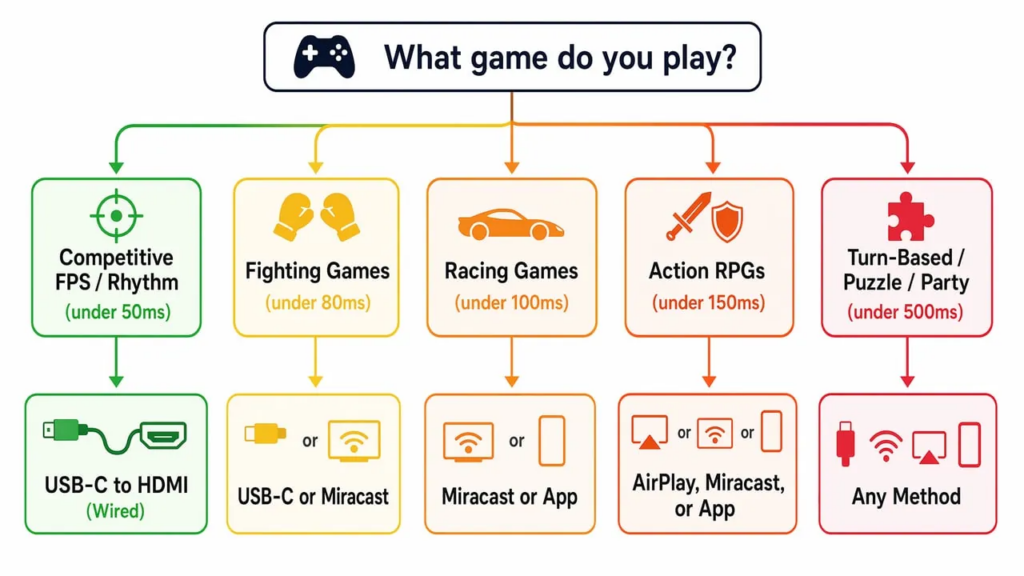
Not all games suffer equally from mirroring latency. A turn-based card game tolerates 500 ms of delay without anyone noticing. A competitive FPS falls apart at 80 ms. Match your game type to your method:
| Game Type | Max Tolerable Latency | Best Method | Examples |
| Competitive FPS / Battle Royale | < 50 ms | USB-C to HDMI (wired) | PUBG Mobile, Call of Duty Mobile, Free Fire |
| Rhythm / Music Games | < 50 ms | USB-C to HDMI (wired) | Cytus II, Arcaea, Phigros |
| Fighting Games | < 80 ms | USB-C to HDMI or Miracast | Mortal Kombat, Street Fighter Duel |
| Racing Games | < 100 ms | Miracast or dedicated app | Asphalt 9, Mario Kart Tour, Real Racing 3 |
| Action RPGs / Open World | < 150 ms | AirPlay, Miracast, or dedicated app | Genshin Impact, Honkai: Star Rail |
| Turn-Based Strategy | < 500 ms | Any method (including Chromecast) | Chess, Marvel Snap, Teamfight Tactics |
| Puzzle / Card Games | < 500 ms | Any method | Solitaire, Hearthstone, Monopoly GO |
| Social / Party Games | < 500 ms | Any method | Among Us, Jackbox (via phone browser) |
If you play competitive or fast-paced games, invest $15 in a USB-C to HDMI adapter. It’s the difference between playable and unplayable. No wireless method can match a wired connection for timing-sensitive gameplay. For casual and turn-based games, any wireless method works fine. Pick whichever is most convenient for your devices.
Frequently Asked Questions
Can I play mobile games on TV without lag?
Yes. The only way to achieve zero perceptible lag is a USB-C to HDMI wired connection, available on Android phones with DP Alt Mode and iPhone 15+. These transmit uncompressed video directly with 0 to 5 ms latency. The Lightning Digital AV Adapter (iPhone 5-14) also uses a wired connection but relies on H.264 encoding internally, adding 30 to 80 ms. Among wireless options, Miracast offers the lowest latency at 20 to 100 ms.
Does Chromecast work for gaming?
Not well. Chromecast screen mirroring introduces 300 to 600 ms of latency, making it unsuitable for fast-paced or competitive games. It works adequately for turn-based strategy, puzzle, and card games where timing isn’t critical. For better wireless gaming, use Miracast, AirPlay, or a dedicated mirroring app like 1001 TVs.
Is AirPlay good for gaming?
For casual gaming, yes. AirPlay to Apple TV delivers 100 to 200 ms latency. Better than Chromecast, but noticeable in fast-paced games. It works for RPGs, turn-based titles, and casual games. For competitive gaming on iPhone, use a Lightning to HDMI adapter (iPhone 5-14) or USB-C to HDMI (iPhone 15+).
Why is my screen mirroring lagging when I play games?
Three likely causes. First, weak or congested Wi-Fi. Switch to 5GHz. Second, TV image processing. Enable Game Mode. Third, high encoding overhead. Use Miracast or a wired connection instead of Chromecast. Closing background apps, lowering resolution, and moving closer to the router also help.
Can I use my phone as a controller while playing on TV?
Yes. When you mirror your phone to a TV, the phone stays the input device. You play the game on your phone’s touchscreen while visuals appear on the TV. The phone acts as both screen (mirrored) and controller at the same time. No separate controller needed.
Do I need a special TV to play mobile games?
No. Any TV with an HDMI port supports wired mirroring via a USB-C or Lightning adapter. For wireless, most smart TVs support Miracast or AirPlay 2. For TVs without wireless support, a $30 to $50 streaming stick (Chromecast, Fire TV, Roku) adds mirroring capability, though with higher latency.
Choosing the Right Method
To play mobile games on TV with low latency, use a USB-C to HDMI adapter for competitive and fast-paced games. That gives you 0 to 5 ms latency on Android phones with DP Alt Mode and iPhone 15+. iPhone 5-14 owners can use the Lightning Digital AV Adapter, which adds 30 to 80 ms but is still more stable than wireless. For casual gaming, Miracast (20 to 100 ms) or AirPlay (100 to 200 ms) provide the best wireless experience. Chromecast (300 to 600 ms) works only for turn-based games. Whatever method you choose, always enable TV Game Mode, use 5GHz Wi-Fi, and close background apps.
The right choice comes down to what you play and what hardware you own. Competitive gamers should get a wired adapter. Fifteen dollars buys the difference between a responsive experience and an unplayable one. Casual gamers can use whatever wireless method their devices support, as long as they enable Game Mode and optimize Wi-Fi. Want one app that works with every TV brand without buying extra hardware? 1001 TVs offers a balance of convenience and performance for both iPhone and Android.
If you want to take it further and stream your mobile gameplay to Twitch or TikTok via OBS, see our guide on screen mirroring your phone to your laptop for game streaming.

Read More
 How to Watch the 2026 World Series on TV
Every game of the 2026 World Series airs on FOX, and every scheduled first pitch is at 8 p.m. ET (5 p.m. PT). The…
How to Watch the 2026 World Series on TV
Every game of the 2026 World Series airs on FOX, and every scheduled first pitch is at 8 p.m. ET (5 p.m. PT). The…
 Fire TV Casting Not Working? Quick Fixes and What to Try Next
If your Fire TV won't show up when you try to cast, or the connection fails, the problem is usually one of two things:…
Fire TV Casting Not Working? Quick Fixes and What to Try Next
If your Fire TV won't show up when you try to cast, or the connection fails, the problem is usually one of two things:…

