
No Sound During Screen Mirroring – How to Resolve?
1. Please update 1001 TVs app to the latest version.
Android (phone/pad)
- Audio streaming support: version 5.0.11.5+
- Recommended version: 5.0.52.19+ (for screen mirroring with audio)
- Requirement: Android 10 or above
iPhone/iPad
- Audio streaming support: version 2.0.12+
- Recommended version: 3.0.0+ (for screen mirroring with audio)
Windows PC
- Audio streaming support: version 6.3.2.0+
- Recommended version: 6.9.0.2+
Mac
- Audio streaming support: version 2.0.4+
- Recommended version: 2.0.33+
- macOS 13 or later: supports mirroring with sound
- macOS below 13: mirroring works but without sound
Android TV
- Audio streaming support: version 2.18.0.3+
Apple TV
- Audio streaming support: version 2.0.3+
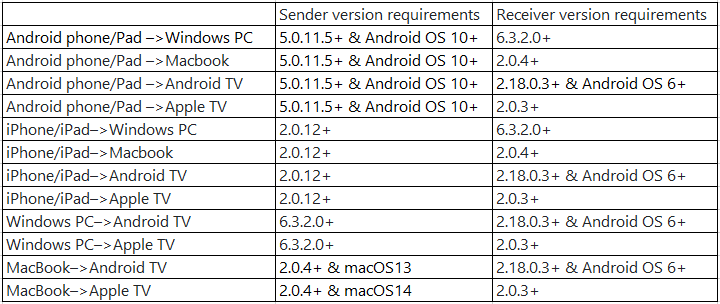
The sound support table:
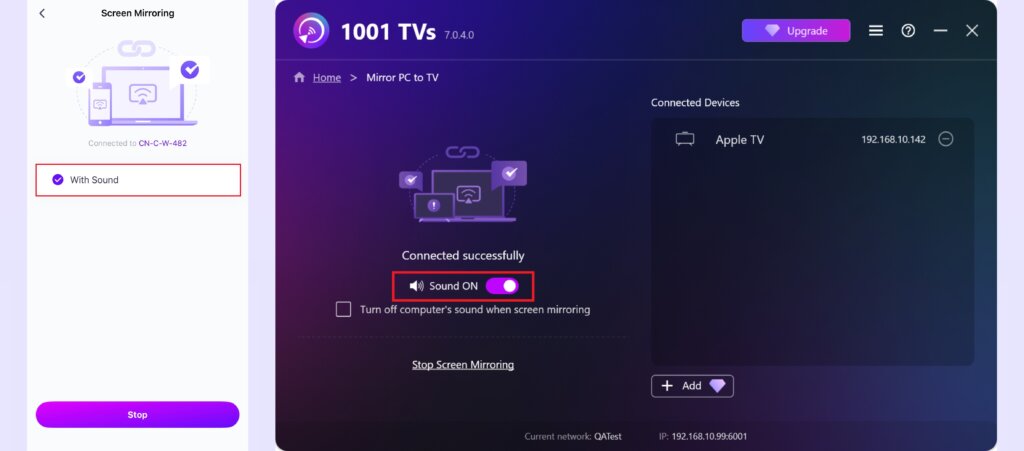
2. Enable sound option
Make sure the sound option is enabled on the screen mirroring page.
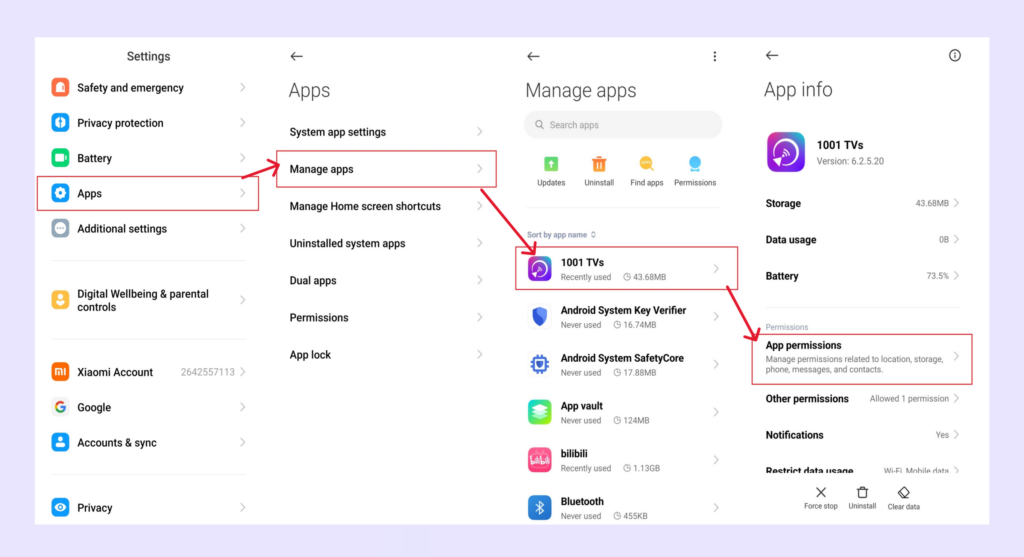
3. For Android phone/pad
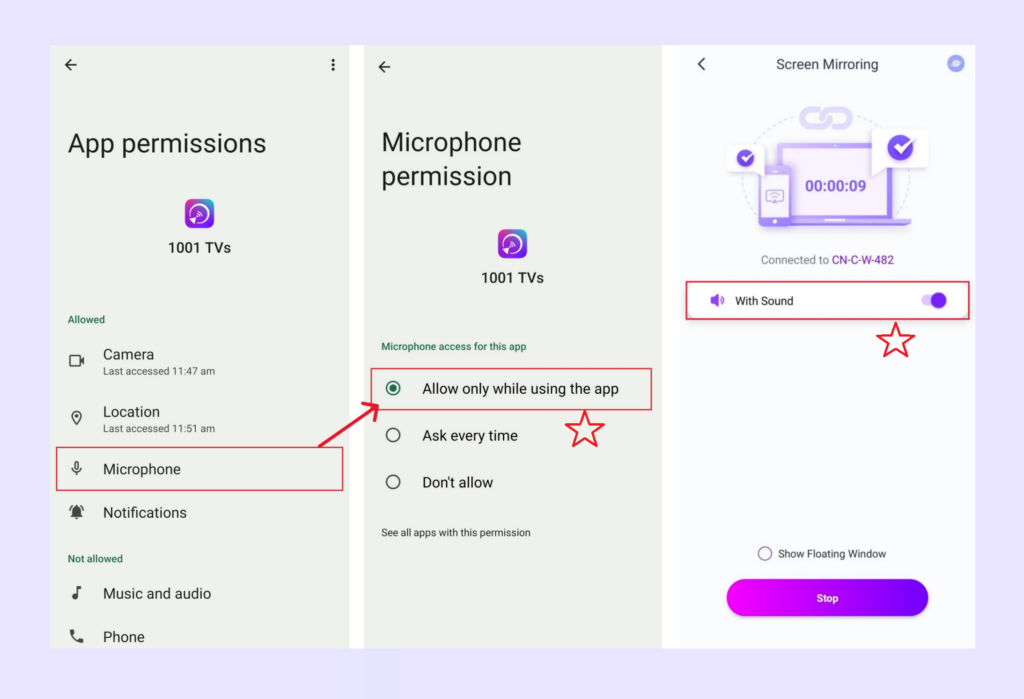
Go to Settings, grant microphone permission for the 1001 TVs app, and then turn on the sound option in the screen mirroring interface.
4. For Windows PC/Mac
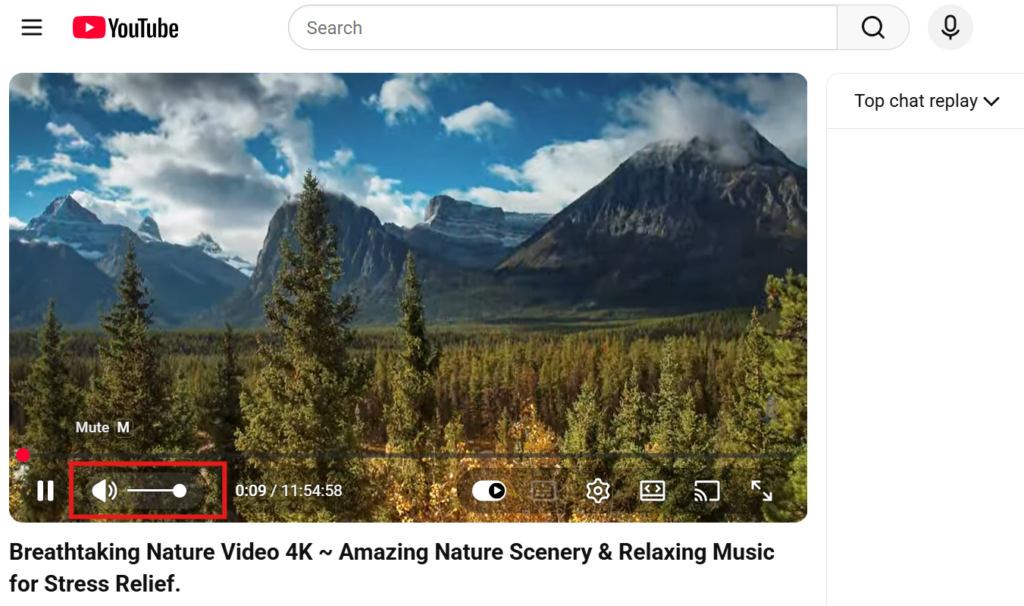
Check if the video source is muted.
For example, videos are often muted by default in the browser — unmute the video player itself (not your computer’s volume), and sound will work.
5. App or copyright blocks audio
Some apps may block 1001 TVs from accessing audio, so sound cannot be cast. To identify the problematic app, try using other apps to see if sound works properly.
Due to copyright restrictions, some videos (e.g., copyrighted content) may not support audio casting. After playing a copyrighted video, even subsequent non-copyrighted videos may have no sound when casting or recording.
To resolve this, try clearing the app cache, restarting the app, or restarting your phone.
If you encounter any issues, feel free to contact our customer support for assistance at 1001tvs@nero.com.
Thank you for your cooperation!