
TV Remote Pause for Screen Mirroring
The TV-side pause feature for screen mirroring allows you to pause the mirrored screen directly using your TV remote during casting. There’s no need to return to your phone or computer. This feature is ideal for video playback, presentations, and meetings, making screen mirroring more convenient and flexible.
▶ Supported devices and modes
Supported devices:
- Major smart TVs and boxes from Apple TV, Samsung, LG, Sony, TCL, and Xiaomi, plus popular streaming devices.
Supported casting mode:
- Screen mirroring
▶ How to use
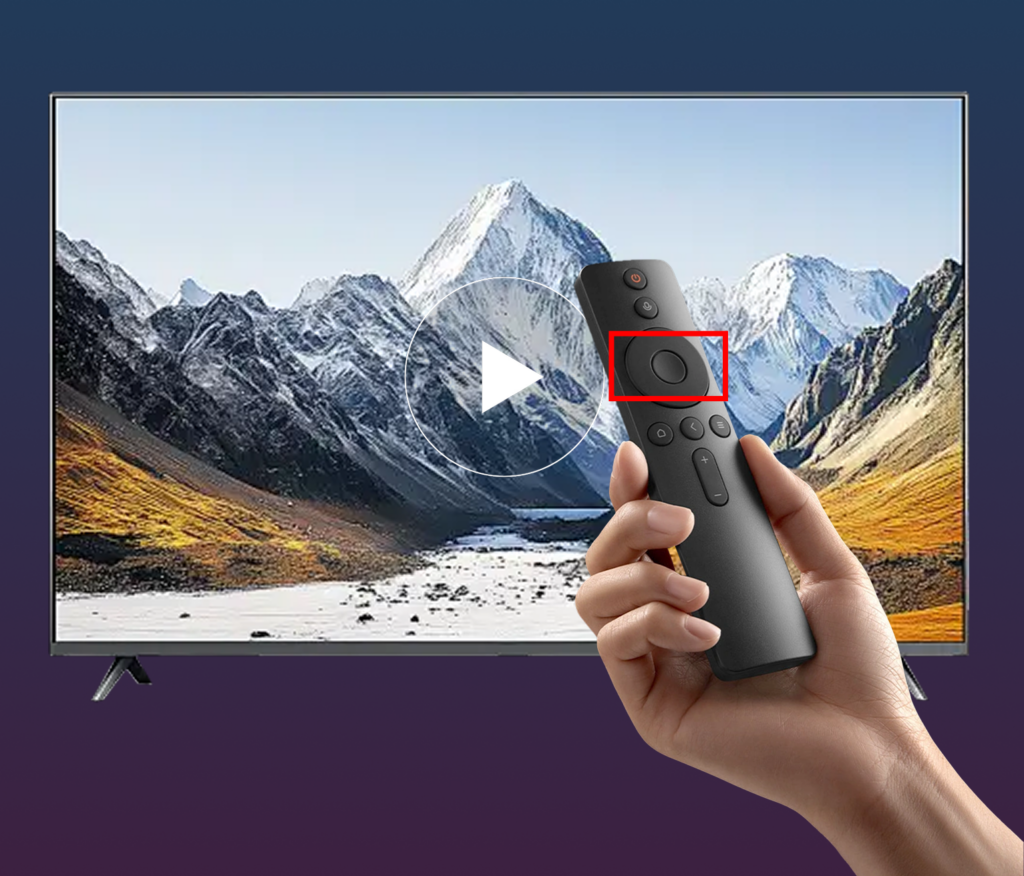
While the screen is being mirrored, press the Confirm or OK button on your TV remote to pause the current screen.
Press the same button again to resume mirroring.
▶ Notes
- Make sure 1001 TVs is installed on both the TV and the sending device (phone, tablet, or computer), and that all devices are connected to the same Wi-Fi network.
- In some screen mirroring scenarios, remote control pause may not be supported due to system limitations. If the Confirm/OK button does not respond, use the control buttons on the sending device instead.
- When mirroring is paused, the connection remains active. You can resume playback without reconnecting.
- If you encounter any issues, try restarting the 1001tvs app on the TV or reconnecting the session. You may also contact our support team for assistance.
Need Help?
If you encounter any issues, feel free to contact our support team:
- More Guides: Guidance
- Email: 1001tvs@nero.com
- Website: www.1001tvs.com