
Como enviar ficheiros do seu PC/Mac para a TV/PC/Mac
Com o 1001 TVs, pode enviar ficheiros do seu PC/Mac para o seu televisor/PC/Mac através da mesma rede local.
E sim - PCs e Macs na mesma LAN podem transferir ficheiros diretamente entre si, sem qualquer configuração adicional.
Sem carregamentos na nuvem. Sem cabos. Sem registos - apenas transferências locais rápidas e seguras.
Antes de começar
- Certifique-se de que o seu os dispositivos estão ligados à mesma rede Wi-Fi.
- Instalar e abrir 1001 TVs em ambos os dispositivos, mantenha a aplicação em execução no dispositivo recetor.
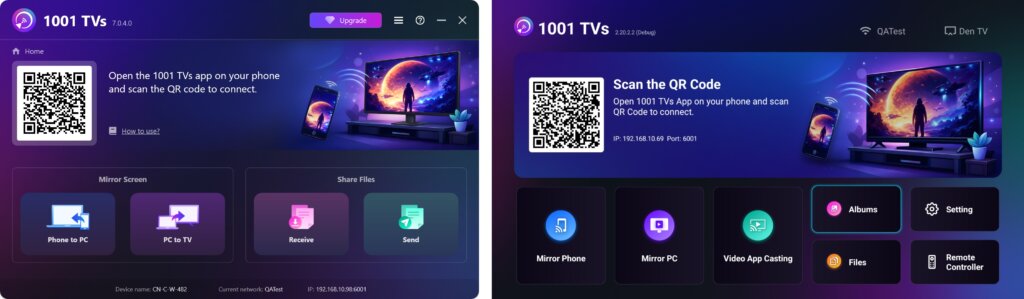
Iniciar o envio
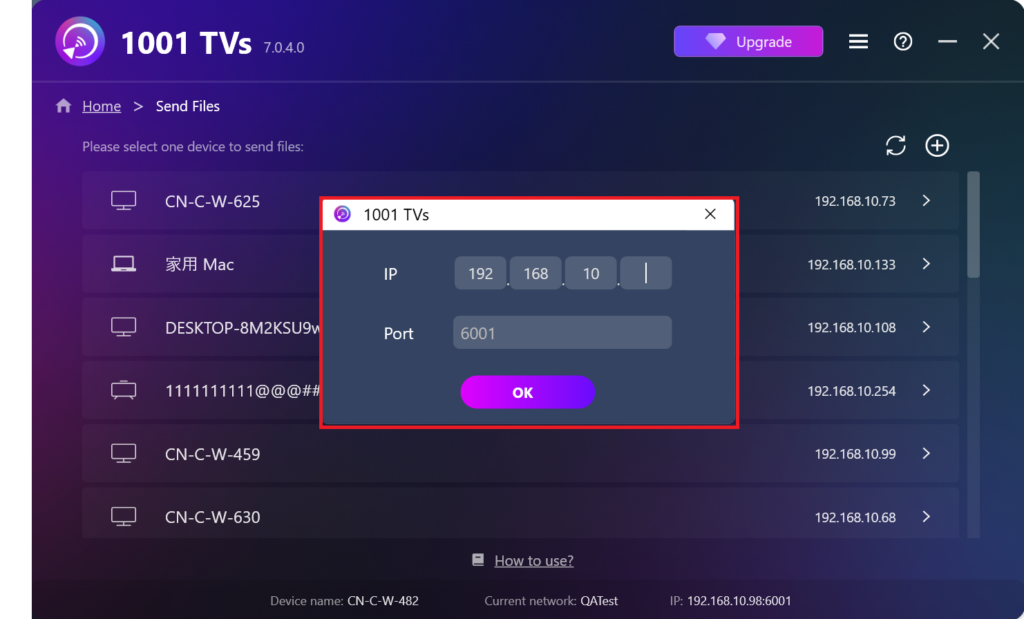
No seu dispositivo de envio, clique em Enviar e a aplicação procurará automaticamente os dispositivos disponíveis na mesma rede.
Escolha o dispositivo de destino na lista. (por exemplo, o seu televisor/PC/Mac)
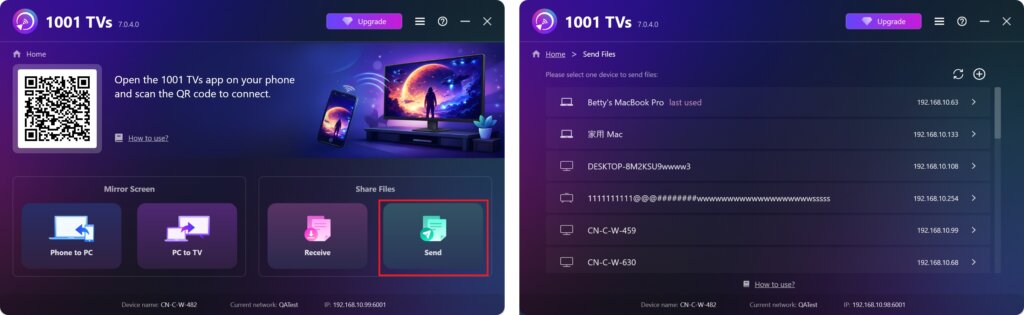
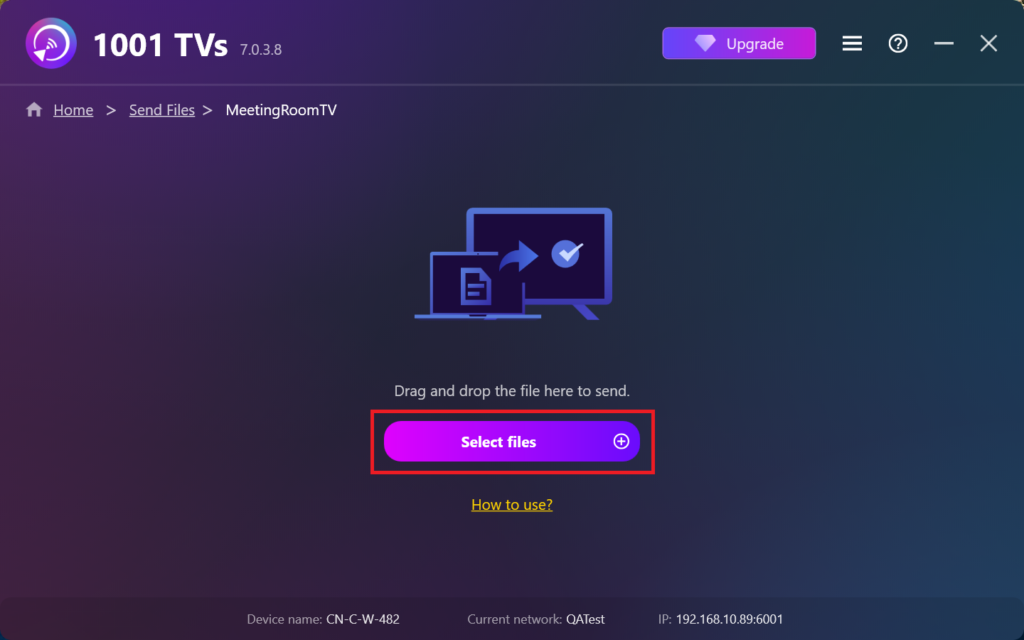
Selecione ficheiros no seu PC (vídeos, fotografias, música, documentos, etc.) e a transferência será iniciada automaticamente para o dispositivo de destino.
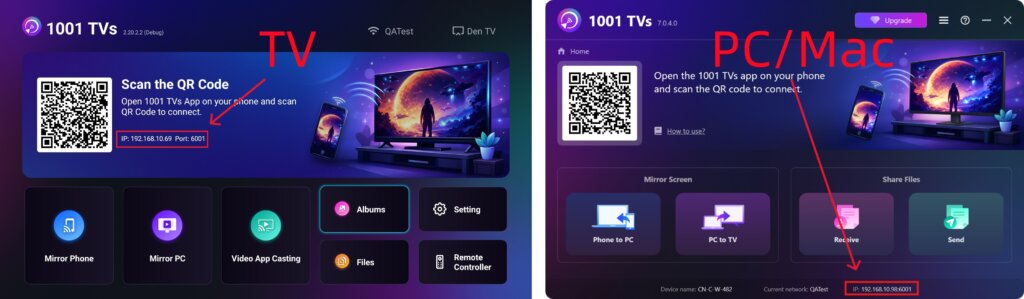
Não consegue encontrar o seu dispositivo de destino?
Se o dispositivo de destino não aparecer na lista de dispositivos, clique no botão + ícone no canto superior direito e utilizar Emparelhamento de endereços IP para estabelecer uma ligação rápida e segura.
Ver ficheiros recebidos no PC/Mac
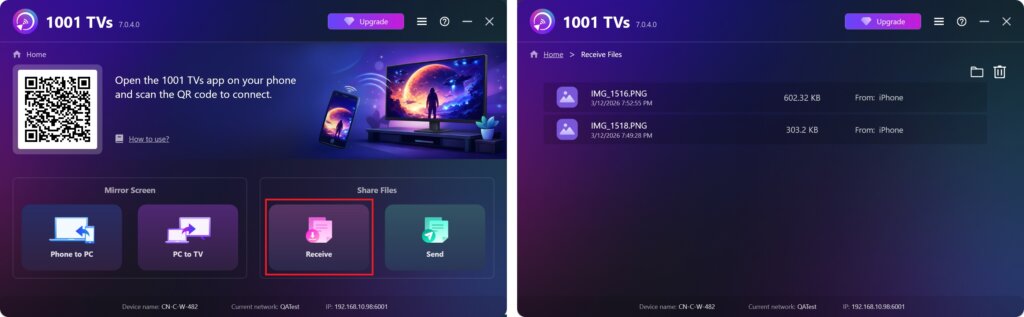
Clicar Receber no seu PC/Mac para ver todos os ficheiros recebidos.
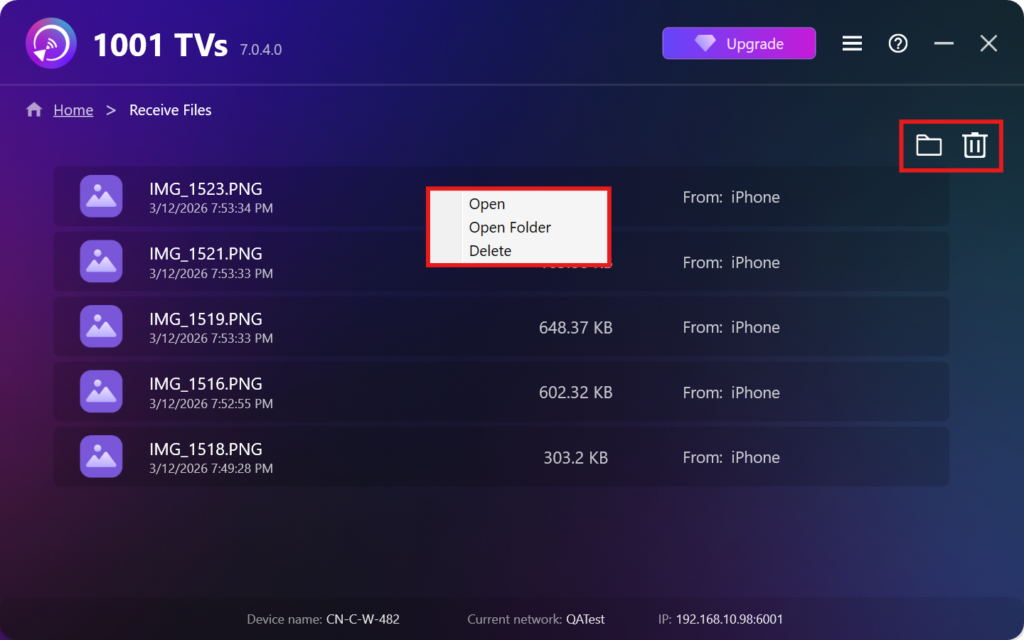
- Abrir Ver os ficheiros recebidos – Clicar ou clicar com o botão direito do rato e selecionar “Abrir a pasta” para ver todos os ficheiros desse dispositivo específico (por exemplo, iPhone 12123).
- Localize-os no Finder (Mac) ou no Explorador de ficheiros (Windows) - Clique no botão ícone da pasta no canto superior direito para aceder a todas as pastas do dispositivo.
- Eliminar opções – Clique com o botão direito do rato um ficheiro e selecionar “Eliminar” para o remover individualmente, ou clique no botão ícone do lixo no canto superior direito para apagar todos os ficheiros recebidos de uma só vez.
Ver ficheiros recebidos na TV
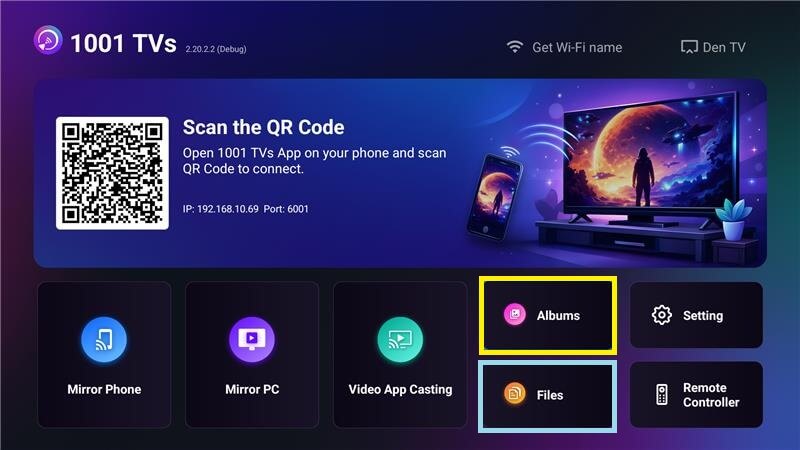
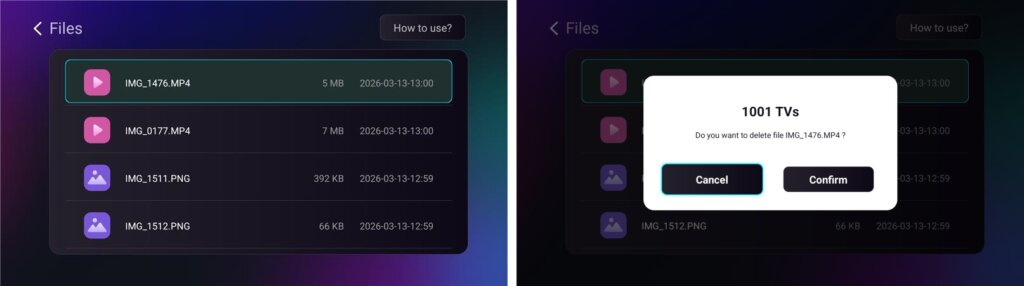
- Navegar para Ficheiros para ver os ficheiros recebidos. Pode selecionar um ficheiro e premir longamente OK para o apagar.
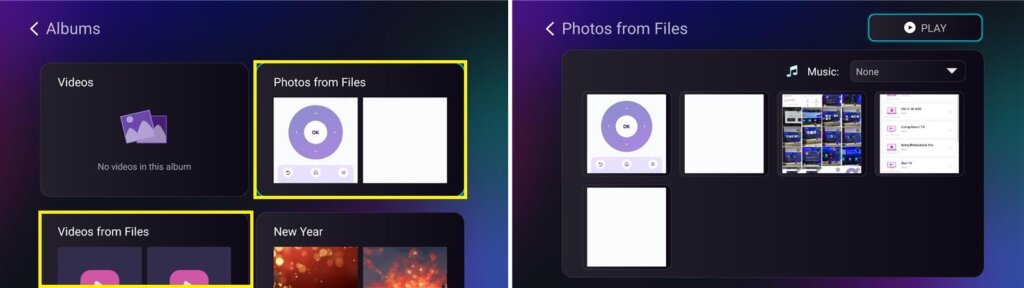
- Navegar para Álbuns > Fotografias/Vídeos de ficheiros para ver as fotografias e os vídeos recebidos. Pode selecionar um ficheiro e premir longamente OK para as apagar ou reproduzi-las como uma apresentação de diapositivos.
Porquê utilizar o 1001 TVs?
- Rápido, privado e fácil de utilizar
- Transferência local - não é necessária nuvem
- Não é necessário iniciar sessão ou ter uma conta
- Suporta transferências de ficheiros de grandes dimensões
Precisa de ajuda?
Se tiver algum problema, não hesite em contactar a nossa equipa de apoio:
📧 Email: 1001tvs@nero.com
🌐 Sítio Web: www.1001tvs.com
📖 Mais guias: Guia