[Windows] Mirror or Extend Your PC Screen to Your Phone, Tablet, TV, or Other Computer
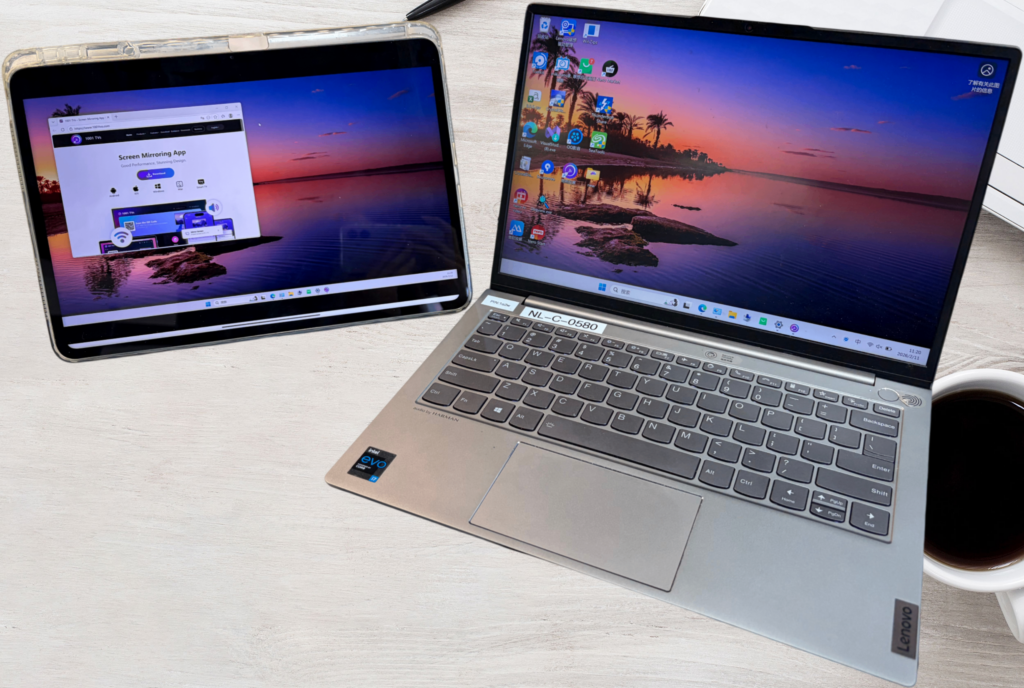
In today’s multi-device workflow, a single screen is often not enough.
With 1001 TVs, you can easily extend your Windows PC display to your phone, tablet, TV, or another computer—creating extra screen space for work, multitasking, and entertainment.
In addition to extending your screen, 1001 TVs also lets you mirror your entire PC screen or share a single window, depending on your needs.
Why Use Screen Extension?
· Boost Your Productivity: Extra screen space lets you keep reference materials, chats, or tools visible while working on your main screen—reducing constant window switching.
· Create Your Ideal Setup: Arrange windows across screens to match your workflow, whether you’re coding, designing, presenting, or multitasking.
How to Set Up Screen Extension
Example: Extending Your Windows PC Display to an iPad
(Other devices follow similar steps)
1. Connect Both Devices to the Same Wi-Fi Network
Make sure your PC and the receiving device (for example, your iPad) are connected to the same Wi-Fi network.
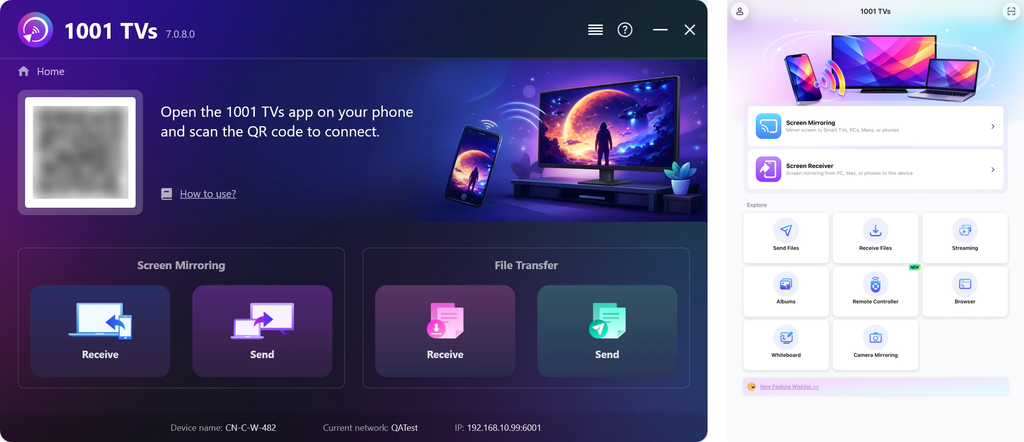
2. Download and Launch 1001 TVs
Install 1001 TVs on both your PC and the device you want to use as a second screen.
Open the app on both devices.
📥 Mac App: Download from App Store
📥 PC App: Download from Microsoft Store
For detailed steps, refer to the PC Installation Guide
📥 TV App: How to Install 1001 TVs on Your TV
📱 iOS App: Download from App Store
📱 Android App: Download from Google Play
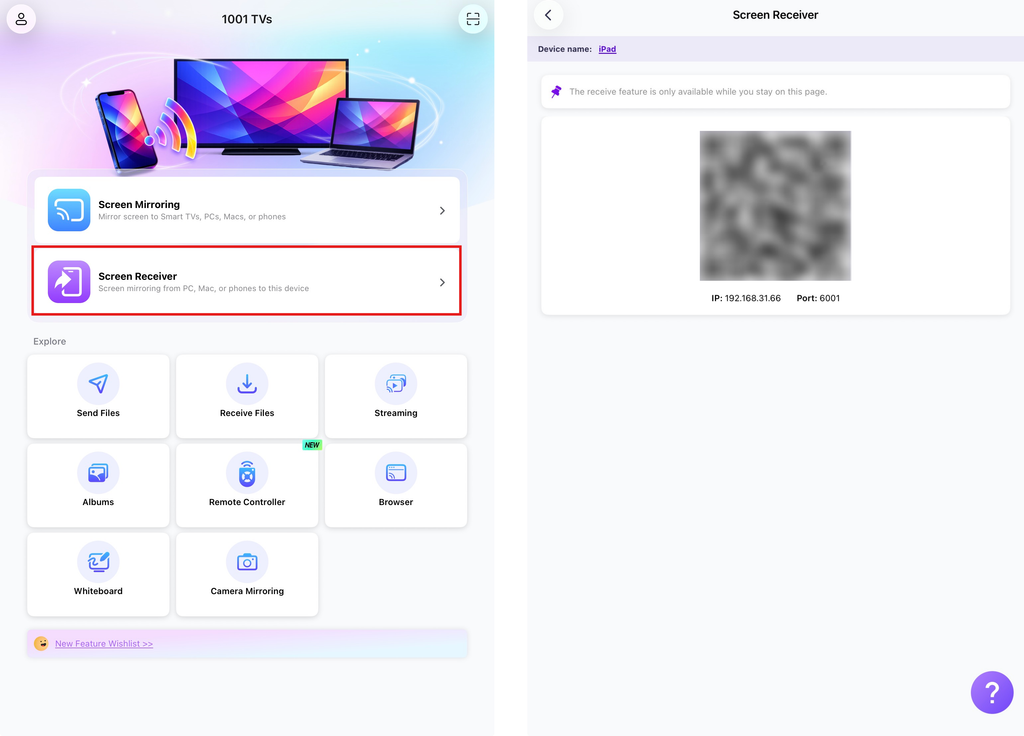
3. Enable “Screen Receiver” on the Receiving Device
On the device you want to use as the second screen, tap “Screen Receiver” and stay on the screen indicating that it’s ready to receive.
4. Start Screen Extension on Your PC
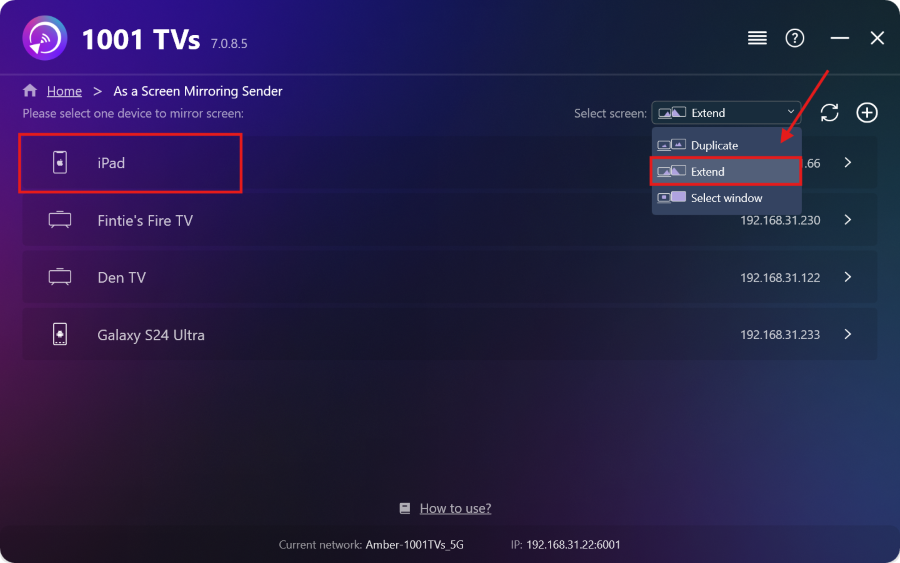
On your computer, click “Send“.
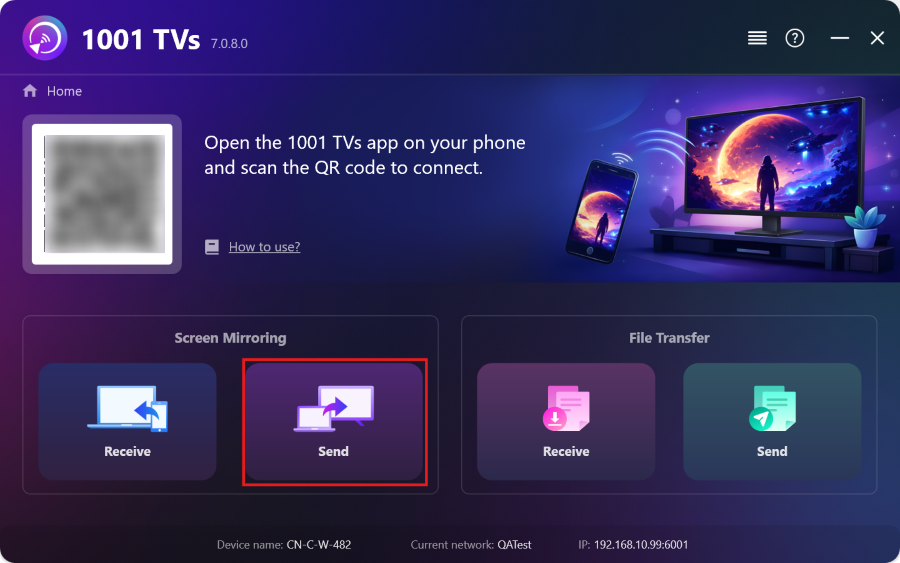
Select the “Extend” mode, then choose your target device (for example, an iPad) from the list.
5. Connect to the Receiving Device
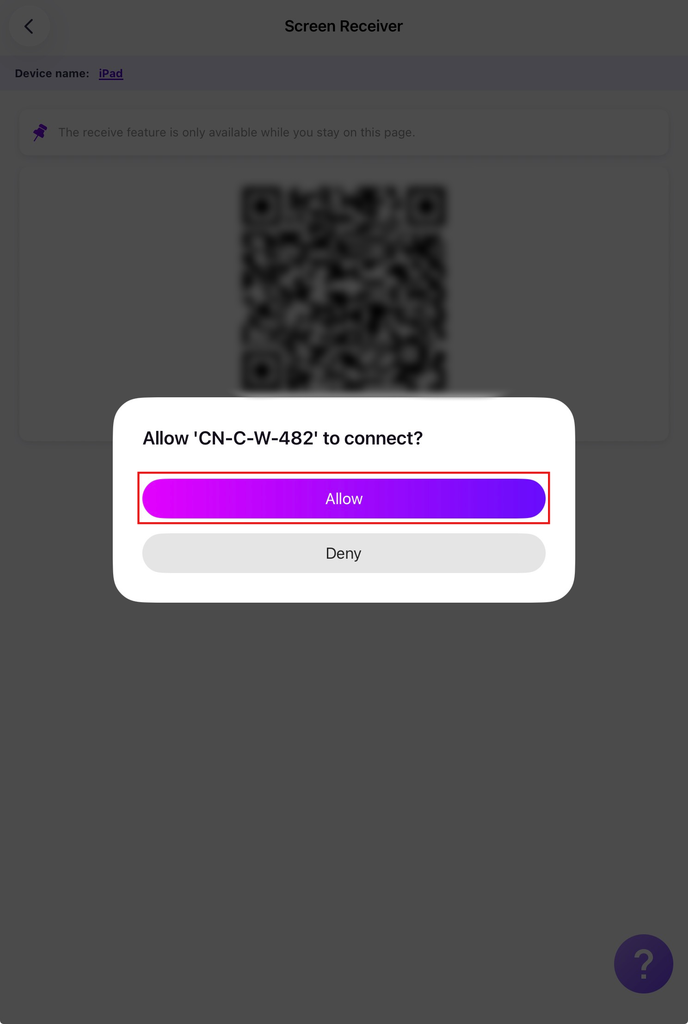
Tap “Allow” on the receiving device to confirm the connection.
6. Done!
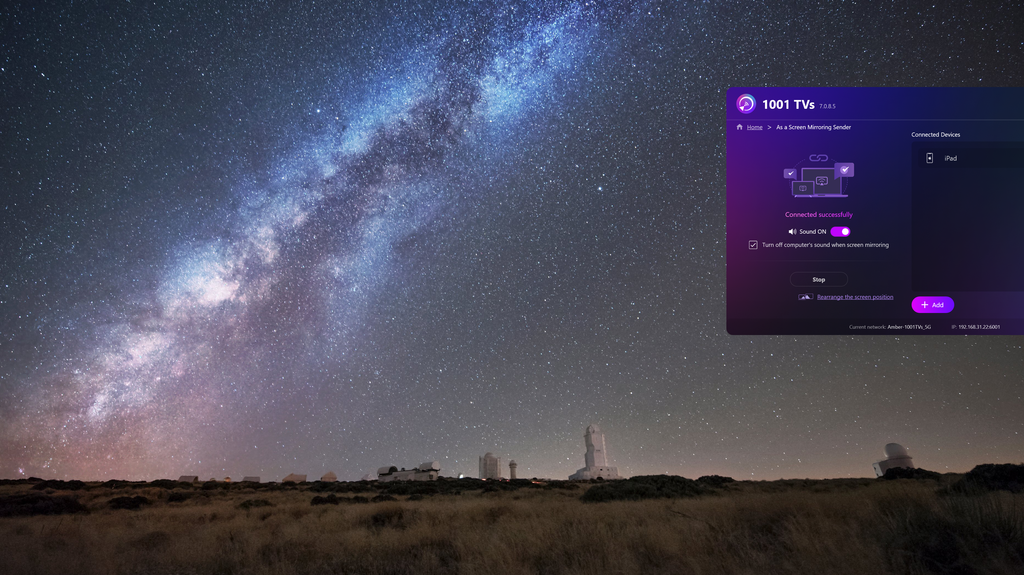
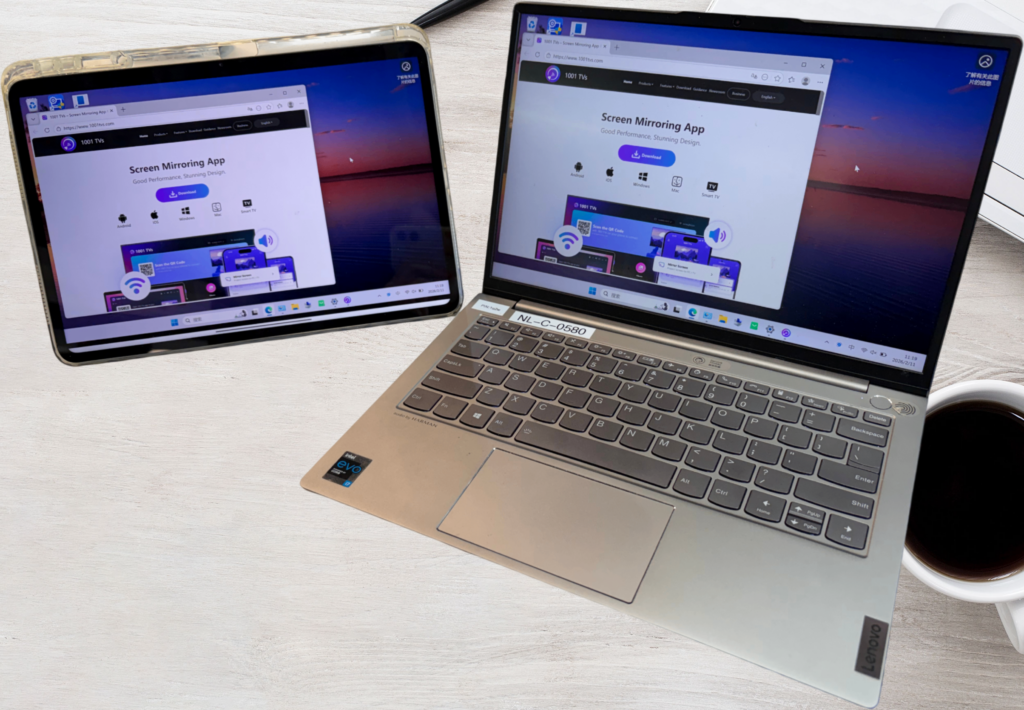
Your receiving device is now successfully set up as a second screen for your PC.
You can drag windows onto the new screen to take full advantage of the extra display space, and use your mouse to interact with content on both screens independently—just like working with two separate monitors.
Other Screen Casting Modes in 1001 TVs
Mirror Whole Screen (Duplicate)
Mirror your entire PC display to another device. This mode is ideal for presentations, demos, or watching videos on a larger screen, where both screens show the same content.
Share a Single Window (Select window)
Mirror only a specific window from your PC instead of the full screen. This is useful when you want to focus on one task while keeping the rest of your desktop private.
When using Select Window mode, choose the app window you want to share.
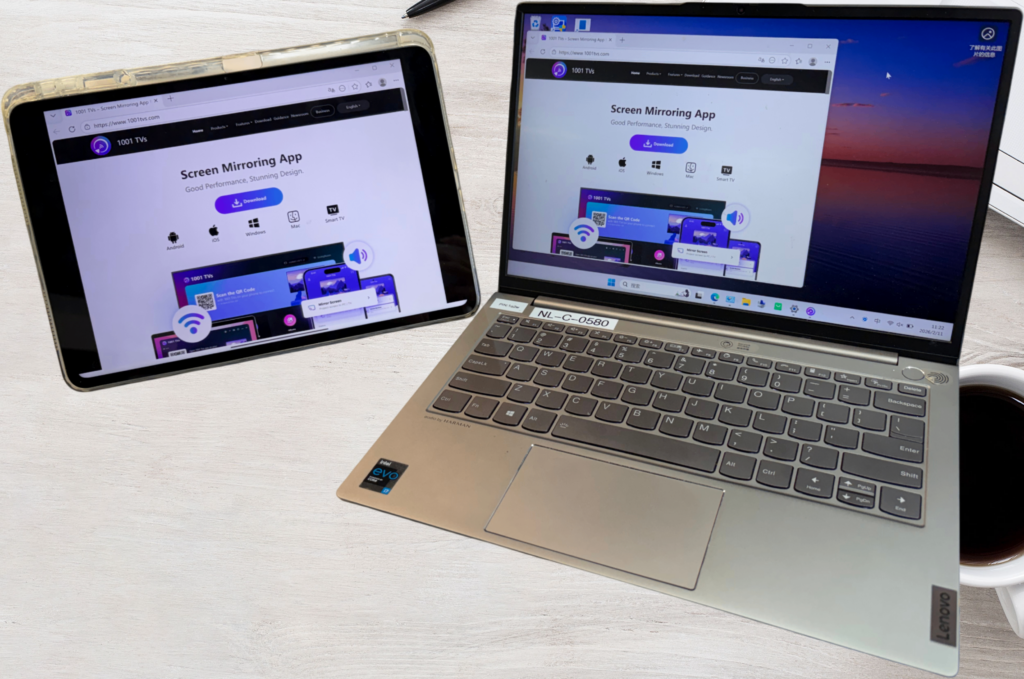
You can switch between Duplicate, Extend and Select Window modes from the screen selection menu in 1001 TVs.
Mac Screen Extension
For a complete guide to extending your Mac screen, check out this tutorial:
How to Extend Your Mac Screen to Another Device
Get 1001 TVs Now!
📥 Mac App: Download from App Store
📥 PC App: Download from Microsoft Store
For detailed steps, refer to the PC Installation Guide
📥 TV App: How to Install 1001 TVs on Your TV
📱 iOS App: Download from App Store
📱 Android App: Download from Google Play
Read More
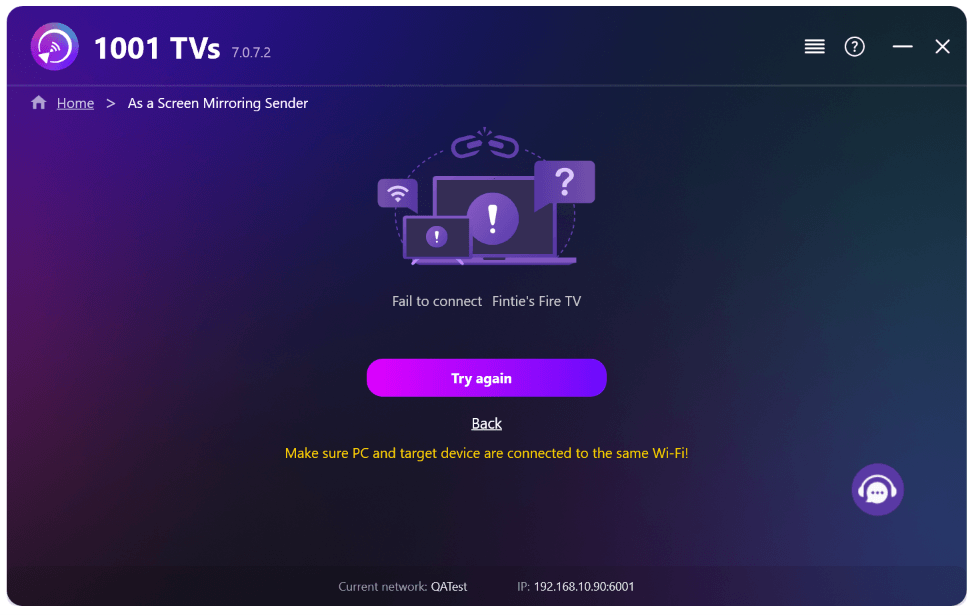 New Setting: No More Pop-ups When Mirroring Ends
When you're mirroring your PC screen to a TV and stop the session using the TV remote, the 1001 TVs window pops back up…
New Setting: No More Pop-ups When Mirroring Ends
When you're mirroring your PC screen to a TV and stop the session using the TV remote, the 1001 TVs window pops back up…
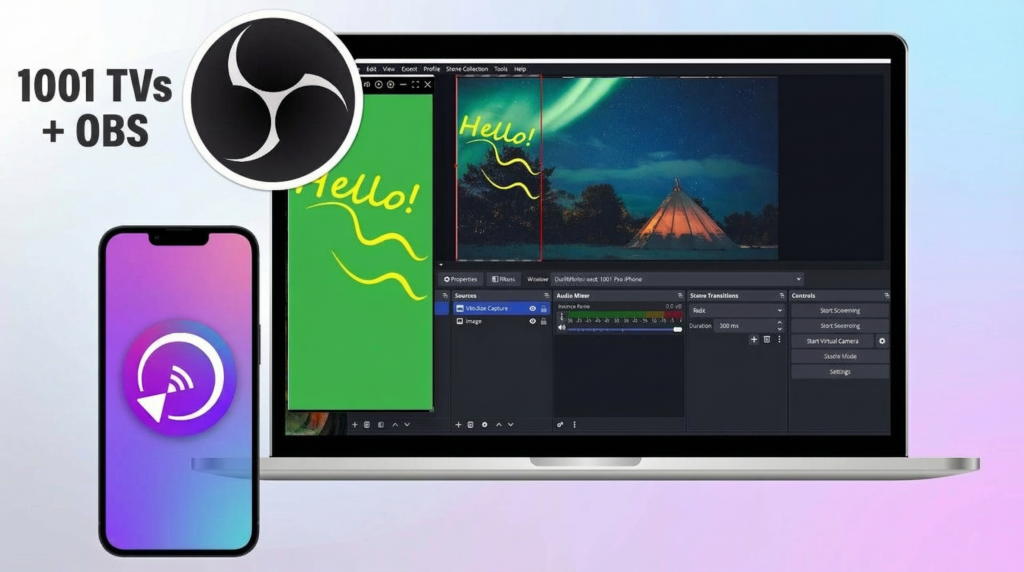 How to Capture Screen Mirroring in OBS (Android & iPhone)
Want to capture screen mirroring in OBS for mobile gameplay, tutorials, or live content? With 1001 TVs, you can easily mirror your phone screen…
How to Capture Screen Mirroring in OBS (Android & iPhone)
Want to capture screen mirroring in OBS for mobile gameplay, tutorials, or live content? With 1001 TVs, you can easily mirror your phone screen…

