
Come inviare file dal PC/Mac alla TV/PC/Mac
Con 1001 TVs, è possibile inviare file dal PC/Mac al TV/PC/Mac attraverso la stessa rete locale.
E sì: PC e Mac sulla stessa LAN possono trasferire i file direttamente l'uno all'altro, senza alcuna configurazione aggiuntiva.
Nessun caricamento su cloud. Nessun cavo. Nessuna registrazione: solo trasferimenti locali veloci e sicuri.
Prima di iniziare
- Assicuratevi che il vostro i dispositivi sono collegati alla stessa rete Wi-Fi.
- Installare e aprire 1001 TVs su entrambi i dispositivi, mantenendo l'applicazione in esecuzione sul dispositivo ricevente.
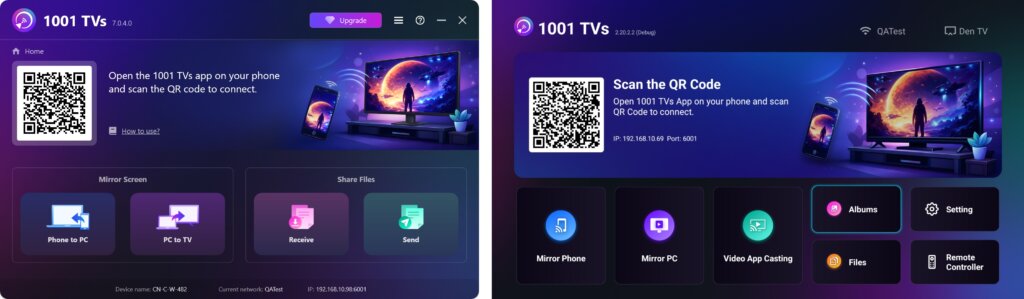
Avviare l'invio
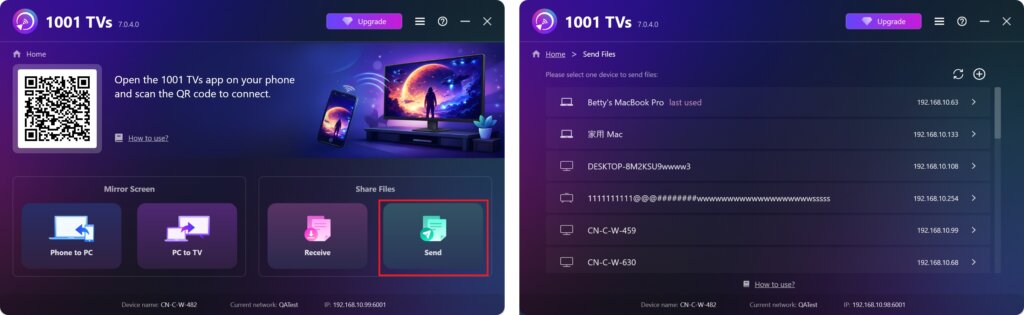
Sul dispositivo di invio, fare clic su Inviare e l'applicazione cercherà automaticamente i dispositivi disponibili sulla stessa rete.
Scegliere il dispositivo di destinazione dall'elenco. (ad esempio, il televisore/PC/Mac)
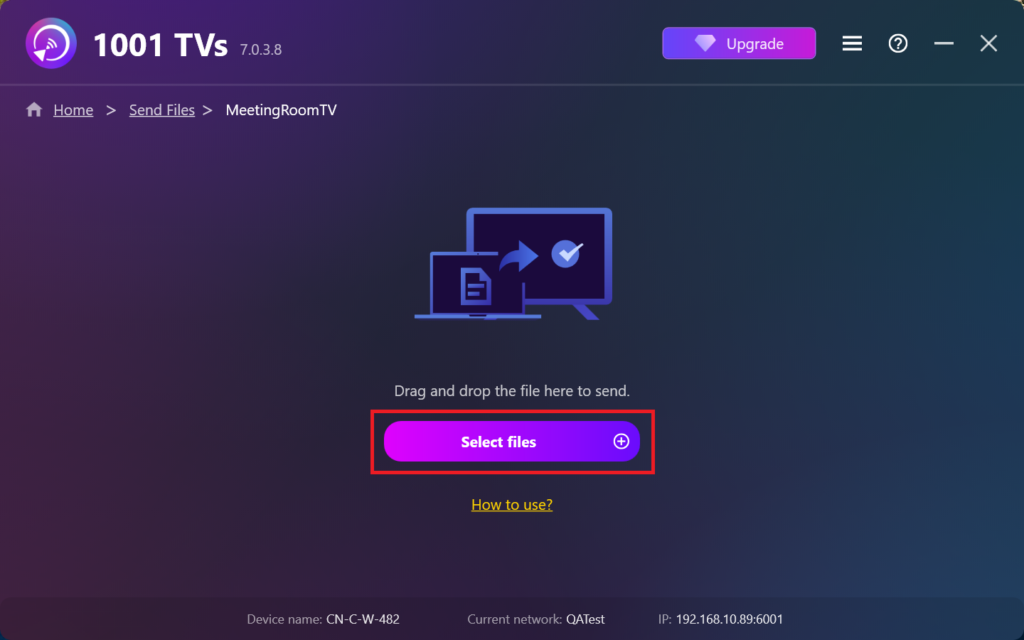
Selezionate i file sul vostro PC (video, foto, musica, documenti e altro) e il trasferimento verrà avviato automaticamente sul dispositivo di destinazione.
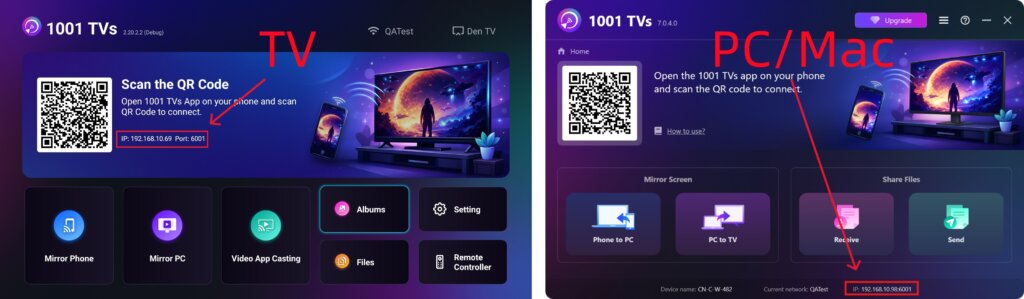
Non riuscite a trovare il vostro dispositivo di destinazione?
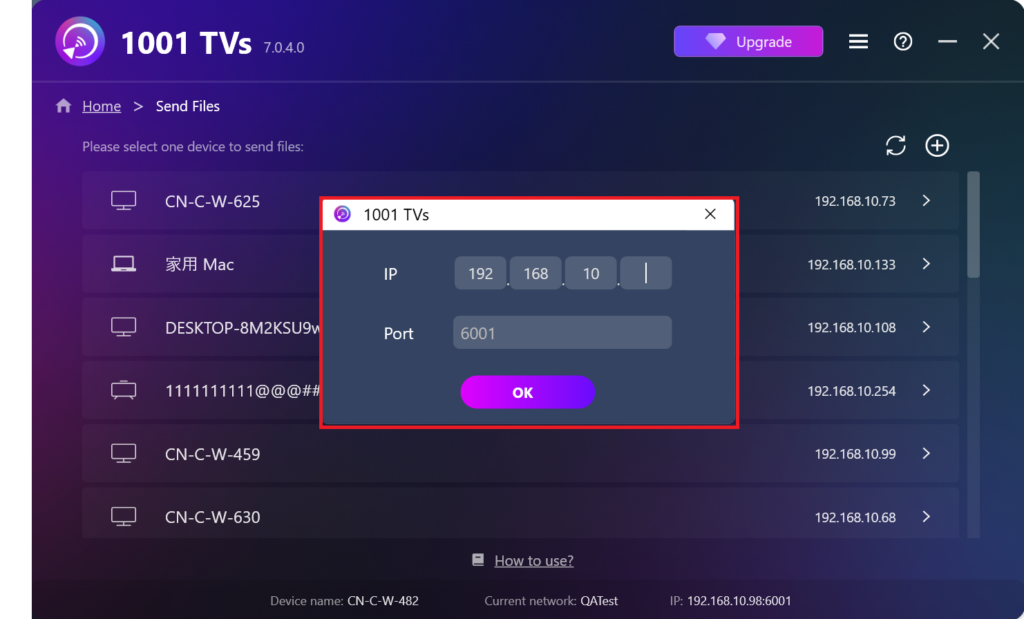
Se il dispositivo di destinazione non appare nell'elenco dei dispositivi, fare clic sul pulsante + icona nell'angolo in alto a destra e utilizzare Accoppiamento dell'indirizzo IP per connettersi in modo rapido e sicuro.
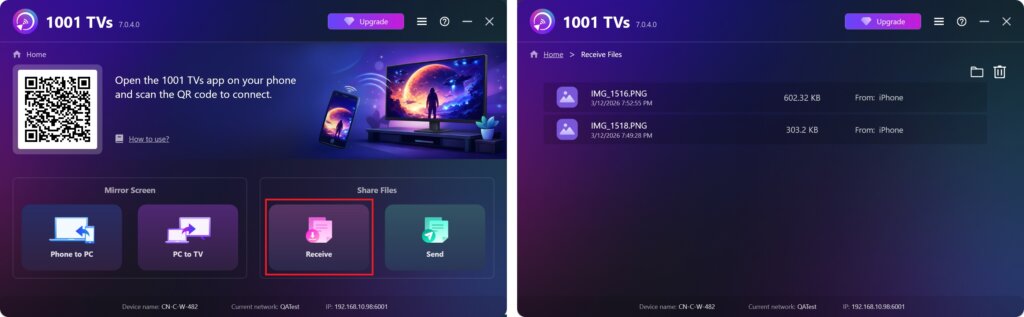
Visualizzazione dei file ricevuti su PC/Mac
Cliccare Ricevere sul PC/Mac per vedere tutti i file in arrivo.
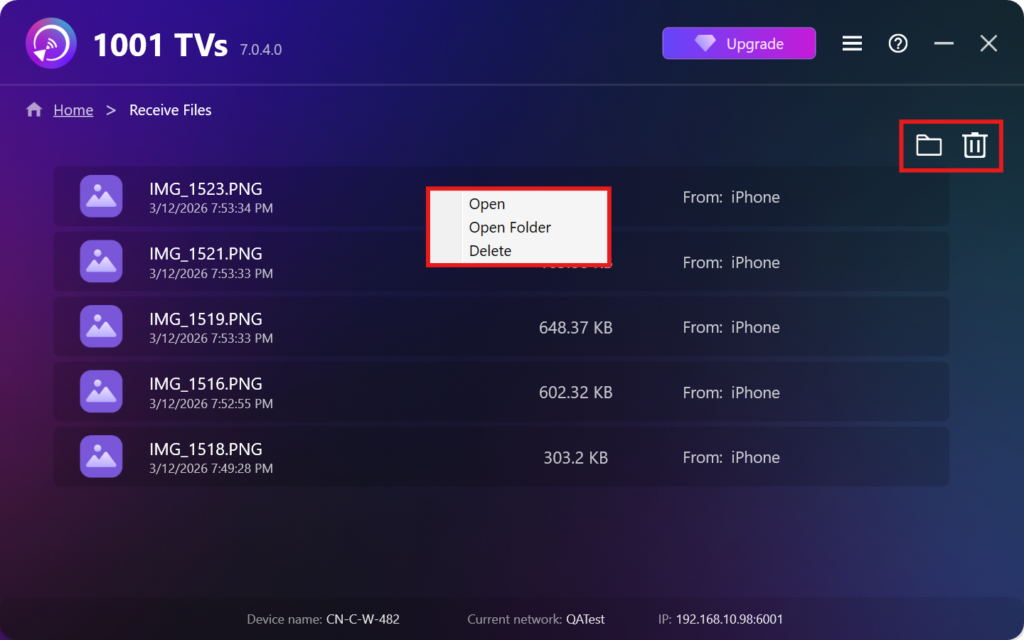
- Aprire Visualizzare i file ricevuti – Cliccare o fare clic con il tasto destro del mouse e selezionare “Aprire la cartella” per visualizzare tutti i file di quel dispositivo specifico (ad esempio, iPhone 12123).
- Individuateli nel Finder (Mac) o in Esplora file (Windows). - Fare clic sul pulsante icona della cartella in alto a destra per accedere a tutte le cartelle del dispositivo.
- Cancellare le opzioni – Cliccare con il tasto destro del mouse un file e selezionare “Cancellare” per rimuoverlo singolarmente, oppure fare clic sul pulsante icona del cestino in alto a destra per eliminare tutti i file ricevuti in una volta sola.
Visualizzazione dei file ricevuti in TV
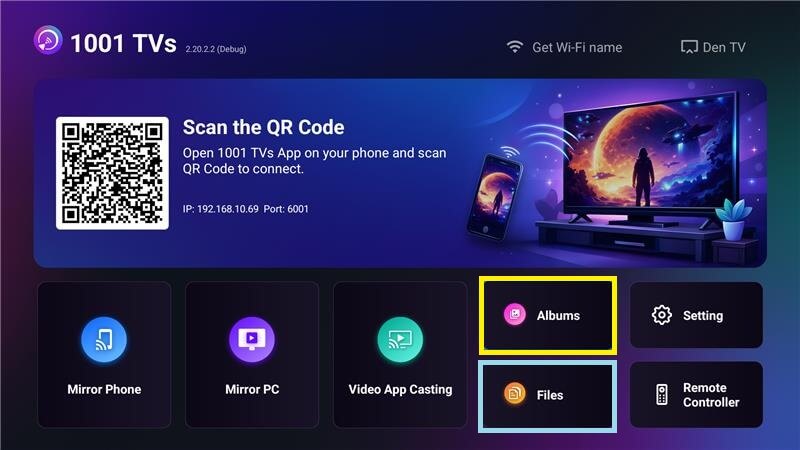
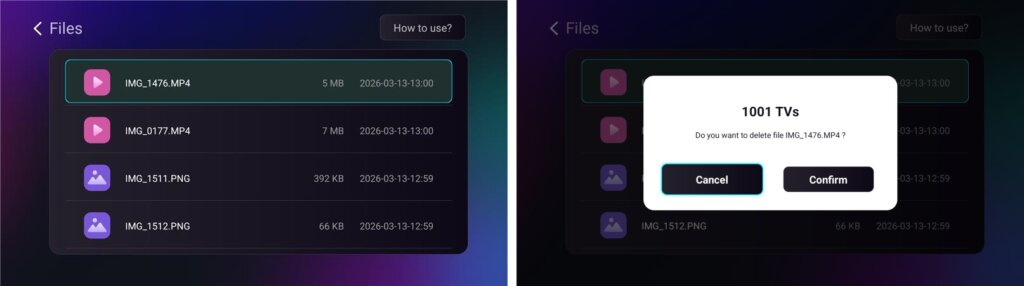
- Andare a File per visualizzare i file ricevuti. È possibile selezionare un file e premere a lungo OK per eliminarlo.
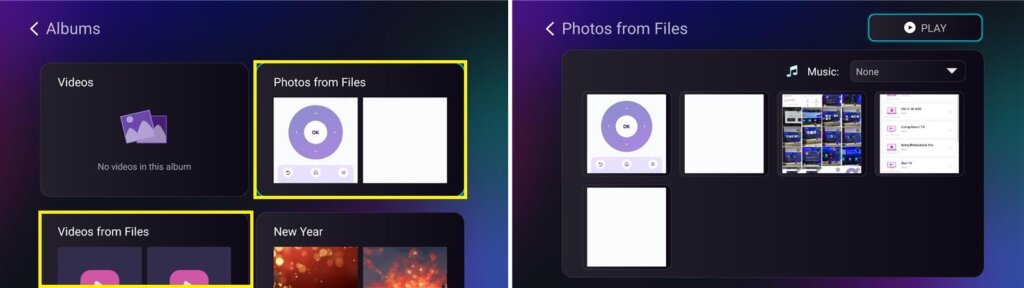
- Andare a Album > Foto/video da file per visualizzare le foto e i video ricevuti. È possibile selezionare un file e premere a lungo OK per eliminarlo o per riprodurlo come una presentazione.
Perché utilizzare 1001 TVs?
- Veloce, privato e facile da usare
- Trasferimento locale - non è necessario il cloud
- Non è necessario alcun login o account
- Supporta trasferimenti di file di grandi dimensioni
Avete bisogno di aiuto?
In caso di problemi, non esitate a contattare il nostro team di assistenza:
📧 Email: 1001tvs@nero.com
🌐 Sito web: www.1001tvs.com
📖 Altre guide: Guida