
How to Use Your Phone as a Remote Control for Android TV
Want to control your Android TV, stream videos, or browse apps without hunting for the remote?
With 1001 TVs, you can turn your smartphone into a fully functional remote control in seconds—no extra hardware, no complicated setup. Launch Netflix, YouTube, or other streaming apps with one tap, and cast your favorite content to the big screen instantly.
Whether you’ve misplaced your physical remote, the batteries just died, or you simply want a more convenient way to navigate your entertainment, this guide shows you how to set up your phone as a remote and start controlling your devices step by step.
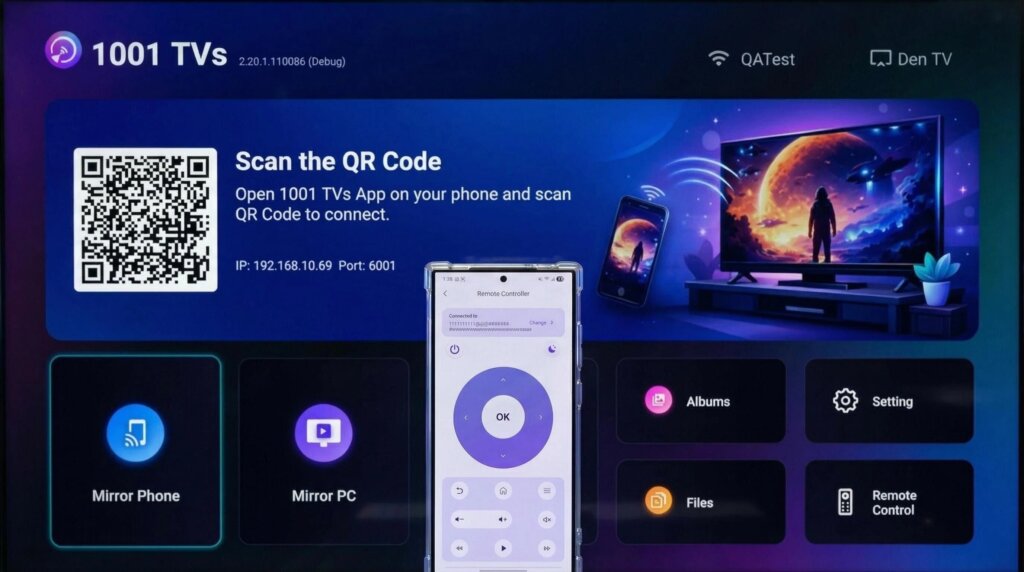
Step 1. Connect to the Same Wi-Fi
Make sure both your phone and TV are connected to the same Wi-Fi network.
For best performance, use a 5 GHz Wi-Fi network to reduce delay and improve stability.
Step 2. Install and Open 1001 TVs App
Install and open the 1001 TVs app on your phone.
📱 iOS App: Download from App Store
📱 Android App: Download from Google Play
Step 3. Start pairing
Tap Remote Control on your phone, then enter the pairing code that appears on your TV.
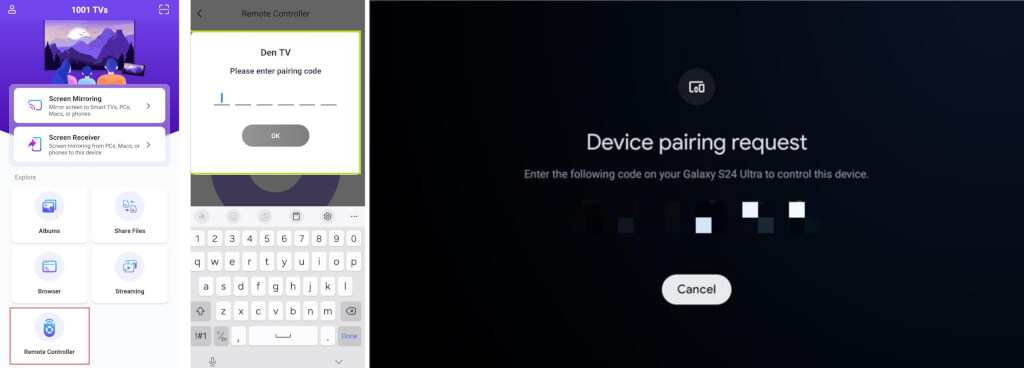
Step 4. Start control your TV
Once the virtual remote interface appears on your phone, you’re all set to control your TV.
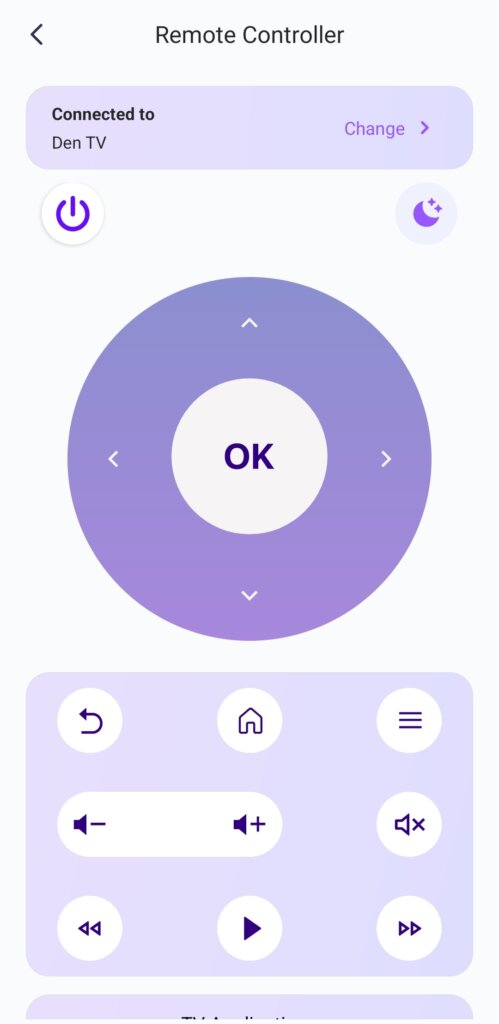
Supported Controls
⏻ Power
🌙/☀ Night/Day Mode
🔊 Volume Up / Down
🏠 Home
⬅️ Back
⬆️⬇️⬅️➡️ Direction Pad (Up / Down / Left / Right)
⭕ OK Button
Tip: Long-press the OK button to uninstall apps on your Android TV.
Advanced Features You’ll Love
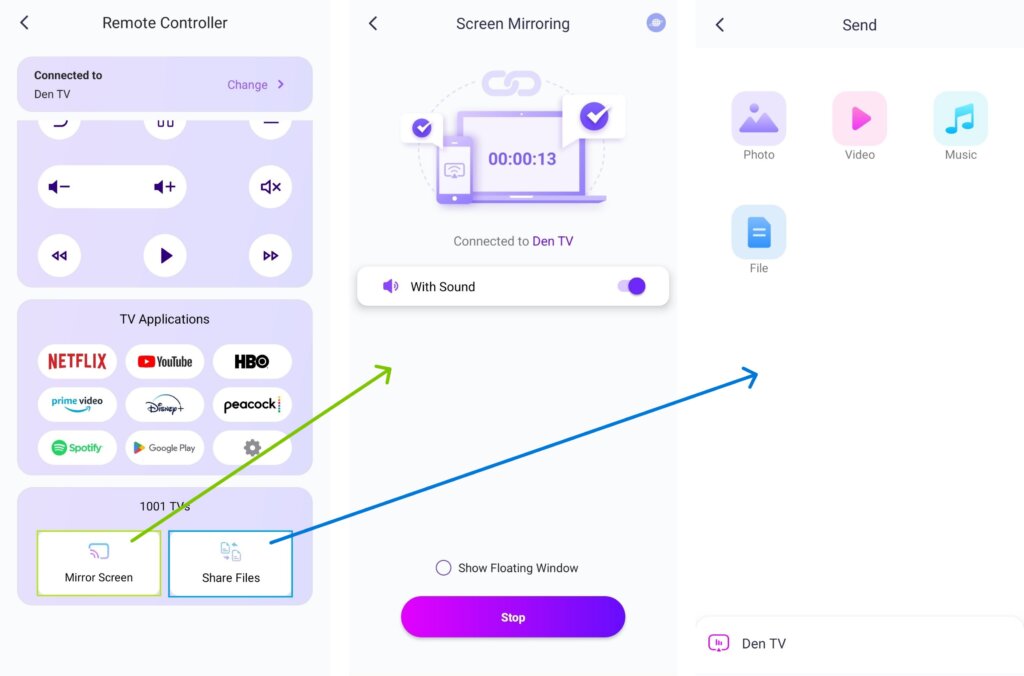
You can choose from the available TV apps—select YouTube, for example, and start streaming.
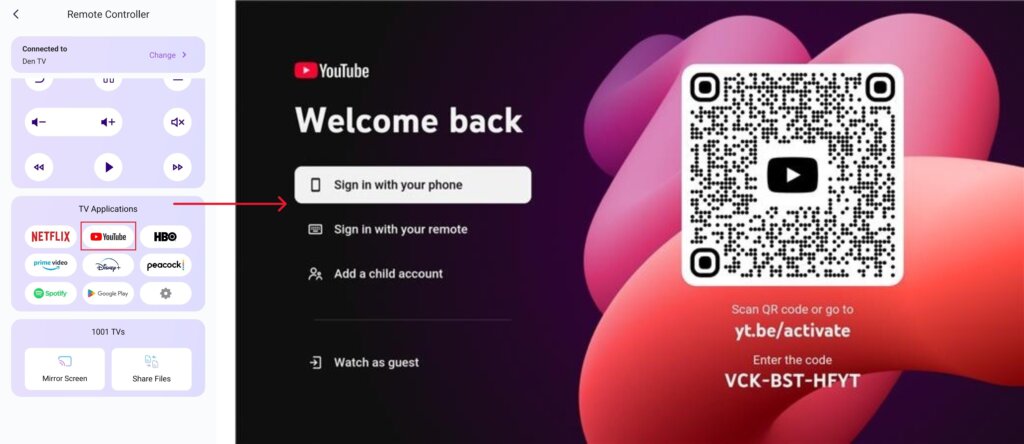
2) With 1001 TVs installed and opened on your TV, you can mirror your screen or share files with just one tap from the remote screen.
📥 TV App: How to Install 1001 TVs on Your TV
Get 1001 TVs Now!
📥 TV App: How to Install 1001 TVs on Your TV
📱 iOS App: Download from App Store
📱 Android App: Download from Google Play