[Android] How to Send Files From Android Phone to PC, Mac, and TV
1001 TVs makes it easy to wirelessly transfer files from your Android phone to a PC, Mac, or TV — no cables, no hassle. Whether you’re sharing photos, videos, music, or documents, the process is fast, simple, and secure. Here’s how to get started.
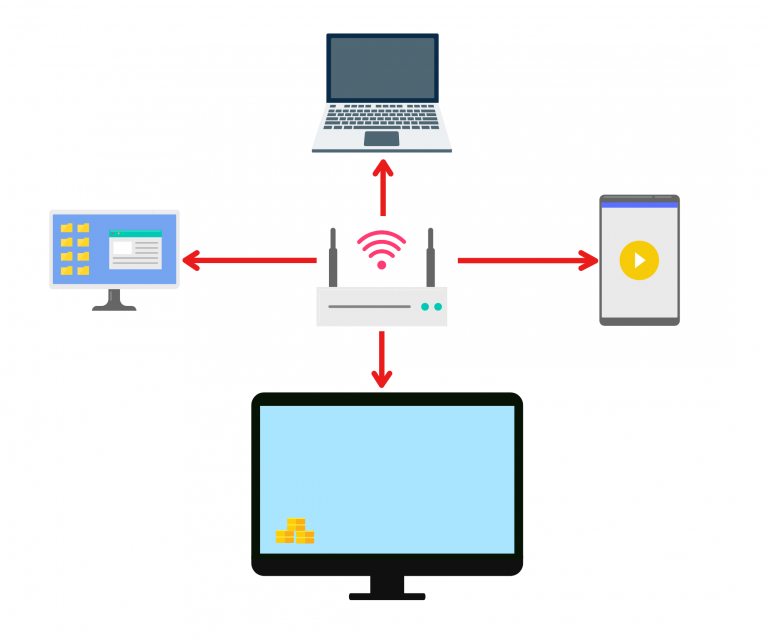
1. Connect to the Same Wi-Fi:
Make sure both your devices are connected to the same Wi-Fi network.
(A 5G band Wi-Fi connection is recommended for the best performance.)
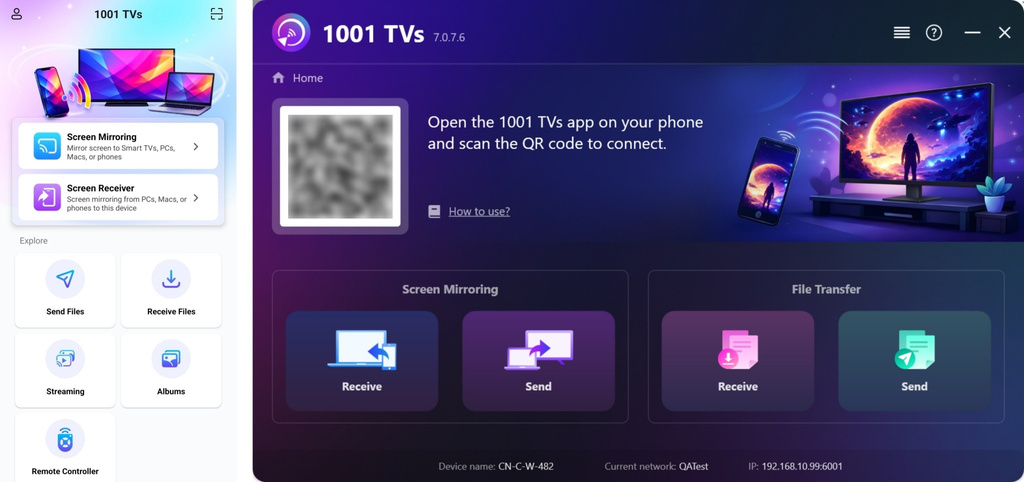
2. Install and Open 1001 TVs on both devices
📥 PC App: Download from Microsoft Store
For detailed steps, refer to the PC Installation Guide.
📥 Mac App: Download from App Store
📥 TV App: How to Install 1001 TVs on Your TV
📱 Android App: Download from Google Play
3. Start Pairing
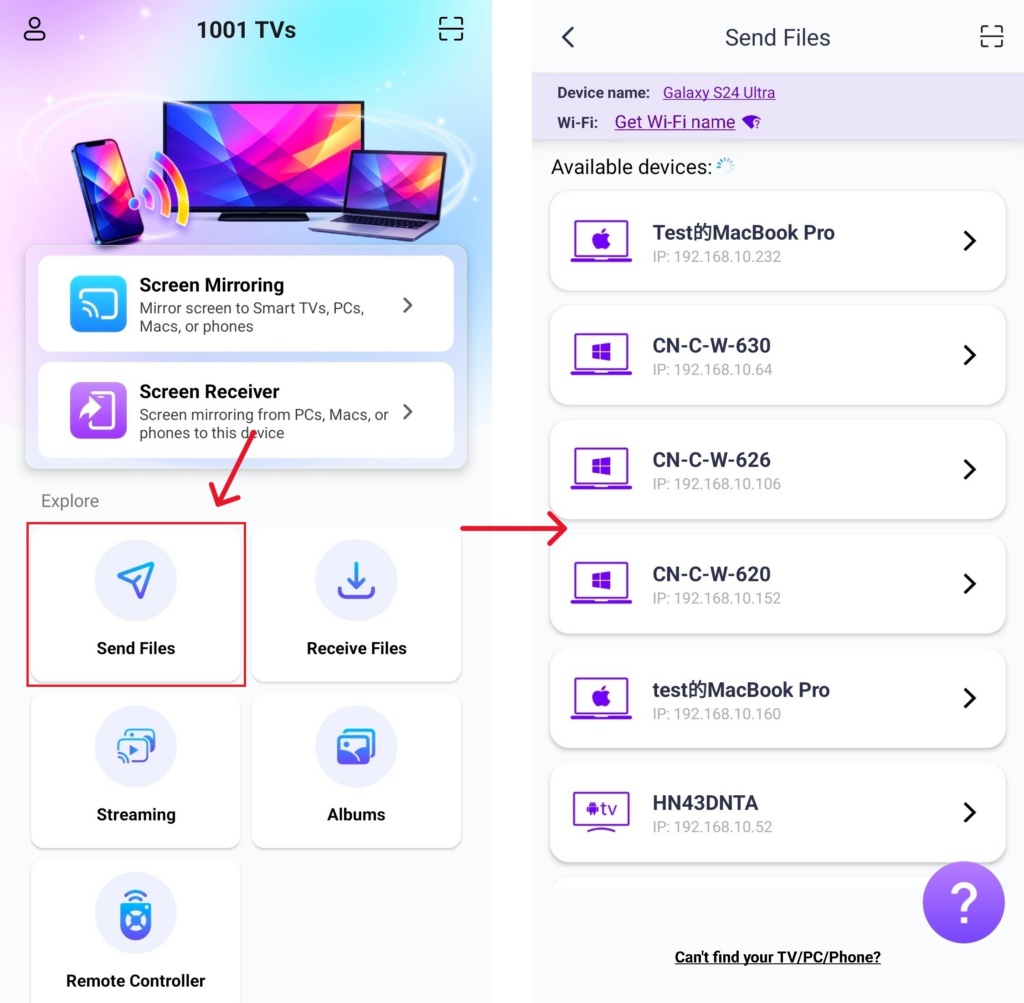
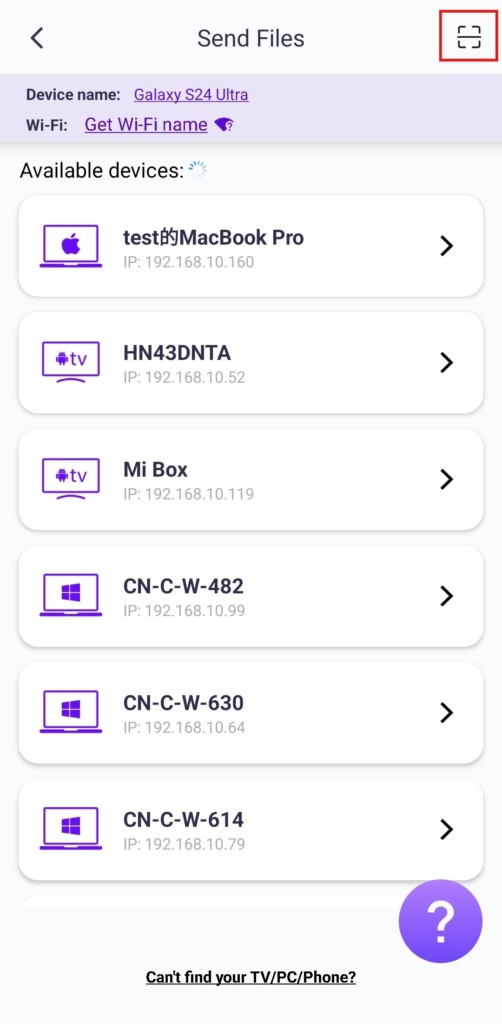
Launch 1001 TVs on your phone and tap Send Files.
Select your target device from the list (e.g., your PC/Mac/TV).
Note: The target device must be online to receive files. If it appears offline, please check your network connection. You can still view files already received on your PC/Mac/TV at any time.
On your receiving device, confirm the pairing.
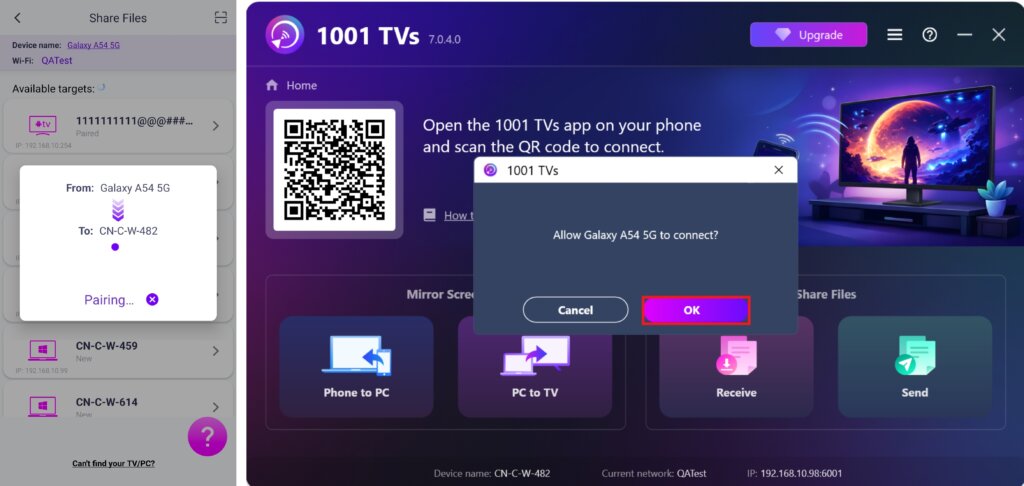
Can’t find the target device? Try to pair by scanning the code
If your device doesn’t appear in the list, you can scan the QR code displayed on your Mac/PC/TV screen for quick pairing.
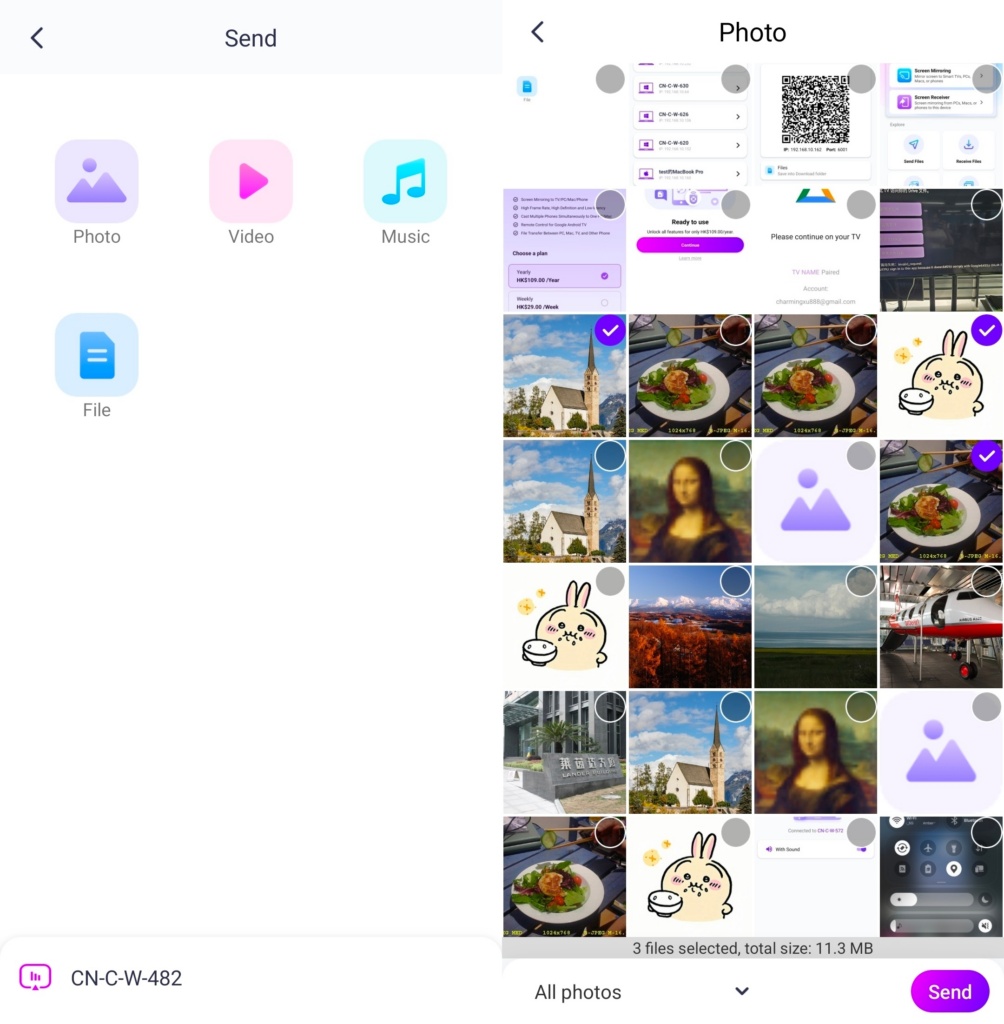
4. Select files to send
On your phone, choose the files you want to send.
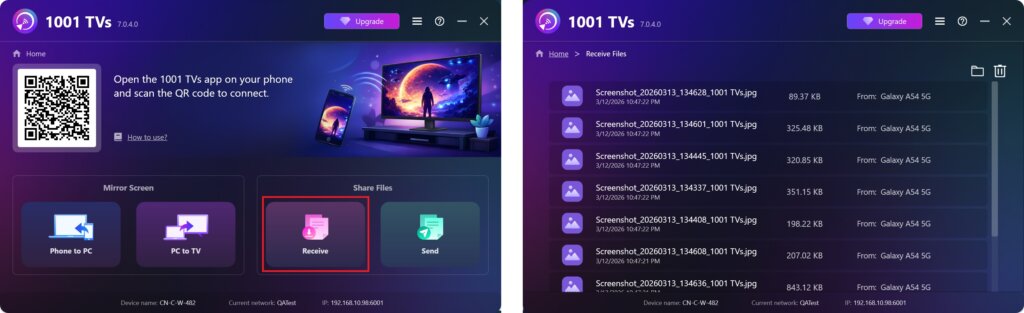
5. Received Files – Where to Find
1) For PC/Mac
Click Receive on your PC/Mac to see all incoming files.
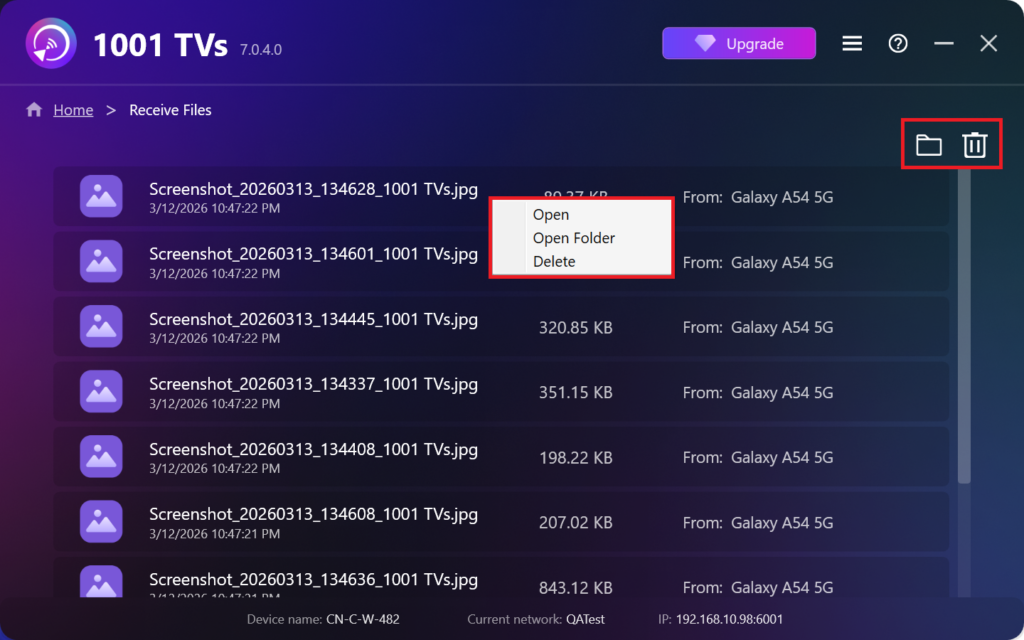
- Open View the received files – Click or right-click and select “Open Folder” to to view all files from that specific device (e.g., iPhone 12123).
- Locate them in Finder (Mac) or File Explorer (Windows) – Click the folder icon in the top‑right to access all device folders.
- Delete options – Right‑click a file and select “Delete” to remove it individually, or click the trash icon in the top‑right to delete all received files at once.
2) For TV
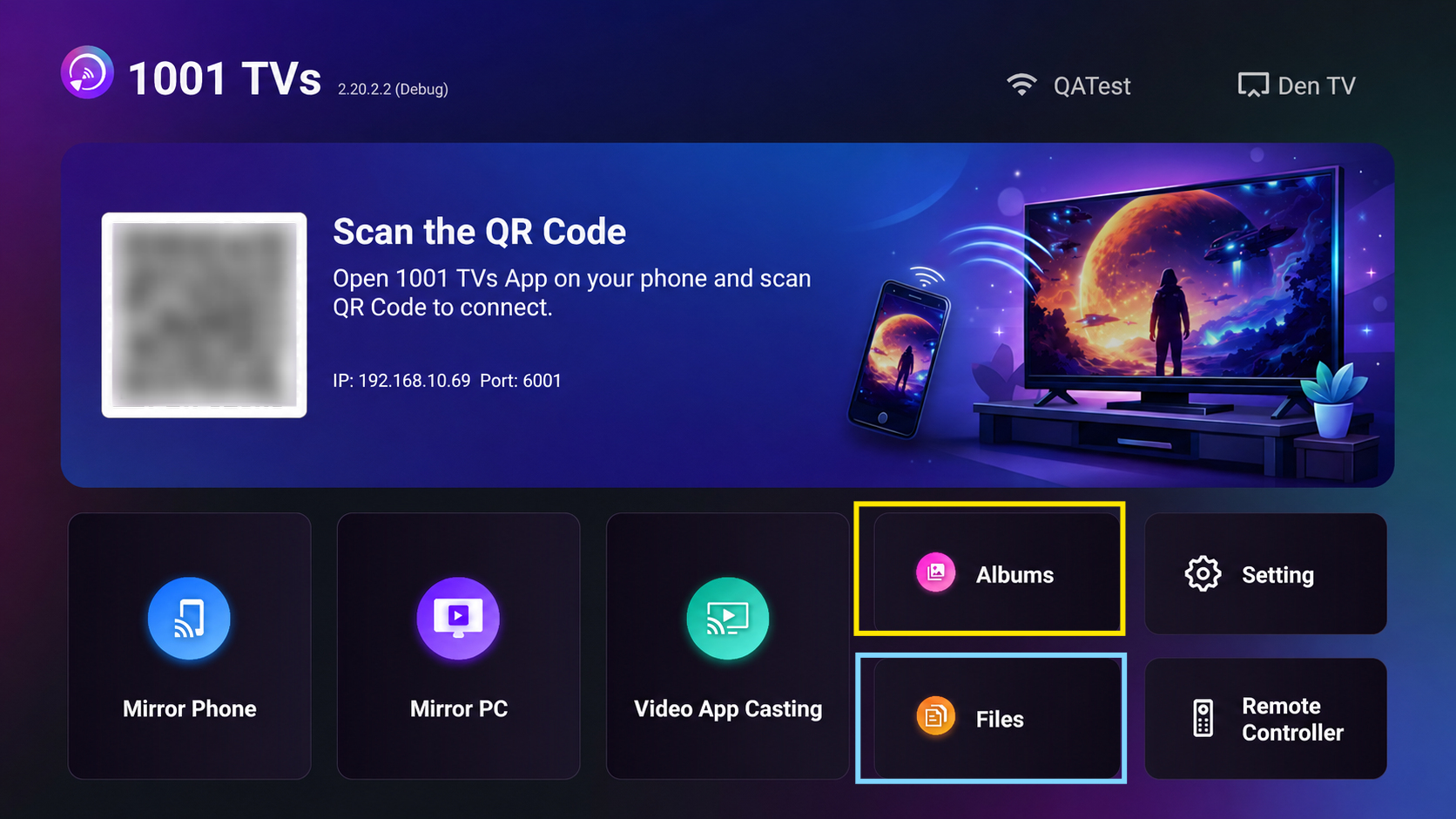
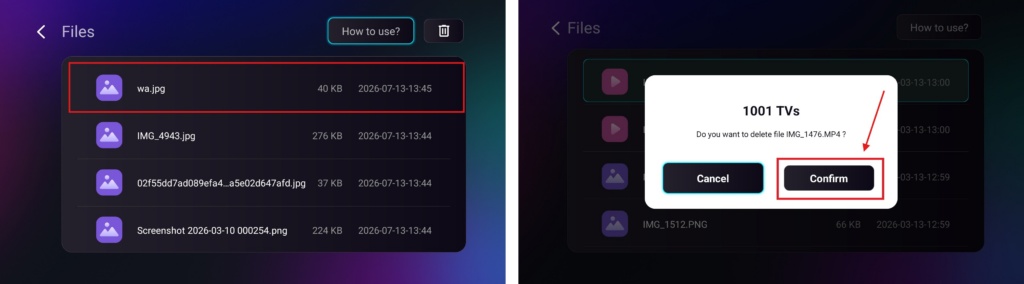
- Navigate to Files, you can see the received files. To delete a single file, long-press the OK button on your TV remote control to select the desired file, and then press “Confirm” to delete it.
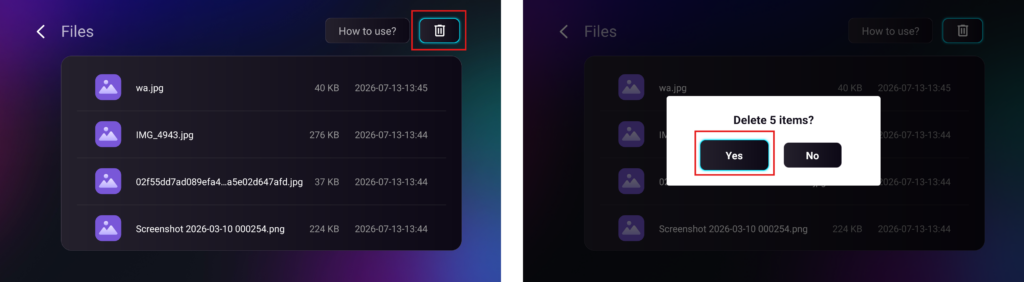
To delete all files at once, click the trash button, then press “Yes” to confirm.
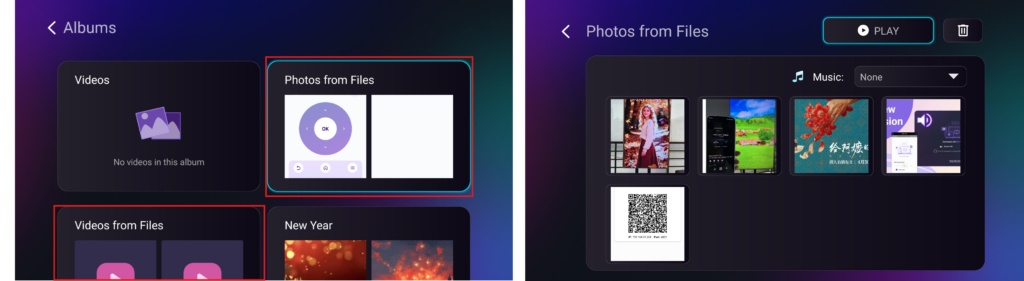
- Navigate to Albums > Photos/Videos from Files page to view your received photos and videos. They can be deleted using the same method as Files, or you can play them as a slideshow.
With 1001 TVs, you can enjoy wireless, high-speed file transfers between your devices anytime, anywhere! 🚀
Get 1001 TVs Now
📥 PC App: Download from Microsoft Store
For detailed steps, refer to the PC Installation Guide.
📥 Mac App: Download from App Store
📥 TV App: How to Install 1001 TVs on Your TV
📱 Android App: Download from Google Play
Read More
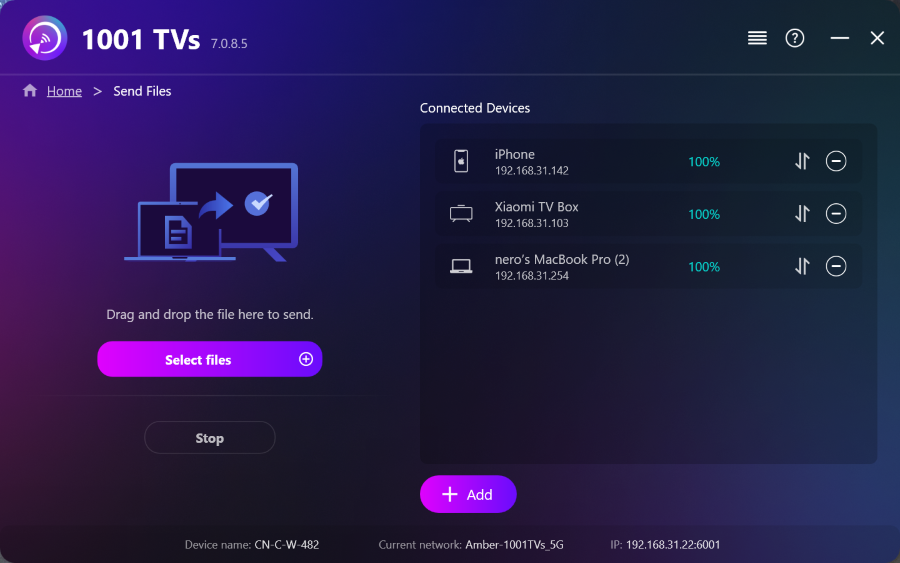 How to Send Files from PC to Multiple Devices at the Same Time (PC, Phone, TV, Tablet)
With the latest Windows version of 1001 TVs (v7.0.8.5), your PC can now send files to multiple devices — TVs, tablets, phones, or other…
How to Send Files from PC to Multiple Devices at the Same Time (PC, Phone, TV, Tablet)
With the latest Windows version of 1001 TVs (v7.0.8.5), your PC can now send files to multiple devices — TVs, tablets, phones, or other…
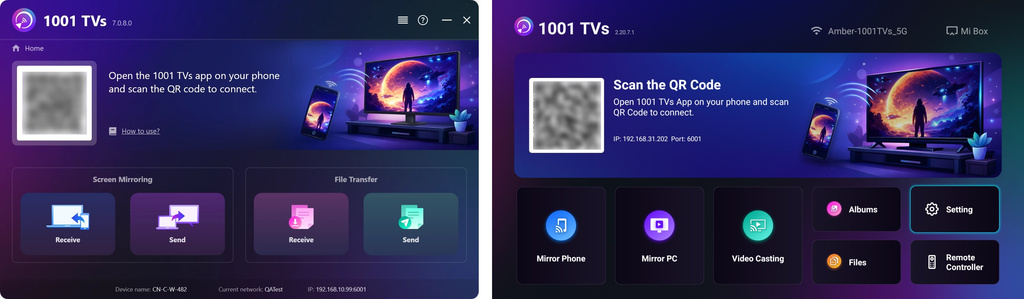 How to Send Files from Your PC/Mac to TV/PC/Mac
With 1001 TVs, you can send files from your PC/Mac to your TV/PC/Mac over the same local network. And yes — PCs and Macs…
How to Send Files from Your PC/Mac to TV/PC/Mac
With 1001 TVs, you can send files from your PC/Mac to your TV/PC/Mac over the same local network. And yes — PCs and Macs…

