
Kuinka lähettää tiedostoja PC:stä/Macista TV:hen/PC:hen/Maciin?
1001 TVs:n avulla voit lähettää tiedostoja PC:stä/Macista TV:hen/PC:hen/Maciin saman lähiverkon kautta.
Ja kyllä - samassa lähiverkossa olevat PC- ja Mac-tietokoneet voivat siirtää tiedostoja suoraan toisiinsa ilman lisäasetuksia.
Ei pilvilatauksia. Ei kaapeleita. Ei rekisteröitymistä - vain nopeat, turvalliset paikalliset siirrot.
Ennen kuin aloitat
- Varmista, että laitteet on liitetty samaan Wi-Fi-verkkoon.
- Asenna ja avaa 1001 TVs molemmissa laitteissasi, pidä sovellus käynnissä vastaanottavassa laitteessa.
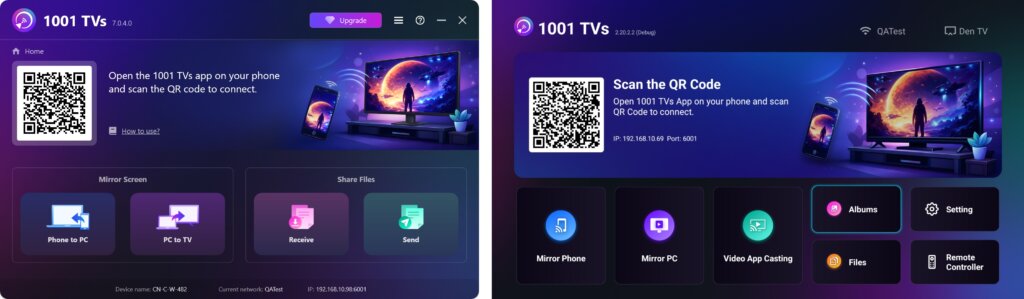
Aloita lähettäminen
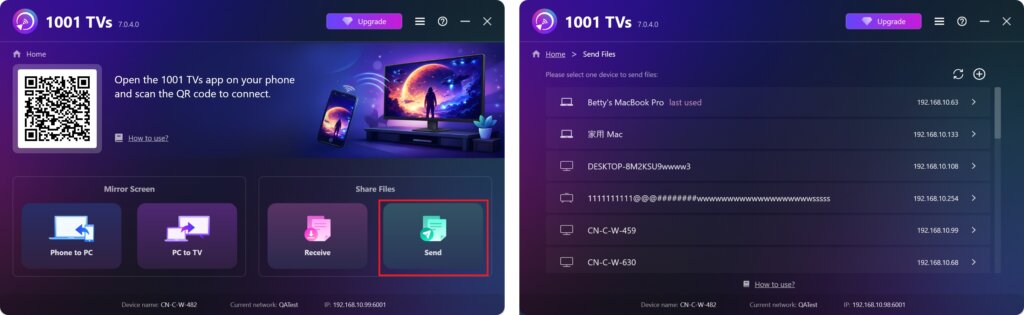
Valitse lähettävällä laitteella Lähetä ja sovellus etsii automaattisesti käytettävissä olevia laitteita samassa verkossa.
Valitse kohdelaite luettelosta. (esim. TV/PC/Mac).
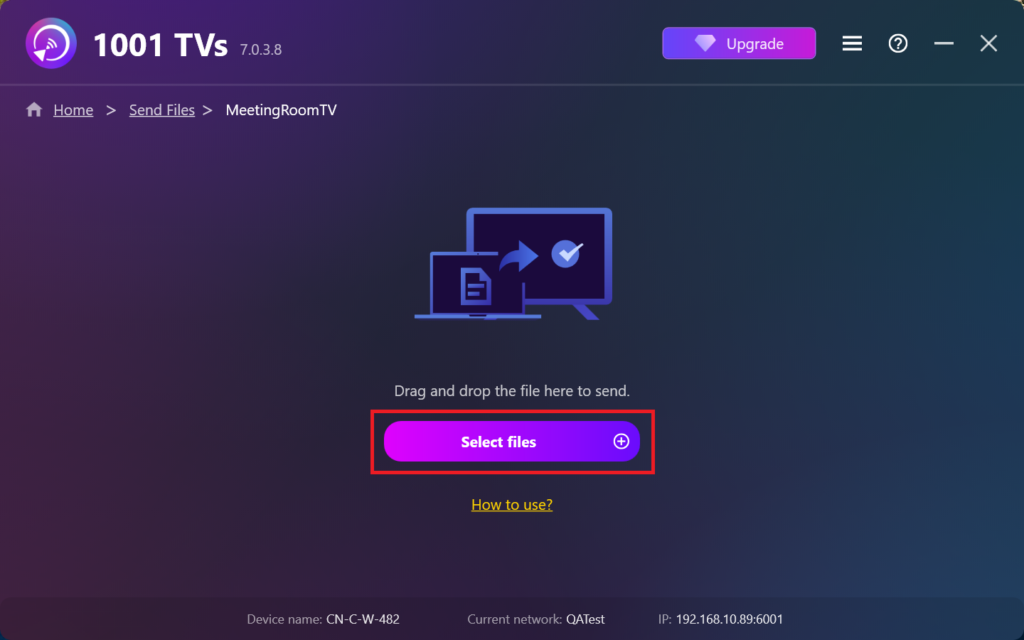
Valitse tietokoneen tiedostot (videot, valokuvat, musiikki, asiakirjat ja muut), ja siirto alkaa automaattisesti kohdelaitteeseen.
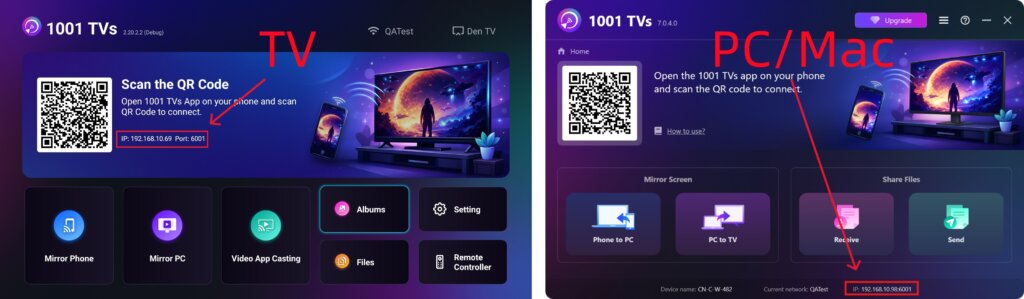
Etkö löydä kohdelaitetta?
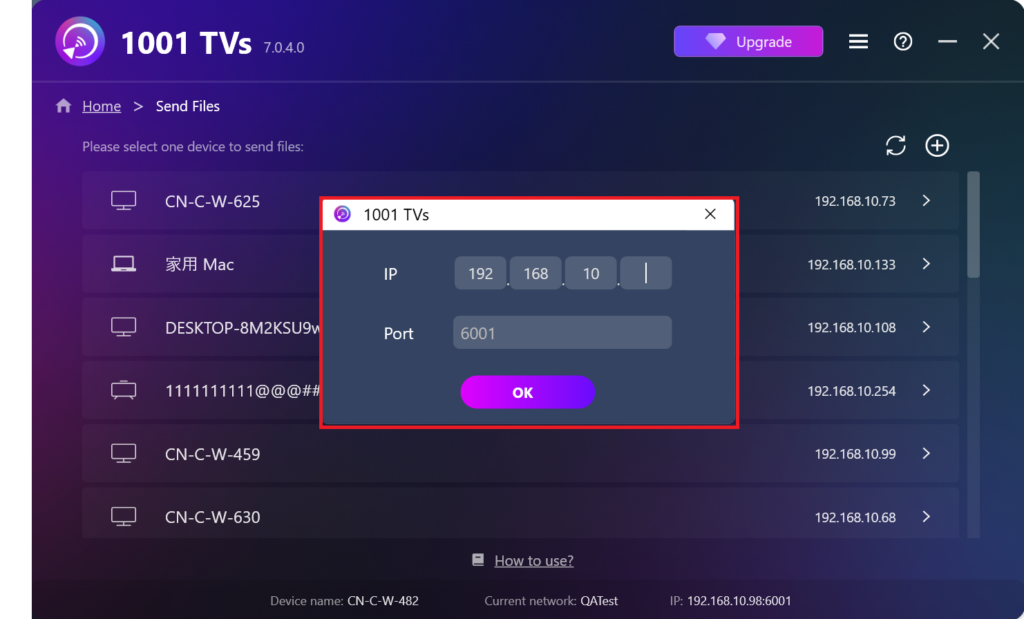
Jos kohdelaite ei näy laiteluettelossa, napsauta painiketta + kuvake oikeassa yläkulmassa ja käytä IP-osoitteen yhdistäminen muodostaa yhteyden nopeasti ja turvallisesti.
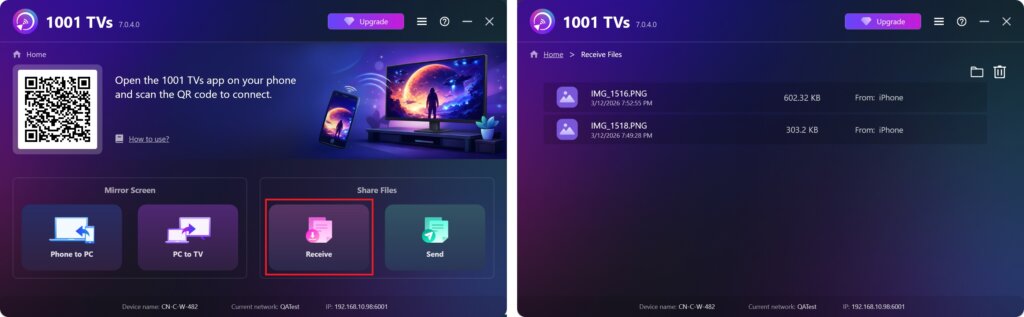
Vastaanotettujen tiedostojen tarkastelu PC/Macilla
Klikkaa Vastaanota PC:lläsi/Macilla nähdäksesi kaikki saapuvat tiedostot.
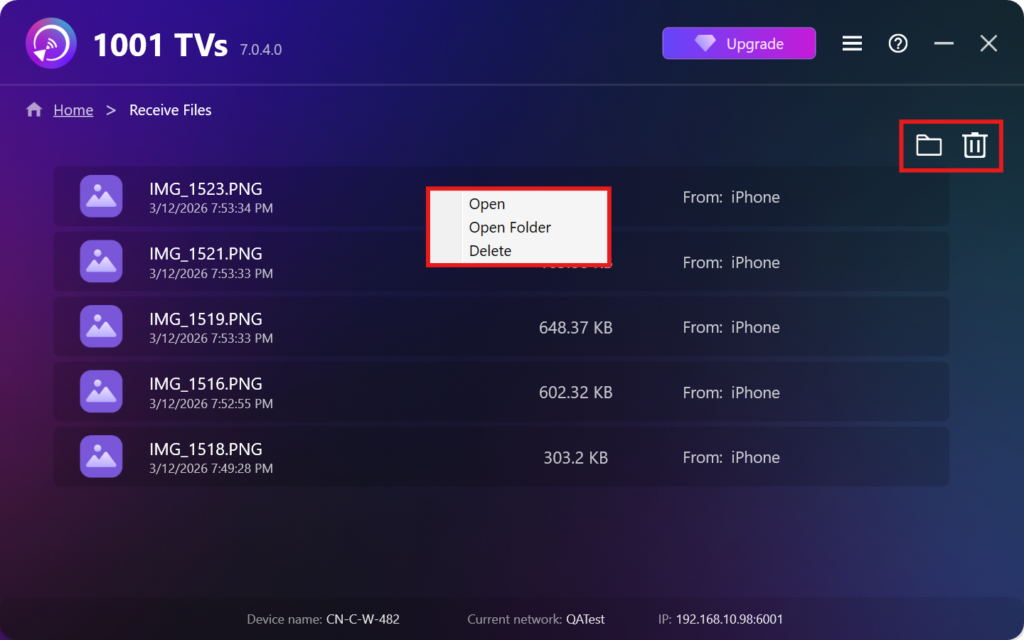
- Avaa Näytä vastaanotetut tiedostot – Klikkaa tai klikkaa hiiren oikealla ja valitse “Avaa kansio” nähdäksesi kaikki kyseisen laitteen tiedostot (esim. iPhone 12123).
- Etsi ne Finderista (Mac) tai File Explorerista (Windows). - Napsauta kansion kuvake oikeassa yläkulmassa päästäksesi kaikkiin laitekansioihin.
- Poista vaihtoehdot – Napsauta hiiren kakkospainikkeella tiedosto ja valitse “Poista” poistaaksesi sen yksitellen tai napsauttamalla roskakorin kuvake oikeassa yläkulmassa, jos haluat poistaa kaikki vastaanotetut tiedostot kerralla.
Näytä vastaanotetut tiedostot televisiossa
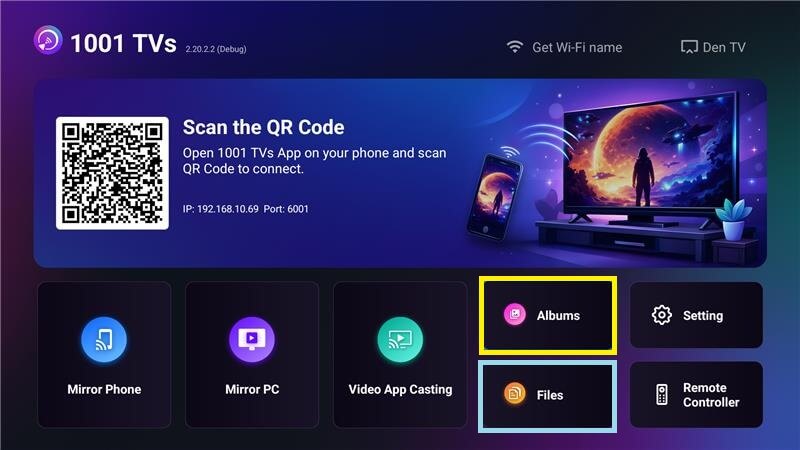
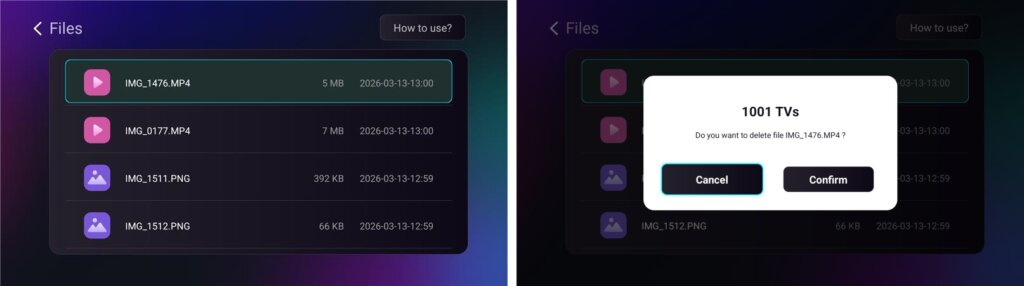
- Siirry osoitteeseen Tiedostot tarkastella vastaanotettuja tiedostoja. Voit valita tiedoston ja painaa pitkään OK poistaaksesi sen.
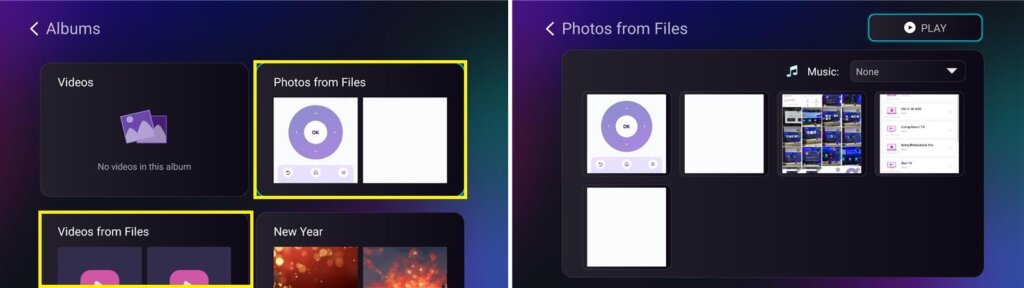
- Siirry osoitteeseen Albumit > Valokuvat/Videot tiedostoista nähdäksesi vastaanotetut kuvat ja videot. Voit valita tiedoston ja painaa pitkään OK poistaaksesi sen tai toistaaksesi ne diaesityksenä.
Miksi käyttää 1001 TVs:tä?
- Nopea, yksityinen ja helppokäyttöinen
- Paikallinen siirto - pilveä ei tarvita
- Kirjautumista tai tiliä ei tarvita
- Tukee suuria tiedostojen siirtoja
Tarvitsetko apua?
Jos sinulla on ongelmia, ota rohkeasti yhteyttä tukitiimiimme:
📧 Sähköposti: 1001tvs@nero.com
🌐 Verkkosivusto: www.1001tvs.com
📖 Lisää oppaita: Ohjeet