
كيفية إرسال الملفات من الكمبيوتر الشخصي/جهاز Mac إلى التلفزيون/الكمبيوتر الشخصي/جهاز Mac
باستخدام 1001 TVs، يمكنك إرسال الملفات من الكمبيوتر الشخصي/جهاز Mac إلى التلفزيون/الكمبيوتر الشخصي/جهاز Mac عبر الشبكة المحلية نفسها.
ونعم - يمكن لأجهزة الكمبيوتر الشخصية وأجهزة Mac على نفس شبكة LAN نقل الملفات مباشرة إلى بعضها البعض، دون الحاجة إلى إعدادات إضافية.
لا توجد تحميلات سحابية. لا كابلات. لا تسجيلات - فقط عمليات نقل محلية سريعة وآمنة.
قبل أن تبدأ
- تأكد من أن الأجهزة متصلة بنفس شبكة Wi-Fi.
- التثبيت والفتح 1001 TVs على كلا الجهازين، استمر في تشغيل التطبيق على جهاز الاستقبال.
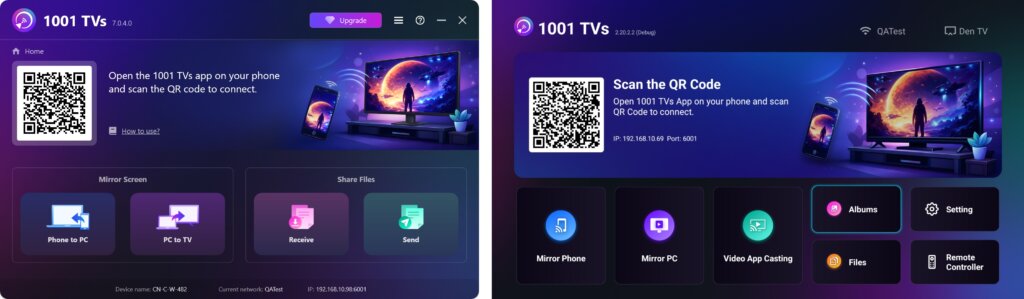
بدء الإرسال
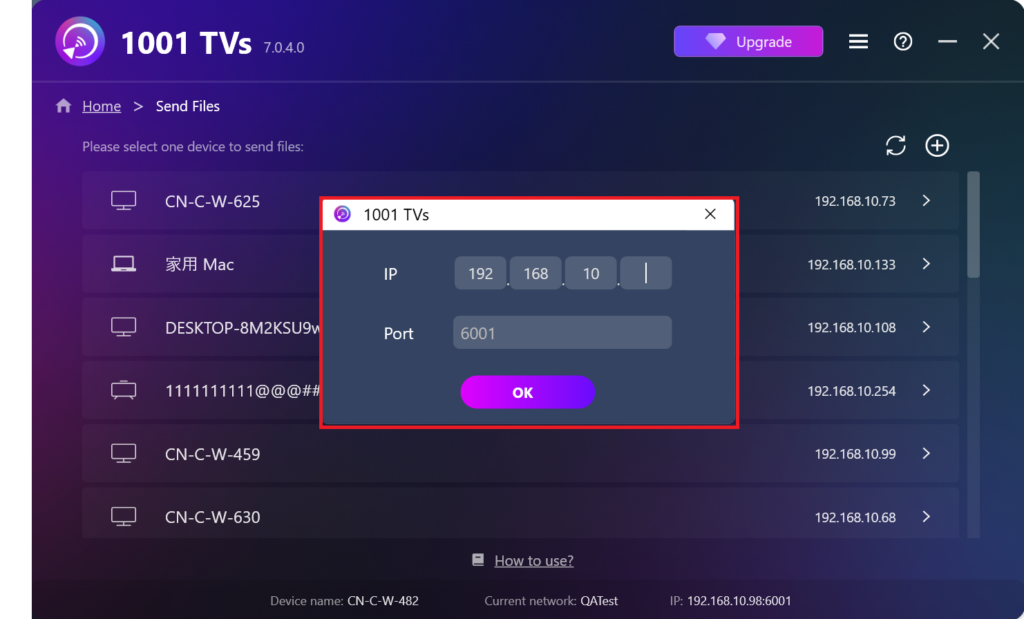
على جهاز الإرسال الخاص بك، انقر فوق إرسال وسيبحث التطبيق تلقائيًا عن الأجهزة المتاحة على الشبكة نفسها.
اختر جهازك المستهدف من القائمة. (على سبيل المثال، جهاز التلفزيون/الكمبيوتر الشخصي/جهاز Mac)
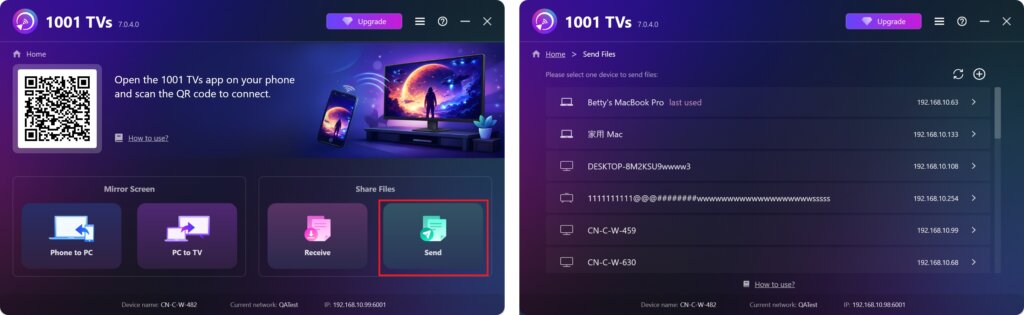
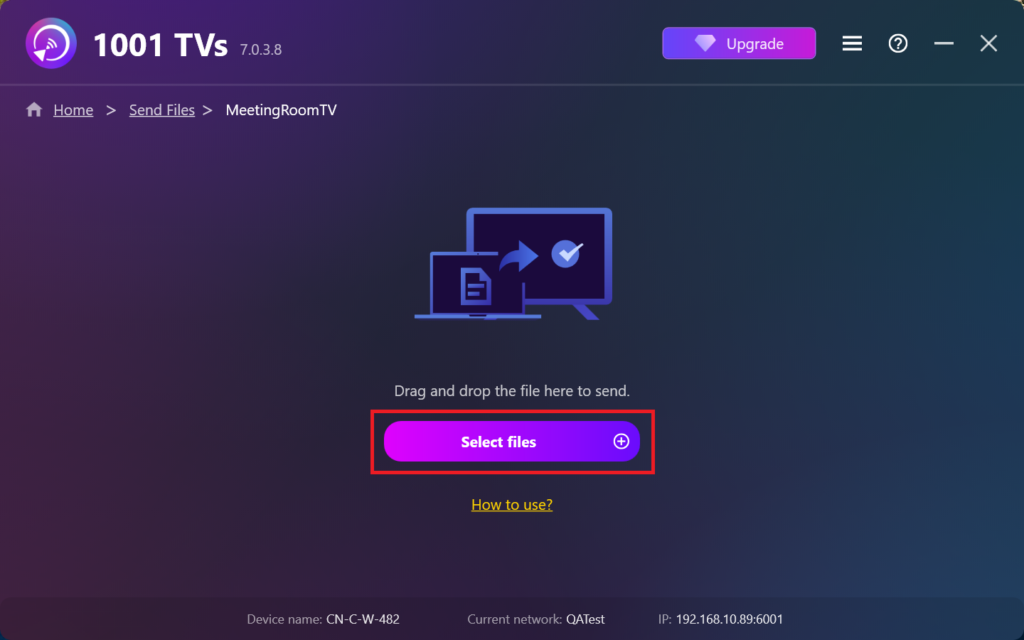
حدد الملفات الموجودة على جهاز الكمبيوتر الخاص بك (مقاطع الفيديو والصور والموسيقى والمستندات وغيرها)، وسيبدأ النقل تلقائيًا إلى الجهاز الهدف.
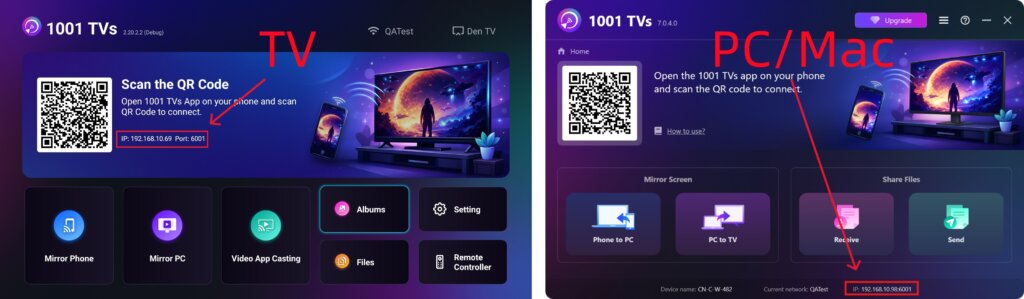
لا يمكنك العثور على جهازك المستهدف؟
إذا لم يظهر الجهاز الهدف في قائمة الأجهزة، فانقر على + أيقونة في الزاوية العلوية اليمنى واستخدم إقران عنوان IP للاتصال بسرعة وأمان.
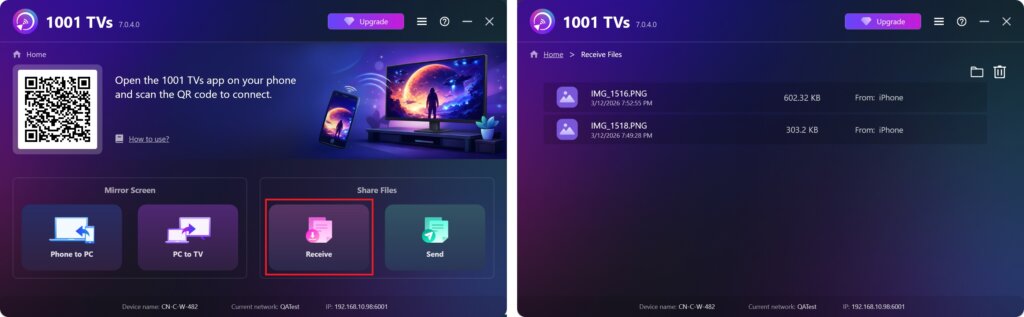
عرض الملفات المستلمة على الكمبيوتر الشخصي/جهاز Mac
انقر فوق استلم على جهاز الكمبيوتر / جهاز Mac الخاص بك لرؤية جميع الملفات الواردة.
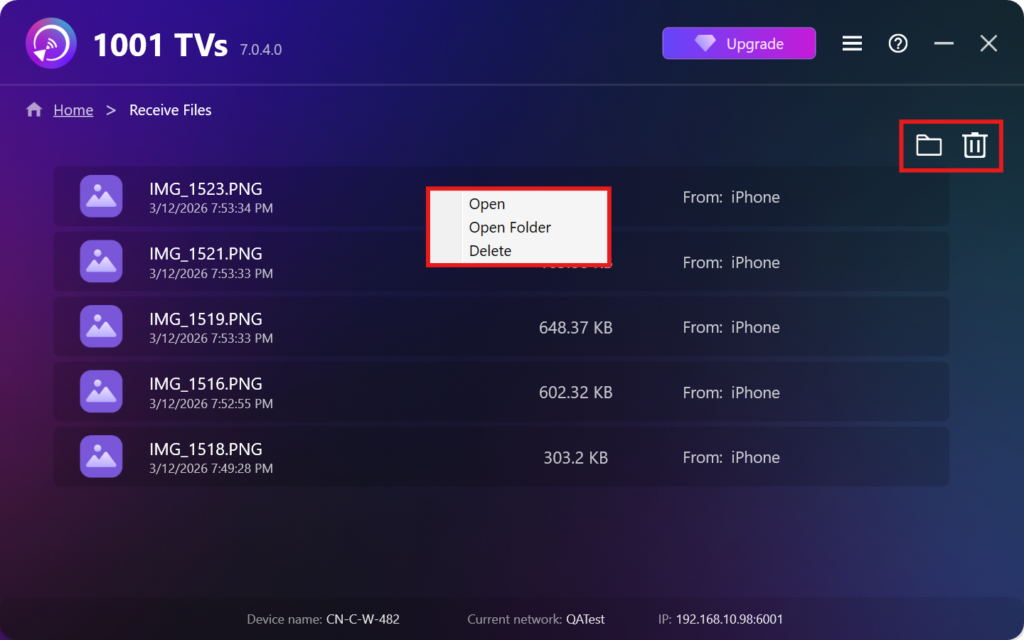
- فتح عرض الملفات المستلمة – انقر فوق أو انقر بزر الماوس الأيمن وحدد “فتح المجلد المفتوح” لعرض جميع الملفات من هذا الجهاز المحدد (على سبيل المثال، iPhone 12123).
- حدد موقعها في Finder (ماك) أو File Explorer (ويندوز) - انقر فوق أيقونة المجلد في أعلى اليمين للوصول إلى جميع مجلدات الجهاز.
- حذف الخيارات – انقر بزر الماوس الأيمن ملف وحدد “حذف” لإزالتها بشكل فردي، أو انقر فوق أيقونة سلة المهملات في أعلى اليمين لحذف جميع الملفات المستلمة مرة واحدة.
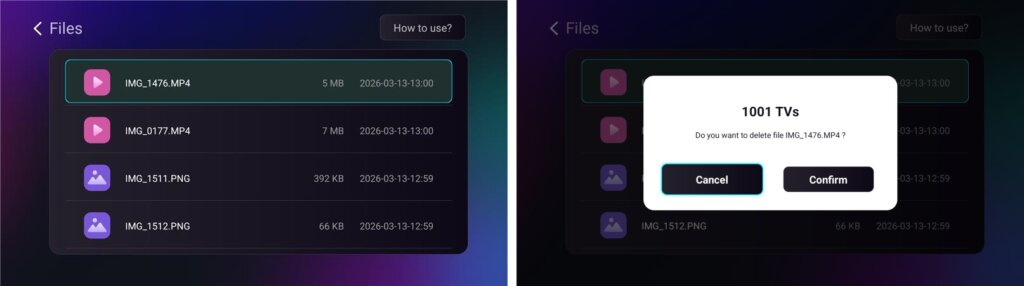
عرض الملفات المستلمة على التلفزيون
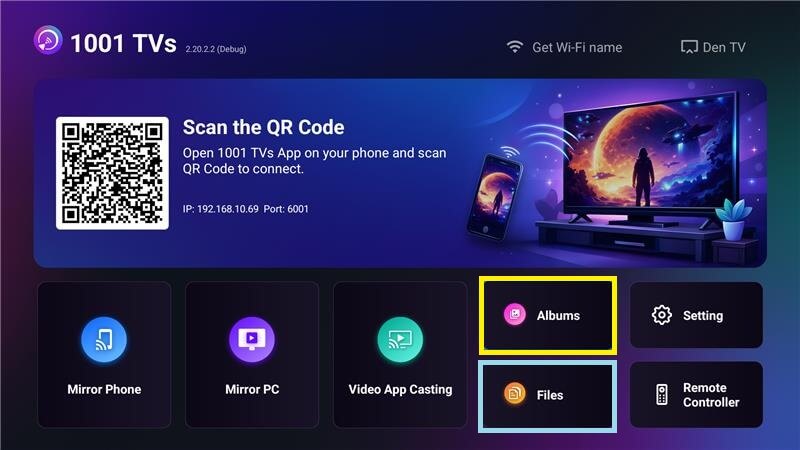
- انتقل إلى الملفات لعرض الملفات المستلمة. يمكنك تحديد ملف والضغط مطولاً على حسناً لحذفها.
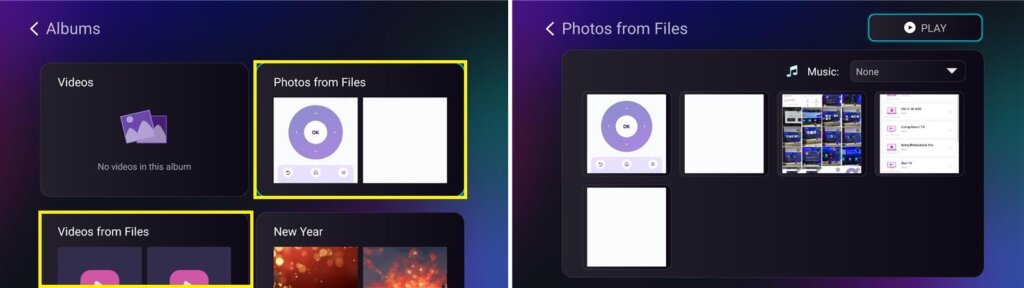
- انتقل إلى ألبومات > صور/فيديو من الملفات لعرض الصور ومقاطع الفيديو المستلمة. يمكنك تحديد ملف والضغط مطولاً على حسناً لحذفها، أو تشغيلها كعرض شرائح.
لماذا نستخدم 1001 TVs؟
- سريع، وخاص، وسهل الاستخدام
- النقل المحلي - لا يلزم وجود سحابة سحابية
- لا حاجة لتسجيل الدخول أو الحساب
- يدعم عمليات نقل الملفات الكبيرة
هل تحتاج إلى مساعدة؟
إذا واجهتك أي مشاكل، فلا تتردد في التواصل مع فريق الدعم لدينا:
📧 البريد الإلكتروني 1001tvs@nero.com
🌐 الموقع الإلكتروني: www.1001tvs.com
📖 المزيد من الأدلة: الإرشادات