How to fix disconnections issue for Android device?
When screen mirroring, interruptions can happen due to factors like power settings, app permissions, or network issues. These disruptions can be frustrating, but there are simple steps you can take to keep your mirroring session smooth and uninterrupted.
Follow these steps to prevent interruptions during screen mirroring:
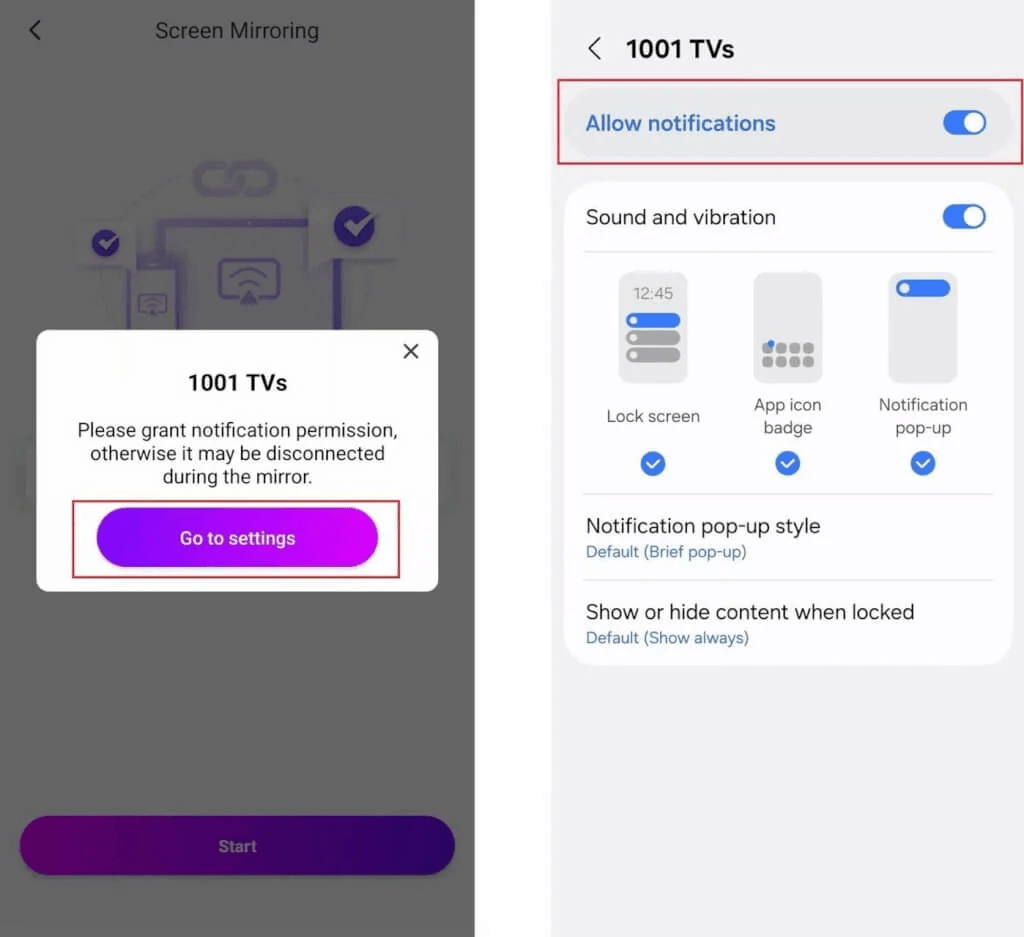
1. Check App Notifications
Make sure 1001 TVs appears in your notification bar.
If not, go to Settings and enable notifications for the app.
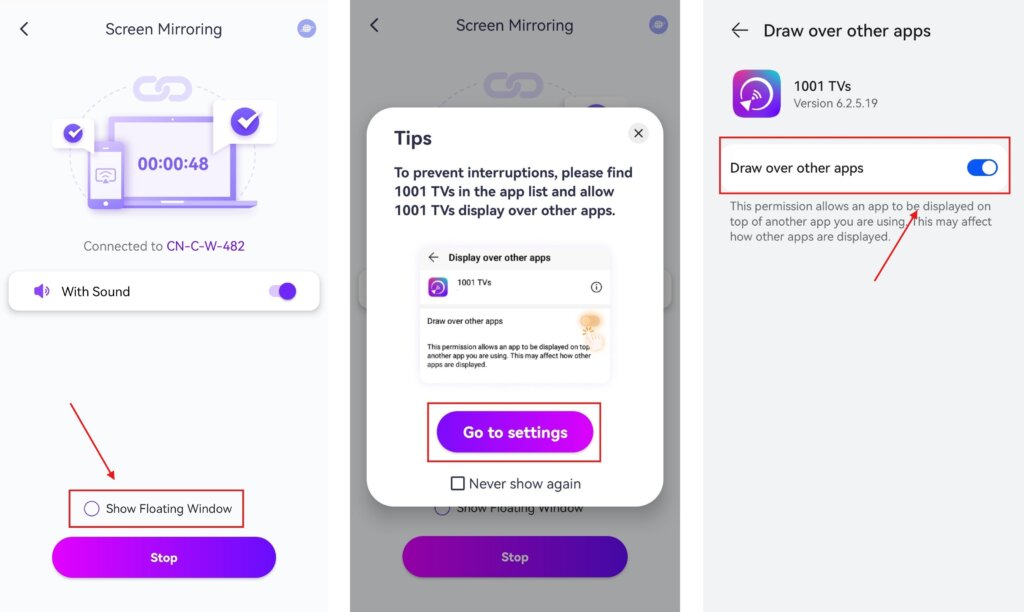
2. Enable Floating Window Permission
Grant floating window permission in Settings and enable floating window on the screen mirroring page.
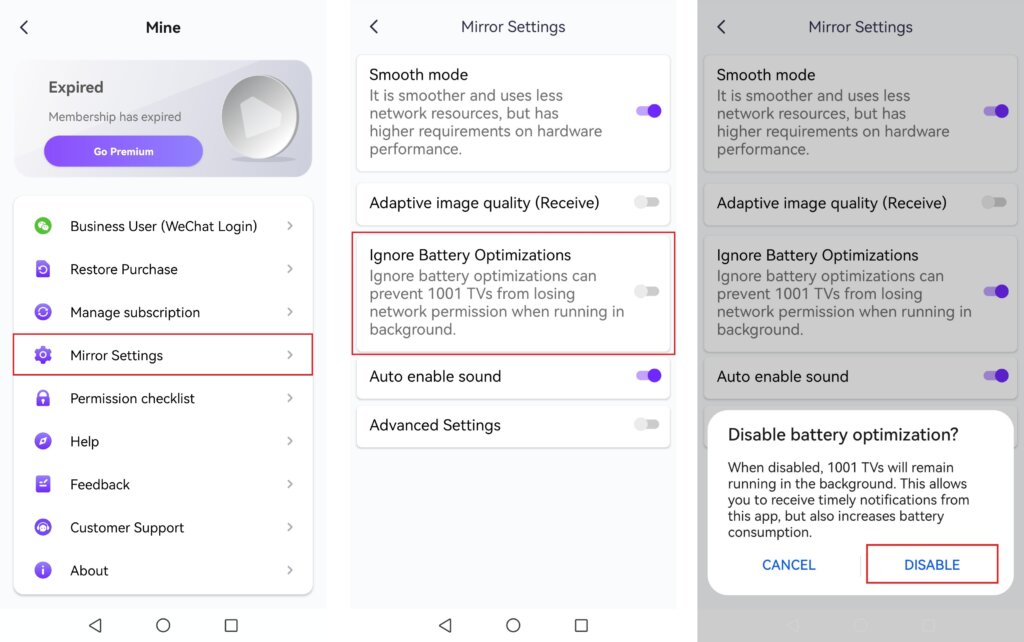
3. Disable Battery Optimization
In the 1001 TVs app, turn on “Ignore Battery Optimization” to keep the app running in the background.
4. Keep Your Phone Charged
Ensure your phone has at least 70% battery or keep it plugged in while mirroring.
5. Adjust Power Settings
For Huawei users: Keep the application running in the background.
6. Check and Improve Network Connection
- If using Wi-Fi, connect to a strong 5GHz signal for better performance.
- Restart your router, phone, computer, or TV if necessary.
- Use a wired connection for better stability when connecting to a PC or TV.
By following these steps, you can ensure a smooth and uninterrupted screen mirroring experience!🚀

Read More
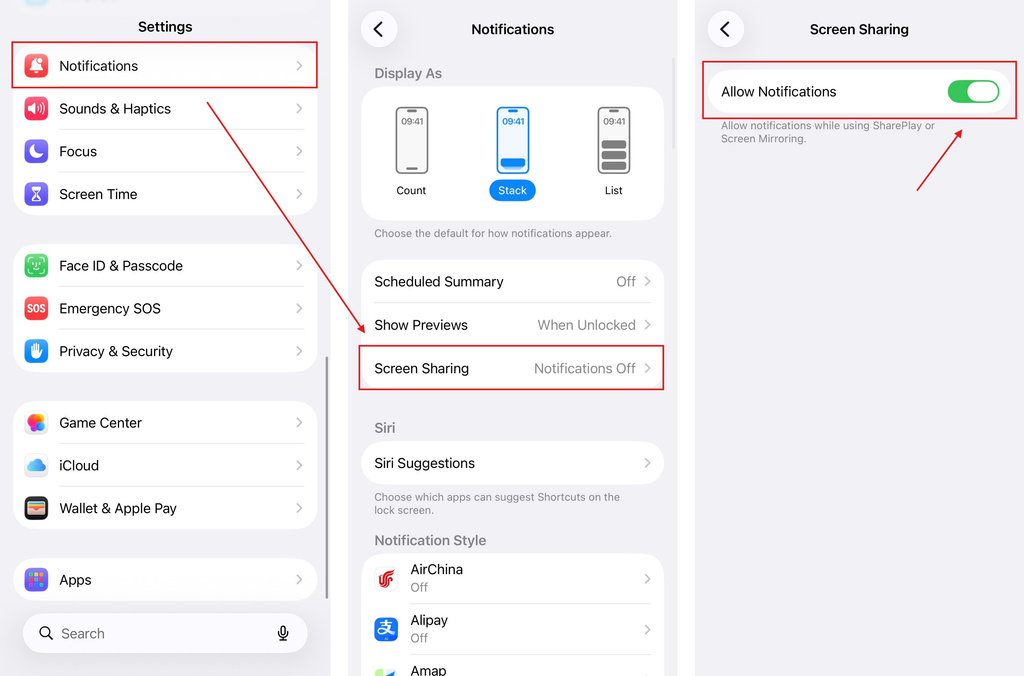 iOS: How to Fix Missing App Notifications During Screen Mirroring
Why Notifications Are Missing When you mirror your iPhone screen, notifications from other apps may not appear on the mirrored screen. This can happen…
iOS: How to Fix Missing App Notifications During Screen Mirroring
Why Notifications Are Missing When you mirror your iPhone screen, notifications from other apps may not appear on the mirrored screen. This can happen…
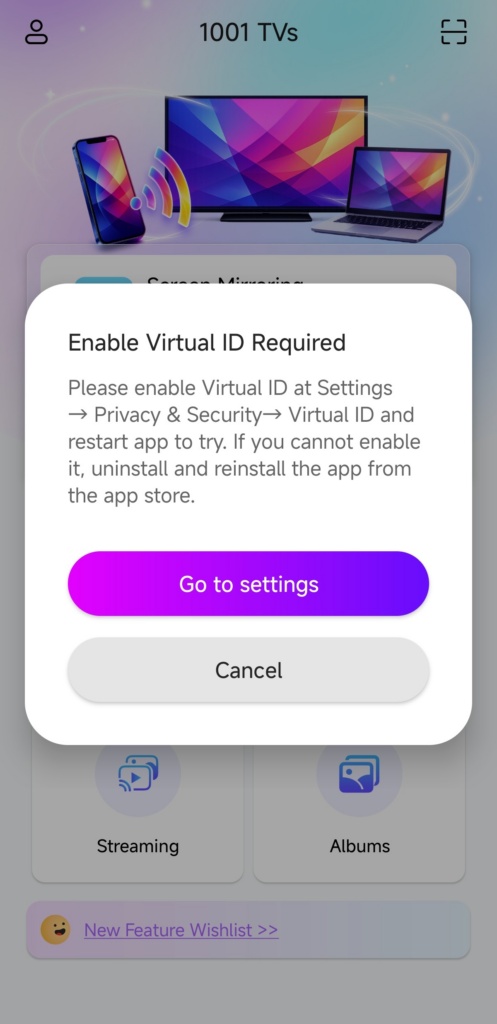 How to Fix the Enable Virtual ID Required Pop-Up
If you're using a Xiaomi or Redmi phone or tablet, you might see a pop-up that says "Enable Virtual ID Required" when you launch…
How to Fix the Enable Virtual ID Required Pop-Up
If you're using a Xiaomi or Redmi phone or tablet, you might see a pop-up that says "Enable Virtual ID Required" when you launch…

