How to Mirror Zoom Meetings to TV (With Sound) – Easy 2026 Guide
You can put a Zoom meeting on a TV with sound, but the right method depends on the device you are using and what your TV can receive. AirPlay is a practical route for compatible Apple devices and TVs. Android and Windows users may be able to use a compatible casting or wireless-display option. For an important meeting or an unreliable wireless connection, HDMI is often the more predictable fallback.
Start by identifying your device and TV setup below. If the picture reaches the TV but the meeting sound does not, check the audio output and any connected Bluetooth devices before changing methods.
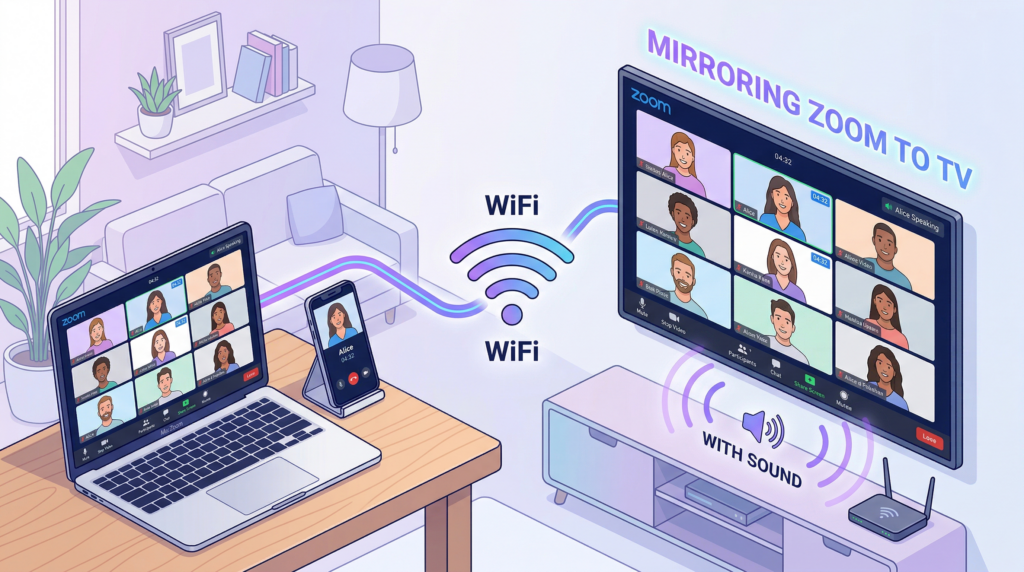
Choose the Right Way to Put Zoom on Your TV
| Your setup | Start with | Key check |
| iPhone ياكى iPad | AirPlay | Confirm that the TV or Apple TV supports AirPlay and is on the same local network. |
| Android phone or tablet | Cast or wireless display | Confirm that the phone, TV, or receiver supports the same casting or display route. |
| Mac | AirPlay | Confirm TV compatibility and check the Mac audio output. |
| Windows كومپيۇتېرى | Wireless display or HDMI | Check whether a compatible wireless display appears in Windows; otherwise, use HDMI. |
| Your TV does not support the native route you want | Check compatible mirroring apps | Use an app only when its sender and receiver setup is officially supported. |
If your sender device and TV receiver are supported, 1001 TVs can be another option for cross-device mirroring. Check the supported setup before installing or relying on it for a meeting.
Not sure whether your computer or phone can mirror Zoom to your TV? Use the Screen Mirroring Compatibility Checker to find a suitable connection method before your meeting.
Before You Join the Meeting: Check These 3 Things
A minute of setup before the meeting can prevent the usual problems: a TV that never appears, a picture without sound, or a connection that drops halfway through a call.
- Confirm how your TV receives content. Your TV may support AirPlay, Google Cast, Miracast or another wireless-display method. If it does not, you may need a compatible receiver or an HDMI connection.
- Use the same local network for wireless methods. A phone or computer on a guest network, VPN, hotspot, or isolated network may not be able to find the TV or receiver.
- Check where the meeting audio is playing. Turn up both the source-device volume and the TV volume. Disconnect Bluetooth headphones or speakers if they may still be selected as the audio destination.
Method 1: Mirror Zoom to TV Wirelessly
Wireless mirroring is convenient when your source device and TV support the same connection route. The exact controls vary by device, but the goal is the same: start the connection, select the TV or receiver, then confirm both the Zoom picture and audio before the meeting begins.
iPhone or iPad: Use AirPlay
For an iPhone or iPad, you need an Apple TV or an AirPlay-compatible smart TV, plus a local network connection that allows the devices to find each other. Apple explains how to mirror your iPhone or iPad to a TV or Mac using the same Wi-Fi network and the ئېكران ئەينىكى control in Control Center.
- Join the Zoom meeting, or get it ready to join.
- ئېچىق كونترول مەركىزى on your iPhone or iPad.
- چېكىڭ ئېكران ئەينىكى, then choose your TV or Apple TV.
- Enter the code shown on the TV if you are asked for one.
- Before the meeting starts, confirm that the picture is on the TV and that the sound is going where you expect.
If the video appears on the TV but the sound does not, first check the iPhone or iPad volume, TV volume, Bluetooth accessories, and the selected audio output. AirPlay mirroring is a screen-mirroring route; the result for Zoom meeting audio can still depend on the device, TV, operating-system settings, and active audio destination.
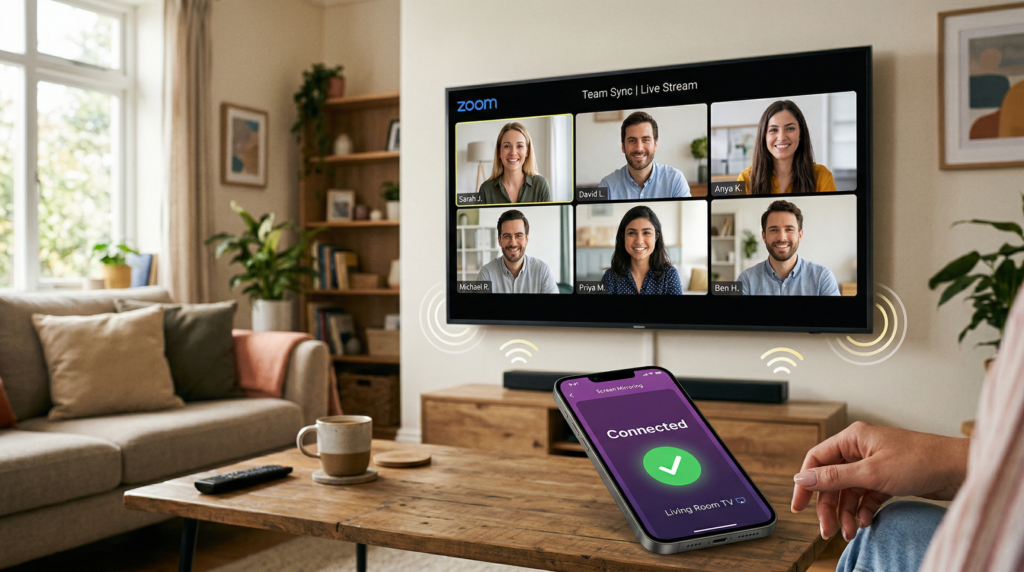
Android: Use Cast or Wireless Display
Android does not use one identical mirroring menu on every phone. The feature name and available route can vary by phone brand, Android version, TV, and receiver. Look for the casting or wireless-display option available on your phone, then make sure the TV or receiver supports that same route.
- Confirm that the phone and TV or receiver are compatible with the connection method you plan to use.
- Connect them to the required network when the selected method uses local discovery.
- Start the available casting or wireless-display feature on the Android device.
- Select the TV or receiver, then open Zoom or return to the meeting.
- Check the TV picture and audio before the call begins.
If your TV or receiver uses Google Cast, follow the casting flow that is available for that specific Android device and receiver. Do not assume that every Zoom mobile setup has the same built-in Chromecast control or that audio behavior is identical across all devices.
If the TV connects but Zoom audio does not transfer, check the phone volume, TV volume, Bluetooth accessories, and the selected audio output before reconnecting. If the connection is unstable during a time-sensitive meeting, use HDMI instead.
Mac: Use AirPlay When the TV Supports It
On a Mac with an AirPlay-compatible TV or Apple TV, open كونترول مەركىزى, ، تاللاڭ ئېكران ئەينىكى, and select the TV. You may be asked to enter a code displayed on the TV.
If the Zoom image is on the TV but the sound stays on the Mac, check the Mac’s audio-output selection and disconnect any Bluetooth headset or speaker that may still be active. Zoom’s Share Sound option is for sending computer audio to meeting participants; it is not the same thing as choosing where your own meeting audio plays.
Windows: Use Wireless Display When It Is Available
A Windows PC can use a wireless-display route when the computer and TV or receiver support a compatible connection. Microsoft’s wireless-display instructions use Windows key + K to select an available display; confirm the request on the TV if one appears.
If the TV does not appear, do not keep troubleshooting indefinitely during a time-sensitive meeting. Check that the TV or receiver supports the chosen display route. If it does not, or if the connection is unstable, switch to HDMI instead.
If Wireless Mirroring Is Unstable
If the connection is laggy or keeps dropping, move closer to the router when possible and reduce other network-heavy activity. Keep the phone, tablet, or laptop awake, and avoid battery-saving settings that may interrupt a wireless connection.
If the connection is still unstable, use HDMI for the meeting rather than spending more time on a wireless fix. You can revisit the wireless setup later, when the meeting is not at risk.
Method 2: Use 1001 TVs for Cross-Device Mirroring When Your Setup Is Supported
A third-party mirroring app can be useful when the built-in route does not suit your particular sender device and TV receiver. This can happen when your phone, computer, and TV use different ecosystems or when a native mirroring option is not available for your exact setup.
1001 TVs is relevant only when your exact sender-to-receiver setup is currently supported. Check the supported combination before relying on it for a meeting, then test both picture and audio before the call.
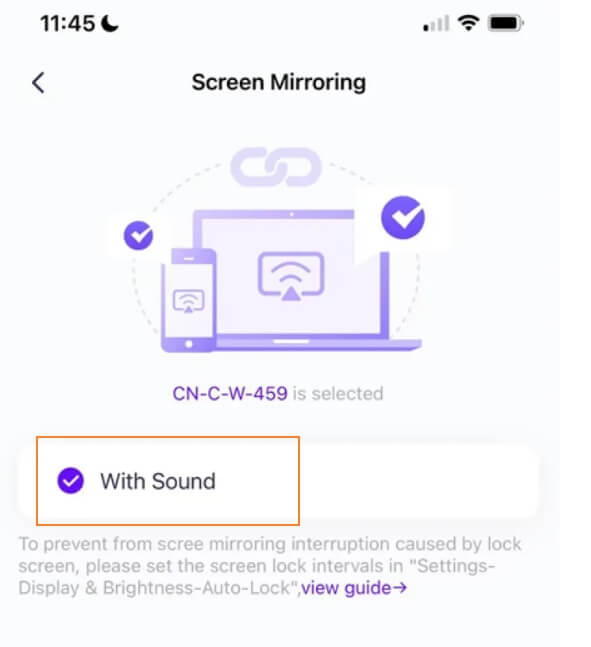
If audio is available for your verified setup, the audio option is shown when you start mirroring:
Method 3: Use HDMI for a More Predictable Connection
HDMI is often the simplest fallback when wireless discovery fails, the network is unreliable, or the meeting matters enough that you want to reduce connection variables. It is not a promise of zero delay, but it avoids depending on wireless device discovery.
You need:
- An HDMI cable
- The correct adapter if your phone, tablet, or laptop does not have an HDMI port
- An available HDMI input on the TV
- Connect the source device to the TV with the cable and any necessary adapter.
- Select the matching HDMI input on the TV.
- Open Zoom and confirm the correct speaker or audio output if your device prompts you to choose one.
- Test both video and audio before joining an important meeting.
Use HDMI when a stable, direct connection matters more than wireless convenience. It is especially useful when the TV is not discoverable, the wireless connection keeps dropping, or you do not have time to troubleshoot a receiver.
سوئال
Can Zoom audio play through my TV when mirroring?
It can, but the result depends on the source device, TV or receiver, and active audio output. If the video is on the TV but the sound remains on your phone or computer, check the device and TV volume, disconnect Bluetooth audio devices, and confirm the selected audio output before reconnecting.
Is HDMI better than wireless mirroring for Zoom?
Neither route is always better. Wireless mirroring is more convenient when your devices already support a compatible connection. HDMI is often the more predictable choice for an important meeting or a wireless setup that is unstable.

Read More
 How to Screen Mirror to Sony Bravia TV (Google TV)
A Sony Bravia Google TV does not use one universal “Screen Mirroring” method for every phone and computer. The right choice depends on both…
How to Screen Mirror to Sony Bravia TV (Google TV)
A Sony Bravia Google TV does not use one universal “Screen Mirroring” method for every phone and computer. The right choice depends on both…
 How to Cast to LG webOS TV
You can cast—or, in some cases, mirror—an iPhone, iPad, Android phone, Windows PC, or Mac to an LG webOS TV. The right method depends…
How to Cast to LG webOS TV
You can cast—or, in some cases, mirror—an iPhone, iPad, Android phone, Windows PC, or Mac to an LG webOS TV. The right method depends…

