คู่มือปี 2026: วิธีสะท้อนหน้าจอคอมพิวเตอร์ไปยังทีวี
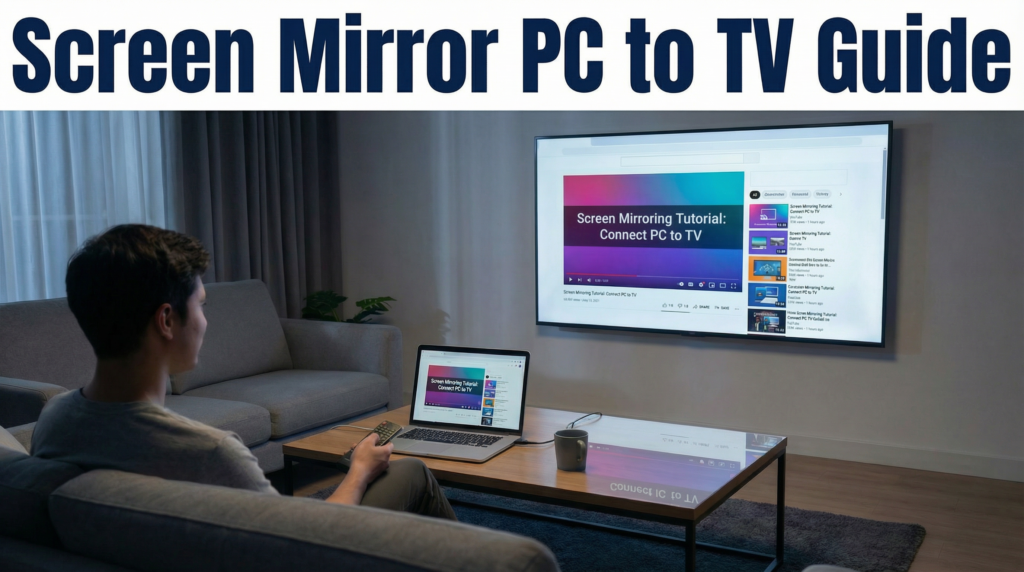
ในปี 2026 เราคาดว่าอุปกรณ์ของเราจะสามารถสื่อสารกันได้ทันที อย่างไรก็ตาม เมื่อคุณพยายาม หน้าจอพีซีไปยังทีวี, คุณอาจยังพบว่าตัวเองกำลังจ้องมองที่ล้อ “กำลังเชื่อมต่อ...” หรือต้องรับมือกับเคอร์เซอร์เมาส์ที่เคลื่อนไหวช้ากว่าหนึ่งวินาที ไม่ว่าคุณจะกำลังนำเสนอในห้องประชุมคณะกรรมการหรือแชร์รูปภาพในห้องนั่งเล่นของคุณ การเชื่อมต่อที่เสถียรคือเป้าหมายหลัก.
1. การสะท้อนหน้าจอคืออะไรกันแน่?
การสะท้อนหน้าจอเป็นเทคโนโลยีไร้สายที่คัดลอกหน้าจอคอมพิวเตอร์ของคุณทั้งหมดไปยังทีวีแบบเรียลไทม์.
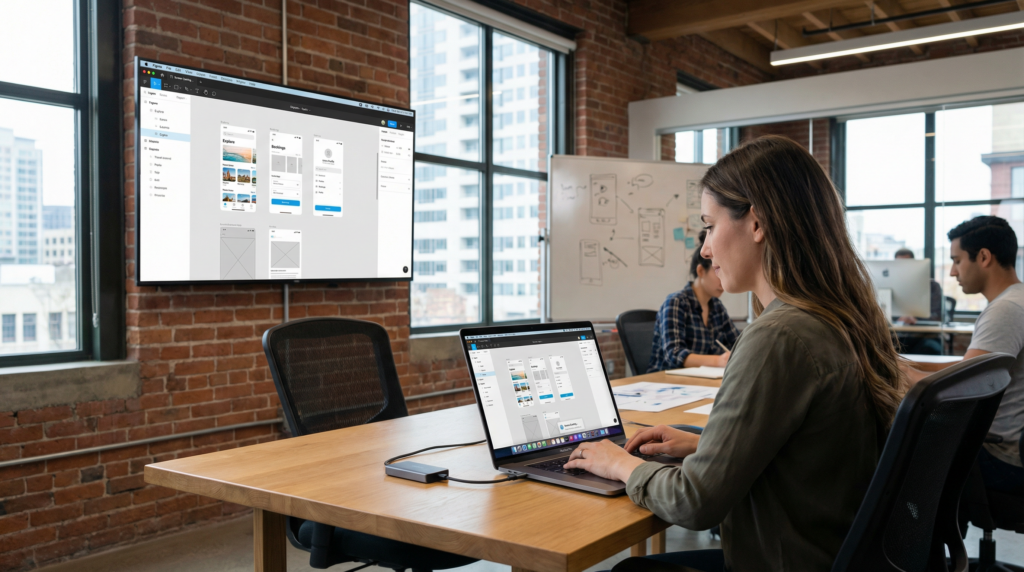
ต่างจากการ “ส่งไฟล์วิดีโอ” ซึ่งส่งเฉพาะไฟล์วิดีโอไฟล์เดียวเท่านั้น การสะท้อนหน้าจอ (mirroring) ช่วยให้คุณเห็นทุกอย่าง รวมถึงแอปพลิเคชันมืออาชีพเช่น Figma, แถบงานของคุณ, และการแจ้งเตือนระบบ ปรากฏขึ้นเหมือนกับที่ปรากฏบนคอมพิวเตอร์ของคุณ.
2. สี่วิธีที่ดีที่สุดในการเชื่อมต่อ
วิธี A: การเชื่อมต่อแบบมีสาย (HDMI) – ความเสถียรสูงสุด
สำหรับการเล่นเกมความเร็วสูง ความหน่วงต่ำ หรือการสตรีม 4K สายเคเบิลยังคงเป็นวิธีที่เชื่อถือได้มากที่สุด.
• เชื่อมต่อ: เสียบปลายด้านหนึ่งของสาย HDMI เข้ากับคอมพิวเตอร์ของคุณ และเสียบปลายอีกด้านเข้ากับโทรทัศน์ของคุณ หากแล็ปท็อปของคุณมีเพียงพอร์ต USB-C คุณจะต้องใช้อะแดปเตอร์ USB-C เป็น HDMI.
• อินพุต: เลือกแหล่งสัญญาณ HDMI ที่สอดคล้องกันบนทีวีของคุณ.
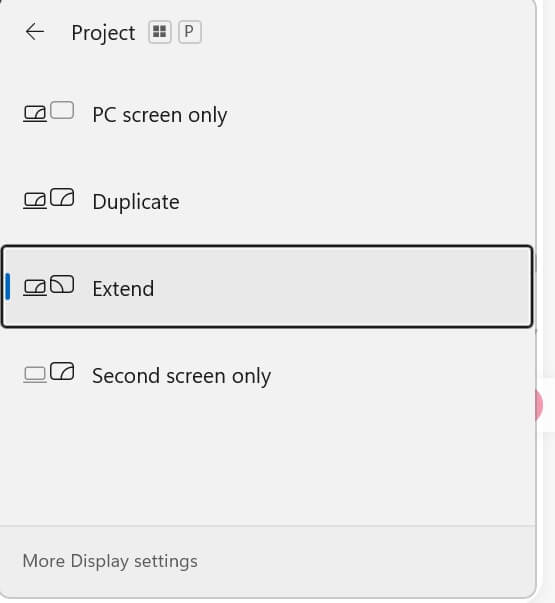
• กำหนดค่า: กด ปุ่ม Windows + P เลือก ซ้ำซ้อน, ขยายหรือ ใช้หน้าจอที่สองเท่านั้น.
วิธี B: ไร้สายแบบดั้งเดิมของ Windows (มิราคัสต์)
คอมพิวเตอร์ Windows 10/11 รุ่นใหม่ส่วนใหญ่รองรับโปรโตคอล Miracast สำหรับการตั้งค่าแบบไร้สาย.
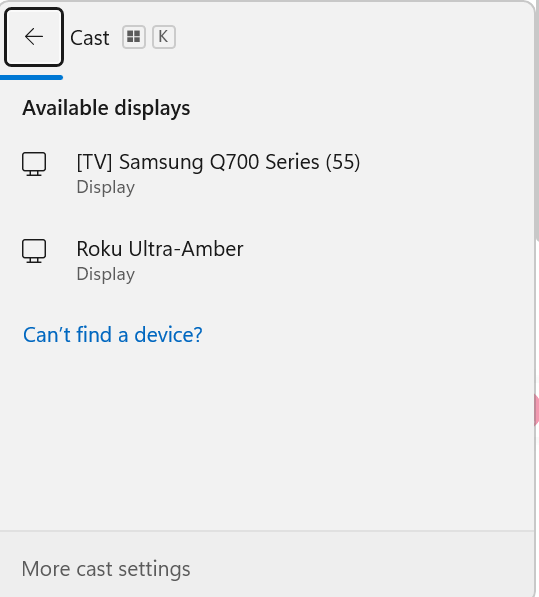
• ทางลัด: กด ปุ่ม Windows + K บนคอมพิวเตอร์ของคุณเพื่อเปิดเมนู “เชื่อมต่อ”.
• เลือกทีวี: เลือกทีวีของคุณจากรายการจอแสดงผลไร้สายที่มีอยู่.
• การต่อสู้: วิธีนี้ขึ้นอยู่กับฮาร์ดแวร์; หากชิปของคอมพิวเตอร์และโทรทัศน์ของคุณไม่ตรงกันอย่างสมบูรณ์ การเชื่อมต่ออาจล่าช้าหรือล้มเหลว.
วิธี C: การส่งสัญญาณผ่านเบราว์เซอร์ (Google Cast)
เหมาะอย่างยิ่งสำหรับการสะท้อนเนื้อหาเฉพาะของเบราว์เซอร์หรือเดสก์ท็อปทั้งหมดของคุณผ่าน Google Chrome.
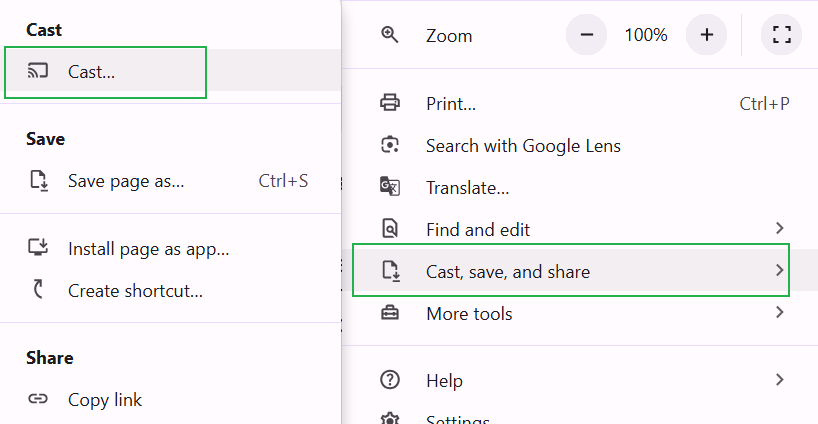
- เมนูรายชื่อนักแสดง: ใน Chrome คลิกที่เมนูสามจุดแล้วเลือก นักแสดง....
- แหล่งที่มา: ในเมนูแบบเลื่อนลง ให้เลือก “ฉายหน้าจอ” หรือ “ฉายเดสก์ท็อป”.
วิธี D: แอปของบุคคลที่สาม (โซลูชัน “อัจฉริยะ” ปี 2026)
เมื่อเครื่องมือพื้นเมืองไม่สามารถใช้งานได้เนื่องจากความไม่เข้ากันของแบรนด์ แอปพลิเคชันเฉพาะทางเช่น 1001 TVs เชื่อมช่องว่างระหว่างระบบนิเวศของฮาร์ดแวร์ที่แตกต่างกัน.
- ความเข้ากันได้กับทุกระบบ: แอปเหล่านี้ช่วยให้คอมพิวเตอร์ Windows สามารถเชื่อมต่อกับสมาร์ททีวีเกือบทุกยี่ห้อ (Samsung, LG, Sony, Roku, ฯลฯ) ได้.
- กลเม็ด “เว็บมิเรอร์”: ตัวช่วยชีวิตสำหรับโรงแรมหรือสำนักงานที่ไม่สามารถติดตั้งแอปพลิเคชันบนทีวีได้ เพียงเปิดเว็บเบราว์เซอร์บนทีวีและสะท้อนหน้าจอของคุณไปยัง URL ที่ให้โดยแอปพีซี.
- การจัดการอย่างมืออาชีพ: สำหรับองค์กร, โซลูชันเช่น เห็นด้วย นำเสนอการจัดการแบบรวมศูนย์และคุณสมบัติด้านความปลอดภัยที่โปรโตคอลดั้งเดิมไม่มี.
3. การแก้ไขปัญหาที่พบบ่อย
• “ไม่พบอุปกรณ์”: ตรวจสอบให้แน่ใจว่าทั้งสองอุปกรณ์เชื่อมต่อกับเครือข่าย Wi-Fi เดียวกันและถูกต้อง หากยังไม่สามารถเชื่อมต่อได้ ให้ตรวจสอบว่าแอปการสะท้อนหน้าจอของคุณได้รับอนุญาตให้ใช้งานผ่าน ไฟร์วอลล์ของ Windows.
• การล่าช้าและการสะดุด: เพื่อประสบการณ์ที่ราบรื่น ใช้ ไวไฟ 5GHz แทนที่ 2.4GHz. นอกจากนี้ ตรวจสอบการตั้งค่าทีวีของคุณสำหรับ “โหมดเกม”เพื่อลดเวลาการประมวลผลภาพภายใน.
• ไม่มีเสียงบนทีวี: ตรวจสอบการตั้งค่าเสียงของคอมพิวเตอร์ของคุณเพื่อให้แน่ใจว่าเอาต์พุตถูกตั้งค่าไว้ที่โทรทัศน์หรือไดร์เวอร์เสียงเสมือนของแอปมิเรอร์ริงแทนที่จะเป็นลำโพงของแลปท็อปของคุณ.
4. คำถามที่พบบ่อยเกี่ยวกับการสะท้อนหน้าจอคอมพิวเตอร์ไปยังทีวี
ถาม: ฉันจะเชื่อมต่อคอมพิวเตอร์กับทีวีแบบไร้สาย HDMI ได้อย่างไร?
คุณสามารถใช้แอปไร้สายเฉพาะทาง เช่น 1001 TVs หรือโปรโตคอลในตัวเช่น Miracast และ Chromecast การสะท้อนภาพแบบไร้สายเป็นวิธีที่ดีที่สุดในการรักษาความคล่องตัวขณะใช้งานหน้าจอขนาดใหญ่.
ถาม: ฉันสามารถเชื่อมต่อคอมพิวเตอร์กับทีวีแบบแสดงผลเดียวกันได้หรือไม่ หากเป็นยี่ห้อต่างกัน?
ใช่, การใช้แอปเช่น 1001 TVs ช่วยให้คอมพิวเตอร์ Windows สามารถเชื่อมต่อกับสมาร์ททีวีเกือบทุกยี่ห้อได้ โดยไม่คำนึงถึงระบบนิเวศของผู้ผลิต.
สุดท้าย: แม้ว่าเครื่องมือที่มีอยู่ในตัวจะเป็นจุดเริ่มต้นที่ดี แต่บ่อยครั้งก็ขาดความยืดหยุ่นที่จำเป็นสำหรับบ้านสมัยใหม่.
หากคุณกำลังมองหาประสบการณ์ที่เสถียรและ “ใช้งานได้โดยไม่ต้องกังวล” ในปี 2026 โซลูชันเฉพาะทางเช่น 1001 TVs เป็นวิธีที่เชื่อถือได้มากที่สุดในการเชื่อมช่องว่าง.