テレビにワイヤレスでPowerPointを投影する方法(Windows、Mac、スマートフォン)
To present PowerPoint on a TV wirelessly, connect to the TV with a wireless standard both devices support, set the TV as an extended display (not a mirror), and start the slide show with Presenter View. The audience then sees only the slides, and your notes stay on your laptop. Windows uses Miracast (Win + K), a Mac uses AirPlay, and phones use AirPlay, Miracast or Chromecast.

Find your setup:
| お使いのデバイス | Your TV or receiver | 方法 | Notes hidden from the TV? |
|---|---|---|---|
| Windows搭載のノートパソコン | Miracast TV or adapter | ミラキャスト | Yes, in Extend mode |
| Mac | Apple TV or AirPlay TV | エアプレイ | Yes, as a separate display |
| iPhone, iPad or Android | AirPlay, Miracast or Chromecast | PowerPoint app | Not reliably; test first |
| どのコンピュータでも | TV with no matching standard | Adapter, HDMI or 1001 TVs | Depends on the method |
Why “Extend” matters
Presenter View only works when the TV is a separate display. In Mirror (Duplicate) mode the TV copies your screen, notes included. In Extend mode PowerPoint sends the full-screen slides to the TV and keeps Presenter View on your laptop. On Windows, PowerPoint switches to Extend automatically when a slide show starts on a second screen.
Extending also keeps your other apps off the TV. To hide email and notifications in any app, not just PowerPoint, see how to share only one window to a TV during a presentation.
Windows (Miracast)
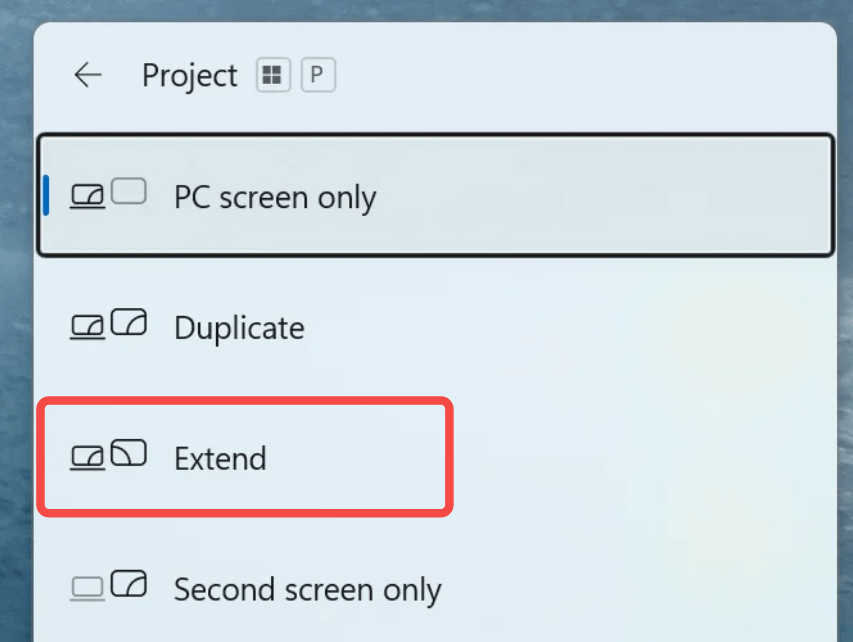
プレス Win + K, pick the TV, switch to Extend, then start the slide show with Use Presenter View on. You need a TV with Miracast, or a Miracast adapter or Microsoft Wireless Display Adapter on its HDMI port.
- On the TV, open the screen mirroring or wireless display input (or the HDMI input your adapter uses).
- Turn on Wi-Fi on the PC, even if you’re on Ethernet. Miracast needs it.
- プレス
Win + Kand select the TV. Enter the PIN if one appears. - プレス
Win + Pそして、以下から選択してください エクステンド. - In PowerPoint, go to Slide Show, check Use Presenter View, and set Monitor to the TV (or 自動).
- プレス
F5.
If Presenter View lands on the TV, select Display Settings > Swap Presenter View and Slide Show at the top of Presenter View. If the TV never appears and Windows says Miracast isn’t supported, update the PC’s Wi-Fi and graphics drivers.
Mac (AirPlay)
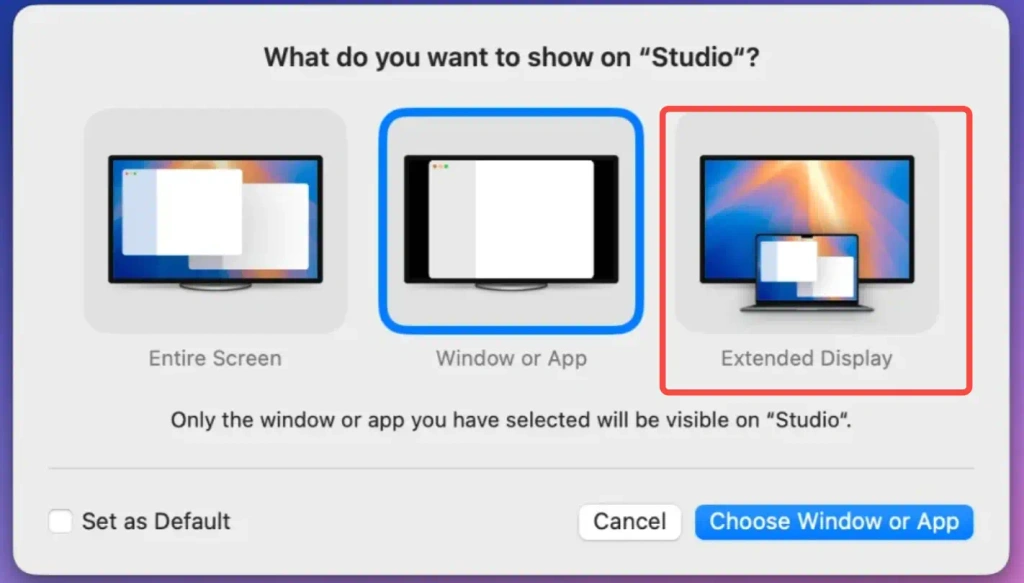
Open Control Center > Screen Mirroring, choose the TV, and select the option to extend rather than mirror. Then start Presenter View. The Mac and the Apple TV or AirPlay TV must be on the same network.
- クリック コントロールセンター > 画面ミラーリング and select the TV. Enter the code if the TV shows one.
- Choose to extend your screen. Depending on your macOS version, this is labeled エクステンド または 別のディスプレイとして使用する.
- で System Settings > Displays, keep the Mac’s own screen as the main display.
- In PowerPoint, go to Slide Show and start Presenter View.
If slides and notes are on the wrong screens, click **Swap Displays **at the top of Presenter View. If videos play with no sound, select the TV under System Settings > Sound > Output.
iPhone, iPad or Android
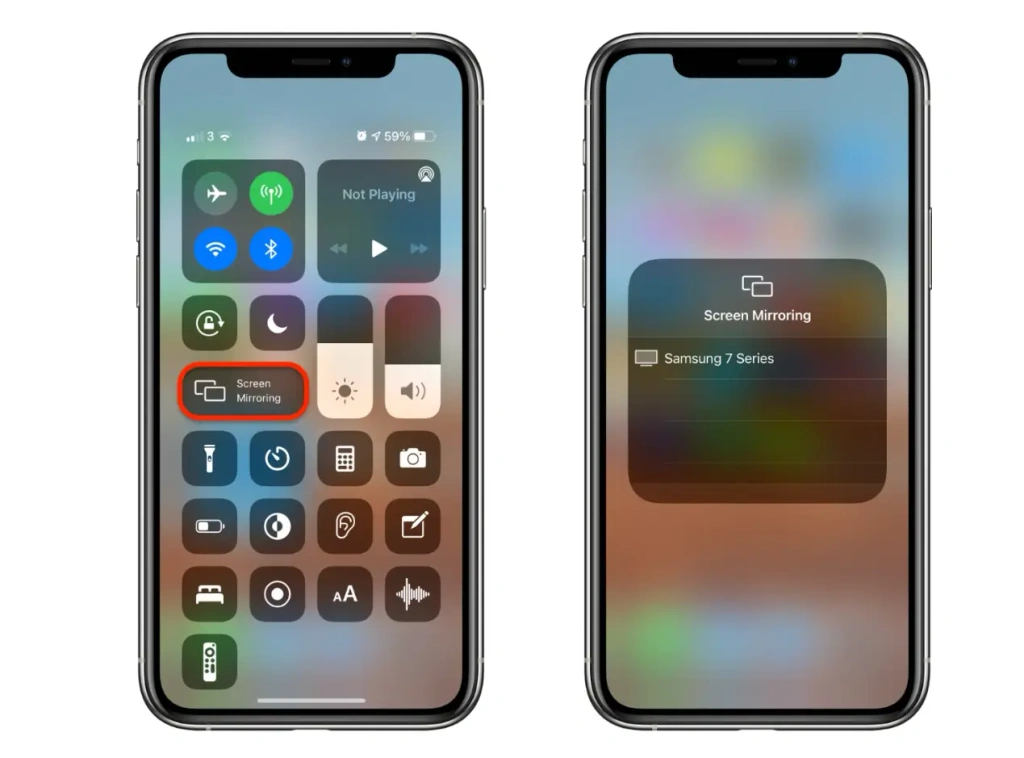
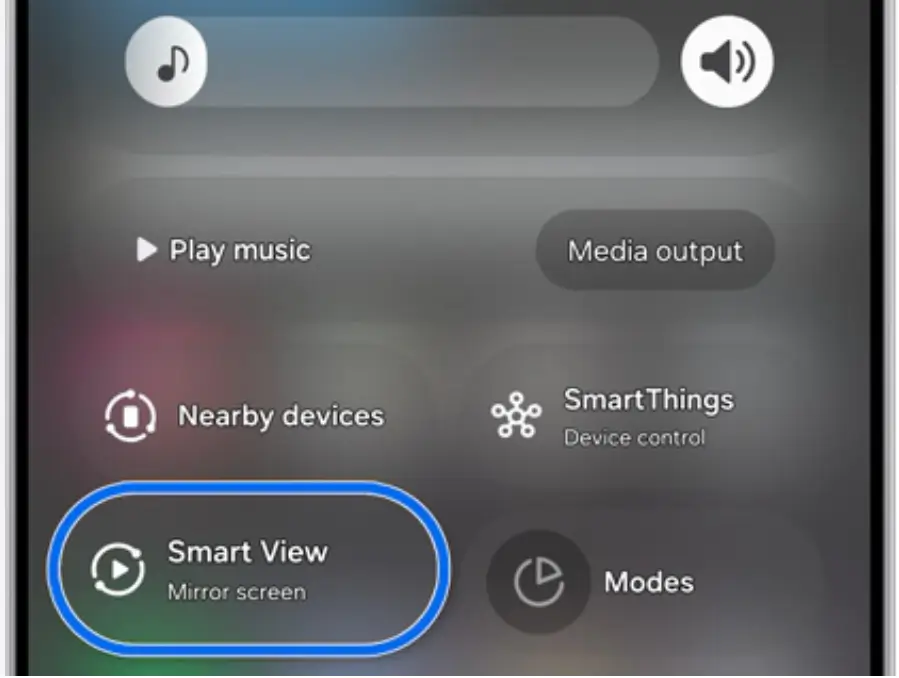
Connect the phone to the TV first, then open the deck in the PowerPoint app and tap Slide Show.
- iPhone or iPad: オープン コントロールセンター > 画面ミラーリング and choose the Apple TV or AirPlay TV.
- アンドロイドだ: Open Quick Settings, tap スマートビュー (Samsung), キャスト または スクリーンキャスト, and choose the Miracast TV or Chromecast.
Then in PowerPoint, tap Edit, open the toolbar at the bottom right, and tap Home > Slide Show > From Beginning.
Assume the TV can see your notes. Phone mirroring copies the screen. On iPad, PowerPoint can send clean slides to the TV, but in November 2026 users reported on Microsoft Q&A that after an update on iPadOS 27 the TV mirrored Presenter View, notes included. Test with your exact app version, or present from a laptop if notes must stay private.
When your computer and TV don’t share a standard
A Mac’s built-in screen sharing only works with AirPlay receivers, and Windows’ built-in wireless display (Win + K) only works with Miracast receivers, so it can’t reach an Apple TV or Chromecast. You have three ways around it:
| Option | Presenter View? | Best when |
|---|---|---|
| Add a matching receiver: Miracast adapter for Windows, Apple TV for Mac | はい | The room is used often |
| HDMIケーブル | Yes, no lag | The presentation can’t fail or is video-heavy |
| 1001 TVs app on the computer and the TV | Yes, when you send an extended screen | You can’t add hardware or a cable |
1001 TVs sends your Windows PC or Mac screen to Apple TV and Android TV over your local Wi-Fi, so the TV doesn’t need AirPlay or Miracast. Install it on both devices, then select the TV or scan its QR code. It can send your screen to the TV in three ways:
- Extended screen: the TV becomes a second display, so PowerPoint can show the slides on the TV and keep Presenter View on your laptop. Then set up PowerPoint the same way as in the Windows section above (steps 5 and 6). On Windows, the standard version includes this. On a Mac, you need the special version from the 1001 TVs Mac page because the Mac App Store version can’t create an extended screen.
- Whole screen: the TV shows exactly what your laptop shows, so present without notes.
- Single window: only the window you choose appears on the TV. See how to send one window with 1001 TVs.
1001 TVsをダウンロード.

トラブルシューティング
Most problems come from Mirror mode, weak Wi-Fi, the wrong output screen, or a clicker sending keys to the wrong window.
| 問題 | Cause | 修正 |
|---|---|---|
| TV shows notes or the whole desktop | Mirror/Duplicate mode | Windows: Win + P > エクステンド. Mac: reconnect and choose to extend |
| “Use Presenter View” is grayed out | No second display detected, or the show runs in a window | Set Extend, then Set Up Slide Show > Presented by a speaker (full screen) |
| Lag or stuttering animations | Wireless compression and busy Wi-Fi | Move closer to the receiver, close video calls and sync apps, use 5 GHz; use HDMI for heavy video |
| Embedded video won’t play on the TV | Wrong monitor, or graphics driver issue | Set Monitor to the TV; on Windows, if your version has it, try File > Options > Advanced > Disable Slide Show Hardware Graphics Acceleration |
| Video has no sound | Audio still on laptop speakers | Pick the TV as the sound output in Windows or macOS sound settings |
| Clicker doesn’t advance slides | Keystrokes go to another window | Click Presenter View once before starting; keep the clicker’s receiver in the laptop |
| TV not in the device list | Different standards, TV not in receiving mode, or guest/isolated network | Check the table at the top, open the TV’s mirroring input, avoid guest networks |
Test the whole setup, including videos and the clicker, about 10 minutes before you present, and keep an HDMI cable as a backup.
よくある質問
Can I see my speaker notes while the TV shows only slides?
Yes, on Windows and Mac. Set the TV as an extended display and turn on Presenter View. On phones and tablets, test first; the TV may mirror your notes.
Does Chromecast support PowerPoint Presenter View from a laptop?
No. Casting the desktop from Chrome only mirrors your screen. On Windows, use a Miracast TV or adapter for Presenter View.
Can I present from a Mac to a TV without AirPlay?
Not with AirPlay. Add an Apple TV, use HDMI, or use 1001 TVs if your TV is an Android TV. For Presenter View with 1001 TVs, install the special Mac version and send an extended screen to the TV.
Do I need internet to present wirelessly?
No. Miracast connects directly, and AirPlay only needs both devices on the same network. You need internet only for online videos in your slides.