
黒帯の除去:縦向き・横向きの反転
画面をミラーリングした際に黒い帯が表示されますか?縦向きで両側に帯が表示される場合でも、横向きで上・下・または両側に帯が表示される場合でも、ご安心ください。どちらの場合も、1001 TVs TVアプリでいくつかの簡単な設定を行うだけで解決できます。.
縦向きミラーリングの場合、サイドバーを非表示にする専用の設定があります。(縦向きミラーリングの設定方法はこちら 👉垂直スクリーンミラーリング)
横向き表示の場合、黒い帯を大幅に減らす方法もあります。.
以下の手順に従って、コンテンツを真のフルスクリーン表示にし、没入感を高めてください。.
ポートレートミラーリング用
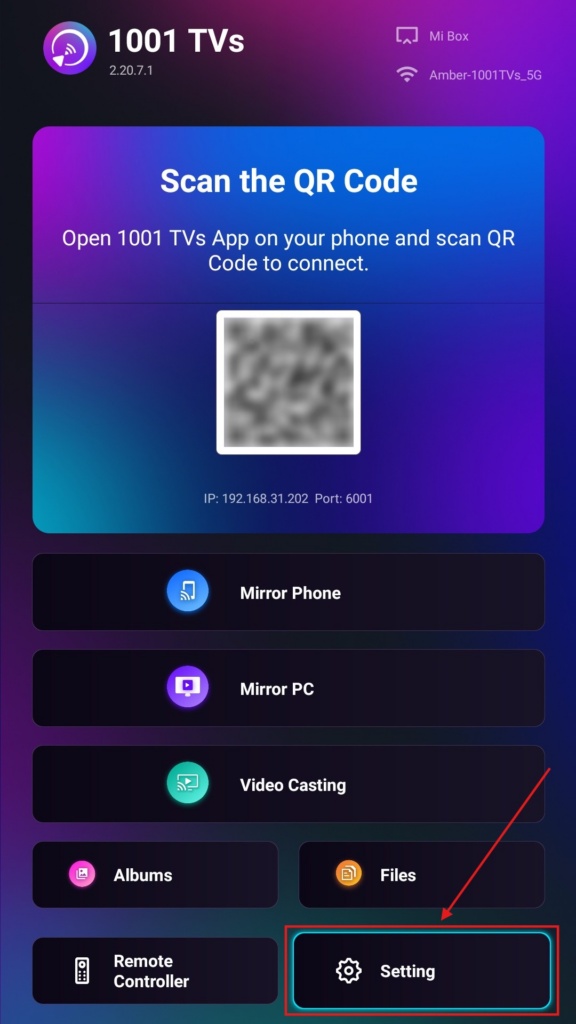
手順 1. テレビで 1001 TVs アプリを開き、「“セッティング".
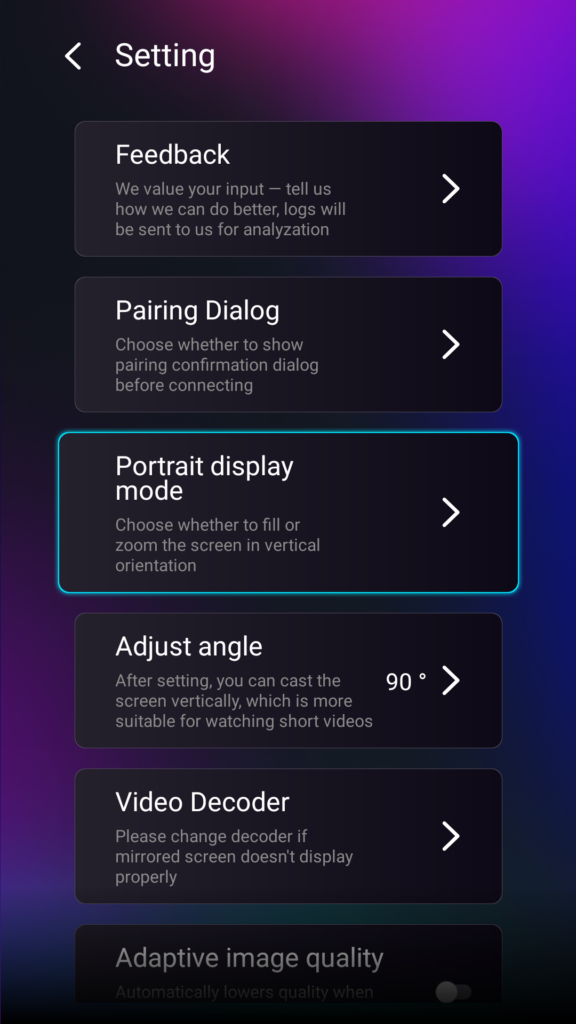
手順 2. 「縦向き表示モード」を選択します。.
手順 3. テレビでの表示方法として、お好みのモードを選択してください。.
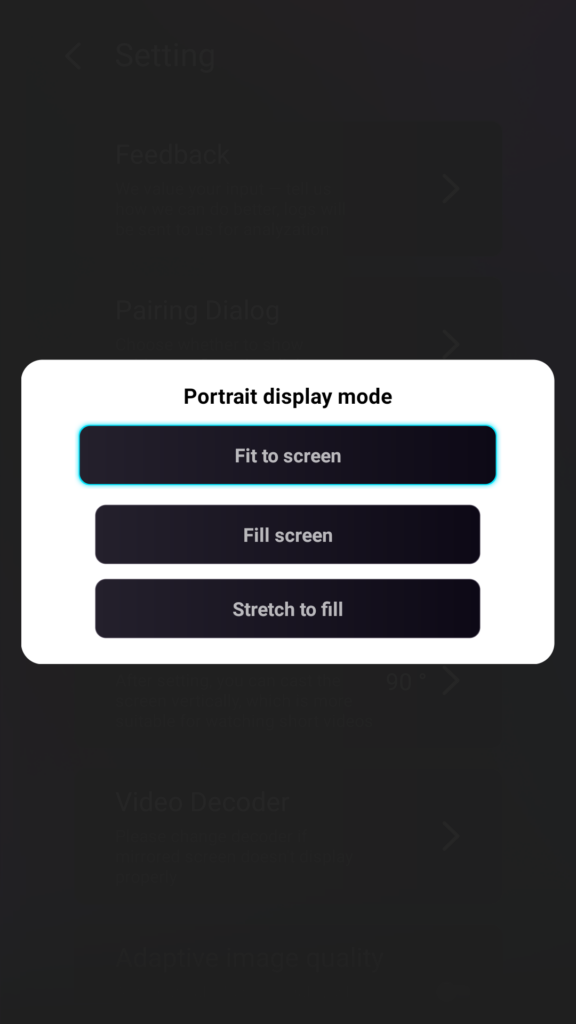
ポートレート表示モードに関するヒント
- スクリーンに合わせる
コンテンツを拡大して、縦型のテレビ画面いっぱいに表示します。この機能を有効にすると、次回のミラーリング時にまったく異なる表示結果が確認できます。. - 画面いっぱいに表示
元のアスペクト比を維持します。お使いのデバイスによっては、画面の両端に黒帯が表示される場合があります。. - 「ストレッチ・トゥ・フィル」
正しいプロポーションを保ちながら、片側を埋めます。.
以下の並列比較をご覧ください(「ストレッチ・トゥ・フィル」 (表示されているモード):
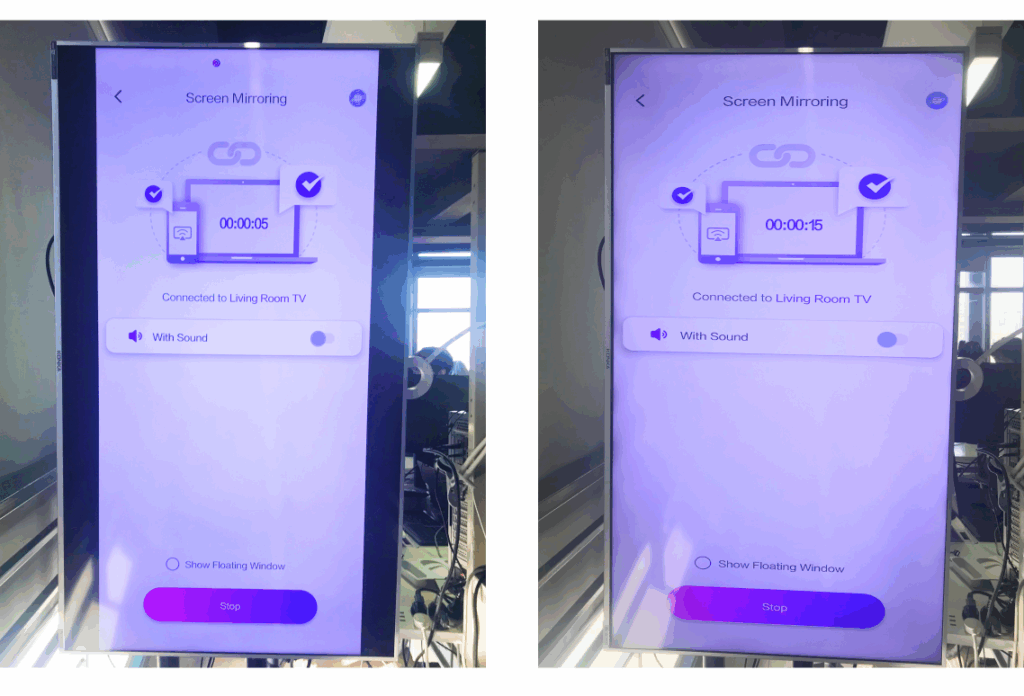
この機能はいつ役に立つのか?
このセッティングは完璧だ:
- 縦型デジタルサイネージを使用する小売店
- 縦型アンビエンススクリーンを作成するホームユーザー
- 縦長の教材を展示する教師たち
- 縦長の写真や縦長の動画を表示する
- TikTok/YouTube Shortsをフルスクリーンで再生する
- スタジオ、ギャラリー、アート・ディスプレイのセットアップ
ランドスケープミラーリングについて
手順 1. テレビで 1001 TVs アプリを開き、「“セッティング”.
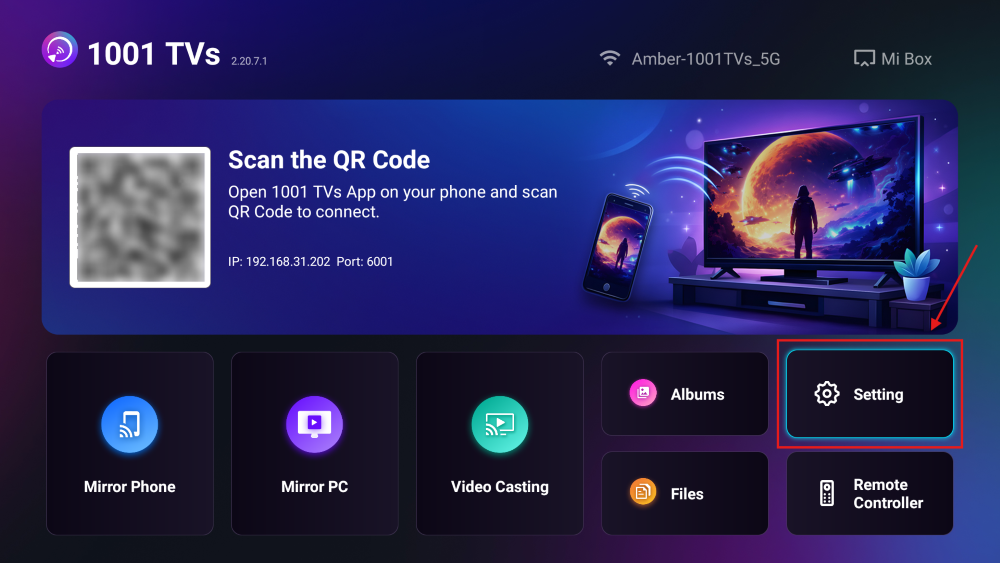
手順 2. 「塗りつぶしモード」を有効にします。.
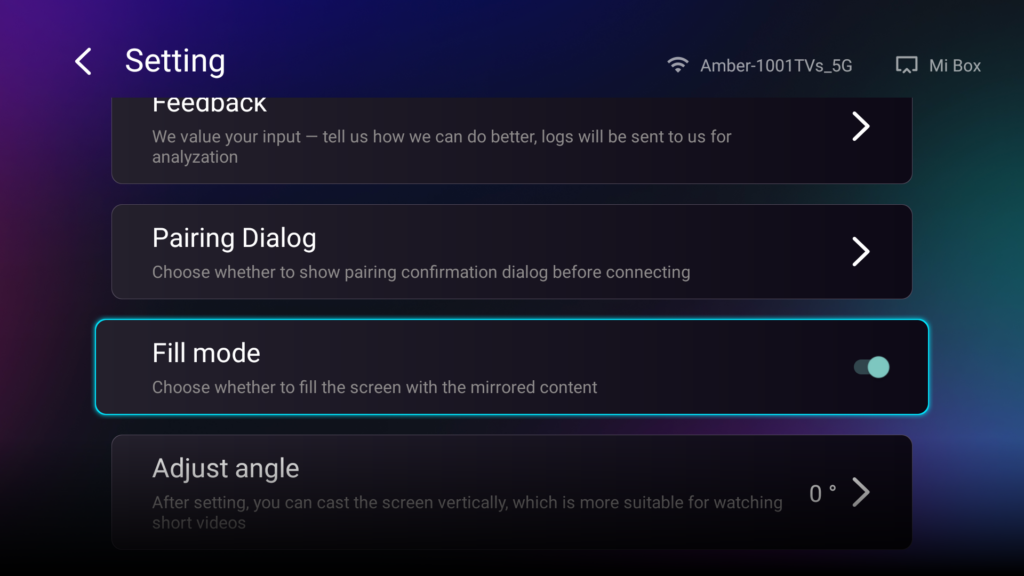
このオプションを有効にした後、テレビのリモコンの上下ボタンを使用して、利用可能なスケーリングモード(1×、2×、3×、および「画面に合わせる」)を切り替えてください。.
- 1× / 2× / 3×
一定の増分ごとに拡大する - スクリーンに合わせる
コンテンツを自動的に拡大・縮小し、テレビ画面全体に表示します
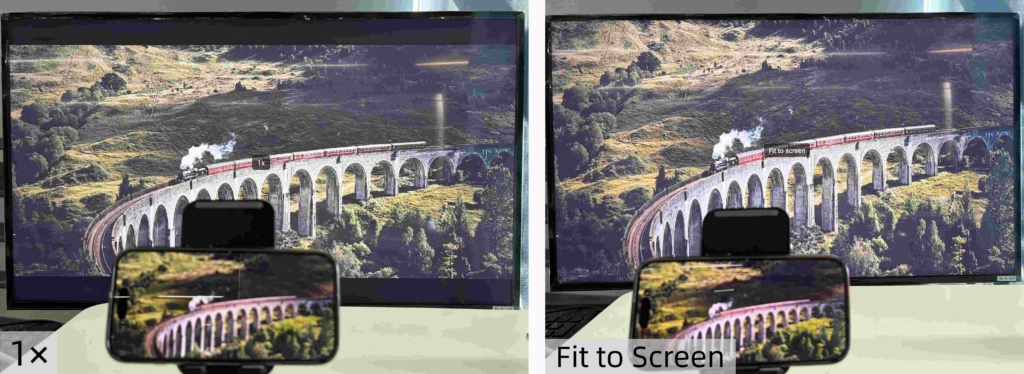
これで、ゆったりと座ってコンテンツを楽しむことができます。フルスクリーンで、黒い帯もなく、完全に没入感あふれる体験をお楽しみください。.
その他のヒントとチュートリアル