How to Share Home Slideshow/Album from Phone to Android/Apple TV
Want to show off your latest vacation photos or share family moments on the big screen? 1001 TVs makes it easy to cast your phone’s albums to Android TV or Apple TV. Here’s how to set up and enjoy a seamless slideshow experience.
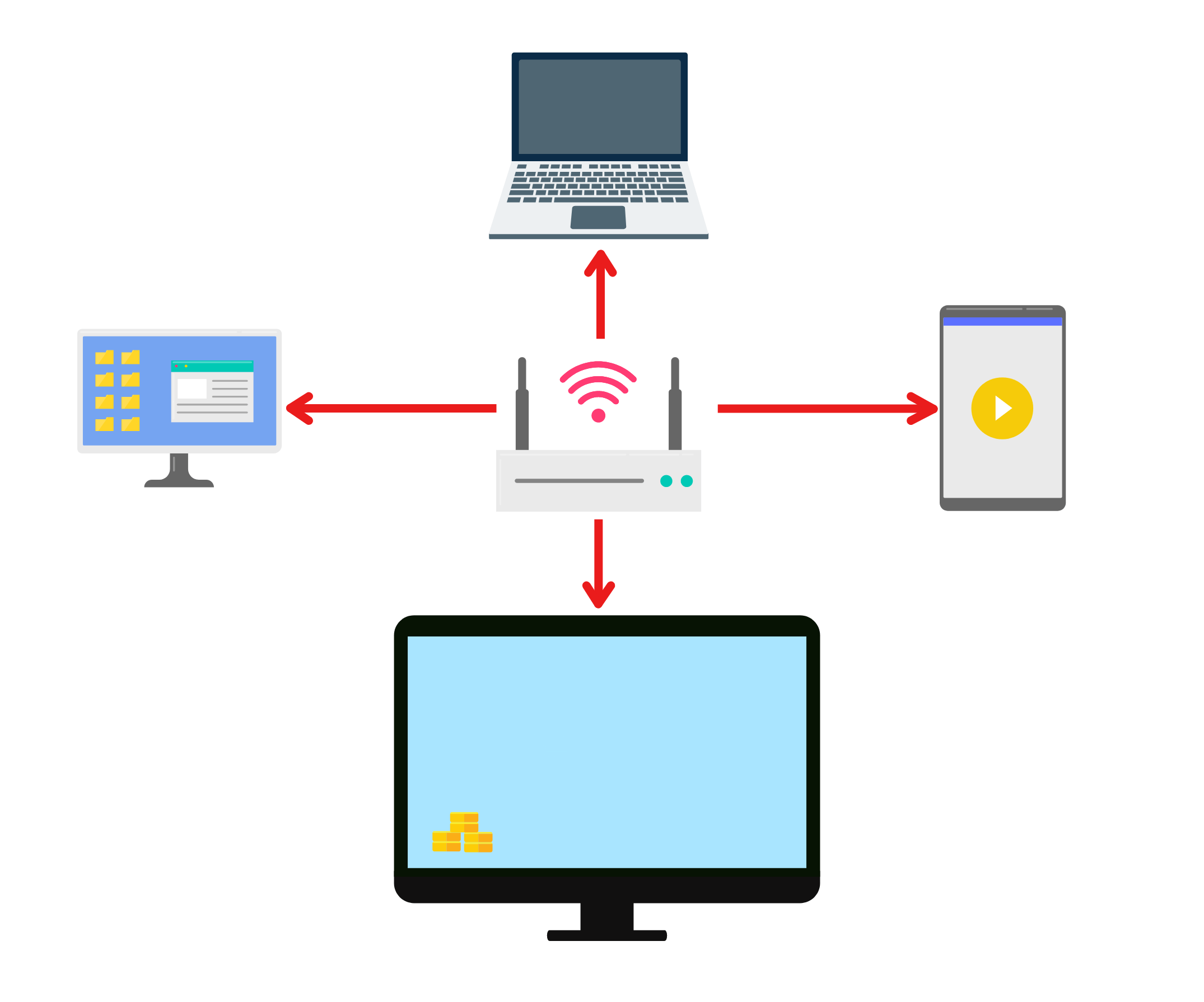
1. Connect to the Same Wi-Fi:
Ensure both your phone and TV are connected to the same Wi-Fi network.
(A 5 GHz Wi-Fi connection is recommended for optimal performance.)
2. Install and Open 1001 TVs on Both Devices
📥 TV App: How to Install 1001 TVs on Your TV
📱 iOS App: Download from App Store
📱 Android App: Download from Google Play
3. Start pairing
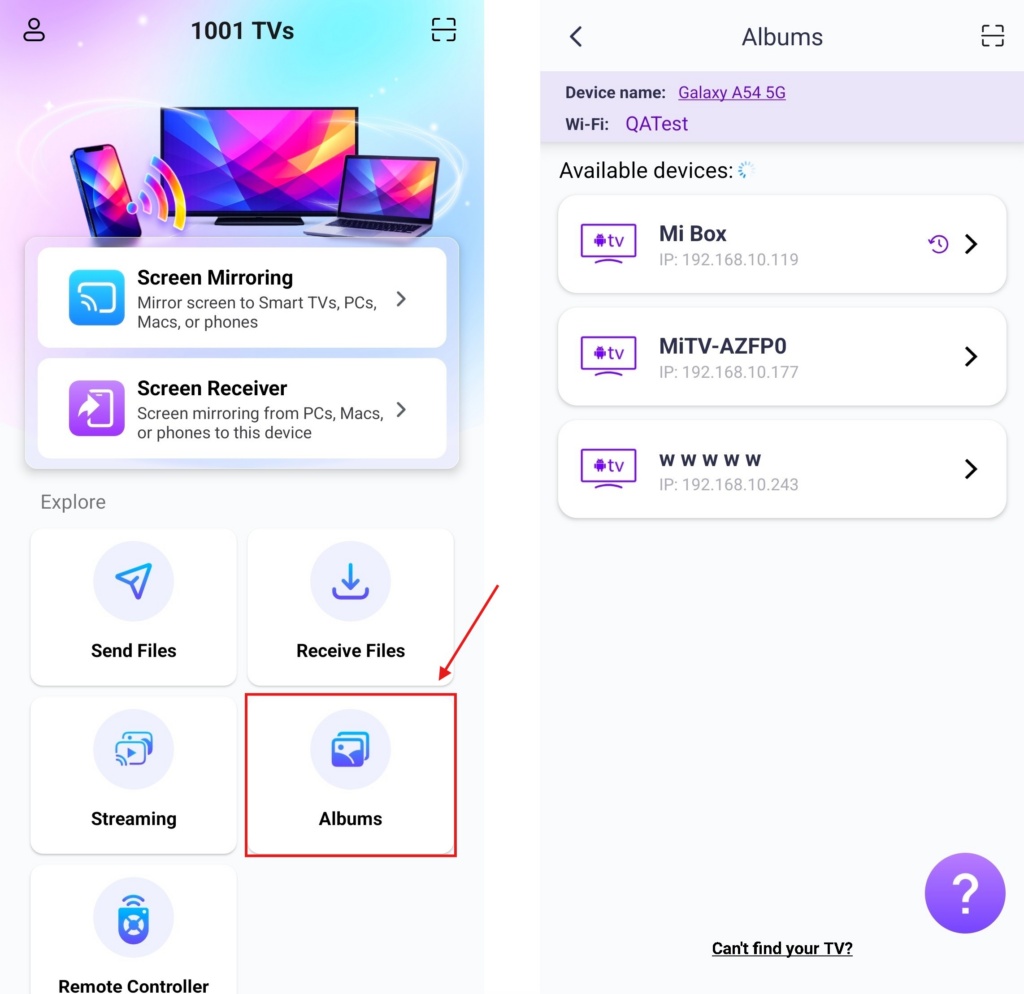
On your phone, tap Albums and select your target TV.
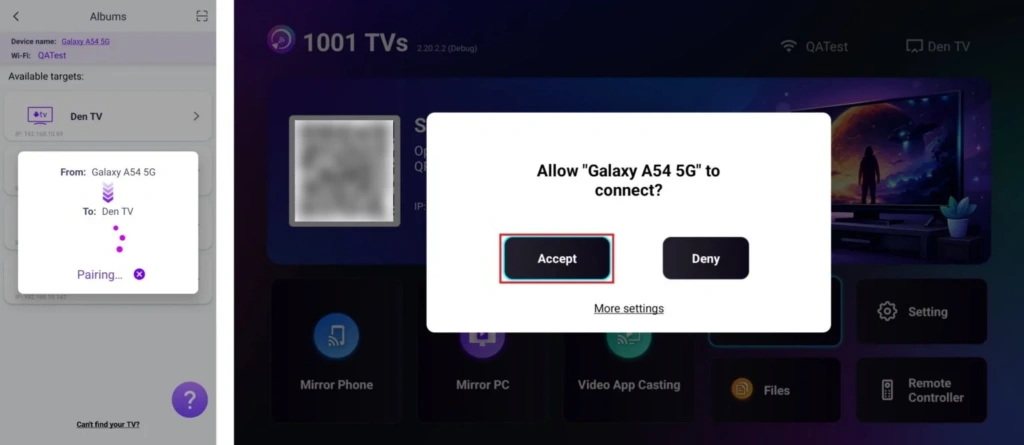
On your TV, click Accept to confirm the connection.
4. Upload and Manage Your Media
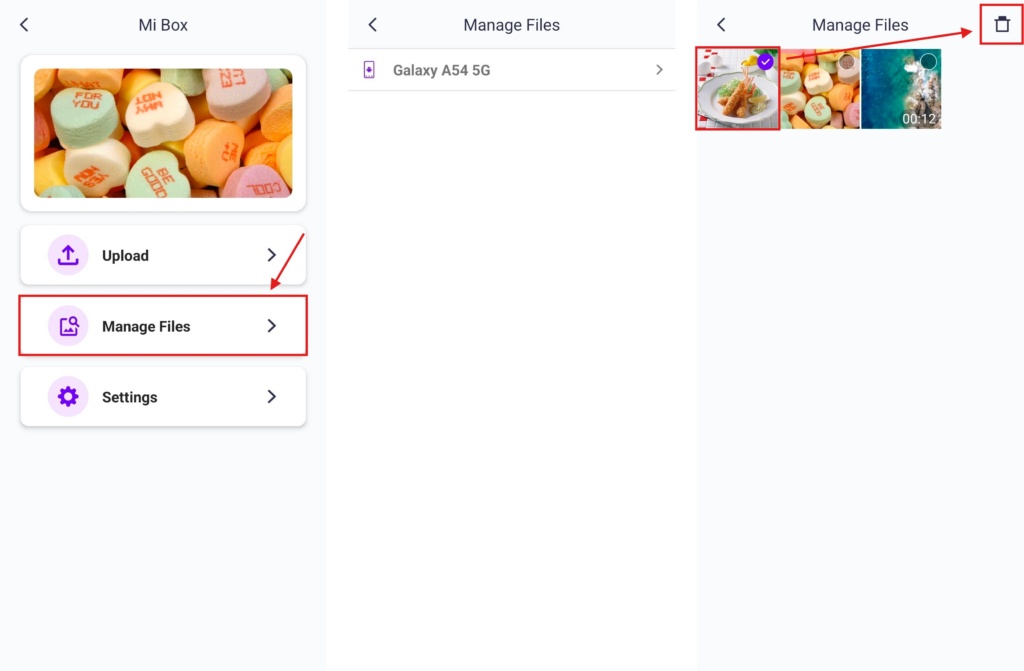
Once paired successfully, tap Upload and select the photos/videos you want to share.
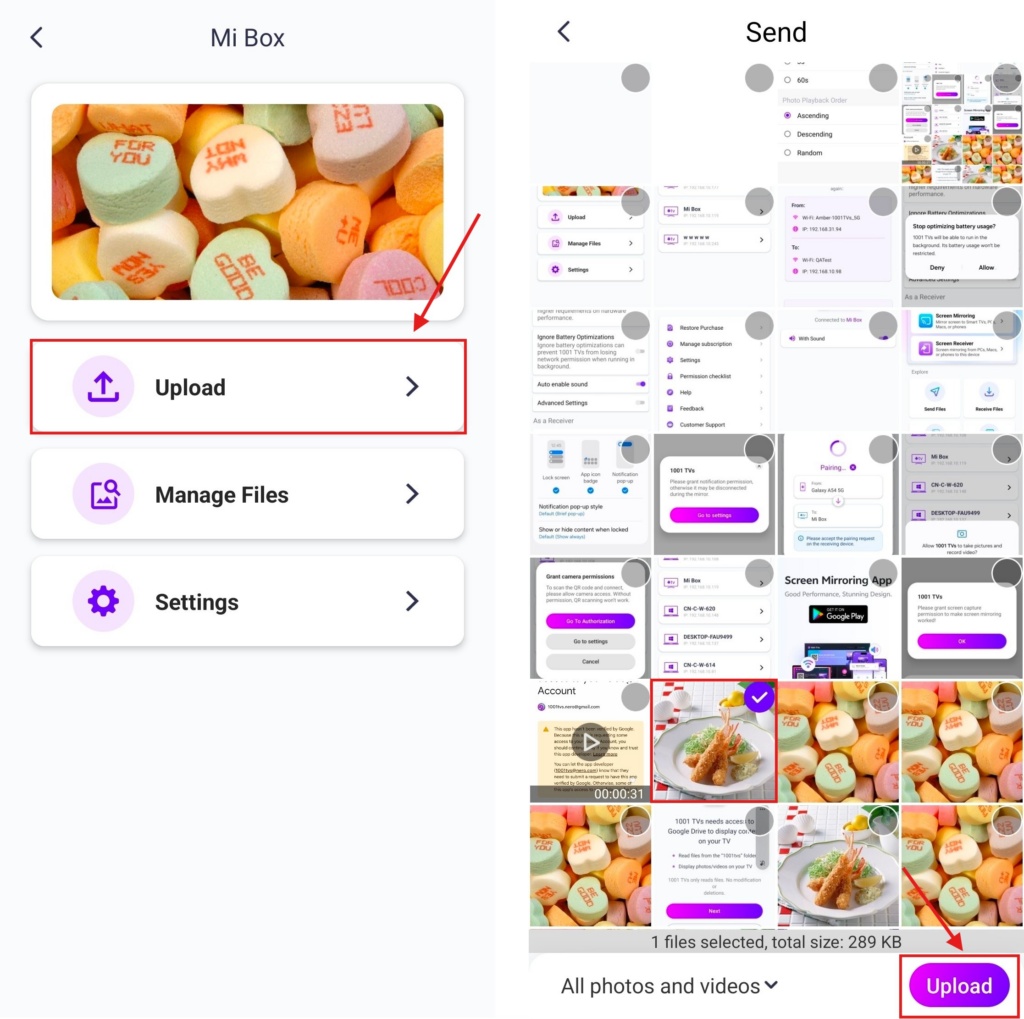
· In Manage Files, you can easily remove any photos or videos you’ve previously cast.
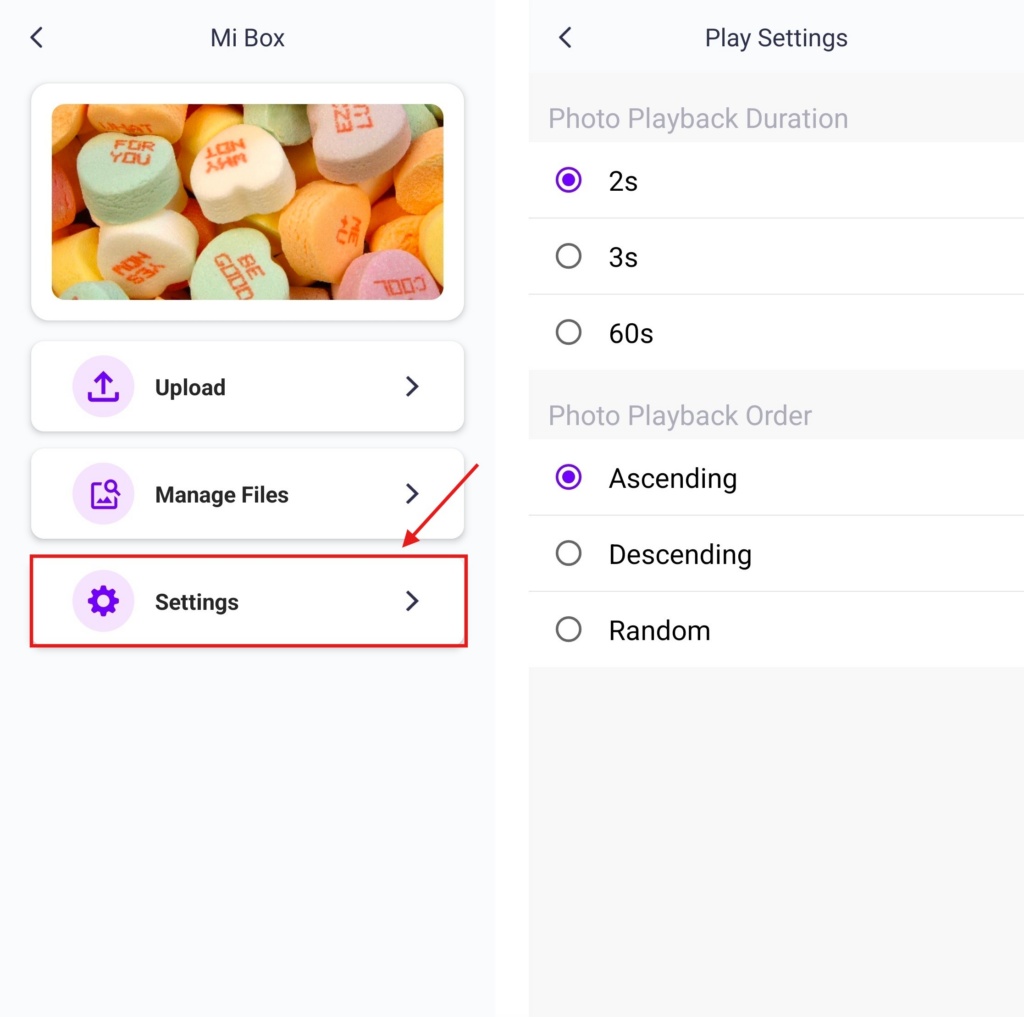
· In Settings, you can set the play duration for each photo — from 2, 3, or 60 seconds — and choose the display order: ascending, descending, or random.
5. Start a Slideshow
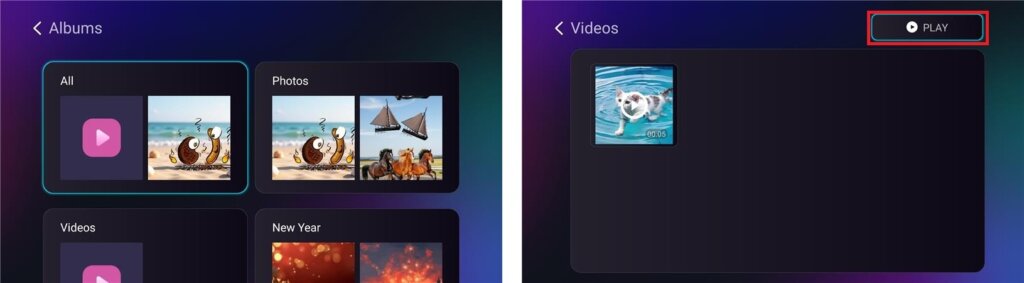
Select a folder (e.g., Photos, Videos) and click PLAY to start the slideshow.
Now you can relive your memories on a bigger screen with ease! 📸📺
Get 1001 TVs Now!
📥 TV App: How to Install 1001 TVs on Your TV
📥 PC App: Download from Microsoft Store
For detailed steps, refer to the PC Installation Guide
📱 iOS App: Download from App Store
📱 Android App: Download from Google Play
Try it now and bring your family moments to life! 🚀
Read More
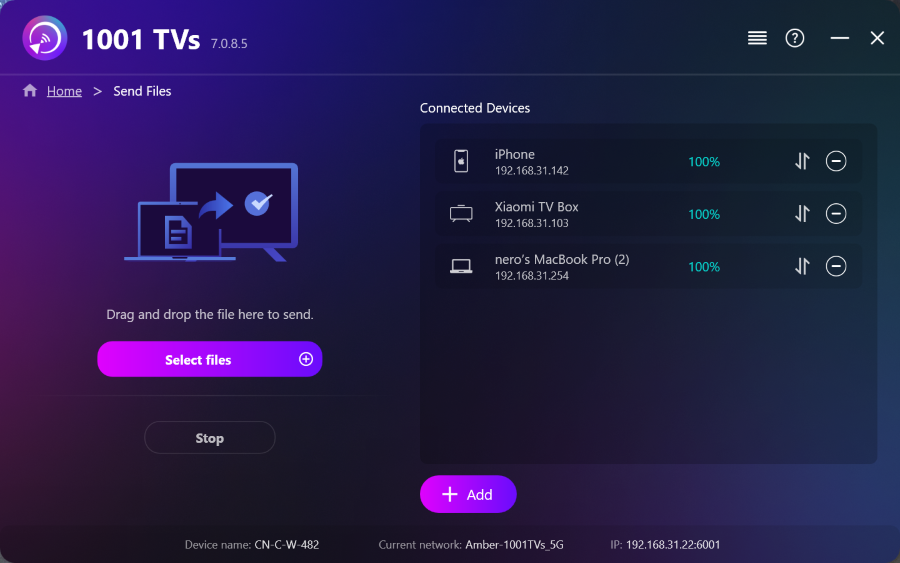 How to Send Files from PC to Multiple Devices at the Same Time (PC, Phone, TV, Tablet)
With the latest Windows version of 1001 TVs (v7.0.8.5), your PC can now send files to multiple devices — TVs, tablets, phones, or other…
How to Send Files from PC to Multiple Devices at the Same Time (PC, Phone, TV, Tablet)
With the latest Windows version of 1001 TVs (v7.0.8.5), your PC can now send files to multiple devices — TVs, tablets, phones, or other…
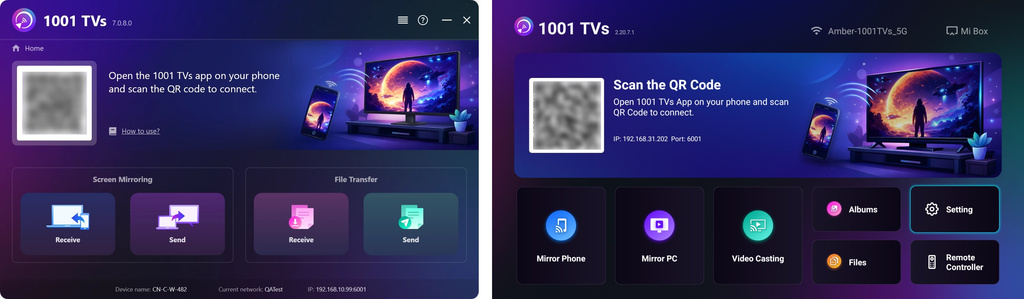 How to Send Files from Your PC/Mac to TV/PC/Mac
With 1001 TVs, you can send files from your PC/Mac to your TV/PC/Mac over the same local network. And yes — PCs and Macs…
How to Send Files from Your PC/Mac to TV/PC/Mac
With 1001 TVs, you can send files from your PC/Mac to your TV/PC/Mac over the same local network. And yes — PCs and Macs…

