How to Stream Media Files from Phone to TV
With 1001 TVs, you can easily stream photos, videos, and music from your phone to a smart TV. Follow these simple steps to get started:
1. Connect to the Same Wi-Fi Network
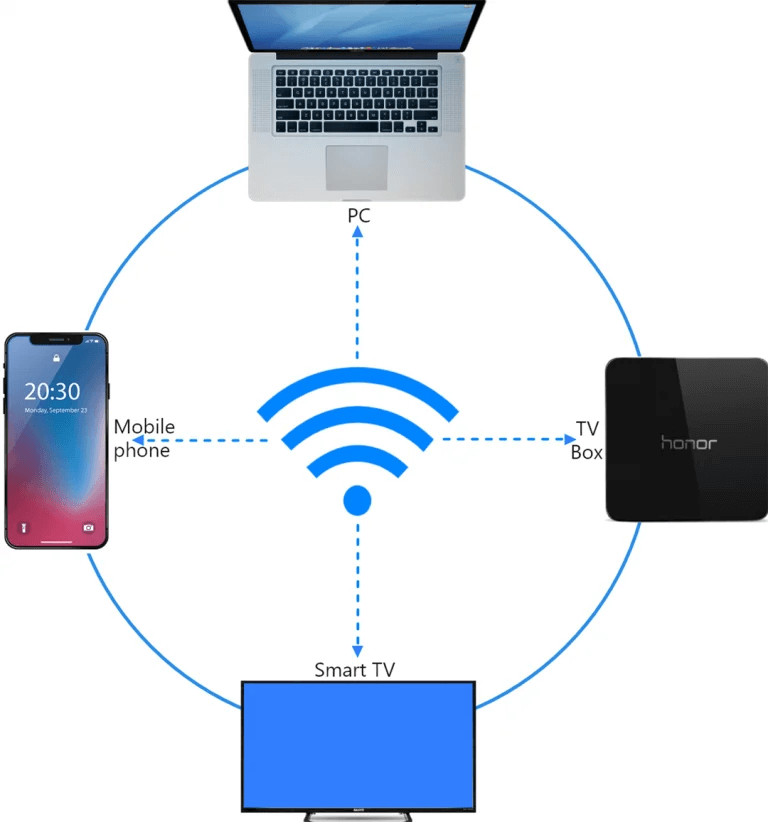
Make sure your phone and TV are connected to the same Wi-Fi network.
💡 Tip: A 5GHz Wi-Fi connection is recommended for the best performance.
If Wi-Fi isn’t available, you can also use a personal hotspot.
2. Find and Connect to Your TV
1) Install and open the 1001 TVs app.
📥 TV App: How to Install 1001 TVs on Your TV
📱 iOS App: Download from App Store
📱 Android App: Download from Google Play
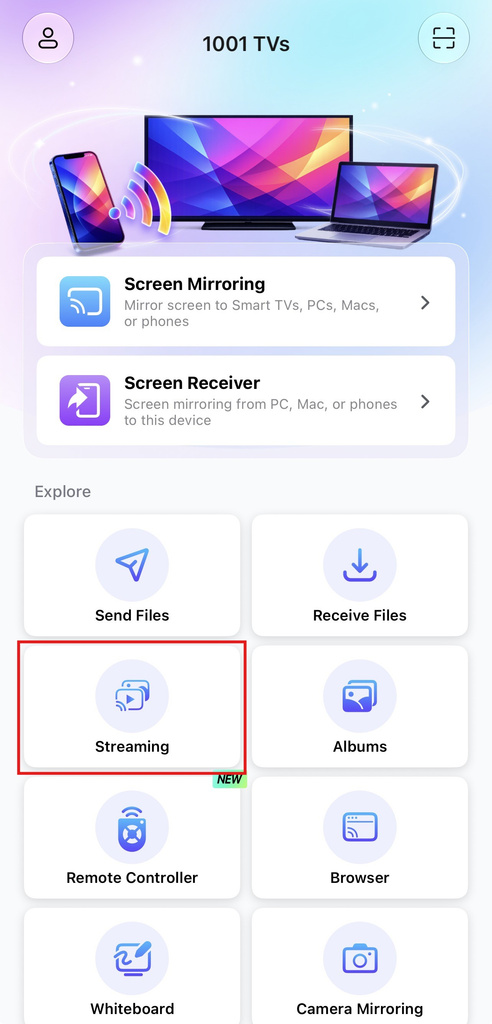
2) Tap “Streaming”, then tap the refresh icon to search for available devices.
Most smart TVs and TV boxes support streaming and will appear automatically once they are connected to the same network.
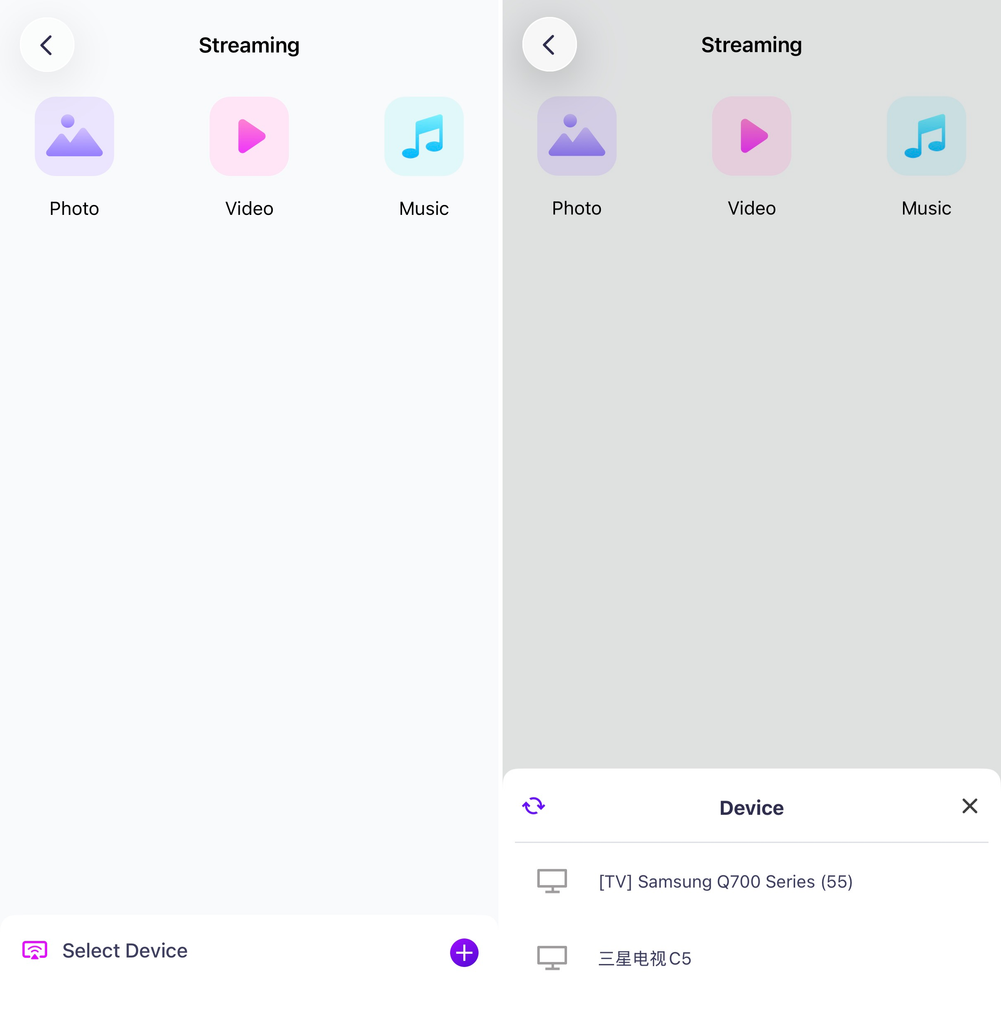
3) Select your TV from the device list
Note: While your TV’s pre-installed DLNA service can be found, we recommend installing the 1001 TVs app on your Android TV for a better experience with enhanced details.
4) Choose what you want to stream:
• Photos: Tap Play to start a slideshow. You can adjust the slideshow speed in Settings.
• Videos: Select one or more videos to play in sequence with sound.
• Music: Play your favorite songs directly on your TV.
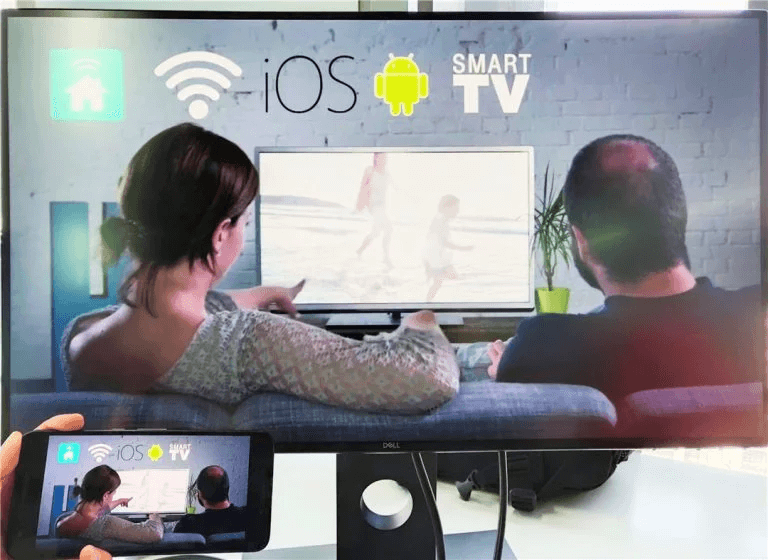
3. Stream Media to Windows Media Player on Your PC
Want to stream to your Windows PC instead? You can use Windows Media Player as your streaming destination.
1) Open Windows Media Player (Legacy) on your PC.
2) Click “Stream” and enable “Allow remote control of my Player.”
• If this is your first time using this feature, you may need to turn on media streaming first.
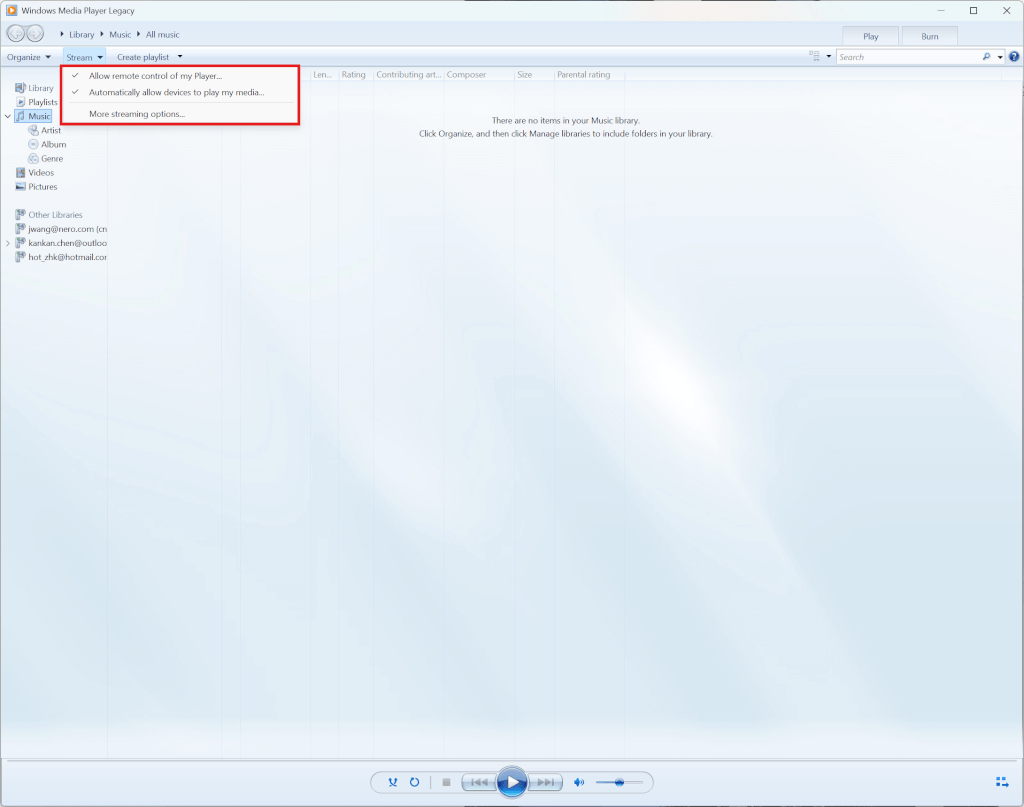
3) In 1001 TVs, refresh the device list and select your PC.
4) Start streaming your media files to your computer!
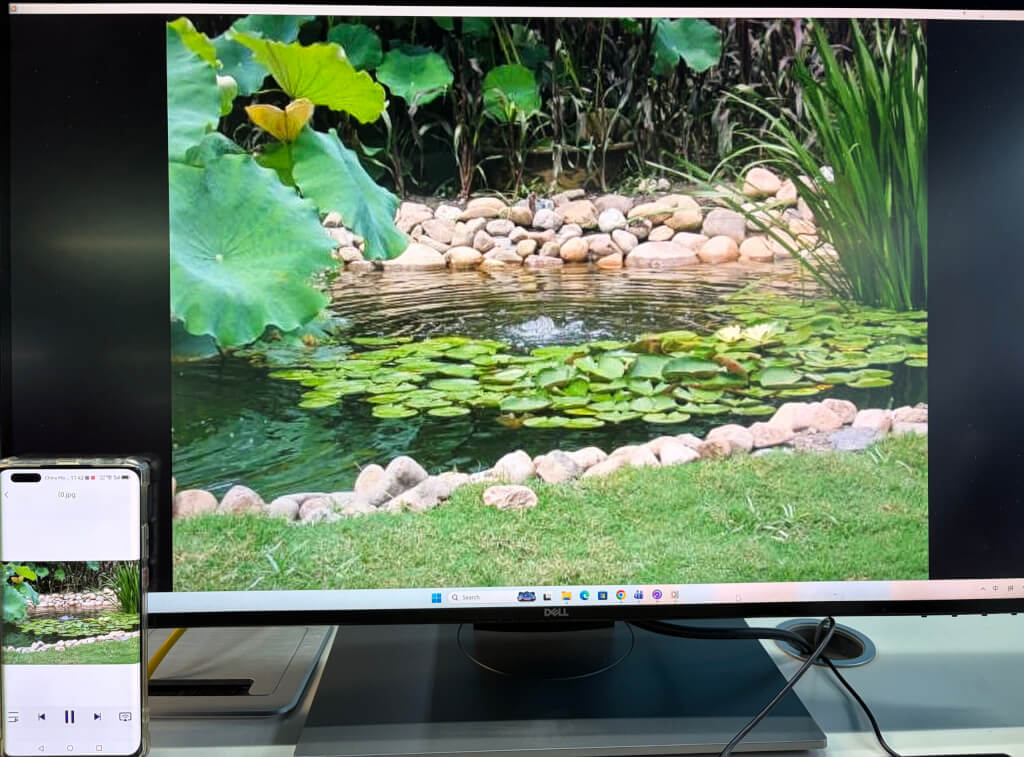
Now you’re all set to enjoy your media on a bigger screen with 1001 TVs! 🎬📺🎵
Get 1001 TVs Now!
📥 TV App: How to Install 1001 TVs on Your TV
📥 PC App: Download from Microsoft Store
For detailed steps, refer to the PC Installation Guide
📱 iOS App: Download from App Store
📱 Android App: Download from Google Play
Try it now and enjoy seamless media streaming! 🚀
Read More
 TV APK Installation Guide: How to Send and Install APK Files on TV from Your PC or Mac via Wi-Fi
Got an APK file on your phone, PC or Mac that you want to run on your TV? With 1001 TVs and TV File…
TV APK Installation Guide: How to Send and Install APK Files on TV from Your Phone via Wi-Fi
Got an APK file on your phone or PC that you want to run on your TV? With 1001 TVs, you can send APK…

