[Android] How to Mirror Android Phone Screen to TV
1. Connect to the Same Wi-Fi
Make sure both your phone and TV are connected to the same Wi-Fi network.
For best performance, use a 5 GHz Wi-Fi network to reduce delay and improve stability.
2. Install and Open 1001 TVs App
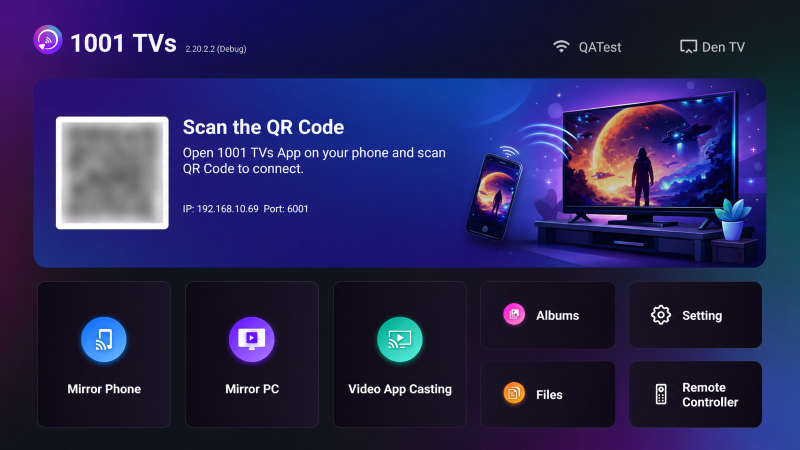
Install and open the 1001 TVs app on both your phone and TV.
📥 TV App: How to Install 1001 TVs on Your TV
📱 Android App: Download from Google Play
3. Start Screen Mirroring
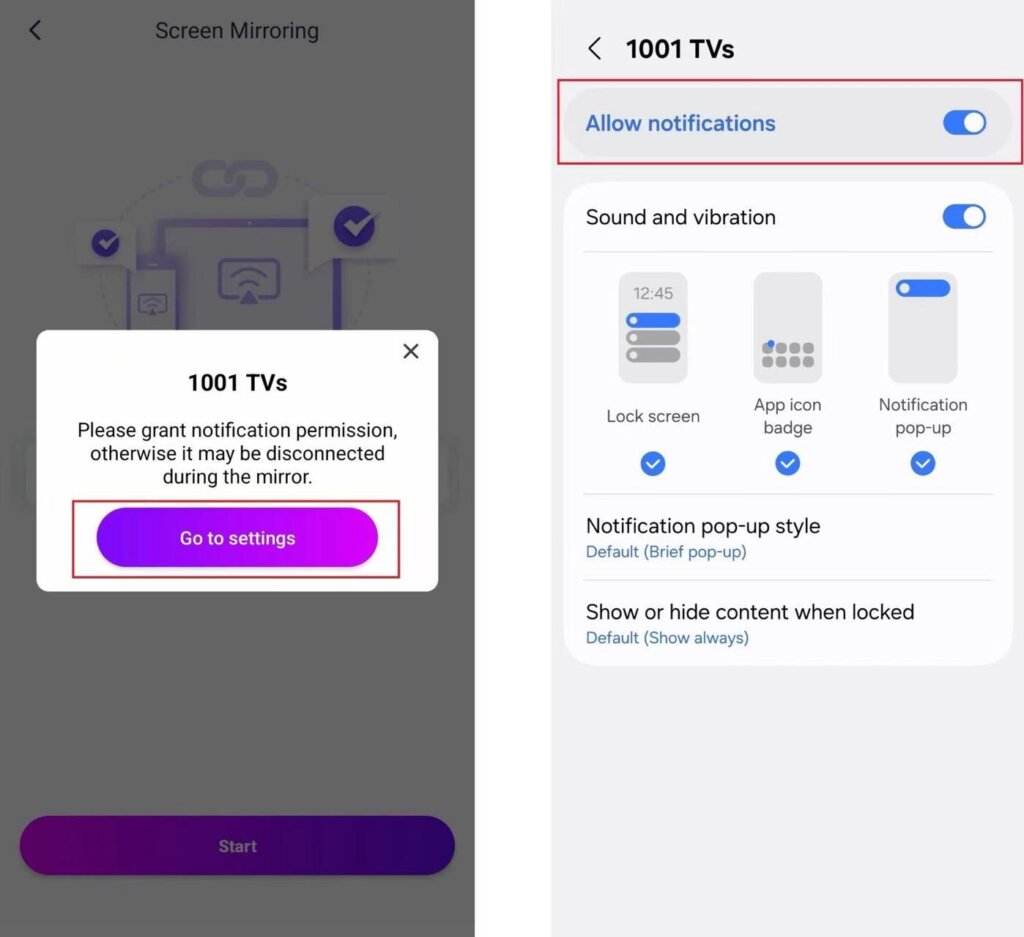
Before you start, make sure notification permission is enabled in Settings.
The app may also request this permission to monitor your connection status in the notification bar.
Then you can initiate mirroring using one of two methods:
1) Scan the QR Code
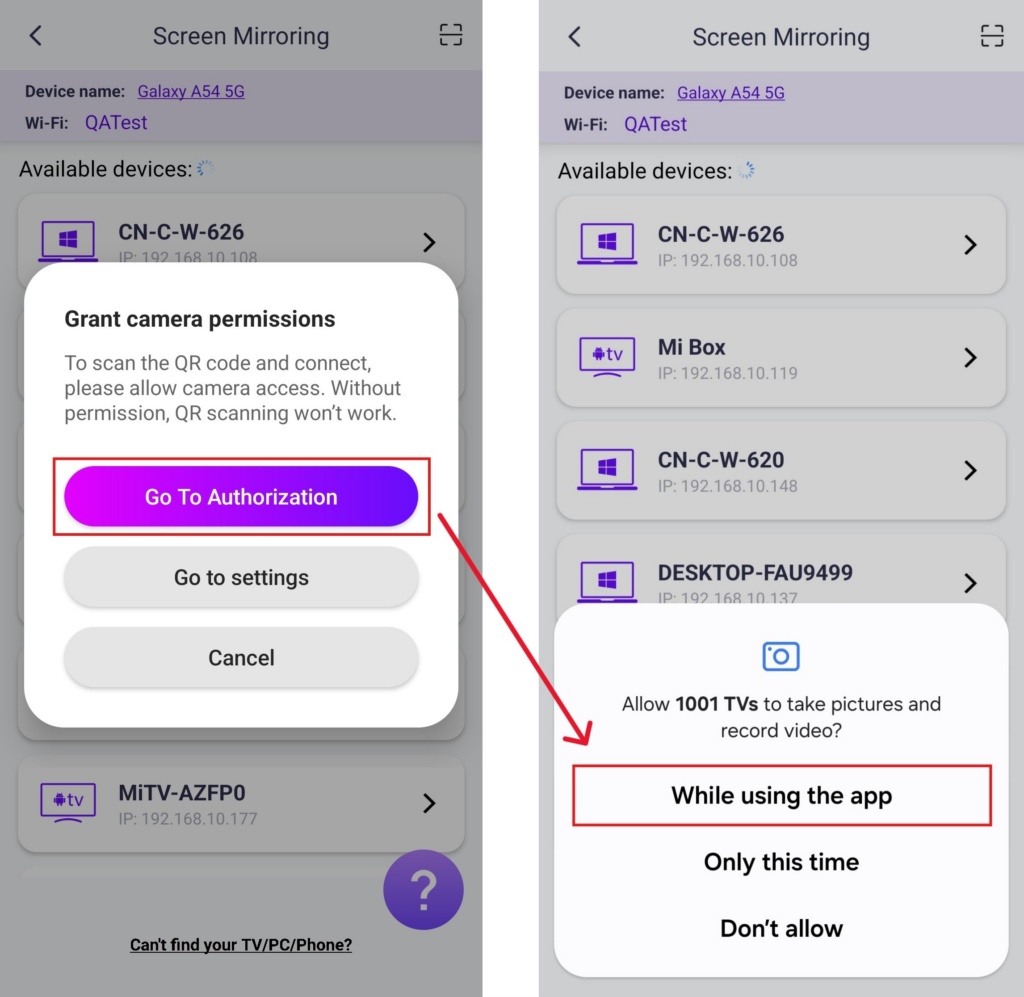
You can tap the icon in the top-right corner to scan the QR code on TV to start mirroring.
(Note: You’ll need to grant camera permission the first time you scan.)
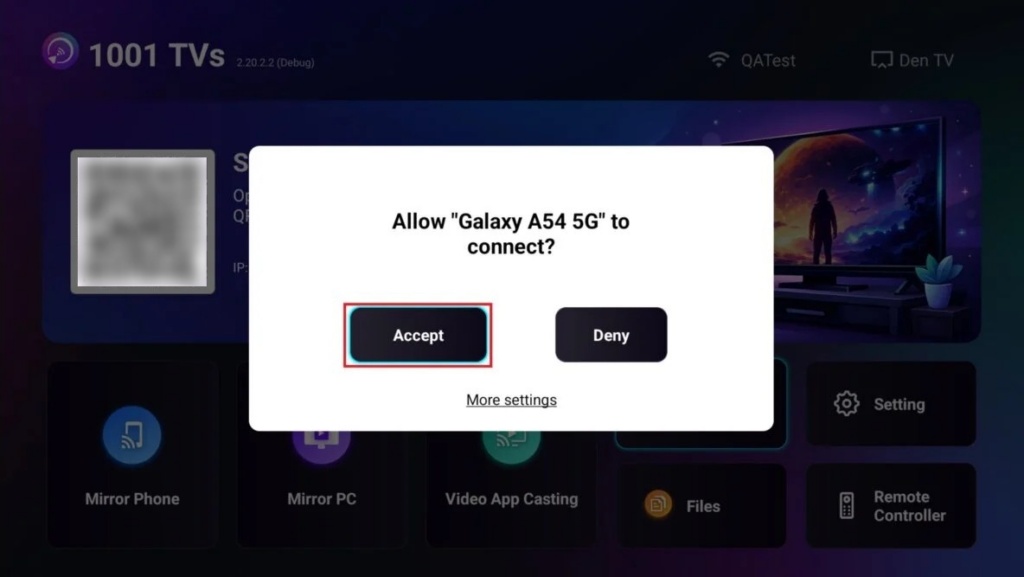
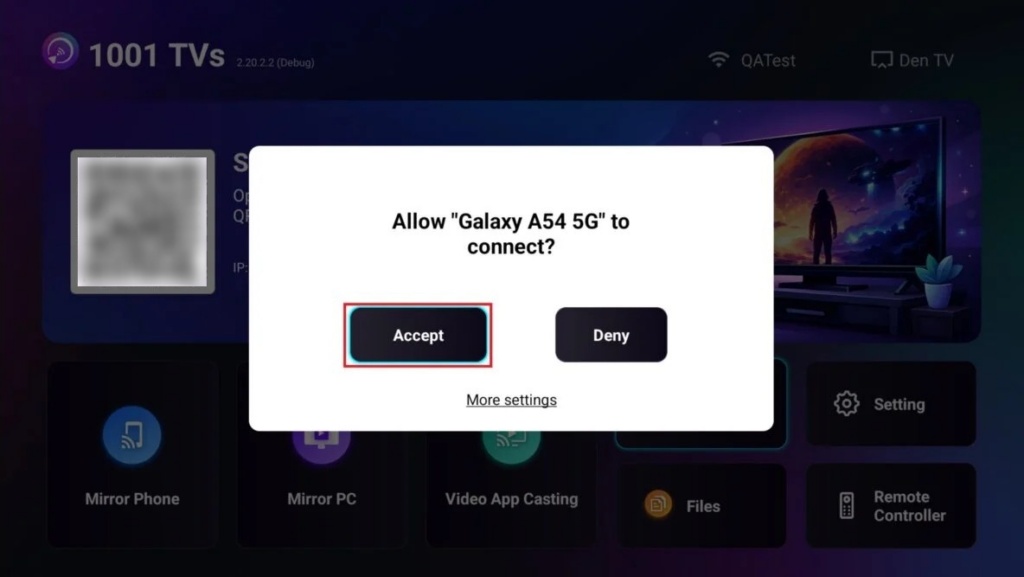
When prompted on the TV, select “Accept”.
Once the scan is done, go ahead and start mirroring!
2) Select Your Target TV
Tap “Screen Mirroring” in 1001 TVs app on your Android phone.
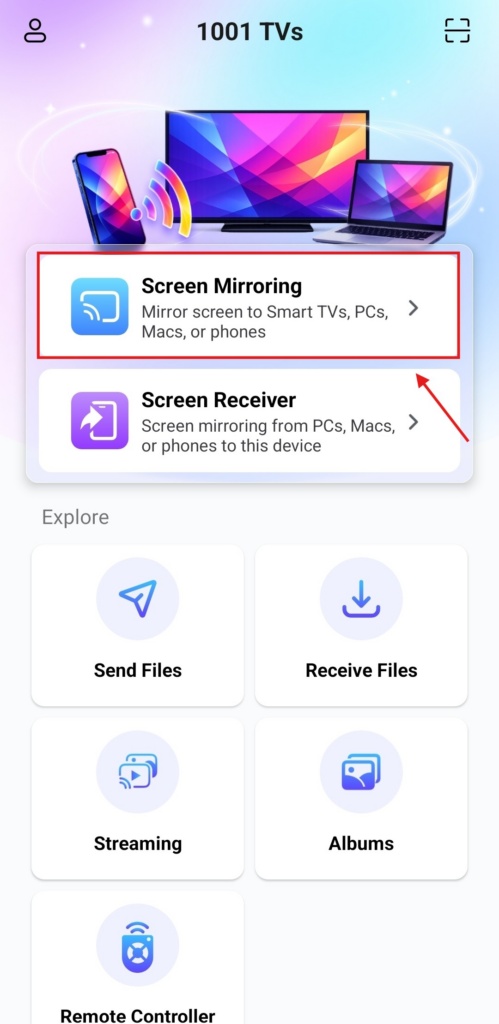
The app will automatically detect available devices on the same Wi-Fi network.
Select the device you want to mirror to.
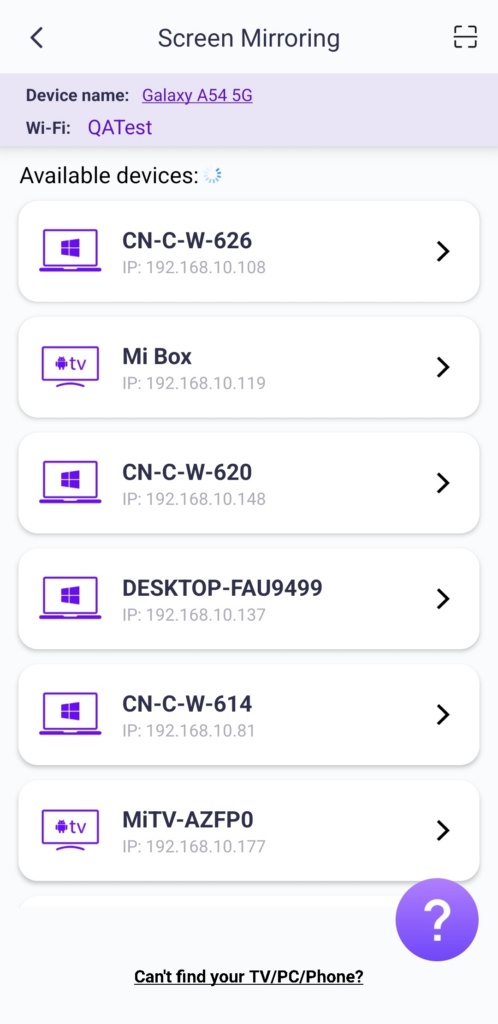
Note: Ensure the TV device is running the app, and refresh the list if needed.
When prompted on the TV, select “Accept” to confirm the connection.
This function is ideal for presentations, mirroring your phone screen to a large meeting display, live streaming gameplay, or enjoying eBooks on a bigger screen.
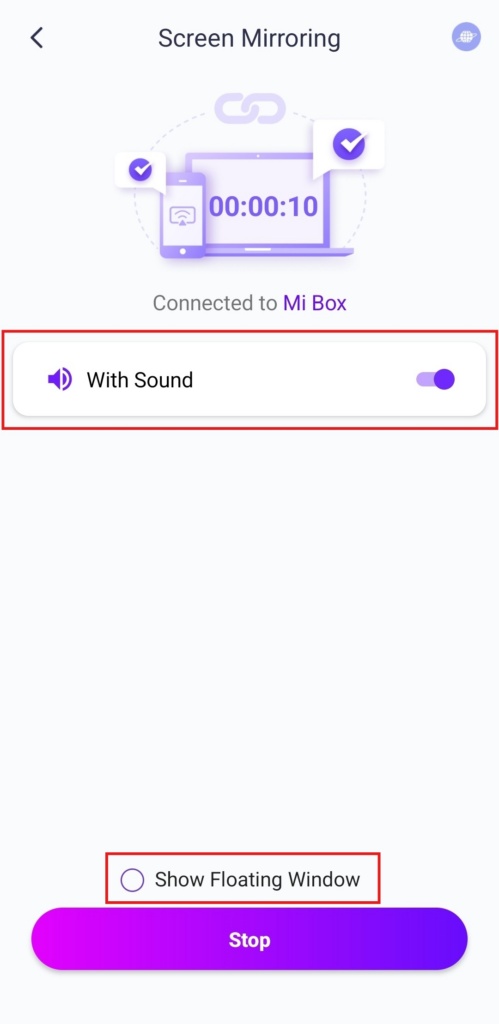
Tip: Sound and floating window playback can be controlled independently.
4. Adjust Settings
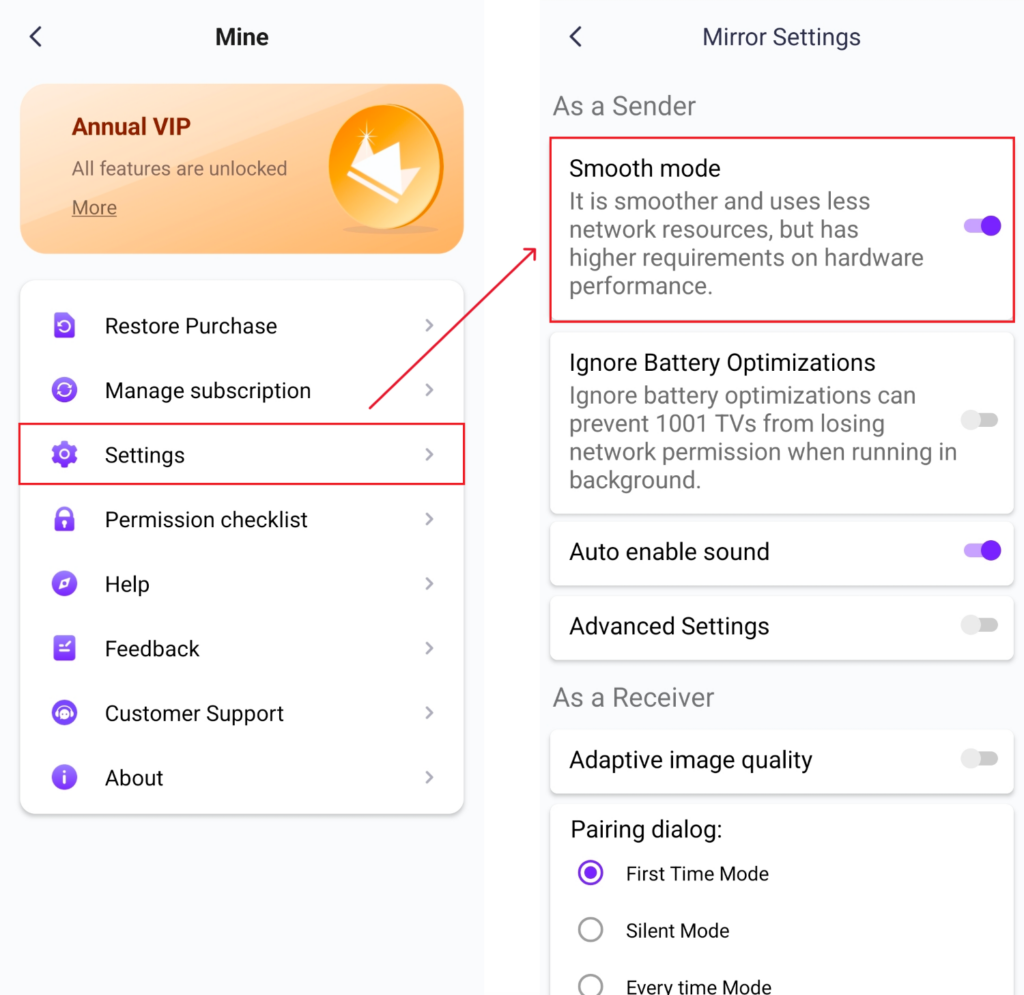
If you encounter delays or low resolution while mirroring, try adjusting the settings for a better experience.
· Smooth Mode
This mode is selected automatically by default.
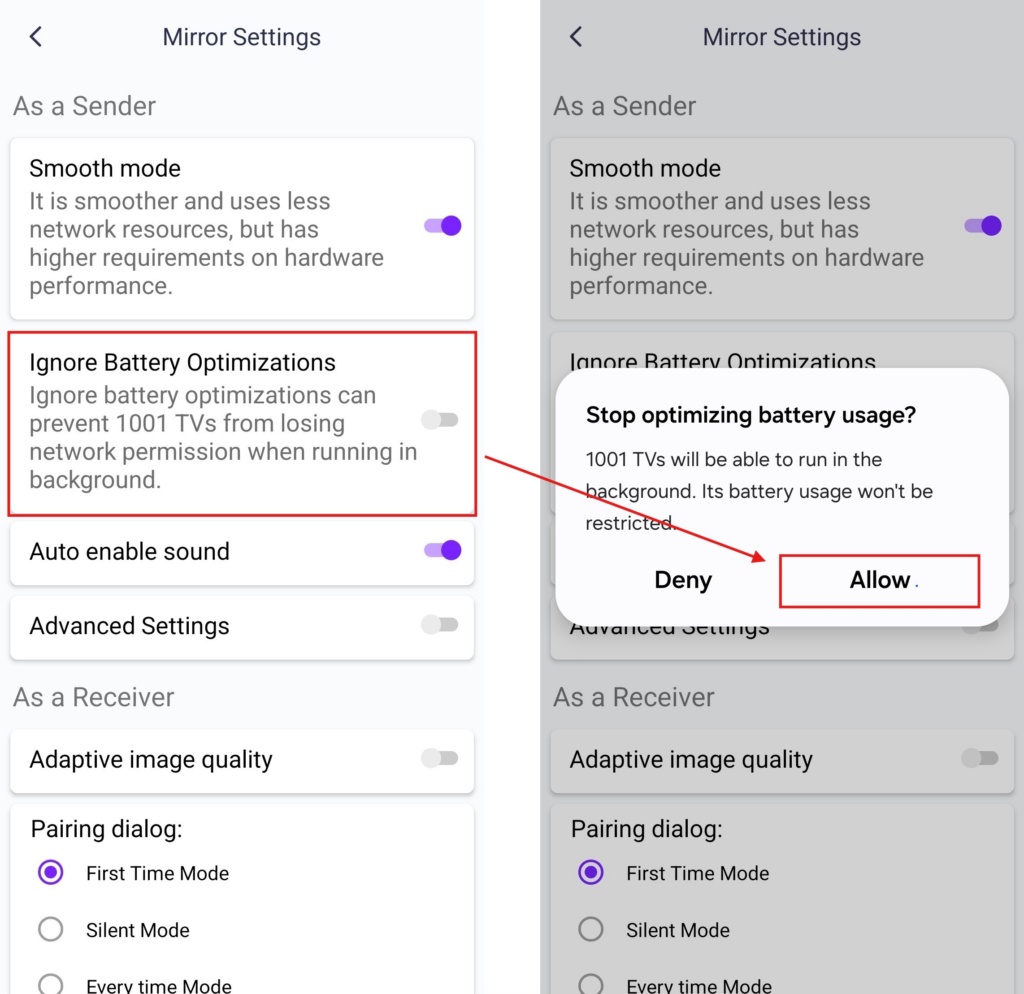
· Ignore Battery Optimizations
Enable this option to prevent battery-saving features from interrupting screen mirroring.
5. Requirements & Recommendations
System Requirements
Mobile App: Requires Android OS 6.0 or above.
TV App: Requires Android OS 6.0 or above.
Network Recommendation
For the best performance, connect to a 5 GHz Wi‑Fi network to reduce delay and ensure a stable connection.
Get 1001 TVs Now!
📥 TV App: How to Install 1001 TVs on Your TV
📱 Android App: Download from Google Play
Read More
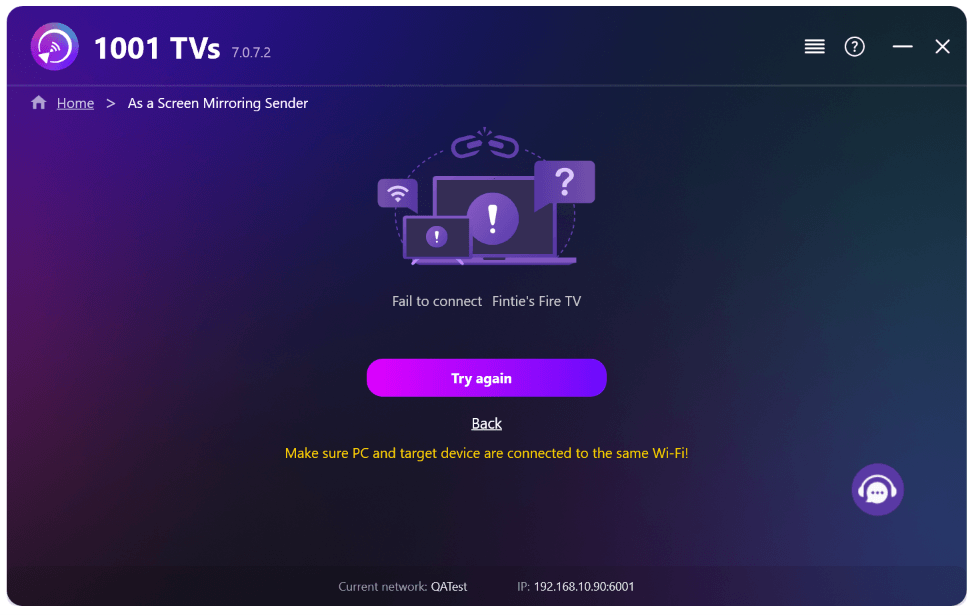 New Setting: No More Pop-ups When Mirroring Ends
When you're mirroring your PC screen to a TV and stop the session using the TV remote, the 1001 TVs window pops back up…
New Setting: No More Pop-ups When Mirroring Ends
When you're mirroring your PC screen to a TV and stop the session using the TV remote, the 1001 TVs window pops back up…
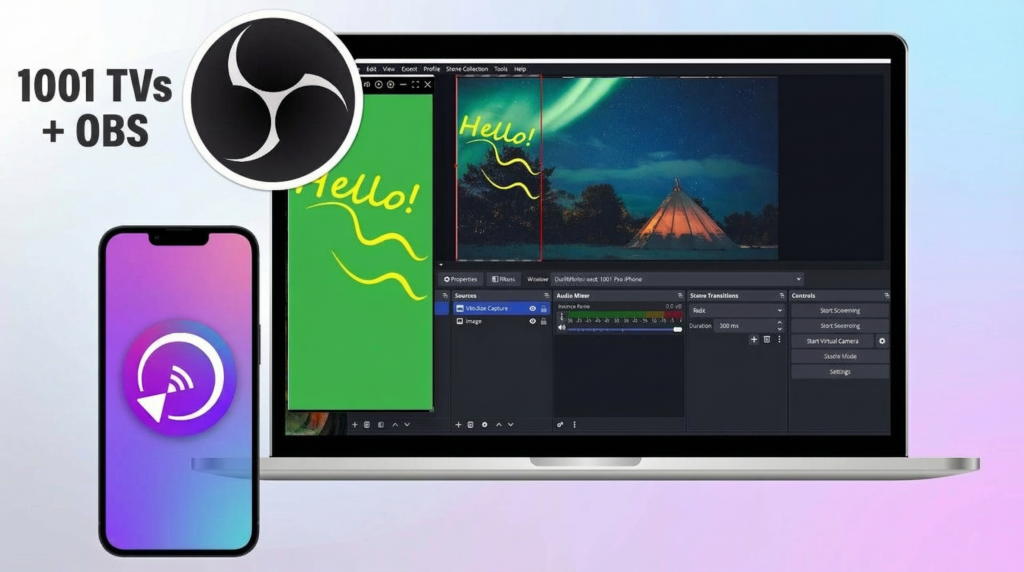 How to Capture Screen Mirroring in OBS (Android & iPhone)
Want to capture screen mirroring in OBS for mobile gameplay, tutorials, or live content? With 1001 TVs, you can easily mirror your phone screen…
How to Capture Screen Mirroring in OBS (Android & iPhone)
Want to capture screen mirroring in OBS for mobile gameplay, tutorials, or live content? With 1001 TVs, you can easily mirror your phone screen…

