
How to Capture Screen Mirroring in OBS (Android & iPhone)
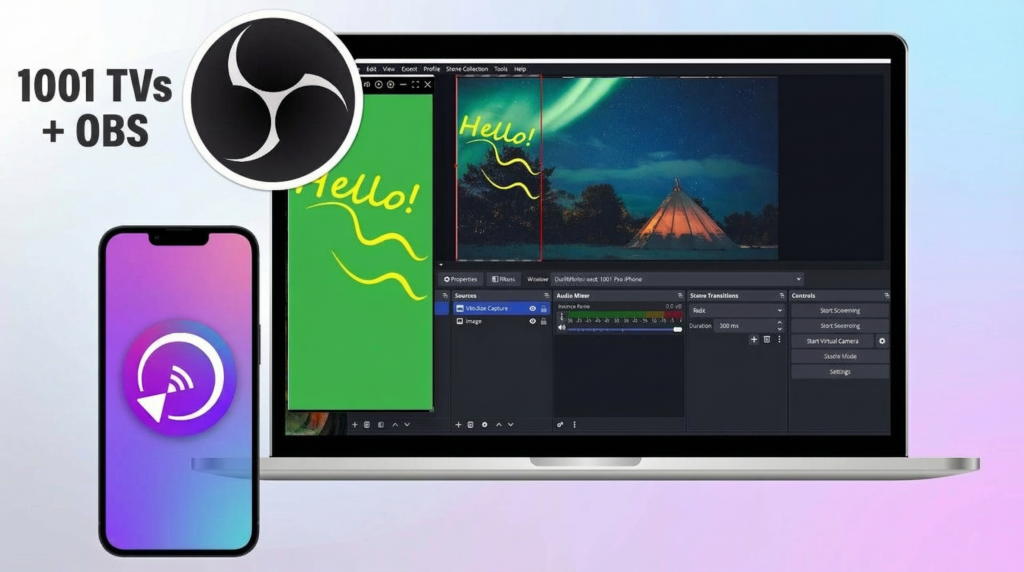
Want to capture screen mirroring in OBS for mobile gameplay, tutorials, or live content?
With 1001 TVs, you can easily mirror your phone screen to your computer and capture the mirroring window directly inside OBS Studio for professional streaming and recording.
Whether you’re a content creator, gamer, or educator, this guide shows you how to set up screen mirroring and capture it in OBS step by step.
What You’ll Need
✔1001 TVs app installed on both your phone and computer
✔OBS Studio installed on your computer
✔Both devices connected to the same Wi-Fi network (5 GHz recommended for best performance)
Step-by-Step Guide
This guide is divided into two parts:
Part 1: Mirror your phone screen to your computer using 1001 TVs (for both Android and iPhone)
Part 2: Capture the mirrored screen in OBS Studio (same steps for both platforms)
Part 1: Mirror Your Phone Screen to Computer
Before adding your phone screen to OBS, you need to mirror it to your computer first.
For detailed step-by-step instructions on how to mirror your Android or iPhone to your computer, please refer to our comprehensive guide:
👉 [Android] How to Mirror Android Phone Screen to PC/Mac
👉 [iOS] How to Mirror iPhone Screen to PC/Mac
This guide covers:
- Installing 1001 TVs on your phone and computer
- Connecting to the same Wi-Fi network
- How to start screen mirroring
- Detailed instructions for both Android and iPhone users
Part 2: Capture Screen Mirroring in OBS Studio
Once your phone screen is successfully mirrored to your computer (following the steps above for your device type), the next steps are the same for both Android and iPhone users.
Step 1: Add 1001 TVs Window to OBS
Now that your phone screen is mirrored to your computer, it’s time to capture it in OBS.
1. Open OBS Studio on your computer
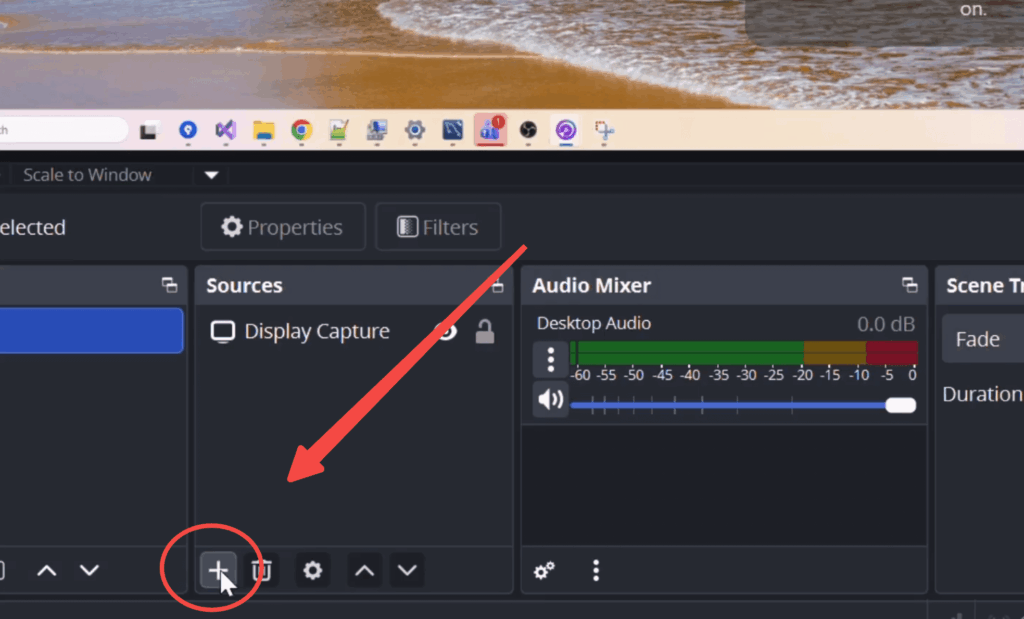
2. In the Sources panel (bottom-left corner), click the “+” button to add a new source
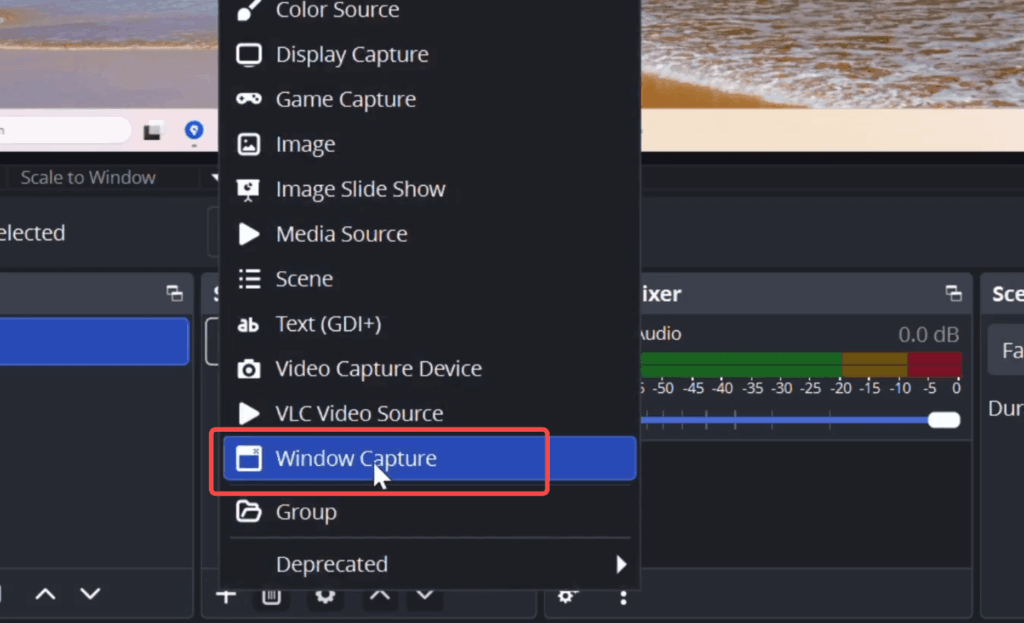
3. Select “Window Capture” from the list
4. A dialog box will appear asking you to name the source. You can keep the default name or enter a custom name like “Phone Screen”, then click “OK”
5. The Properties for ‘Window Capture’ window will open. In the “Window” dropdown menu, select the 1001 TVs window from the list
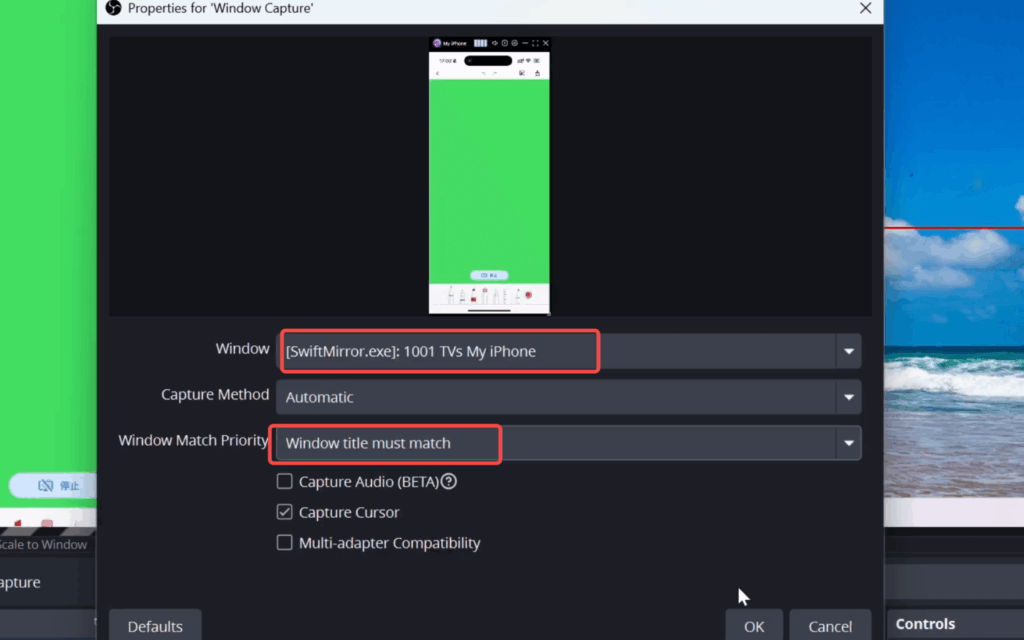
6. Configure the Recommended Settings:
- Capture Method: Automatic
- Window Match Priority: Window title must match
- Capture Cursor (check this if you want to show touch interactions on screen)
- Multi-adapter Compatibility: Leave unchecked unless you experience display issues
7. Click “OK” to confirm and close the Properties window
Your phone screen will now appear in the OBS preview window!
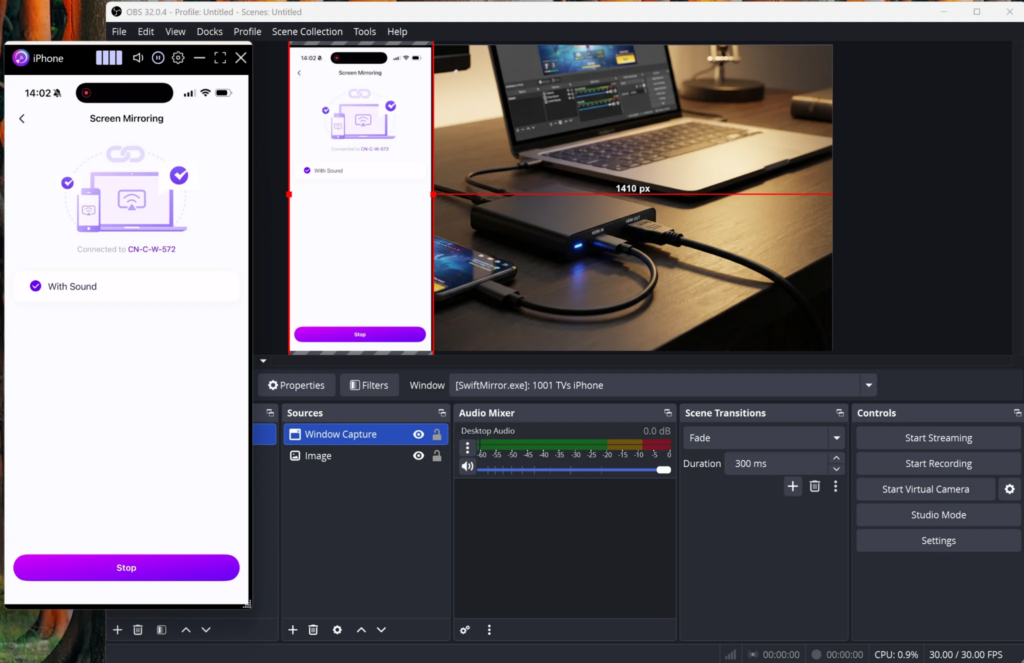
Step 2: Adjust and Position the Mirrored Screen
Once the 1001 TVs window is added to OBS:
- Resize the capture by dragging the corners of the red bounding box
- Reposition it anywhere in your scene by clicking and dragging
Step 3: Start Streaming or Recording
You’re all set! Your phone screen is now live in OBS.
- Click “Start Streaming” to go live on platforms like Twitch, YouTube, or Facebook
- Click “Start Recording” to save your content locally
- Add overlays, alerts, and other sources to enhance your stream
Get Started Today!
Ready to elevate your mobile streaming? Download 1001 TVs and start streaming your phone to OBS in minutes.
📥 PC App: Download from Microsoft Store
📥 Mac App: Download from App Store
📱 iOS App: Download from App Store
📱 Android App: Download from Google Play