How to Send Log Files in 1001 TVs (PC Version)
If you’re experiencing issues with 1001 TVs on your Windows PC — such as screen mirroring failure, file sharing errors, or unexpected crashes — our support team may ask for the log files to help fix the problem.
You don’t need to find those files manually. Just follow the steps below to send them via the built-in Feedback panel.
📌 Step-by-Step Guide
1. Open 1001 TVs on your PC.
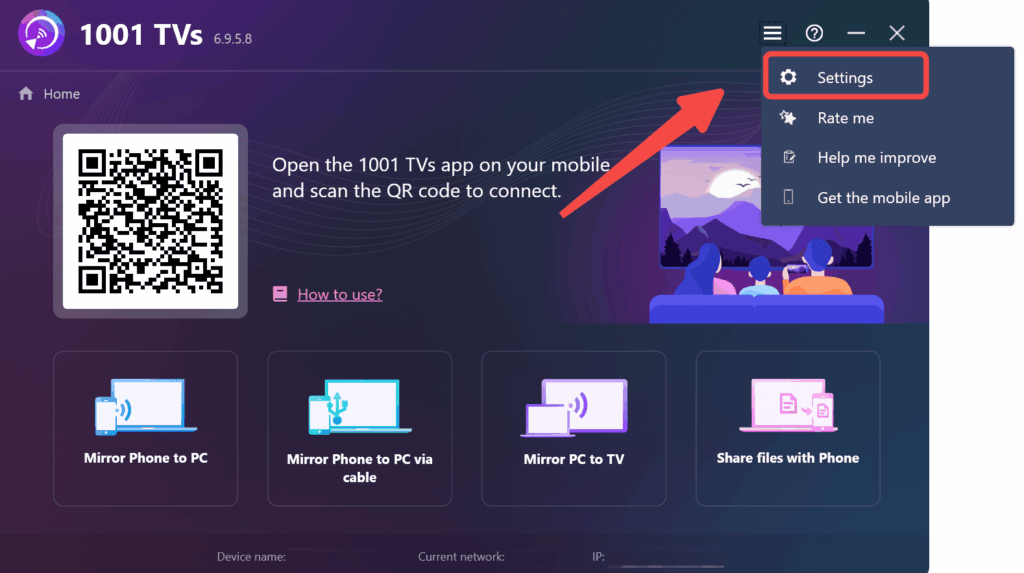
2. Click the menu icon in the top-right corner (three horizontal lines).
3. In the dropdown, select “Settings”.
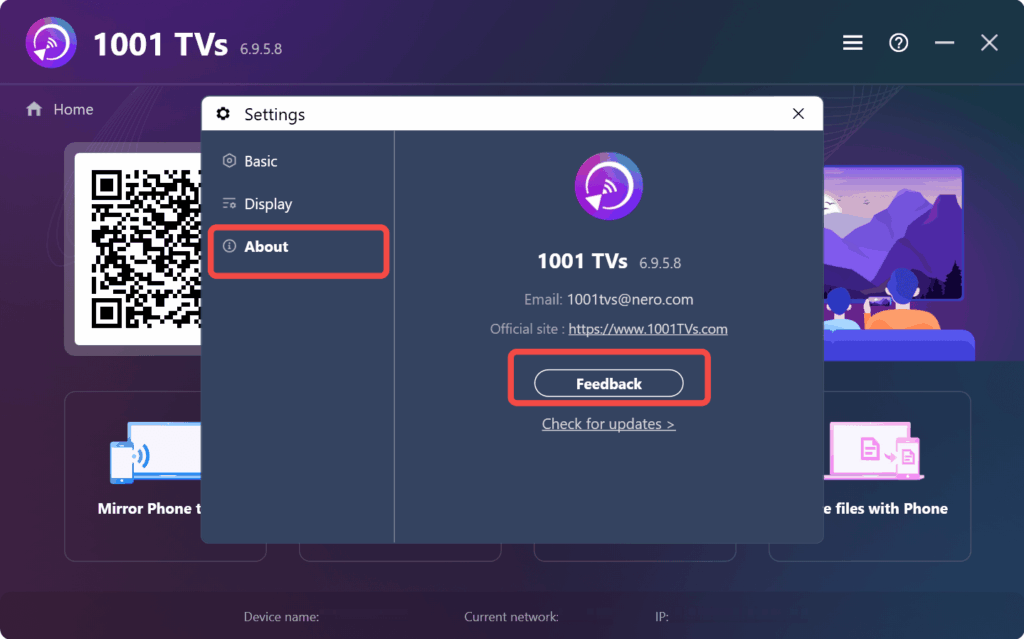
4. In the left-side menu, click “About”, then click the “Feedback” button.
5. In the feedback window:
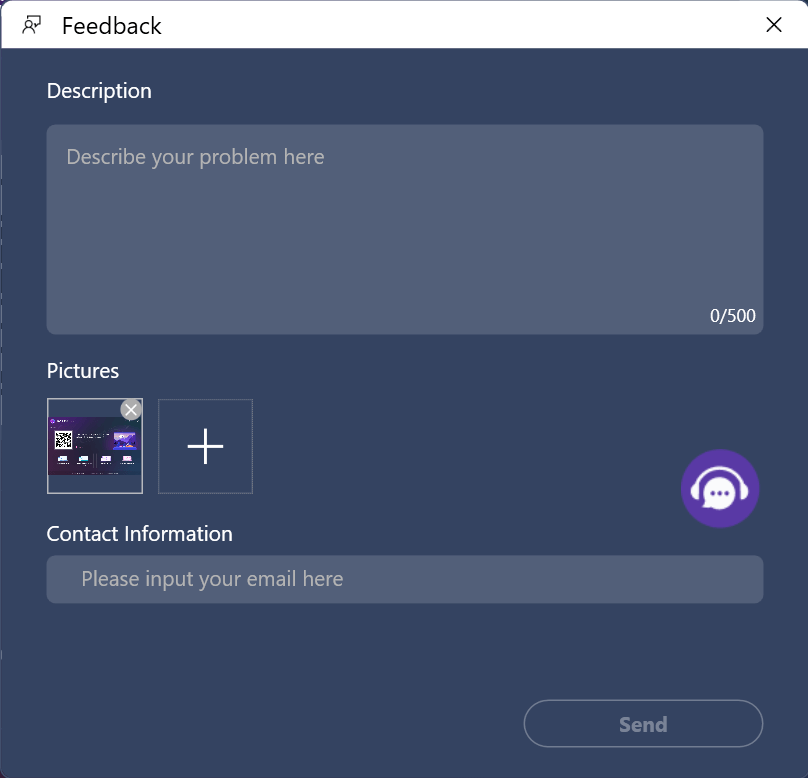
- Describe your issue in the Description box.
- Enter your email address under “Contact Information” so we can follow up.
- (Optional) Add a screenshot using the “+” icon.
6. Click Send — and that’s it! Your log file will be automatically attached and sent to our support team.
✅ That’s it! Your log file will be automatically attached and sent to our support team.

Read More
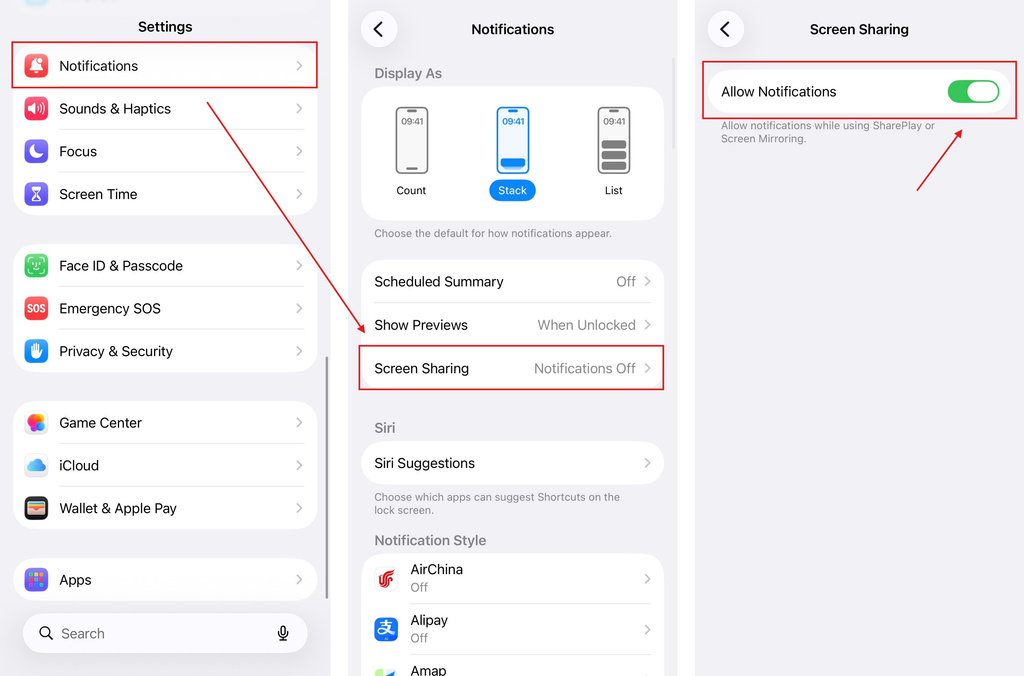 iOS: How to Fix Missing App Notifications During Screen Mirroring
Why Notifications Are Missing When you mirror your iPhone screen, notifications from other apps may not appear on the mirrored screen. This can happen…
iOS: How to Fix Missing App Notifications During Screen Mirroring
Why Notifications Are Missing When you mirror your iPhone screen, notifications from other apps may not appear on the mirrored screen. This can happen…
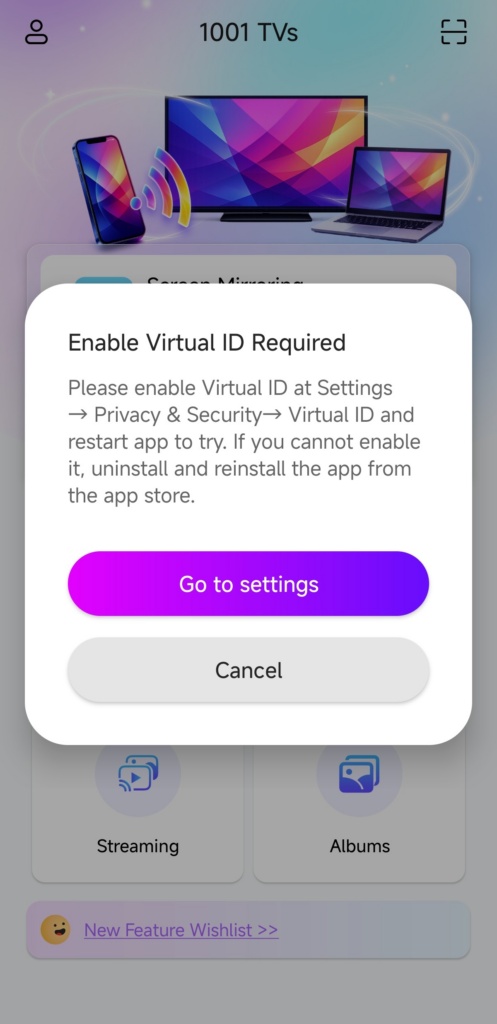 How to Fix the Enable Virtual ID Required Pop-Up
If you're using a Xiaomi or Redmi phone or tablet, you might see a pop-up that says "Enable Virtual ID Required" when you launch…
How to Fix the Enable Virtual ID Required Pop-Up
If you're using a Xiaomi or Redmi phone or tablet, you might see a pop-up that says "Enable Virtual ID Required" when you launch…

