
[2026] ئېكران ئەينىكى ئىشلىمەيدۇ؟ ئورتاق سەۋەبلەر ۋە ئەمەلىي ھەل قىلىش چارىلىرى
ئېكران ئەينىكى ئۈسكۈنىلەر ئارىسىدا مەزمۇن ئورتاقلىشىشنى ئاسانلاشتۇرۇش ئۈچۈن لايىھەلەنگەن. ئەمەلىيەتتە، نۇرغۇن ئىشلەتكۈچىلەر مەسىلىلەرگە دۇچ كېلىدۇ: ئۈسكۈنىلەر بىر-بىرىنى تاپالمايدۇ، ئۇلىنىش كۈتۈلمىگەندە ئۈزۈلۈپ قالىدۇ ياكى ئېكران ئەينىكى بىر سىستېمىدا ئىشلەيدۇ، يەنە بىر سىستېمىدا ئىشلىمەيدۇ.
بۇ مەسىلىلەر، بولۇپمۇ سۇپىلارنى ئارىلاشتۇرغاندا، مەسىلەن، ... ئىشلەتكەندە كۆپ ئۇچرايدۇ. ئاندروئىد تېلېۋىزورى بار ئايفون. قانداقلا بولمىسۇن، ئوخشاش ئاساسلىق سەۋەبلەر نۇرغۇن ئۈسكۈنىلەرنىڭ بىرىكمىسىگە ماس كېلىدۇ.
بۇ ماقالىدە چۈشەندۈرۈلىدۇ نېمىشقا ئېكران ئەينىكى كۆپىنچە ئۈنۈمسىز بولىدۇ, ، ئۇنى قانداق رېمونت قىلالايسىز، ۋە قاچان باشقا ھەل قىلىش چارىلىرى لازىم بولىدۇ.
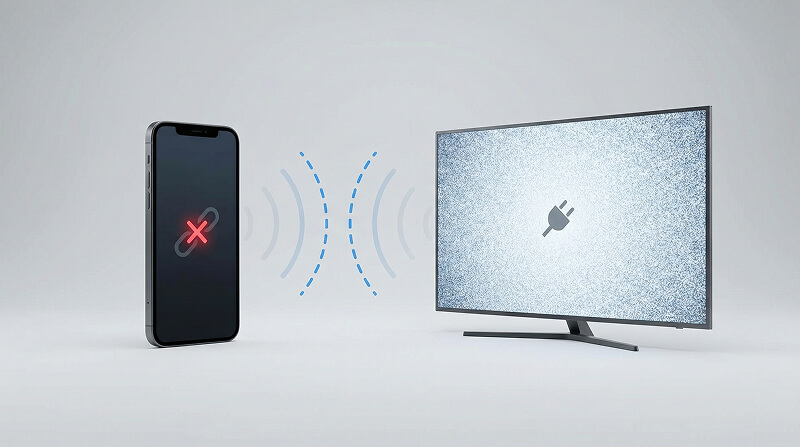
💡 تېز چۈشەندۈرۈش: نېمىشقا ئېكران ئەينىكى مەغلۇب بولىدۇ
ئېكران ئەينىكى مەسىلىلىرىنىڭ كۆپىنچىسى ئۈچ تۈرنىڭ بىرىگە كىرىدۇ:
1. تور مەسىلىلىرى
2. ئۈسكۈنە ياكى ئەپكە مۇناسىۋەتلىك مەسىلىلەر
3. پىلاتفورمالار ئارىسىدىكى پروتوكول چەكلىمىسى
قايسى تۈرگە تەۋە ئىكەنلىكىنى چۈشىنىش ۋاقىتنى تېجەپ، ئۈمىدسىزلىكنى ئازايتالايدۇ.
ئېكران ئەينىكىنىڭ ئىشلىمەسلىكىنىڭ ئورتاق سەۋەبلىرى
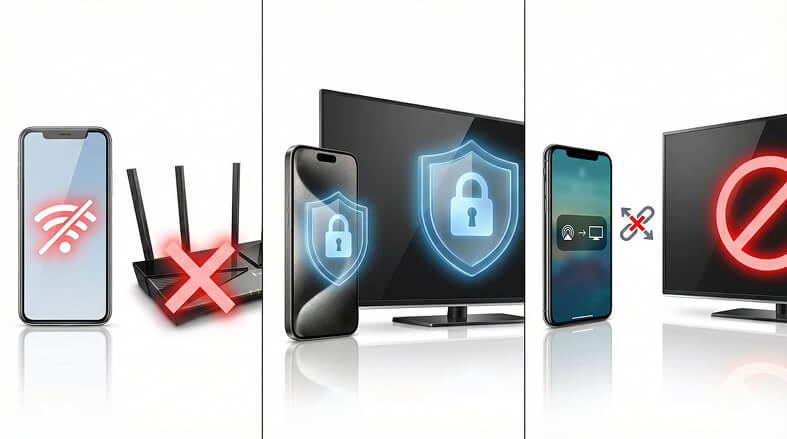
1. تور مەسىلىلىرى (ئەڭ كۆپ ئۇچرايدىغان)
ئېكران ئەينىكى يەرلىك تور ئالاقىسىگە تايىنىدۇ. مەسىلىلەر كۆپىنچە تۆۋەندىكى ئەھۋاللاردا يۈز بېرىدۇ:
• ئۈسكۈنىلەر ئوخشاش Wi-Fi تورىغا ئۇلانمىغان
• تور ئۇلىنىشى مۇقىم ئەمەس ياكى دائىم ئۈزۈلۈپ قالىدۇ
• تەلەپ قىلىنىدىغان يەرلىك تور ئىجازەتلىرى چەكلەندى
• ئۈسكۈنە بايقاش ئېقىمى يوللىغۇچ (ئوت تاملىرى، AP ئايرىلىشى قاتارلىقلار) تەرىپىدىن توسۇلغان
ھەر ئىككى ئۈسكۈنىدە تورغا چىقىش ئىقتىدارى بولسىمۇ، يەرلىك ئالاقە چەكلەنسە، ئېكران ئەينىكى ئۈنۈمسىز بولۇشى مۇمكىن.
2. ئۈسكۈنە ياكى ئەپ مەسىلىلىرى
ۋاقىتلىق يۇمشاق دېتال مەسىلىلىرى ئېكران ئەينىكىنىڭ ئىشلىشىگە توسقۇنلۇق قىلىشى مۇمكىن، مەسىلەن:
• كىچىك سىستېما ياكى ئەپ خاتالىقلىرى
• كونا مەشغۇلات سىستېمىسى ياكى تېلېۋىزور يۇمشاق دېتالى
• ئارقا كۆرۈنۈش چەكلىمىسى ياكى ئاكتىپ توك تېجەش رېژىملىرى
• سىستېما سەۋىيىسىدە ئېكران ئەينىكى ئىشلىتىش ھوقۇقى چەكلەندى
بۇ مەسىلىلەر، ئىلگىرى ئېكران ئەينىكى ئىشلىتىش ئۈنۈملۈك بولغان تەقدىردىمۇ، تۇيۇقسىز پەيدا بولۇشى مۇمكىن.
3. پىلاتفورما ئارا كېلىشىم چەكلىمىسى
ئىچكى ئېكران ئەينىكى قوراللىرى كۆپىنچە ... ئۈچۈن لايىھەلەنگەن ئوخشاش ئېكوسىستېمىنى ئىشلىتىش.
• iPhone دا، ئىچكى ئېكران ئەينىكى تۆۋەندىكىلەرگە تايىنىدۇ AirPlay
• Android تېلېۋىزورلىرى AirPlay نى قوللىمايدۇ (بەزى Samsung، LG، Sony تېلېۋىزورلىرى AirPlay نى قوللىشى مۇمكىن)
• نەتىجىدە، iPhone دىن Android غا تېلېۋىزور ئېكرانىنى ئەكس ئەتتۈرۈشتە ئىچكى تەڭشەكلەر ئارقىلىق دائىم مەغلۇب بولىدۇ.
بۇ ئۇلىنىش خاتالىقى ئەمەس — بۇ بىر پروتوكول ماس كەلمەسلىكى. ئۈسكۈنىلەر يەرلىك ئەينەك كۆرسىتىش ئۆلچىمىنى ئورتاقلاشمىغاندا، ئۇلار بىر-بىرىنى پۈتۈنلەي بايقىماسلىقى مۇمكىن.
⭐ ئالدى بىلەن سىناپ كۆرۈشكە بولىدىغان ئورتاق ھەل قىلىش چارىلىرى
قوراللارنى ياكى تەڭشەكلەرنى ئۆزگەرتىشتىن بۇرۇن، تۆۋەندىكى قەدەملەرنى سىناپ بېقىڭ:
• ئىككى ئۈسكۈنىنى قايتا قوزغىتىڭ
• Wi-Fi روتېرنى قايتا قوزغىتىڭ
• ئىككى ئۈسكۈنىنىڭ ئوخشاش توردا ئىكەنلىكىنى جەزملەشتۈرۈڭ
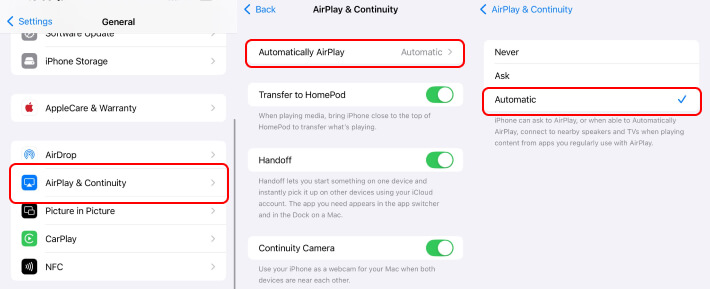
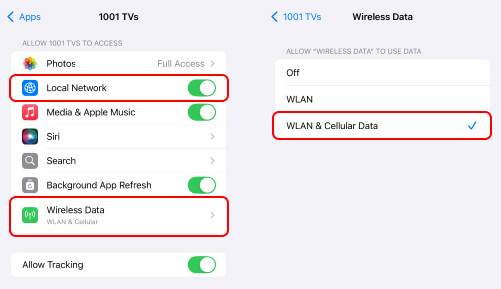
• ئىككى ئۈسكۈنىدە ئېكران ئەينىكى ۋە يەرلىك تور ئىجازەتلىرىنىڭ قوزغىتىلغانلىقىنى تەكشۈرۈڭ
1-مىسال: iPhone دا AirPlay نى قوزغىتىڭ
2-مىسال: iPhone دىكى ئېكران ئەينىكى ئەپ ئۈچۈن يەرلىك تور ئىجازىتىنى قوزغىتىڭ
• VPN ياكى ئوت ئۆچۈرۈش تام قوللىنىشچان پروگراممىلىرىنى ۋاقىتلىق چەكلەڭ
• ئۈسكۈنىلەرنىڭ ئوخشاش ئەينەك قىلىش كېلىشىمىنى قوللايدىغان-قوللىمايدىغانلىقىنى تەكشۈرۈڭ (AirPlay ئۈچۈن، AirpPlay قوللايدىغان تېلېۋىزورلار تىزىملىكى)
• ئەگەر مەسىلە بولسا پروتوكول ماس كەلمەسلىكى, ، ئىشلىتىڭ ئۈچىنچى تەرەپ ئېكران ئەينىكى ئەپ كۆپ سۇپا ئۈسكۈنىلىرى ئۈچۈن لايىھەلەنگەن (كېيىنكى بۆلۈمگە قاراڭ)
بۇ قەدەملەر ئېكراننى ئەينەك قىلىشتىكى نۇرغۇن ئاساسىي مەسىلىلەرنى ھەل قىلىدۇ.
كۆپ سۇپالىق ئېكران ئەينىكى ئەپنى ئىشلىتىش
ئىچكى ئېكران ئەينىكى پىلاتفورما پەرقى سەۋەبىدىن مەغلۇپ بولغاندا، بولۇپمۇ iPhone دىن Android تېلېۋىزورغىچە ئېكران ئەينىكى ئىشلەتكەندە، كۆپ سۇپىلىق ئېكران ئەينىكى ئەپلىرى ئەمەلىي ھەل قىلىش چارىسى بىلەن تەمىنلەيدۇ.
1001 TVs ئارىلاش ئۈسكۈنىلەر مۇھىتى ئۈچۈن لايىھەلەنگەن بولۇپ، AirPlay غا تايانماي تۇرۇپ iPhone، Android تېلېۋىزور ۋە كومپيۇتېرلار ئارىسىدا ئېكراننى ئەكس ئەتتۈرۈشكە يول قويىدۇ.
نېمىشقا بۇ ئىشلەيدۇ
• ئۇ Apple نىڭ AirPlay كېلىشىمىگە تايانمايدۇ
• ئۇ ئالاھىدە كۆپ سۇپا ئېكران ئەينىكى ئۈچۈن لايىھەلەنگەن
• ئۇ ھەر خىل ئۈسكۈنىلەردە بار: تېلېفون، تاختا كومپيۇتېر، كومپيۇتېر ۋە تېلېۋىزور
ئاساسىي تەڭشەش
مىسال: iPhone نىڭ ئېكران ئەينىكىنى Amazon Fire TV غا ئايلاندۇرۇش
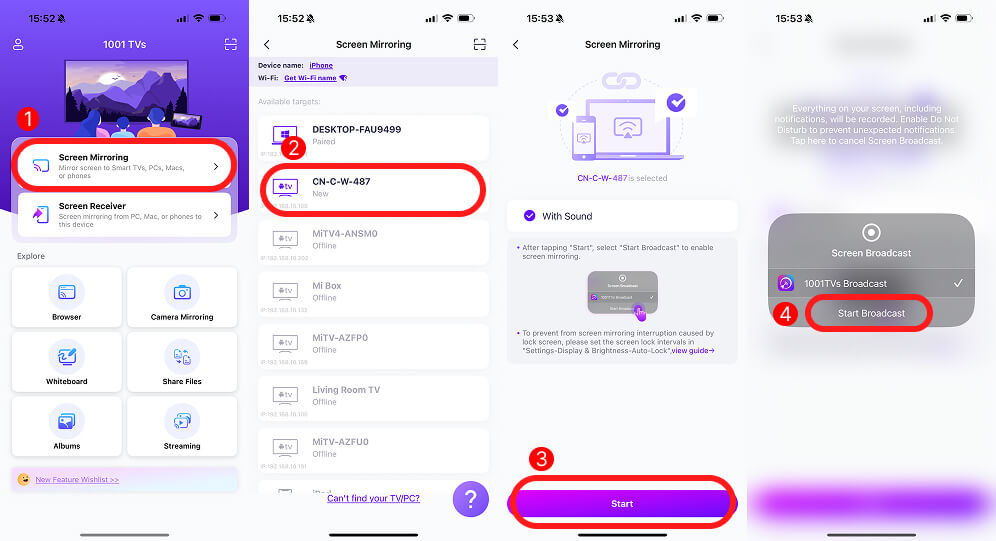
1. ئەپنى ئەۋەتكۈچى ۋە قوبۇل قىلغۇچى ئۈسكۈنىلەرنىڭ ھەر ئىككىسىگە ئورنىتىپ ئېچىڭ.
2. ئىككى ئۈسكۈنىنى ئوخشاش Wi-Fi غا ئۇلاڭ
3. سېنېر ئۈسكۈنىسىدە، «ئېكران ئەينىكى» گە كىرىڭ
4. نىشان ئۈسكۈنىنى تاللاڭ ۋە ئېكران ئەينىكىنى قوزغىتىش
1001 TVs بىلەن ئېكران ئەينىكىنى كۆرسىتىشنى باشلاڭ
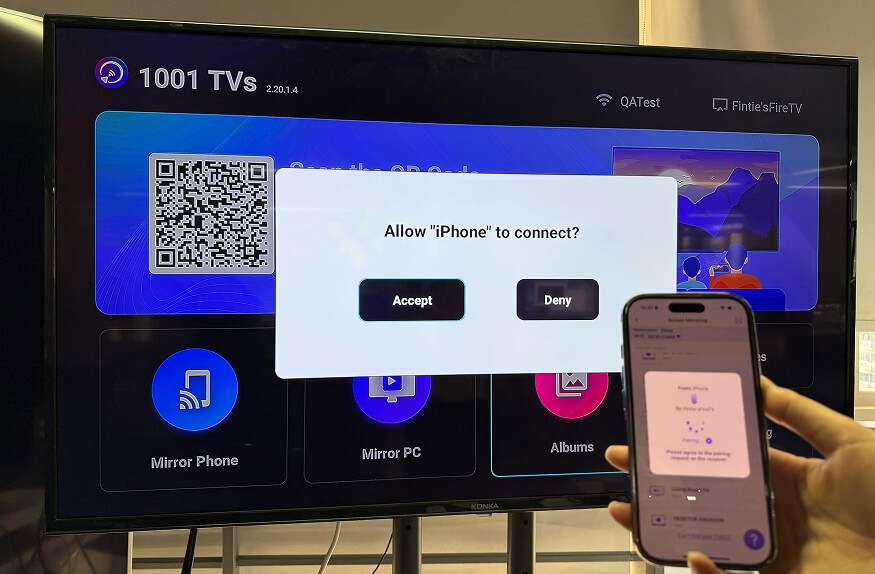
Fire TV دا ئۇلىنىشقا يول قويۇش
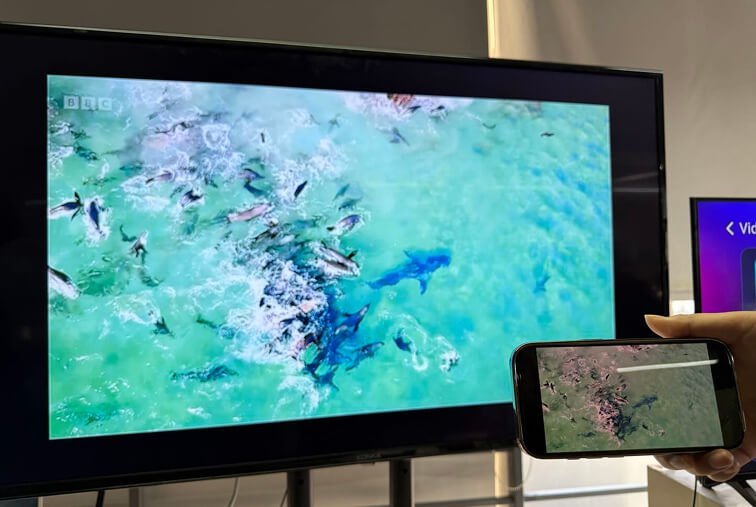
ئېكراننىڭ ئەكىس ئەتتۈرۈشى مۇۋەپپەقىيەتلىك بولدى
بۇ ئۇسۇل ئورنىتىش قەدىمىنى قوشىدۇ، ئەمما ئۈسكۈنىلەرنىڭ ماسلىشىشچانلىقىنى زور دەرىجىدە كېڭەيتىدۇ.
ئېكران ئەينىكى يەنىلا ئىشلىمىگەندە
بەزى مۇھىتلاردا، ئېكران ئەينىكى مەسىلىلىرى ئۈسكۈنە تەڭشەكلىرىدىن ئەمەس، بەلكى سىرتقى چەكلىمىلەردىن كېلىپ چىقىدۇ.
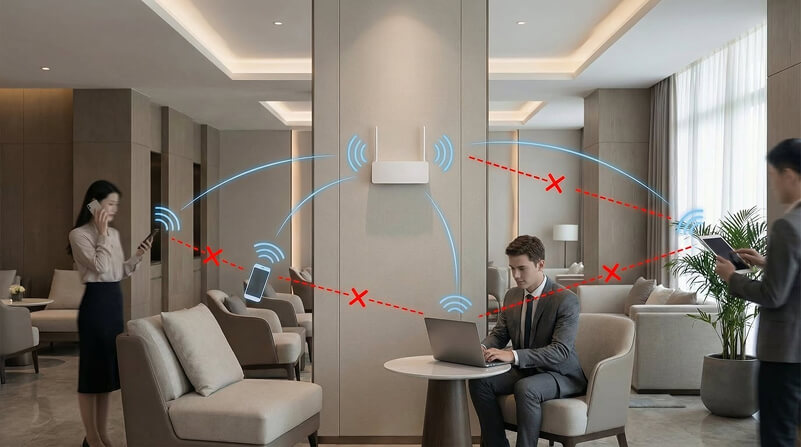
ئاممىۋى ياكى ئورتاق Wi-Fi دا تورنى ئايرىۋېتىش
مېھمانخانىلار، ئىشخانىلار ۋە مەكتەپ تورلىرى كۆپىنچە شارائىت ھازىرلايدۇ AP ئايرىلىشى (ياكى خېرىدارنى ئايرىۋېتىش)، بۇ ئوخشاش Wi-Fi تورىدىكى ئۈسكۈنىلەرنىڭ بىۋاسىتە ئالاقە قىلىشىغا توسقۇنلۇق قىلىدۇ. بۇنداق بولغاندا، ئېكران ئەينىكىنى بايقاش لايىھە بويىچە مەغلۇب بولىدۇ.
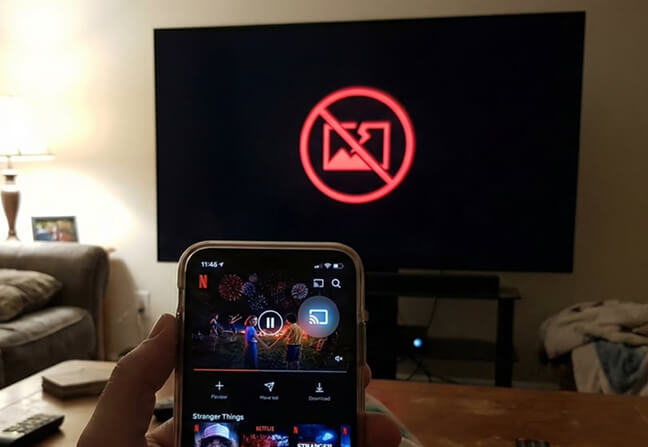
مەزمۇن ۋە ئەپ چەكلىمىسى
Netflix قاتارلىق بەزى ئەپلەر، بولۇپمۇ نەشر ھوقۇقى قوغدىلىدىغان ياكى قوغدىلىدىغان مەزمۇنلار ئۈچۈن، ئۈچىنچى تەرەپ ئېكراننى سۈرەتكە ئېلىش ياكى ئەينەك قىلىش ئىقتىدارىنى چەكلەيدۇ. بۇنداق ئەھۋاللاردا، ئىشلەتكۈچىلەر قارا ئېكران ياكى سىنسىز ئاۋازنى كۆرۈشى مۇمكىن.
خۇلاسە
ئېكران ئەينىكى مەسىلىلىرى ئادەتتە تۆۋەندىكى سەۋەبلەردىن كېلىپ چىقىدۇ تور چەكلىمىسى، ئۈسكۈنە ياكى ئەپ چەكلىمىسى، ياكى كېلىشىم پەرقى. ئېكران ئەينىكى ئىشلىمىگەندە، مەسىلە بەزىدە ئۈسكۈنىنىڭ ئۆزىدە ئەمەس، بەلكى ئۈسكۈنىلەرنىڭ يەرلىك توردا بىر-بىرىنى قانداق بايقاپ ئالاقە قىلىشىدا بولىدۇ.
iPhone بىلەن Android تېلېۋىزورى ئوتتۇرىسىدىكى ئېكراننى ئەكس ئەتتۈرۈش مەغلۇب بولغاندا، ئادەتتە تور چەكلىمىسى، توسۇلغان ئۈسكۈنە بايقاش ياكى ماس كەلمەيدىغان ئەكس ئەتتۈرۈش پروتوكوللىرى سەۋەبىدىن بولىدۇ. بۇنداق ئەھۋاللاردا، كۆپ سۇپىلىق ئېكراننى ئەكس ئەتتۈرۈش ئەپلىرى AirPlay دىن مۇستەقىل ھالدا ئۈسكۈنە بايقاش ۋە يوللاشنى بىر تەرەپ قىلىش ئارقىلىق تېخىمۇ جانلىق ئۇسۇل بىلەن تەمىنلەيدۇ.
بۇ چەكلىمىلەرنى چۈشىنىش، ئېكران ئەينىكىنىڭ نېمىشقا بەزى مۇھىتلاردا ئۈنۈملۈك، يەنە بەزىلىرىدە ئۈنۈمسىز ئىكەنلىكىنى ۋە نېمە ئۈچۈن ئۈسكۈنىلەر ۋە تورلارغا ئاساسەن ئوخشىمايدىغان ھەل قىلىش چارىلىرى لازىملىقىنى چۈشەندۈرۈشكە ياردەم بېرىدۇ.