How to Screen Mirror to TCL TV: Google TV, Android TV & Roku
Trying to share your phone or laptop screen on a TCL TV, but the TV never appears in the device list? You may be using a mirroring method that does not match your TV’s operating system.
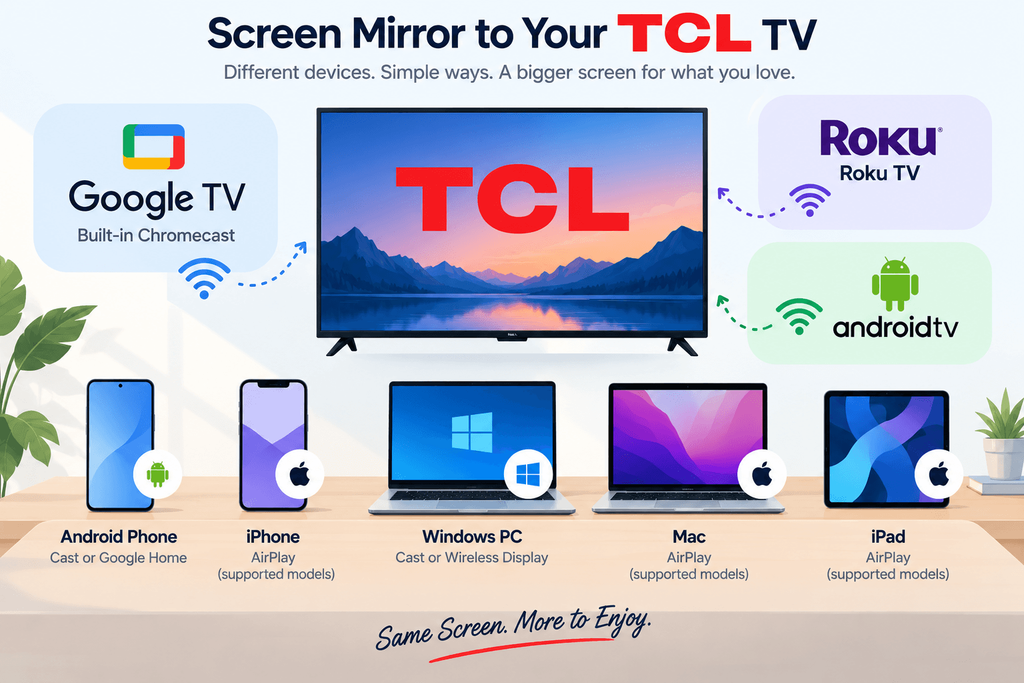
To screen mirror to a TCL TV, first check whether it runs Google TV, Android TV, or Roku TV. Google TV and Android TV generally use Google Cast. Roku supports screen mirroring from compatible Android and Windows devices, while Apple devices use AirPlay on supported models. For a compatible TCL Google TV or Android TV, 1001 TVs provides another way to mirror across devices.
Here’s how to choose the right connection and get your screen onto the TV.
1. Check Which TCL TV You Have
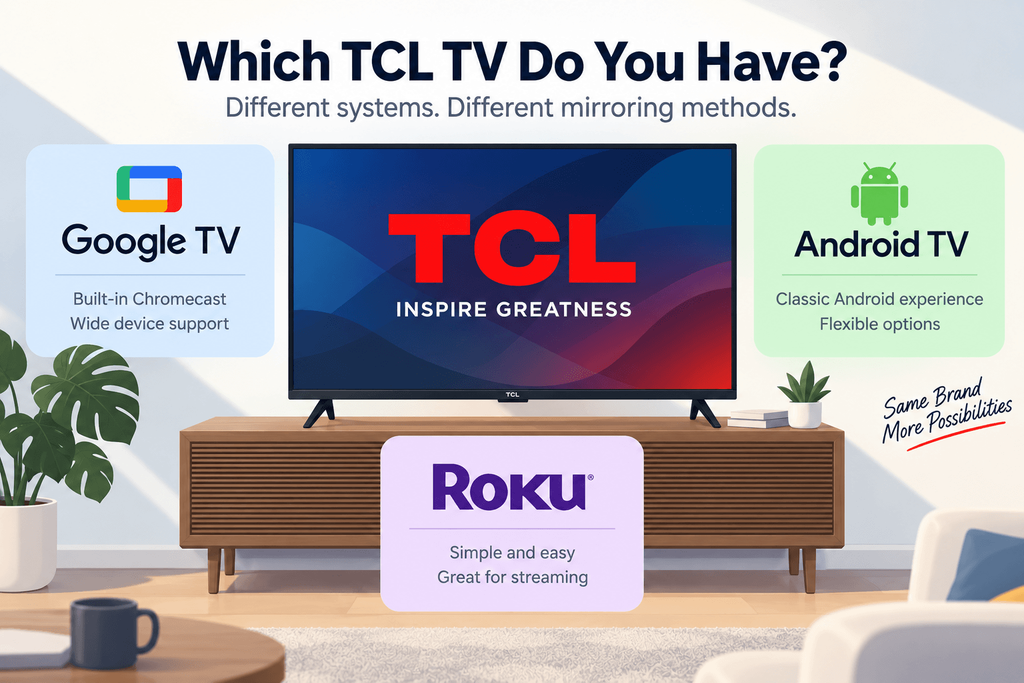
باسما ئۆي on your remote and check the platform name on the home screen or in the TV’s ھەققىدە menu. Depending on the model, About may appear under Settings → System ياكى Settings → Device Preferences. If you are still unsure, check the model number against the TV’s manual.
Use this table to choose your starting point:
| Your device | TCL Google TV / Android TV | TCL Roku TV |
|---|---|---|
| Android phone | Google Home screen casting; 1001 TVs on compatible TVs | Native screen mirroring if the phone supports Miracast |
| iPhone ياكى iPad | AirPlay if the model supports it; otherwise 1001 TVs on compatible TVs | AirPlay on supported models |
| Windows كومپيۇتېرى | Chrome screen casting or 1001 TVs | Windows wireless display if the PC supports Miracast |
| Mac | Chrome screen casting, supported AirPlay, or 1001 TVs | AirPlay on supported models |
Google Cast, Miracast, and AirPlay are different technologies. A TV that appears in a video app’s Cast menu may not appear in your phone’s Screen Mirroring menu. See the official guidance for Google TV casting ۋە Roku screen mirroring.
Casting or mirroring? Casting sends supported content, such as a video, to your TV. Screen mirroring displays your device’s screen as you switch between apps, photos, and documents. Choose mirroring when you want to show what you are doing on your device.
2. Get Your Devices Ready
Before you connect:
- For Google Cast, AirPlay, or 1001 TVs, connect your TV and sending device to the same home network.
- Avoid guest Wi-Fi that prevents devices from communicating with each other.
- Update the TV software and the app you plan to use.
- Keep the TV awake and approve any connection request that appears.
Menu names vary by model and software version. If a setting is missing, check your exact model’s support information before trying instructions for a different TCL platform.
3. Screen Mirror to TCL Google TV or Android TV
From Android: Use Google Home
Connect your Android phone and TV to the same Wi-Fi, open Google Home, select the TV, and use Cast my screen. Follow the sharing prompt to start. Exact button labels depend on your app version.
Follow Google’s existing Android screen casting tutorial for the full connection steps.
If your phone’s own Cast or Smart View button cannot find the TV, try Google Home before assuming the TV is incompatible.
From iPhone or iPad: Check for AirPlay
Some TCL models support AirPlay, but the Google TV or Android TV label alone does not guarantee it.
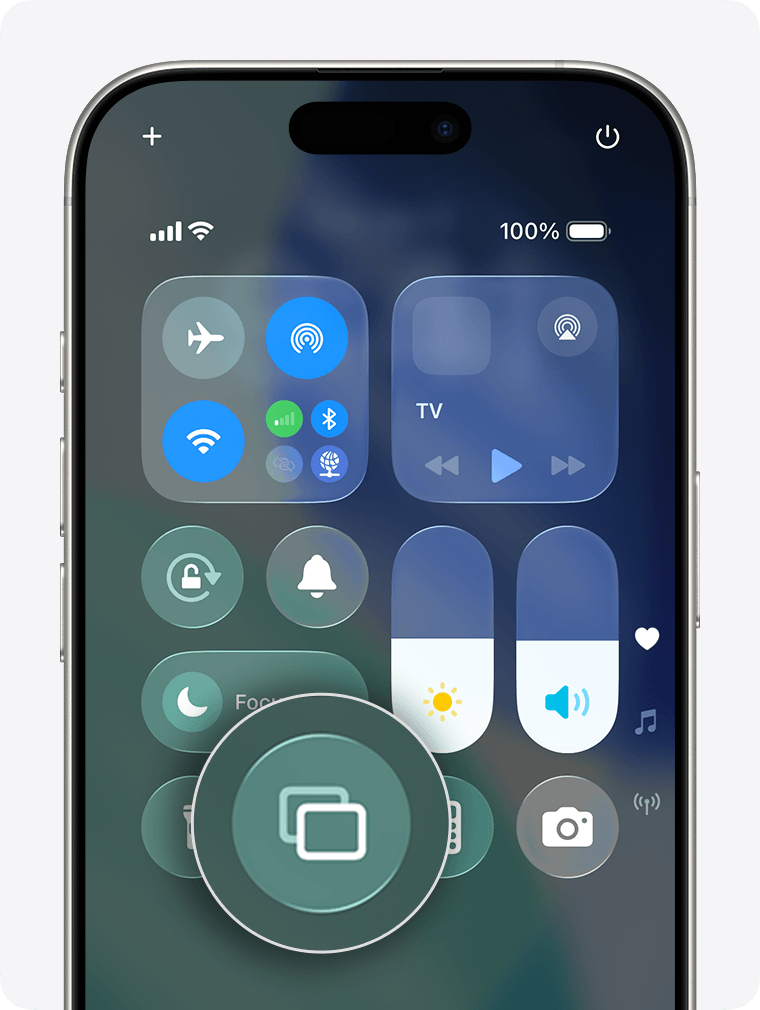
If your exact model supports AirPlay, turn it on in the TV settings. With both devices on the same Wi-Fi, open Control Center → Screen Mirroring on your iPhone or iPad and choose the TV.
Follow Apple’s illustrated screen mirroring tutorial for the connection steps. Check your TV’s manual for AirPlay availability; support varies by model and region.
If AirPlay is unavailable, use 1001 TVs on a compatible TV. An iPhone app’s Google Cast button can send supported content, but it does not provide system-wide iPhone screen mirroring.
From Windows or Mac: Use Chrome
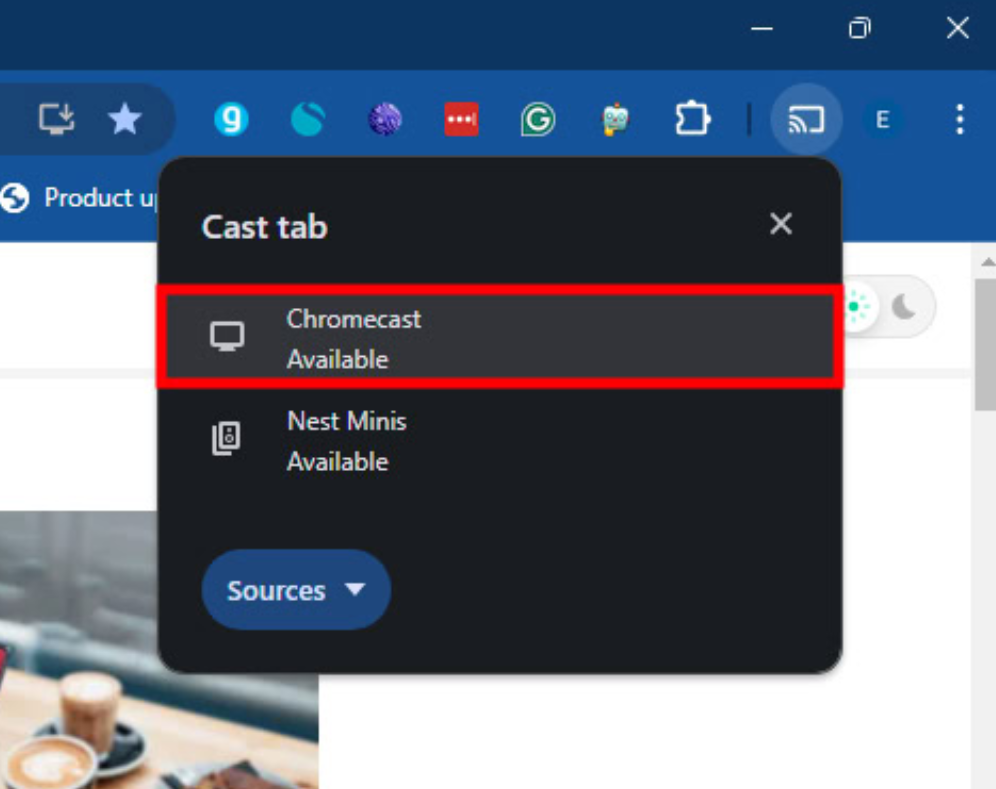
Connect your computer and TV to the same network. In Chrome, open Cast, save, and share → Cast, ، تاللاڭ Sources → Cast screen, and select your TV.
Follow Google’s Chrome casting tutorial for the full steps. Choose Cast tab for a webpage alone; desktop casting may leave audio playing on your computer.
4. Use 1001 TVs on a Compatible TCL Google TV or Android TV
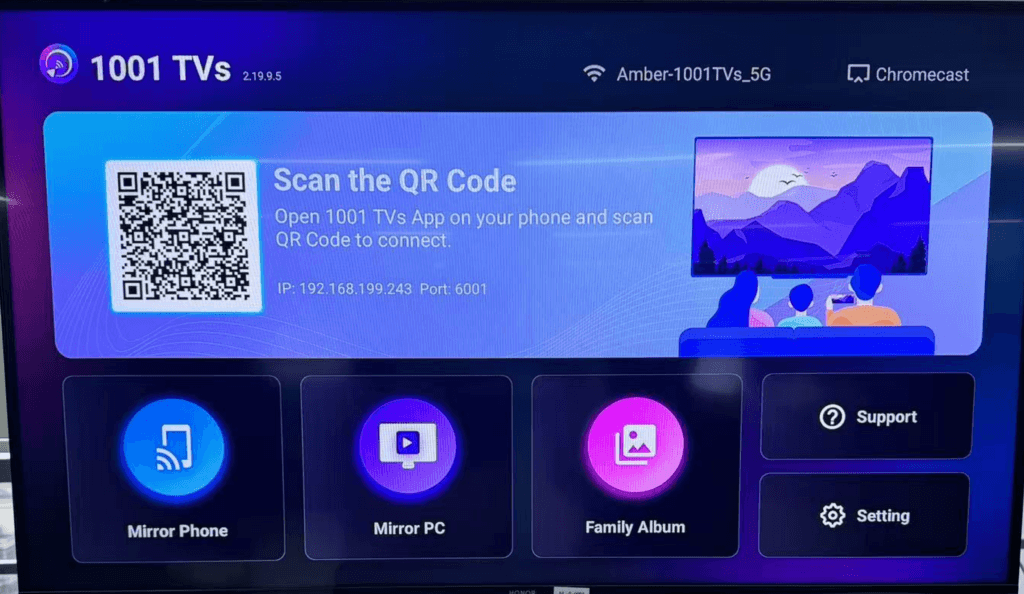
Want to show an iPhone app on a TV without AirPlay, or share a laptop presentation through the same app you use on your phone?
1001 TVs supports mirroring from iPhone, iPad, Android, Windows, and Mac to compatible TCL Android TV and Google TV models. Check that your TV can install and run the receiver app before starting. Compatibility depends on the model, system version, and app availability. See 1001 TVs for Android TV.
Install and open 1001 TVs on your compatible TCL TV and sending device, connect them to the same Wi-Fi, then select the TV in the app to begin sharing.
For the illustrated setup, follow our existing TCL 65S434 screen mirroring tutorial. It shows an Android phone and this TCL Android TV model; screens may differ on other models and app versions. For other sending devices, use the tutorials in our 1001 TVs guidance center.
Using TCL Roku TV? The Android TV receiver instructions above do not apply to Roku OS. Follow the Roku methods below for full-screen mirroring.
5. Screen Mirror to TCL Roku TV
From Android or Windows
On the TV, open Settings → System → Screen mirroring → Screen mirroring mode and choose Prompt.
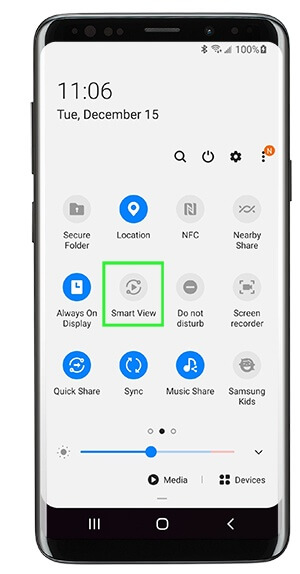
- Android: Open your phone’s wireless display feature, such as ئەقلىي كۆرۈنۈش, select the Roku TV, and approve the TV prompt. Your phone must support Miracast; not every Android phone does.
- Windows: باسما Windows + K, choose your TCL Roku TV, and accept the connection on the TV. Your PC must support Miracast.
A Google Cast-only Android phone cannot use Roku’s native Miracast path. Check your phone manufacturer’s specifications if the TV never appears. Roku’s screen mirroring guide.
From iPhone, iPad, or Mac
On a supported Roku TV, open Settings → Apple AirPlay and HomeKit and enable AirPlay. Connect the Apple device and TV to the same Wi-Fi, then open Control Center → Screen Mirroring and select the TV.
Enter the on-screen code if requested. If AirPlay settings are missing, check the TV model and Roku software version against TCL’s Roku AirPlay setup guide.
6. TCL TV Screen Mirroring Not Working? Try These Fixes
The TV does not appear: Check the connection method against the table above. For Google Cast, AirPlay, and 1001 TVs, confirm both devices are on the same local network. With 1001 TVs, keep the receiver app open on the TV.
Google Cast is missing or disabled: On Google TV, check Settings → Apps → See all apps, including system apps, for Google Cast. Enable it if disabled and restart the TV. Google TV troubleshooting.
The picture freezes or lags: Restart the TV and sending device, reduce other network traffic, and try again. Wireless performance depends on your network and device hardware.
Menus mirror, but a streaming video is black: The service may block screen capture through DRM. Use its supported TV app or playback method. A mirroring app cannot guarantee playback of protected content. 1001 TVs troubleshooting guidance.
Frequently Asked Questions
Can I screen mirror to a TCL TV without AirPlay?
Yes. On compatible TCL Google TV or Android TV models, use Google Home for Android, Chrome for a computer, or 1001 TVs for supported phones and computers. Roku users with compatible Android or Windows devices can use its native mirroring feature.
Why does my TCL TV show up in YouTube but not Screen Mirroring?
App casting and full-screen mirroring can use different connection methods. Seeing the TV inside a video app does not mean it supports the mirroring technology your device is trying to use.
Can I mirror a laptop to TCL TV with HDMI?
Yes, if the laptop has HDMI output or supports video output through a compatible adapter. Connect it to the TV, select that HDMI input, and choose the duplicate or mirror display option on your computer.
Which screen mirroring app should I use for TCL TV?
Start with the option that matches your device and TV system. For a compatible TCL Google TV or Android TV shared by iPhone, Android, Windows, and Mac users, 1001 TVs is a practical option. You can also explore our كومپيۇتېر ئۈچۈن ئەڭ ياخشى ئېكران ئەينىكى ئەپلىرى ۋە PC-to-TV screen sharing guide.
Ready to share your screen? 1001 TVs نى چۈشۈرۈڭ ياكى buy 1001 TVs for Windows/Mac, then bring your photos, apps, and presentations to the bigger screen.

Read More
 How to Cast Photos from Your Phone to a TV
You can cast phone photos to a compatible TV using AirPlay on iPhone, Google Photos with Chromecast, or 1001 TVs Streaming and Albums. The…
How to Cast Photos from Your Phone to a TV
You can cast phone photos to a compatible TV using AirPlay on iPhone, Google Photos with Chromecast, or 1001 TVs Streaming and Albums. The…
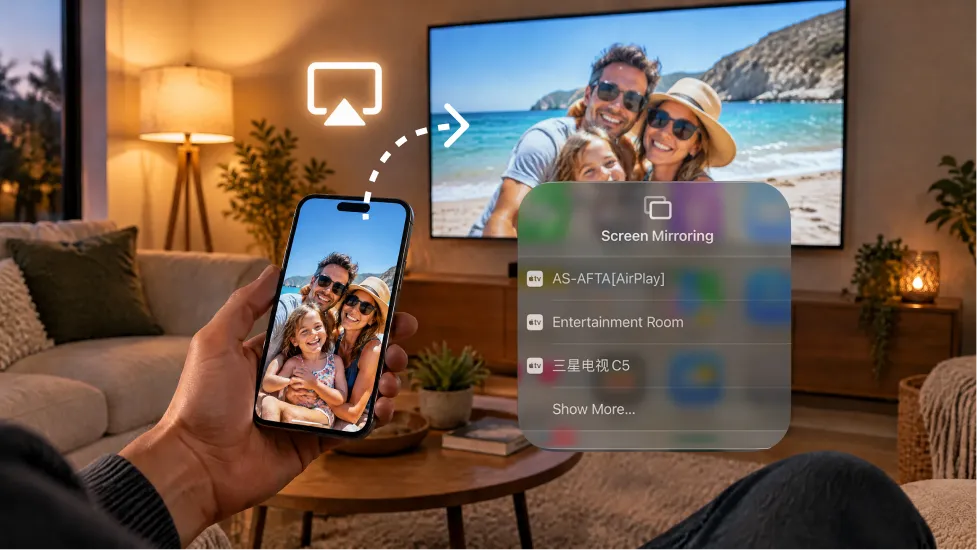 How to Turn On AirPlay on iPhone in iOS 26 (Screen Mirroring Guide)
To turn on AirPlay screen mirroring in iOS 26, open Control Center, tap the Screen Mirroring button (two overlapping rectangles), and choose your TV…
How to Turn On AirPlay on iPhone in iOS 26 (Screen Mirroring Guide)
To turn on AirPlay screen mirroring in iOS 26, open Control Center, tap the Screen Mirroring button (two overlapping rectangles), and choose your TV…

