
Apple TV+ ئارقىلىق Chromecast ئىشلەتسىڭىز بولامدۇ؟ ئەمەلىيەتتە ئۈنۈملۈك بولغان ئەمەلىي ھەل قىلىش چارىلىرى
قىسقا جاۋاب
ئەگەر سىز Apple TV+ نى Chromecast غا قويغىلى بولامدۇ دەپ ئويلاۋاتقان بولسىڭىز، جاۋاب ھەئە ۋە ياق. ئەمەلىيەت مۇنداق: Apple TV+ Chromecast نى قوللىمايدۇ، چۈنكى Apple ئۆزىنىڭ AirPlay تېخنىكىسىنى ئىشلىتىدۇ، Chromecast بولسا Google Cast غا تايىنىدۇ. بۇ ئىككى ئېكولوگىيە سىستېمىسى بىرلا ۋاقىتتا بىللە ئىشلىمەيدۇ.
قانداقلا بولمىسۇن، بۇ بەتنى ھازىرچە تاقىۋەتمەڭ. Chromecast ئۇلانغان تېلېۋىزورىڭىزدا Apple TV+ مەزمۇنلىرىدىن ھۇزۇرلىنىشىڭىزغا ياردەم بېرىدىغان بىر قانچە ئىسپاتلانغان چارە بار. كېلىڭ، ئەمەلىيەتتە ئۈنۈملۈك بولغان ئەمەلىي ھەل قىلىش چارىلىرىنى كۆرۈپ باقايلى.
نېمىشقا Apple TV+ ۋە Chromecast بىرلىكتە ئىشلىمەيدۇ؟
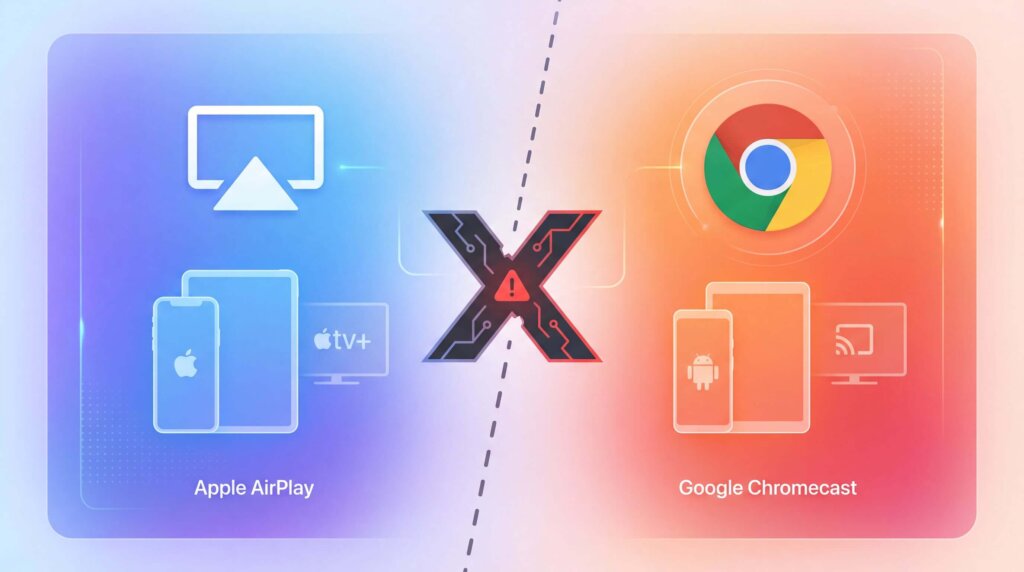
سىزدە Chromecast بار، سىز Apple TV+ نى كۆرمەكچى، ۋە بۇ ئىككىسىنىڭ نېمىشقا بىللە ئىشلىمەيدىغانلىقىنى ئويلاۋاتقان بولۇشىڭىز مۇمكىن. جاۋاب ئۇلارنىڭ تېخنىكىلىرىنىڭ تۈپتىن ئوخشىماسلىقىدا.
ئالما ۋە گوگىل ئۆزلىرىنىڭ تور ئېقىمى سىستېمىلىرىنى پۈتۈنلەي ئوخشىمايدىغان كېلىشىملەر ئاساسىدا قۇرغان. بۇ خۇددى USB-C سىمىنى Lightning ئېغىزىغا ئۇلاشقا ئوخشايدۇ - ئۇلار پەقەت ماس كەلمەيدۇ. بۇ يەردە قىسقىچە چۈشەندۈرۈش بار:
| ئالاھىدىلىك | ئالما AirPlay | Google Chromecast |
|---|---|---|
| تەرەققىياتچى | ئالما | گۇگۇل |
| ماس كېلىدىغان ئۈسكۈنىلەر | iPhone، iPad، Mac، Apple TV | ئاندروئىد ئۈسكۈنىلىرى، Chrome تور كۆرگۈچ، Google ئۈسكۈنىلىرى |
| تېخنىكا | Apple شىركىتىنىڭ خۇسۇسىي كېلىشىمى | Google Cast كېلىشىمى |
| بىلەن ئىشلەيدۇ | ئالما ئېكولوگىيىلىك سىستېمىسى ئاساسلىقى | ئۈچىنچى تەرەپ ئەپلىرىنىڭ كەڭ دائىرىسى |
| ئەپ قوللاش | AirPlay ئىقتىدارىغا ئىگە ئەپلەر بىلەنلا چەكلىنىدۇ | ئەڭ چوڭ ئېقىم مۇلازىمەتلىرى |
شۇڭا سىز iPhone تېلېفونىڭىزدا Apple TV+ نى ئېچىپ، تارقىتىش كۇنۇپكىسىنى ئىزدىسىڭىز، Chromecast تاللانمىسىنى تاپالمايسىز. بۇ خاتالىق ئەمەس - Apple ئۇنى پەقەت AirPlay بىلەن ئىشلەيدىغان قىلىپ لايىھەلىگەن، Google Cast بىلەن ئەمەس.
لېكىن بۇ يەردە ياخشى خەۋەر بار: ئىرادە بولغان يەردە، چارە بار. مەن سىزگە ئەمەلىيەتتە ئۈنۈملۈك بولغان ئۈچ ئۇسۇلنى كۆرسىتىپ بېرەي.
1-ئۇسۇل: ئېكران ئەينىكى ئۈچۈن 1001 TVs ئىشلىتىش
ئەڭ جانلىق ھەل قىلىش چارىسىدىن باشلايلى -- 1001 TVs. بۇ ئەپ Apple TV+ بىلەن Chromecast ئوتتۇرىسىدىكى پەرقنى يوقىتىدۇ، ھەمدە iPhone ۋە Android تېلېفونلىرىنىڭ ھەر ئىككىسىدە ئىشلەيدۇ.
👉1001 TVs نى چۈشۈرۈڭ 👈
1001 TVs نىڭ نېمە ئۈچۈن ئالاھىدە ئىكەنلىكى:
- ئاددىي ئورنىتىش جەريانى
- كۆپ قىسىم Chromecast مودېللىرىغا ماس كېلىدۇ
- تېلېفونىڭىزدىن بىۋاسىتە تارقىتىشقا يول قويىدۇ
- كۈندىلىك كۆرۈش ئۈچۈن يۇقىرى سۈپەتلىك ۋىدېئو بىلەن تەمىنلەيدۇ
ئۇنى قانداق ئىشلىتىش كېرەك:
1. ئەقلىي تېلېفونىڭىز ۋە Chromecast ئۈسكۈنىڭىزگە 1001 TVs ئەپنى چۈشۈرۈڭ
2. ئەپنى ئېچىپ، Chromecast ئۈسكۈنىڭىزگە ئۇلاڭ
3. ئەپ ئارقىلىق ئېكراننى ئەكس ئەتتۈرۈشنى قوزغىتىڭ
4. Apple TV+ ئەپىڭىزنى ئېچىپ، كۆرمەكچى بولغانلىرىڭىزنى تاللاڭ
5. تېلېفونىڭىزنىڭ ئېكرانى تېلېۋىزورغا ئوخشاش بولۇپ، مەزمۇنلىرىڭىزنى چوڭ ئېكراندا كۆرسىتىدۇ
2-ئۇسۇل: Google TV بىلەن Chromecast
ئەگەر سىزدە يېڭى Chromecast ۋە Google TV ياكى Google TV Streamer بولسا، ئەڭ ئاسان ھەل قىلىش چارىسىدىن پايدىلىنىشىڭىز مۇمكىن. سىز Apple TV ئەپنى بىۋاسىتە چۈشۈرۈپ ئۈسكۈنىگە قاچىلىيالايسىز - خۇددى Netflix ياكى YouTube نى قاچىلىغانغا ئوخشاش. بۇ تارقىتىشتىن پەرقلىنىدۇ، چۈنكى ئەپ Chromecast ئۈسكۈنىلىرىڭىزدە ئەسلىدىنلا ئىجرا بولىدۇ.
Google TV ئارقىلىق Chromecast دا Apple TV نى قانداق كۆرۈش كېرەك:
1. Chromecast نى Google TV بىلەن قوزغىتىڭ
2. Google Play دۇكىنىغا كىرىپ، “Apple TV” نى ئىزدەڭ”
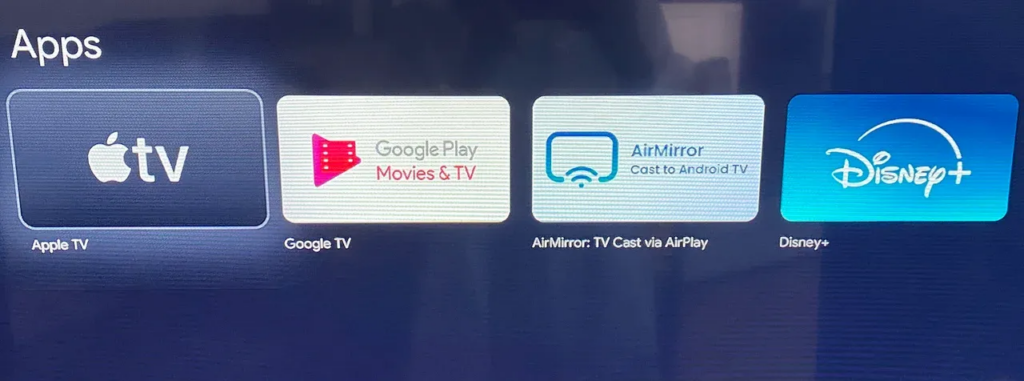
3. رەسمىي ئەپنى چۈشۈرۈپ قاچىلاڭ
4. Apple ID بىلەن كىرىڭ
5. دەرھال تارقىتىشنى باشلاڭ
بۇ سىز ئېرىشەلەيدىغان ئەڭ ياخشى تەجرىبە. ھېچقانداق چارە يوق، ھېچقانداق مۇرەسسە يوق - پەقەت ساپ Apple TV+ تور كۆرگۈسى. سىز سېتىۋالغان بارلىق مەزمۇنلار، Apple ئەسلى نۇسخىلىرى، شەخسىي تەۋسىيەلەر قاتارلىق ھەممە نەرسىگە ئېرىشەلەيسىز.
مۇھىم ئەسكەرتىش: سىزگە بولۇپمۇ Google TV قوشۇلغان Chromecast لازىم. كونا Chromecast قوزغاتقۇچلىرى بۇ ئۇسۇلدا ئىشلىمەيدۇ، چۈنكى ئۇلار ئەپلەرنى ئىجرا قىلمايدۇ، پەقەت تارقىتىلغان مەزمۇنلارنىلا قوبۇل قىلىدۇ.
3-ئۇسۇل: Chrome تور كۆرگۈچتىن تارقىتىش
ئەگەر سىزدە كونا Chromecast بولسا ياكى نۇتۇبۇك ئىشلىتىشنى ياخشى كۆرسىڭىز، Chrome تور كۆرگۈچ ئۇسۇلى ياخشى ئىشلەيدۇ. سىز Apple TV+ ئەپنى تارقىتالمايسىز، ئەمما تور بېكەتنى تارقىتالايسىز.
قەدەممۇ-قەدەم قوللانما:
1. كومپيۇتېرىڭىز بىلەن Chromecast نىڭ ئوخشاش Wi-Fi تورىدا ئىكەنلىكىگە كاپالەتلىك قىلىڭ.
2. كومپيۇتېرىڭىزدا ياكى ئۈستەل يۈزى كومپيۇتېرىڭىزدا Google Chrome نى ئېچىڭ
3. بېرىڭ tv.apple.com
4. Apple ID بىلەن كىرىڭ
5. پروگراممىڭىز ياكى فىلىمىڭىزنى تاللاڭ
6. Chrome نىڭ ئۈستۈنكى ئوڭ بۇلۇڭىدىكى ئۈچ نۇقتىنى چېكىڭ
7. تىزىملىكتىن “تاستىرىش” نى تاللاڭ
8. تىزىملىكتىن Chromecast نى تاللاڭ
9. مەنبە سۈپىتىدە “Cast tab” دەپ يېزىلغانلىقىغا كاپالەتلىك قىلىڭ.
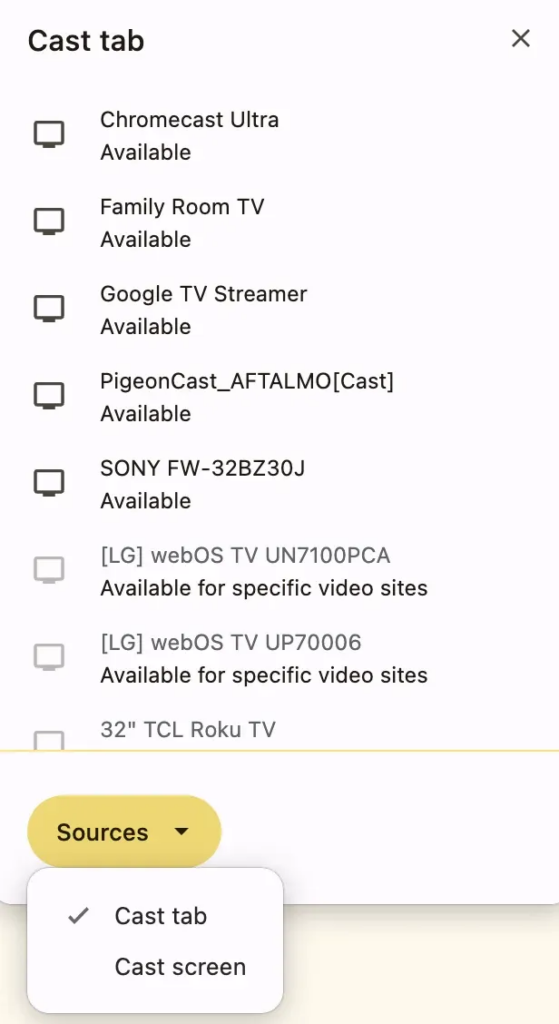
10. ئويناش كۇنۇپكىسىنى بېسىپ ھۇزۇرلىنىڭ
پايدىلىق مەسلىھەت: سىز يەنە سىن قويغۇچنىڭ ئۈستىدە بىۋاسىتە ماۋۇسنىڭ ئوڭ كۇنۇپكىسىنى چېكىپ، ئۇ يەردىن “تاستىرىش” نى تاللىسىڭىزمۇ بولىدۇ. بەزىدە بۇ ئارقىلىق راۋان قويۇشقا بولىدۇ.
كۆرۈۋاتقاندا Chrome نى ئارقا سەھنىدە ئىجرا قىلىڭ. لازىم بولسا، ئۇنى كىچىكلىتەلەيسىز ياكى بەتكۈچلەرنى ئالماشتۇرالايسىز، ئەمما تور كۆرگۈچنى تاقىماڭ.
قايسى ئۇسۇلنى تاللاش كېرەك؟
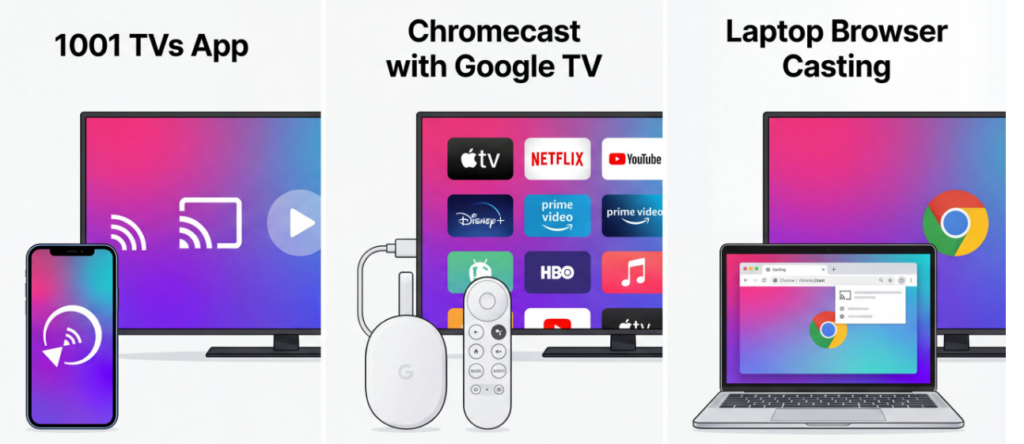
ئەڭ ياخشى تاللىشىڭىز سىزدە بار نەرسىلەرگە ۋە ئۆزىڭىزنى راھەت ھېس قىلىدىغان نەرسىلەرگە باغلىق:
ئەگەر تۆۋەندىكى ئەھۋاللاردا 1001 TVs نى تاللاڭ: سىز تېلېفونىڭىزدىن توردا تارقىتىشنى خالايسىز، شۇڭا ھەر قانداق Chromecast مودېلىغا ماس كېلىدىغان بىر نەرسە كېرەك. بۇ ئەڭ كۆپ ئىقتىدارلىق تاللاش.
ئەگەر تۆۋەندىكى ئەھۋاللار بولسا، Google TV قوشۇلغان Chromecast نى تاللاڭ: سىزدە بۇ يېڭى ئۈسكۈنىلەرنىڭ بىرى بار. ئەپنى ئورنىتىپ قويسىڭىزلا بولىدۇ - بۇ ئەڭ پاكىز ھەل قىلىش چارىسى بولۇپ، ئەڭ ئاز تەڭشەش تەلەپ قىلىنىدۇ.
ئەگەر تۆۋەندىكى ئەھۋاللار بولسا، Chrome تور كۆرگۈچىسىنى تاللاڭ: سىز كومپيۇتېرىڭىزدىن ياكى ئۈستەل يۈزى كومپيۇتېرىڭىزدىن توردا كۆرۈشنى ياخشى كۆرىسىز. بۇ ئۇسۇل كومپيۇتېرىڭىزنى ئىشلىتىۋاتقاندا ياخشى ئۈنۈم بېرىدۇ.
ئاخىرقى ئوي-پىكىرلەر
Apple TV+ بىلەن Chromecast ئۆز-ئۆزىدىن بىللە ئىشلىمىسىمۇ، سىزدە ياخشى تاللاشلار بار. تېلېفوندا تارقىتىش ئۈچۈن 1001 TVs نى تاللىسىڭىزمۇ، Google TV ئارقىلىق Chromecast غا ئەپنى قاچىلىسىڭىزمۇ ياكى Chrome تور كۆرگۈچتىن تارقاتسىڭىزمۇ، Apple TV+ مەزمۇنلىرىڭىزنى تېلېۋىزورىڭىزدا كۆرەلەيسىز.
ئۆزىڭىزگە ماس كېلىدىغان ئۇسۇلنى تاللاپ سىناپ بېقىڭ، شۇنداق قىلسىڭىزلا تېد لاسسو، سېۋېرانس ياكى باشقا قىزىقىشىڭىزنى قوزغىغان نەرسىلەرنى دەرھال كۆرەلەيسىز. بۇ چارە-تەدبىرلەر دەسلەپتە قوشۇمچە قەدەملەردەك تۇيۇلىشى مۇمكىن، ئەمما بىر ياكى ئىككى قېتىم قىلغاندىن كېيىن، ئۇ ئىككىنچى تەبىئەتكە ئايلىنىدۇ.