
Albumy 1001 TVs: Nie tylko zdjęcia - przesyłaj także filmy! Doskonałe wsparcie dla pionowych filmów wideo
Chcesz cieszyć się ulubionymi filmami na dużym ekranie? Z 1001 TVs’ Album na ekran można łatwo przesyłać filmy z telefonu do telewizora i odtwarzać je w dowolnym momencie. Oto przewodnik krok po kroku, jak zacząć.
Co będzie potrzebne
Przed rozpoczęciem upewnij się, że posiadasz:
- Aplikacja 1001 TVs zainstalowana w telefonie (Pobierz tutaj)
- Aplikacja 1001 TVs zainstalowany na telewizorze
- Oba urządzenia podłączone do tej samej sieci Wi-Fi
Przewodnik krok po kroku
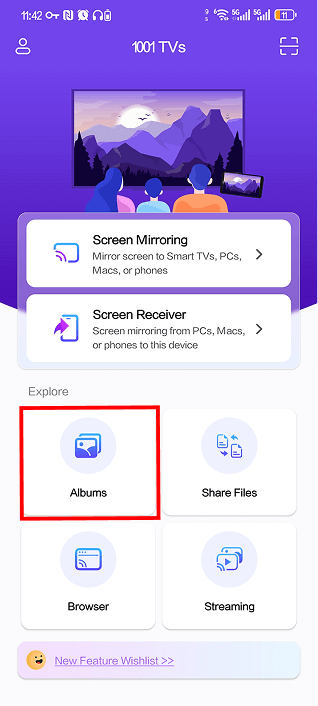
Krok 1: Otwórz albumy w telefonie
Uruchomienie Aplikacja 1001 TVs na telefonie i dotknij 【Albumy】 na ekranie głównym.
Krok 2: Wybór urządzenia TV
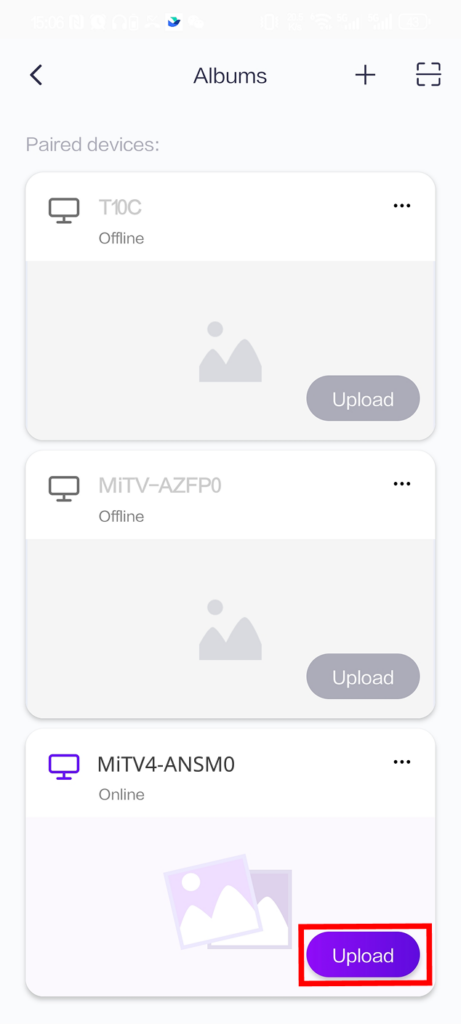
Lista sparowanych urządzeń zostanie wyświetlona w sekcji “Sparowane urządzenia”. Znajdź telewizor i stuknij ikonę 【Upload】 obok niego.
Uwaga: Jeśli telewizor pokazuje “Offline”, upewnij się, że oba urządzenia są w tej samej sieci Wi-Fi i aplikacja TV jest uruchomiona.
Krok 3: Wybierz filmy do przesłania
Wybierz filmy, które chcesz przesłać z galerii telefonu. Można wybrać wiele filmów jednocześnie. Gdy wszystko będzie gotowe, stuknij przycisk 【Upload】 w dolnej części ekranu.
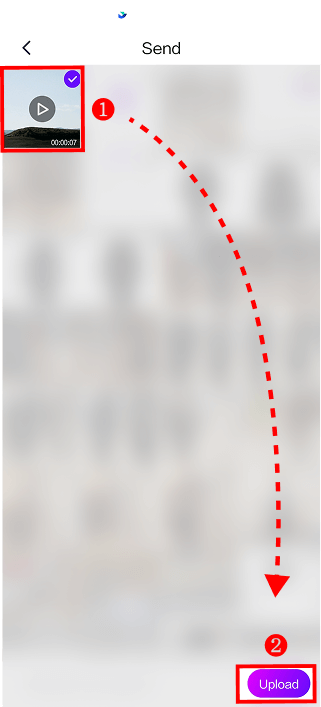
Przesyłanie rozpocznie się automatycznie. W zależności od rozmiaru wideo i szybkości sieci Wi-Fi może to potrwać kilka chwil.
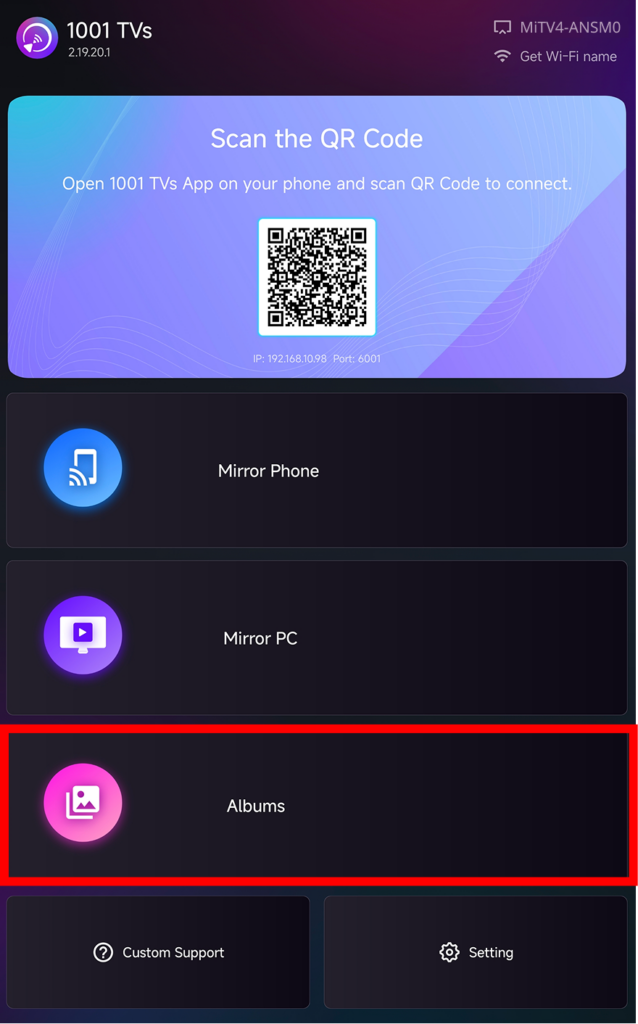
Krok 4: Dostęp do albumów na telewizorze
Na telewizorze otwórz ikonę Aplikacja 1001 TVs i wybierz 【Albumy】 z menu głównego.
Krok 5: Wyświetlanie i odtwarzanie filmów
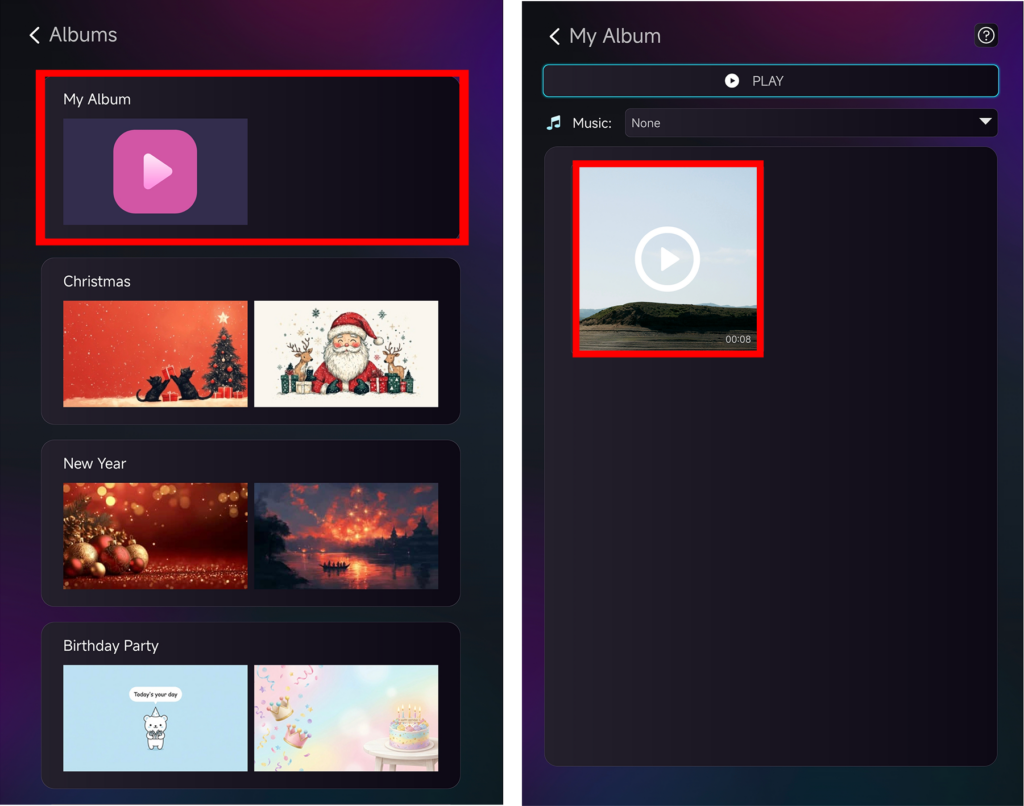
Przesłane filmy będą wyświetlane w 【Mój album】. Można je również podzielić na różne kategorie, takie jak Boże Narodzenie, Nowy Rok lub przyjęcie urodzinowe.
Kliknij dowolny film, aby rozpocząć jego odtwarzanie na ekranie telewizora!
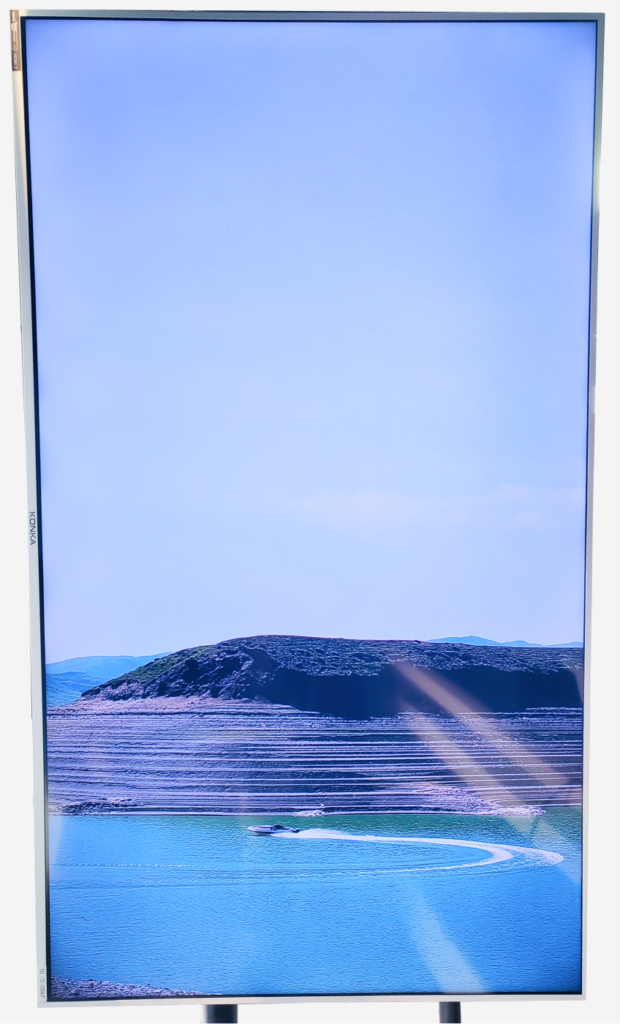
Sprawdź wyniki - wygląda świetnie, prawda!
Dodatkowe przewodniki
📱 Nie wiesz, jak wykonać lustrzane odbicie telefonu w trybie pionowym? Postępuj zgodnie z tym samouczkiem:
👉 Jak wykonać lustrzane odbicie pionowego ekranu na telewizorze
(Proces tworzenia poziomej kopii lustrzanej jest taki sam, jak w powyższym przewodniku).
✂️ Chcesz usunąć czarne paski? Zoptymalizuj swoje wrażenia z oglądania:
👉 Jak usunąć czarne paski podczas dublowania ekranu w pionie?
Rozwiązywanie problemów
Nie widzisz mojego urządzenia TV?
- Upewnij się, że oba urządzenia znajdują się w tej samej sieci Wi-Fi.
- Uruchom ponownie aplikacje telefonu i telewizora.
Przesyłanie nie powiodło się?
- Sprawdź stabilność połączenia Wi-Fi.
- Spróbuj najpierw przesłać mniejsze pliki.
Wideo nie chce się odtworzyć?
- Sprawdź, czy format wideo jest obsługiwany.
Potrzebujesz pomocy?
Jeśli napotkasz jakiekolwiek problemy, skontaktuj się z naszym zespołem pomocy technicznej:
Więcej przewodników: Odwiedź naszą stronę z poradami
E-mail: 1001tvs@nero.com
Strona internetowa: www.1001tvs.com