How to get a better picture quality in Screen Mirroring?
When using screen mirroring, you might find that the image quality isn’t as clear as you expected. This can happen due to network conditions, device settings, or automatic adjustments that focus on stability rather than resolution. To get the best viewing experience, try these steps to improve your screen mirroring quality.
🔄 Keep Everything Updated
Make sure the 1001 TVs app and your device’s system software are updated to the latest versions for optimal compatibility and performance.
📥 Mac Version: Download from App Store
📥 PC Version: Download for Windows
📱 iOS Version: Download from App Store
📱 Android Version: Download from Google Play
🎯 Optimize Image Quality Settings
For the best picture quality on your TV or other display devices, turn off the Auto Image Quality setting on your phone.
Here’s how:
1.Open 1001 TVs app and tap “Mine”.
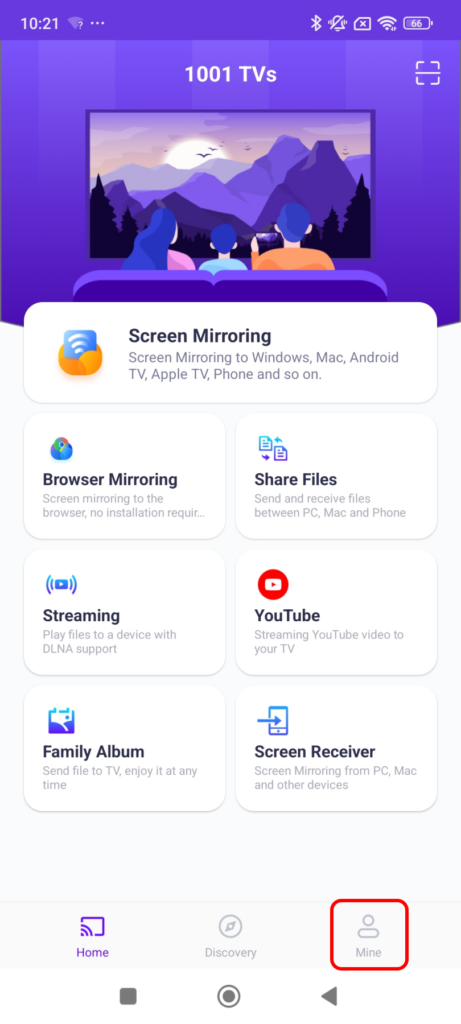
2.Tap “Settings”.
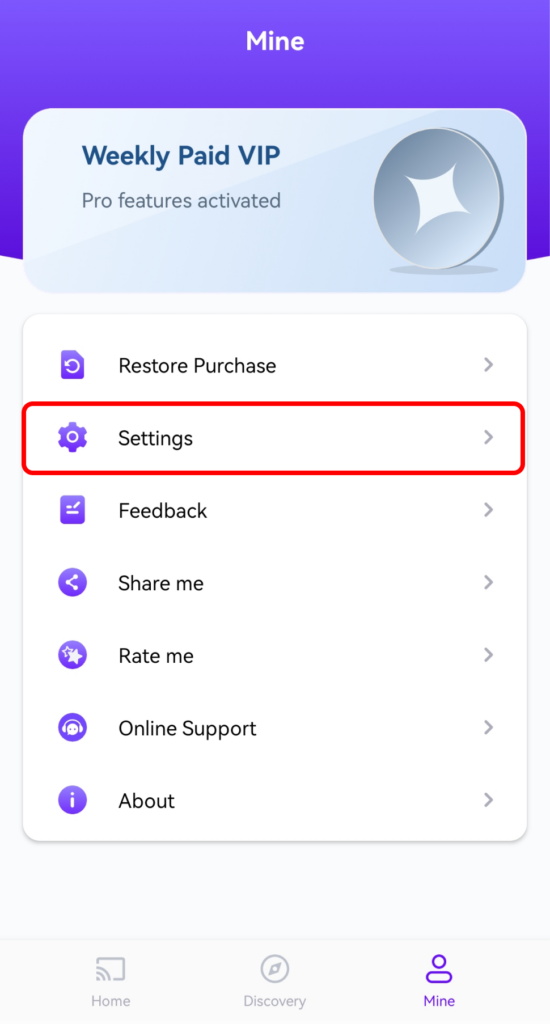
3.Turn off the “Adaptive image quality (Send)” option.
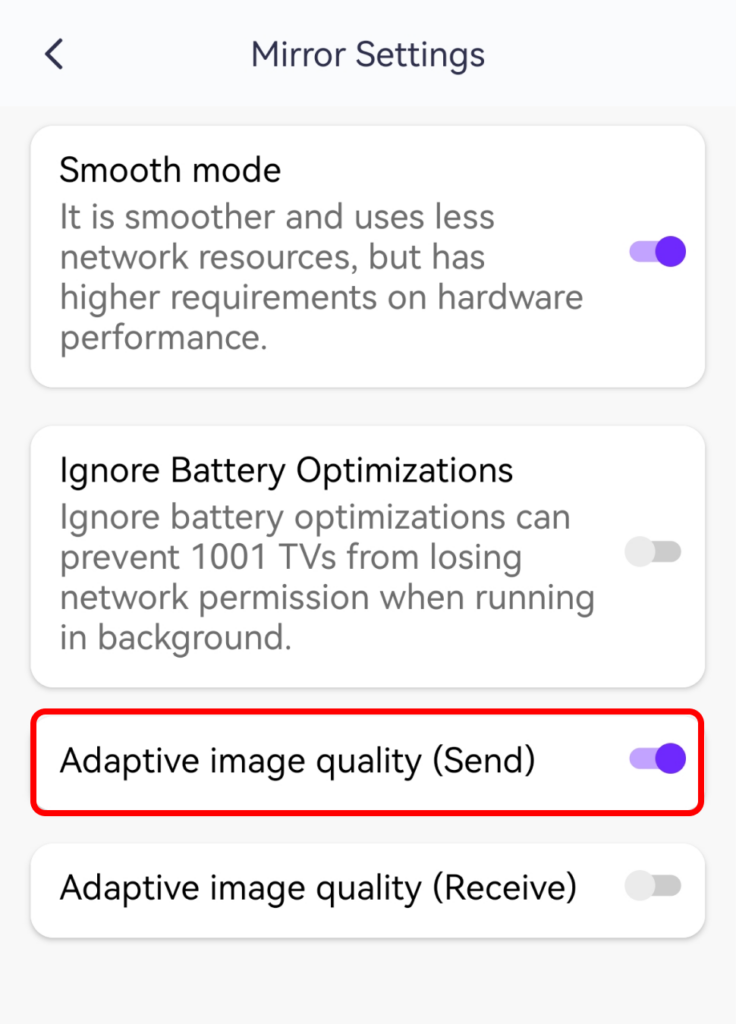
This adjustment allows for higher-quality mirroring, but keep in mind that it may require better network bandwidth, potentially introducing a slight increase in latency. If your network is stable, this setting will significantly enhance your viewing experience.
Enjoy sharper, clearer screen mirroring with 1001 TVs! 🚀

Read More
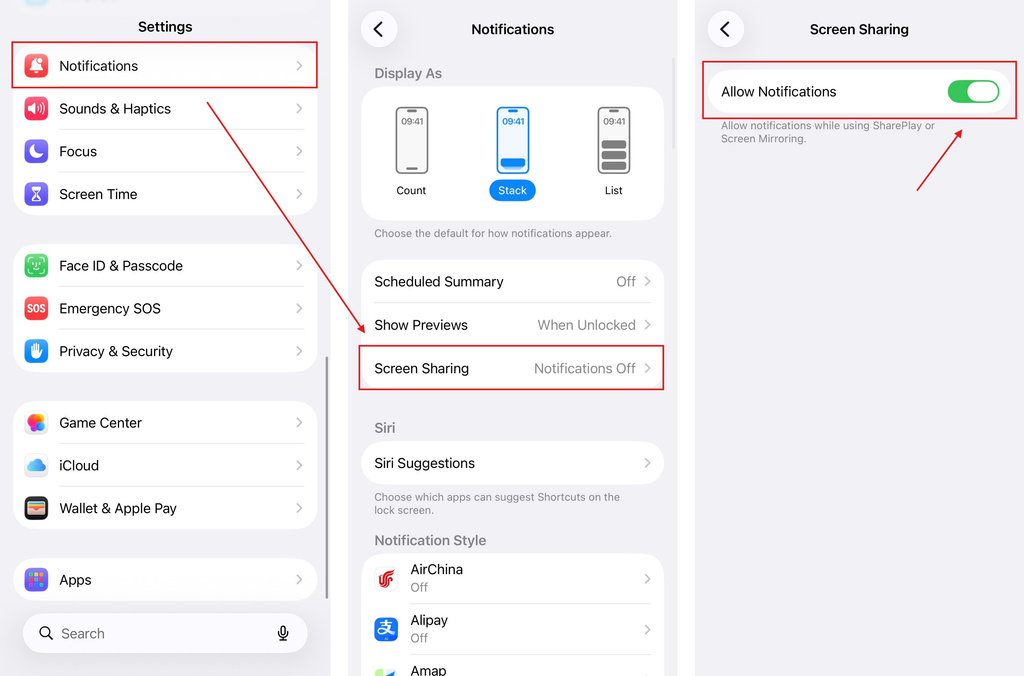 iOS: How to Fix Missing App Notifications During Screen Mirroring
Why Notifications Are Missing When you mirror your iPhone screen, notifications from other apps may not appear on the mirrored screen. This can happen…
iOS: How to Fix Missing App Notifications During Screen Mirroring
Why Notifications Are Missing When you mirror your iPhone screen, notifications from other apps may not appear on the mirrored screen. This can happen…
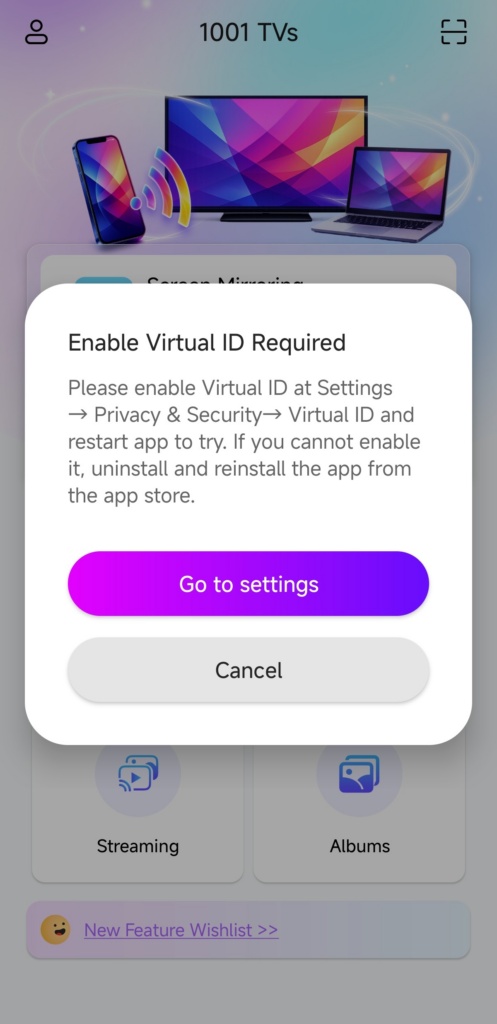 How to Fix the Enable Virtual ID Required Pop-Up
If you're using a Xiaomi or Redmi phone or tablet, you might see a pop-up that says "Enable Virtual ID Required" when you launch…
How to Fix the Enable Virtual ID Required Pop-Up
If you're using a Xiaomi or Redmi phone or tablet, you might see a pop-up that says "Enable Virtual ID Required" when you launch…

