检测到浏览器语言为中文,点此切换到中文页面->
How to Mirror a Screen to Your Mobile Device in 3 Easy Steps
1
Install the 1001 TVs App
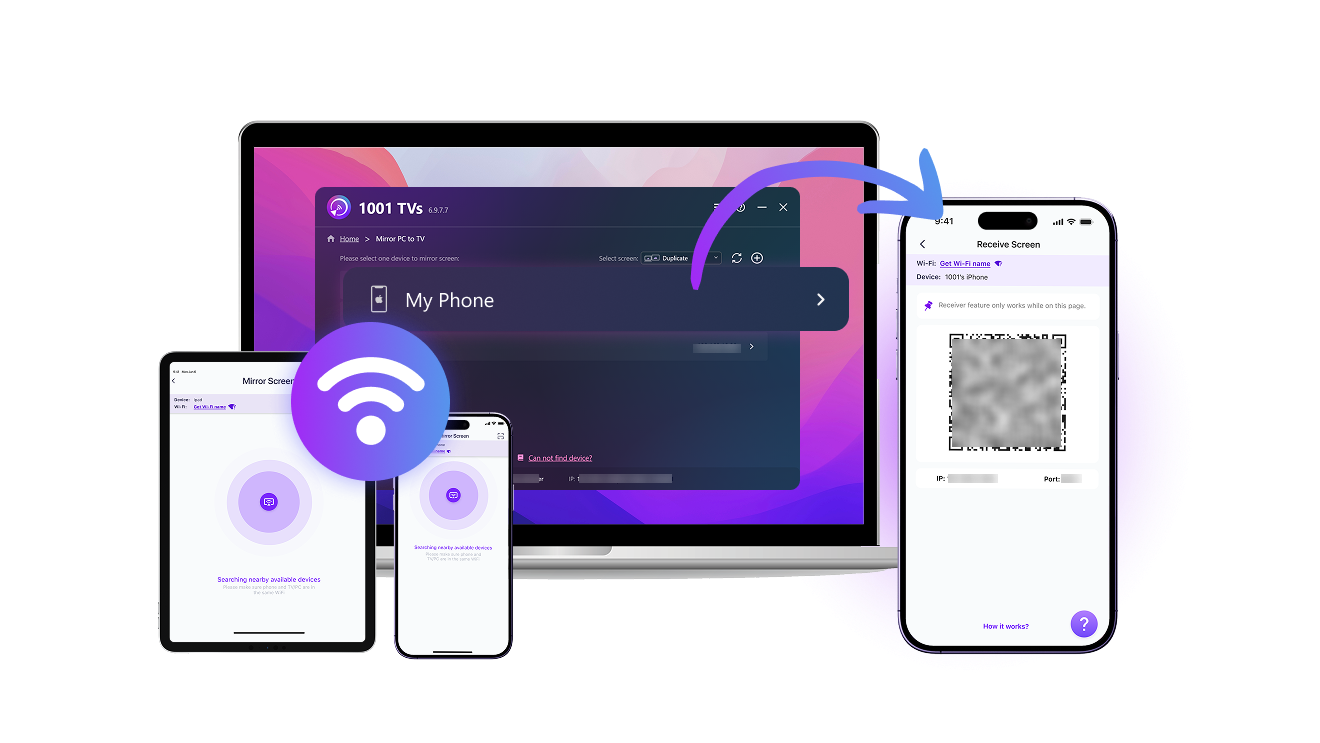
Download and open the app on both the device you want to mirror from and the mobile device you want to mirror to.
2
Open Screen Receiver
Connect both devices to the same Wi-Fi. On your phone or tablet, open the app and stay on Screen Receiver.
3
Start Mirroring
On the sending device, go to Screen Mirroring, find your receiver in the list or scan QRCode to connect, and tap Start to cast the screen to your mobile.
Cross-Device Screen Receiving Made Easy
receive-from-any-device
Receive from Any Device
checkedSupports screen receiving from Windows, macOS, iOS, Android, and more
checkedSimple, wireless connection in just a few taps
use-as-a-second-screen
Turn Your Phone into a Second Screen
checkedReceive screen from PC in Duplicate, Extend, or Selected Window mode
checkedExtend your workspace with what you already own — no extra hardware
no-cables-full-connection
Connect Freely — No Cables, No Limits
checkedA flexible way to connect your devices over Wi-Fi — no cables needed​
checkedEnjoy smooth, high-quality screen and audio sharing on Mac, PC, iOS, or Android​
Use Cases
Productive Work
Smart Parenting
Fun Entertainment
Creative Flow
Be More Productive, Anywhere
Use your iPad, Android tablet, or spare device as a second screen for your Mac or PC — no cables needed.

With 1001 TVs, screen casting is simple — phone to TV, PC to phone, big screen or small, just works.

Turn any screen into a flexible workspace — for drawing, multitasking, or focused full-screen work.
work
Stay Connected, Stay Involved
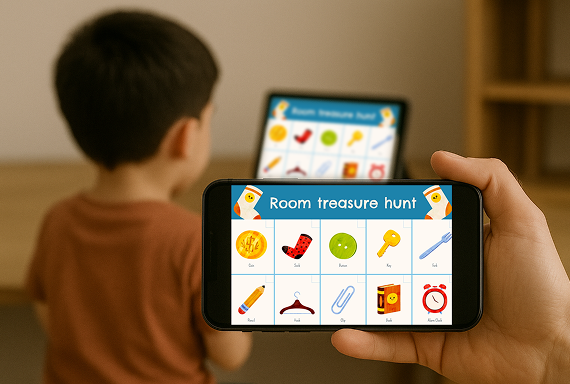
Easily mirror your child’s screen to your own device — ideal for online classes, homework, or everyday learning.

With the 1001 TVs screen mirroring app, you can stay in the loop, offer timely help when needed, and gently guide your child without hovering.

Create a safe, focused learning environment — wherever you are, no cables or complicated setup required.
parenting
Stream with Total Freedom
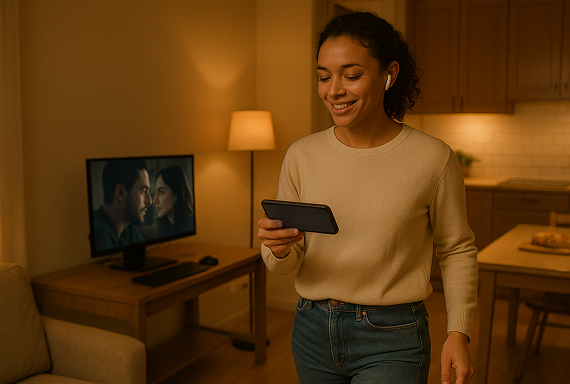
Mirror content from your PC to your phone or tablet for personal viewing — anytime, anywhere.

With the 1001 TVs screen mirroring app, you can enjoy movies privately, follow workout tutorials, or analyze game footage on the go.

Whether you're training, relaxing, or reviewing key moments, cast to any screen you need — no limits, no cables.
entertainment
From Pocket to Production
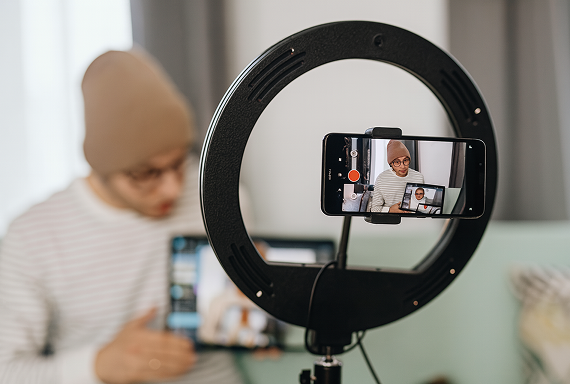
Turn one phone into a camera and mirror it to another screen for real-time preview — perfect for adjusting framing, lighting, or focus without bulky gear.

With the 1001 TVs screen mirroring app, you can monitor your shot, tweak angles, and check details with ease.

From livestreams to spontaneous shoots, it's the flexible tool every mobile creator needs.
content-creation
डाउनलोड करना
अक्सर पूछे जाने वाले प्रश्न
क्या 1001 TVs निःशुल्क है?
1001 TVs offers a 3-day free trial with full access to premium features like HD mirroring, ad-free viewing, and browser casting. After the trial, you can subscribe to continue using them.
क्या स्क्रीन मिररिंग सुरक्षित है?
1001 TVs केवल आपके स्थानीय नेटवर्क के भीतर ही डेटा ट्रांसफर करता है और कभी भी इंटरनेट के माध्यम से नहीं जाता! इसके अलावा, हमारे पास कोई अकाउंट सिस्टम भी नहीं है, इसलिए आपकी कोई भी व्यक्तिगत जानकारी संग्रहीत नहीं होती है!
मैं डिवाइस सूची में अपना टीवी या पीसी क्यों नहीं ढूंढ पा रहा हूं?
  • सुनिश्चित करें कि आपका फ़ोन और कंप्यूटर/टीवी दोनों एक ही वाई-फ़ाई नेटवर्क से जुड़े हों। ज़रूरत पड़ने पर, राउटर को रीस्टार्ट करके देखें।.
  • iPhones के लिए, सुनिश्चित करें कि आपने "लोकल नेटवर्क" और "वायरलेस डेटा" तक पहुँच प्रदान की है। सेटिंग्स → ऐप्स → 1001 TVs तक नीचे स्क्रॉल करें → लोकल नेटवर्क सक्षम करें → वायरलेस डेटा → WLAN और सेलुलर पर जाएँ।.
  • सुनिश्चित करें कि 1001 TVs आपके फोन और प्राप्तकर्ता डिवाइस (कंप्यूटर या टीवी) दोनों पर स्थापित और खुला है।.
  • यदि आपको कोई समस्या आती है, तो 1001 TVs को पुनः आरंभ करें और पुनः प्रयास करें।.
  • होटल या हवाईअड्डे जैसे स्थानों पर सार्वजनिक वाई-फाई नेटवर्क में एपी आइसोलेशन हो सकता है, जो कनेक्शन को अवरुद्ध कर सकता है।.
  • वैकल्पिक रूप से, अपने फोन का हॉटस्पॉट चालू करें और अपने कंप्यूटर या टीवी को उससे कनेक्ट करें, फिर स्क्रीन मिररिंग का प्रयास करें।.
  • यदि यह अभी भी काम नहीं कर रहा है, तो अपने फोन को पुनः आरंभ करें और एक बार फिर प्रयास करें।.
मेरी मिरर्ड स्क्रीन धुंधली क्यों दिखती है?
  • मूल फ़ोन गुणवत्ता बनाए रखने के लिए, प्रेषक डिवाइस पर स्वचालित छवि गुणवत्ता बंद करें। प्रोफ़ाइल → सेटिंग्स → "अनुकूली छवि गुणवत्ता (प्रेषक)" बंद करें पर जाएँ।.
  • अगर आप Xiaomi फ़ोन इस्तेमाल कर रहे हैं, तो समस्या MIUI एंटी-स्कैम प्रोटेक्शन की वजह से हो सकती है। इसे ठीक करने के लिए, सेटिंग्स → सुरक्षा → एंटी-फ्रॉड → स्क्रीन शेयरिंग प्रोटेक्शन → बंद करें पर जाएँ और फिर से कास्टिंग करने की कोशिश करें।.
  • विंडोज़ पर, ऐप सेटिंग में "स्थिर मोड" पर स्विच करें।.
  • If the issue persists and the image is still blurry, it may be due to a poor network connection. Try turning on mobile hotspot, connect your computer/TV to the hotspot, and attempt screen mirroring again.
सदस्यता कैसे रद्द करें?
अपने iOS पर सदस्यता रद्द करें
· सेटिंग्स ऐप खोलें → आपका नाम → सदस्यताएँ → सदस्यता → सदस्यता रद्द करें
Google Play पर सदस्यता रद्द करें
· Google Play स्टोर ऐप खोलें → ऊपर दाईं ओर प्रोफ़ाइल चित्र → भुगतान और सदस्यताएँ → सदस्यताएँ → सदस्यता → सदस्यता रद्द करें → रद्दीकरण की पुष्टि करें
धन वापसी का अनुरोध कैसे करें?
अपने iOS पर धनवापसी का अनुरोध करें
· सदस्यता रद्द करें पहला।.
· सेटिंग्स ऐप खोलें → आपका नाम → मीडिया और खरीदारी → खाता देखें → खरीदारी इतिहास → सदस्यता → समस्या की रिपोर्ट करें → धनवापसी का अनुरोध और कारण चुनें
Google Play पर धनवापसी का अनुरोध करें
· play.google.com पर जाएं। → ऊपर दाईं ओर प्रोफ़ाइल चित्र → भुगतान और सदस्यताएँ → बजट और ऑर्डर इतिहास → समस्या की रिपोर्ट करें → अपनी स्थिति का वर्णन करने वाला विकल्प चुनें → सबमिट करें