Cómo transmitir el Chromebook a la televisión: guía de los 26 partidos del Mundial de la FIFA
Los Chromebooks pueden transmitir contenido a televisores mediante la función Chromecast integrada, adaptadores HDMI o aplicaciones de duplicación de pantalla de terceros como 1001 TVs. Para los partidos de la Copa del Mundo de la FIFA 2026, la función «Cast» integrada ofrece la configuración más rápida, mientras que 1001 TVs proporciona compatibilidad multiplataforma y controles adicionales para la retransmisión en directo de eventos deportivos.
Tanto si estás viendo los partidos de la fase de grupos como la final, conectar tu Chromebook a una pantalla grande mejora la experiencia visual para ti, tu familia y tus amigos. Esta guía explica tres métodos para transmitir la Copa del Mundo de la FIFA 2026 desde tu Chromebook a cualquier televisor, con consejos de optimización y soluciones para problemas técnicos.
Para conocer más opciones de duplicación de pantalla, consulta nuestra guía completa Guía para ver la Copa del Mundo de la FIFA 2026 por televisión mediante la duplicación de pantalla.
Método 1: Uso de Chromecast integrado (función «Cast» de Chrome OS)
La función Cast integrada en Chrome OS es la forma más rápida de transmitir la Copa del Mundo de la FIFA 2026 desde un Chromebook a la televisión. No requiere aplicaciones adicionales, funciona con cualquier dispositivo Chromecast o televisor compatible con Cast, y ofrece una baja latencia ideal para ver deportes en directo. La configuración lleva menos de 2 minutos cuando ambos dispositivos están conectados a la misma red Wi-Fi.
Requisitos
Antes de empezar, asegúrate de que tienes:
- Un dispositivo Chromecast o un televisor compatible con Cast (la mayoría de los televisores inteligentes modernos lo incluyen)
- Tanto el Chromebook como el televisor están conectados a la misma red Wi-Fi
- Chrome OS actualizado (se recomienda la última versión)
- Un servicio de streaming con acceso al Mundial de 2026
Configuración paso a paso
Paso 1: Prepara tus dispositivos
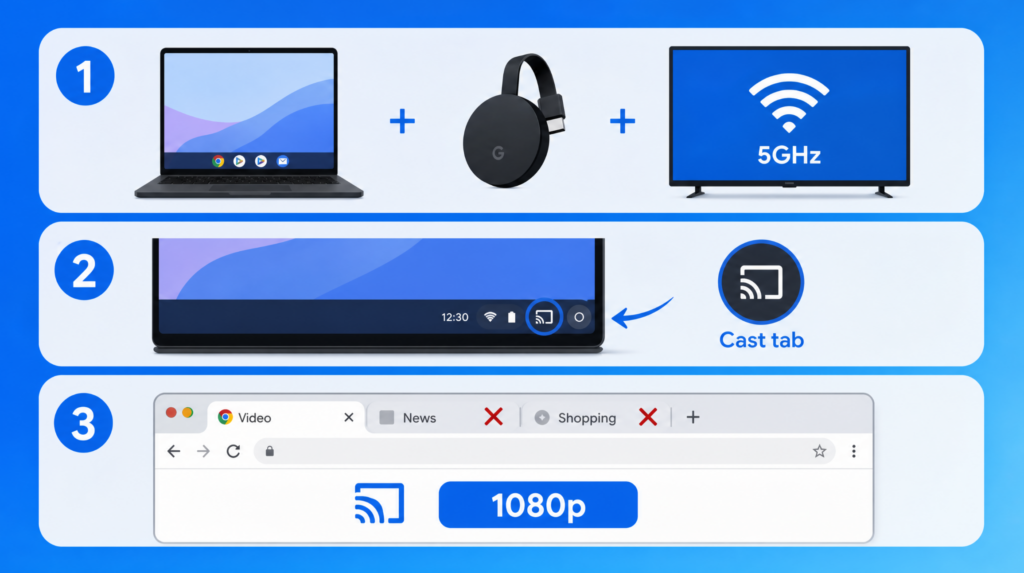
Conecta tu Chromecast al puerto HDMI del televisor y asegúrate de que tanto tu Chromebook como tu Chromecast estén conectados a la misma red Wi-Fi. Para obtener el mejor rendimiento, utiliza una red de 5 GHz si tu router lo admite.
Paso 2: Empezar a lanzar
Haz clic en la bandeja del sistema, situada en la esquina inferior derecha de la pantalla de tu Chromebook, selecciona la opción “Transmitir”, elige tu Chromecast o tu televisor de la lista de dispositivos y selecciona “Transmitir pestaña” (recomendado para eventos deportivos en directo).
Paso 3: Optimizar para eventos deportivos en directo
Ajusta la calidad de vídeo de tu servicio de streaming a 1080p para disfrutar de la mejor imagen. Cierra todas las pestañas innecesarias del navegador para reducir el retraso y liberar recursos del sistema, lo que te permitirá disfrutar de una reproducción fluida.
Cast Tab frente a Cast Desktop
Comprender la diferencia entre estos dos modos de lanzamiento te ayuda a obtener el mejor rendimiento:
| Característica | Pestaña «Reparto» | Escritorio de Cast |
| Latencia | Más bajo (normalmente menos de 1 s) | Más alto (1-2 s) |
| Calidad | Hasta 1080p | Hasta 1080p |
| Uso de la CPU | Inferior | Más alto |
| Flexibilidad | Solo una pestaña | Pantalla completa |
| Lo mejor para | Retransmisiones deportivas en directo | Presentaciones, multitarea |
| Recomendado para el Mundial | ✅ Sí | Solo al cambiar de aplicación |
Para ver la Copa Mundial de la FIFA en streaming, elige siempre el modo “pestaña Cast”. Ofrece una menor latencia, consume menos recursos de la CPU y proporciona una reproducción más fluida para los deportes de acción rápida.
Consejos rápidos para la resolución de problemas
No se ha encontrado el dispositivo: Reinicia tanto el Chromebook como el Chromecast y, a continuación, comprueba que estén conectados a la misma red Wi-Fi. Asegúrate de que tu router no tenga activada ninguna configuración de aislamiento de dispositivos que impida la comunicación entre ellos.
Almacenamiento en búfer: Si es posible, conéctate a una red Wi-Fi de 5 GHz, cierra las demás pestañas del navegador y reduce la calidad del vídeo a 720p si tu conexión a Internet es lenta.
Retardo de audio: Utiliza “Transmitir pestaña” en lugar de “Transmitir escritorio” para conseguir una mejor sincronización de audio y vídeo. El modo de transmisión específico para pestañas supone una menor carga de procesamiento y mantiene una sincronización más precisa.
Método 2: Transmitir la pantalla del Chromebook a la televisión con 1001 TVs
1001 TVs funciona en Chromebooks compatibles con aplicaciones de Android, lo que ofrece una mayor compatibilidad con televisores más allá de Chromecast. Este método funciona con televisores inteligentes de Samsung, LG, Roku, Fire TV y otras marcas.
Pero antes de probar este método, ten en cuenta la siguiente restricción: tu Chromebook debe ser compatible con las aplicaciones de Android de Google Play Store (la mayoría de los modelos a partir de 2019 lo son, pero comprueba tu modelo concreto).
Requisitos
- Chromebook compatible con aplicaciones de Android (compruébalo en Ajustes > Aplicaciones > Google Play Store)
- Televisor inteligente con la aplicación 1001 TVs instalada (Android TV o Apple TV)
- Ambos dispositivos deben estar conectados a la misma red Wi-Fi (se recomienda la banda de 5 GHz)
- Suscripción a 1001 TVs (disponible una prueba gratuita por tiempo limitado)
Instrucciones de configuración
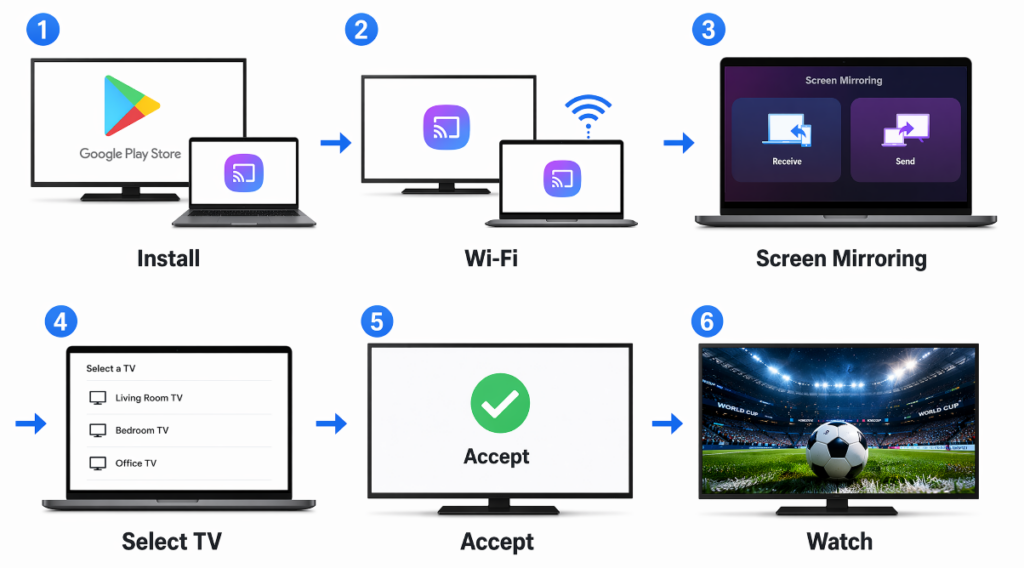
- Instala 1001 TVs en tu televisor y en tu Chromebook
- Asegúrate de que ambos dispositivos estén conectados a la misma red Wi-Fi
- Toca “Screen Mirroring”.”
- Selecciona tu televisor de la lista de dispositivos disponibles
- En tu televisor, pulsa “Aceptar” cuando se te pida que confirmes la conexión.
- Una vez conectado, abre tu servicio de streaming de la Copa del Mundo y empieza a verla
Características principales para ver el Mundial
Transmisión multipantalla: Transmite el mismo partido a varios televisores para poder verlo en diferentes habitaciones, todo ello sincronizado.
Transferencia de archivos: Comparte los calendarios del Mundial, los cuadros de la fase eliminatoria y las estadísticas de los equipos. Muestra las quinielas o la clasificación de las ligas fantásticas durante el descanso.
Resolución de problemas comunes
¿Se puede?‘No encuentro Google Play Store en el Chromebook: No todos los Chromebooks son compatibles con las aplicaciones de Android. Ve a Ajustes > Aplicaciones para comprobar si Google Play Store está disponible. Es posible que los modelos más antiguos de Chromebook no sean compatibles con esta función.
El televisor no aparece en la lista de dispositivos: Reinicia tanto el Chromebook como las aplicaciones de la televisión. Asegúrate de que ambos dispositivos estén conectados a la misma red Wi-Fi y de que el cortafuegos de tu router no esté bloqueando la detección de dispositivos.
La aplicación se cuelga o no se abre: Es posible que la aplicación para Android no sea totalmente compatible con tu modelo de Chromebook. Intenta reiniciar tu Chromebook. Si los problemas persisten, utiliza el método 1 (Chromecast) o el método 3 (HDMI) en su lugar. Mala calidad de vídeo o retrasos: Cambia a una red Wi-Fi de 5 GHz. Cierra las demás aplicaciones de tu Chromebook para liberar recursos. Para partidos importantes, la conexión HDMI (método 3) ofrece la experiencia más fiable.
Método 3: Conexión mediante cable HDMI
La conexión mediante cable HDMI entre el Chromebook y el televisor elimina por completo el retraso del Wi-Fi, lo que la convierte en la opción más fiable para ver en directo los partidos del Mundial de la FIFA 2026. Es ideal para televisores más antiguos sin funciones inteligentes, en entornos con conexión Wi-Fi poco fiable o cuando se necesita una transmisión con latencia cero garantizada.
Lo que necesita
- Adaptador de USB-C a HDMI (para los Chromebooks más recientes con puertos USB-C)
- Cable HDMI (de cualquier longitud, aunque uno de entre 6 y 10 pies ofrece una buena flexibilidad)
- Televisor con un puerto HDMI disponible
- Comprueba el tipo de puerto de tu Chromebook (la mayoría de los Chromebooks modernos utilizan USB-C, pero algunos modelos más antiguos pueden tener micro-HDMI)
Configuración rápida de HDMI
- Conecta el adaptador de USB-C a HDMI a tu Chromebook
- Conecta el cable HDMI al adaptador y al puerto HDMI de tu televisor
- Selecciona en tu televisor la entrada HDMI correcta (normalmente HDMI 1, 2 o 3)
- Ajusta la configuración de pantalla de tu Chromebook: selecciona «Duplicar pantalla», configura la resolución en 1080p y elige «TV» como dispositivo de salida de audio.
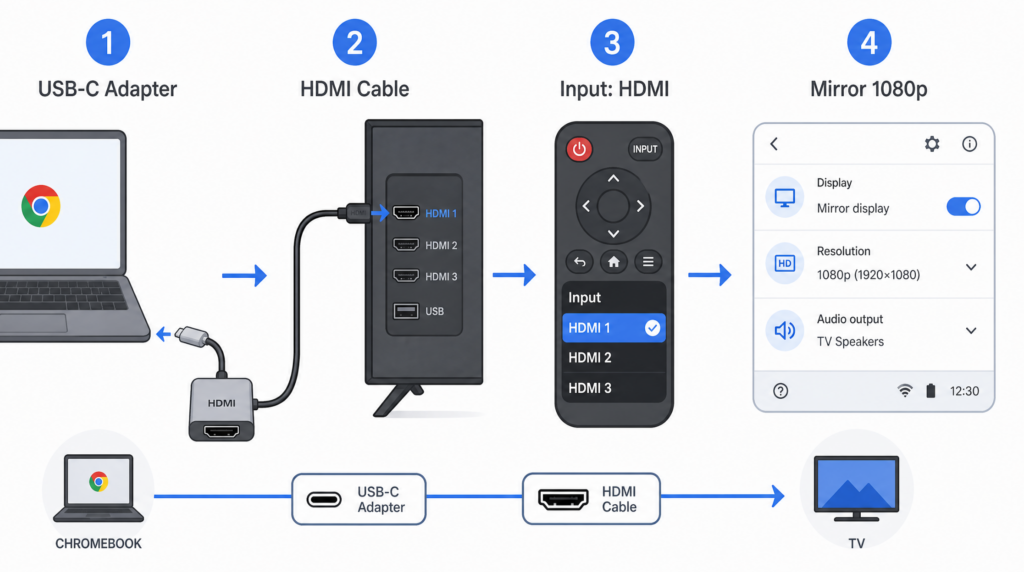
Tu Chromebook debería detectar automáticamente el televisor y ampliar o duplicar la pantalla. Si no es así, pulsa a la vez la tecla para bajar el brillo y la tecla de pantalla completa para abrir los ajustes de pantalla.
HDMI frente a la transmisión inalámbrica
| Aspecto | Cable HDMI | Transmisión inalámbrica |
| Latencia | Retraso cero | 200 ms o más (varía según la red) |
| Configurar | «Plug and play» | Se necesita conexión a Internet |
| Movilidad | Conectado a la televisión | Libre circulación |
| Fiabilidad | 100% estable | Depende de la conexión Wi-Fi |
| Lo mejor para | Partidos decisivos, mala conexión Wi-Fi | Visionado informal |
Para los partidos de la fase eliminatoria, las finales o cualquier partido en el que cada segundo cuente, HDMI ofrece la experiencia más fiable. No te perderás momentos cruciales por problemas de almacenamiento en búfer o de red.
Comparación de métodos y recomendaciones
Comparación rápida
| Método | Tiempo de preparación | Coste | Latencia | Mejor caso de uso |
| Chromecast integrado | Menos de 2 minutos | Gratis | Bajo (normalmente menos de 1 s) | Televisores compatibles con Chromecast/Cast |
| 1001 TVs | Unos minutos | Prueba gratuita por tiempo limitado, seguida de una suscripción | Bajo (inalámbrico >200 ms) | Televisores sin Chromecast, fiestas para ver partidos |
| Cable HDMI | Instantáneo | Adaptador $10-25 | Cero | Mala conexión Wi-Fi, partidos decisivos |
¿Qué método elegir?
Selecciona «Chromecast integrado» si:
- Tienes un dispositivo Chromecast o un televisor compatible con Cast
- ¿Quieres una instalación rápida y gratuita, sin software adicional?
- Estás viendo la tele solo o con tu familia en una misma habitación
Elige 1001 TVs si:
- Tu Chromebook es compatible con aplicaciones de Android (modelos de 2019 en adelante)
- Necesitas la función de transmisión multipantalla para celebrar fiestas de visionado en diferentes habitaciones
- ¿Quieres compartir archivos, como calendarios y cuadros de competición, en la pantalla grande?
Elige un cable HDMI si:
- Tu conexión Wi-Fi es poco fiable o lenta (menos de 10 Mbps)
- Estás viendo un partido decisivo y no puedes permitirte que haya retrasos ni que se cuelgue la transmisión
- Estás en una habitación de hotel o de viaje, donde es posible que el acceso a la red Wi-Fi esté restringido
- Tienes un televisor antiguo sin funciones inteligentes
Consejos de optimización para una transmisión fluida
Rendimiento y configuración de la red
Antes del partido:
- Cierra las pestañas que no necesites y desactiva las extensiones de Chrome para liberar recursos del sistema
- Conéctate a una red Wi-Fi de 5 GHz (no de 2,4 GHz) para obtener el mejor rendimiento y reducir la latencia.
- Coloca tu Chromebook más cerca del router para mejorar la intensidad de la señal
- Actualiza Chrome OS a la última versión para disfrutar de una compatibilidad y un rendimiento óptimos
Requisitos de velocidad de red:
- HD (720p): 5 Mbps como mínimo
- Full HD (1080p): 10 Mbps como mínimo
- Recomendado: más de 15 Mbps para un streaming sin interrupciones, con margen suficiente para las fluctuaciones de la red
Durante el partido:
- Configura la calidad de vídeo en 1080p en tu servicio de streaming para disfrutar de la mejor imagen
- Activa la aceleración por hardware en la configuración de Chrome (chrome://settings/system)
- Mantén tu Chromebook enchufado durante las partidas largas (la transmisión agota la batería rápidamente)
- Reduce el brillo de la pantalla para ahorrar batería si estás viendo algo sin estar enchufado
Consejo profesional: Para evitar cualquier retraso en los momentos críticos, utiliza una conexión por cable HDMI en lugar de la transmisión inalámbrica.
Conclusión
Los Chromebooks ofrecen varias formas fiables de ver la Copa del Mundo de la FIFA 2026 en la televisión: la función Chrome OS Cast integrada para dispositivos Chromecast, 1001 TVs para televisores que no sean compatibles con Chromecast y visualización en varias pantallas, o un cable HDMI para una conexión por cable sin latencia.
Elige la función Cast integrada si buscas simplicidad, 1001 TVs si prefieres flexibilidad y quieres organizar sesiones para ver partidos en grupo, o HDMI si buscas la máxima fiabilidad durante los partidos decisivos.
Preguntas frecuentes: Cómo transmitir desde un Chromebook a la televisión para el Mundial de 2026
¿Puedo transmitir desde un Chromebook a la televisión sin Wi-Fi?
No, la transmisión inalámbrica requiere una conexión Wi-Fi para conectar tu Chromebook al televisor o al dispositivo Chromecast. Sin embargo, puedes utilizar un cable HDMI para conectarte directamente sin necesidad de red. Otra opción es crear un punto de acceso móvil desde tu teléfono para poder transmitir sin necesidad de una conexión Wi-Fi convencional.
¿Por qué se produce un retraso al retransmitir eventos deportivos en directo desde un Chromebook?
La transmisión inalámbrica suele añadir 200 ms o más de latencia debido a la codificación de vídeo, la transmisión por Wi-Fi y la decodificación del televisor. Para minimizar el retraso: utiliza la “pestaña Transmitir” en lugar de “Transmitir escritorio”, conéctate a una red Wi-Fi de 5 GHz (recomendado para obtener el mejor rendimiento), cierra las aplicaciones innecesarias y coloca tu Chromebook cerca del router. Para una latencia nula, utiliza una conexión por cable HDMI.
¿El hecho de transmitir desde un Chromebook agota la batería rápidamente?
Sí, la función de transmisión consume bastante batería, sobre todo al reproducir vídeo en HD. Para los partidos de la Copa del Mundo de la FIFA que duren más de 90 minutos, mantén tu Chromebook enchufado. Si lo tienes desenchufado, reduce el brillo de la pantalla y cierra las aplicaciones que no necesites para alargar la duración de la batería durante el partido.
¿Puedo transmitir desde un Chromebook a varios televisores a la vez?
La función «Cast» integrada en Chrome OS solo admite un televisor a la vez. Para transmitir a varios televisores al mismo tiempo y organizar sesiones de visionado en grupo, utiliza 1001 TVs, que admite la transmisión multipantalla. Esto te permite ver el mismo partido del Mundial en televisores de diferentes habitaciones, de forma sincronizada.
¿Es mejor el HDMI que la transmisión inalámbrica para ver los partidos del Mundial?
El HDMI es mejor por su fiabilidad y su latencia nula, algo importante en las retransmisiones deportivas en directo, donde cada segundo cuenta. También es mejor en entornos con mala conexión Wi-Fi. La transmisión inalámbrica es mejor por su comodidad y movilidad, ya que te permite moverte con libertad y controlar la reproducción desde cualquier lugar de la habitación. Para partidos importantes, se recomienda el HDMI.

Leer más
 Cómo ver la NBA por televisión en EE. UU.
Ver los partidos de la NBA en la televisión en EE. UU. resulta más fácil si tomas dos decisiones en este orden: en primer lugar, comprueba qué servicio autorizado retransmite...
Cómo ver la NBA por televisión en EE. UU.
Ver los partidos de la NBA en la televisión en EE. UU. resulta más fácil si tomas dos decisiones en este orden: en primer lugar, comprueba qué servicio autorizado retransmite...
 Cómo duplicar la pantalla en un televisor Sony Bravia (Google TV)
Un televisor Sony Bravia con Google TV no utiliza un único método universal de “duplicación de pantalla” para todos los teléfonos y ordenadores. La opción adecuada depende tanto de...
Cómo duplicar la pantalla en un televisor Sony Bravia (Google TV)
Un televisor Sony Bravia con Google TV no utiliza un único método universal de “duplicación de pantalla” para todos los teléfonos y ordenadores. La opción adecuada depende tanto de...

