کاسٹ کروم بک کو ٹی وی پر: فیفا ورلڈ کپ 26 میچز گائیڈ
کروم بکس بلٹ ان کروم کاسٹ سپورٹ، HDMI اڈاپٹرز، یا تیسری پارٹی اسکرین مررنگ ایپس جیسے استعمال کرکے ٹی وی پر کاسٹ کر سکتے ہیں۔ 1001 TVs. فیفا ورلڈ کپ 2026 کے میچوں کے لیے، بلٹ ان کاسٹ فیچر تیز ترین سیٹ اپ فراہم کرتا ہے، جبکہ 1001 TVs کراس پلیٹ فارم مطابقت اور لائیو اسپورٹس اسٹریمنگ کے لیے اضافی کنٹرولز فراہم کرتا ہے۔.
چاہے آپ گروپ اسٹیج کے میچ دیکھ رہے ہوں یا فائنل، اپنے کروم بک کو بڑی اسکرین سے جوڑنے سے آپ، آپ کے خاندان اور دوستوں کے لیے دیکھنے کا تجربہ بہتر ہو جاتا ہے۔ یہ گائیڈ آپ کے کروم بک سے کسی بھی ٹی وی پر فیفا ورلڈ کپ 2026 کاسٹ کرنے کے تین طریقے، بہتر کارکردگی کے نکات اور مسائل کے حل پیش کرتی ہے۔.
مزید اسکرین میرورنگ کے اختیارات کے لیے، ہماری مکمل دیکھیں اسکرین میرورنگ کے ذریعے ٹی وی پر فیفا ورلڈ کپ 2026 دیکھنے کی رہنمائی.
طریقہ 1: بلٹ ان کروم کاسٹ (کروم او ایس کاسٹ فیچر) کا استعمال
Chrome OS کی بلٹ ان Cast فیچر Chromebook سے TV پر FIFA ورلڈ کپ 2026 اسٹریم کرنے کا تیز ترین طریقہ ہے۔ اس کے لیے کسی اضافی ایپ کی ضرورت نہیں، یہ کسی بھی Chromecast ڈیوائس یا Cast سے لیس TV کے ساتھ کام کرتی ہے، اور کم لیٹنسی فراہم کرتی ہے جو لائیو کھیلوں کے لیے بہترین ہے۔ جب دونوں ڈیوائسز ایک ہی وائی فائی نیٹ ورک پر ہوں تو سیٹ اپ میں دو منٹ سے بھی کم وقت لگتا ہے۔.
ضروریات
شروع کرنے سے پہلے، یقینی بنائیں کہ آپ کے پاس مندرجہ ذیل موجود ہیں:
- ایک کروم کاسٹ ڈیوائس یا کاسٹ سے لیس ٹی وی (زیادہ تر جدید سمارٹ ٹی ویز میں یہ شامل ہوتا ہے)
- کروم بک اور ٹی وی دونوں ایک ہی وائی فائی نیٹ ورک سے منسلک ہیں۔
- اپ ڈیٹ شدہ کروم او ایس (تازہ ترین ورژن کی سفارش کی جاتی ہے)
- ایک اسٹریمنگ سروس جس میں ورلڈ کپ 2026 تک رسائی شامل ہے۔
مرحلہ وار ترتیب
مرحلہ 1: اپنے آلات تیار کریں
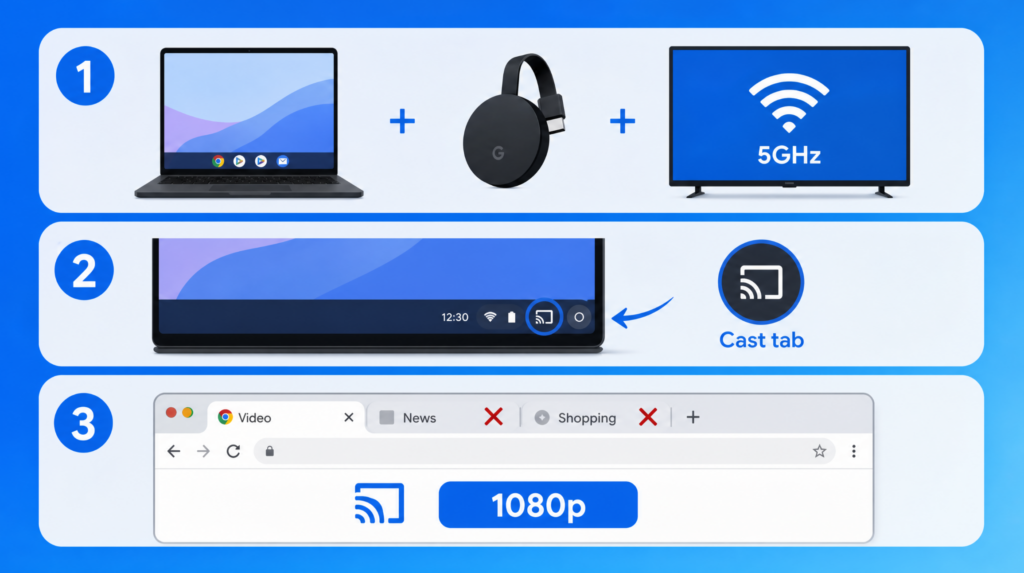
اپنے Chromecast کو ٹی وی کے HDMI پورٹ سے منسلک کریں اور یقینی بنائیں کہ آپ کا Chromebook اور Chromecast دونوں ایک ہی Wi-Fi نیٹ ورک پر ہوں۔ بہترین کارکردگی کے لیے، اگر آپ کا راؤٹر 5GHz نیٹ ورک کو سپورٹ کرتا ہے تو 5GHz نیٹ ورک استعمال کریں۔.
مرحلہ 2: کاسٹنگ شروع کریں
اپنے Chromebook کی اسکرین کے نیچے دائیں کونے میں سسٹم ٹرے پر کلک کریں، “Cast” کے آپشن کو منتخب کریں، ڈیوائسز کی فہرست سے اپنا Chromecast یا ٹی وی منتخب کریں، اور “Cast tab” کو منتخب کریں (لائو کھیلوں کے لیے تجویز کیا جاتا ہے)۔.
مرحلہ 3: لائیو کھیلوں کے لیے بہتر بنائیں
اپنی اسٹریمنگ سروس کی ویڈیو کوالٹی کو بہترین تصویر کے لیے 1080p پر سیٹ کریں۔ لیگ کم کرنے اور ہموار اسٹریمنگ کے لیے سسٹم کے وسائل آزاد کرنے کے لیے غیر ضروری براؤزر ٹیبز بند کریں۔.
کاسٹ ٹیب بمقابلہ کاسٹ ڈیسک ٹاپ
ان دونوں کاسٹنگ موڈز کے درمیان فرق کو سمجھنا آپ کو بہترین کارکردگی حاصل کرنے میں مدد دیتا ہے:
| فیچر | کاسٹ ٹیب | کاسٹ ڈیسک ٹاپ |
| تاخیر | کم (عام طور پر 1 سیکنڈ سے کم) | زیادہ (1-2 سیکنڈ) |
| معیار | 1080p تک | 1080p تک |
| سی پی یو کا استعمال | کم | اعلیٰ |
| لچک | صرف ایک ٹیب | پورے اسکرین |
| کے لیے بہترین | براہِ راست کھیلوں کی نشریات | پیشکشیں، ایک ساتھ متعدد کام کرنا |
| ورلڈ کپ کے لیے تجویز کردہ | ✅ جی ہاں | صرف ایپس کے درمیان سوئچ کرنے پر |
فیفا ورلڈ کپ کی اسٹریمنگ کے لیے ہمیشہ “کاسٹ ٹیب” موڈ منتخب کریں۔ یہ کم لیٹنسی فراہم کرتا ہے، کم سی پی یو طاقت استعمال کرتا ہے، اور تیز رفتار کھیلوں کی ایکشن کے لیے ہموار پلے بیک دیتا ہے۔.
فوری عیب تلاش کے نکات
ڈیوائس نہیں ملااپنا Chromebook اور Chromecast دونوں کو دوبارہ شروع کریں، پھر تصدیق کریں کہ وہ ایک ہی Wi-Fi نیٹ ورک پر ہیں۔ چیک کریں کہ آپ کا روٹر ڈیوائس آئیسولیشن سیٹنگز استعمال نہیں کر رہا جو ڈیوائسز کے درمیان مواصلت کو روکتی ہوں۔.
بفرنگاگر دستیاب ہو تو 5GHz وائی فائی نیٹ ورک پر سوئچ کریں، دوسرے براؤزر ٹیبز بند کریں، اور اگر آپ کا انٹرنیٹ کنکشن سست ہے تو ویڈیو کو 720p پر کم معیار پر سیٹ کریں۔.
آڈیو میں تاخیربہتر آڈیو-ویڈیو ہم آہنگی کے لیے “Cast desktop” کے بجائے “Cast tab” استعمال کریں۔ ٹیب مخصوص کاسٹنگ موڈ پر کم پروسیسنگ اوور ہیڈ ہوتا ہے اور یہ زیادہ مضبوط ہم آہنگی برقرار رکھتا ہے۔.
طریقہ 2: 1001 TVs کے ذریعے کروم بک کو ٹی وی سے کاسٹ کرنا
1001 TVs ان کروم بکس پر کام کر سکتا ہے جو اینڈرائیڈ ایپس کو سپورٹ کرتے ہیں، اور یہ Chromecast سے آگے وسیع تر ٹی وی مطابقت فراہم کرتا ہے۔ یہ طریقہ Samsung، LG، Roku، Fire TV اور دیگر سمارٹ ٹی ویز کے ساتھ کام کرتا ہے۔.
لیکن اس طریقہ کو آزمانے سے پہلے اس پابندی کو سمجھیں: آپ کا کروم بک گوگل پلے اسٹور سے اینڈرائیڈ ایپس کو سپورٹ کرنا چاہیے (زیادہ تر ماڈلز 2019 سے بعد کے ہیں، لیکن اپنے مخصوص ماڈل کی تصدیق کریں)۔.
ضروریات
- کروم بک جس میں اینڈرائیڈ ایپ سپورٹ ہو (سیٹنگز > ایپس > گوگل پلے اسٹور دیکھیں)
- 1001 TVs ایپ انسٹال شدہ سمارٹ ٹی وی (اینڈرائیڈ ٹی وی یا ایپل ٹی وی)
- دونوں آلات ایک ہی وائی فائی نیٹ ورک سے منسلک ہیں (5GHz کی سفارش کی جاتی ہے)
- 1001 TVs سبسکرپشن (محدود مدت کے لیے مفت آزمائش دستیاب)
سیٹ اپ ہدایات
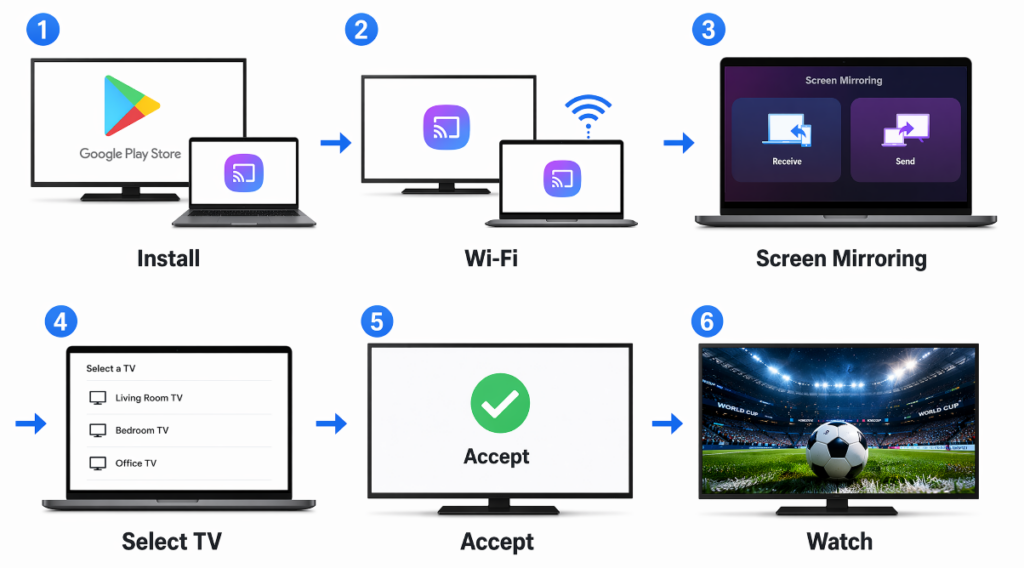
- اپنے ٹی وی اور کروم بک پر 1001 TVs انسٹال کریں۔
- یقینی بنائیں کہ دونوں آلات ایک ہی وائی فائی نیٹ ورک پر ہوں۔
- “اسکرین مررنگ” پر ٹیپ کریں۔”
- دستیاب آلات کی فہرست میں سے اپنا ٹی وی منتخب کریں۔
- اپنے ٹی وی پر، جب کنکشن کی تصدیق کے لیے کہا جائے تو “قبول کریں” پر ٹیپ کریں۔
- ایک بار کنکشن ہو جانے کے بعد اپنی ورلڈ کپ اسٹریمنگ سروس کھولیں اور دیکھنا شروع کریں۔
ورلڈ کپ دیکھنے کی اہم خصوصیات
ملٹی اسکرین کاسٹنگایک ہی میچ کو مختلف کمروں میں ناظرین کے لیے متعدد ٹی وی اسکرینوں پر کاسٹ کریں، سب ہم آہنگ۔.
فائل شیئرنگورلڈ کپ کے شیڈول، ناک آؤٹ مرحلے کے بریکٹس اور ٹیموں کے اعدادوشمار شیئر کریں۔ ہاف ٹائم کے دوران بیٹنگ پولز یا فینٹسی لیگ کی درجہ بندی دکھائیں۔.
عام مسائل کا حل
کیا‘کروم بک پر گوگل پلے اسٹور نہیں مل رہاتمام کروم بکس اینڈرائیڈ ایپس کی حمایت نہیں کرتے۔ سیٹنگز > ایپس پر جائیں تاکہ معلوم ہو سکے کہ گوگل پلے اسٹور دستیاب ہے یا نہیں۔ پرانے کروم بک ماڈلز ممکنہ طور پر اس خصوصیت کی حمایت نہیں کرتے۔.
ڈیوائس کی فہرست میں ٹی وی ظاہر نہیں ہو رہا: کروم بک اور ٹی وی ایپس دونوں کو دوبارہ شروع کریں۔ یقینی بنائیں کہ دونوں ڈیوائسز ایک ہی وائی فائی نیٹ ورک پر ہیں اور آپ کے روٹر کا فائر وال ڈیوائس کی دریافت کو بلاک نہیں کر رہا۔.
ایپ کریش ہو جاتا ہے یا کھل نہیں رہا۔ممکن ہے کہ اینڈرائیڈ ایپ آپ کے کروم بک ماڈل کے ساتھ مکمل طور پر مطابقت نہ رکھتی ہو۔ اپنے کروم بک کو دوبارہ شروع کرنے کی کوشش کریں۔ اگر مسائل برقرار رہیں تو اس کے بجائے طریقۂ کار 1 (کروم کاسٹ) یا طریقۂ کار 3 (HDMI) استعمال کریں۔. ویڈیو کا معیار خراب یا تاخیر: 5GHz وائی فائی نیٹ ورک پر سوئچ کریں۔ اپنے کروم بک پر دیگر ایپس بند کریں تاکہ وسائل آزاد ہوں۔ اہم میچوں کے لیے HDMI کنکشن (طریقہ 3) سب سے زیادہ قابلِ اعتماد تجربہ فراہم کرتا ہے۔.
طریقہ 3: HDMI کیبل کنکشن
کروم بک سے ٹی وی تک HDMI کیبل کے ذریعے کنکشن بنانے سے وائی فائی کی تاخیر مکمل طور پر ختم ہو جاتی ہے، جو اسے لائیو فیفا ورلڈ کپ 2026 کے میچز کے لیے سب سے قابلِ اعتماد آپشن بناتا ہے۔ یہ ان پرانے ٹی وی کے لیے بہترین ہے جن میں سمارٹ فیچرز نہیں ہیں، غیر مستحکم وائی فائی ماحول میں، یا جب آپ کو بغیر کسی تاخیر کے اسٹریمنگ کی ضمانت چاہیے۔.
آپ کو کیا ضرورت ہے
- USB-C سے HDMI اڈاپٹر (USB-C پورٹس والے نئے کروم بکس کے لیے)
- HDMI کیبل (کسی بھی لمبائی کی، اگرچہ 6 سے 10 فٹ لمبی کافی لچک فراہم کرتی ہے)
- ایک دستیاب HDMI پورٹ کے ساتھ ٹی وی
- اپنے کروم بک کے پورٹ کی قسم چیک کریں (زیادہ تر جدید کروم بک USB-C استعمال کرتے ہیں، لیکن کچھ پرانے ماڈلز میں مائیکرو-HDMI ہو سکتا ہے)
تیز HDMI سیٹ اپ
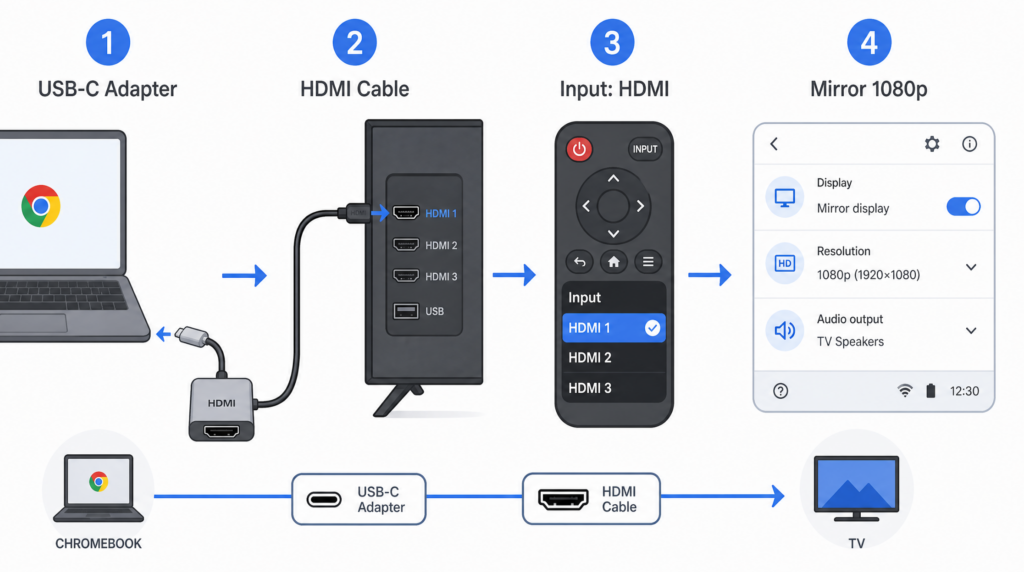
- اپنے کروم بک سے USB-C سے HDMI اڈاپٹر کو منسلک کریں۔
- HDMI کیبل کو اڈاپٹر اور اپنے ٹی وی کے HDMI پورٹ میں لگائیں۔
- اپنے ٹی وی کا ان پٹ درست HDMI ماخذ (عموماً HDMI 1، 2، یا 3) پر تبدیل کریں۔
- اپنے کروم بک پر ڈسپلے کی ترتیبات ایڈجسٹ کریں: Mirror display منتخب کریں، ریزولوشن کو 1080p پر سیٹ کریں، اور آڈیو آؤٹ پٹ ڈیوائس کے طور پر TV منتخب کریں۔
آپ کا کروم بک خود بخود ٹی وی کو پہچان لے گا اور ڈسپلے کو توسیع یا آئینہ کرے گا۔ اگر ایسا نہ ہو تو روشنی کم کرنے والی کلید اور فل اسکرین کلید کو ایک ساتھ دبائیں تاکہ ڈسپلے سیٹنگز کھل جائیں۔.
HDMI بمقابلہ وائرلیس کاسٹنگ
| پہلو | ایچ ڈی ایم آئی کیبل | وائرلیس کاسٹنگ |
| تاخیر | صفر تاخیر | 200 ملی سیکنڈ سے زیادہ (نیٹ ورک کے مطابق مختلف) |
| سیٹ اپ | پلگ اینڈ پلے | نیٹ ورک درکار ہے |
| تحرک | ٹی وی سے جڑا ہوا | آزاد نقل و حرکت |
| اعتمادیت | 100% مستحکم | وائی فائی پر منحصر ہے |
| کے لیے بہترین | اہم میچز، خراب وائی فائی | عام دیکھنا |
ناک آؤٹ مرحلے کے میچوں، فائنلز یا کسی بھی ایسے کھیل کے لیے جہاں ہر لمحہ اہم ہو، HDMI سب سے قابلِ اعتماد تجربہ فراہم کرتا ہے۔ آپ بفرنگ یا نیٹ ورک کے مسائل کی وجہ سے اہم لمحات سے محروم نہیں ہوں گے۔.
طریقوں کا موازنہ اور سفارشات
فوری موازنہ
| طریقہ | سیٹ اپ کا وقت | لاگت | تاخیر | بہترین استعمال کا معاملہ |
| بلٹ ان کروم کاسٹ | دو منٹ سے کم | مفت | کم (عموماً 1 سیکنڈ سے کم) | کروم کاسٹ/کاسٹ سے لیس ٹی وی |
| 1001 TVs | چند منٹ | محدود وقتی مفت آزمائش، پھر سبسکرپشن | کم (وائرلیس >200ms) | غیر کروم کاسٹ ٹی ویز، دیکھنے والی پارٹیاں |
| ایچ ڈی ایم آئی کیبل | فوری | $10-25 اڈاپٹر | صفر | خراب وائی فائی، اہم میچز |
آپ کو کون سا طریقہ منتخب کرنا چاہئے؟
اگر تو بلٹ ان کروم کاسٹ منتخب کریں:
- آپ کے پاس کروم کاسٹ ڈیوائس یا کاسٹ سے لیس ٹی وی ہے۔
- آپ بغیر کسی اضافی سافٹ ویئر کے سب سے تیز اور مفت سیٹ اپ چاہتے ہیں۔
- آپ ایک ہی کمرے میں اکیلے یا خاندان کے ساتھ دیکھ رہے ہیں۔
اگر تو 1001 TVs منتخب کریں۔:
- آپ کا کروم بک اینڈرائیڈ ایپس کو سپورٹ کرتا ہے (2019 اور اس کے بعد کے ماڈلز)
- آپ کو مختلف کمروں میں دیکھنے والی پارٹیوں کے لیے ملٹی اسکرین کاسٹنگ کی ضرورت ہے۔
- آپ شیڈولز اور بریکٹس جیسی فائلیں بڑی اسکرین پر شیئر کرنا چاہتے ہیں۔
اگر تو ایچ ڈی ایم آئی کیبل منتخب کریں:
- آپ کا وائی فائی غیر مستحکم یا سست ہے (10 میگابٹ فی سیکنڈ سے کم)
- آپ ایک اہم میچ دیکھ رہے ہیں اور لیگ یا بفرنگ کا خطرہ مول نہیں لے سکتے۔
- آپ ہوٹل کے کمرے میں ہیں یا سفر کر رہے ہیں جہاں وائی فائی محدود ہو سکتا ہے۔
- آپ کے پاس سمارٹ خصوصیات کے بغیر ایک پرانی ٹی وی ہے۔
ہموار اسٹریمنگ کے لیے اصلاحی نکات
کارکردگی اور نیٹ ورک سیٹ اپ
میچ سے پہلے:
- سسٹم کے وسائل آزاد کرنے کے لیے غیر ضروری ٹیبز بند کریں اور کروم ایکسٹینشنز کو غیر فعال کریں۔
- بہترین کارکردگی اور کم تاخیر کے لیے 5GHz وائی فائی (2.4GHz نہیں) سے جڑیں۔
- سگنل کی طاقت بہتر کرنے کے لیے اپنا کروم بک روٹر کے قریب رکھیں۔
- بہترین مطابقت اور کارکردگی کے لیے کروم او ایس کو تازہ ترین ورژن میں اپ ڈیٹ کریں۔
نیٹ ورک کی رفتار کی ضروریات:
- ایچ ڈی (720p): کم از کم 5 میگا بٹ پر سیکنڈ
- فل ایچ ڈی (1080p): کم از کم 10 میگا بٹ پر سیکنڈ
- تجویز کردہ: بغیر بفر کے اسٹریمنگ کے لیے 15+ Mbps، نیٹ ورک میں اتار چڑھاؤ کے لیے اضافی گنجائش کے ساتھ۔
میچ کے دوران:
- بہترین تصویر کے لیے اپنی اسٹریمنگ سروس میں ویڈیو کوالٹی کو 1080p پر سیٹ کریں۔
- کروم کی ترتیبات میں ہارڈویئر تیز کاری کو فعال کریں (chrome://settings/system)
- لمبی میچز کے دوران اپنا کروم بک چارج پر لگا رکھیں (کاسٹنگ بیٹری کو تیزی سے ختم کر دیتی ہے)
- اگر آپ بغیر پلگ کے دیکھ رہے ہیں تو بیٹری بچانے کے لیے اسکرین کی روشنی کم کریں۔
ماہر کی ٹپاہم لمحات کے دوران صفر تاخیر کے لیے وائرلیس کاسٹنگ کے بجائے HDMI کیبل کنکشن استعمال کریں۔.
نتیجہ
کروم بکس ٹی وی پر فیفا ورلڈ کپ 2026 دیکھنے کے لیے متعدد قابلِ اعتماد طریقے پیش کرتے ہیں: کروم کاسٹ ڈیوائسز کے لیے بلٹ ان کروم او ایس کاسٹ، غیر کروم کاسٹ ٹی ویز اور ملٹی اسکرین ویوئنگ کے لیے 1001 TVs، یا بغیر تاخیر کے وائرڈ کنکشن کے لیے HDMI کیبل۔.
سادہ استعمال کے لیے بلٹ ان کاسٹ، لچک اور وِیوئنگ پارٹیز کے لیے 1001 TVs، یا اہم میچز کے دوران زیادہ سے زیادہ قابلِ اعتماد کارکردگی کے لیے HDMI منتخب کریں۔.
اکثر پوچھے جانے والے سوالات: ورلڈ کپ 2026 کے لیے کروم بک سے ٹی وی پر کاسٹنگ
کیا میں بغیر وائی فائی کے کروم بک سے ٹی وی پر کاسٹ کر سکتا ہوں؟
نہیں، وائرلیس کاسٹنگ کے لیے آپ کو اپنے کروم بک کو ٹی وی یا کروم کاسٹ ڈیوائس سے منسلک کرنے کے لیے وائی فائی کی ضرورت ہوتی ہے۔ تاہم، آپ بغیر کسی نیٹ ورک کے براہ راست کنکشن کے لیے HDMI کیبل استعمال کر سکتے ہیں۔ متبادل طور پر، روایتی وائی فائی کے بغیر کاسٹنگ ممکن بنانے کے لیے اپنے فون سے موبائل ہاٹ سپاٹ بنائیں۔.
کروم بک سے لائیو کھیل نشر کرنے میں تاخیر کیوں ہوتی ہے؟
وائرلیس کاسٹنگ عام طور پر ویڈیو انکوڈنگ، وائی فائی ٹرانسمیشن، اور ٹی وی ڈی کوڈنگ کی وجہ سے 200 ملی سیکنڈ یا اس سے زیادہ تاخیر کا باعث بنتی ہے۔ تاخیر کم کرنے کے لیے: “Cast desktop” کے بجائے “Cast tab” استعمال کریں، 5GHz وائی فائی سے کنکٹ کریں (بہترین کارکردگی کے لیے تجویز کیا جاتا ہے)، غیر ضروری ایپس بند کریں، اور اپنا کروم بک روٹر کے قریب رکھیں۔ صفر تاخیر کے لیے HDMI کیبل کنکشن استعمال کریں۔.
کیا کروم بک سے کاسٹ کرنے سے بیٹری تیزی سے ختم ہوتی ہے؟
جی ہاں، کاسٹنگ خاص طور پر ایچ ڈی ویڈیو اسٹریمنگ کے دوران بیٹری کی کافی طاقت استعمال کرتی ہے۔ فیفا ورلڈ کپ کے 90 منٹ سے زیادہ طویل میچز کے دوران اپنا کروم بک پلگ ان رکھیں۔ اگر پلگ ان نہ ہو تو میچ کے دوران بیٹری کی عمر بڑھانے کے لیے اسکرین کی روشنی کم کریں اور غیر ضروری ایپس بند کردیں۔.
کیا میں ایک ہی وقت میں کروم بک سے متعدد ٹی ویوں پر کاسٹ کر سکتا ہوں؟
Chrome OS کی بلٹ ان کاسٹ فیچر ایک وقت میں صرف ایک ٹی وی کی حمایت کرتی ہے۔ ویوئنگ پارٹیوں کے لیے ایک ہی وقت میں متعدد ٹی وی پر کاسٹ کرنے کے لیے 1001 TVs استعمال کریں، جو ملٹی اسکرین کاسٹنگ کی حمایت کرتا ہے۔ اس سے آپ ایک ہی ورلڈ کپ میچ کو مختلف کمروں میں موجود ٹی وی پر ہم آہنگ انداز میں دکھا سکتے ہیں۔.
کیا ورلڈ کپ کے میچ دیکھنے کے لیے HDMI وائرلیس کاسٹنگ سے بہتر ہے؟
HDMI قابلِ اعتماد اور صفر تاخیر کے لیے بہتر ہے، جو براہِ راست کھیلوں کے لیے اہم ہے جہاں ہر لمحہ شمار ہوتا ہے۔ یہ کمزور وائی فائی ماحول کے لیے بھی بہتر ہے۔ وائرلیس کاسٹنگ سہولت اور نقل و حرکت کے لیے بہتر ہے، جو آپ کو آزادانہ طور پر حرکت کرنے اور کمرے کے کسی بھی حصے سے پلے بیک کنٹرول کرنے کی اجازت دیتا ہے۔ اہم میچوں کے لیے HDMI کی سفارش کی جاتی ہے۔.

مزید پڑھیں
 امریکہ میں ٹی وی پر این بی اے کیسے دیکھیں
امریکہ میں اپنی ٹی وی پر این بی اے کے میچ دیکھنا آسان ترین ہے جب آپ دو فیصلے ترتیب سے کریں: سب سے پہلے، تصدیق کریں کہ کون سی مجاز سروس نشر کرتی ہے…
امریکہ میں ٹی وی پر این بی اے کیسے دیکھیں
امریکہ میں اپنی ٹی وی پر این بی اے کے میچ دیکھنا آسان ترین ہے جب آپ دو فیصلے ترتیب سے کریں: سب سے پہلے، تصدیق کریں کہ کون سی مجاز سروس نشر کرتی ہے…
 سونی براویا ٹی وی (گوگل ٹی وی) پر اسکرین کو آئینہ کیسے کریں
ایک سونی براویا گوگل ٹی وی ہر فون اور کمپیوٹر کے لیے ایک ہی یونیورسل “اسکرین مررنگ” طریقہ استعمال نہیں کرتی۔ صحیح انتخاب دونوں پر منحصر ہے۔
سونی براویا ٹی وی (گوگل ٹی وی) پر اسکرین کو آئینہ کیسے کریں
ایک سونی براویا گوگل ٹی وی ہر فون اور کمپیوٹر کے لیے ایک ہی یونیورسل “اسکرین مررنگ” طریقہ استعمال نہیں کرتی۔ صحیح انتخاب دونوں پر منحصر ہے۔

