Screen Mirroring für das Klassenzimmer: Vollständiger Leitfaden für Lehrer
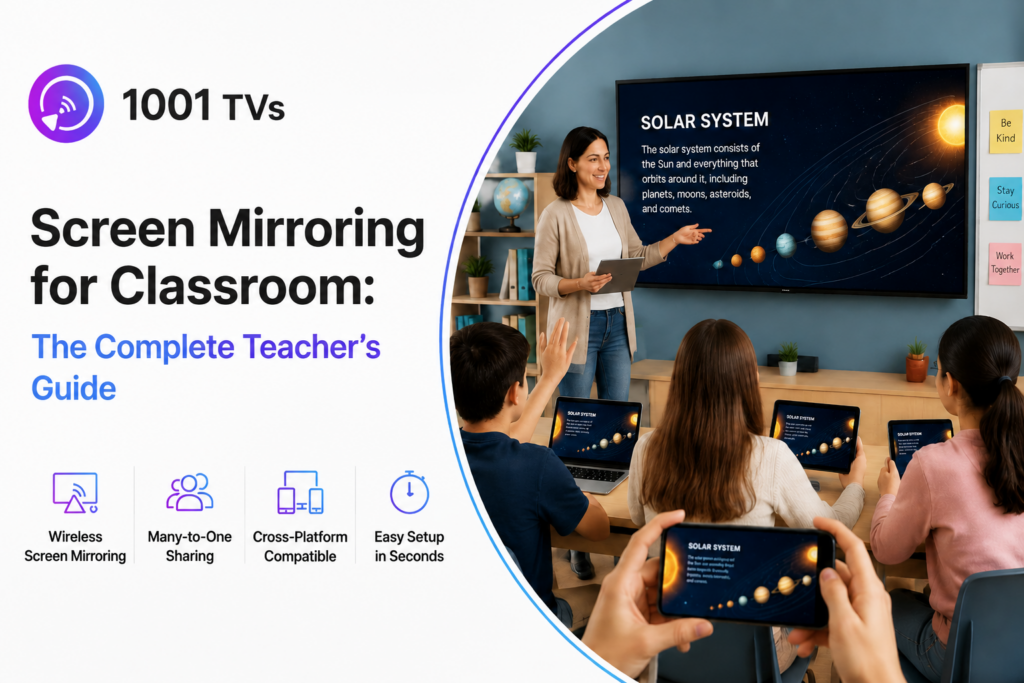
Screen Mirroring für Klassenzimmer ermöglicht es Lehrern und Schülern, Inhalte von Handys, Tablets und Laptops drahtlos auf einem größeren Bildschirm zu teilen, wodurch der Unterricht interaktiver und gemeinschaftlicher wird.
Anstelle von HDMI-Kabeln und festen Unterrichtsaufbauten setzen Schulen zunehmend auf kabellose Bildschirmspiegelung, um flexiblen Unterricht, Schülerbeteiligung und BYOD-Lernumgebungen zu unterstützen.
Die Lehrer können sich frei im Klassenzimmer bewegen, während sie den Unterricht zeigen, und die Schüler können Projekte, Präsentationen oder Ideen sofort von ihren eigenen Geräten aus teilen. Da in den Klassenzimmern immer mehr mit verschiedenen Geräten gelernt wird, sind drahtlose Bildschirmspiegelungen wie Nero 1001 TVs ist zu einem praktischen Instrument für die moderne Bildung geworden.
Verstehen der Bildschirmspiegelung im Klassenzimmer
Screen Mirroring vs. Screen Casting vs. Screen Sharing
Obwohl diese Begriffe oft synonym verwendet werden, funktionieren sie im Klassenzimmer unterschiedlich.
- Screen Mirroring dupliziert den Bildschirm eines Geräts in Echtzeit und ist damit ideal für Live-Unterricht, App-Demonstrationen, Problemlösungen und Interaktionen im Klassenzimmer.
- Screen Casting wird in der Regel für die Medienwiedergabe verwendet, z. B. für das Streaming von Videos auf ein Fernsehgerät.
- Die gemeinsame Nutzung von Bildschirmen ist eher bei Fernkonferenzen oder hybriden Lernplattformen üblich, bei denen die Teilnehmer online zusammenarbeiten.
Für die meisten Klassenzimmer ist die Bildschirmspiegelung die flexibelste Option, da Lehrer und Schüler sofort genau das anzeigen können, was auf ihren Bildschirmen passiert.
Warum Schulen auf drahtlose Bildschirmspiegelung umsteigen
Immer mehr Schulen ersetzen kabelgebundene Klassenzimmer durch kabellose Bildschirmspiegelung, da dies den Unterricht und die gemeinsame Nutzung von Geräten vereinfacht. Lehrer können Inhalte von Laptops, Tablets oder Telefonen anzeigen, ohne HDMI-Kabel oder Adapter zu verwenden.
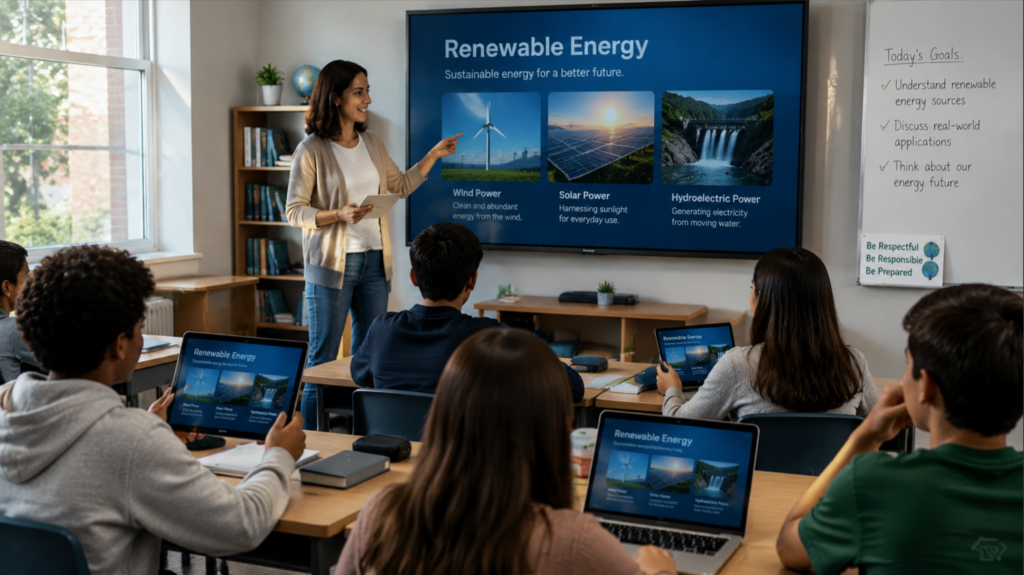
Drahtlose Display-Tools verbessern auch das Engagement im Klassenzimmer und die Mobilität der Lehrer. Die Lehrer können sich im Raum bewegen, während sie den Unterricht steuern, und die Schüler können Aufgaben, Präsentationen oder Ideen schnell von ihren eigenen Geräten aus teilen.
Ein weiterer Grund ist die Zunahme von BYOD-Klassenzimmern (Bring Your Own Device), in denen Schüler persönliche Geräte wie iPads, Chromebooks, Android-Telefone und Windows-Laptops zum Lernen verwenden. In diesen Umgebungen mit gemischten Geräten benötigen Schulen Tools zur Bildschirmspiegelung, die mit minimaler Einrichtung plattformübergreifend funktionieren.
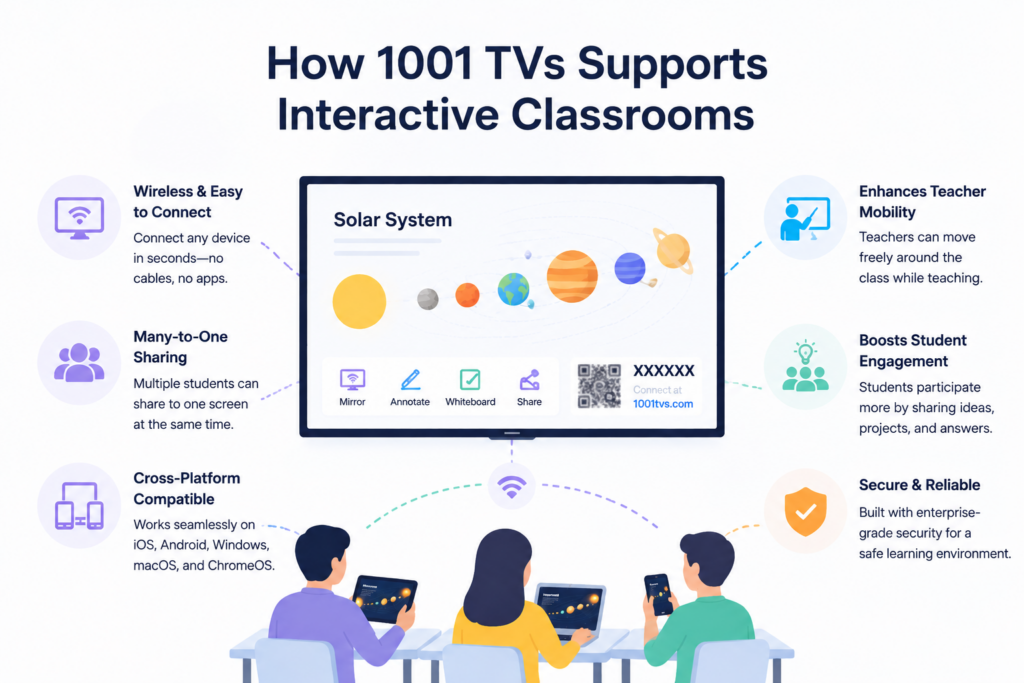
Wie 1001 TVs interaktive Klassenzimmer unterstützt
Plattformübergreifende Kompatibilität für Telefone, Tablets und Laptops
1001 TVs unterstützt die kabellose Bildschirmspiegelung über iOS-, Android-, Windows- und macOS-Geräte. Es kann auch mit Smart-TVs, Projektoren und browserbasierten Empfängern verbunden werden, was die Arbeit in Klassenzimmern mit gemischten Geräteökosystemen erleichtert.
Diese Flexibilität ist besonders in Schulen nützlich, in denen Lehrer und Schüler im Laufe des Tages verschiedene Betriebssysteme verwenden.
Bildschirmfreigabe für gemeinsames Lernen
Eine Funktion, die 1001 TVs in Klassenzimmern besonders nützlich macht, ist die Multi-Device-Spiegelung. Mehrere Schülergeräte können gleichzeitig auf einen Computer oder ein Display gespiegelt werden, so dass die Lehrkräfte die Arbeiten der Schüler bei Diskussionen oder gegenseitigen Prüfungen nebeneinander vergleichen können.
Für größere gemeinsame Sitzungen unterstützt 1001 TVs auch mehrere Layouts für die Spiegelung von Telefonbildschirmen
Einfache Einrichtung ohne teure Hardware im Klassenzimmer
Viele Schulen zögern mit der Einführung von Technologie im Klassenzimmer aufgrund von Hardwarekosten oder komplizierten Installationen. 1001 TVs funktioniert über dasselbe WiFi-Netzwerk, was bedeutet, dass Lehrer mit der Spiegelung beginnen können, ohne dass sie zusätzliche Klassenzimmerkontrollsysteme oder spezielle Hardware benötigen.
Dies macht es zu einer praktischen Option für Klassenzimmer, die drahtlose Präsentationstools ohne großen IT-Einsatz benötigen.
Studentenbeteiligung in Echtzeit und interaktiver Unterricht
Lehrer können mit 1001 TVs Folien von einem Laptop aus anzeigen und gleichzeitig eine App von einem Telefon aus demonstrieren oder während Experimenten und Demonstrationen Live-Kamerainhalte zeigen.
In interaktiven Klassenzimmern führt dies zu einer dynamischeren Lernerfahrung, bei der der Unterricht weniger statisch wirkt und die Schüler sich natürlicher beteiligen.
Kurzanleitung für die Verwendung von 1001 TVs im Klassenzimmer
Verbinden Sie Geräte im Klassenzimmer mit demselben WiFi-Netzwerk
Zunächst müssen sowohl das sendende Gerät als auch der empfangende Bildschirm mit demselben drahtlosen Netzwerk verbunden sein. So können sich die Geräte im Klassenzimmer automatisch gegenseitig erkennen.
Drahtlose Bildschirmspiegelung in Sekundenschnelle starten
Nach dem Öffnen der App können Lehrer oder Schüler das Zieldisplay auswählen und die drahtlose Spiegelung starten. Der Einrichtungsprozess ist einfach genug für den täglichen Gebrauch im Klassenzimmer und erfordert keine fortgeschrittenen technischen Kenntnisse.
Sofortige Freigabe von Schülerarbeiten und Präsentationen
Während des Unterrichts können die Lehrer die Schüler auffordern, Aufgaben, Präsentationen oder Gruppenprojekte direkt von ihren eigenen Geräten aus zu teilen. Dies macht Diskussionen im Klassenzimmer unmittelbarer und interaktiver.
Verwalten der Interaktion im Klassenzimmer über mehrere Geräte hinweg
Bei gemeinsamen Aktivitäten können Lehrer mehrere Schülerbildschirme zum Vergleich oder zur Diskussion gemeinsam anzeigen. 1001 TVs unterstützt auch Multigeräte-Layouts, die gespiegelte Bildschirme automatisch in einer übersichtlichen Rasteransicht auf dem empfangenden Computer anordnen.
Häufige Probleme bei der Bildschirmspiegelung im Klassenzimmer (und deren Behebung)
Verzögerungen und instabile drahtlose Verbindungen
Die meisten Verzögerungsprobleme im Klassenzimmer werden durch eine schwache WiFi-Leistung oder überlastete Netzwerke verursacht. Die Verwendung eines stabilen Schulnetzwerks und die Reduzierung von unnötigem Hintergrundverkehr können die Spiegelungsqualität erheblich verbessern.
Gerätekompatibilität und Verbindungsprobleme
In BYOD-Klassenzimmern kommt es häufig zu Kompatibilitätsproblemen, wenn die Schüler unterschiedliche Betriebssysteme verwenden. Die Wahl einer plattformübergreifenden Spiegelungslösung trägt dazu bei, Verbindungsausfälle zu reduzieren und die Verwaltung des Klassenzimmers zu vereinfachen.
Probleme bei der Synchronisierung von Audio und Anzeige
Beim Streaming von Videos oder Multimedia-Inhalten kann es gelegentlich zu Audioverzögerungen kommen. Wenn Sie sicherstellen, dass beide Geräte auf dem neuesten Stand sind und mit einem zuverlässigen Netzwerk verbunden sind, wird die Synchronisierung in der Regel verbessert.
Schwache WiFi-Leistung im Klassenzimmer
Große Klassenzimmer mit vielen angeschlossenen Geräten können das schulische WiFi-System belasten. Eine effektive Positionierung der Router und die Begrenzung des unnötigen Geräteverkehrs können dazu beitragen, dass die Bildschirmspiegelung reibungslos funktioniert.
Häufig gestellte Fragen
Was ist die beste Lösung zur Bildschirmspiegelung für Lehrer?
Die beste Lösung hängt von den Anforderungen im Klassenzimmer ab. Lehrer suchen oft nach plattformübergreifender Kompatibilität, einfacher Einrichtung, geringer Latenz und Unterstützung für mehrere Schülergeräte.
Können die Schüler ihre Telefone auf einen Bildschirm im Klassenzimmer spiegeln?
Ja. Viele Spiegelungstools für den Unterricht ermöglichen es den Schülern, während des Unterrichts und bei Präsentationen Inhalte direkt von ihren Handys, Tablets oder Laptops zu teilen.
Funktioniert die Bildschirmspiegelung mit Chromebooks und iPads?
Die meisten modernen Wireless Mirroring-Lösungen unterstützen sowohl Chromebook- und iPad-Umgebungen als auch Windows-, Android- und Mac-Geräte.
Ist die drahtlose Bildschirmspiegelung für Schulen sicher?
Die Sicherheit hängt von der Plattform und der Konfiguration des Schulnetzwerks ab. Viele auf Klassenzimmer ausgerichtete Lösungen verwenden lokale Netzwerkverbindungen und eine erlaubnisbasierte Gerätekopplung.
Benötigen Lehrer zusätzliche Hardware?
Nicht immer. Einige Bildschirmspiegelungstools funktionieren mit vorhandenen Smart-TVs, Projektoren, Computern oder Browser-Empfängern, ohne dass spezielle Hardware erforderlich ist.
Abschließende Überlegungen
Die drahtlose Bildschirmspiegelung entwickelt sich schnell zu einem Standardbestandteil des modernen Unterrichts. Sie hilft Lehrern, sich freier zu bewegen, fördert die Beteiligung der Schüler und unterstützt das gemeinsame Lernen über verschiedene Geräte hinweg.
Da in den Klassenzimmern immer mehr flexible Lernumgebungen und BYOD-Richtlinien eingeführt werden, werden Tools, die eine einfache Interaktion mit mehreren Geräten unterstützen, immer wichtiger. Lösungen wie Nero 1001 TVs erleichtern Lehrern und Schülern den Austausch von Ideen, Präsentationen und Aktivitäten im Klassenzimmer, ohne durch Kabel oder feste Klassenzimmeraufstellungen eingeschränkt zu sein.
Möchten Sie Ihren Computerbildschirm unbegrenzt spiegeln?

Weiterlesen
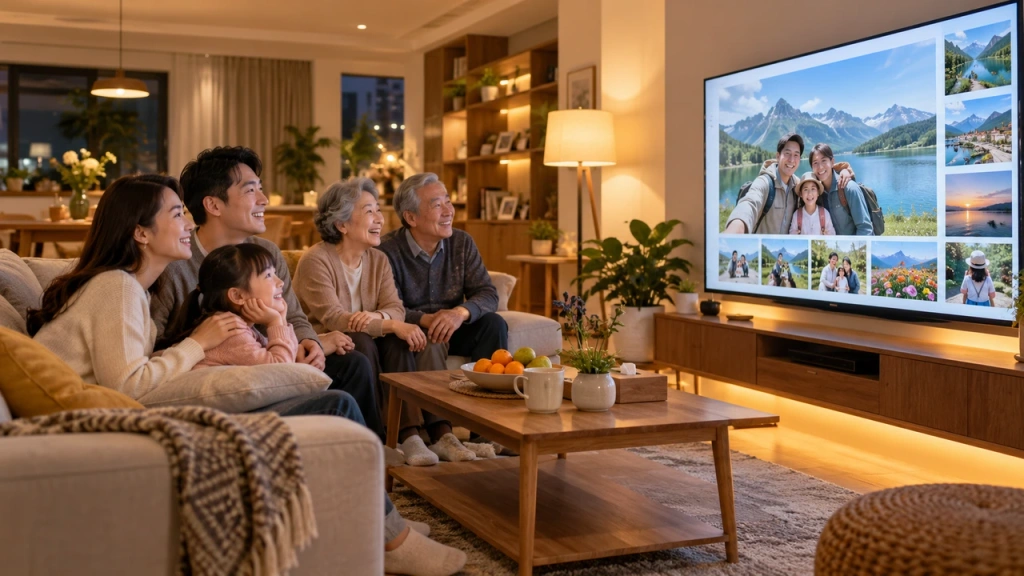 How to Cast Photos from Your Phone to a TV
You can cast phone photos to a compatible TV using AirPlay on iPhone, Google Photos with Chromecast, or 1001 TVs Streaming and Albums. The...
How to Cast Photos from Your Phone to a TV
You can cast phone photos to a compatible TV using AirPlay on iPhone, Google Photos with Chromecast, or 1001 TVs Streaming and Albums. The...
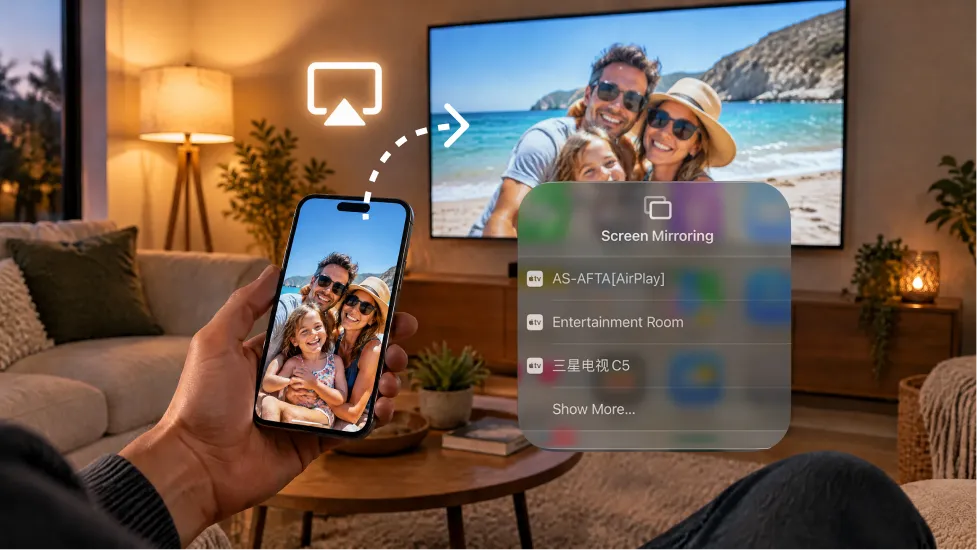 How to Turn On AirPlay on iPhone in iOS 26 (Screen Mirroring Guide)
To turn on AirPlay screen mirroring in iOS 26, open Control Center, tap the Screen Mirroring button (two overlapping rectangles), and choose your TV...
How to Turn On AirPlay on iPhone in iOS 26 (Screen Mirroring Guide)
To turn on AirPlay screen mirroring in iOS 26, open Control Center, tap the Screen Mirroring button (two overlapping rectangles), and choose your TV...

