
[2026] So schalten Sie AirPlay auf iPhone, iPad, Mac und TV aus
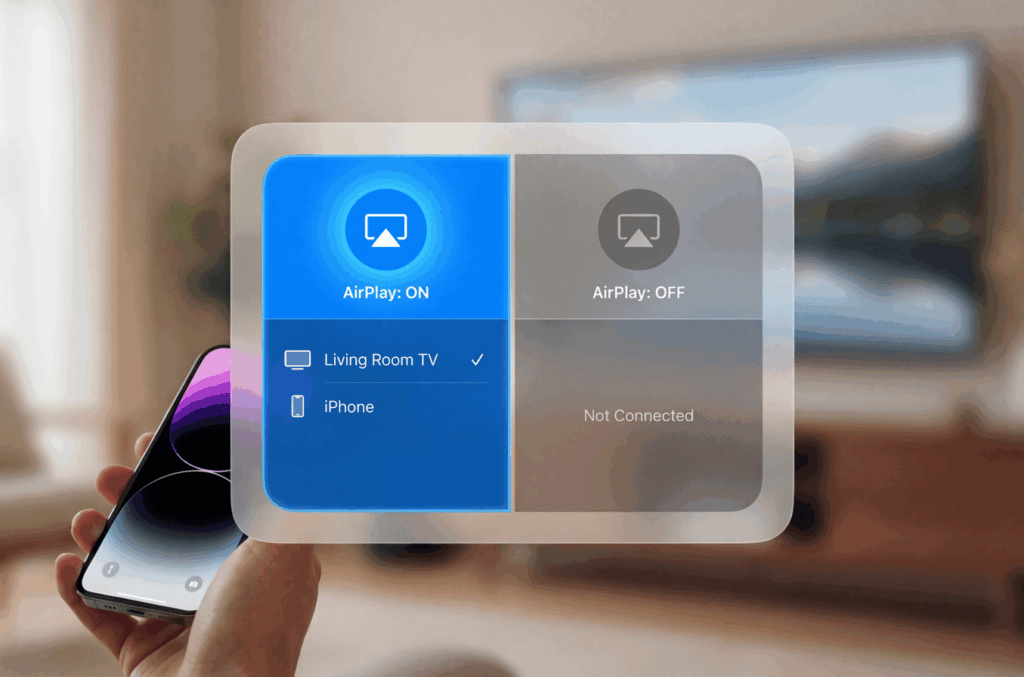
AirPlay ist die drahtlose Technologie von Apple zum Streamen von Inhalten zwischen Geräten. Das ist zwar praktisch, wenn man es braucht, aber es kann auch frustrierend sein, wenn Ihr Telefon immer wieder unerlaubt eine Verbindung zu Fernsehern oder Lautsprechern in der Nähe herstellt. Vielleicht sind Sie es leid, dass sich Ihr iPhone automatisch mit dem Lautsprecher Ihres Mitbewohners verbindet, oder Sie möchten peinliche Momente vermeiden, wenn persönliche Inhalte auf gemeinsamen Bildschirmen erscheinen.
Diese Anleitung zeigt Ihnen genau, wie Sie AirPlay auf all Ihren Apple-Geräten deaktivieren können, mit klaren Schritten, die auch im Jahr 2026 noch funktionieren.
1. Verstehen, was man tatsächlich ausschaltet
Bevor wir uns mit der Anleitung befassen, sollten wir einige Missverständnisse ausräumen. Apple verwendet drei ähnlich klingende Funktionen, die oft verwechselt werden:
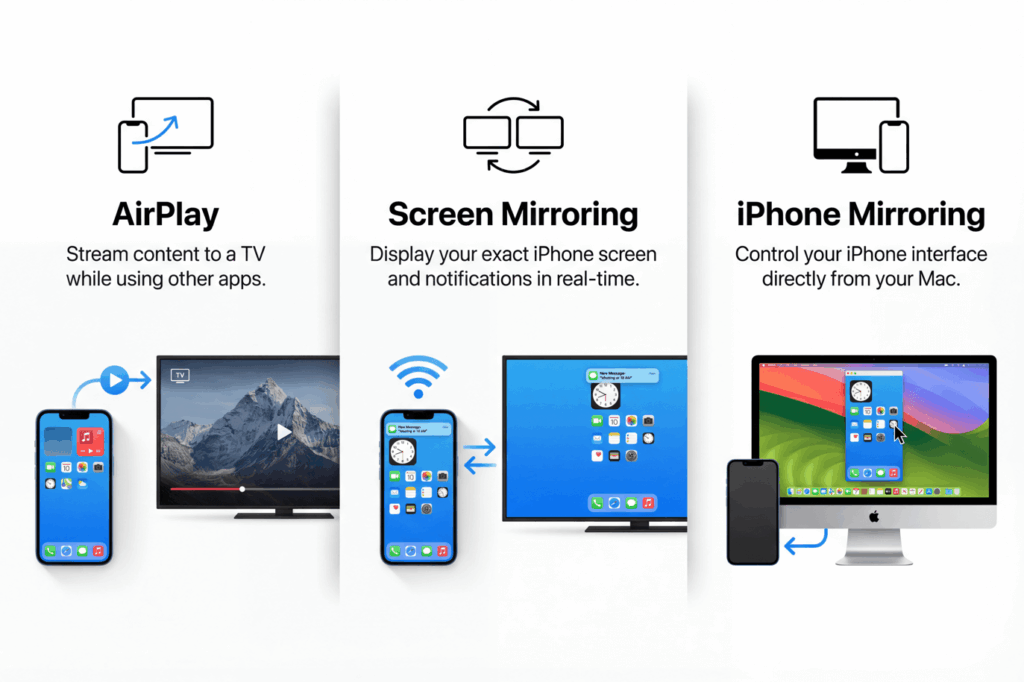
AirPlay streamt bestimmte Inhalte (z. B. ein Video oder einen Song) auf ein anderes Gerät. Ihr Telefon bleibt aktiv und Sie können andere Dinge tun, während die Inhalte anderswo abgespielt werden.
Bildschirm spiegeln dupliziert Ihren gesamten Bildschirm in Echtzeit. Alles, was Sie auf Ihrem iPhone sehen, wird auf dem Fernseher angezeigt, einschließlich Benachrichtigungen und Apps.
iPhone-Spiegelung (neu in macOS Sequoia) können Sie Ihr iPhone von Ihrem Mac aus steuern. Dies ist völlig unabhängig von AirPlay und hat seine eigenen Einstellungen.
Die folgenden Schritte konzentrieren sich auf AirPlay und Screen Mirroring, die die meisten Benutzer deaktivieren möchten. Mit iOS 18 wurde das Kontrollzentrum umgestaltet, wodurch sich die Anzeige dieser Optionen geändert hat, sodass ältere Anleitungen möglicherweise nicht mit dem übereinstimmen, was Sie auf Ihrem Bildschirm sehen.
2. AirPlay auf dem iPhone/iPad ausschalten
Beenden einer aktiven AirPlay-Sitzung
Wenn Inhalte bereits irgendwo über AirPlay wiedergegeben werden, können Sie dies folgendermaßen verhindern:
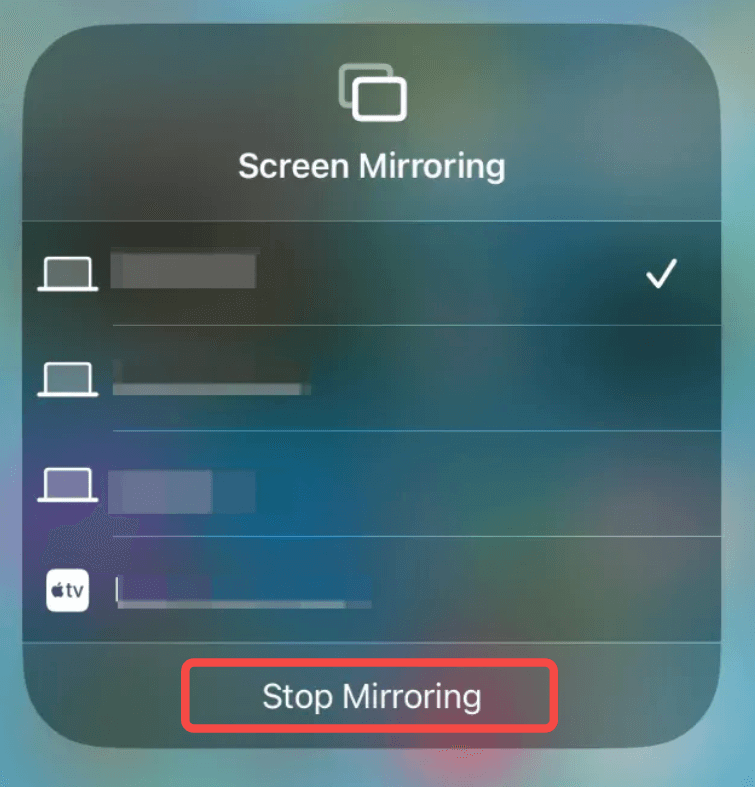
1. Wischen Sie von der oberen rechten Ecke nach unten, um das Kontrollzentrum zu öffnen
2. Tippen Sie auf das AirPlay-Symbol (zwei sich überlappende Rechtecke)
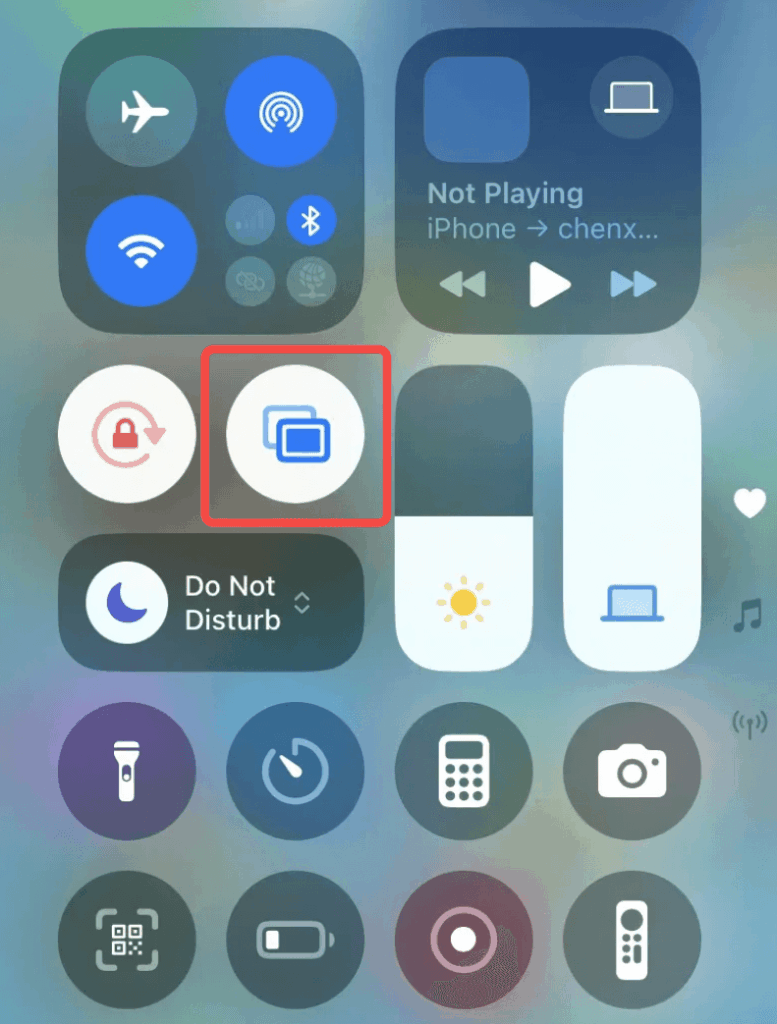
3. Tippen Sie auf “Spiegelung beenden”.”
Verhindern von automatischen AirPlay-Verbindungen
Dies ist die Einstellung, die die meisten Leute tatsächlich ändern möchten. Sie verhindert, dass Ihr iPhone automatisch eine Verbindung zu AirPlay-Geräten in der Nähe herstellt:
1. Öffnen Sie Einstellungen. Tippen Sie auf . Allgemein.
2. Wählen Sie . AirPlay und Kontinuität.
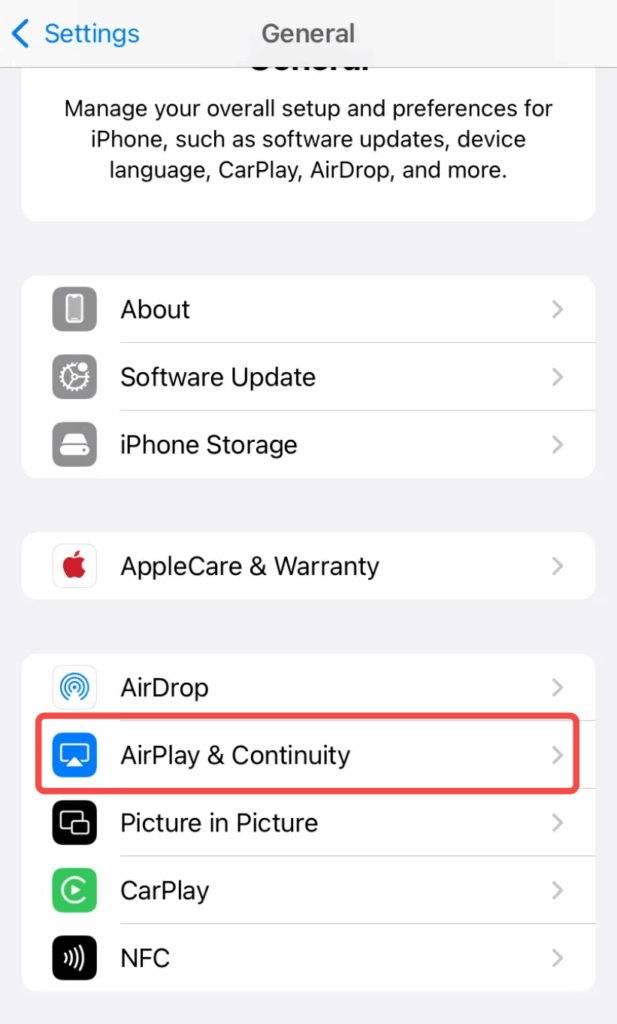
3. Tippen Sie auf . Automatisch AirPlay. Ändern Sie die Einstellung auf Niemals
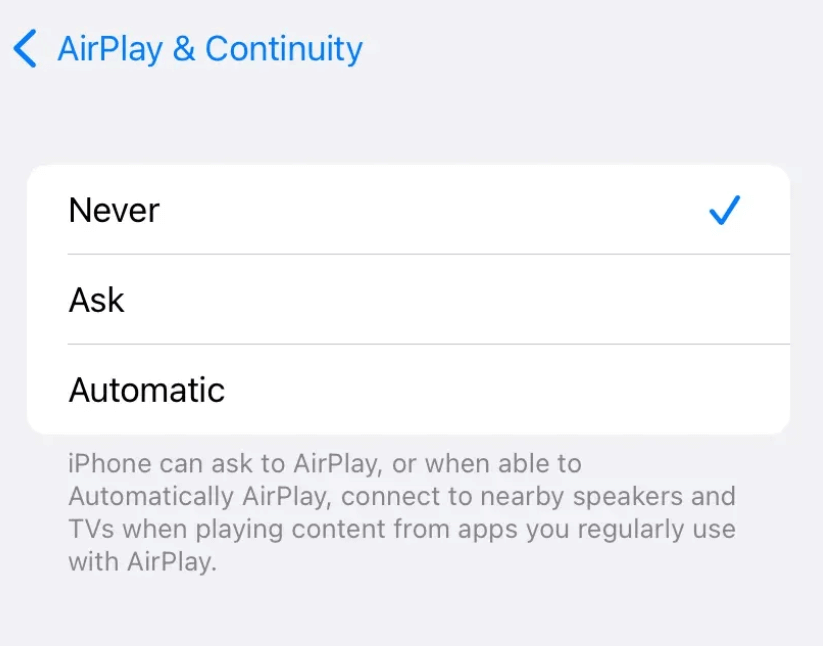
Sie haben folgende Möglichkeiten:
- Automatisch: Ihr iPhone entscheidet, wann es eine Verbindung herstellt (in der Regel auf der Grundlage Ihrer Gewohnheiten)
- Fragen Sie: Sie erhalten jedes Mal ein Pop-up, wenn ein Gerät erkannt wird
- Niemals: AirPlay funktioniert nur, wenn Sie es manuell auswählen
Die Einstellung “Nie” gibt Ihnen die volle Kontrolle. Ihr iPhone wird Sie nicht überraschen, indem es von sich aus eine Verbindung zu Geräten herstellt.
AirPlay-Steuerungen aus dem Kontrollzentrum entfernen
Mit iOS 18 können Sie das Kontrollzentrum anpassen. Wenn Sie AirPlay nie verwenden, können Sie die Schaltfläche ganz entfernen:
1. Control Center öffnen
2. Drücken Sie lange auf eine leere Stelle oder tippen Sie auf die Schaltfläche “+”.
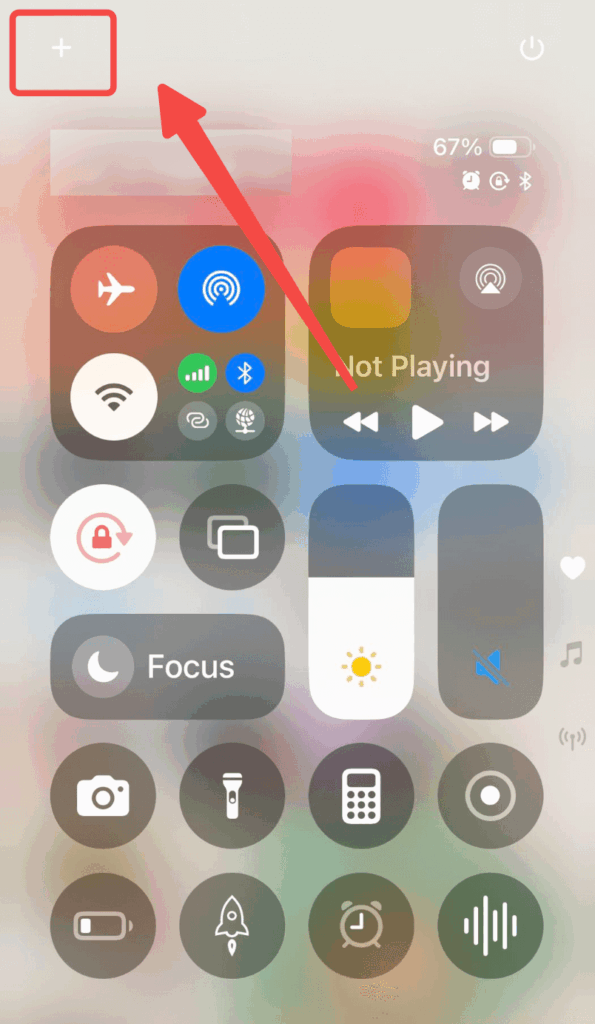
3. Suchen Sie die Kachel “Bildschirmspiegelung”.
4. Tippen Sie auf die Minustaste (-), um sie zu entfernen.
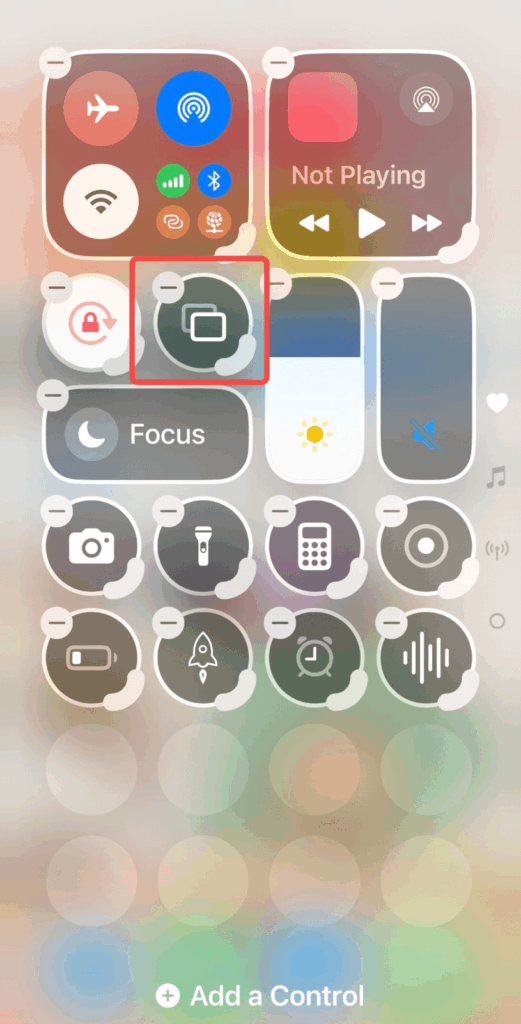
Dadurch wird die Funktion zwar nicht vollständig deaktiviert, aber die einfachste Möglichkeit, sie versehentlich zu aktivieren, wird beseitigt.
3. AirPlay auf dem Mac ausschalten
Bildschirmspiegelung beenden
Wenn Sie gerade auf einen anderen Bildschirm spiegeln:
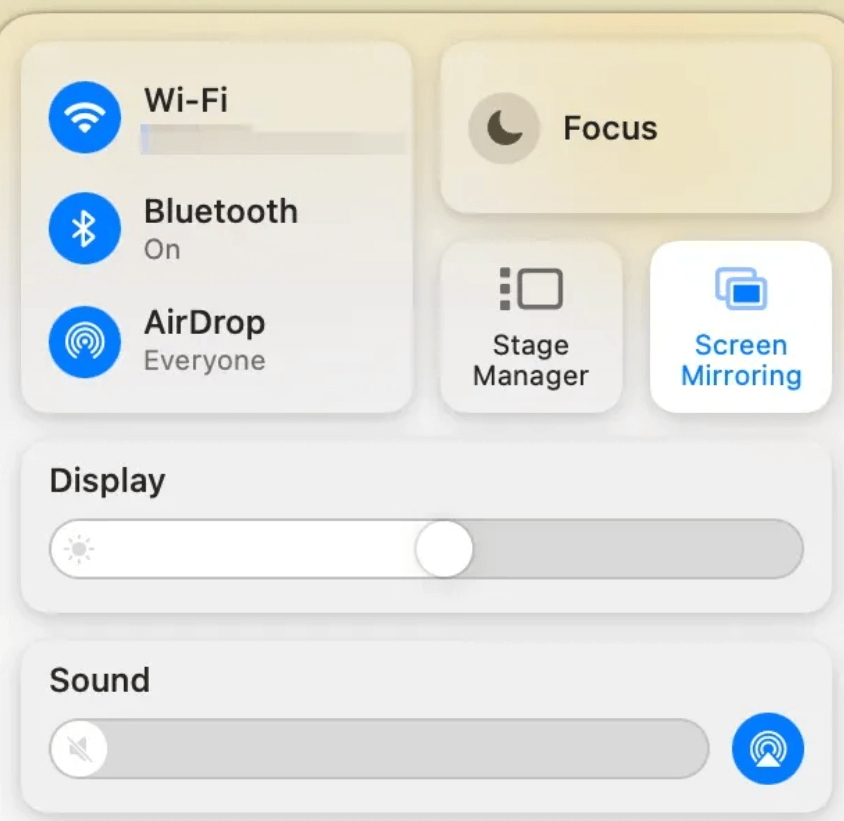
1. Klicken Sie auf die Kontrollzentrum Symbol in der Menüleiste (rechte obere Ecke)
2. Klicken Sie auf . Bildschirm spiegeln
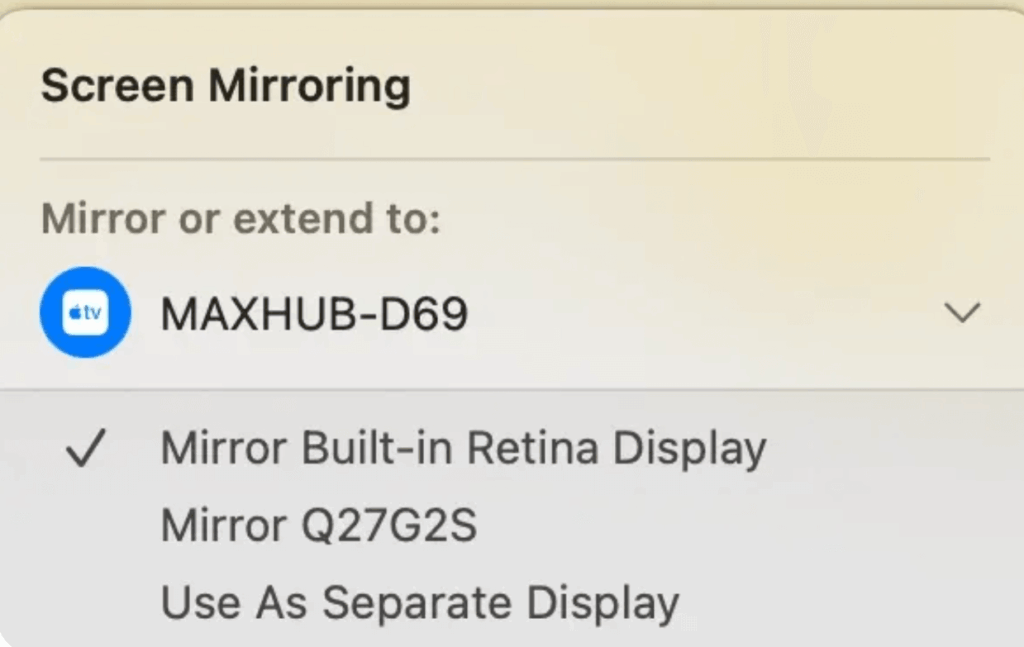
3. Klicken Sie auf das Gerät, mit dem Sie verbunden sind
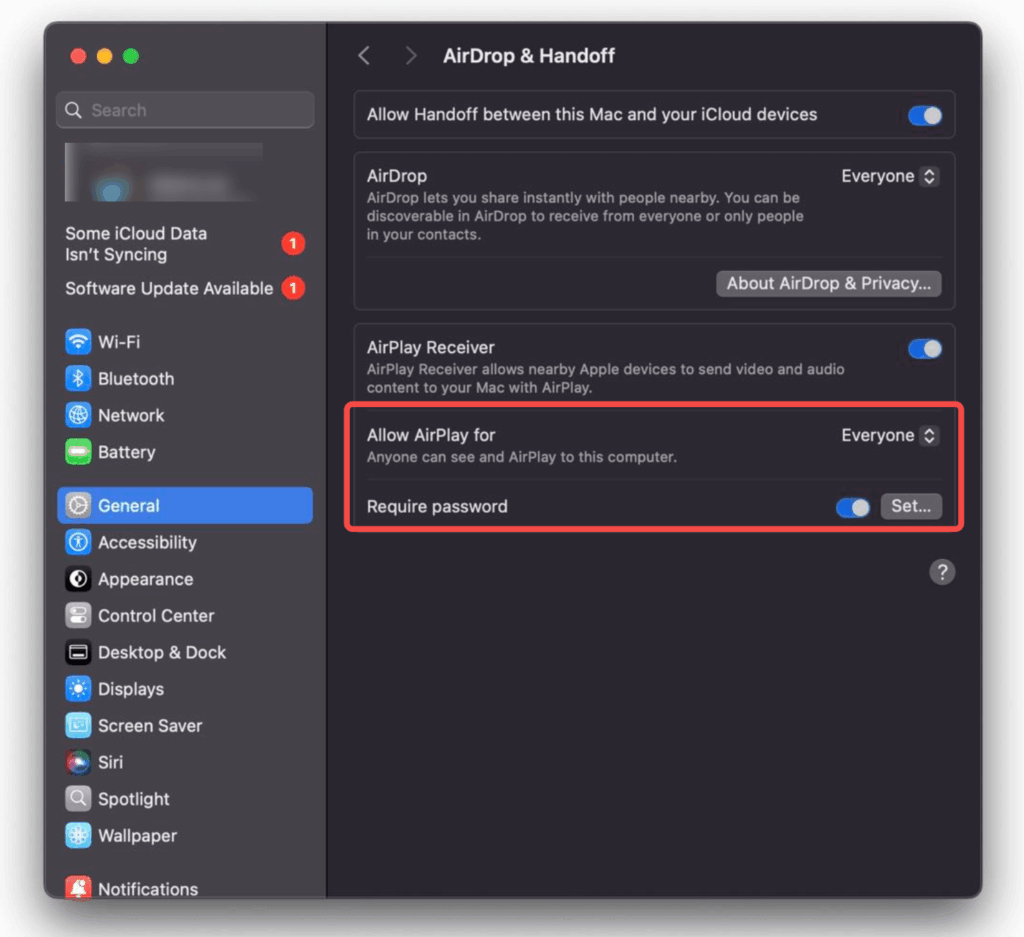
AirPlay-Empfänger deaktivieren
Standardmäßig kann Ihr Mac AirPlay-Inhalte von iPhones und iPads in der Nähe empfangen. So deaktivieren Sie dies:
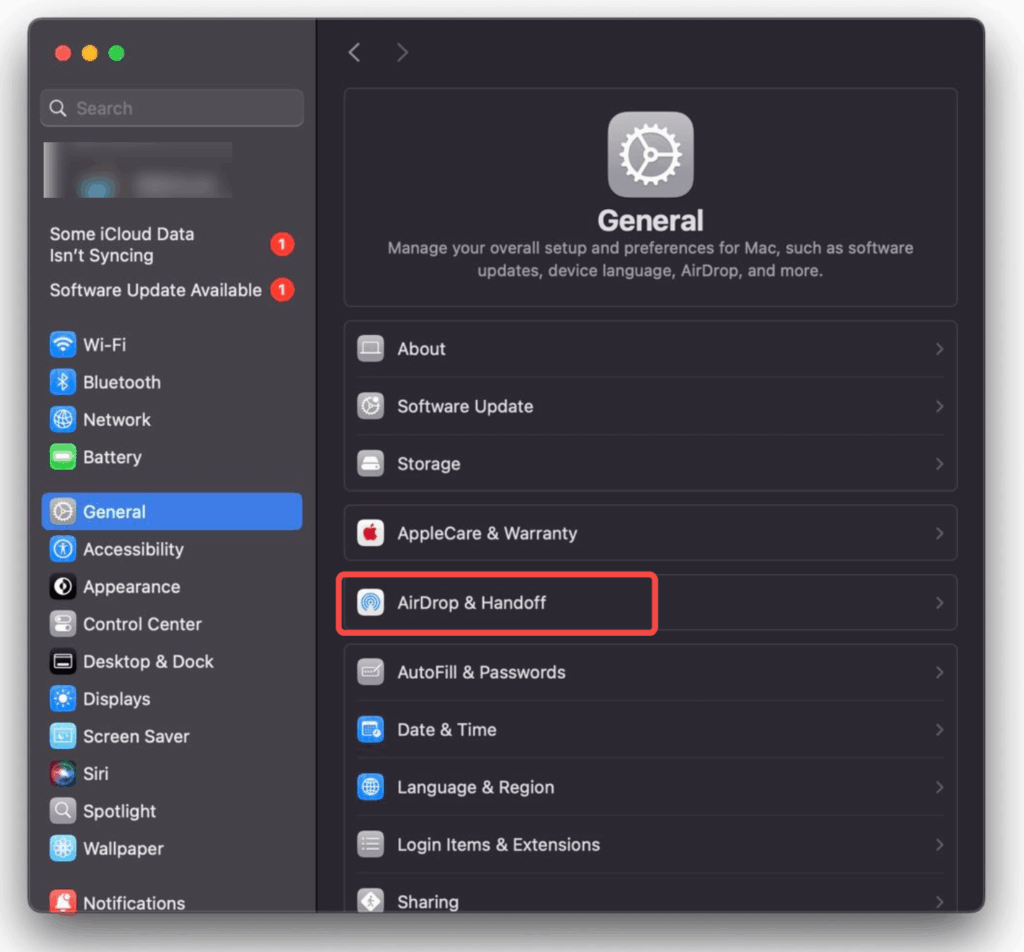
1. Öffnen Sie System-Einstellungen (oder Systemeinstellungen bei älteren Versionen)
2. Gehen Sie zu Allgemein
3. Wählen Sie . AirDrop & Weitergabe
4. Umschalten aus AirPlay-Empfänger
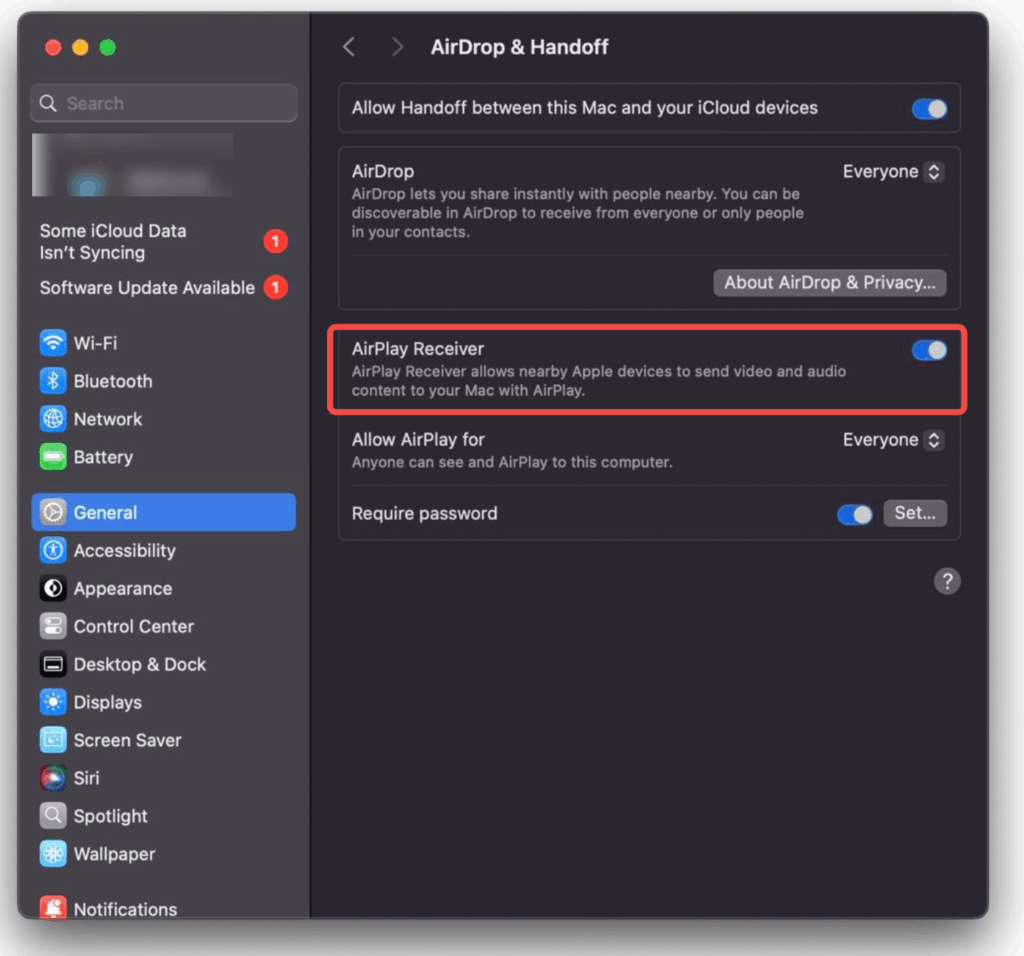
Wenn Sie die Funktion beibehalten, aber die Sicherheit erhöhen möchten, lassen Sie sie aktiviert und setzen Sie “AirPlay zulassen für” auf “Aktueller Benutzer” (nur Ihre Geräte) oder aktivieren Sie “Kennwort erforderlich”, damit andere Personen nicht ohne Erlaubnis auf Ihren Mac übertragen können.
4. AirPlay auf dem Fernseher ausschalten
Smart-TVs der großen Marken unterstützen AirPlay 2. Hier erfahren Sie, wie Sie es bei den gängigsten Modellen deaktivieren können.
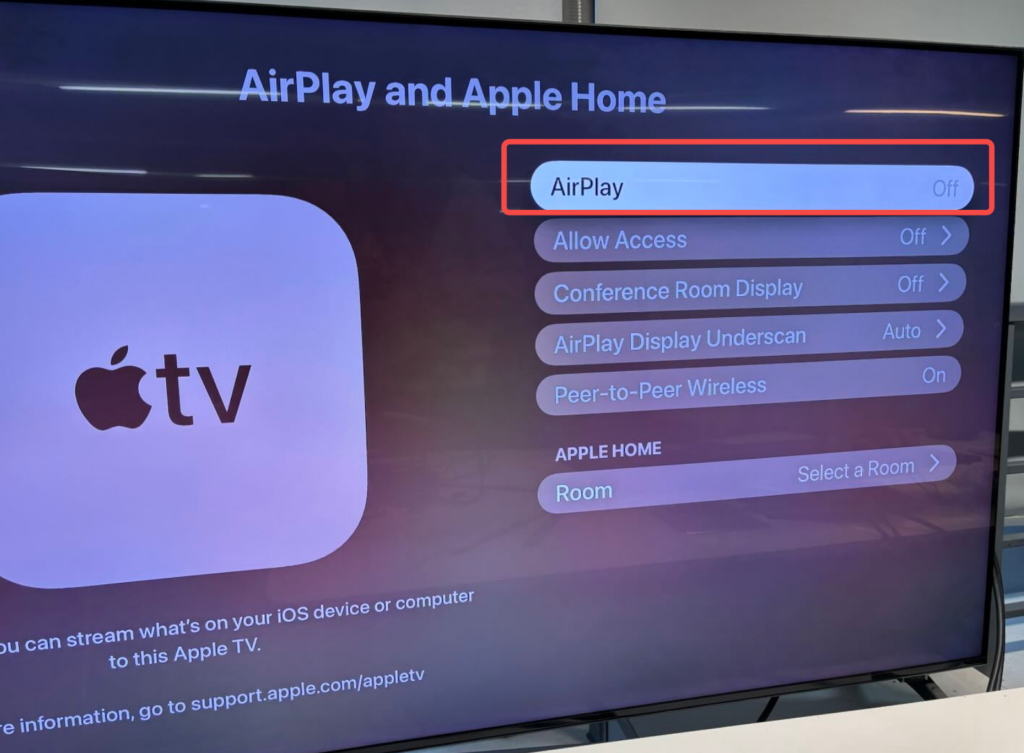
Apple TV
1. Öffnen Sie Einstellungen
2. Wählen Sie . AirPlay und HomeKit
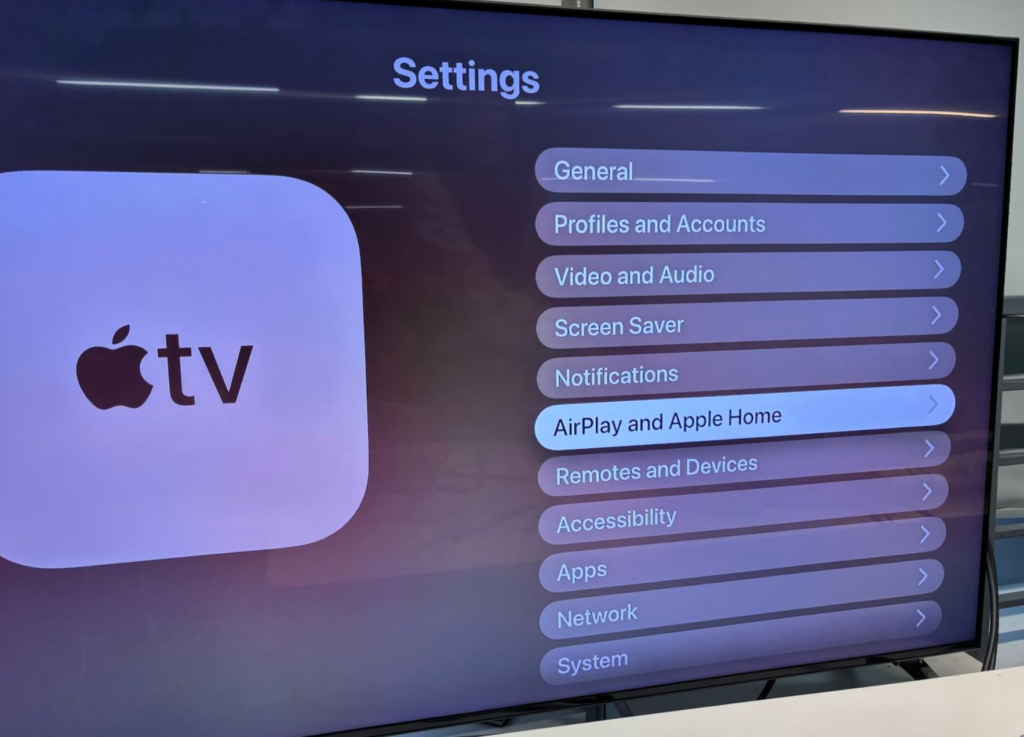
3. Drehen Sie AirPlay zu Aus
Samsung-Fernseher
1. Drücken Sie die Home Taste auf Ihrer Fernbedienung
2. Gehen Sie zu Einstellungen > Alle Einstellungen
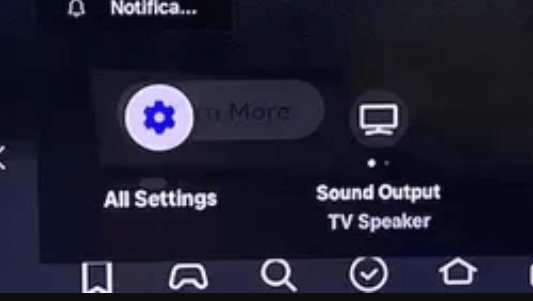
3. Wählen Sie . Verbindungen
4. Wählen Sie . Apple AirPlay-Einstellungen
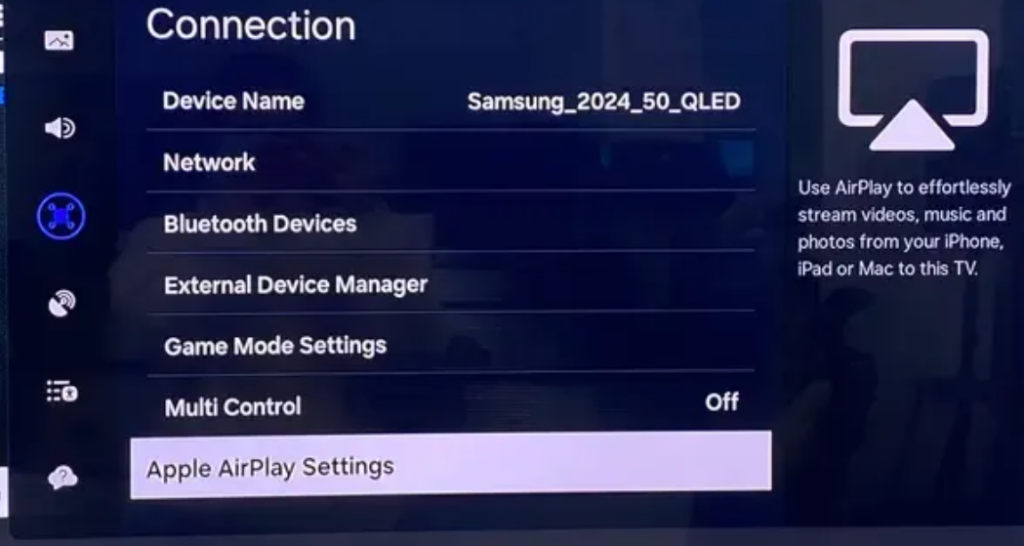
5. einstellen. AirPlay zu Aus
Wenn Sie schon mal da sind, schauen Sie doch mal bei Datenschutz-Optionen und deaktivieren Sie die “Viewing Information Services”, um zu verhindern, dass Ihr Fernsehgerät Daten über das, was Sie sehen, sammelt.
Roku TV
1. Gehen Sie zu Einstellungen vom Startbildschirm aus
2. Wählen Sie . Apple AirPlay und HomeKit
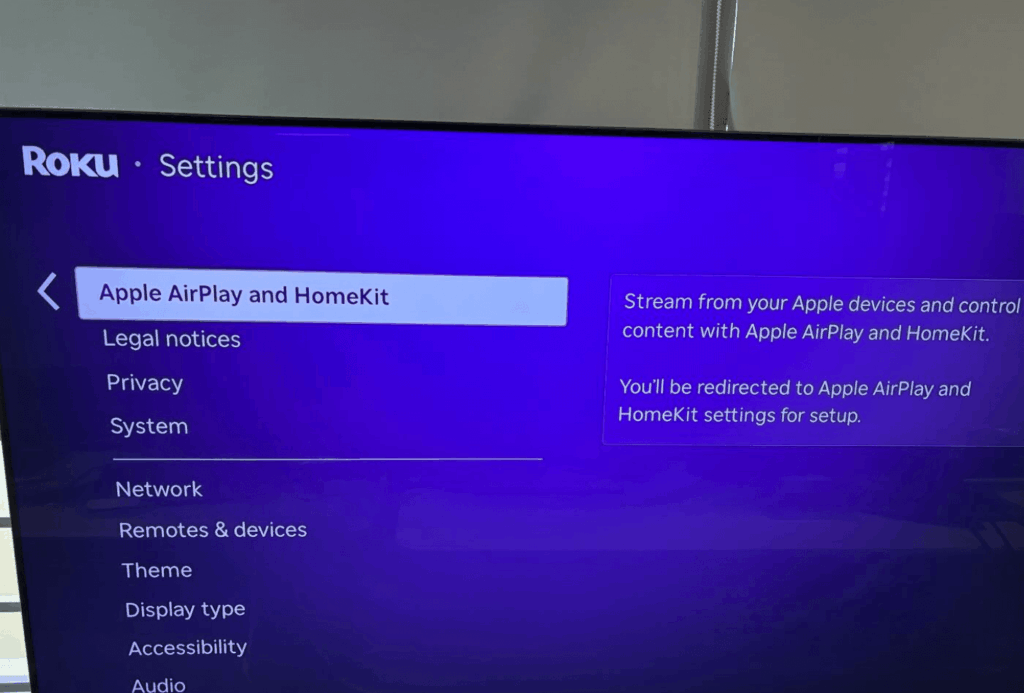
3. Ändern Sie AirPlay zu Aus
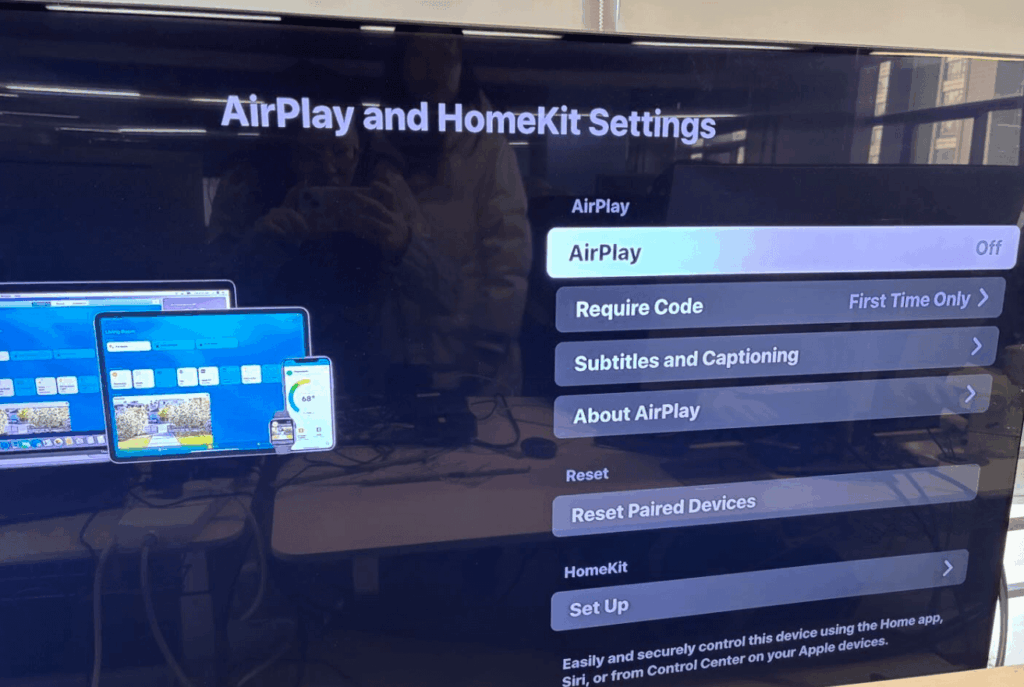
Bonus-Tipp: Besuchen Sie Einstellungen > System > Strom und deaktivieren Sie “Schneller TV-Start”. Dadurch wird verhindert, dass das Fernsehgerät die AirPlay-Verfügbarkeit überträgt, während es ausgeschaltet ist.
Sie können AirPlay mit einer vergleichbaren Methode auf anderen Smart-TVs deaktivieren, darunter Sony, TCL, Hisense, LG und Vizio.
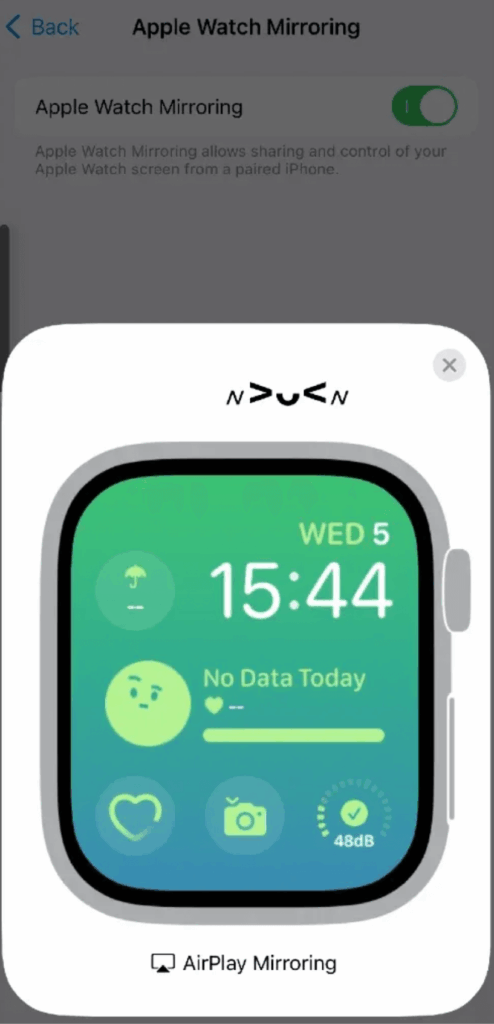
5. Deaktivieren der Apple Watch-Spiegelung
Sie können den Bildschirm Ihrer Apple Watch auf Ihrem iPhone spiegeln, was sich von der Standard-AirPlay-Funktion unterscheidet. So deaktivieren Sie dies:
1. Öffnen Sie auf Ihrem iPhone Einstellungen
2. Gehen Sie zu Erreichbarkeit
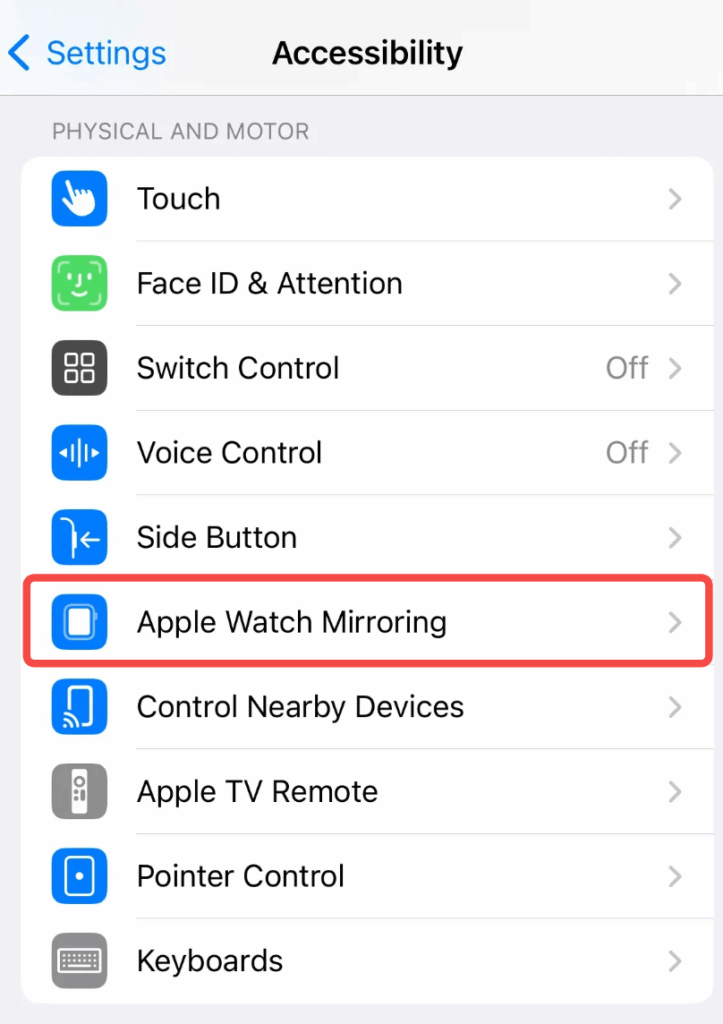
3. Wählen Sie . Apple Watch-Spiegelung
4. Schalten Sie sie aus oder tippen Sie auf die Schaltfläche “X”, wenn sie gerade aktiv ist.
6. Eine bessere Alternative: 1001 TVs
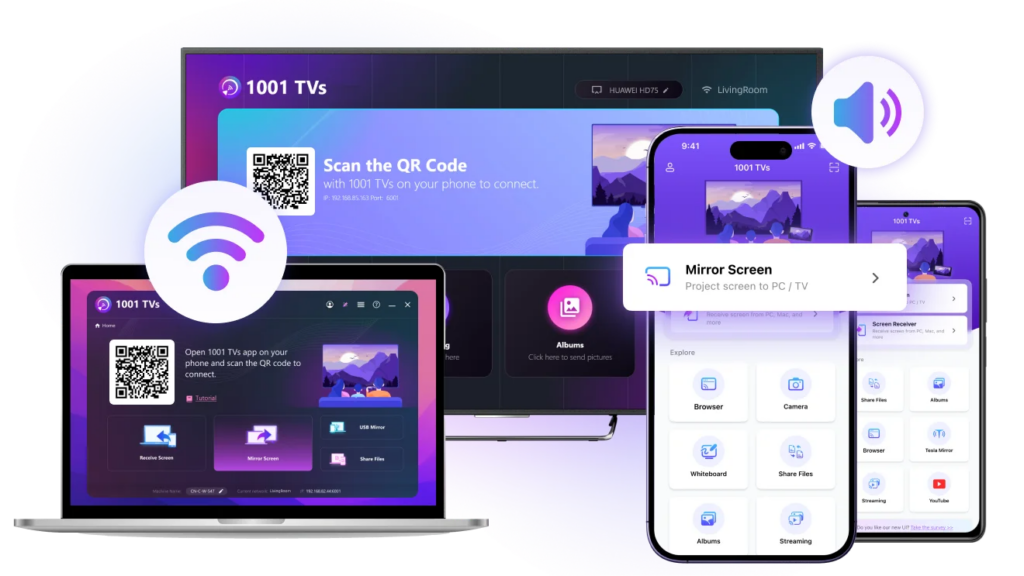
Wenn Sie dennoch Inhalte auf Ihren Fernseher übertragen möchten, aber mehr Kontrolle darüber haben möchten, wann und wie dies geschieht, sollten Sie 1001 TVs in Betracht ziehen. Im Gegensatz zu AirPlay stellt 1001 TVs nicht automatisch eine Verbindung zu Geräten in der Nähe her oder überrascht Sie mit unerwünschten Verbindungen. Sie initiieren jede Bildschirmfreigabe-Sitzung manuell, wodurch Sie die vollständige Kontrolle haben.
👉1001 TVs herunterladen 👈

1001 TVs funktioniert über mehrere Geräte hinweg und erfordert keine komplexe Verwaltung der Einstellungen. Es ist besonders nützlich, wenn Sie mit dem automatischen Verbindungsverhalten von AirPlay zu kämpfen haben oder wenn Sie von Nicht-Apple-Geräten in Ihrem Haushalt übertragen möchten.
7. Einpacken
AirPlay kann unglaublich praktisch sein, aber es sollte nicht gegen Sie arbeiten, indem es sich verbindet, wenn Sie es nicht wollen. Die wichtigsten Einstellungen, die Sie sich merken sollten, sind:
1. einstellen. Automatisch AirPlay auf Ihrem iPhone/iPad auf “Nie” setzen (Einstellungen > Allgemein > AirPlay & Kontinuität)
2. Ausschalten AirPlay-Empfänger auf Ihrem Mac, wenn Sie nicht wollen, dass andere Geräte darauf zugreifen
3. Deaktivieren Sie . AirPlay in den Einstellungen Ihres Fernsehers, um zu verhindern, dass ein Gerät eine Verbindung herstellt
Denken Sie daran, dass das Deaktivieren von AirPlay im Kontrollzentrum nur die aktuelle Sitzung unterbricht. Um automatische Verbindungen wirklich zu verhindern, müssen Sie die Einstellungen in der App "Einstellungen" ändern.
Wenn Sie nach diesen Änderungen immer noch keine AirPlay-Steuerungen oder -Verbindungen sehen, versuchen Sie, Ihre Geräte neu zu starten. Manchmal braucht iOS einen Neustart, um neue Einstellungen richtig anzuwenden. Und wenn Sie regelmäßig mit dem automatischen Verhalten von AirPlay zu kämpfen haben, kann Ihnen der Wechsel zu einer Alternative wie 1001 TVs eine Menge Frustration ersparen.