[Android] Wie man Dateien vom Android-Telefon an PC, Mac und TV sendet
Nero 1001 TVs macht es einfach, Dateien drahtlos von Ihrem Android-Handy an einen PC, Mac oder Fernseher - keine Kabel, kein Ärger. Egal, ob Sie Fotos, Videos, Musik oder Dokumente austauschen möchten, der Vorgang ist schnell, einfach und sicher. Hier erfahren Sie, wie Sie loslegen können.
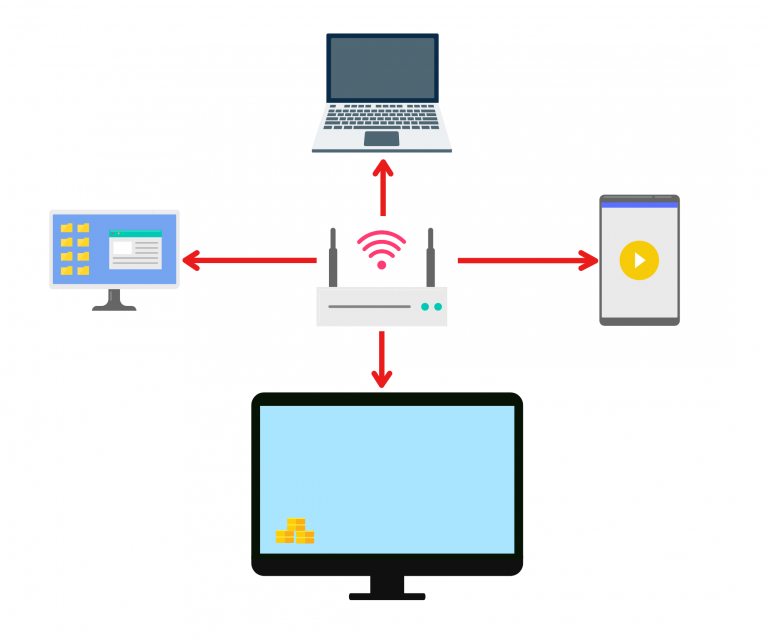
1. Mit demselben Wi-Fi verbinden:
Stellen Sie sicher, dass Ihre beiden Geräte mit demselben Wi-Fi-Netzwerk verbunden sind.
(Für die beste Leistung wird eine Wi-Fi-Verbindung mit 5G-Band empfohlen).
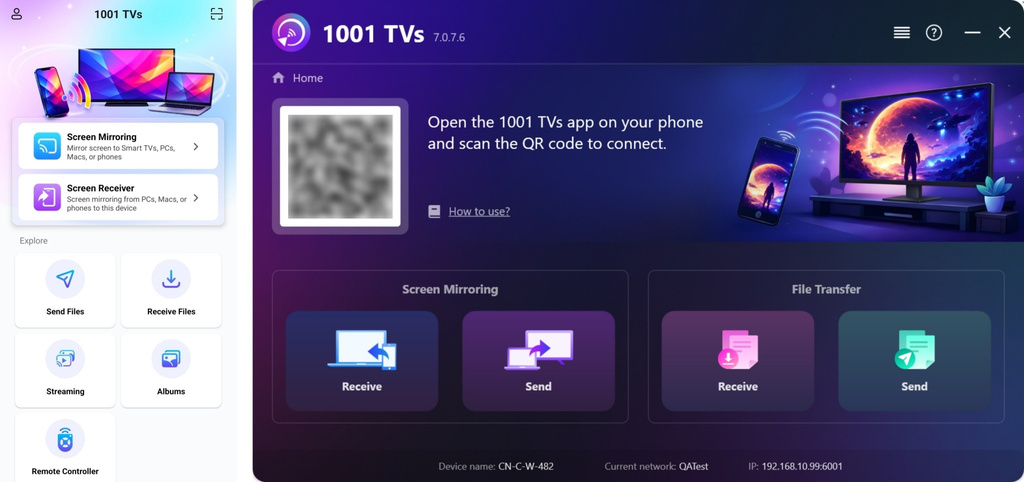
2. Installieren und öffnen Sie 1001 TVs auf beiden Geräten
📥 PC App: Herunterladen von Microsoft Store
Detaillierte Schritte finden Sie in der PC-Installationsanleitung.
📥 Mac-Anwendung: Vom App Store herunterladen
📥 TV-App: So installieren Sie 1001 TVs auf Ihrem Fernseher
📱 Android-App: Von Google Play herunterladen
3. Pairing starten
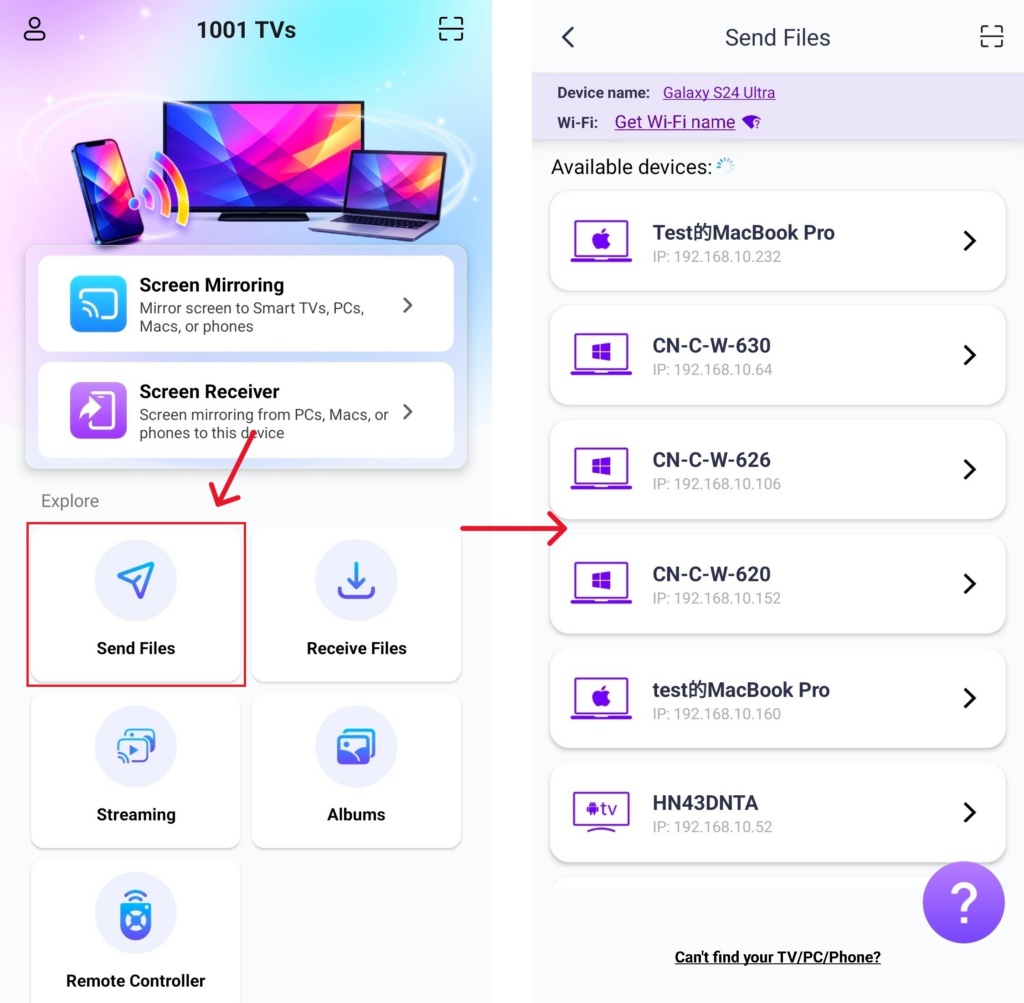
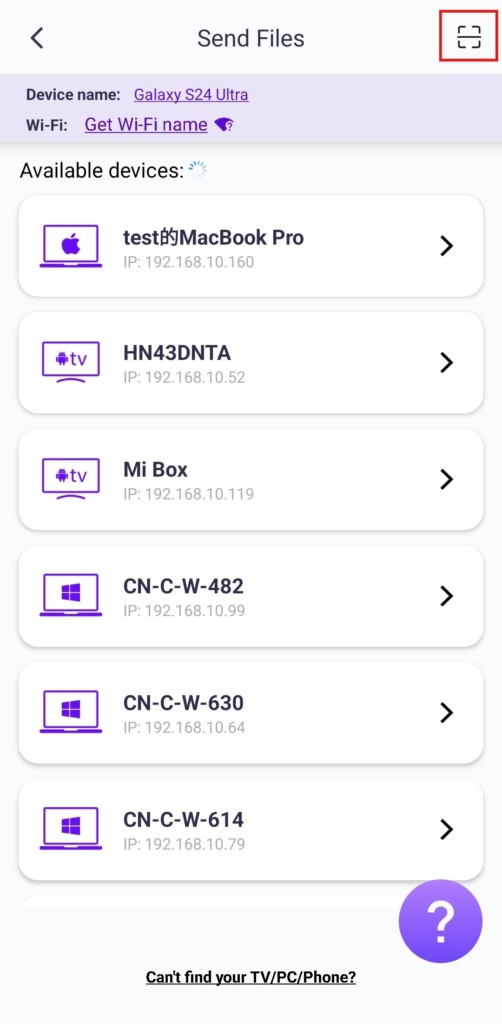
Start Nero 1001 TVs auf Ihrem Handy und tippen Sie auf Dateien senden.
Wählen Sie Ihr Zielgerät aus der Liste aus (z. B. Ihren PC/Mac/TV).
Hinweis: Das Zielgerät muss online sein, um Dateien zu empfangen. Wenn es offline erscheint, überprüfen Sie bitte Ihre Netzwerkverbindung. Sie können bereits empfangene Dateien jederzeit auf Ihrem PC/Mac/Fernseher ansehen.
Bestätigen Sie das Pairing auf Ihrem Empfangsgerät.
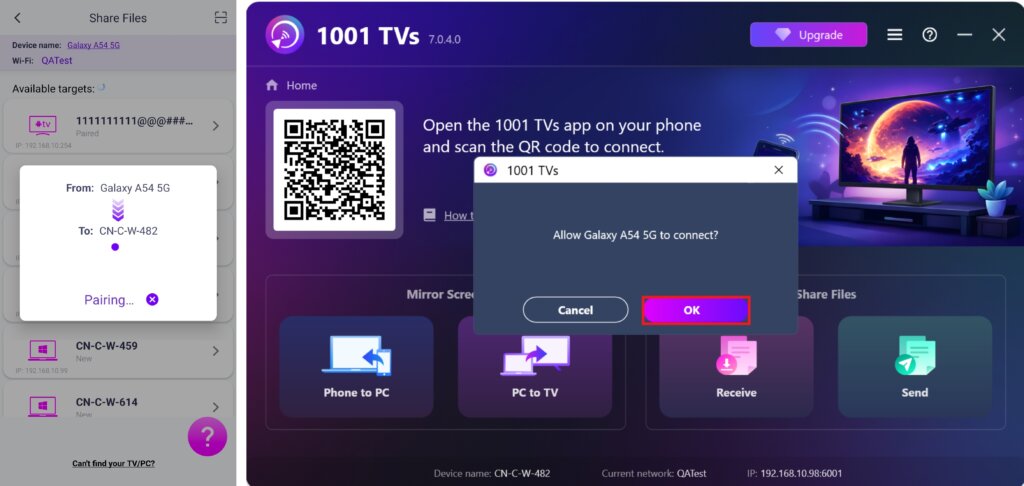
7. Sie können das Zielgerät nicht finden? Versuchen Sie die Kopplung durch Scannen des Codes
Wenn Ihr Gerät nicht in der Liste angezeigt wird, können Sie Scannen Sie den QR-Code auf Ihrem Mac/PC/TV-Bildschirm angezeigt, um eine schnelle Kopplung zu ermöglichen.
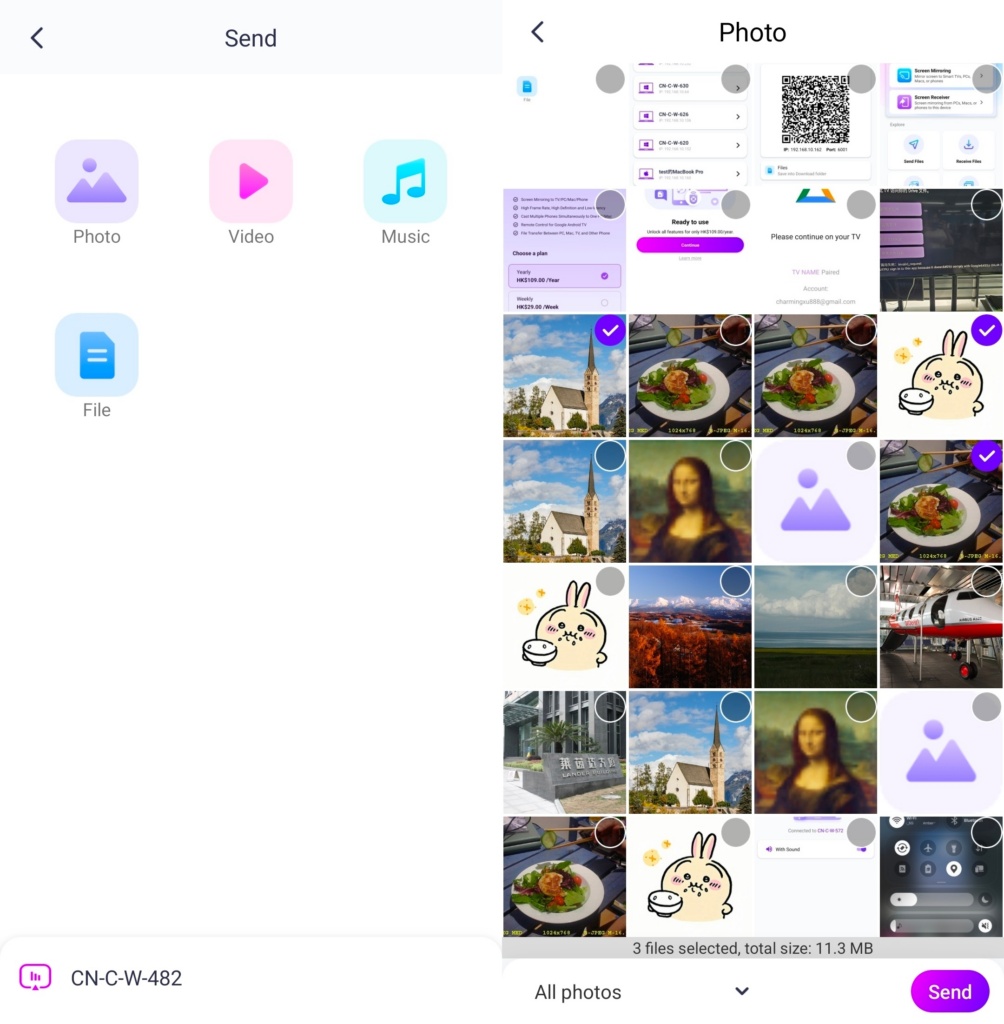
4. Zu sendende Dateien auswählen
Wählen Sie auf Ihrem Smartphone die Dateien aus, die Sie versenden möchten.
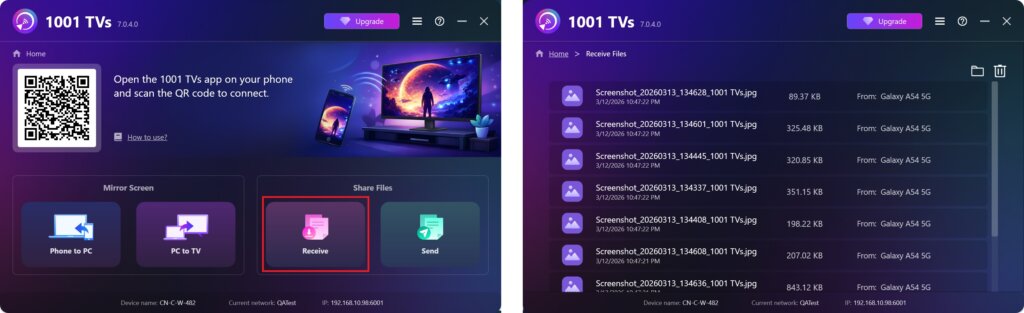
5. Empfangene Dateien - Wo sind sie zu finden?
1) Für PC/Mac
Klicken Sie auf Empfangen Sie auf Ihrem PC/Mac, um alle eingehenden Dateien zu sehen.
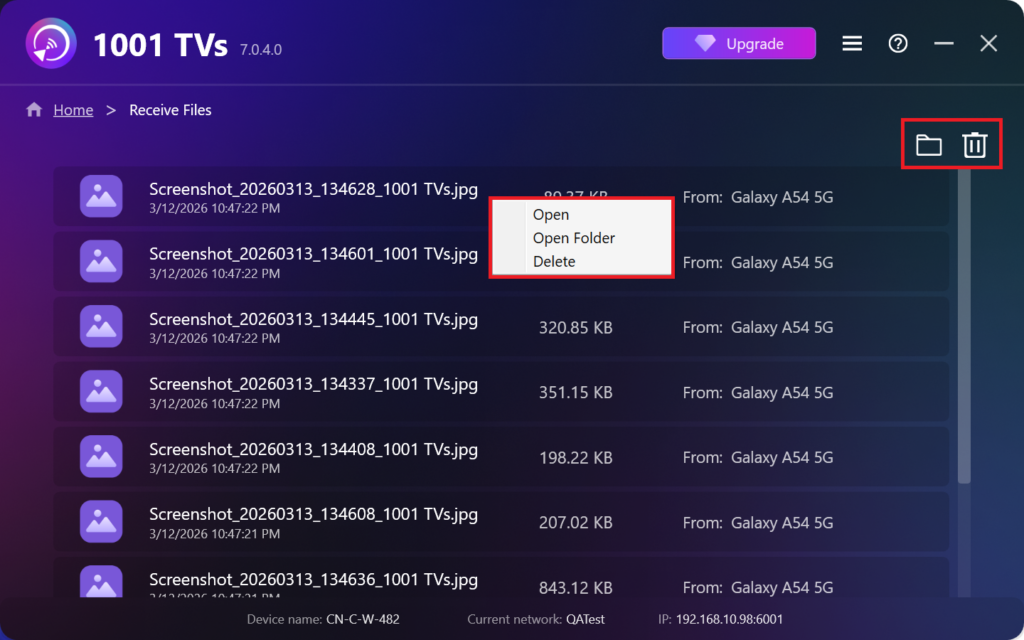
- Öffnen Ansicht der empfangenen Dateien – Klicken Sie auf oder Rechtsklick auf und wählen Sie "Ordner öffnen”, um alle Dateien von diesem bestimmten Gerät anzuzeigen (z. B. iPhone 12123).
- Suchen Sie sie im Finder (Mac) oder im Datei-Explorer (Windows) - Klicken Sie auf die Ordnersymbol oben rechts, um auf alle Geräteordner zuzugreifen.
- Optionen löschen – Klicken Sie mit der rechten Maustaste auf . eine Datei und wählen Sie “Löschen”, um sie einzeln zu entfernen, oder klicken Sie auf das Papierkorbsymbol oben rechts, um alle empfangenen Dateien auf einmal zu löschen.
2) Für TV
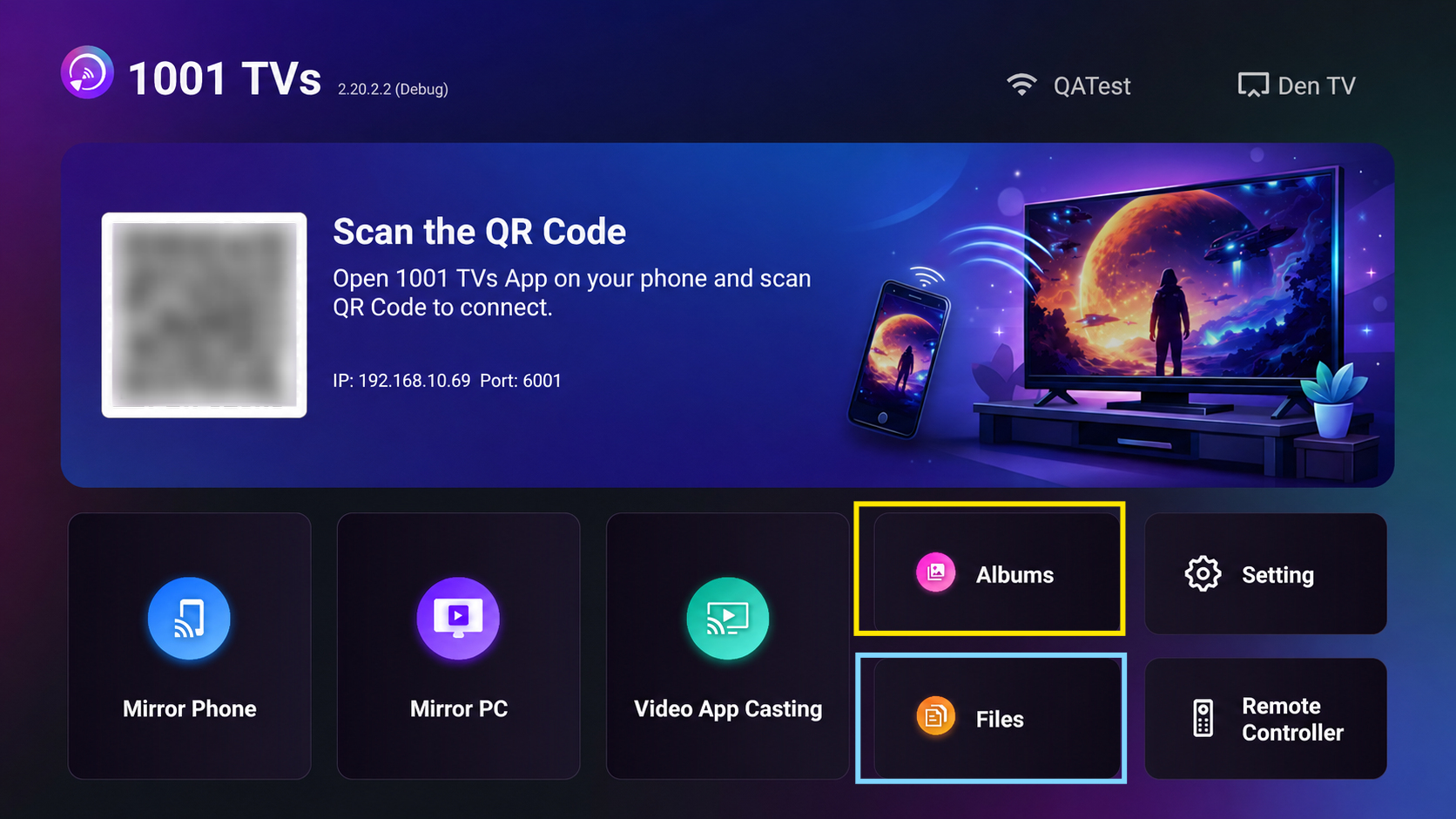
- Navigieren Sie zu Dateien, können Sie die empfangenen Dateien anzeigen. Um eine einzelne Datei zu löschen, halten Sie die OK-Taste auf Ihrer TV-Fernbedienung gedrückt, um die gewünschte Datei auszuwählen, und drücken Sie dann “Bestätigen Sie”, um es zu löschen.
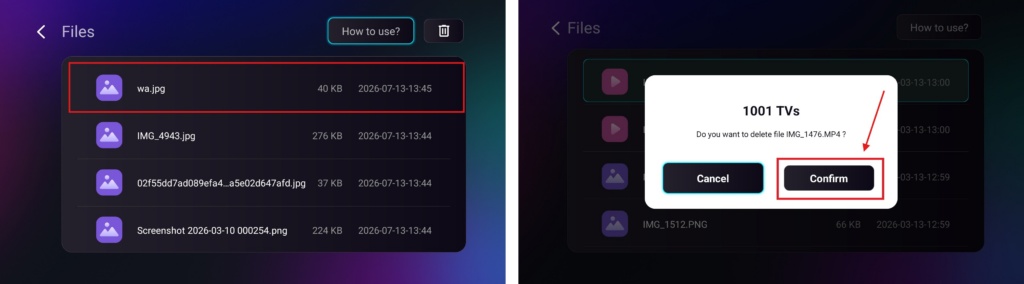
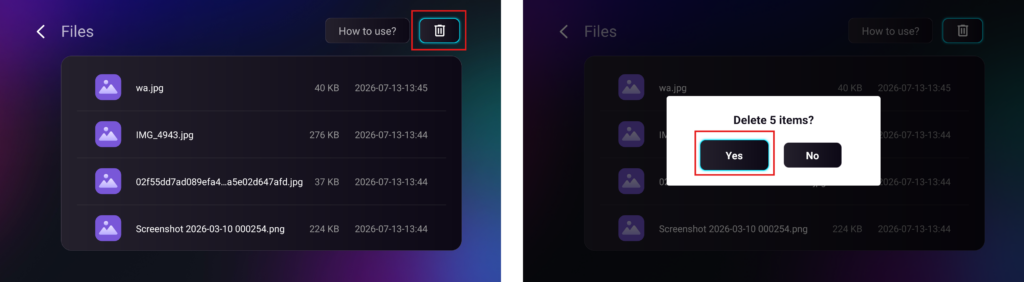
Um alle Dateien auf einmal zu löschen, klicken Sie auf die Papierkorbschaltfläche und drücken Sie anschließend “Ja”, um dies zu bestätigen.
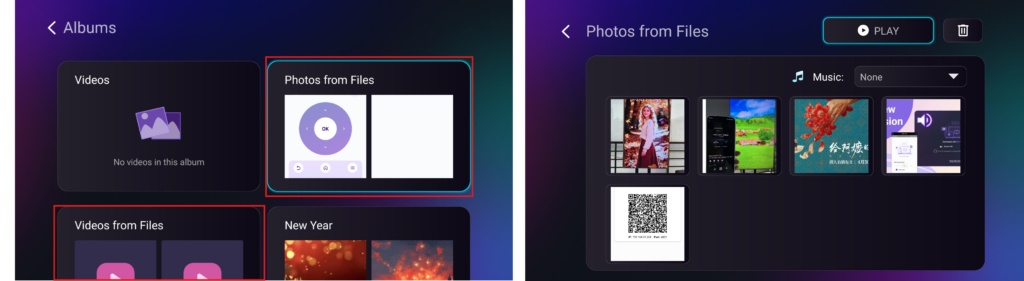
- Navigieren Sie zu Alben > Fotos/Videos aus Dateien Seite, auf der Sie Ihre empfangenen Fotos und Videos anzeigen können. Sie können auf dieselbe Weise wie „Dateien“ gelöscht werden, oder Sie können sie als Diashow.
Mit Nero 1001 TVskönnen Sie genießen kabellose Hochgeschwindigkeits-Dateiübertragung zwischen Ihren Geräten, jederzeit und überall! 🚀
1001 TVs jetzt kaufen
📥 PC App: Herunterladen von Microsoft Store
Detaillierte Schritte finden Sie in der PC-Installationsanleitung.
📥 Mac-Anwendung: Vom App Store herunterladen
📥 TV-App: So installieren Sie 1001 TVs auf Ihrem Fernseher
📱 Android-App: Von Google Play herunterladen
Weiterlesen
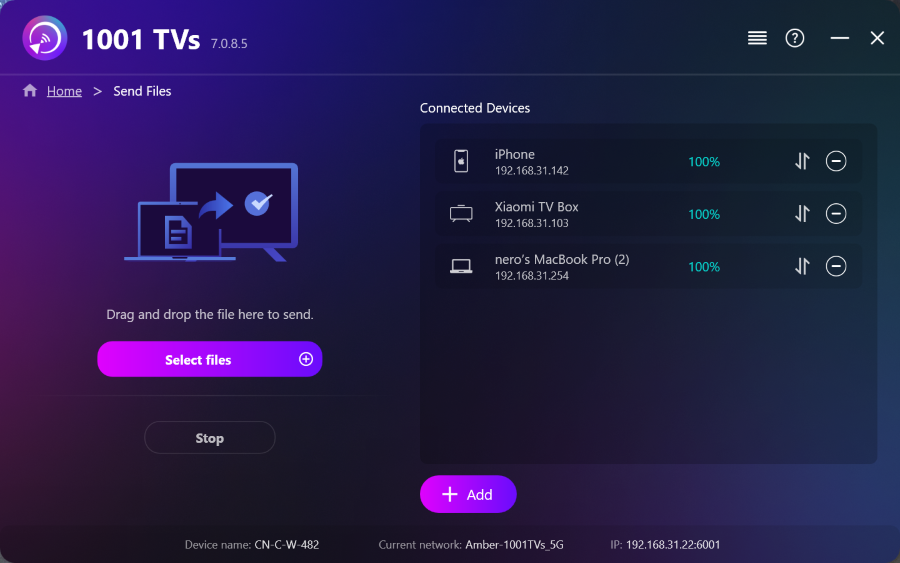 So senden Sie Dateien vom PC gleichzeitig an mehrere Geräte (PC, Smartphone, Fernseher, Tablet)
Mit der neuesten Windows-Version von 1001 TVs (v7.0.8.5) kann Ihr PC nun Dateien an mehrere Geräte senden – Fernseher, Tablets, Smartphones oder andere….
So senden Sie Dateien vom PC gleichzeitig an mehrere Geräte (PC, Smartphone, Fernseher, Tablet)
Mit der neuesten Windows-Version von 1001 TVs (v7.0.8.5) kann Ihr PC nun Dateien an mehrere Geräte senden – Fernseher, Tablets, Smartphones oder andere….
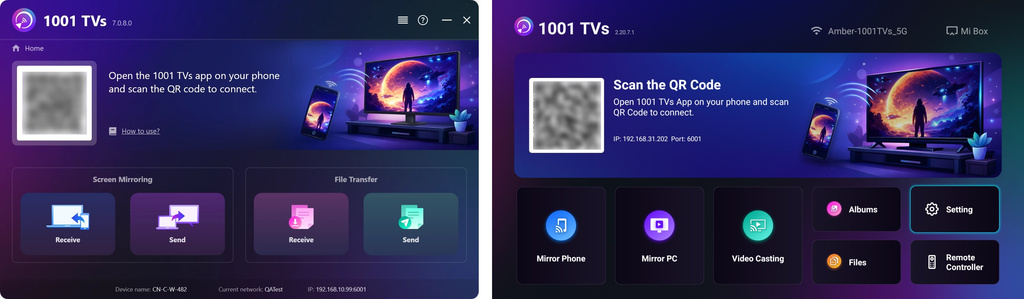 Wie Sie Dateien von Ihrem PC/Mac an TV/PC/Mac senden
Mit 1001 TVs können Sie Dateien von Ihrem PC/Mac über dasselbe lokale Netzwerk an Ihren Fernseher/PC/Mac senden. Und ja – PCs und Macs...
Wie Sie Dateien von Ihrem PC/Mac an TV/PC/Mac senden
Mit 1001 TVs können Sie Dateien von Ihrem PC/Mac über dasselbe lokale Netzwerk an Ihren Fernseher/PC/Mac senden. Und ja – PCs und Macs...

