How to cast F1 TV to your TV from any device
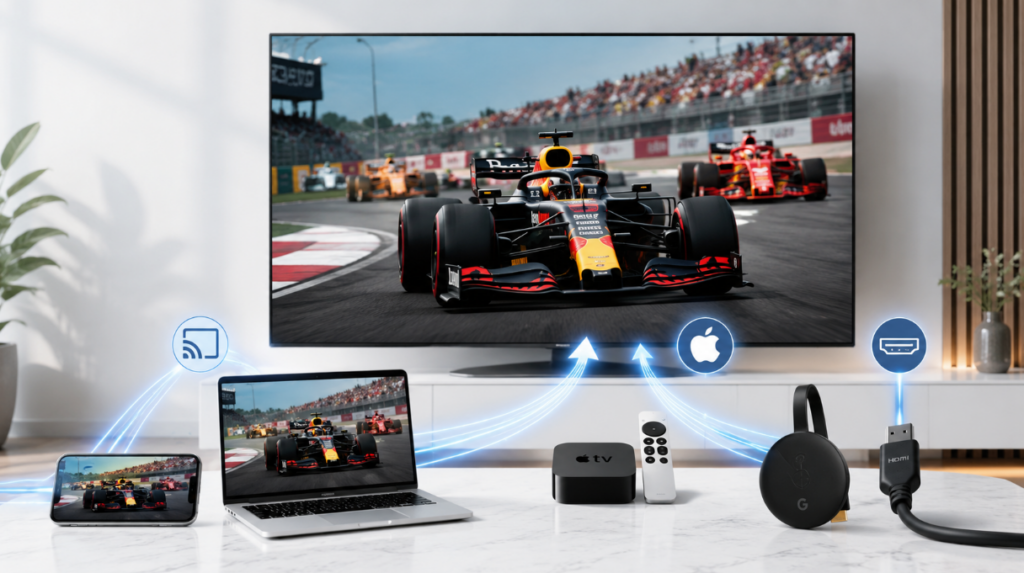
To cast F1 TV to your TV, first use the F1 TV app on Apple TV, Android TV, Google TV, Roku, or Amazon Fire TV. You can also cast through Chromecast Generation 2 or newer. From a computer, try HDMI. Use screen mirroring only when the video allows screen capture.
The right method depends on the device connected to your TV. Native playback is usually the easiest option. Chromecast works well for supported phones, while HDMI gives computer users a wired alternative.
Problems often appear just before a race. The Cast button may be missing, the TV may not appear, or protected video may turn black during screen mirroring. This guide explains which method to try first and what to do when it fails.
For channels, subscriptions, and regional coverage, read our guide to watching F1 live in 2026.
Check for an F1 TV app first
You may not need to cast anything. Formula 1 lists F1 TV support for Apple TV, Android TV, Google TV, Amazon Fire TV, and Roku.
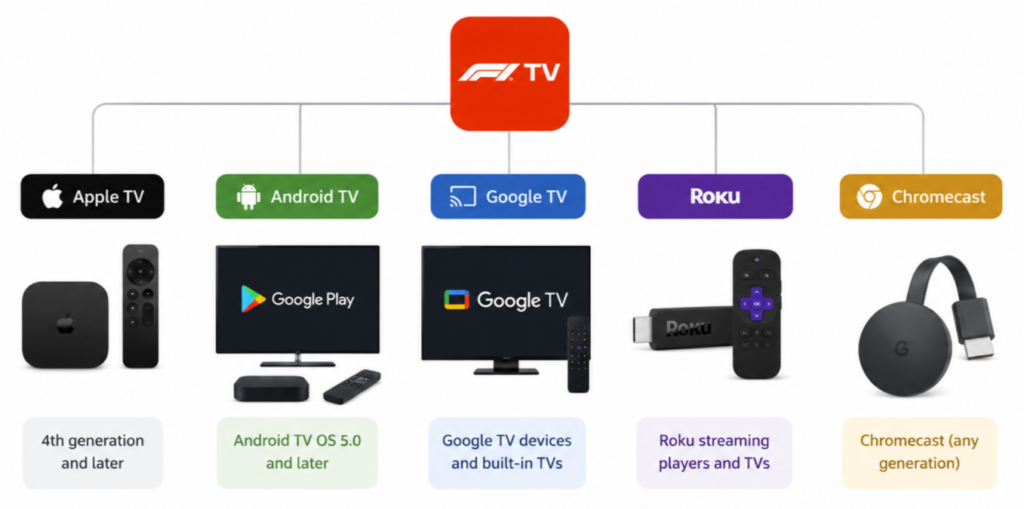
The service also works on the web and in mobile apps. Chromecast Generation 2 and newer is supported as well.
If your streaming device has an F1 TV app, install it there and sign in. Direct playback is easier on your phone battery. It also avoids the extra delay that comes with capturing and mirroring an entire screen.
Availability still depends on location and subscription. F1 TV Pro and F1 TV Premium are sold only in selected markets. Check the current offering for your country before buying a new streaming device.
| Your setup | Try this first | Backup option |
| Apple TV | F1 TV app | Computer with HDMI |
| Android TV or Google TV | F1 TV app | Chromecast |
| Roku or Fire TV | F1 TV app | Computer with HDMI |
| Chromecast Generation 2 or newer | Cast from the F1 TV app | F1 TV app on another supported device |
| Unsupported smart TV | Add a supported streaming device | Computer with HDMI |
| Windows PC or Mac | F1 TV website with HDMI | Screen mirroring, if the video allows it |
Cast F1 TV from an Android phone
Use Chromecast
Chromecast is the first wireless method to try on Android. Both devices need to use the same Wi-Fi network.
- Open F1 TV and sign in.
- Choose the race, qualifying session, practice, or replay.
- Tap the Cast button when it appears.
- Select your Chromecast or compatible TV.
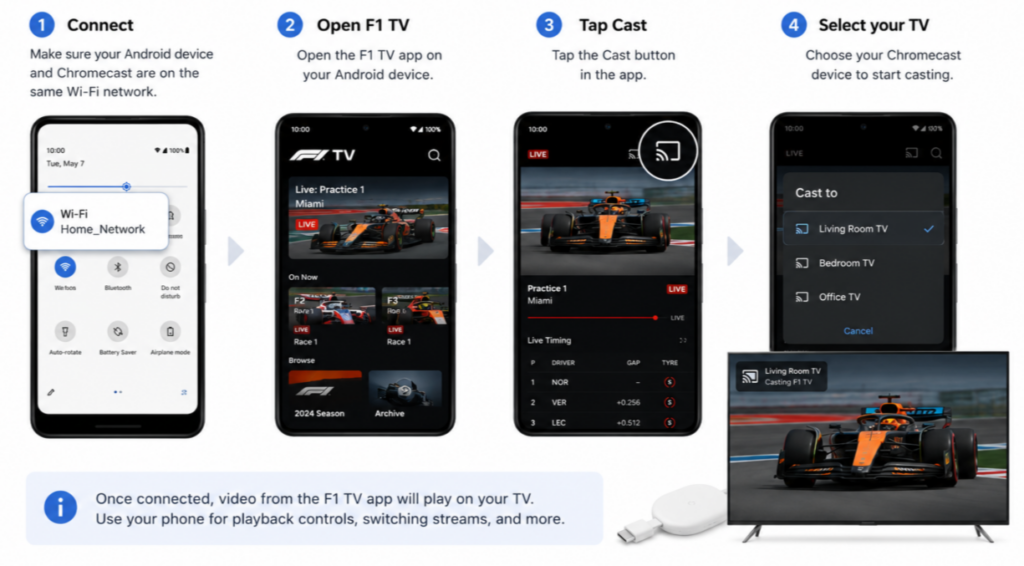
The TV handles the video after the connection starts. Your phone becomes the controller, so you can pause playback or choose another session without showing every notification on the big screen.
If the receiver does not appear, check the network before changing other settings. Guest Wi-Fi can isolate connected devices. Some routers also use AP isolation, which blocks local discovery.
Our phone-to-TV guide covers Android casting, Smart View, and other general connection methods in more detail.
Try screen mirroring only when the video permits it
1001 TVs can mirror an Android screen to a compatible receiver on the same local network. This may help with apps and pages that allow screen capture but do not offer a suitable Cast route.
Install and open 1001 TVs on the sending and receiving devices. Select the TV from the device list, or scan the QR code shown on the receiver. Test the F1 TV video before the session begins.
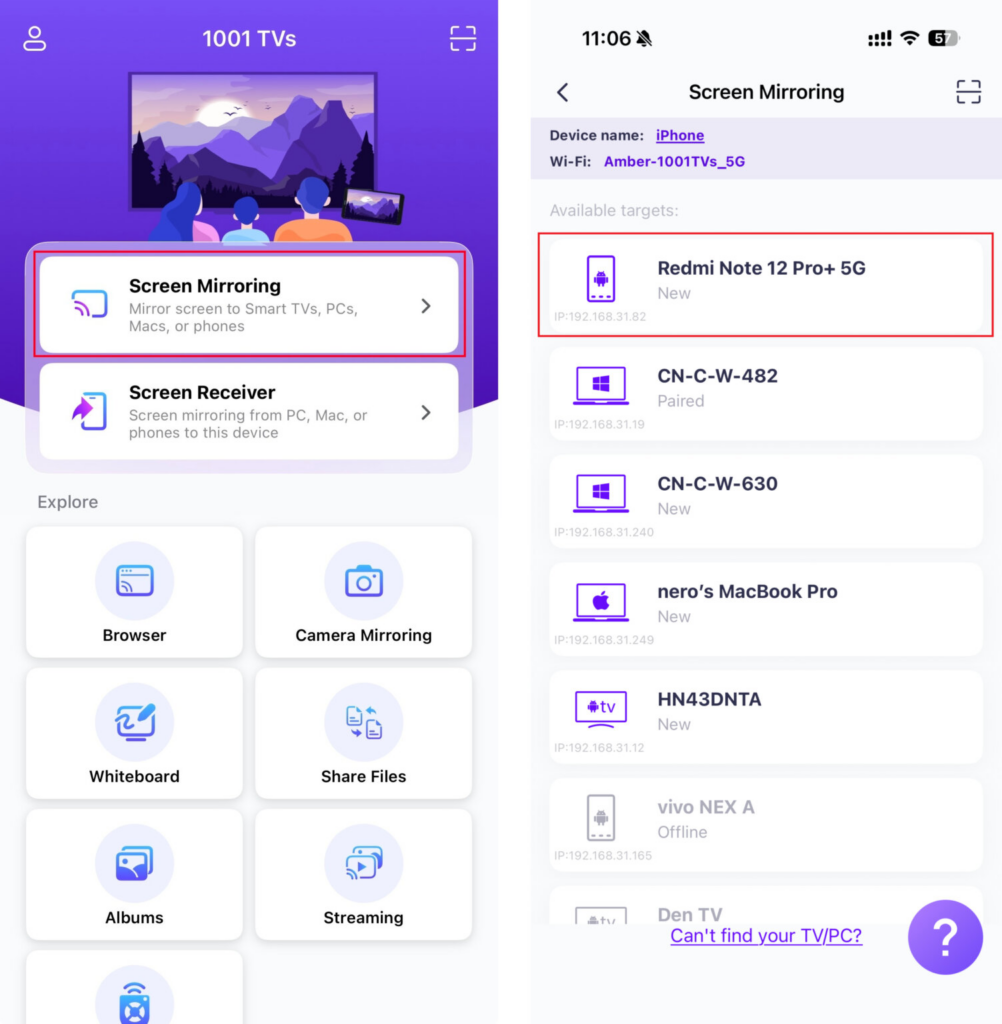
A successful connection does not guarantee that the race video will appear. F1 TV or the operating system may protect the stream from screen capture.
When that happens, the television may show the app interface while the video area stays black. Switch to an F1 TV app or Chromecast instead.
Watch F1 TV from an iPhone or iPad
Use the F1 TV app or Chromecast
Apple TV owners should use the F1 TV app on Apple TV. This is an official F1 TV platform and does not require the iPhone to mirror its display.
Chromecast may also be available from the F1 TV mobile app when you have a supported receiver. Formula 1 lists Chromecast Generation 2 and newer among its supported devices.
AirPlay is not included in Formula 1’s current list of supported F1 TV streaming devices. It may appear in some Apple setups, but it should not be treated as the main route.
If your app does not show an AirPlay option, use the Apple TV app, Chromecast, or another supported device. LG owners can also read the iPhone-to-LG TV guide. Those pages explain TV settings and connection menus without repeating them here.
Using 1001 TVs with an iPhone
Allow Local Network access before trying to connect. The iPhone and receiver must be on the same network. Open 1001 TVs, choose the receiving screen, and establish the connection before opening F1 TV.
Do a short playback test. If the interface appears but the video does not, the stream is probably blocking screen capture. Use the F1 TV app on Apple TV or another supported playback route instead.
Connect a Windows PC or Mac to the TV
Use an HDMI connection
HDMI is often the simplest computer setup. Open F1 TV in a supported browser, connect the computer to the TV, and choose the correct input. Set the television as the audio output, then open the player in full screen.
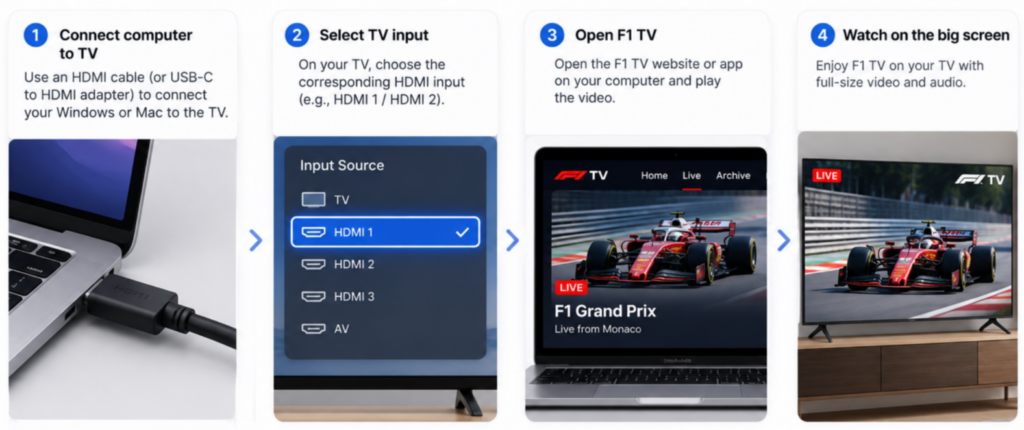
This method still has compatibility limits. The computer, cable, adapter, browser, and television must support the protected video path. An old adapter or an HDCP problem can produce an error or black screen.
Our PC-to-TV guide explains HDMI, Miracast, Chrome, and wireless display settings. Use that page if the television is not detected or the display mode is wrong.
Try wireless screen mirroring
Windows and Mac users can also try 1001 TVs for content that permits screen mirroring. Open the app on both devices, keep them on the same network, and choose PC/Mac to TV.
Turn off desktop notifications before the race. They will be visible to everyone if you mirror the whole screen.
Which method should you use?
Casting and screen mirroring do different jobs. Casting sends supported media to the receiving device. Screen mirroring captures the sender’s display and reproduces it elsewhere.
| Method | Good choice for | Limitation |
| F1 TV app | Apple TV, Android TV, Google TV, Roku, and Fire TV | Availability varies by market and plan |
| Chromecast | Supported phones and Chromecast Generation 2 or newer | Both devices must find each other on the network |
| HDMI | Windows and Mac users who want a wired connection | Hardware and HDCP compatibility still matter |
| 1001 TVs screen mirroring | Mixed-device setups and content that allows capture | Protected video may show a black screen |
Fix common F1 TV casting problems
Start with the visible symptom
Start with the symptom you can see. Randomly changing settings often creates a second problem without fixing the first one.
| Problem | Possible cause | What to try first |
| Cast button is missing | Unsupported receiver, app version, or playback setup | Check F1 TV device support and update the app |
| TV does not appear | Devices are on different networks or local discovery is blocked | Check Wi-Fi and local network permissions |
| Video area is black | The stream is blocking screen capture | Use an F1 TV app or Chromecast |
| Picture works but sound does not | The wrong audio output is selected | Choose the TV as the audio output |
| Video stutters | Weak Wi-Fi or mirroring overhead | Move to direct playback, Ethernet, or a wired connection |
| Mirroring stops when the phone locks | Auto-Lock or battery settings stop the session | Keep the phone awake and connect it to power |
The 1001 TVs Help Center has detailed fixes for device discovery, local network permissions, audio, and connection drops.
If the image works but the TV is silent, read the guide to fixing sound during screen mirroring.
Picture quality problems are covered in the resolution and frame rate guide.
Why does F1 TV show a black screen?
A black video area usually points to content protection. Streaming services can prevent other apps or system tools from capturing protected video. This can affect built-in mirroring and apps such as 1001 TVs.
The menus may remain visible because they are not protected in the same way. Audio might continue too. That combination can make the problem look like a broken TV, even though the restriction is working as designed.
Do not spend race day trying to force screen mirroring to work. Move to the F1 TV app on a supported device or use Chromecast.
A computer connection may also work when the browser and full HDMI path meet the service’s protection requirements.
Test the setup before the race
Give yourself five minutes before the broadcast starts.
- Play the session on the source device.
- Connect to the TV and let the video run for two minutes.
- Check the TV speakers, not only the phone or laptop.
- Turn off private notifications if you plan to mirror the screen.
- Plug in the sending device.
- Pause large downloads and cloud backups.
- Keep a supported F1 TV device ready as a backup.
Menus are not enough for a proper test. Wait until the video and sound have both played on the television.
Questions about watching F1 TV on a television
Can I cast F1 TV to a smart TV?
Yes, when the TV or connected device supports F1 TV playback. Formula 1 lists Apple TV, Android TV, Google TV, Roku, Amazon Fire TV, and Chromecast Generation 2 or newer. Support and subscriptions vary by location.
Why is the Cast button missing from F1 TV?
The receiving device may be unsupported or unavailable on the local network. Update F1 TV and confirm that the Chromecast and phone share the same Wi-Fi.
Next, check whether the router blocks local discovery. App and regional differences may also affect the available controls.
Does F1 TV officially support AirPlay?
Formula 1’s current device list does not name AirPlay as a supported F1 TV route. Apple TV is supported through its native F1 TV app. Use that app rather than assuming that full-screen AirPlay mirroring will work.
Why is the screen black during mirroring?
The video may use DRM or screen capture protection. These controls can block the picture while leaving menus or audio visible. Try the F1 TV app on a supported device or Chromecast instead.
Is HDMI better than wireless casting?
HDMI avoids Wi-Fi discovery and can be more stable. It is not guaranteed to work with every cable, adapter, browser, or display. Chromecast is easier when the app and receiver already support each other.
Can 1001 TVs mirror F1 TV?
1001 TVs can mirror the sender’s screen when the device and video allow screen capture. Some protected F1 TV video may stay black. If that happens, move to a supported F1 TV app or Chromecast.
Get the race onto the right screen
Install F1 TV directly on a supported TV device when possible. Try Chromecast if you want to control playback from a phone. For a computer, test HDMI before the session starts.
1001 TVs is useful for screens and content that permit mirroring. It cannot remove restrictions set by F1 TV, the operating system, or the copyright holder.
You can download 1001 TVs and test your devices before the race. Keep another supported F1 TV route ready in case the video blocks screen capture.

Read More
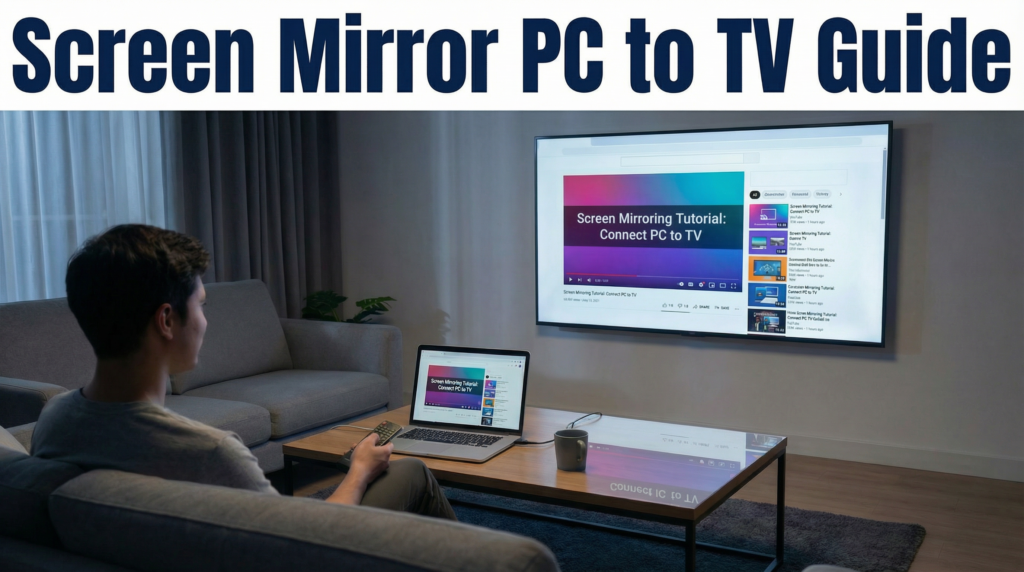 2026 Guide: How to Screen Mirror PC to TV
To screen mirror a PC to a TV, connect an HDMI cable and press Windows + P → Duplicate, or press Windows + K…
2026 Guide: How to Screen Mirror PC to TV
To screen mirror a PC to a TV, connect an HDMI cable and press Windows + P → Duplicate, or press Windows + K…
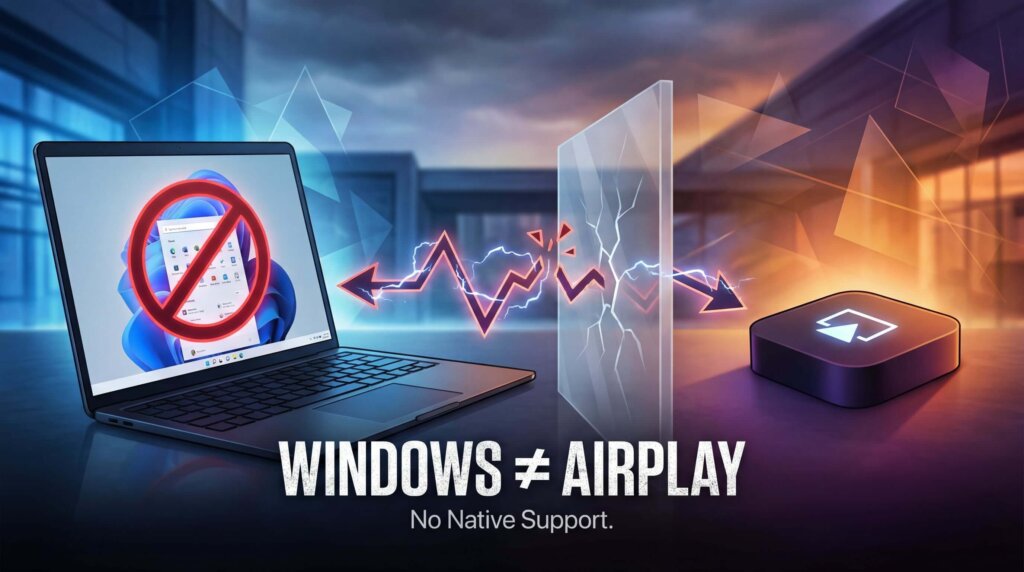 AirPlay on Windows: How to Mirror iPhone or iPad to a PC
To mirror an iPhone or iPad to a Windows PC using AirPlay, install an AirPlay receiver app on the computer. Windows does not include…
AirPlay on Windows: How to Mirror iPhone or iPad to a PC
To mirror an iPhone or iPad to a Windows PC using AirPlay, install an AirPlay receiver app on the computer. Windows does not include…

