How to Install 1001 TVs on Your TV
Google Play: Cast Screen on TV–1001 TVs – Apps on Google Play
1. Turn on Your TV and Connect to Wi-Fi
Ensure your TV is powered on and connected to your Wi‑Fi network.
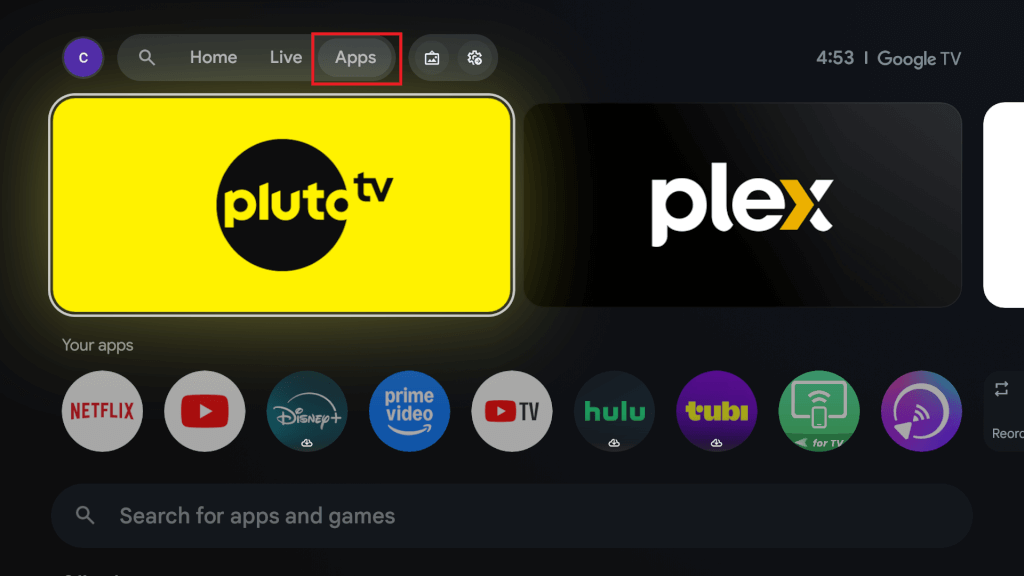
2. Go to the Apps Menu
Use your remote to go to the “Apps” section on the top menu bar of your TV.
3. Open the Google Play Store
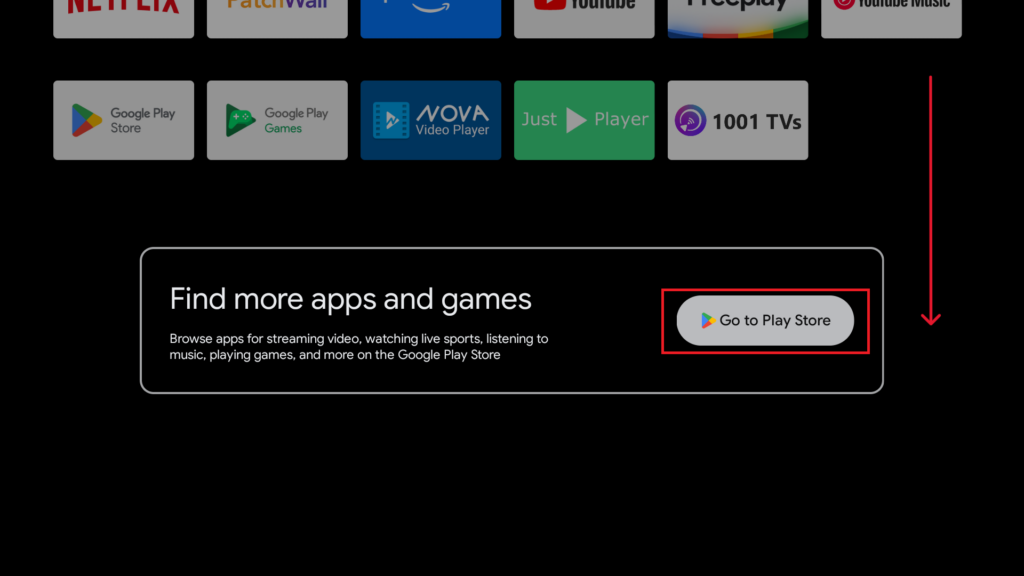
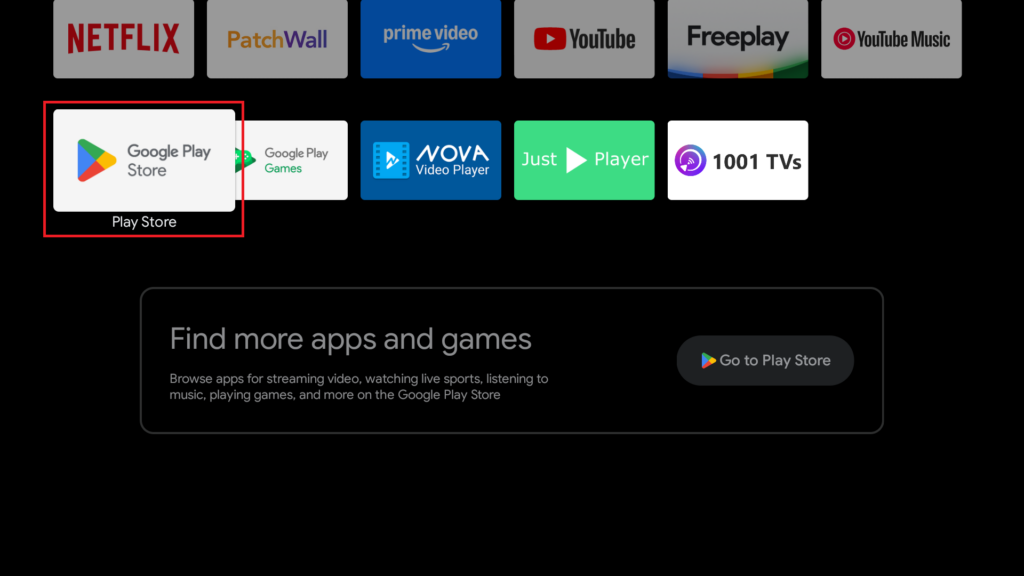
· If you see the “Go to Play Store” icon, click it.
· If not, scroll through the apps list until you find the Google Play Store, and select it.
4. Search for 1001 TVs App
· Scroll down to find the search bar.
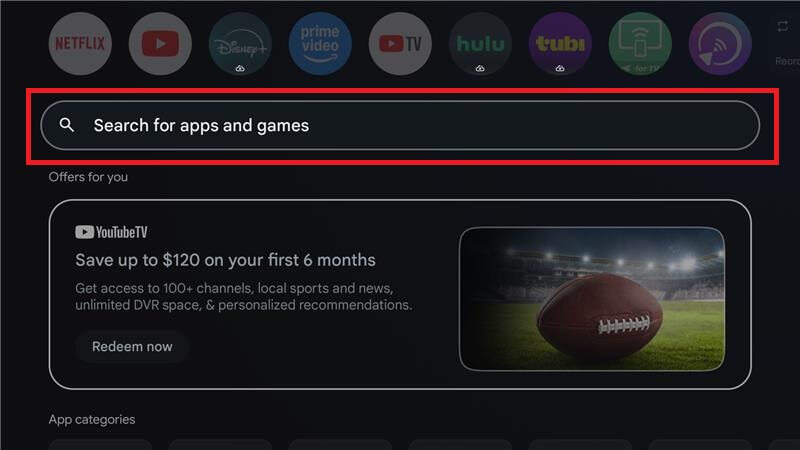
· Type “1001 TVs” using your remote.
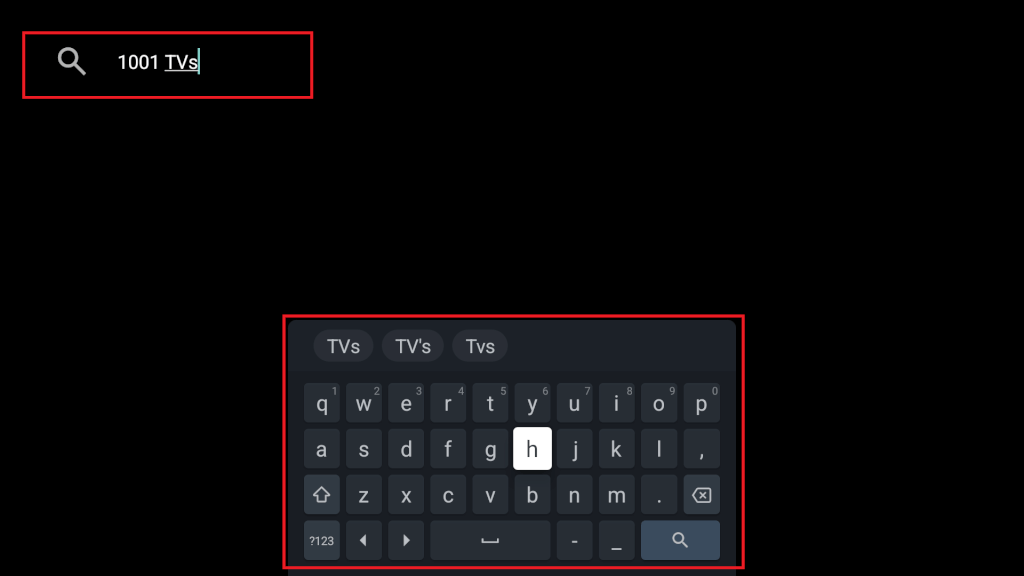
5. Install the App
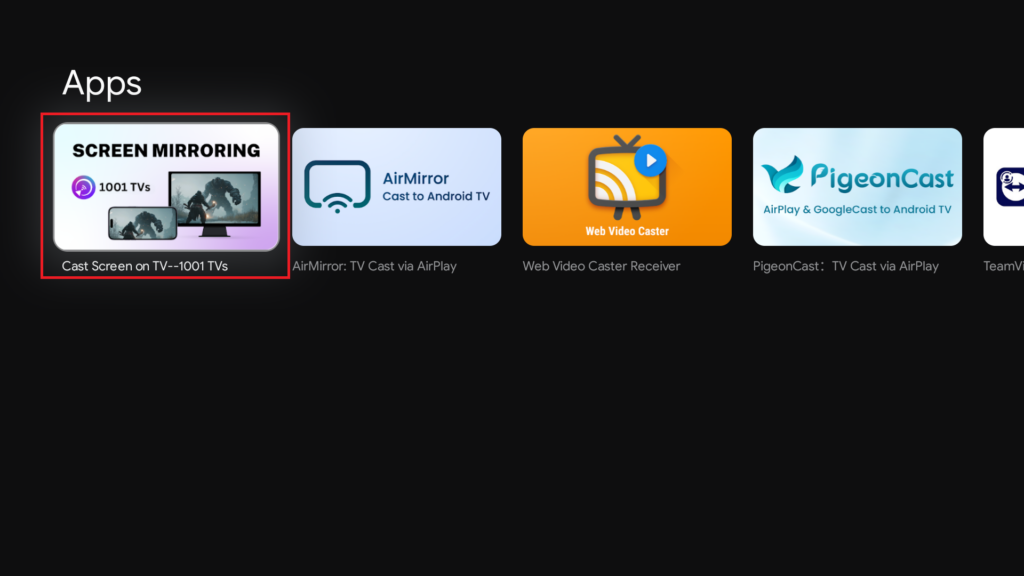
· Select 1001 TVs from the search results.
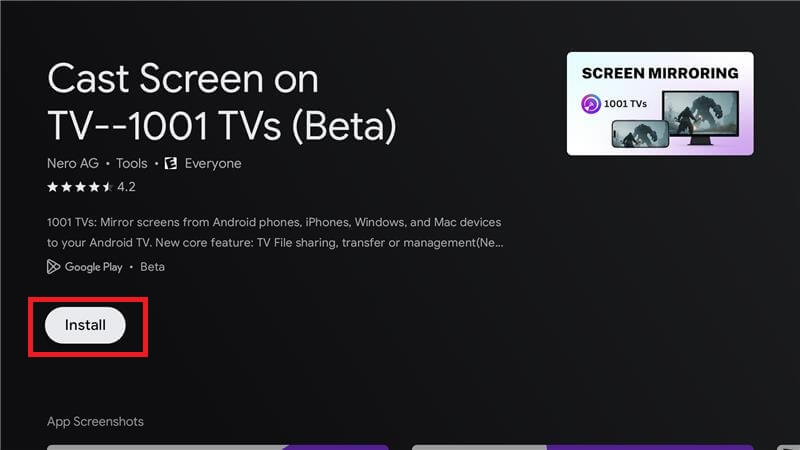
· Click “Install” and wait for the download and installation to complete.
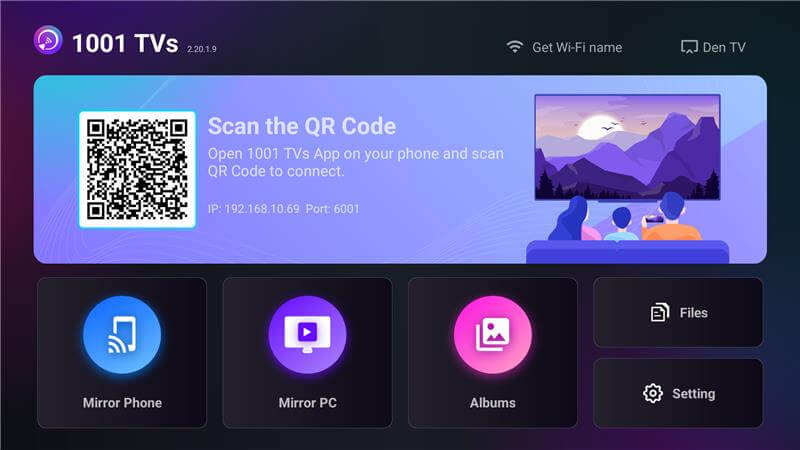
6. Launch and Set Up the App
· Once installed, click “Open” to launch the app.
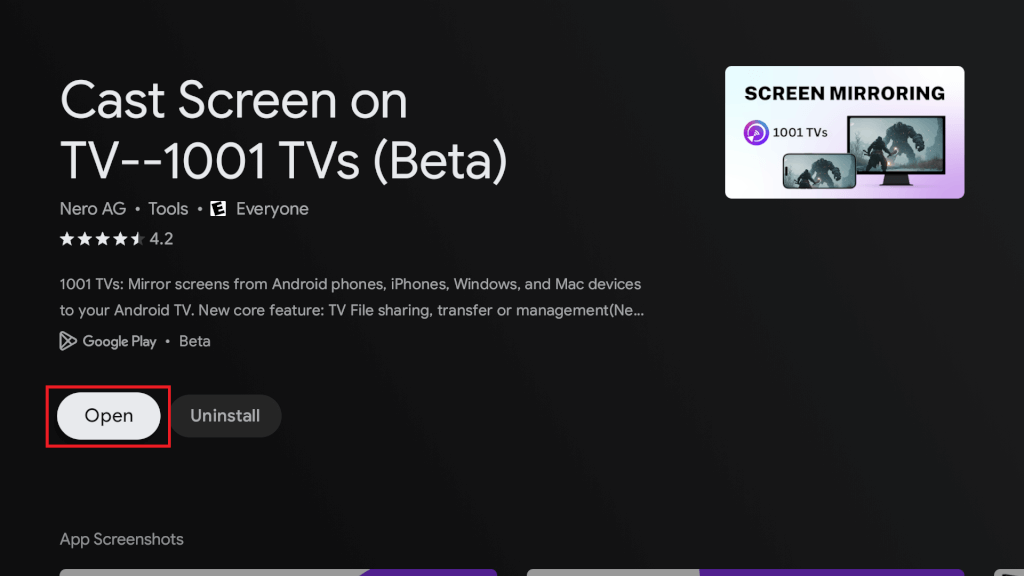
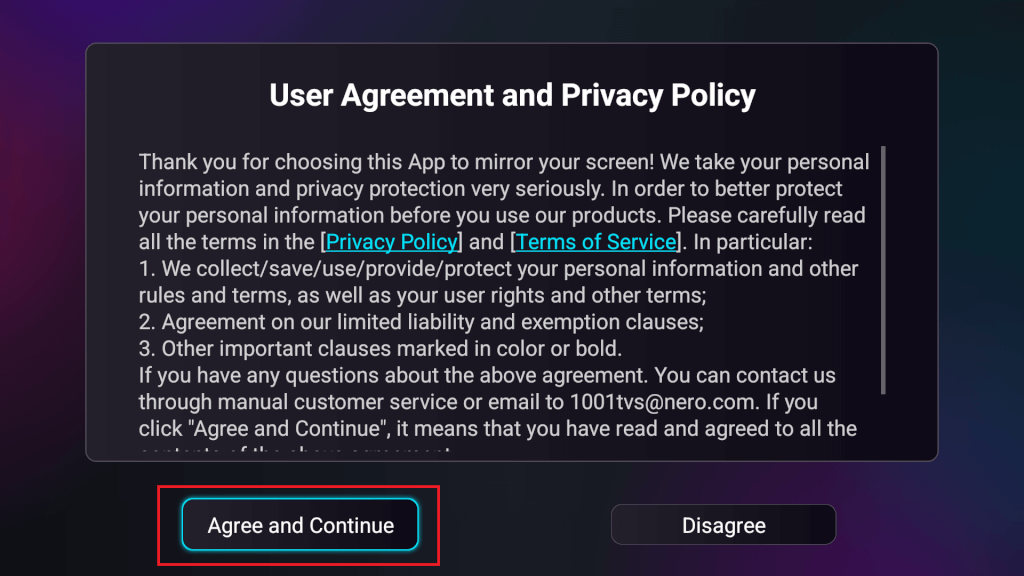
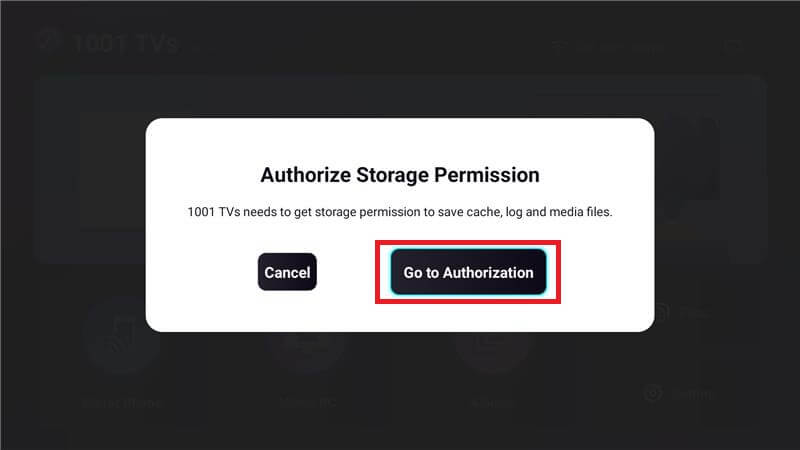
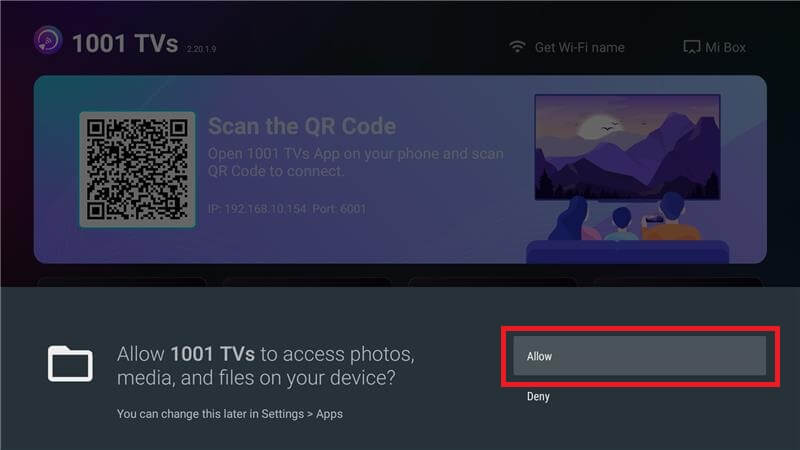
· Follow the prompts to complete the setup and start enjoying 1001 TVs!

Read More
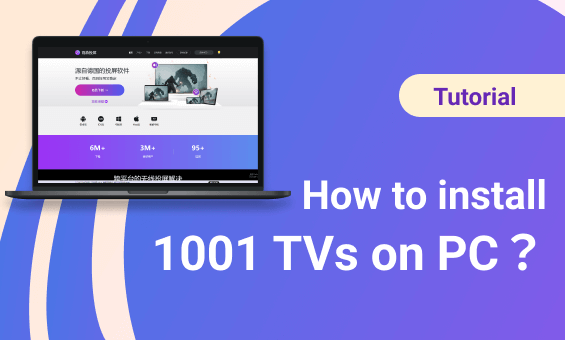 How to Install 1001 TVs on PC
1. Get the App from Microsoft Store Launch the Microsoft Store on your PC, search for “1001 TVs”. Click “Get” to install, and then open the app. 2. Start…
How to Install 1001 TVs on PC
1. Get the App from Microsoft Store Launch the Microsoft Store on your PC, search for “1001 TVs”. Click “Get” to install, and then open the app. 2. Start…
 How to Install 1001 TVs on Your TV – Easy Fixes & Solutions
Having trouble installing the 1001 TVs app on your TV? No worries! This is usually due to compatibility issues or app availability. Follow this…
How to Install 1001 TVs on Your TV – Easy Fixes & Solutions
Having trouble installing the 1001 TVs app on your TV? No worries! This is usually due to compatibility issues or app availability. Follow this…

