
How to Cast FIFA World Cup 2026 to TV: AirPlay, Chromecast & More
The 2026 FIFA World Cup is coming to North America with 104 matches across three countries from June 11 to July 19. With streaming rights scattered across dozens of platforms worldwide, millions of fans face the same question: how do I get this match from my phone onto my big screen?
If you’ve ever tried casting a live sports event, you know the frustration. Buffering right before a goal. Audio drifting out of sync. Your stream refusing to connect when kickoff is seconds away.
Here’s the reality: casting live sports is harder than streaming regular content. Real users consistently report issues that don’t happen with Netflix or YouTube. Why? Live sports need:
1. Higher bandwidth (25-50 Mbps for HD/4K)
2. Rock-solid connection for the full 90 minutes
3. Lower latency (so you don’t hear your neighbor’s cheer before you see the goal)
This guide covers every proven method to cast World Cup 2026 to your TV, based on real user experiences. You’ll be ready for all 104 matches without missing a moment.
First, check where to watch FIFA World Cup 2026 live to see which streaming services are available in your country.
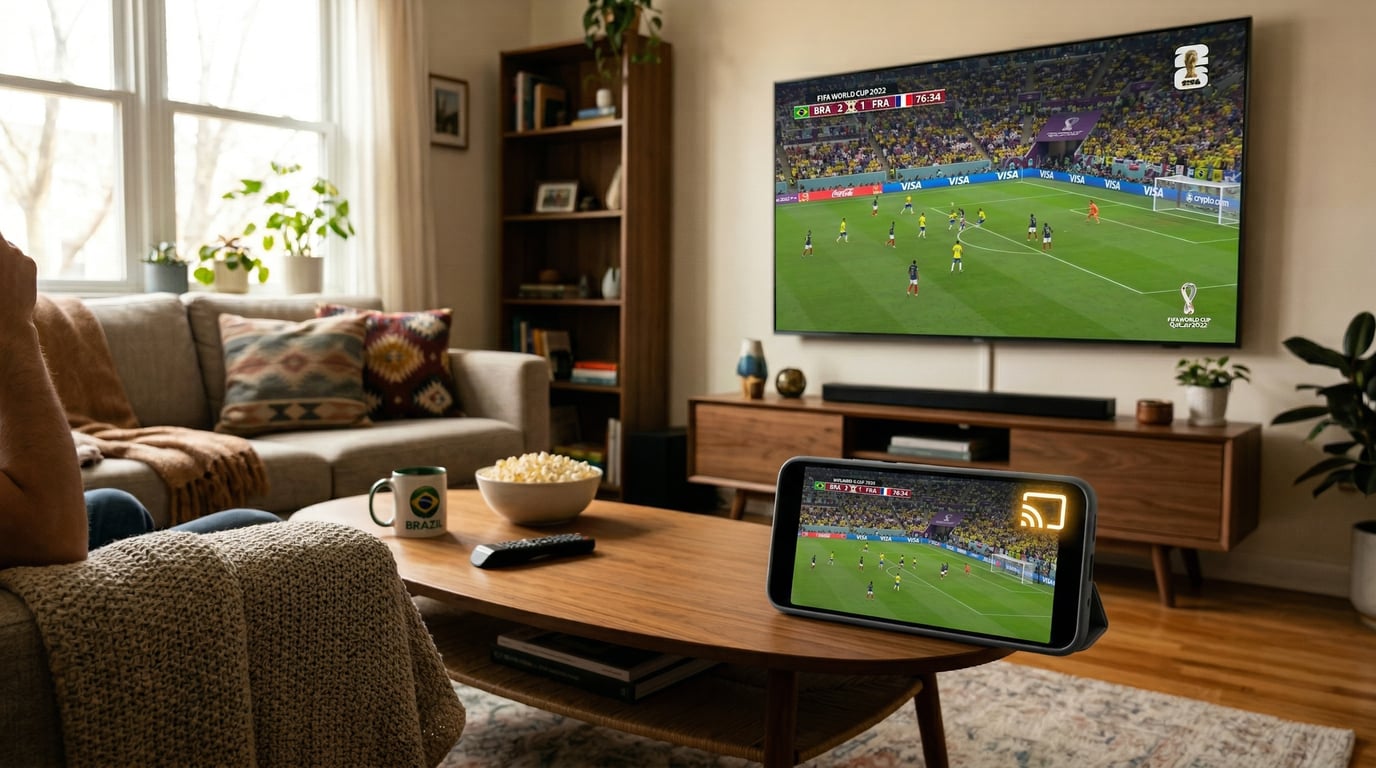
Which Casting Method Should You Use?
If you already own hardware:
Use what you have. Chromecast or Chromecast-enabled TV works great for Android and iPhone users. Apple TV is perfect for the Apple ecosystem—just keep your iPhone charged during matches. If you don’t have either, skip buying expensive hardware and try 1001 TVs with a free trial instead.
If you’re buying something new:
The best value is trying 1001 TVs (free trial available) plus buying a $15 HDMI cable as backup. If you want the absolute most reliable setup regardless of WiFi issues, an HDMI cable alone ($10-20) guarantees zero buffering and zero lag.
| طریقہ | Hardware Cost | Reliability | Battery Drain | Best For |
|---|---|---|---|---|
| کروم کاسٹ | $0 (built-in) or $30-50 | ⭐⭐⭐⭐ Good | Low | Android users, built-in TV support |
| ایئر پلے | $0 (need Apple TV $129+) | ⭐⭐⭐ Okay | High | iPhone users with Apple TV |
| 1001 TVs | مفت ٹرائل دستیاب ہے۔ | ⭐⭐⭐⭐⭐ Excellent | Medium | Universal solution, any service |
| HDMI Cable | $10-20 | ⭐⭐⭐⭐⭐ Perfect | None | Maximum reliability, zero lag |
Method 1: Chromecast – Best for Android Users
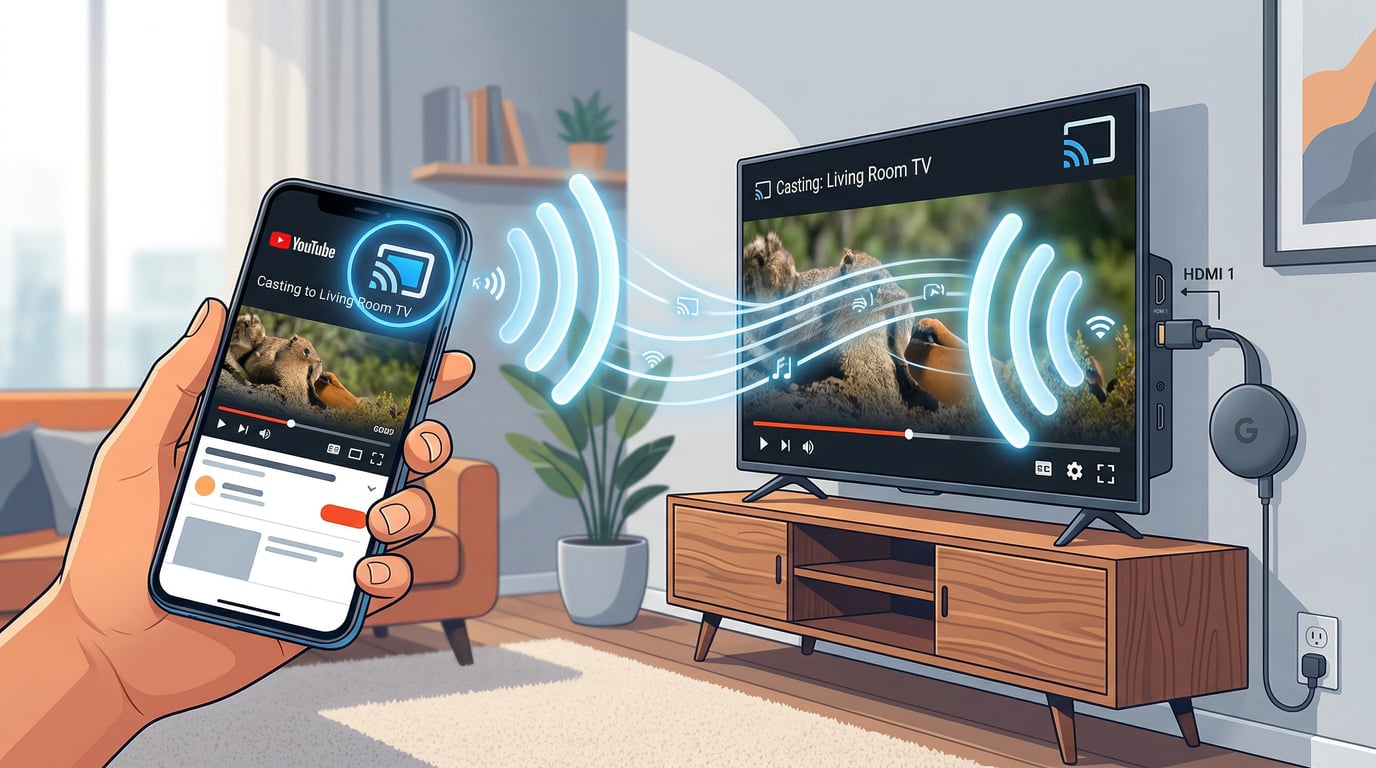
Chromecast sends the video URL directly to your TV, which then streams the content from the internet independently. Your phone simply acts as a remote control. You can lock it, use other apps, or even take it to another room while the match continues playing.
Do you already have it? Many TVs made after 2018 have Chromecast built-in. Look for “Chromecast built-in” or “Google Cast” in your TV settings. If not, you’ll need to buy a Chromecast dongle for $30-50.
Setup is straightforward:
1. Make sure your phone and TV are on the same WiFi network (this is the #1 reason casting fails)
2. Open your streaming app (FOX Sports, BBC iPlayer, etc.)
3. Tap the Cast icon (rectangle with WiFi waves)
4. Select your TV from the list
5. Play your match
فوائد: Low battery drain, use your phone freely during the match, works with Android and iPhone.
نقصانات: Some users report live sports streams can be choppy, especially on unofficial sites.
Common issues and fixes:
Can’t find your Chromecast?
1. Check both devices are on the same WiFi (not guest network)
2. Restart by unplugging Chromecast for 30 seconds
3. Update Google Home app
Live sports keep buffering? (Very common complaint)
1. Check you have 25+ Mbps at speedtest.net
2. Switch to 5GHz WiFi (less interference)
3. Disconnect other devices during the match
4. Manually select 720p instead of auto
Audio out of sync?
1. Restart the cast session
2. Check TV audio delay settings
لاگت: $0 if built-in, otherwise $30-50 for device.
Method 2: Apple AirPlay – For iPhone Users
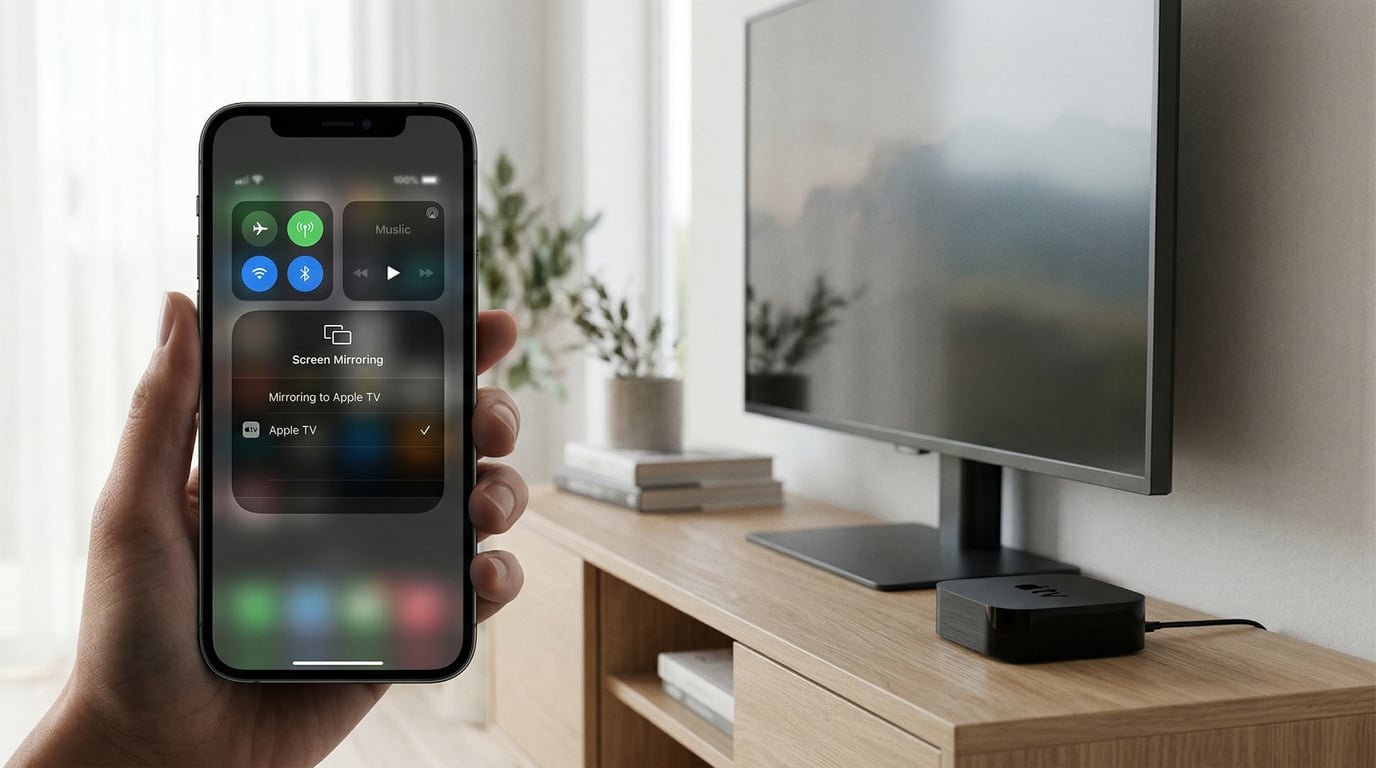
AirPlay mirrors your iPhone screen directly to your TV. Unlike Chromecast, your phone stays actively involved—it must remain on and charged since it’s continuously sending video to the TV.
What you need:
1. Apple TV ($129+) OR a smart TV with AirPlay 2 built-in (Samsung, LG, Sony, Vizio from 2019+)
2. iPhone or iPad
3. Both on the same WiFi network
Setup takes seconds:
1. Swipe down from top-right (iPhone X+) or up from bottom (older iPhones)
2. Tap Screen Mirroring
3. Select your Apple TV
4. Open streaming app and play
5. Keep your phone plugged in during the match
پرو ٹپ: Some streaming apps have a dedicated AirPlay button (triangle with waves). This lets you cast without mirroring your entire screen, which is more efficient.
فوائد: Built into Apple devices, good video quality, seamless if you’re in the Apple ecosystem.
نقصانات: High battery drain, phone must stay on, can’t use other apps while mirroring (unless app supports native AirPlay).
The reality check: Many iPhone users report AirPlay is less reliable than Chromecast for live sports. If you already own Apple TV, it works fine—just keep your iPhone plugged in. But if you’re buying new hardware specifically for World Cup 2026, Chromecast or 1001 TVs are more practical for live sports.
لاگت: AirPlay itself is free. You just need Apple TV hardware ($129-149) if you don’t already have it or an AirPlay 2-compatible TV.
Method 3: 1001 TVs – The Universal Solution
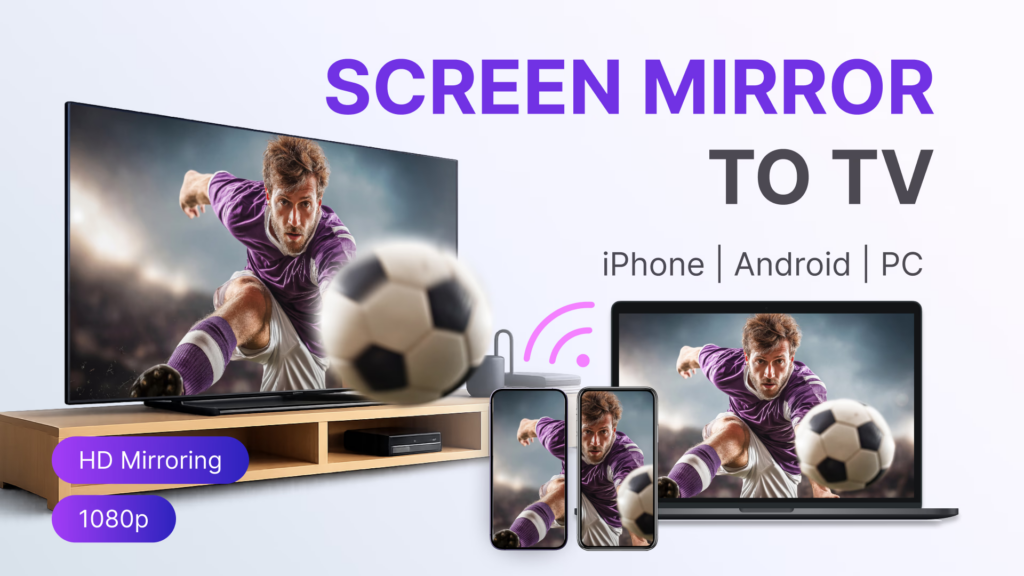
1001 TVs exists to solve the exact problems World Cup fans face:
1. Your streaming service blocks native casting
2. You don’t have Apple TV or Chromecast
3. Your TV is too old to support modern protocols
4. You want one app that works with everything
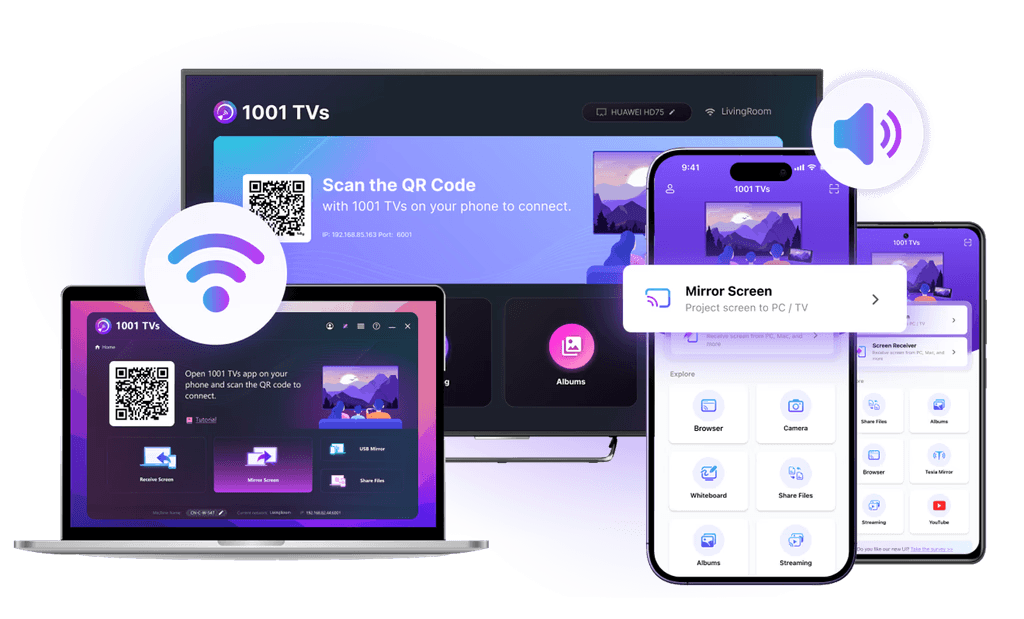
یہ کیسے کام کرتا ہے: The app mirrors your entire phone screen to your TV. If you can see the match on your phone, you can see it on your TV.
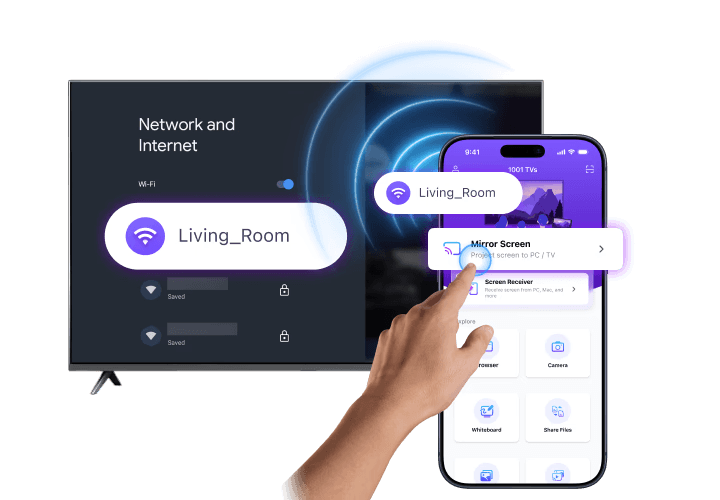
Setup is incredibly simple:
1. سے ڈاؤن لوڈ کریں www.1001tvs.com
2. Make sure phone and TV are on same WiFi
3. Open app → tap “Screen Mirror”
4. Select your TV from the list
5. Open streaming app and play
Everything on your phone screen now appears on your TV.
لاگت: Free trial available, then $19.99/year for premium.
1001 TVs ڈاؤن لوڈ کریں: ایپ حاصل کریں www.1001tvs.com (iOS، اینڈرائیڈ، میک، ایپل ٹی وی، اور اینڈرائیڈ ٹی وی کے لیے دستیاب).
Method 4: HDMI Cable – The Bulletproof Backup
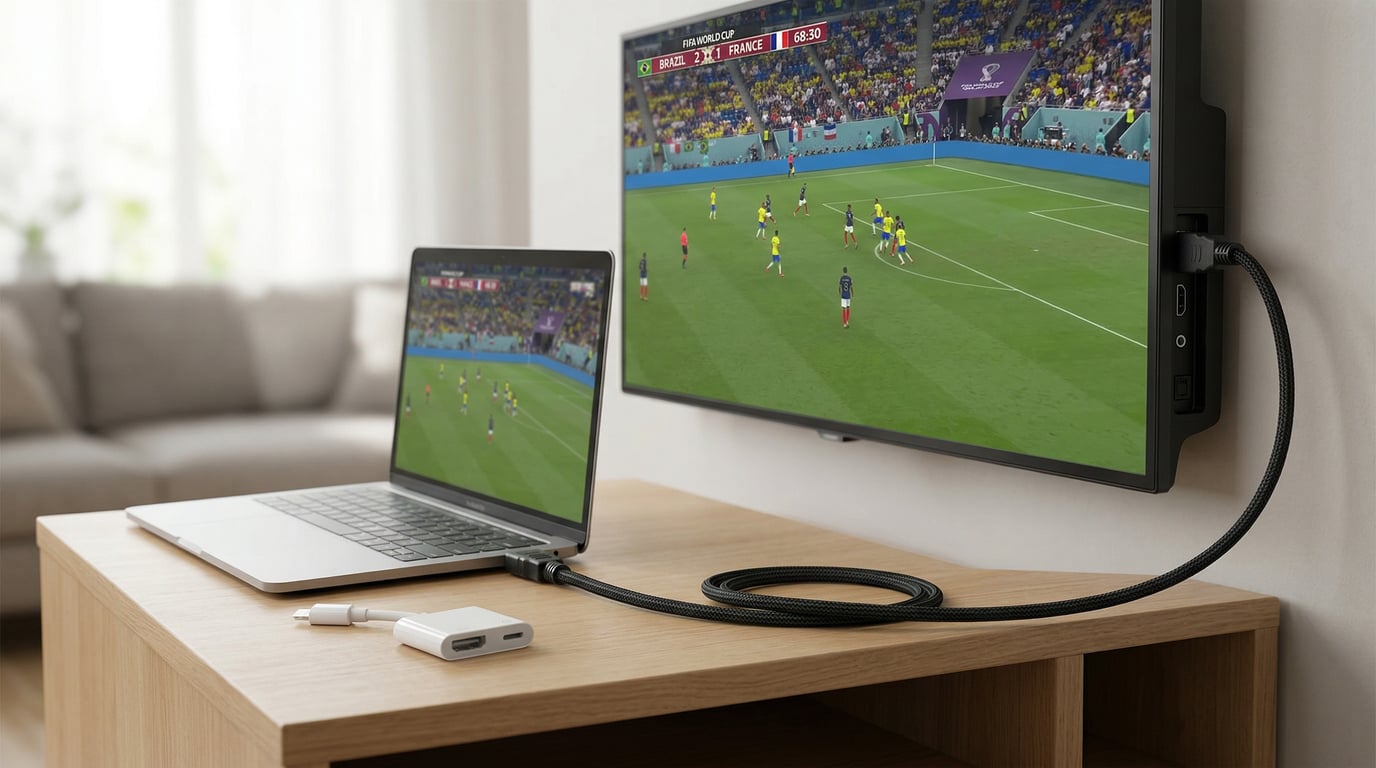
When WiFi is unreliable, casting keeps failing, or your team just made it to the knockout rounds and you can’t risk technical issues, an HDMI cable eliminates every wireless variable.
Real user story: “I tried everything—Chromecast buffered, AirPlay disconnected. Finally plugged in an HDMI cable 10 minutes before kickoff. Worked perfectly. Should’ve done it from the start.”
What you need:
- Laptops: Standard HDMI cable ($10-15)
- iPhones: Lightning to HDMI adapter ($15-49), or USB-C to HDMI for iPhone 15+
- Android: USB-C to HDMI adapter ($10-25)
Setup takes 2 minutes:
1. Plug HDMI cable into your TV (note which port: HDMI 1, 2, etc.)
2. Plug other end into your phone/laptop (use adapter if needed)
3. Switch TV to that HDMI input
4. Open streaming app and play
The advantages are unbeatable:
- Zero buffering (no WiFi involved)
- Zero lag—perfect for live sports
- No battery drain from wireless transmission
- Works with any device that has HDMI/USB-C output
The only downside: You’re tethered by a cable (typically 6-10 feet). But for crucial matches where reliability matters more than convenience, this trade-off is worth it.
لاگت: $10-50 total (cable + adapter if needed).
Essential Setup Steps Before June 11
Test your internet speed right now by going to speedtest.net and running a test during evening hours when your network is busiest—you need at least 25 Mbps for HD streaming and 50+ Mbps for 4K, and if you’re consistently under 25 Mbps, you’ll need to either call your ISP to upgrade or plan to watch at lower quality settings. Don’t wait until kickoff to discover your setup doesn’t work; test your chosen casting method with any live stream 2-3 days before June 11 to ensure you know how to switch TV inputs and troubleshoot any connection issues in advance.
ڈاؤن لوڈ کریں۔ 1001 TVs as a backup even if you plan to use Chromecast or AirPlay as your primary method, since it takes just 5 minutes to set up and could save your viewing experience if your main method fails during a crucial match. Buy a $15 HDMI cable to keep as an emergency backup—when your team reaches the final, you don’t want WiFi issues to ruin the moment. Update everything including your streaming apps (FOX Sports, Peacock, BBC iPlayer), casting apps (1001 TVs, Google Home), TV firmware, and phone operating system to avoid compatibility issues during the tournament.
Troubleshooting During Matches
If you’re experiencing buffering: Pause the stream for 30 seconds to build up a buffer, lower the video quality in your app settings from Auto to 720p, disconnect other devices from WiFi to free up bandwidth, close all background apps on your phone, move closer to your router or restart it, and if nothing works, immediately switch to your HDMI cable backup to avoid missing the action.
If you can’t find your TV when trying to cast: The most common cause is devices being on different WiFi networks—verify both your phone and TV are on the same network (not a guest network), ensure your TV is powered on and set to the correct input, restart both devices completely, disable any VPN on your phone, and check if your router has “AP Isolation” enabled (which needs to be disabled for casting to work). Some routers combine 2.4GHz and 5GHz into one network name which can cause issues, so try splitting them into separate networks in your router settings.
If casting keeps disconnecting: Change your WiFi channel in router settings (try channels 1, 6, or 11 for 2.4GHz), move your router closer to the TV or add a WiFi extender, disconnect other devices from your network during matches, and update your router firmware. For audio sync issues, restart the cast session completely, check your TV’s audio delay settings (often found in the Sound menu under “audio delay” or “lip sync”), try a different casting method, or use an HDMI cable which has zero sync issues.
WiFi optimization tips: Use 5GHz WiFi instead of 2.4GHz for less interference and faster speeds, place your router in a central location elevated off the floor, keep it away from microwaves and metal objects that cause interference, and disable automatic updates on all devices during matches to prevent bandwidth-hogging downloads.
Streaming Service Compatibility
Not all World Cup 2026 streaming services support all casting methods. Here’s what actually works based on official documentation and real user reports:
| سروس | ملک | کروم کاسٹ | ایئر پلے | 1001 TVs | HDMI |
|---|---|---|---|---|---|
| فاکس اسپورٹس | USA | ✅ | ✅ | ✅ | ✅ |
| مور | USA | ✅ | ✅ | ✅ | ✅ |
| بی بی سی آئی پلیئر | برطانیہ | ✅ | ✅ | ✅ | ✅ |
| آئی ٹی وی ایکس | برطانیہ | ✅ | ✅ | ✅ | ✅ |
| ٹی ایس این پلس | کینیڈا | ✅ | ✅ | ✅ | ✅ |
| DAZN | Multiple | ✅ | ✅ | ✅ | ✅ |
| بے ان سپورٹس | مشرق وسطیٰ اور شمالی افریقہ | ⚠️ Unreliable | ⚠️ Unreliable | ✅ | ✅ |
| ایس بی ایس آن ڈیمانڈ | آسٹریلیا | ✅ | ✅ | ✅ | ✅ |
Key:
- ✅ = Fully supported and works reliably
- ⚠️ = Officially supported but users report frequent disconnections and playback issues
- 1001 TVs and HDMI always work since they bypass app-level restrictions
Final Recommendation
Start with what you already own—Chromecast or Apple TV work reliably for most streaming services. Always keep an HDMI cable as backup to eliminate WiFi issues during crucial matches. If your streaming service blocks casting, try 1001 TVs free trial for universal screen mirroring.
Don’t wait until kickoff to test your setup. Verify your internet speed hits 25+ Mbps, confirm your casting method works, and find your streaming service at Where to Watch FIFA World Cup 2026. Test everything before June 11.