Как смотреть Чемпионат мира по футболу 2026 года по телевизору с помощью функции дублирования экрана
Если вы хотите смотреть Чемпионат мира по футболу 2026 года на самом большом доступном экране — на своем телевизоре — то дублирование экрана может оказаться самым универсальным и эффективным вариантом.
Функция дублирования экрана позволяет в режиме реального времени выводить изображение с экрана вашего устройства на телевизор — будь то смартфон, планшет, ноутбук или настольный компьютер. Это означает, что вы можете вывести любую прямую трансляцию, в том числе матчи Чемпионата мира по футболу, на большой экран, чтобы посмотреть её вместе с семьёй, друзьями или на вечеринке, посвящённой футбольному матчу.
В этом руководстве рассмотрены основы дублирования экрана, альтернативные способы просмотра на большом экране, советы по настройке, способы устранения задержек, решения для просмотра в поездках, а также ответы на часто задаваемые вопросы о просмотре Чемпионата мира по футболу 2026 года по телевизору.
Что такое дублирование экрана и почему эта функция идеально подходит для Чемпионата мира по футболу 2026 года
Что такое дублирование экрана?
Дублирование экрана — которое иногда называют совместным просмотром экрана или трансляцией — представляет собой технологию, позволяющую отображать содержимое одного устройства (телефона, планшета или компьютера) на другом экране, как правило, на телевизоре или проекторе. Когда функция дублирования экрана включена, всё, что вы видите на своём устройстве, в режиме реального времени отображается и на экране телевизора.
В отличие от трансляции из конкретного приложения, при которой на телевизор передается только контент медиаплеера, при дублировании экрана на телевизор передается весь экран, включая меню, накладные окна и прямые трансляции из любого приложения или браузера. Это делает данную функцию чрезвычайно полезной для просмотра спортивных трансляций из приложений, браузеров или даже потоков в социальных сетях, которые не имеют встроенной поддержки телевизионного просмотра.
Почему функция «Screen Mirroring» лучше подходит для прямых трансляций футбольных матчей
Функция дублирования экрана даёт ряд преимуществ при просмотре таких динамичных событий, как Чемпионат мира по футболу:
- Универсальная совместимость: Поскольку весь экран дублируется, вам не нужно заботиться о том, поддерживает ли конкретное приложение для потокового вещания встроенную функцию трансляции на телевизор. Вы можете транслировать контент из браузера, приложения или даже от провайдера платного телевидения и дублировать его на экран.
- Мгновенное управление: Вы можете управлять трансляцией прямо со своего устройства — ставить на паузу, перематывать назад, переключать ракурсы или просматривать повторы.
- Дополнительное оборудование не требуется: Большинство современных устройств и телевизоров поддерживают беспроводное дублирование экрана, а в остальных случаях эту функцию можно реализовать с помощью недорогих стриминговых адаптеров.
- Работает практически с любым источником контента: Если трансляция воспроизводится на вашем телефоне или ноутбуке, благодаря функции зеркалирования она отобразится на телевизоре — даже если сервис не поддерживает трансляцию на экран.
Во время чемпионата мира по футболу, где на счету каждая секунда и вам, возможно, придется переключаться между приложениями с прямыми трансляциями, статистическими вставками и комментариями в социальных сетях, функция зеркалирования обеспечит вам максимальную гибкость.
Другие способы посмотреть Чемпионат мира по футболу 2026 года на большом экране
Просмотр Чемпионата мира по футболу 2026 года на большом экране не только придется полагаться на функцию дублирования экрана. Если вы хотите получить более естественный опыт — когда матч транслируется прямо на телевизор без дублирования всего экрана телефона или ноутбука — есть несколько практичных вариантов, которые стоит рассмотреть. Эти альтернативы часто могут предоставить вам повышенная устойчивость и более удобное управление, особенно для просмотра спортивных трансляций в прямом эфире.
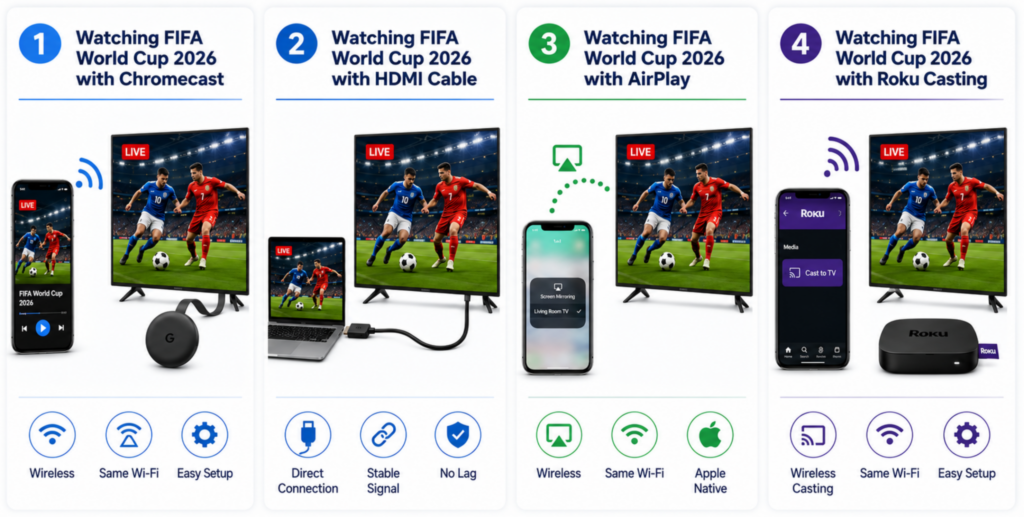
Просмотр Чемпионата мира по футболу 2026 года с помощью Chromecast
Если ваш телевизор поддерживает Встроенный Chromecast (Google Cast) или если вы используете устройство Chromecast, эта функция позволяет транслировать видео в режиме реального времени прямо с телефона, планшета или компьютера на телевизор, не дублируя при этом весь экран.
Chromecast использует Протокол Google Cast, что поддерживается многими приложениями на уровне ядра. Когда у потокового приложения есть Литье кнопку, вы можете нажать на неё и Выберите устройство Chromecast — после чего видео начнёт воспроизводиться на телевизоре, а ваше устройство станет пультом дистанционного управления.
Chromecast особенно хорошо работает с Android и сервисами Google, а многие приложения для просмотра спортивных трансляций и потокового вещания поддерживают функцию трансляции на экран.
Чтобы использовать Chromecast:
- Подключите устройство Chromecast к телевизору и настройте его с помощью приложения Google Home.
- Убедитесь, что ваше устройство для трансляции и Chromecast включены и находятся в режиме одна и та же сеть Wi-Fi.
- Откройте приложение для просмотра трансляций или браузер, в котором открыта трансляция матча Чемпионата мира.
- Нажмите на кнопку Значок «В ролях» и выберите своё устройство Chromecast.
- Матч начнётся на вашем телевизоре, а телефон можно будет использовать в качестве пульта.
Благодаря этому способу вы можете использовать свой телефон или планшет для других задач, пока игра идет на большом экране.
Пользователи Chromebook: В Chrome OS поддержка Chromecast встроена непосредственно в систему. Полное руководство по трансляции контента с Chromebook на телевизор, включая настройки, специфичные для Chrome OS, и советы по оптимизации, см. в нашей Руководство по трансляции с Chromebook на телевизор во время Чемпионата мира по футболу 26.
Просмотр матчей Чемпионата мира по футболу 2026 года с помощью кабеля HDMI
Иногда подключение по кабелю по-прежнему остается самым надежным способом — особенно если вас беспокоят задержки в работе Wi-Fi или проблемы с совместимостью при беспроводной трансляции. Подключение ноутбука, планшета или телефона к телевизору с помощью кабель HDMI обеспечивает прямую передачу видео и звука с очень низкой задержкой.
Большинство современных устройств поддерживают выход HDMI через Адаптеры USB‑C или Lightning:
- Если вы используете ноутбук, подключите стандартный кабель HDMI от компьютера непосредственно к порту HDMI на телевизоре.
- Для телефонов и планшетов на базе Android с разъемом USB‑C используйте Адаптер USB-C — HDMI.
- Для iPhone или iPad с разъемом Lightning используйте Адаптер «Lightning–HDMI».
После подключения телевизора переключите его на нужный вход HDMI источник и экран вашего устройства появится на экране телевизора — идеальное решение для просмотра прямых трансляций матчей Чемпионата мира по футболу без необходимости подключения к Wi-Fi.
Просмотр Чемпионата мира по футболу 2026 года с помощью AirPlay
Если вы пользуетесь продуктами Apple, AirPlay — это технология Apple для беспроводной потоковой передачи мультимедиа и дублирования экрана. AirPlay позволяет транслировать видео с iPhone, iPad или Mac напрямую на совместимые телевизоры или устройства для потоковой передачи, которые поддерживают AirPlay 2. Многие смарт-телевизоры и устройства, такие как Apple TV или даже Устройства Roku поддерживают AirPlay, что позволяет легко передавать контент с устройства Apple на большой экран.
Чтобы использовать AirPlay для просмотра матчей Чемпионата мира:
- Подключите устройство Apple и телевизор, поддерживающий AirPlay, к одна и та же сеть Wi-Fi.
- Найдите матч чемпионата мира в одном из поддерживаемых приложений или браузерах на вашем iPhone/iPad/Mac.
- Нажмите на кнопку Значок AirPlay или откройте «Центр управления» и выберите Зеркалировать экран.
- Выберите свой телевизор из списка, и прямая трансляция появится на большом экране.
AirPlay безупречно работает с устройствами Apple и особенно удобен для трансляции полноэкранного видео с минимальными настройками.
Просмотр Чемпионата мира по футболу 2026 года с помощью Roku Casting
Roku Устройства и телевизоры Roku предлагают несколько способов вывода контента на большой экран. В отличие от Chromecast, Roku не использует протокол Google Cast, поэтому стандартная трансляция через Chromecast напрямую на устройства Roku не будет работать. Однако все же есть способы посмотреть трансляции Чемпионата мира по футболу на экране с устройством Roku:
- Установить native приложения: Если у вашего приложения для просмотра трансляций Чемпионата мира по футболу есть канал на Roku, вы можете установить его прямо на устройство Roku и смотреть трансляции прямо оттуда.
- Воспроизведение из поддерживаемых приложений: Некоторые приложения (например, YouTube, Netflix и т. д.) поддерживают трансляцию на экран с помощью методов, поддерживаемых Roku к устройству Roku, если оба устройства подключены к одной и той же сети.
- AirPlay на Roku: Многие модели Roku поддерживают технологию Apple AirPlay, что позволяет передавать видео с iPhone, iPad и Mac через Wi-Fi.
Кроме того, Roku поддерживает зеркалирование экрана с устройств на базе Android и Windows с помощью технологии Miracast, что позволяет при необходимости дублировать весь экран устройства. Эти возможности делают Roku универсальным выбором, если в вашей основной телевизионной системе уже используется оборудование Roku.
Ознакомьтесь с полной версией Руководство по настройке функции «Screen Mirroring» на Roku для Чемпионата мира по футболу 2026 года подробные инструкции по настройке, параметры Roku и советы по оптимизации.
Лучшие приложения для дублирования экрана при прямых трансляциях футбольных матчей
Что делает приложение для дублирования экрана хорошим для просмотра спортивных передач
При выборе приложения для дублирования экрана с целью просмотра футбольных матчей в прямом эфире следует обратить внимание на следующие важнейшие моменты:
- Плавная синхронизация в режиме реального времени: Это важно для прямых спортивных трансляций, чтобы события отображались на экране телевизора с минимальной задержкой.
- Синхронизация аудио и видео: Обеспечивает синхронность комментариев с изображением на большом экране.
- Широкая поддержка устройств: Совместим с Android, iOS, Windows, macOS и смарт-телевизорами, что позволяет транслировать изображение практически с любого источника.
- Простота настройки: Быстрое подключение и минимум технических действий упрощают организацию игрового дня.
- Надежная работа беспроводной сети: Надежное зеркалирование через Wi-Fi сводит к минимуму пропадание сигнала и буферизацию.
Ниже представлены некоторые из лучших приложений для дублирования экрана, на которые стоит обратить внимание — с чётким и лаконичным сравнением, учитывающим ваши потребности в просмотре спортивных трансляций в реальном времени.
Чтобы узнать о других приложениях для дублирования экрана и ознакомиться с полным сравнением их функций, ознакомьтесь с нашим подробным руководством по Лучшие приложения для дублирования экрана на Чемпионате мира по футболу 26.
1001 TVs
1001 TVs — это универсальный кроссплатформенный инструмент для дублирования экрана, предназначенный для повседневного использования, который особенно удобен для того, чтобы с легкостью выводить на большой экран трансляции в режиме реального времени, например матчи Чемпионата мира по футболу FIFA.
Она поддерживает дублирование экрана на смартфонах, планшетах, ПК, компьютерах Mac и смарт-телевизорах, включая Apple TV и Android TV, и даже позволяет дублировать экран прямо в браузере без необходимости установки дополнительных приложений-приемников.
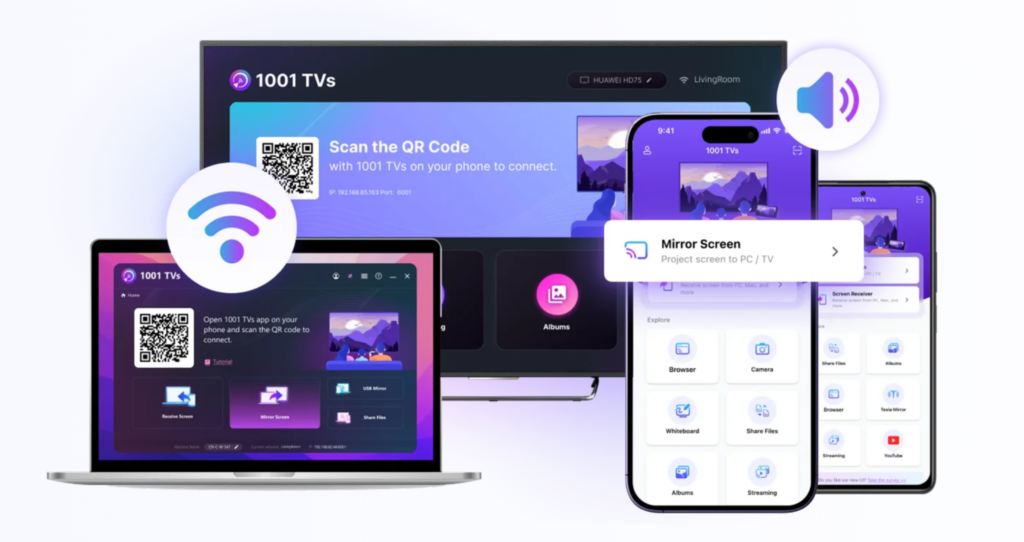
Давайте подробнее рассмотрим, чем сервис 1001 TVs так хорош для просмотра спортивных трансляций:
- Отображайте экран практически любого устройства на любом экране: Подключение телефона к телевизору, компьютера к телевизору и даже совместный просмотр экрана через браузер.
- Несколько режимов зеркалирования: Беспроводное дублирование экрана, дублирование через USB для обеспечения максимально стабильной работы, а также дублирование через браузер.
- Расширенные функции: Автоматическое обнаружение телевизоров, подключенных к той же сети Wi-Fi, поддержка различных режимов отображения, дублирование изображения с камеры и беспроводной обмен файлами.
- Использование и поддержка по всему миру: Миллионы пользователей по всему миру пользуются удобными возможностями зеркалирования как для развлечений, так и для проведения презентаций.
При просмотре матчей Чемпионата мира по футболу приложение 1001 TVs оптимизировано для того, чтобы сделать трансляцию на экран простой, плавной и адаптируемой к различным устройствам — это идеальный вариант, если вы хотите смотреть матчи без лишних хлопот с настройкой.
PigeonCast
PigeonCast — это бесплатное кроссплатформенное решение для дублирования экрана, в основе которого лежат простота и широкая совместимость. Оно использует протоколы AirPlay, Google Cast и DLNA, позволяя дублировать контент с телефонов, планшетов и компьютеров на телевизоры в различных экосистемах.
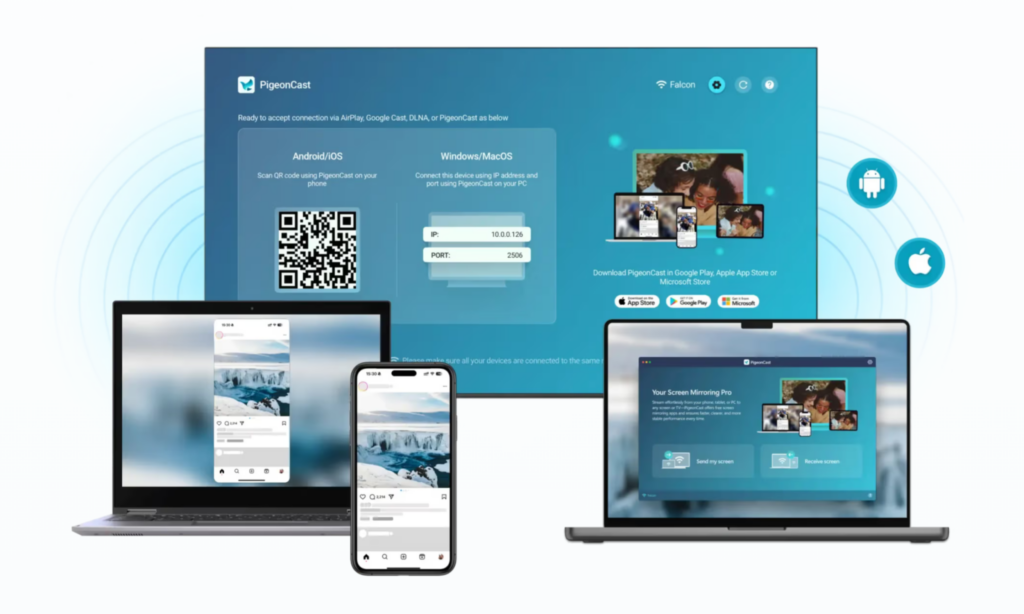
Основные сведения о PigeonCast:
- Бесплатная кроссплатформенная трансляция: поддерживается на Android, iOS, Windows, macOS и различных моделях смарт-телевизоров.
- Потоковая передача в формате HD: поддерживает зеркалирование в формате высокой четкости с низкой задержкой.
- Неограниченная потоковая передача мультимедиа: передавайте видео, фотографии и приложения на большие экраны по беспроводной связи.
PigeonCast особенно хорошо подходит для повседневного обмена медиафайлами и простой трансляции во время просмотра спортивных соревнований в прямом эфире. Однако в нем отсутствует тот же набор расширенных инструментов, что и в более функциональных приложениях, поэтому оно лучше подходит тем, кому нужна бесплатная и простая трансляция с надежной производительностью.
ApowerMirror
ApowerMirror — это известное приложение для дублирования экрана, которое позволяет выводить изображение с экранов устройств iPhone, Android, Windows и Mac на телевизоры или компьютеры с поддержкой звука; оно также включает такие функции, как управление устройствами и отображение с нескольких устройств.
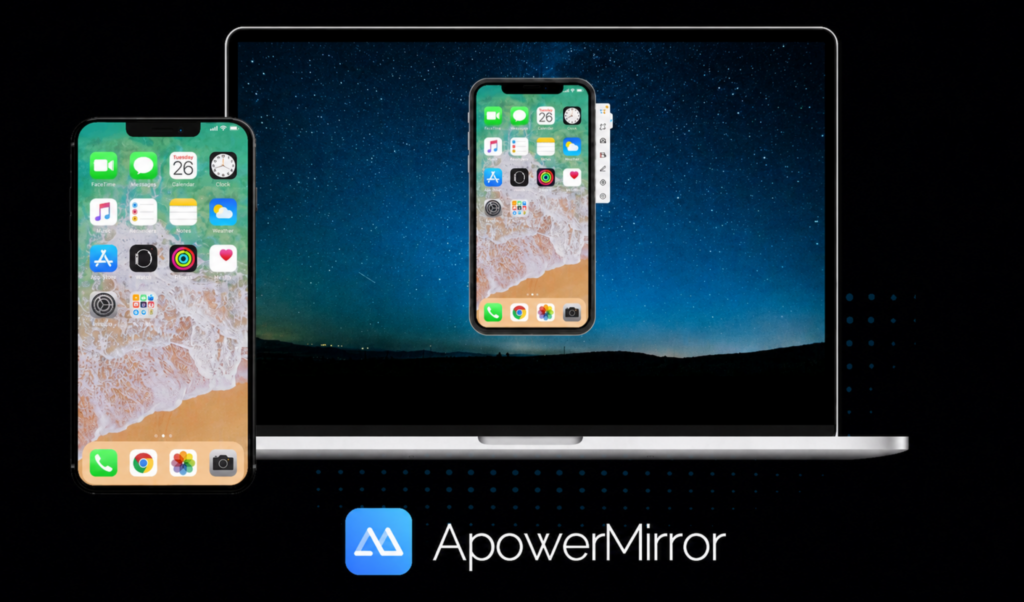
Вот что вам нужно знать об ApowerMirror:
- Зеркальное отображение на разных устройствах: транслируйте экран телефона на компьютер или смарт-телевизор с синхронизацией звука.
- Универсальная функция трансляции: позволяет одновременно дублировать экраны нескольких устройств и поддерживает трансляцию игрового процесса, презентаций и потокового вещания.
- Дополнительные инструменты: включает функции записи экрана и создания снимков экрана.
ApowerMirror — это популярное приложение для дублирования экрана, которое работает на телефонах, планшетах, ПК и телевизорах, и многие пользователи считают его полезным для обычной трансляции экрана. Однако некоторые пользователи отмечают проблемы со стабильностью и качеством соединения. Эти проблемы привели к неоднозначным оценкам пользователей и разному опыту использования на разных устройствах.
Как транслировать матчи Чемпионата мира по футболу с любого устройства
Использование 1001 TVs Отображение экрана вашего устройства на телевизоре или более большом экране — один из лучших способов смотреть Чемпионат мира по футболу 2026 года трансляции в прямом эфире и в режиме реального времени. Приложение поддерживает кроссплатформенную трансляцию — с телефонов, планшетов, ПК на Windows, Mac и даже из браузеров, — так что вы можете вывести прямую трансляцию прямо на большой экран с минимальными настройками.
Как вывести экран Android и iPhone на телевизор с помощью 1001 TVs
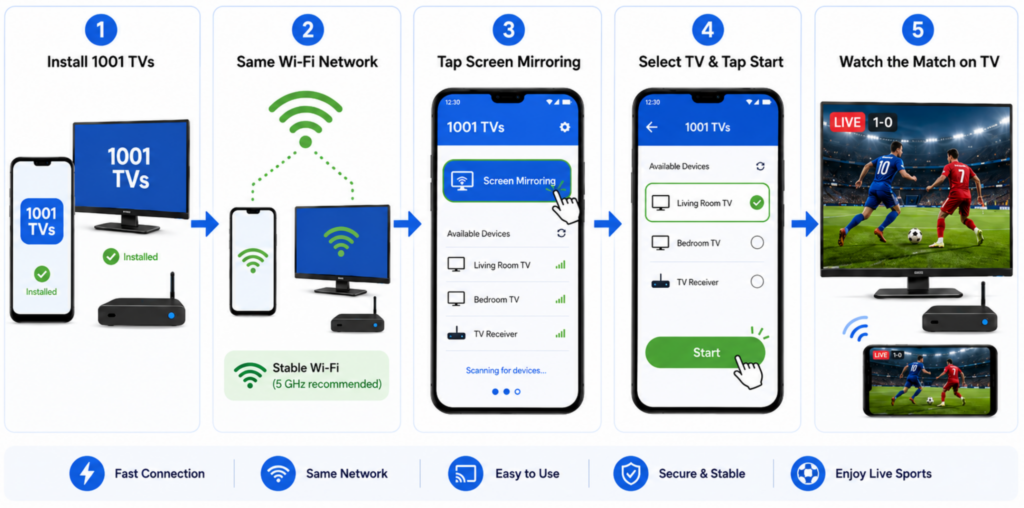
Если вы в основном смотрите видео на телефоне с Android, ознакомьтесь с нашей Советы по дублированию экрана с Android на телевизор для просмотра матчей группового этапа Чемпионата мира по футболу подробнее. Пользователям iPhone рекомендуется воспользоваться этой пошаговой инструкцией на Как вывести экран iPhone на телевизор во время Чемпионата мира по футболу 2026 года чтобы транслировать прямые трансляции матчей с вашего iPhone на больший экран.
Как транслировать экран ПК с Windows и Mac на телевизор с помощью 1001 TVs
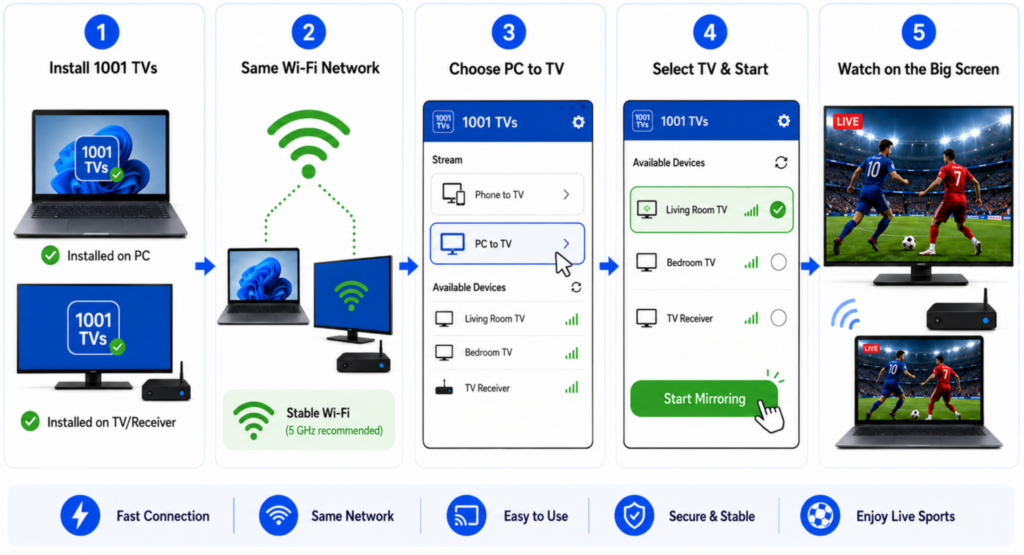
Смотрите с ноутбука на Windows или с Mac? Ознакомьтесь с нашим полным руководством по Как транслировать с ноутбука на телевизор матчи Чемпионата мира по футболу 26, включая беспроводное зеркалирование, HDMI, AirPlay, Chromecast и другие удобные варианты настройки.
Дополнительные советы по дублированию экрана с помощью 1001 TVs
- Убедитесь, что все устройства подключены к одной и той же сети Wi-Fi — После подключения 1001 TVs автоматически отображает список доступных экранов.
- Предоставьте необходимые разрешения (например, доступ к локальной сети на iOS), чтобы приложение могло обнаружить ваш телевизор и подключиться к нему.
- Используйте режим зеркалирования браузера Если на вашем телевизоре не установлено приложение — откройте URL-адрес, предоставленный 1001 TVs, в браузере, чтобы начать трансляцию без использования приложения-приемника.
- Для обеспечения максимальной производительности во время прямых трансляций матчей сеть Wi-Fi в диапазоне 5 ГГц снижает уровень помех и обеспечивает более плавную передачу видео.
С помощью 1001 TVs вы можете транслировать Чемпионат мира по футболу 2026 года с легкостью и с минимальными настройками транслирует изображение с практически любого устройства на телевизор — просто установите, подключите и начните дублирование экрана.
Как смотреть Чемпионат мира по футболу 2026 года в отелях и во время путешествий
Если вы будете в дороге или остановитесь в отеле во время чемпионата мира по футболу, вам наверняка захочется найти способы насладиться матчами даже без привычного домашнего Wi-Fi или оборудования. При небольшой подготовке ваша дорожная система всё равно сможет обеспечить вам отличные условия для просмотра.
Как транслировать матчи Чемпионата мира по футболу 2026 года на телевизоры в номерах отеля
Возможность просмотра потокового контента на телевизоре в отеле часто зависит от сети и самого телевизора:
- Сначала используйте прямые методы: Некоторые смарт-телевизоры поддерживают встроенные функции трансляции (Chromecast, AirPlay или Miracast) при подключении вашего устройства и телевизора к в одной сети — хотя многие гостиничные сети Wi-Fi блокируют связь между устройствами.
- Используйте адаптер HDMI: Когда Wi-Fi не работает как надо, USB‑C — HDMI или Переходник «Lightning» — HDMI Адаптеры обеспечивают проводное подключение, которое работает независимо от ограничений гостиничной сети.
- Принесите с собой свой собственный стриминговый плеер: Такие устройства, как Chromecast или Fire TV, помогут транслировать ваши прямые эфиры на телевизор, если телевизор в отеле поддерживает подключение внешних устройств через HDMI.
Если стандартная трансляция не удаётся из-за сетевых ограничений, прямой кабельный канал зачастую является самым простым запасным вариантом.
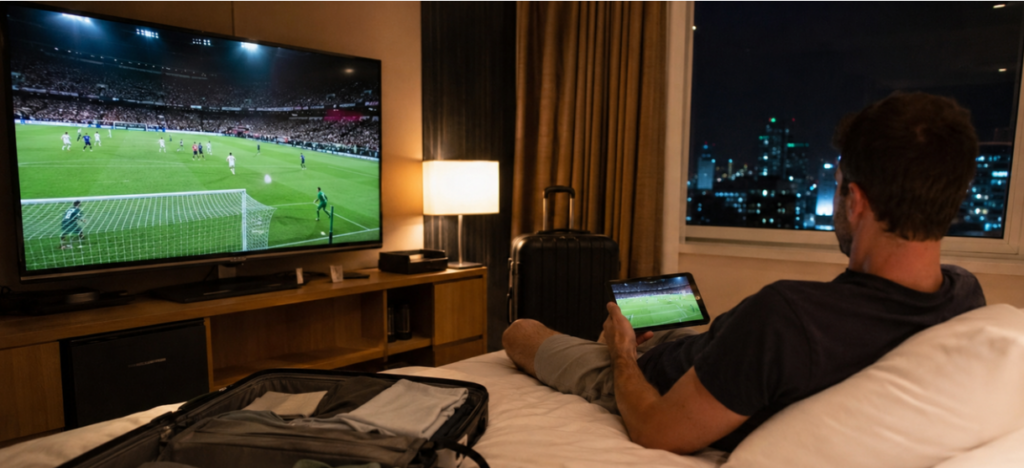
Лучшая портативная система для дублирования экрана в путешествии
Хороший набор для просмотра контента в отеле может значительно упростить просмотр:
- Удобный для путешествий стриминговый адаптер: Компактное устройство, такое как Chromecast или небольшая приставка Android TV, обеспечивает вам гибкость при наличии Wi-Fi.
- Адаптеры и кабели: Возьмите с собой набор USB‑C — HDMI и Переходник «Lightning» — HDMI адаптеры для проводного подключения.
- Мобильный хотспот: С помощью точки доступа вы можете обойти нестабильный Wi-Fi в отеле, создав собственную сеть, к которой смогут подключиться как ваш телефон, так и телевизор.
Если вы возьмете с собой эти вещи, то будете готовы к просмотру, где бы вы ни находились.
Как использовать Wi-Fi в отеле и мобильные точки доступа для бесперебойного просмотра потокового видео
В гостиничном Wi-Fi часто используется изоляция клиентов, что не позволяет устройствам обнаруживать друг друга — в результате чего перестают работать функции беспроводного дублирования экрана и трансляции. Среди возможных решений:
- Создайте свою собственную сеть: Используйте точку доступа вашего телефона или дорожный роутер, чтобы подключить устройство для трансляции и телевизор (или приставку) к одной и той же частной сети.
- Проверьте настройки телевизионной сети: Некоторые модели телевизоров поддерживают прямое подключение к точкам доступа или альтернативным сетям Wi-Fi, что позволяет обойти изоляцию клиентов.
- Портативный маршрутизатор: Небольшой дорожный роутер можно подключить к гостиничной сети Ethernet или Wi-Fi и создать стабильную локальную сеть для всех ваших устройств.
Эти методы помогают обеспечить стабильную трансляцию матчей в реальном времени без перебоев.
Чтобы узнать больше о том, как Wi-Fi в отеле влияет на трансляцию экрана, и о возможных решениях, ознакомьтесь с нашей специальная статья.
Лучшие способы смотреть Чемпионат мира по футболу 2026 года во время автомобильных поездок и авиаперелетов
Если вам предстоит длительная поездка на автомобиле, поезде или самолете, учтите следующее:
- Скачать лучшие моменты или повторы: По возможности заранее загрузите контент для просмотра в автономном режиме.
- Используйте Wi-Fi в самолете с умом: Если Wi-Fi на борту самолета поддерживает потоковую передачу видео, заранее уточните совместимость услуги и возможные ограничения.
- Портативные аккумуляторные батареи: Питайте свои устройства и стриминговые приставки с помощью мощных аккумуляторов, чтобы наслаждаться просмотром без перерывов.
Сочетание этих тактик открывает перед вами широкие возможности, будь вы в пути или в небе.
Как уменьшить задержки и буферизацию во время прямых трансляций матчей
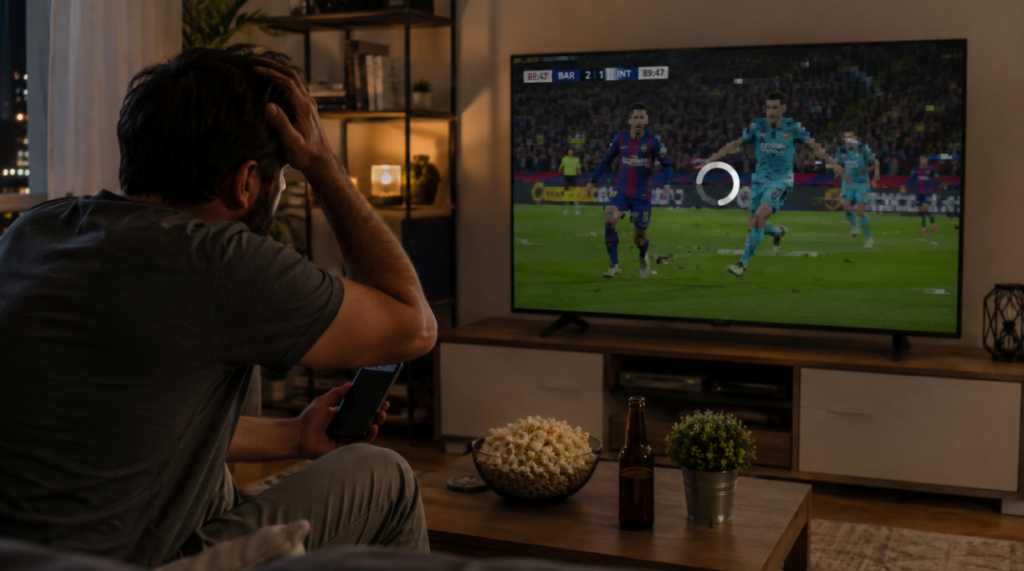
Просмотр Чемпионат мира по футболу 2026 года Просмотр на телевизоре с помощью функции дублирования экрана может стать незабываемым впечатлением — однако задержки, буферизация и проблемы с синхронизацией могут мгновенно испортить радость от решающего гола или пенальти. Понимание почему возникают задержки А советы по оптимизации настроек помогут вам наслаждаться плавной трансляцией в режиме реального времени на протяжении всего турнира.
Почему при дублировании экрана возникают задержки в прямых трансляциях спортивных событий
При дублировании экрана прямые трансляции спортивных событий могут задерживаться по ряду технических причин:
- Ограничения сети: Для работы функции зеркалирования необходимо, чтобы ваши устройства обменивались данными по Wi-Fi. Низкая скорость, перегрузка сети и помехи могут снизить пропускную способность и привести к буферизации или зависанию. Устройства, подключенные к Wi-Fi 2,4 ГГц особенно подвержены помехам по сравнению с 5 ГГц, что обеспечивает более высокую скорость и меньший уровень шума.
- Этапы кодирования и декодирования: При дублировании экрана ваше устройство записывает и сжимает видео, передает его по Wi-Fi, а затем телевизор или ресивер снова декодирует его. Каждый из этих этапов увеличивает задержку.
- Ограничения аппаратного обеспечения устройства: Старые модели телефонов, планшетов или смарт-телевизоров с ограниченной вычислительной мощностью могут испытывать трудности при кодировании и декодировании видео высокой четкости в режиме реального времени.
- Беспроводные помехи: Другие беспроводные устройства, маршрутизаторы, сети Wi-Fi соседей и даже микроволновые печи могут создавать помехи в трафике зеркалирования.
Эти проблемы особенно заметны во время футбол в прямом эфире, где на счету каждая секунда, а задержки могут казаться весьма заметными.
Как проверить настройки потоковой передачи с ПК на телевизор перед важными матчами
Перед первым стартом стоит проверить настройки, чтобы быть уверенным, что всё будет работать, когда это будет действительно важно:
- Подключитесь заранее: Настройте свой телефон, компьютер или планшет для работы с телевизором и хотя бы один раз проделайте всю процедуру дублирования экрана.
- Материалы для тестирования игры: Воспользуйтесь прямой трансляцией спортивного матча или видео с быстрым движением, чтобы проверить, нет ли задержек, прерываний или задержки звука.
- Попробуйте использовать разные диапазоны Wi-Fi: Если ваш роутер поддерживает диапазоны 2,4 ГГц и 5 ГГц, убедитесь, что и устройство, с которого осуществляется трансляция, и телевизор находятся в та же группа — в идеале — диапазон 5 ГГц, чтобы обеспечить более высокую скорость и меньше помех.
- Перезапустить устройства: Простой перезапуск роутера, источника сигнала и телевизора может устранить временные проблемы с подключением к сети ещё до начала матча.
Такая пробная настройка придаст вам уверенности и поможет выявить слабые места в вашей домашней системе потокового вещания.
Оптимальная настройка Wi-Fi для просмотра Чемпионата мира по футболу 2026 года
Ваша сеть Wi-Fi играет огромную роль в качестве работы функции дублирования экрана:
- Используйте Wi-Fi в диапазоне 5 ГГц: Диапазон 5 ГГц, как правило, обеспечивает более высокую пропускную способность и меньшую загруженность, чем диапазон 2,4 ГГц, что помогает сократить задержки при потоковой передаче и дублировании экрана.
- Расположите роутер в оптимальном месте: Разместите роутер в центральной части помещения между телевизором и источником сигнала, чтобы свести к минимуму помехи и улучшить уровень сигнала.
- Снижение интенсивности конкурирующего трафика: Во время матчей приостановите или ограничьте другие ресурсоемкие действия в Интернете — например, загрузку больших файлов или одновременный просмотр нескольких видеопотоков.
- Избегайте “изоляции клиентов” в сетях Wi-Fi: Некоторые сети (особенно гостиничные или общественные Wi-Fi) не позволяют устройствам напрямую взаимодействовать друг с другом — это приводит к сбоям в работе функции зеркалирования, если вы не используете собственную точку доступа или дорожный роутер.
Эти настройки помогут вам добиться более плавного изображения и сократить количество перебоев в самых важных моментах.
Как уменьшить задержку звука и устранить проблемы с синхронизацией видео
Проблемы с синхронизацией звука и изображения возникают, когда звук и изображение не совпадают — это досадное, но довольно распространенное затруднение при дублировании экрана. Вот как это исправить:
- Перезапустить сеанс зеркалирования: Часто достаточно просто остановить и запустить функцию дублирования экрана заново, чтобы синхронизация между звуком и изображением восстановилась.
- Способы подключения коммутатора: Если при беспроводном дублировании экрана постоянно возникают проблемы с синхронизацией, попробуйте USB‑C — HDMI или другие проводные альтернативы (которые позволяют избежать задержек, характерных для беспроводных соединений).
- Проверьте настройки приложения: Некоторые приложения для потокового вещания позволяют настраивать параметры звука или его качество, что может улучшить синхронизацию на больших экранах.
Устранение проблем с синхронизацией позволяет обеспечить, чтобы каждый момент, сопровождаемый аплодисментами и комментариями, звучал в нужное время.
Распространенные проблемы с дублированием экрана и способы их устранения
Даже при тщательной подготовке при дублировании экрана иногда могут возникать типичные проблемы. Вот простое руководство по их устранению.
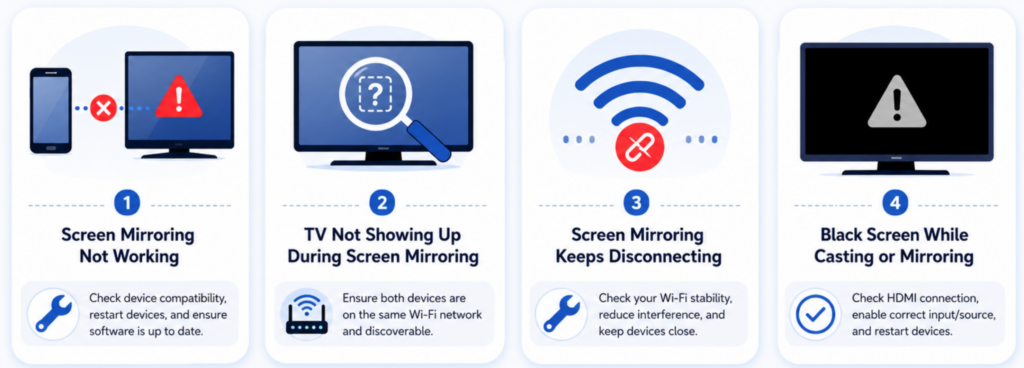
Вы также можете ознакомиться с нашим полным руководством: Как устранить типичные проблемы с дублированием экрана перед началом группового этапа Чемпионата мира 26.
Не работает функция «Screen Mirroring»
- Проверить сеть: Убедитесь, что ваши устройства подключены к одной и той же сети Wi-Fi, или воспользуйтесь прямым кабельным соединением, если беспроводное соединение не работает.
- Перезапустить устройства: Иногда перезагрузка телефона, телевизора и роутера помогает устранить ошибки подключения.
Телевизор не отображается при дублировании экрана
- Проверьте совместимость: Убедитесь, что ваш телевизор поддерживает нужный протокол дублирования экрана (AirPlay, Miracast и т. д.).
- Одна и та же сеть Wi-Fi: Устройства должны находиться в одной сети и работать в одном диапазоне частот — избегайте смешанных подключений в диапазонах 2,4 ГГц и 5 ГГц.
Функция «Screen Mirroring» постоянно обрывается
- Уровень сигнала: Подойдите поближе к роутеру или уменьшите уровень помех, создаваемых стенами или электронными устройствами.
- Снижение нагрузки на сеть: Во время зеркалирования отключите другие устройства с интенсивным трафиком.
Чёрный экран при трансляции или дублировании экрана
- Перезапустить трансляцию: Остановите и запустите сеанс зеркалирования заново.
- Более низкое разрешение: Снизьте качество отображения, чтобы уменьшить нагрузку на пропускную способность.
Часто задаваемые вопросы
Лучше ли функция Screen Mirroring, чем Chromecast, для просмотра спортивных трансляций в реальном времени?
Функция «зеркалирования экрана» отображает весь экран, что обеспечивает гибкость, однако Chromecast и встроенные протоколы трансляции, как правило, обеспечивают меньшую задержку и более эффективно используют пропускную способность при трансляции спортивных событий в реальном времени.
Можно ли смотреть Чемпионат мира по футболу 2026 года на телевизоре, не являющемся «умным»?
Да — используйте адаптеры HDMI, Chromecast или стриминговые устройства, чтобы подключить прямую трансляцию к телевизору, не являющемуся «умным».
Работает ли функция Screen Mirroring на телевизорах в отелях?
Это может, однако многие гостиничные сети блокируют соединения между устройствами. Эту проблему часто можно решить, создав собственную локальную точку доступа или воспользовавшись кабельным подключением.
Можно ли использовать функцию дублирования экрана без установки приложения?
Большинство устройств поддерживают встроенные функции дублирования экрана (AirPlay, Miracast, Google Cast), поэтому отдельное приложение вам, возможно, не понадобится — однако сторонние приложения, такие как 1001 TVs, могут улучшить совместимость.
Какие устройства поддерживают функцию дублирования экрана для Чемпионата мира по футболу 2026 года?
Современные устройства на базе Android, iOS, Windows и macOS поддерживают функцию дублирования экрана на совместимые смарт-телевизоры и устройства для потокового вещания.
Можно ли транслировать матчи Чемпионата мира по футболу с сайтов, предлагающих потоковое вещание, на экран устройства?
Да, если трансляция воспроизводится на вашем устройстве и не заблокирована ограничениями DRM, вы можете вывести её на экран телевизора.
Заключение
Дублирование экрана — это универсальный и эффективный способ просмотра Чемпионат мира по футболу 2026 года на большом экране — будь то дома, в отеле или в дороге. При правильной настройке, стабильном Wi-Fi или проводом подключении, а также знании типичных проблем и способов их устранения вы сможете наслаждаться просмотром футбольных матчей без задержек и с плавной картинкой, где бы вы ни находились.
Такие инструменты, как 1001 TVs, и описанные выше стратегии позволяют без лишних хлопот наслаждаться просмотром матчей — так что вы сможете сосредоточиться на голах, драматичных моментах и незабываемых впечатлениях.
Скачать 1001 TVs Прямо сейчас превратите свой телевизор Roku в идеальную платформу для просмотра матчей Чемпионата мира по футболу 2026 года.

Подробнее
 Как смотреть матчи НБА по телевизору в США
Смотреть матчи НБА по телевизору в США проще всего, если принять два решения в указанном порядке: во-первых, выяснить, какой из официальных сервисов транслирует...
Как смотреть матчи НБА по телевизору в США
Смотреть матчи НБА по телевизору в США проще всего, если принять два решения в указанном порядке: во-первых, выяснить, какой из официальных сервисов транслирует...
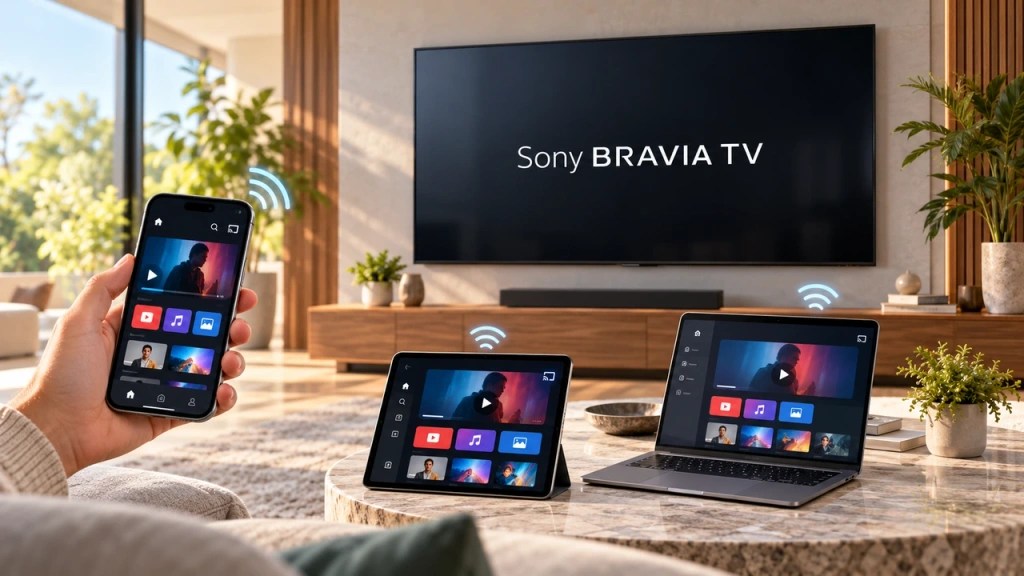 Как подключить экран к телевизору Sony Bravia (Google TV)
Телевизор Sony Bravia с Google TV не использует единый универсальный метод “Screen Mirroring” для всех телефонов и компьютеров. Правильный выбор зависит как от...
Как подключить экран к телевизору Sony Bravia (Google TV)
Телевизор Sony Bravia с Google TV не использует единый универсальный метод “Screen Mirroring” для всех телефонов и компьютеров. Правильный выбор зависит как от...

