Hoe je scherm spiegelen kunt gebruiken voor werk op afstand
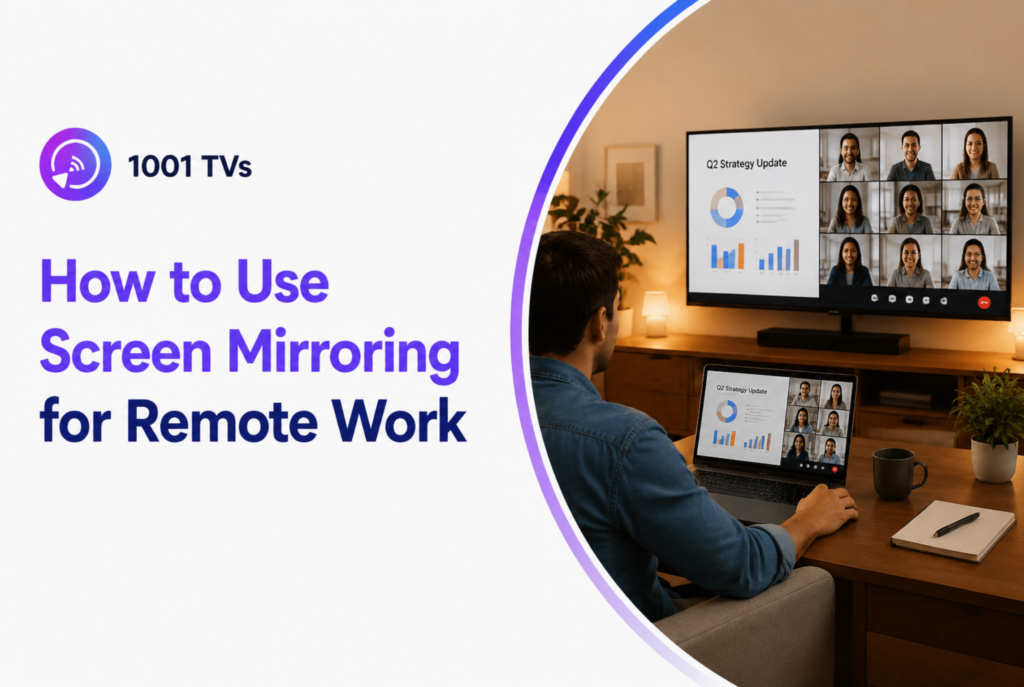
Scherm spiegelen voor werk op afstand helpt je om je laptop of telefoon weer te geven op een groter scherm, waardoor vergaderingen, presentaties en multitasking comfortabeler en efficiënter worden. Of je nu fulltime thuis werkt of een paar keer per week deelneemt aan hybride vergaderingen, een betere schermopstelling kan een merkbaar verschil maken in je workflow.
In plaats van te vertrouwen op HDMI-kabels of overvolle laptopschermen, gebruiken veel externe medewerkers nu draadloze schermspiegeling om een schonere en flexibelere werkruimte te creëren. Tools zoals 1001 TV's maken het mogelijk om schermen te spiegelen tussen Windows, Mac, iPhone, Android, smart tv's en tablets met een minimale installatie.
Voordelen van scherm spiegelen voor werken op afstand
Betere zichtbaarheid tijdens vergaderingen
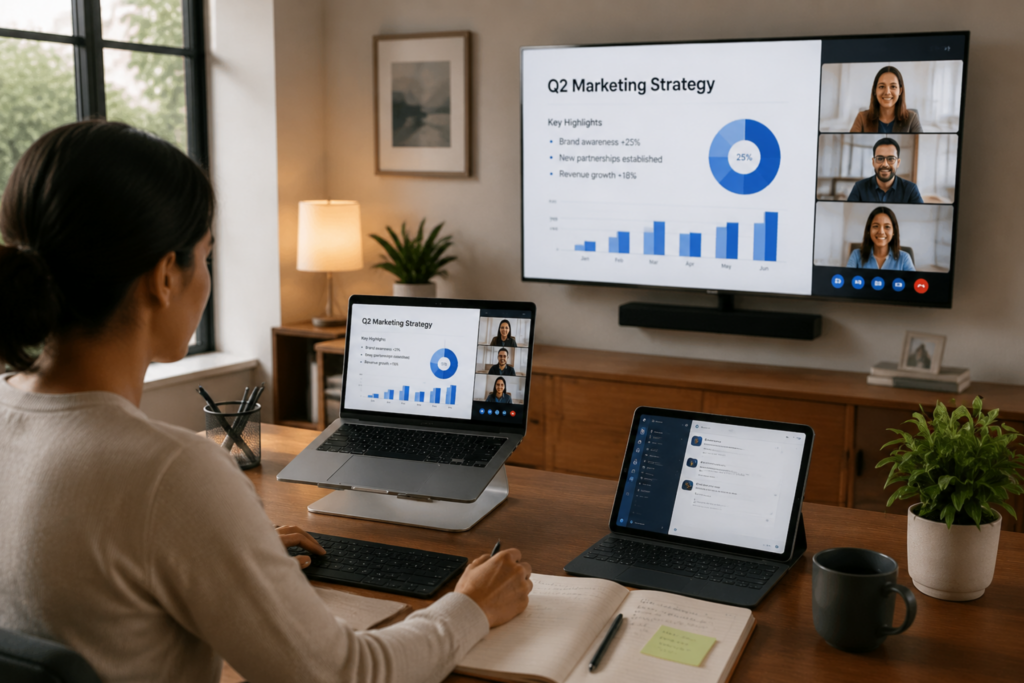
Externe medewerkers brengen vaak uren door in Zoom-, Microsoft Teams- of Google Meet-gesprekken. Als je vergaderingen op een grotere tv of secundair scherm bekijkt, is het makkelijker om deelnemers, gedeelde documenten en presentatiedetails te zien zonder dat je een laptopscherm vol hoeft te zetten.
Veel mensen spiegelen vergaderingen naar een tv terwijl ze hun laptop beschikbaar houden voor notities, e-mails of actief werk. Deze opstelling zorgt voor een comfortabelere workflow, vooral tijdens lange vergaderingen of samenwerkingssessies.
Eenvoudiger multitasken en werken met twee schermen
Een van de grootste voordelen van scherm spiegelen is de mogelijkheid om een flexibelere werkruimte te creëren zonder extra monitoren aan te schaffen. Een tablet of smart-tv kan fungeren als een uitgebreid scherm voor chat-apps, spreadsheets, projectdashboards of referentiemateriaal.
Apps zoals 1001 TV's ondersteunen draadloze schermspiegeling tussen Windows, Mac, iPhone, Android, smart tv's, tablets en projectoren, waardoor het makkelijker wordt om tussen apparaten te wisselen tijdens werk op afstand.
Een schonere en flexibelere werkplek
Draadloze schermspiegeling maakt HDMI-kabels en -adapters overbodig, waardoor externe medewerkers hun bureau netter kunnen inrichten. Vergeleken met bekabelde verbindingen kunnen gebruikers zich dankzij draadloze spiegeling ook vrijer bewegen en sneller van apparaat wisselen.
Deze flexibiliteit is vooral handig voor thuiskantoren, hybride werkomgevingen en gedeelde werkplekken waar de hele dag door meerdere apparaten worden gebruikt.
Tips om je schermspiegelervaring te verbeteren
Gebruik een stabiele Wi-Fi-verbinding
Een stabiel Wi-Fi-netwerk is een van de belangrijkste factoren die de kwaliteit van scherm spiegelen beïnvloeden. Trage of drukke netwerken kunnen vertraging, bevriezing of problemen met audiosynchronisatie veroorzaken.
Voor betere prestaties sluit je beide apparaten waar mogelijk aan op hetzelfde snelle netwerk. Een 5 GHz Wi-Fi-verbinding biedt meestal betere stabiliteit voor videovergaderingen en presentaties.
De beeldschermconfiguratie van uw thuiskantoor optimaliseren
Een goede schermlayout kan werken op afstand comfortabeler maken. Veel gebruikers plaatsen vergaderingen op een tv-scherm terwijl ze actief blijven werken op een laptop of monitor.
Als je een tablet als secundair scherm gebruikt, kan het helpen om hem verticaal te plaatsen bij het lezen van chatberichten, e-mails of documenten.
Privacy beschermen tijdens het delen van schermen
Wanneer je je scherm spiegelt tijdens vergaderingen, is het belangrijk om te voorkomen dat je privémeldingen of niet-gerelateerde tabbladen blootlegt.
Door één venster te spiegelen kun je gevoelige informatie verborgen houden terwijl je toch presentaties of werkdocumenten kunt delen. Onnodige apps sluiten voor vergaderingen is ook een goede gewoonte.
Lag en verbindingsproblemen verminderen
Als je gespiegelde scherm vertraagd aanvoelt, probeer dan apparaten dichter bij de router te plaatsen of ongebruikte apparaten los te koppelen van het netwerk.
1001TVs biedt ook instellingen voor resolutieaanpassing die de visuele kwaliteit en prestaties op verschillende apparaten kunnen verbeteren.
Beste schermspiegelapplicatie voor werken op afstand
Eigenschappen die u moet zoeken in een schermspiegelingstool
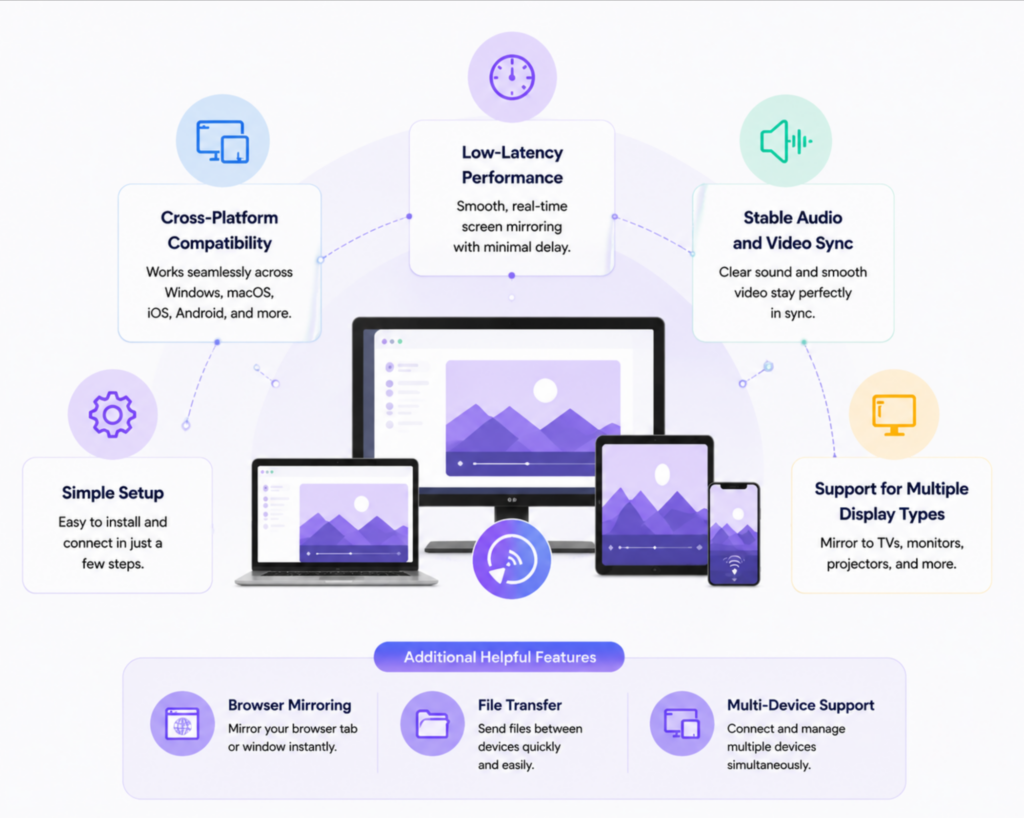
Een goede app voor scherm spiegelen voor werk op afstand moet het volgende bieden:
- Compatibel met meerdere platforms
- Prestaties met lage latentie
- Stabiele audio- en videosynchronisatie
- Eenvoudige installatie
- Ondersteuning voor meerdere weergavetypes
Sommige gebruikers kunnen ook profiteren van functies zoals browser mirroring, bestandsoverdracht of ondersteuning voor meerdere apparaten.
Waarom 1001TVs goed werkt voor telewerkers
1001TVs ondersteunt draadloze schermspiegeling voor Windows, Mac, Android, iPhone, smart TV's en tablets. De app is ontworpen voor eenvoudige installatie en ondersteunt zowel schermspiegeling als uitgebreide weergaveworkflows.
Het ondersteunt ook browser-gebaseerd spiegelen en staat in sommige opstellingen toe dat meerdere apparaten tegelijkertijd verbinding maken. Voor externe werknemers die regelmatig wisselen tussen apparaten, kan die flexibiliteit samenwerking en presentaties veel gemakkelijker maken.
Veelgestelde vragen
Is scherm spiegelen goed voor werk op afstand?
Ja. Scherm spiegelen helpt externe werknemers om grotere en flexibelere werkplekken te creëren voor vergaderingen, presentaties en multitasking.
Kan ik mijn laptop spiegelen naar een tv zonder HDMI?
Ja. Met draadloze schermspiegel-apps zoals 1001TVs kunnen laptops via Wi-Fi verbinding maken met smart TV's zonder HDMI-kabels.
Is er Wi-Fi nodig voor scherm spiegelen?
Bij de meeste draadloze schermspiegelingsmethoden moeten beide apparaten verbonden zijn met hetzelfde Wi-Fi-netwerk.
Kan scherm spiegelen de productiviteit verbeteren?
Voor veel gebruikers wel. Een groter of secundair beeldscherm kan het schakelen tussen vensters verminderen en vergaderingen op afstand gemakkelijker maken.
Conclusie
Scherm spiegelen is een praktisch hulpmiddel geworden voor modern werken op afstand. Van videovergaderingen tot draadloze presentaties en setups met meerdere schermen, het helpt bij het creëren van een comfortabelere en productievere werkplek zonder ingewikkelde hardware.
Met hulpmiddelen zoals 1001 TV's, Externe medewerkers kunnen telefoons, laptops, tv's en tablets draadloos aansluiten en een flexibele opstelling maken die op verschillende apparaten werkt.
Wil je onbeperkt je computerscherm kunnen spiegelen?

Lees meer
 How to Cast Photos from Your Phone to a TV
You can cast phone photos to a compatible TV using AirPlay on iPhone, Google Photos with Chromecast, or 1001 TVs Streaming and Albums. The...
How to Cast Photos from Your Phone to a TV
You can cast phone photos to a compatible TV using AirPlay on iPhone, Google Photos with Chromecast, or 1001 TVs Streaming and Albums. The...
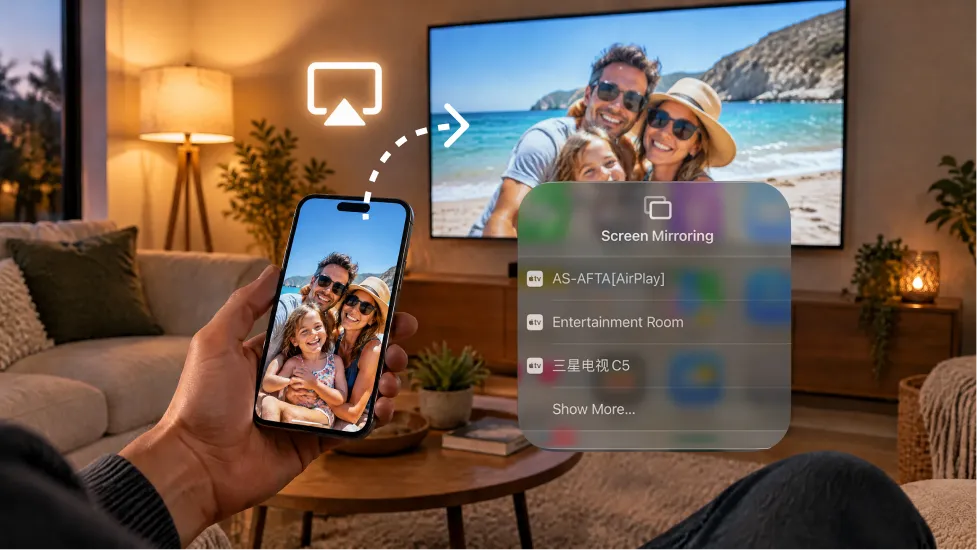 How to Turn On AirPlay on iPhone in iOS 26 (Screen Mirroring Guide)
To turn on AirPlay screen mirroring in iOS 26, open Control Center, tap the Screen Mirroring button (two overlapping rectangles), and choose your TV...
How to Turn On AirPlay on iPhone in iOS 26 (Screen Mirroring Guide)
To turn on AirPlay screen mirroring in iOS 26, open Control Center, tap the Screen Mirroring button (two overlapping rectangles), and choose your TV...

