원격 근무를 위한 스크린 미러링 사용 방법
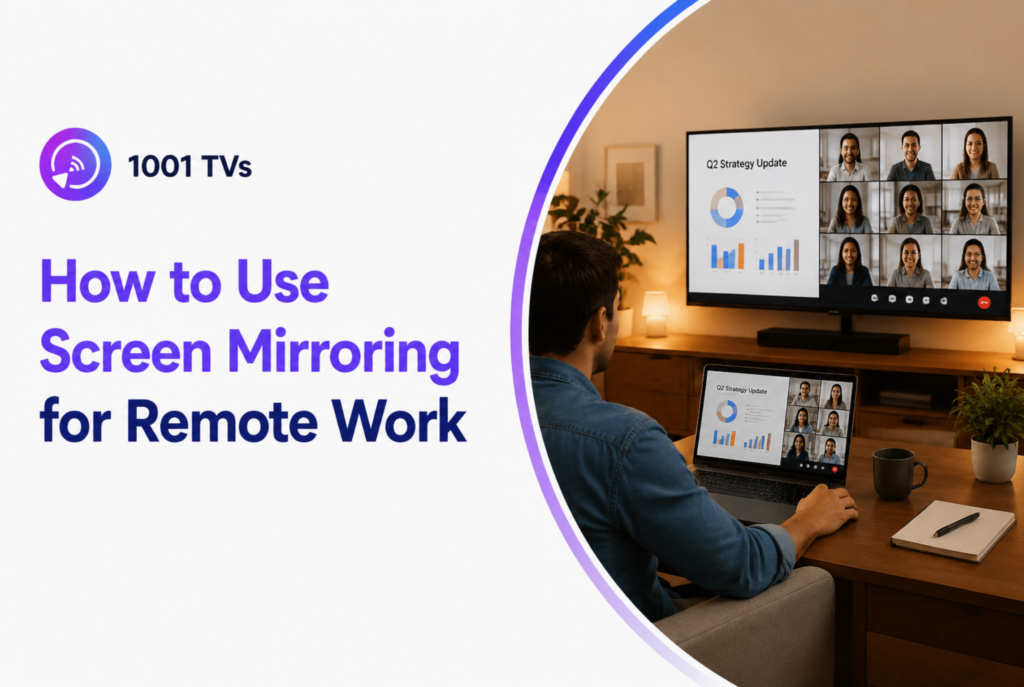
원격 근무를 위한 화면 미러링을 사용하면 노트북이나 휴대폰을 더 큰 화면에 표시하여 회의, 프레젠테이션, 멀티태스킹을 더욱 편안하고 효율적으로 수행할 수 있습니다. 상시 재택근무를 하든 일주일에 몇 번씩 하이브리드 회의에 참여하든, 화면 설정이 개선되면 워크플로우에 눈에 띄는 차이를 만들 수 있습니다.
이제 많은 원격 근무자들이 HDMI 케이블이나 복잡한 노트북 디스플레이에 의존하는 대신 무선 화면 미러링을 사용하여 보다 깔끔하고 유연한 업무 공간을 만들고 있습니다. 다음과 같은 도구 1001TV 를 사용하면 최소한의 설정으로 Windows, Mac, iPhone, Android, 스마트 TV 및 태블릿에서 화면을 미러링할 수 있습니다.
원격 근무를 위한 스크린 미러링의 이점
회의 중 가시성 향상
원격 근무자들은 종종 Zoom, Microsoft Teams 또는 Google Meet 통화에서 몇 시간을 보내곤 합니다. 대형 TV나 보조 디스플레이로 회의를 시청하면 노트북 화면을 꽉 채우지 않고도 참가자, 공유 문서, 프레젠테이션 세부 정보를 더 쉽게 볼 수 있습니다.
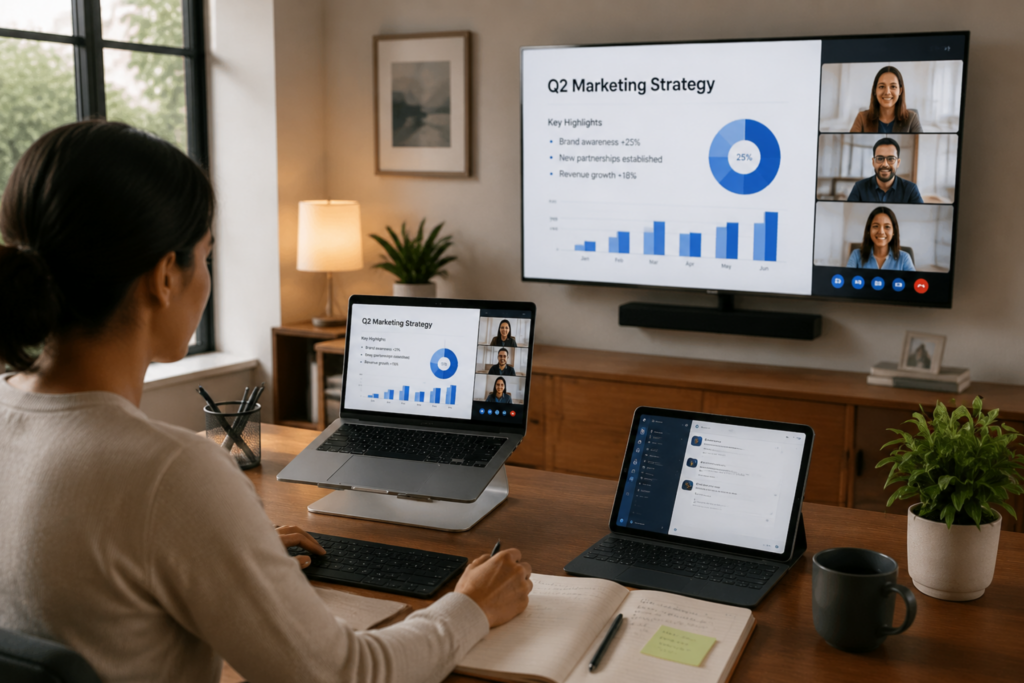
많은 사람들이 노트북으로 노트, 이메일 또는 진행 중인 작업을 하면서 회의를 TV로 미러링합니다. 이 설정은 특히 긴 회의나 공동 작업 세션에서 보다 편안한 워크플로우를 만들어 줍니다.
더욱 간편한 멀티태스킹 및 듀얼 스크린 워크플로
스크린 미러링의 가장 큰 장점 중 하나는 모니터를 추가로 구매하지 않고도 보다 유연한 업무 공간을 만들 수 있다는 점입니다. 태블릿이나 스마트 TV를 채팅 앱, 스프레드시트, 프로젝트 대시보드 또는 참고 자료를 위한 확장 디스플레이로 사용할 수 있습니다.
다음과 같은 앱 1001TV Windows, Mac, iPhone, Android, 스마트 TV, 태블릿, 프로젝터에서 무선 화면 미러링을 지원하므로 원격 작업 중 기기 간에 쉽게 전환할 수 있습니다.
더 깔끔하고 유연한 업무 공간
무선 화면 미러링은 HDMI 케이블과 어댑터가 필요 없으므로 원격 근무자가 보다 깔끔한 책상 환경을 유지할 수 있도록 도와줍니다. 유선 연결에 비해 무선 미러링은 사용자가 더 자유롭게 이동하고 장치를 더 빠르게 전환할 수 있습니다.
이러한 유연성은 홈 오피스, 하이브리드 업무 환경, 하루 종일 여러 기기를 사용하는 공유 업무 공간에 특히 유용합니다.
스크린 미러링 환경을 개선하는 팁
안정적인 Wi-Fi 연결 사용
안정적인 Wi-Fi 네트워크는 화면 미러링 품질에 영향을 미치는 가장 큰 요인 중 하나입니다. 네트워크가 느리거나 혼잡하면 랙, 멈춤 또는 오디오 동기화 문제가 발생할 수 있습니다.
보다 원활한 성능을 위해 가능하면 두 장치를 동일한 고속 네트워크에 연결하세요. 일반적으로 5GHz Wi-Fi 연결은 화상 회의 및 프레젠테이션에 더 나은 안정성을 제공합니다.
홈 오피스 디스플레이 설정 최적화
디스플레이 레이아웃이 좋으면 원격 작업이 더 편안해질 수 있습니다. 많은 사용자가 노트북이나 모니터에서 작업을 진행하면서 TV 화면으로 회의를 진행합니다.
태블릿을 보조 디스플레이로 사용하는 경우, 세로로 배치하면 채팅 메시지, 이메일 또는 문서를 읽을 때 도움이 될 수 있습니다.
화면 공유 중 개인 정보 보호
미팅 중에 화면을 미러링할 때는 비공개 알림이나 관련 없는 탭이 노출되지 않도록 하는 것이 중요합니다.
단일 창 미러링을 사용하면 프레젠테이션이나 업무 문서를 공유하면서도 민감한 정보를 숨길 수 있습니다. 회의 전에 불필요한 앱을 종료하는 것도 좋은 습관입니다.
지연 및 연결 문제 감소
미러링된 화면이 지연되는 경우 장치를 라우터에 더 가까이 옮기거나 사용하지 않는 장치를 네트워크에서 분리해 보세요.
1001TV는 다양한 기기에서 화질과 성능을 개선하는 데 도움이 되는 해상도 조정 설정도 제공합니다.
원격 근무를 위한 최고의 스크린 미러링 앱
스크린 미러링 도구에서 살펴봐야 할 기능
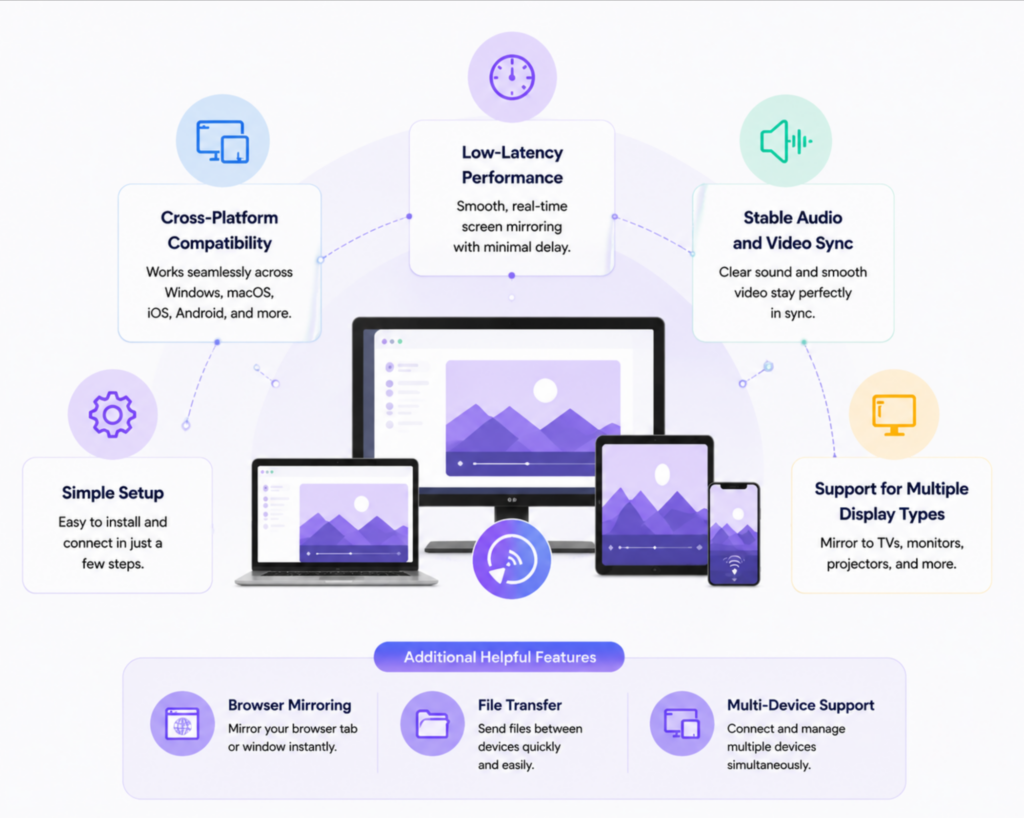
원격 근무를 위한 좋은 화면 미러링 앱은 다음과 같은 기능을 제공해야 합니다:
- 플랫폼 간 호환성
- 저지연 성능
- 안정적인 오디오 및 비디오 동기화
- 간단한 설정
- 여러 디스플레이 유형 지원
일부 사용자는 브라우저 미러링, 파일 전송 또는 다중 디바이스 지원과 같은 기능의 혜택을 누릴 수도 있습니다.
1001TV가 원격 근무자에게 적합한 이유
1001TV는 Windows, Mac, Android, iPhone, 스마트 TV 및 태블릿에서 무선 화면 미러링을 지원합니다. 이 앱은 간단한 설정을 위해 설계되었으며 화면 미러링과 확장된 디스플레이 워크플로우를 모두 지원합니다.
또한 브라우저 기반 미러링을 지원하며 일부 설정에서는 여러 장치를 동시에 연결할 수 있습니다. 정기적으로 장치를 전환하는 원격 근무자의 경우 이러한 유연성 덕분에 협업과 프레젠테이션이 훨씬 쉬워질 수 있습니다.
자주 묻는 질문
화면 미러링이 원격 근무에 좋은가요?
예. 화면 미러링은 원격 근무자가 회의, 프레젠테이션, 멀티태스킹을 위한 더 크고 유연한 작업 공간을 만드는 데 도움이 됩니다.
HDMI 없이 노트북을 TV에 미러링할 수 있나요?
예. 1001TV와 같은 무선 화면 미러링 앱을 사용하면 HDMI 케이블 없이 Wi-Fi를 통해 노트북을 스마트 TV에 연결할 수 있습니다.
화면 미러링에 Wi-Fi가 필요하나요?
대부분의 무선 화면 미러링 방법은 두 장치가 동일한 Wi-Fi 네트워크에 연결되어 있어야 합니다.
스크린 미러링으로 생산성을 향상시킬 수 있나요?
많은 사용자들에게 그렇습니다. 대형 또는 보조 디스플레이를 사용하면 창 전환이 줄어들고 원격 회의를 더 쉽게 관리할 수 있습니다.
결론
스크린 미러링은 현대의 원격 근무를 위한 실용적인 도구가 되었습니다. 화상 회의부터 무선 프레젠테이션 및 멀티스크린 설정까지, 복잡한 하드웨어 없이도 보다 편안하고 생산적인 작업 공간을 만드는 데 도움이 됩니다.
다음과 같은 도구로 1001TV, 를 통해 원격 근무자는 휴대폰, 노트북, TV, 태블릿을 무선으로 연결하고 여러 기기에서 작동하는 유연한 설정을 구축할 수 있습니다.
컴퓨터에서 무제한 화면 미러링을 원하시나요?

더 보기
 How to Cast Photos from Your Phone to a TV
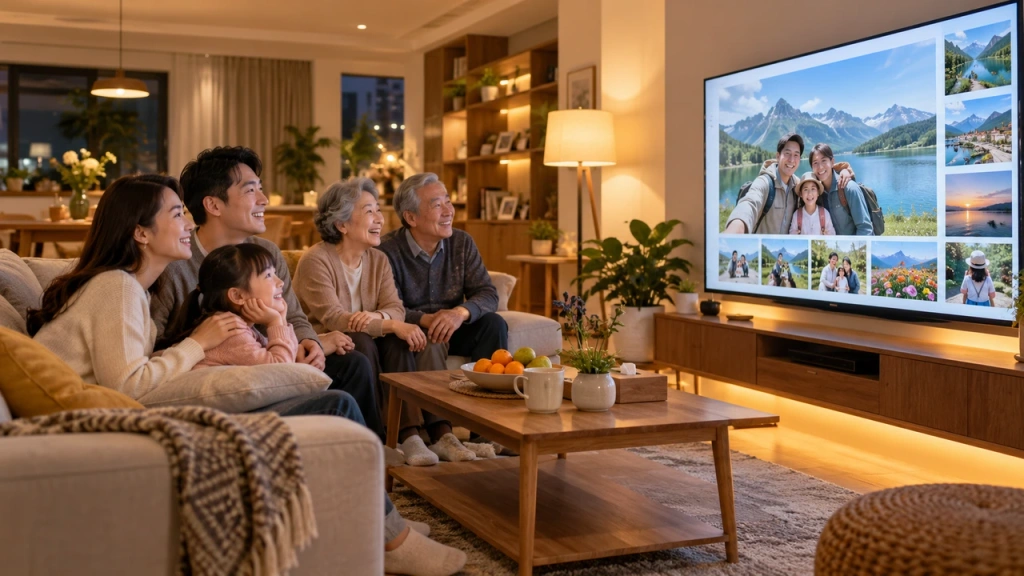
You can cast phone photos to a compatible TV using AirPlay on iPhone, Google Photos with Chromecast, or 1001 TVs Streaming and Albums. The...
How to Cast Photos from Your Phone to a TV
You can cast phone photos to a compatible TV using AirPlay on iPhone, Google Photos with Chromecast, or 1001 TVs Streaming and Albums. The...
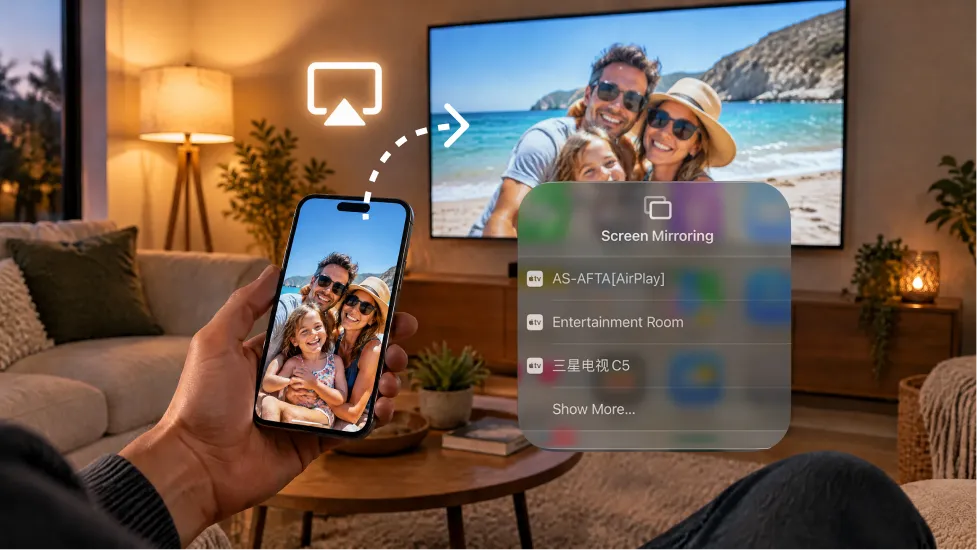 How to Turn On AirPlay on iPhone in iOS 26 (Screen Mirroring Guide)
To turn on AirPlay screen mirroring in iOS 26, open Control Center, tap the Screen Mirroring button (two overlapping rectangles), and choose your TV...
How to Turn On AirPlay on iPhone in iOS 26 (Screen Mirroring Guide)
To turn on AirPlay screen mirroring in iOS 26, open Control Center, tap the Screen Mirroring button (two overlapping rectangles), and choose your TV...

