
[2026] Hoe AirPlay uitschakelen op iPhone, iPad, Mac en tv
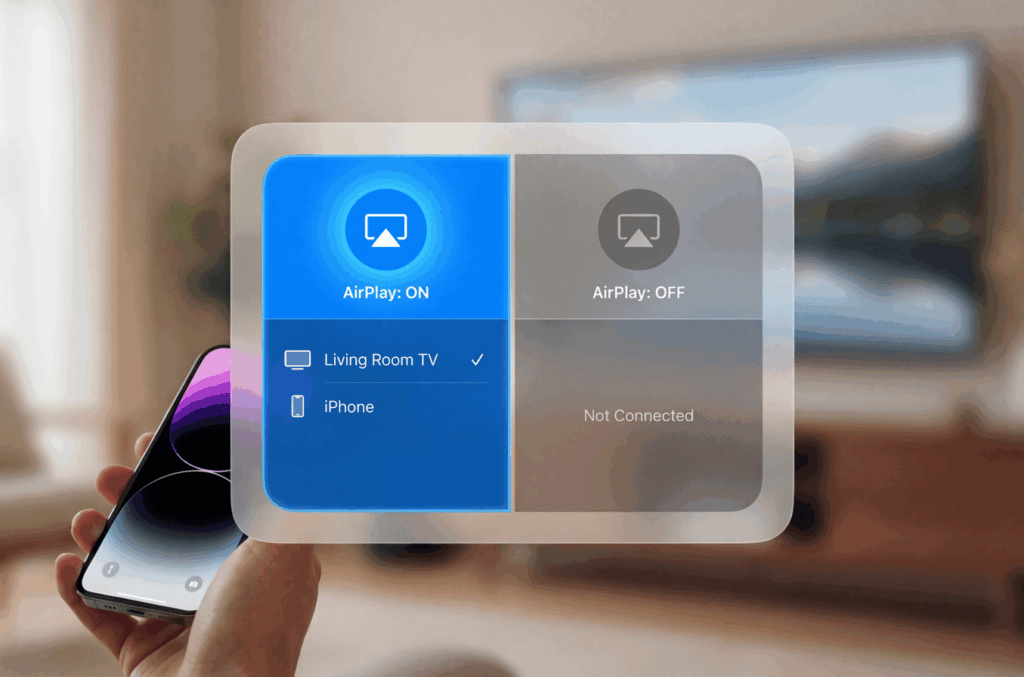
AirPlay is de draadloze technologie van Apple voor het streamen van inhoud tussen apparaten. Hoewel het handig is als je het nodig hebt, kan het frustrerend zijn als je telefoon zonder toestemming verbinding blijft maken met tv's of luidsprekers in de buurt. Misschien ben je het zat dat je iPhone automatisch verbinding maakt met de luidspreker van je huisgenoot, of wil je gênante momenten voorkomen wanneer persoonlijke inhoud op gedeelde schermen verschijnt.
Deze gids laat je precies zien hoe je AirPlay uitschakelt op al je Apple apparaten, met duidelijke stappen die ook echt werken in 2026.
1. Begrijpen wat je eigenlijk uitschakelt
Laten we eerst wat verwarring wegnemen voordat we beginnen met de how-to. Apple gebruikt drie functies die op elkaar lijken en die mensen vaak door elkaar halen:
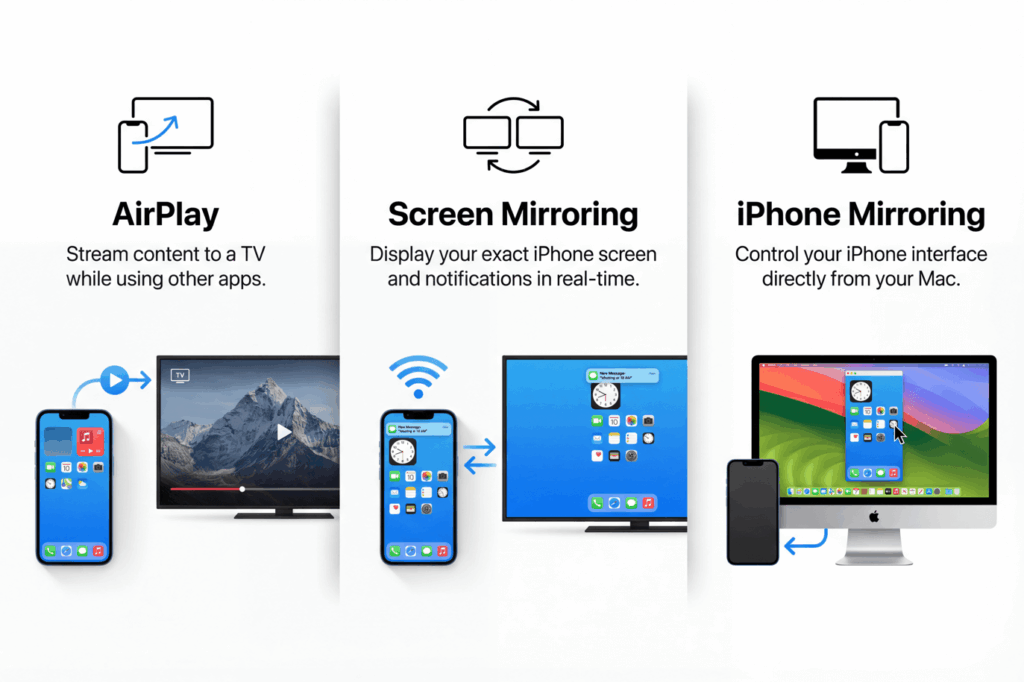
AirPlay streamt specifieke inhoud (zoals een video of nummer) naar een ander apparaat. Je telefoon blijft actief en je kunt andere dingen doen terwijl de inhoud elders wordt afgespeeld.
Scherm spiegelen dupliceert je hele scherm in realtime. Alles wat je op je iPhone ziet, verschijnt op de tv, inclusief meldingen en apps.
iPhone spiegelen (nieuw in macOS Sequoia) kun je je iPhone bedienen vanaf je Mac. Dit staat volledig los van AirPlay en heeft zijn eigen instellingen.
De onderstaande stappen richten zich op AirPlay en scherm spiegelen, die de meeste mensen willen uitschakelen. iOS 18 heeft het Control Center opnieuw ontworpen, waardoor de weergave van deze opties is veranderd, dus oudere tutorials komen mogelijk niet overeen met wat je op je scherm ziet.
2. Hoe AirPlay uitschakelen op iPhone/iPad
Een actieve AirPlay-sessie stoppen
Als er al inhoud wordt afgespeeld via AirPlay, kun je die hier stoppen:
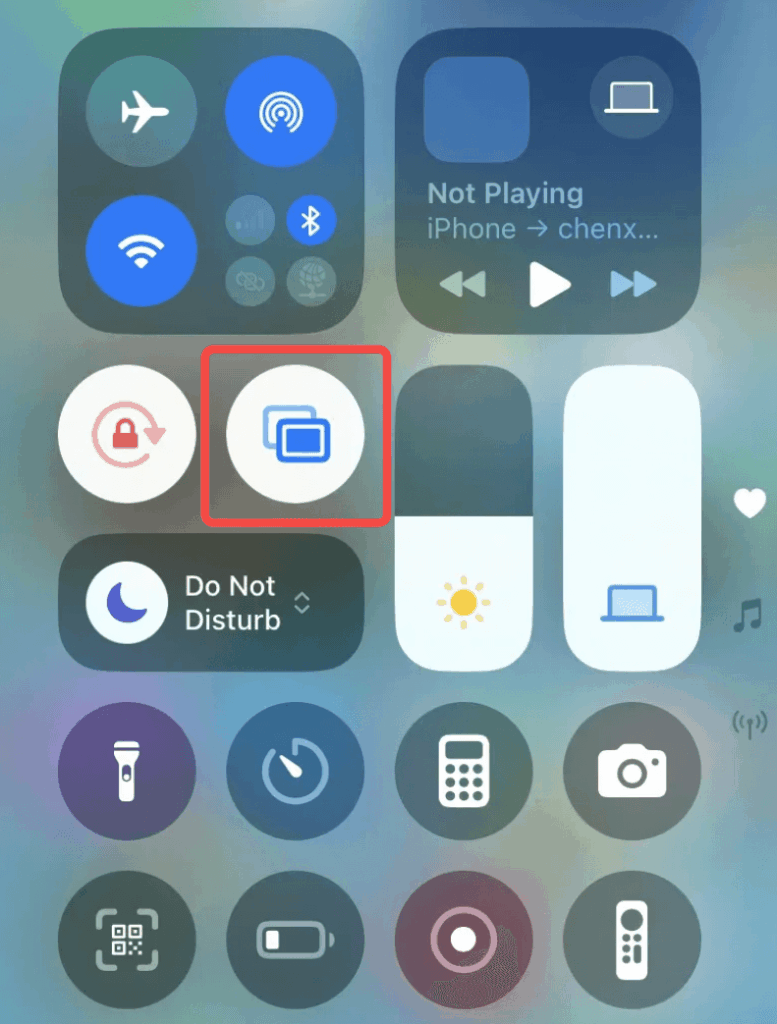
1. Veeg vanuit de rechterbovenhoek naar beneden om Control Center te openen
2. Tik op het AirPlay-pictogram (twee overlappende rechthoeken)
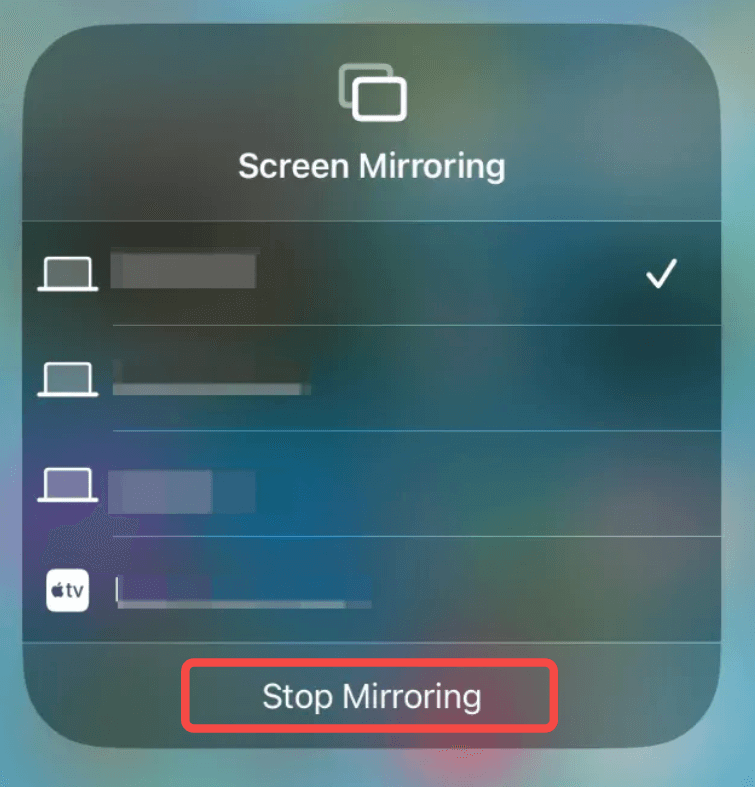
3. Tik op “Spiegelen stoppen”.”
Automatische AirPlay-verbindingen voorkomen
Dit is de instelling die de meeste mensen eigenlijk willen veranderen. Hiermee wordt voorkomen dat je iPhone automatisch verbinding maakt met AirPlay-apparaten in de buurt:
1. Open Instellingen. Tik op Algemeen.
2. Selecteer AirPlay en continuïteit.
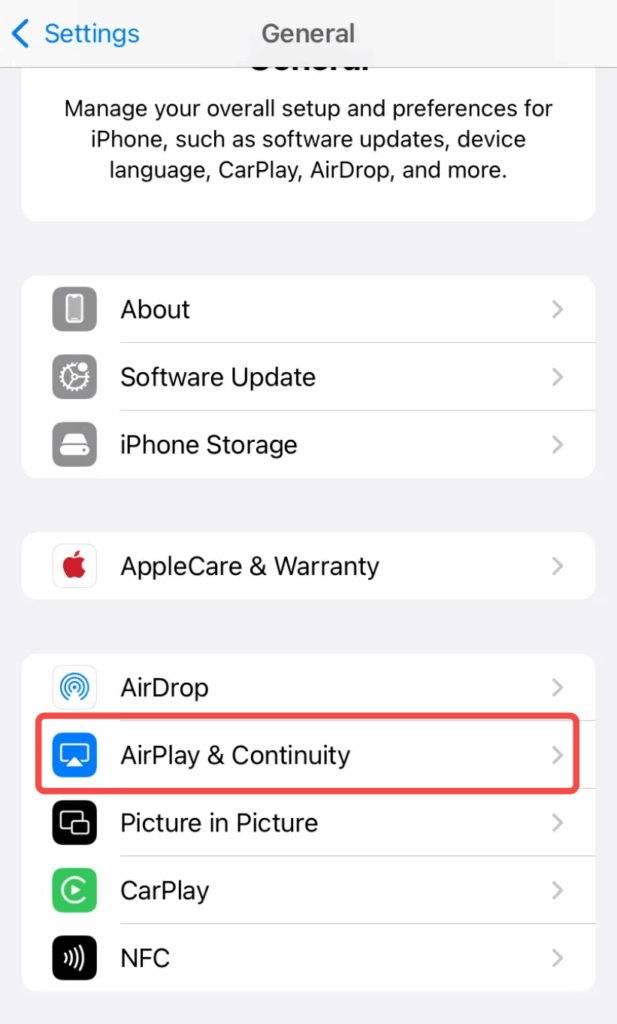
3. Tik op Automatisch AirPlay. Wijzig de instelling in Nooit
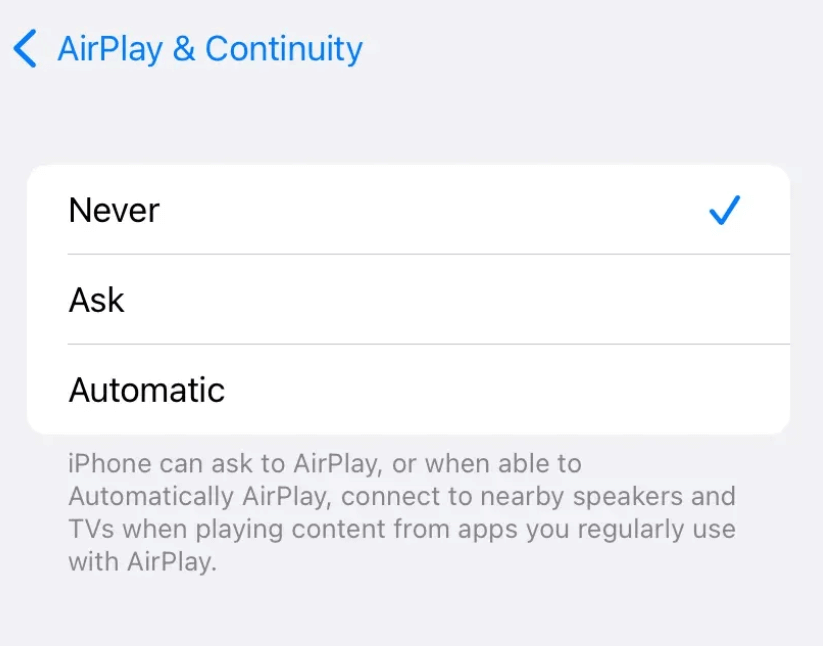
Je opties zijn:
- Automatisch: Je iPhone beslist zelf wanneer hij verbinding maakt (meestal op basis van je gewoonten)
- Vraag: Je krijgt een pop-up telkens wanneer een apparaat wordt gedetecteerd
- Nooit: AirPlay werkt alleen als je het handmatig selecteert
Als je dit instelt op “Nooit”, heb je de volledige controle. Je iPhone zal je niet verrassen door uit zichzelf verbinding te maken met apparaten.
AirPlay-besturingselementen verwijderen uit het Control Center
Met iOS 18 kun je Control Center aanpassen. Als je AirPlay nooit gebruikt, kun je de knop helemaal verwijderen:
1. Open Control Center
2. Druk lang op een lege ruimte of tik op de knop “+”.
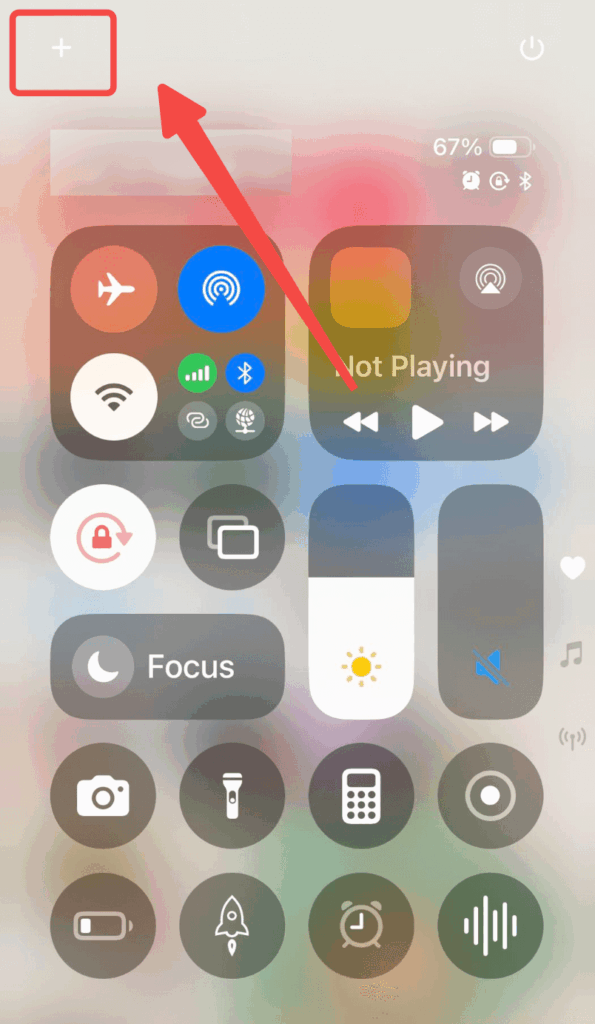
3. Zoek de tegel “Scherm spiegelen
4. Tik op de knop min (-) om het te verwijderen.
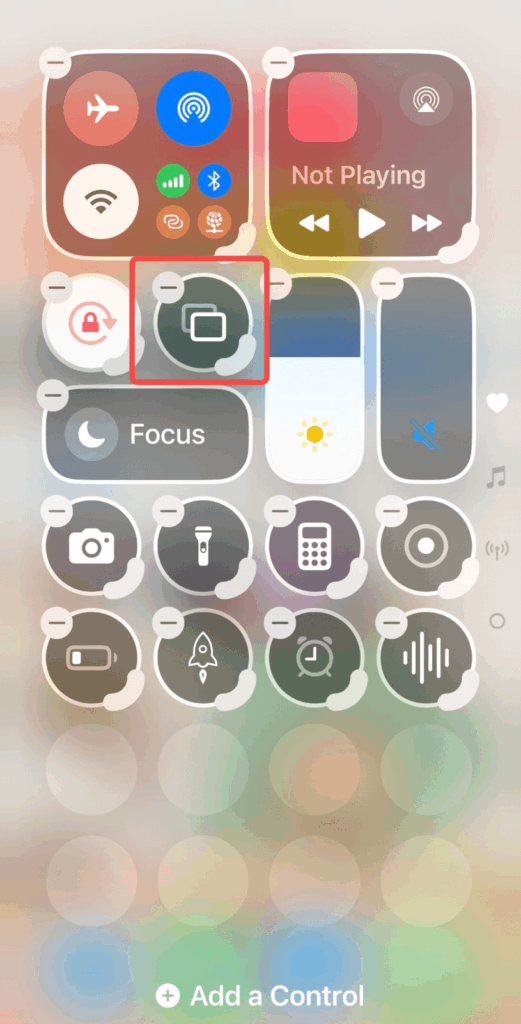
Dit schakelt de functie niet volledig uit, maar het verwijdert wel de makkelijkste manier om deze per ongeluk te activeren.
3. AirPlay uitschakelen op de Mac
Scherm spiegelen stoppen
Als je momenteel spiegelt naar een ander scherm:
1. Klik op de Controlecentrum pictogram in de menubalk (rechterbovenhoek)
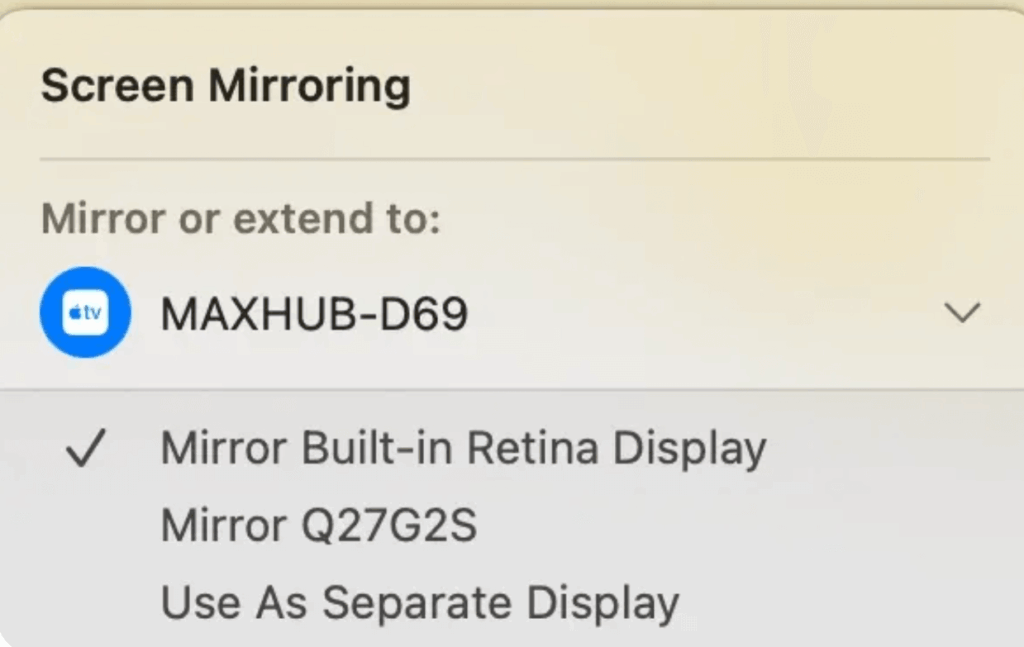
2. Klik op Scherm spiegelen
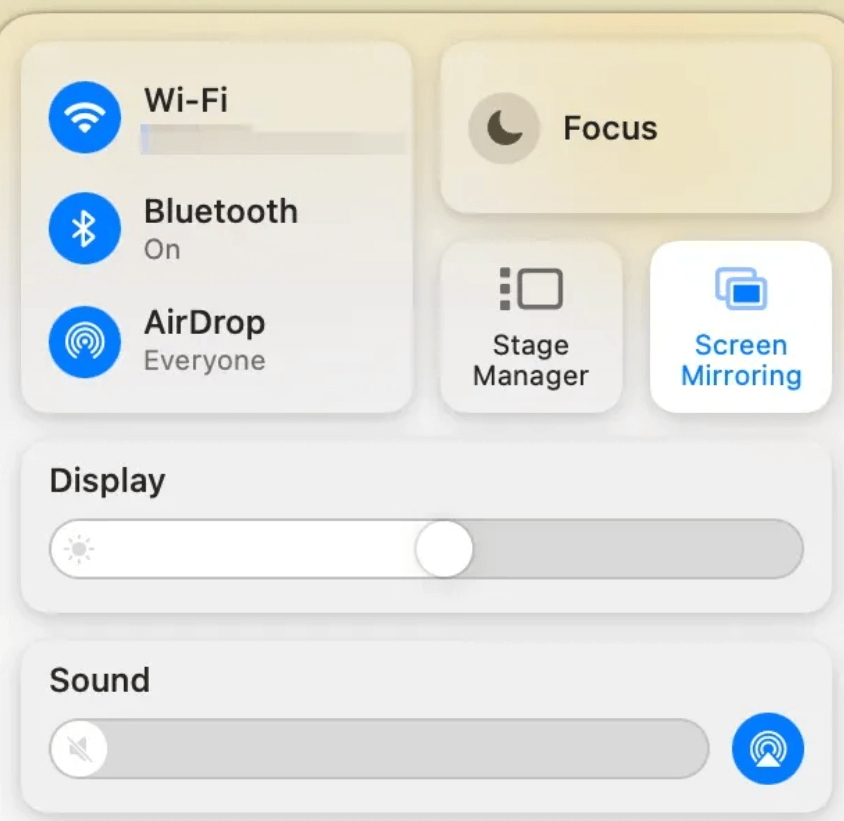
3. Klik op het apparaat waarmee je verbonden bent
AirPlay-ontvanger uitschakelen
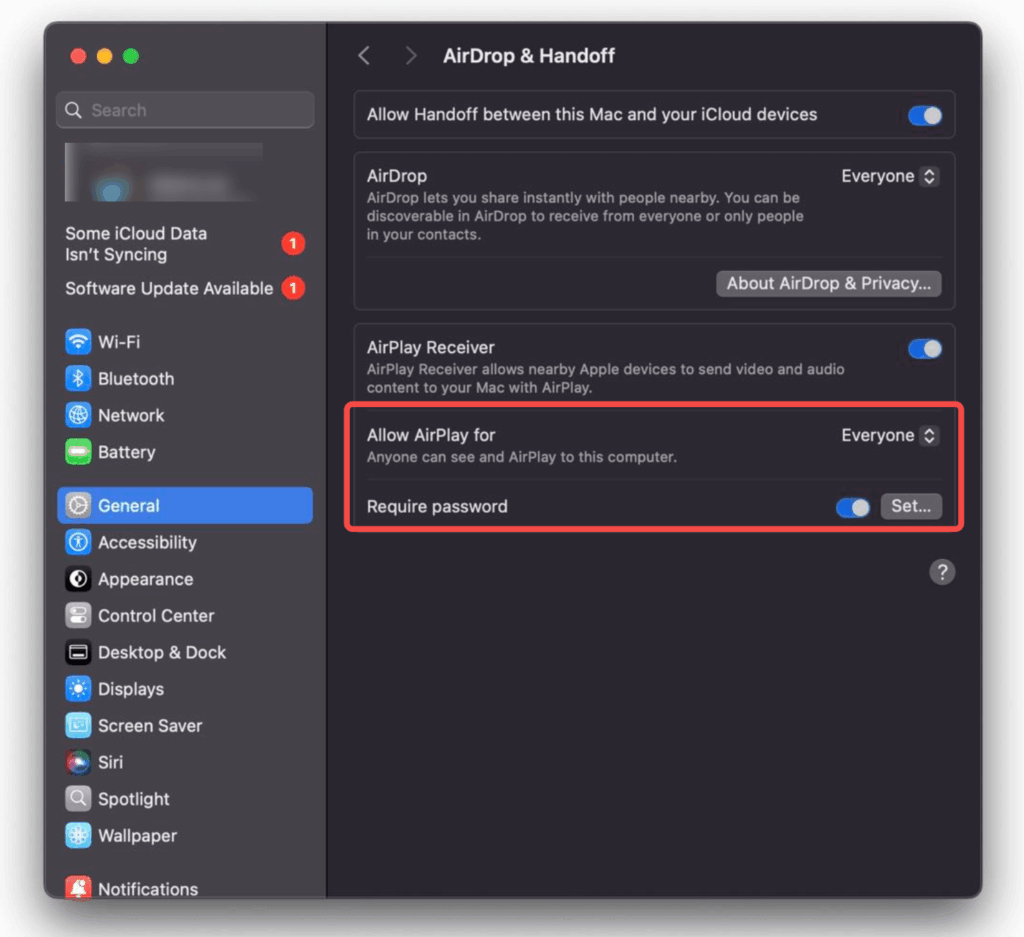
Standaard kan je Mac AirPlay-materiaal ontvangen van iPhones en iPads in de buurt. Om dit uit te schakelen:
1. Open Systeeminstellingen (of Systeemvoorkeuren op oudere versies)
2. Ga naar Algemeen
3. Selecteer AirDrop en Handoff
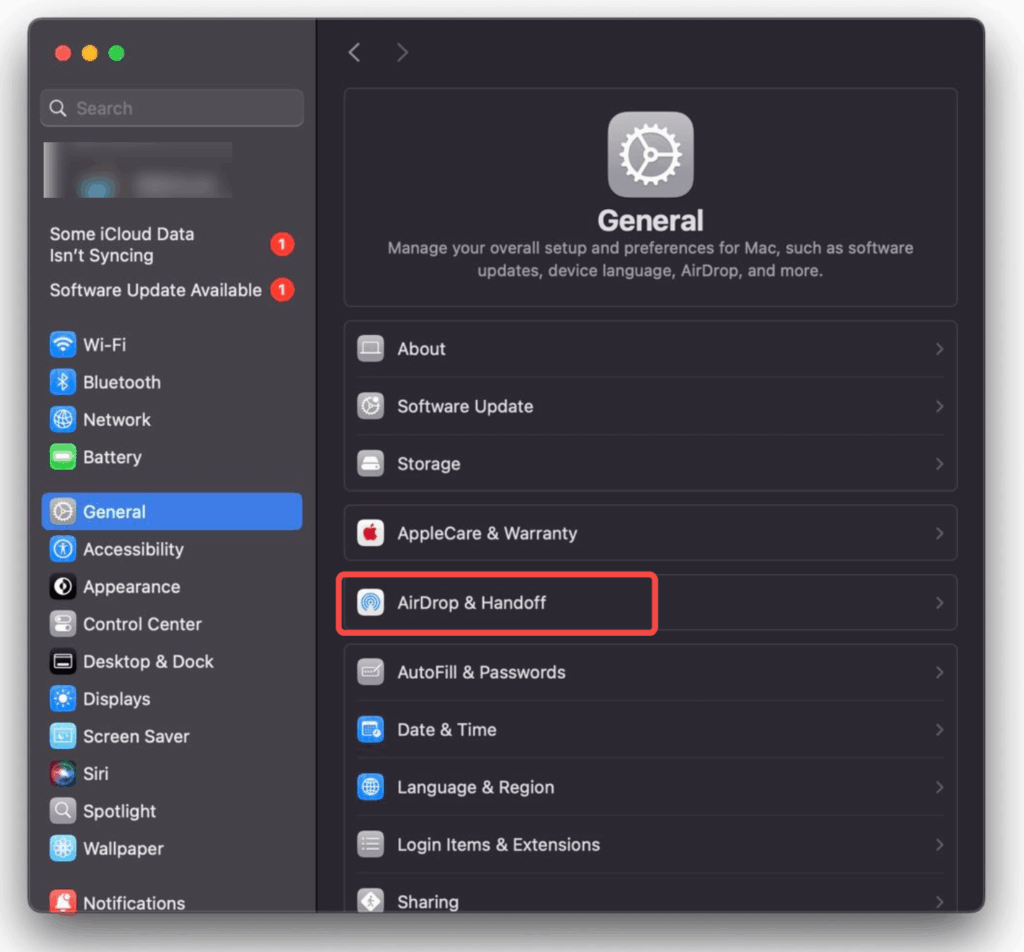
4. Uitschakelen AirPlay-ontvanger
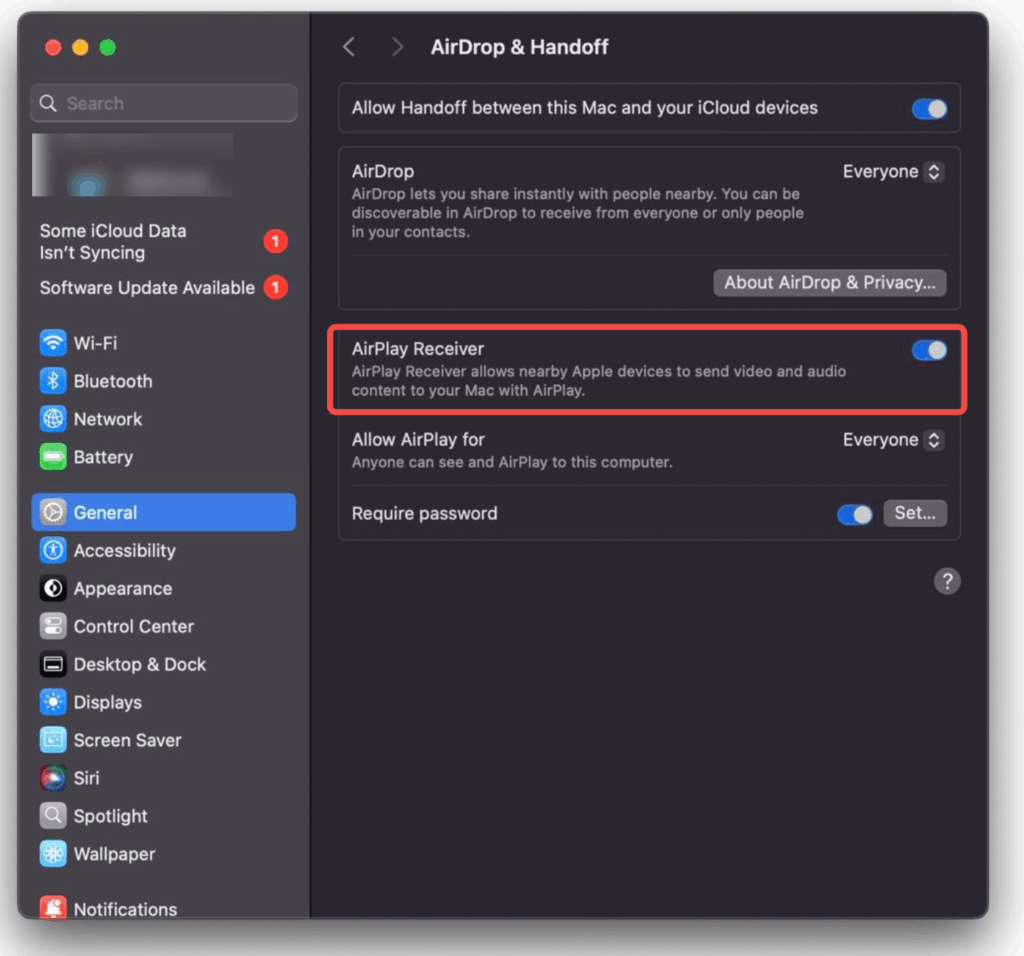
Als je het ingeschakeld wilt houden maar de beveiliging wilt verbeteren, laat het dan ingeschakeld en stel “AirPlay toestaan voor” in op “Huidige gebruiker” (alleen jouw apparaten) of schakel “Wachtwoord vereist” in zodat mensen niet zonder toestemming naar jouw Mac kunnen casten.
4. Hoe AirPlay op tv uitschakelen
Slimme tv's van grote merken ondersteunen AirPlay 2. Hier lees je hoe je het uitschakelt op de meest gangbare modellen.
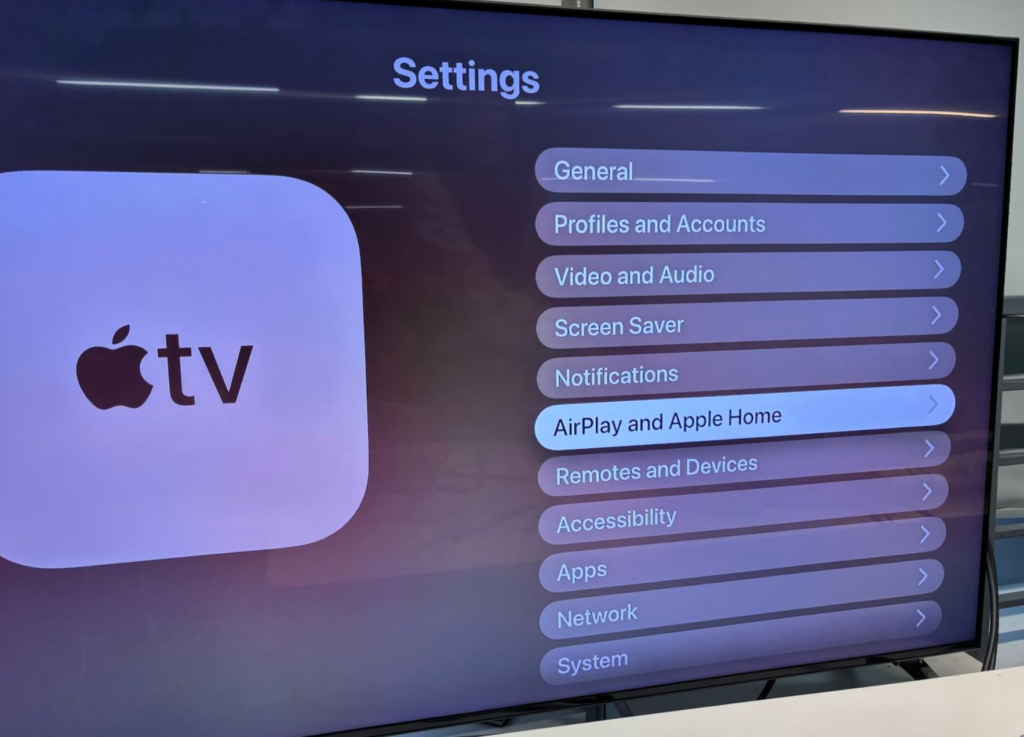
Apple TV
1. Open Instellingen
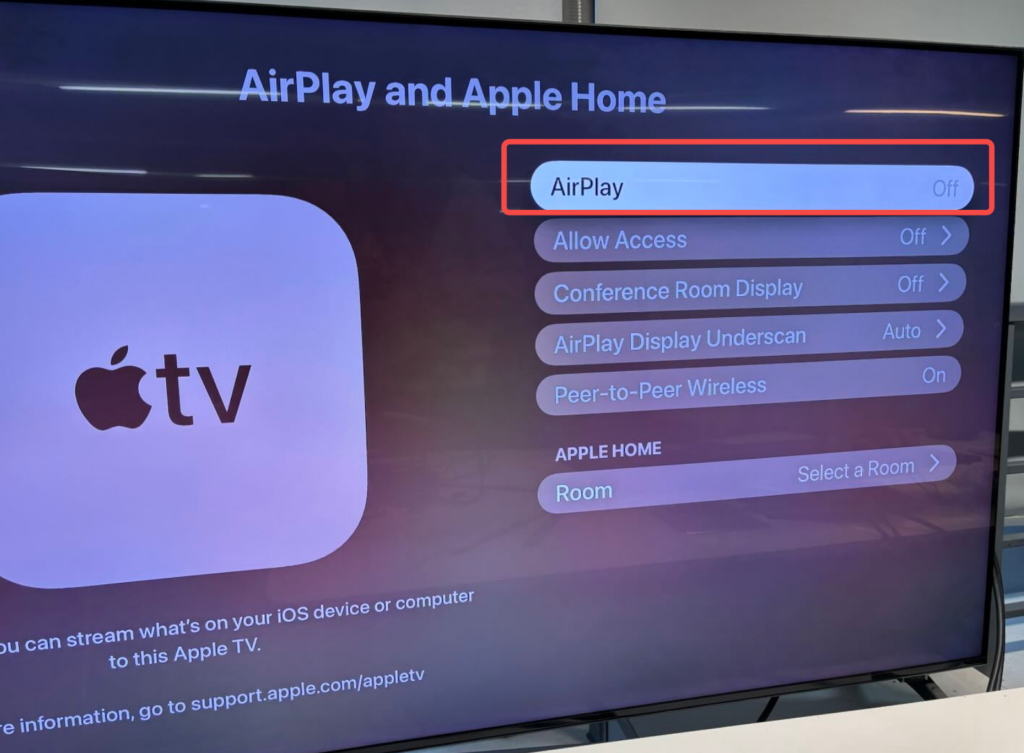
2. Selecteer AirPlay en HomeKit
3. Draai AirPlay naar Uit
Samsung TV
1. Druk op de Startpagina knop op uw afstandsbediening
2. Ga naar Instellingen > Alle instellingen
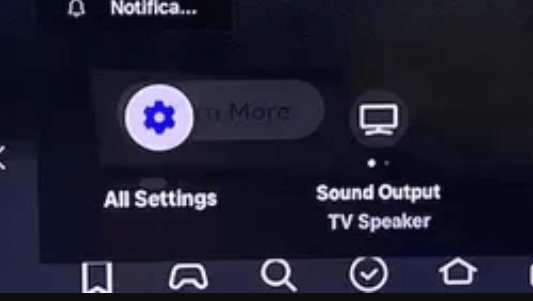
3. Selecteer Verbindingen
4. Kies Apple AirPlay-instellingen
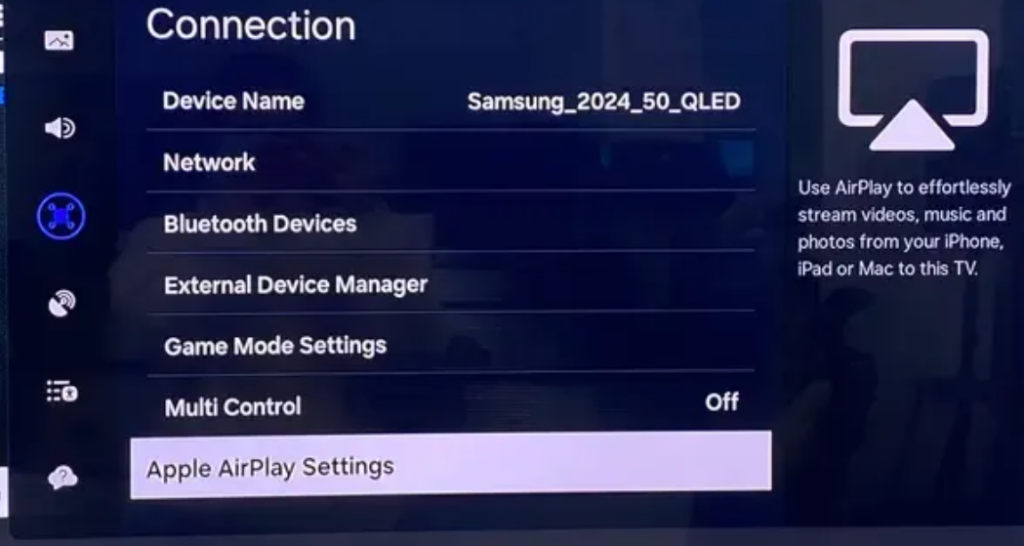
5. Stel in. AirPlay naar Uit
Als je hier toch bent, kijk dan ook eens naar Privacy-keuzes en schakel “Viewing Information Services” uit om te voorkomen dat je tv gegevens verzamelt over wat je bekijkt.
Roku TV
1. Ga naar Instellingen vanuit het beginscherm
2. Selecteer Apple AirPlay en HomeKit
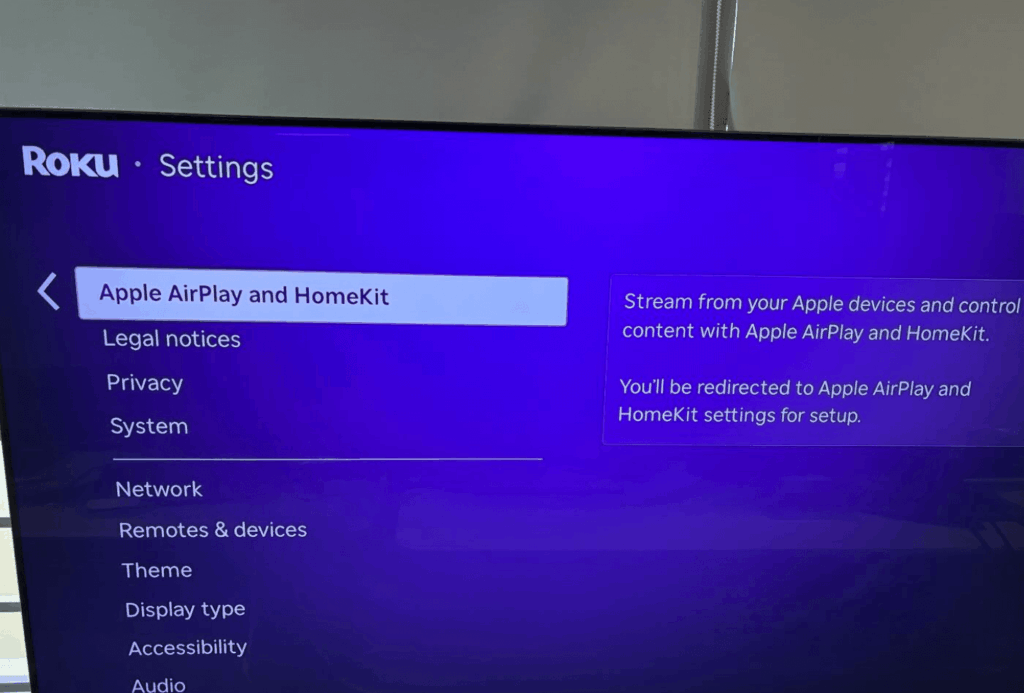
3. Wijzig AirPlay naar Uit
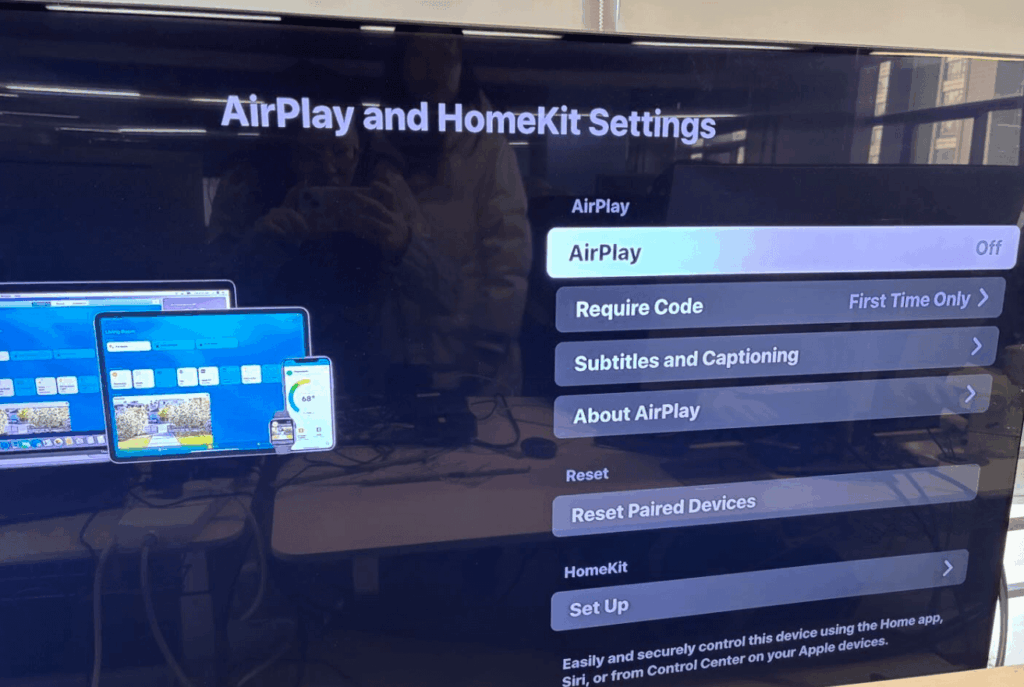
Bonustip: Ga naar Instellingen > Systeem > Stroom en schakel “Snelle tv-start” uit. Dit voorkomt dat de tv AirPlay uitzendt terwijl hij uit staat.
Je kunt AirPlay op een vergelijkbare manier uitschakelen op andere smart tv's, waaronder Sony, TCL, Hisense, LG en Vizio.
5. Hoe Apple Watch-spiegeling uitschakelen
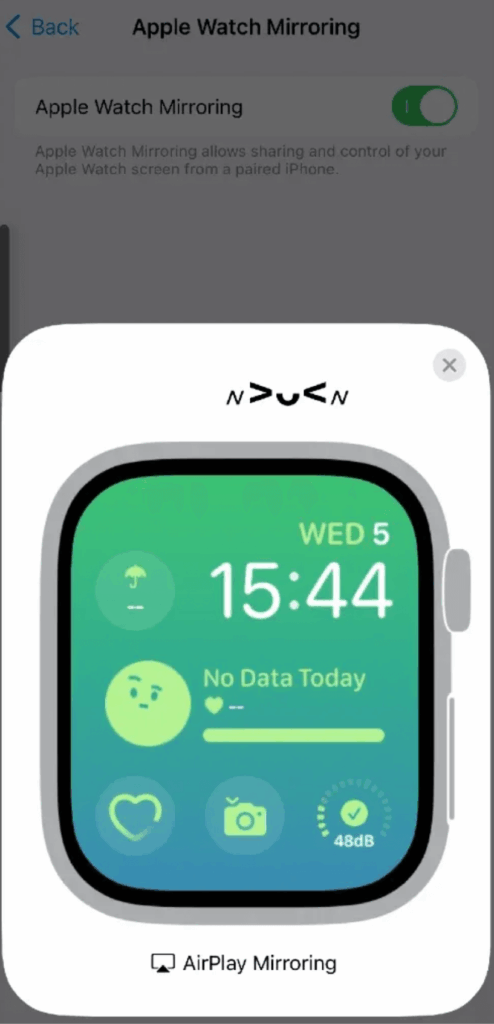
Je kunt het scherm van je Apple Watch spiegelen naar je iPhone, wat anders is dan standaard AirPlay. Om dit uit te schakelen:
1. Open op uw iPhone Instellingen
2. Ga naar Toegankelijkheid
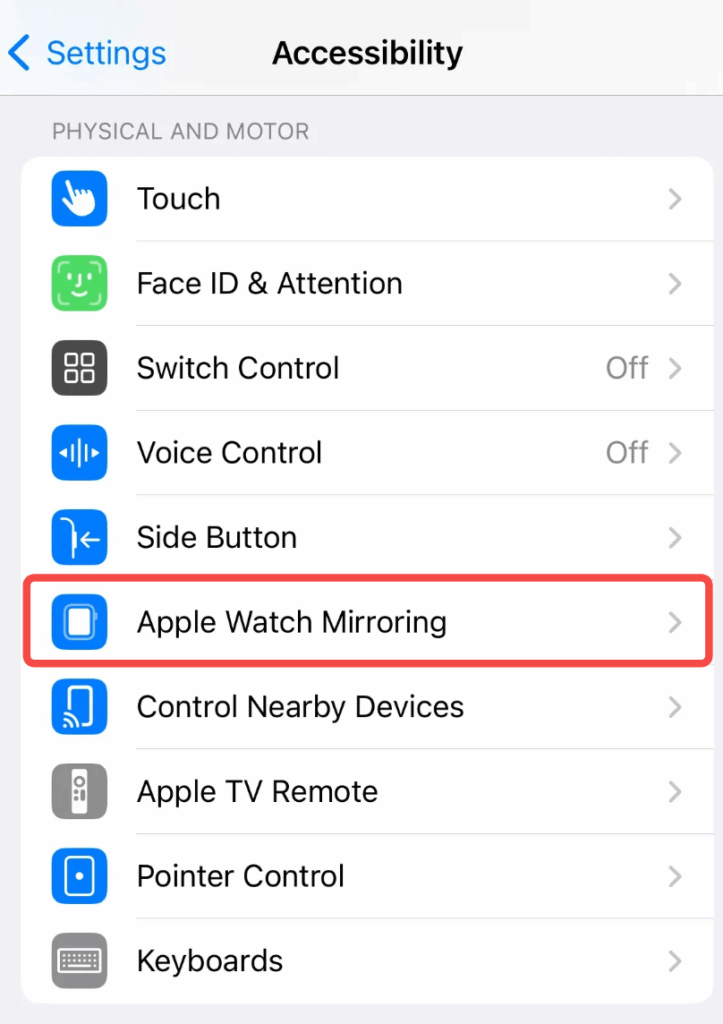
3. Selecteer Apple Watch spiegelen
4. Schakel het uit of tik op de knop “X” als het momenteel actief is.
6. Een beter alternatief: 1001 TVs
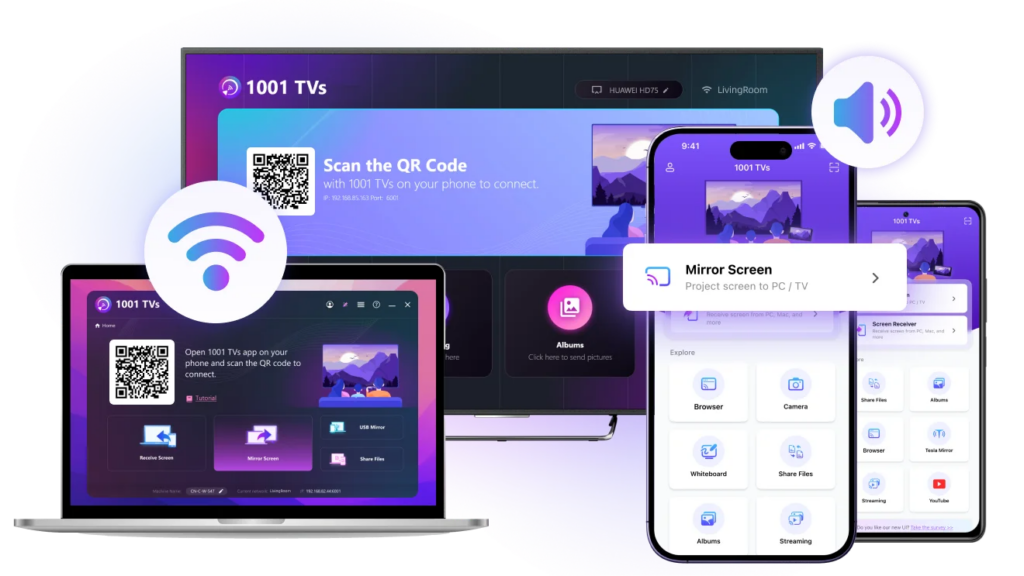
Als je nog steeds inhoud naar je TV wilt casten, maar meer controle wilt over wanneer en hoe dit gebeurt, overweeg dan om 1001 TVs te gebruiken. In tegenstelling tot AirPlay zal 1001 TVs niet automatisch verbinding maken met apparaten in de buurt of je verrassen met ongewenste verbindingen. Je start elke schermdelingssessie handmatig, waardoor je volledige controle hebt.
👉Downloaden 1001 TVs 👈

1001 TVs werkt op meerdere apparaten en vereist geen ingewikkeld instellingenbeheer. Het is vooral handig als je moeite hebt met het automatische verbindingsgedrag van AirPlay of als je wilt casten vanaf apparaten in je huishouden die niet van Apple zijn.
7. Inpakken
AirPlay kan ontzettend handig zijn, maar het moet je niet tegenwerken door verbinding te maken wanneer je dat niet wilt. De belangrijkste instellingen om te onthouden zijn:
1. Stel in. Automatisch AirPlay op “Nooit” op je iPhone/iPad (Instellingen > Algemeen > AirPlay & Continuïteit)
2. Zet uit AirPlay-ontvanger op je Mac als je niet wilt dat andere apparaten ernaar casten
3. Schakel uit. AirPlay in de instellingen van uw tv om te voorkomen dat een apparaat wordt aangesloten.
Vergeet niet dat het uitschakelen van AirPlay in Control Center alleen de huidige sessie verbreekt. Om automatische verbindingen echt te voorkomen, moet je de instellingen in de Instellingen-app wijzigen.
Als je nog steeds AirPlay-besturingselementen of verbindingen ziet nadat je deze wijzigingen hebt aangebracht, probeer dan je apparaten opnieuw op te starten. Soms heeft iOS een nieuwe start nodig om nieuwe instellingen goed toe te passen. En als je regelmatig in de clinch ligt met het automatische gedrag van AirPlay, kan overstappen op een alternatief zoals 1001 TVs je een hoop frustratie besparen.