2026年にiPhoneからWindows PCへファイルを転送する方法:5つの方法

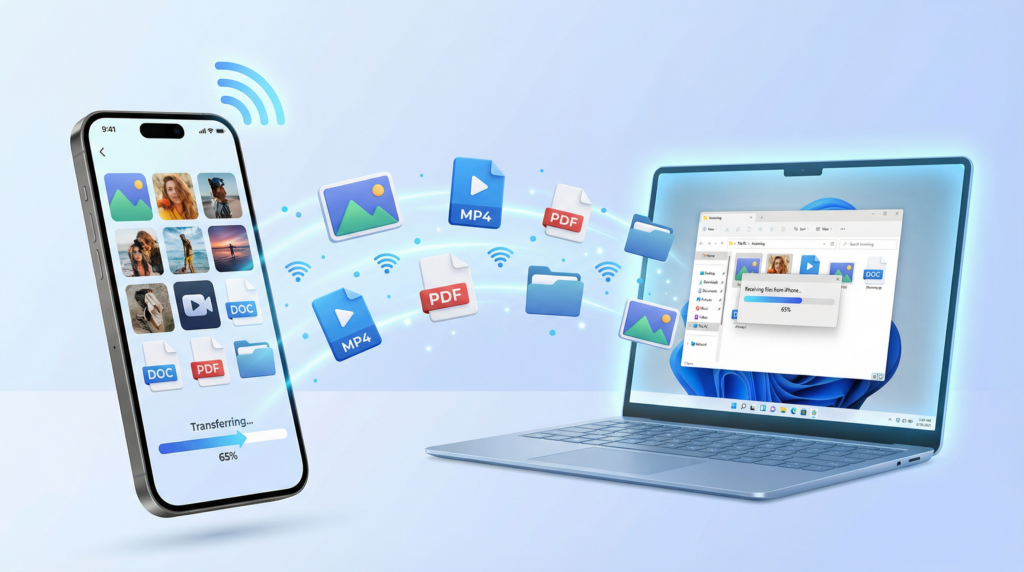
AirDrop does not work with Windows, but that does not mean every transfer needs a workaround.
Start with the file itself. A USB cable works well for photos and videos in your Camera Roll. For documents, large videos, or a mix of file types, a local wireless option such as 1001 TVs avoids both the cable and a cloud upload. Phone Link is worth checking on supported Windows 11 PCs, while iCloud and Apple Devices cover files stored in specific places.
These options generally work with an iPad too.
Choose the right iPhone-to-Windows transfer method
Where the file is stored matters more than its extension. A video in Photos, a PDF in Files, and a document saved inside another app may need different transfer routes.
| こんな方に最適 | 方法 | 重要な制限事項 |
| Mixed file types, large videos, and local wireless transfer | 1001 TVs | Both devices need the app and must be on the same local network |
| An iPhone already connected to a Windows 11 PC | Phone Link / mobile device in Start | File sharing is still rolling out and may not appear on every PC |
| Camera Roll photos and videos | USB + Windows Photos | Does not expose every file stored on the iPhone |
| Photos or documents already syncing through iCloud | iCloud for Windows | Depends on cloud storage, internet speed, and sync progress |
| Documents saved inside compatible apps | Apple Devices | Only works with apps that support File Sharing |
Method 1: Transfer different file types wirelessly with 1001 TVs
When you regularly move more than Camera Roll photos, connecting a cable for every transfer gets old quickly. Uploading a large video to the cloud just to download it again on the PC may not fit the job either. In that situation, 1001 TVs can send photos, videos, and documents directly between devices on the same local network.
- Install and open 1001 TVs on the iPhone and Windows PC.
- 両方のデバイスを同じWi-Fiネットワークに接続する。
- On the iPhone, open ファイル共有, then tap 送信.
- Select the PC from the device list. If it does not appear, scan the QR code displayed by 1001 TVs on the computer.
- Choose the files and send them.
- オープン 受け取る on the PC to view the files or open their folder in File Explorer.
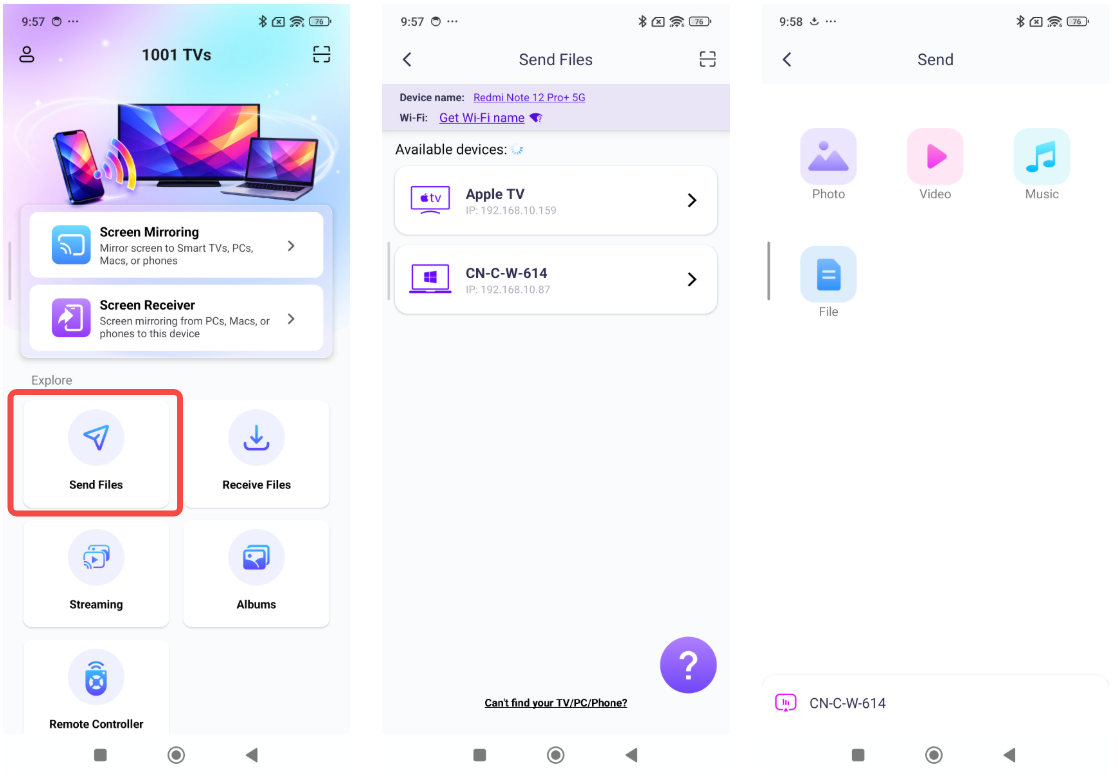
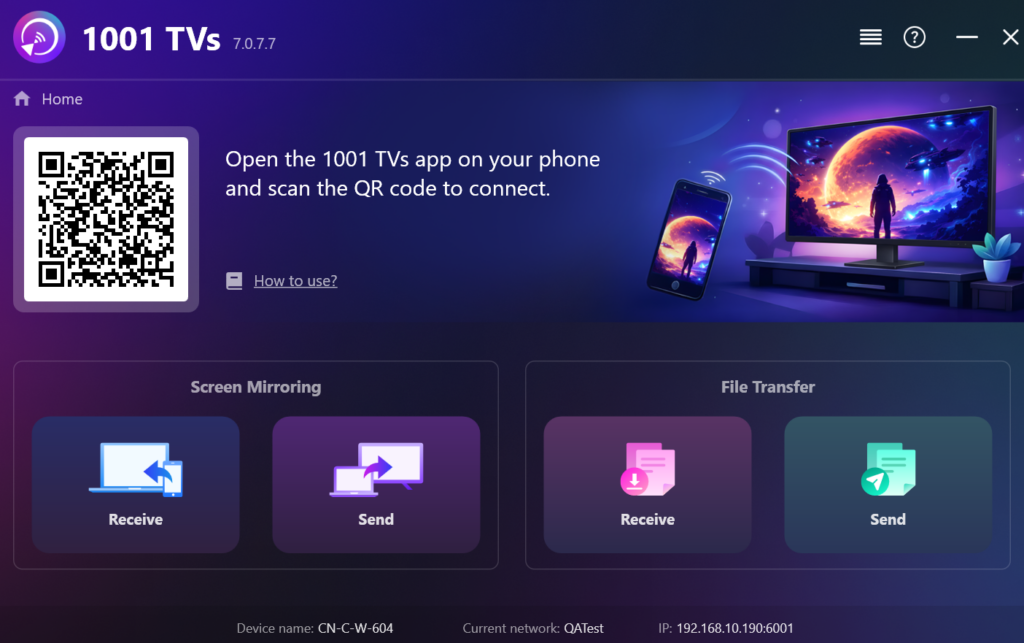
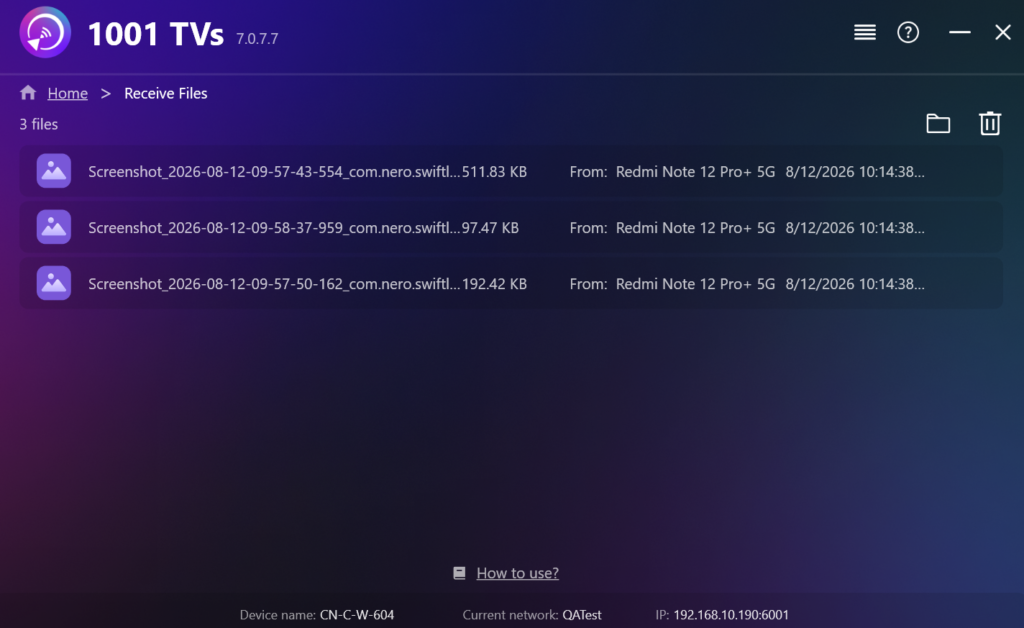
Keep the receiving computer online until the transfer finishes. A stable Wi-Fi connection also matters more when you are sending a large video. If the two devices do not find each other automatically, the QR-code pairing path in the iPhone file-transfer tutorial avoids searching the device list again.
Method 2: Check Phone Link on Windows 11
If your iPhone is already paired with a Windows 11 PC, check the Start menu before setting up another service. Some PCs now show an iPhone file-sharing option in the mobile-device panel.
Open Start and look for your connected phone. If it is not paired yet, select iPhone and follow the setup prompts. On PCs that have received the feature, the panel includes ファイルを送信. Select it and follow the prompts shown on the PC and iPhone.
The file button may be missing even when calls and messages already work through Phone Link. The current setup requires Windows 11, a supported Phone Link version, a Microsoft account, and an iPhone connection using Bluetooth Low Energy. The feature is still being rolled out, so availability depends on the Windows version and Phone Link setup.
Method 3: Import Camera Roll photos and videos with USB
If everything you need is in Photos, try the cable first. You do not need to route a batch of vacation photos or recorded clips through another transfer service. The cable must support data, though; a charge-only cable will not let Windows import anything.
- Install or update Apple Devices from the Microsoft Store.
- Connect the iPhone to the PC with a USB or USB-C cable.
- Unlock the iPhone and tap Trust または 許可する if prompted.
- Open the Photos app in Windows.
- 選択 Import, choose the iPhone, and pick the items and destination folder.
- Wait for the import to finish before disconnecting the phone.
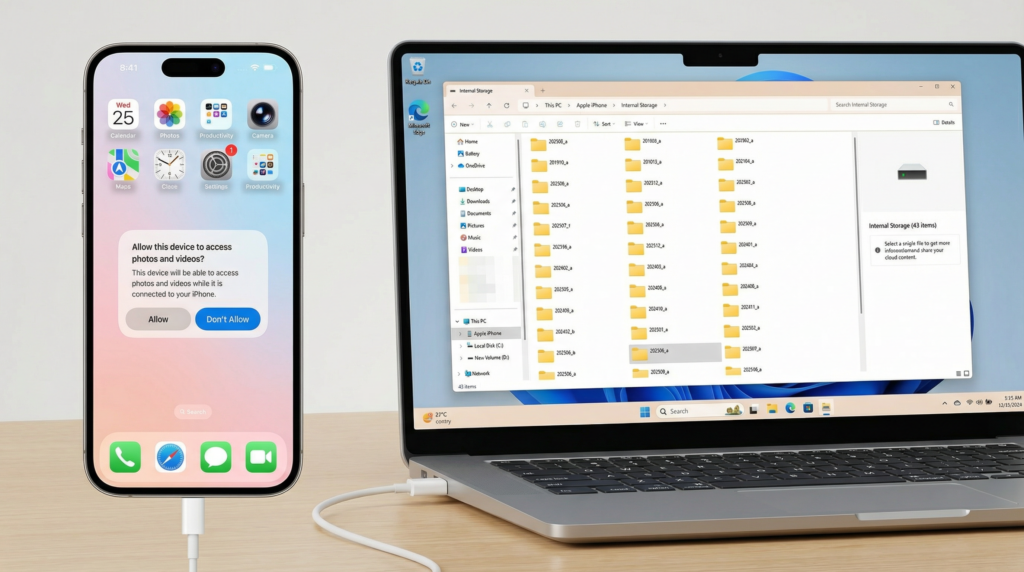
This method is designed for photos and videos. It does not turn the iPhone into a normal external drive or provide access to everything under On My iPhone. When iCloud Photos is enabled, the original, full-resolution items must be available on the iPhone before Windows Photos can import them.
Method 4: Use iCloud for files that already sync
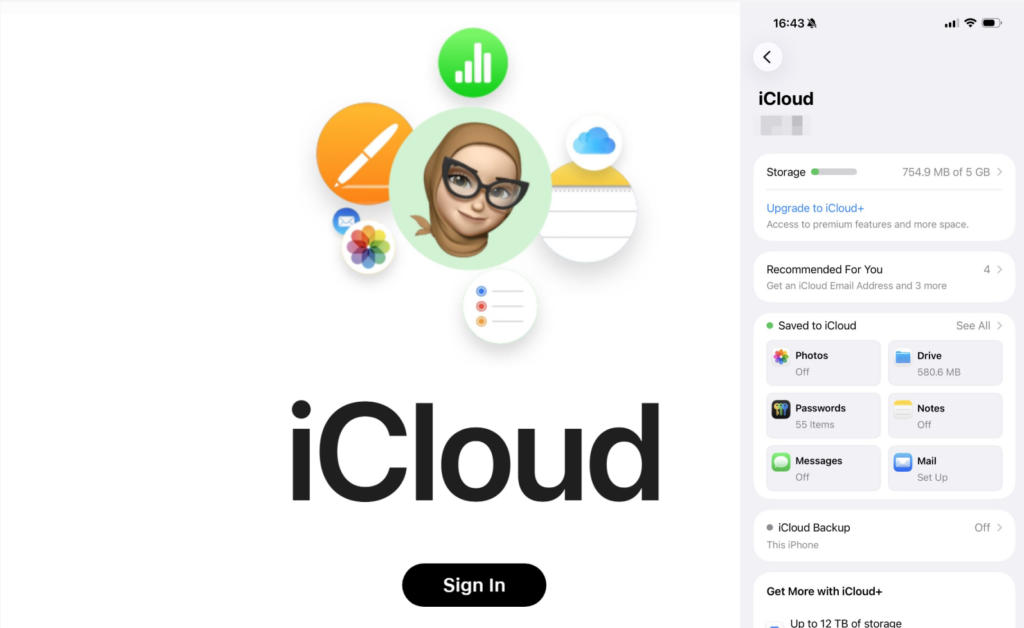
When a file is already in iCloud, let the existing sync do the work. The iPhone uploads the item, and Windows accesses the same cloud copy, so there is no separate phone-to-PC connection to manage.
For photos and videos, enable iCloud Photos on the iPhone, install iCloud for Windows, and sign in with the same Apple Account. The synced library will then appear through the iCloud Photos integration in Windows.
For a document, save it to iCloud Drive from the Files app. Once the upload finishes, open iCloud Drive in File Explorer and copy the document to the folder you want.
This is less convenient when the upload has not started, the account is short on storage, or the network is slow. Check the sync status on the iPhone before assuming the file should already be visible on the PC.
Method 5: Copy documents from compatible apps with Apple Devices
Some documents live inside an iPhone app rather than Photos, iCloud Drive, or a general Files folder. Apple Devices can copy those documents when the app supports Apple’s File Sharing feature.
- Connect the iPhone by USB and open Apple Devices.
- Select the iPhone, then open ファイル.
- Choose the app that contains the document.
- To copy from iPhone to Windows, select the file, click Save, and choose a folder on the PC.
- To copy from Windows to the app, click Add File and select the file on the PC.
もし ファイル does not appear, the iPhone may not have an app that supports File Sharing. This method does not expose the whole On My iPhone area, and a document added to one app may not be available in another. Apple Devices supports both transfer directions only through compatible apps.
If the iPhone-to-Windows transfer isn’t working
- USB: Unlock the iPhone and reconnect it, then respond to the Trust または 許可する prompt. Try another port or a confirmed data cable if Windows still cannot see the phone.
- Wireless: Finish pairing before selecting files. With 1001 TVs, keep both devices on the same Wi-Fi network and leave the receiving app open. Check Windows Firewall if the devices cannot find each other.
- iCloud: Confirm that the upload has finished, both devices use the same Apple Account, and enough cloud and local storage are available. Download originals to the iPhone before attempting a USB import.
Choose the transfer route that fits the file you need to move now; there is no reason to configure all five. If mixed file types or large videos are a regular part of your workflow, setting up 1001 TVs on both devices once gives you a local wireless option for the next transfer.